

Put both Soundcore earbuds in pairing mode, then select them from your phone’s Bluetooth settings.
Learning how to connect Soundcore earbuds is simple once you know the correct order. I have tested this process across Soundcore Life, Liberty, and Space models, and most connection problems come from pairing mode, battery level, or an old Bluetooth record. This guide explains each step clearly, plus what to do when your earbuds refuse to connect.
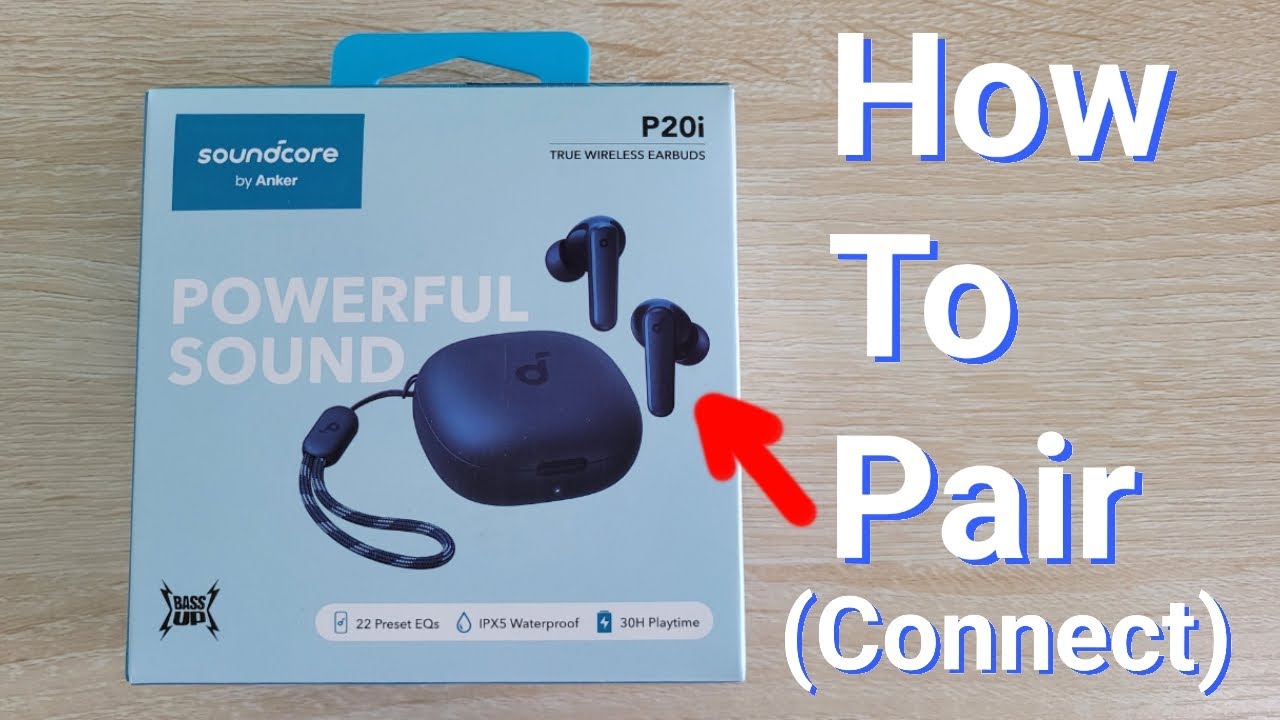
How to connect Soundcore earbuds for the first time
Soundcore earbuds usually connect through Bluetooth. Before you begin, charge the earbuds and charging case for a few minutes. A low battery can stop the earbuds from entering pairing mode.
Follow these steps:
- Place both earbuds inside the charging case.
- Leave the case open.
- Remove the earbuds from the case.
- Press and hold the button on the case, if your model has one.
- Wait for the LED indicator to flash white or blue.
- Open Bluetooth settings on your phone.
- Look for your Soundcore model, such as “Soundcore Liberty 4 NC” or “Soundcore Life P3.”
- Tap the model name to connect.
The first connection may take a few seconds. After pairing, the earbuds should connect automatically when you remove them from the case.
If your earbuds do not appear, place them back in the case. Close the lid, wait about 10 seconds, and try again. This small reset often works like turning a key twice when a lock sticks.

How to connect Soundcore earbuds to an Android phone
Android phones use a similar Bluetooth process, although menu names may vary by brand. Samsung, Google Pixel, OnePlus, and Motorola phones may show slightly different options.
- Open the Settings app.
- Select Connected devices, Connections, or Bluetooth.
- Turn Bluetooth on.
- Tap Pair new device if your phone does not scan automatically.
- Take the Soundcore earbuds out of the charging case.
- Select your earbuds when they appear on the list.
- Tap Pair or Connect.
Some Android phones show a fast pairing message. If this appears, tap Connect and follow the on-screen steps.
For the smoothest setup, keep the earbuds close to your phone. Bluetooth normally works across several feet, but walls, laptops, smart watches, and other wireless devices can add interference.
If the earbuds connect but sound still comes from the phone speaker, open the Bluetooth device menu. Make sure the Media audio option is enabled. You can also raise the media volume on both the phone and the earbuds.

How to connect Soundcore earbuds to an iPhone or iPad
Connecting Soundcore earbuds to an iPhone or iPad takes less than a minute in most cases. Apple devices use a simple Bluetooth menu, but the earbuds must be discoverable first.
- Open Settings on your iPhone or iPad.
- Tap Bluetooth.
- Turn Bluetooth on.
- Open the Soundcore charging case.
- Remove both earbuds.
- Wait for the Soundcore name to appear under Other Devices.
- Tap the name to pair.
After the first connection, the earbuds should appear under My Devices. If the status says Not Connected, tap the name again.
The Soundcore app can add useful controls after pairing. Depending on the model, you may use it to adjust the equalizer, update firmware, change touch controls, or turn noise cancellation on and off.
A useful tip from regular setup testing: pair the earbuds through the iPhone’s Bluetooth menu first. Then open the Soundcore app. Trying to connect through the app before Bluetooth pairing can sometimes create confusion.

How to connect Soundcore earbuds to a Windows PC
Soundcore earbuds can work well for music, video calls, and gaming on a Windows computer. However, the computer must have Bluetooth support.
Windows 11
- Open Settings.
- Select Bluetooth & devices.
- Turn Bluetooth on.
- Click Add device.
- Choose Bluetooth.
- Put the Soundcore earbuds into pairing mode.
- Select the earbuds from the list.
- Click Done.
Windows 10
- Open Settings.
- Select Devices.
- Choose Bluetooth & other devices.
- Turn Bluetooth on.
- Click Add Bluetooth or other device.
- Select Bluetooth.
- Choose your Soundcore earbuds.
Windows may list the earbuds as headphones rather than earbuds. That is normal.
For calls, open the sound settings and select the Soundcore earbuds as both the input and output device. If you hear music but the microphone does not work, Windows may be using the computer’s built-in microphone instead.
Bluetooth headsets can also show two audio modes: stereo and hands-free. Stereo mode usually sounds better for music, while hands-free mode supports microphone use during calls.
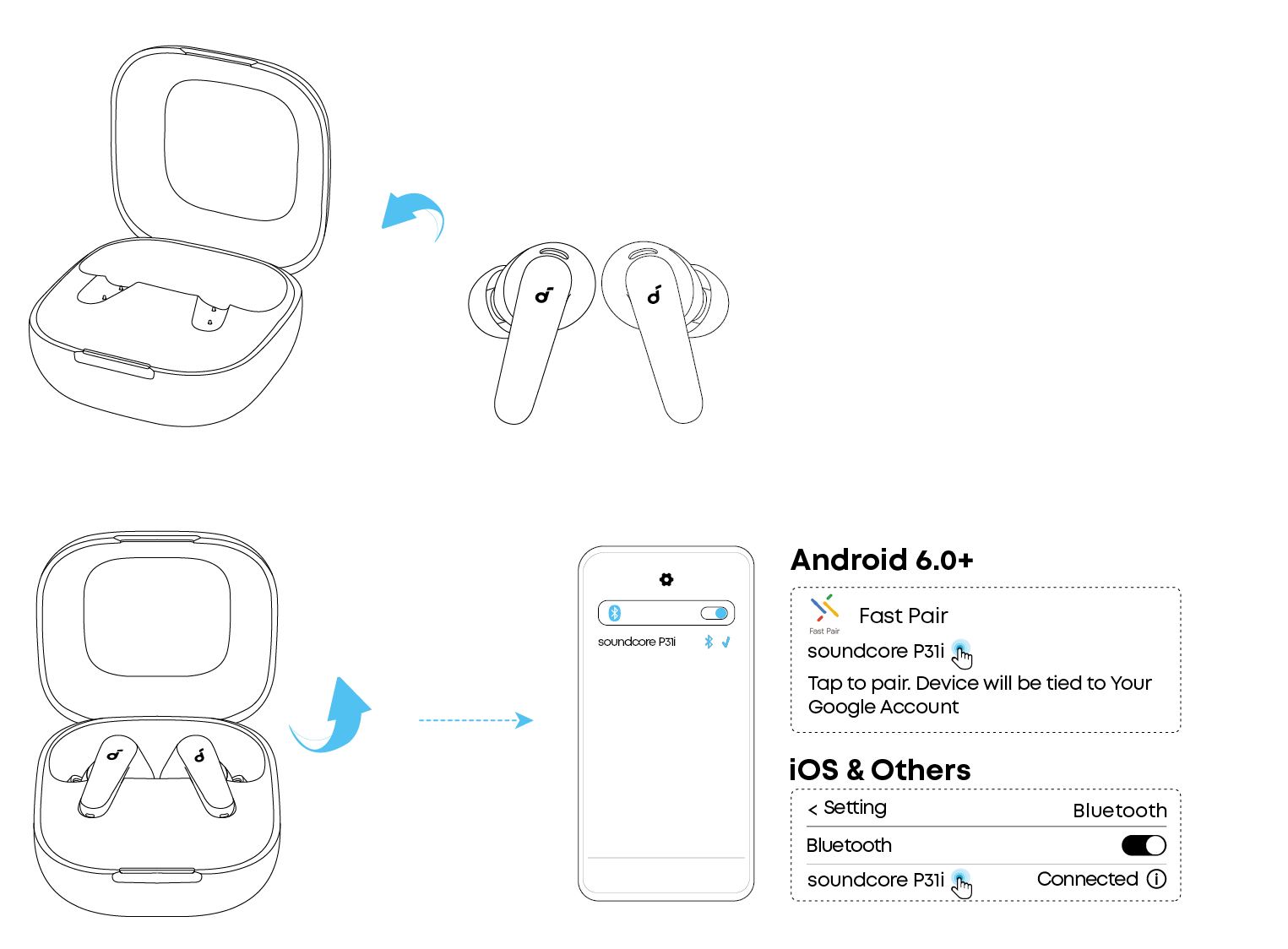
How to connect Soundcore earbuds to a Mac
The process on a Mac is quick and similar to the iPhone method.
- Click the Apple menu.
- Open System Settings.
- Select Bluetooth.
- Turn Bluetooth on.
- Put the earbuds into pairing mode.
- Find the Soundcore model in the device list.
- Click Connect.
On older macOS versions, open System Preferences and select Bluetooth instead.
If the earbuds connect but audio plays through the Mac speakers, click the Control Center icon in the menu bar. Select Sound, then choose the Soundcore earbuds.
For video calls, check the microphone setting in the meeting app. Zoom, Google Meet, Microsoft Teams, and FaceTime may each remember a different audio device.

How to connect Soundcore earbuds to a second device
Many Soundcore models support multipoint Bluetooth. This feature lets the earbuds stay connected to two devices, such as a phone and a laptop. Not every model supports multipoint, so check your model’s manual or the Soundcore app.
To connect a second device:
- Connect the earbuds to the first device.
- Place them into pairing mode again.
- Open Bluetooth settings on the second device.
- Select the Soundcore earbuds.
- Confirm the connection.
Some models require multipoint to be enabled in the Soundcore app. Look for a setting called Dual Connections or Multipoint Connection.
A common limitation is that the earbuds may play sound from only one device at a time. For example, music from a laptop may pause when a phone call arrives. This is normal behavior and helps the earbuds manage two Bluetooth signals.
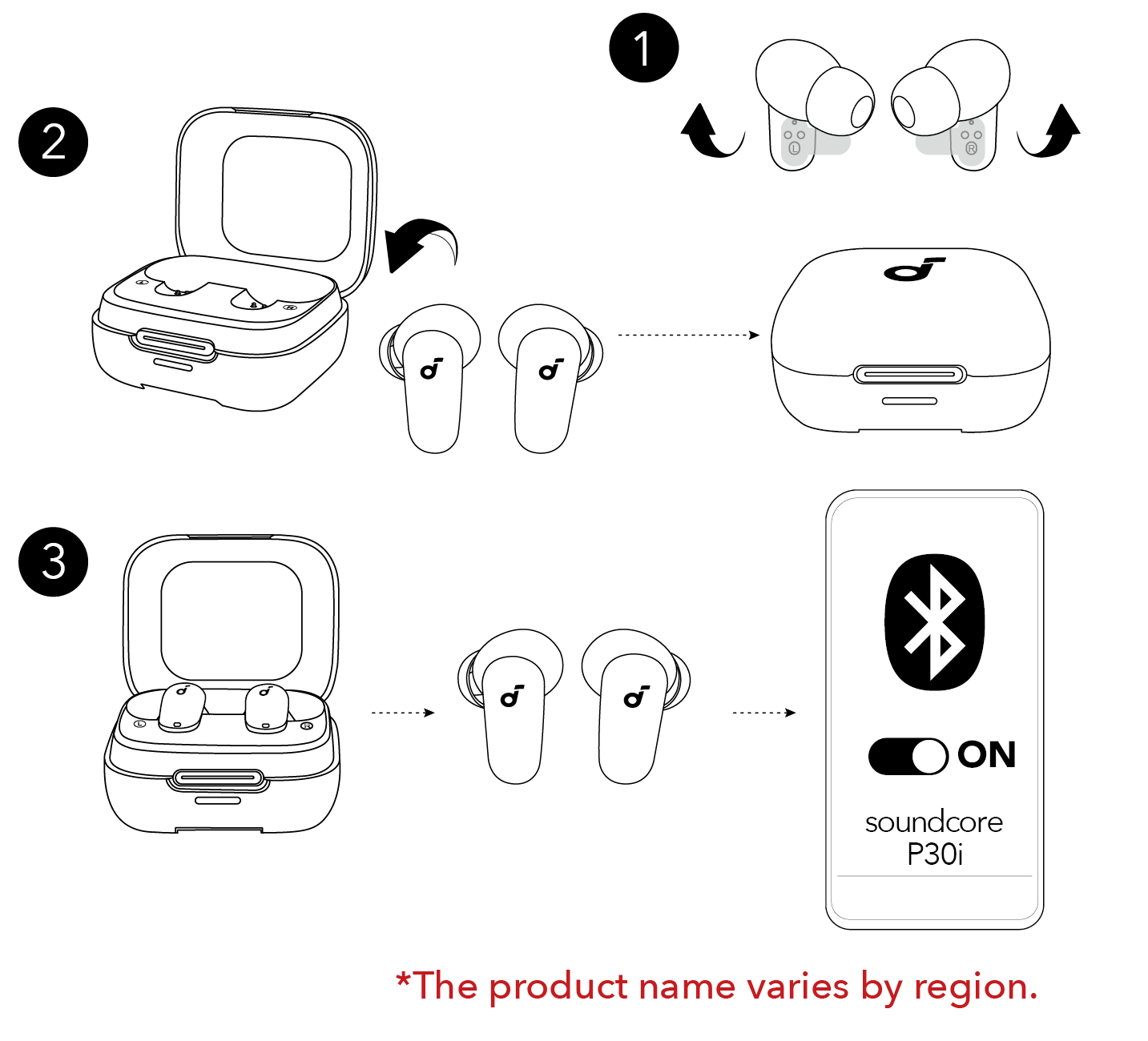
How to connect Soundcore earbuds when they are not showing up
If your Soundcore earbuds do not appear in Bluetooth settings, start with the simple checks. Confirm that Bluetooth is on and that the earbuds have enough charge. Also move away from other phones or computers that may connect to them automatically.
Try these steps:
• Put both earbuds in the case and close the lid.
• Wait 10 to 15 seconds.
• Open the lid and remove the earbuds.
• Press and hold the case button until the LED flashes.
• Refresh the Bluetooth device list.
• Keep the phone within a few feet of the earbuds.
The earbuds may already be connected to another device. Turn Bluetooth off on nearby phones, tablets, or computers, then search again.
Another common issue is a saved Bluetooth record. Your phone may remember the earbuds but fail to complete the connection. In this situation, forget the old device and pair it again.
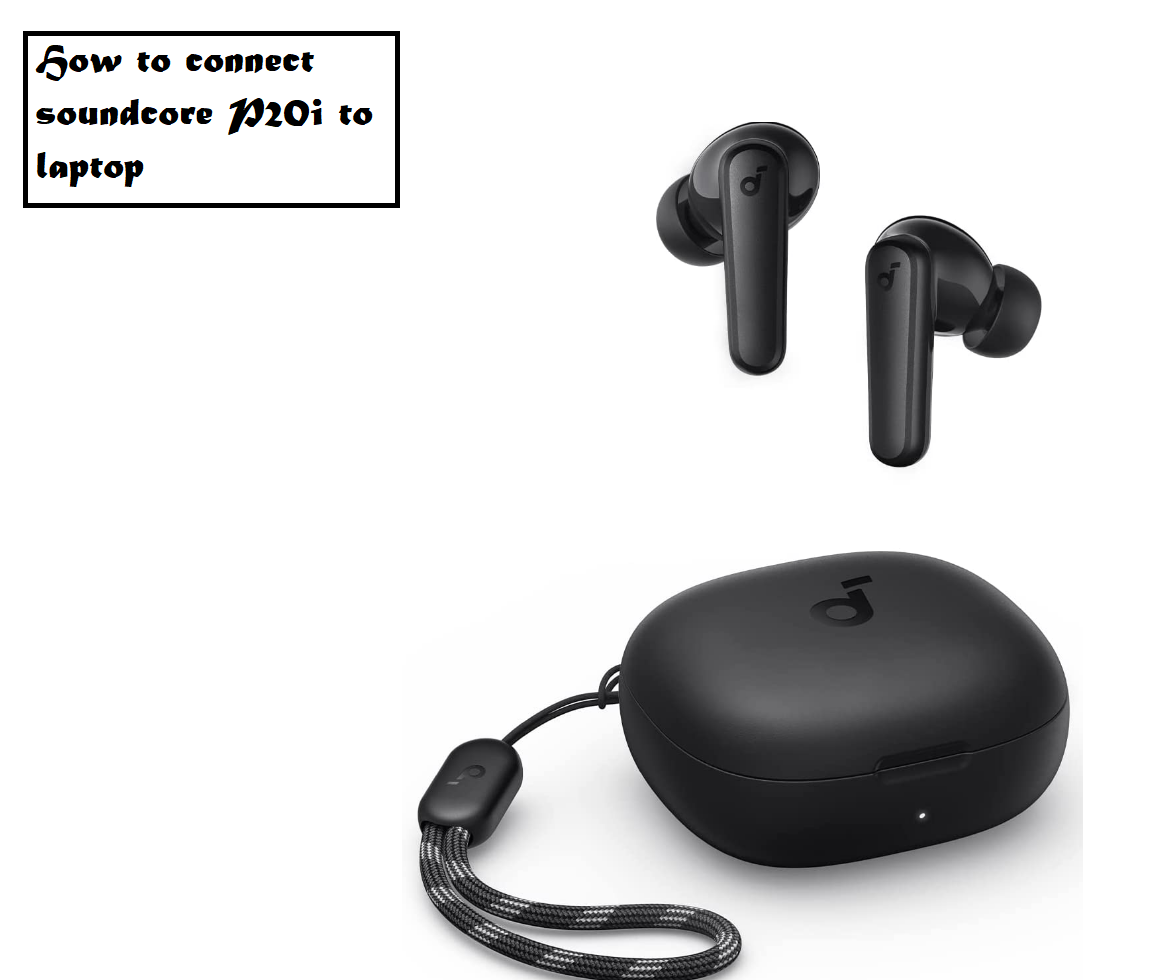
How to reset Soundcore earbuds
A reset removes old pairing data and returns the earbuds to their connection setup state. The exact reset method varies by model, so the user manual is the best reference.
Many Soundcore models use a process like this:
- Put both earbuds in the charging case.
- Keep the case open.
- Press and hold the case button for about 10 seconds.
- Watch for the LED to flash several times.
- Close the case for a few seconds.
- Open it and try pairing again.
Some models use the touch panels instead of a case button. In that case, the reset may require touching both earbuds for several seconds while they sit in the open case.
After resetting, remove the old Soundcore entry from your phone:
- Open Bluetooth settings.
- Tap the information icon beside the earbuds.
- Choose Forget This Device, Unpair, or Remove.
- Turn Bluetooth off and back on.
- Pair the earbuds as a new device.
Resetting should be a later step, not the first one. It removes saved settings, including custom controls and multipoint preferences.

What to do when only one Soundcore earbud connects
One earbud may fail to connect when the two earbuds lose their internal link. This can happen after an interrupted pairing attempt or when one earbud has a much lower battery.
Try this process:
- Put both earbuds in the charging case.
- Check that both charging contacts are clean.
- Confirm that both earbuds show charging lights.
- Remove both earbuds at the same time.
- Forget the Soundcore device on your phone.
- Reset the earbuds.
- Pair them again.
Clean the metal contacts with a dry cotton swab. Do not pour liquid into the case or use sharp tools. Earwax and dust can block charging, which makes one earbud appear dead.
If one earbud still does not respond, test it after charging for at least 30 minutes. A damaged battery, dirty contact, or hardware fault may require support from the manufacturer.
How to improve Soundcore Bluetooth connection quality
A stable Bluetooth connection depends on more than the earbuds. Your phone, computer, surroundings, and software can all affect performance.
Use these practical tips:
• Keep the source device close to your earbuds.
• Avoid placing the phone inside a thick bag or metal case.
• Install firmware updates through the Soundcore app.
• Keep your phone and earbuds away from strong wireless interference.
• Disconnect unused Bluetooth accessories.
• Restart the phone if audio keeps cutting out.
Bluetooth uses short-range radio signals. Heavy walls, crowded wireless spaces, and several connected devices may reduce stability. The human body can also block a signal when the phone is on one side of the body and an earbud is on the other.
Firmware updates may improve connection behavior, touch controls, and battery reporting. Still, an update cannot repair physical damage or a failing battery.
Common mistakes when pairing Soundcore earbuds
Most pairing errors are easy to prevent. These are the mistakes I see most often during earbud setup:
• Searching for the earbuds while they are still inside a closed case.
• Selecting a different Soundcore device nearby.
• Leaving the earbuds connected to an old phone.
• Pairing one earbud at a time.
• Ignoring a low battery.
• Resetting the earbuds without removing the old Bluetooth record.
• Expecting every model to support multipoint.
The best approach is to follow one clean sequence. Charge the earbuds, forget old connections, enter pairing mode, and connect from the device’s Bluetooth menu.
This method avoids repeated taps and gives you a clear starting point if something fails.
Frequently Asked Questions About How to Connect Soundcore Earbuds
Why will my Soundcore earbuds not connect?
Your earbuds may not be in pairing mode, may have a low battery, or may still be connected to another device. Forget the old Bluetooth entry, reset the earbuds if needed, and pair them again with the case open.
How do I put Soundcore earbuds into pairing mode?
Open the charging case and remove both earbuds. If they do not flash or appear in Bluetooth settings, press and hold the case button until the LED indicator starts flashing.
Can I connect Soundcore earbuds to two devices?
Some Soundcore models support multipoint or dual connections, while others support only one active connection. Check the Soundcore app or your model’s manual to confirm whether the feature is available.
How do I connect Soundcore earbuds to a new phone?
First, turn off Bluetooth on the old phone or choose Forget This Device. Then open the new phone’s Bluetooth settings, place the earbuds in pairing mode, and select the Soundcore model.
Why does only one Soundcore earbud work?
One earbud may not be charging, or the two earbuds may have lost their internal pairing. Charge both earbuds, clean the contacts, reset them, and pair them again as a complete set.
Do Soundcore earbuds work with iPhones and Android phones?
Yes. Soundcore earbuds use standard Bluetooth and work with most modern iPhones and Android phones. Some app features may vary by model and operating system.
Do I need the Soundcore app to connect the earbuds?
No. You can connect Soundcore earbuds through your phone or computer’s Bluetooth settings. The app is useful for firmware updates, equalizer settings, noise control, and custom touch controls.
Conclusion
Knowing how to connect Soundcore earbuds makes setup much easier across phones, tablets, Macs, and Windows PCs. Start with a charged case, put both earbuds into pairing mode, and select the correct Soundcore name in Bluetooth settings.
If the connection fails, forget the old device, check for another active connection, and reset the earbuds as a final step. Once paired, explore the Soundcore app for firmware updates and sound settings that fit your daily use. Try these steps now, and share your model or connection experience in the comments.
