

Choose an NVMe SSD with the right interface, capacity, speed, cooling, and warranty for your gaming PC.
Learning how to choose the right NVMe SSD for gaming PC builds is easier when you look beyond big read-speed numbers. The best drive must match your motherboard, game library, budget, airflow, and upgrade plans. This guide breaks down the key specs in plain English, with practical tips to help you avoid paying for performance you will never feel.

What Makes an NVMe SSD Good for Gaming?
An NVMe SSD is a fast storage drive that uses the PCIe bus instead of the older SATA connection. It communicates with your computer through the NVMe protocol, which was designed for flash storage and offers much lower latency than traditional hard drives.
For gaming, an NVMe SSD can make Windows feel faster, shorten game load times, and improve file transfers. It will not usually increase your average frame rate. Your graphics card and processor still control most in-game performance.
When learning how to choose the right NVMe SSD for gaming PC use, think of the drive as a fast loading dock. It gets game files to the system quickly, but it does not make the game engine itself render more frames.
Key benefits include:
• Faster game installation and updates
• Shorter loading screens
• Quicker Windows startup
• Better file transfer speeds
• Less noise than a mechanical hard drive
• Improved response when moving large game files
A premium PCIe 5.0 drive can be much faster in benchmarks than a PCIe 4.0 model. However, many games do not yet use that extra speed fully. For most players, a good PCIe 4.0 NVMe SSD offers the best mix of price, speed, heat, and real-world value.
Check Your Motherboard Before Buying
Motherboard support is the first major step in how to choose the right NVMe SSD for gaming PC builds. Most modern boards support at least one M.2 slot, but the supported PCIe generation and slot size can differ.
Check your motherboard manual or product page for these details:
• M.2 slot type
• Supported PCIe generation
• Supported drive lengths
• Whether the slot shares bandwidth with SATA ports
• Whether a heatsink is included
• Whether the slot connects directly to the CPU or chipset
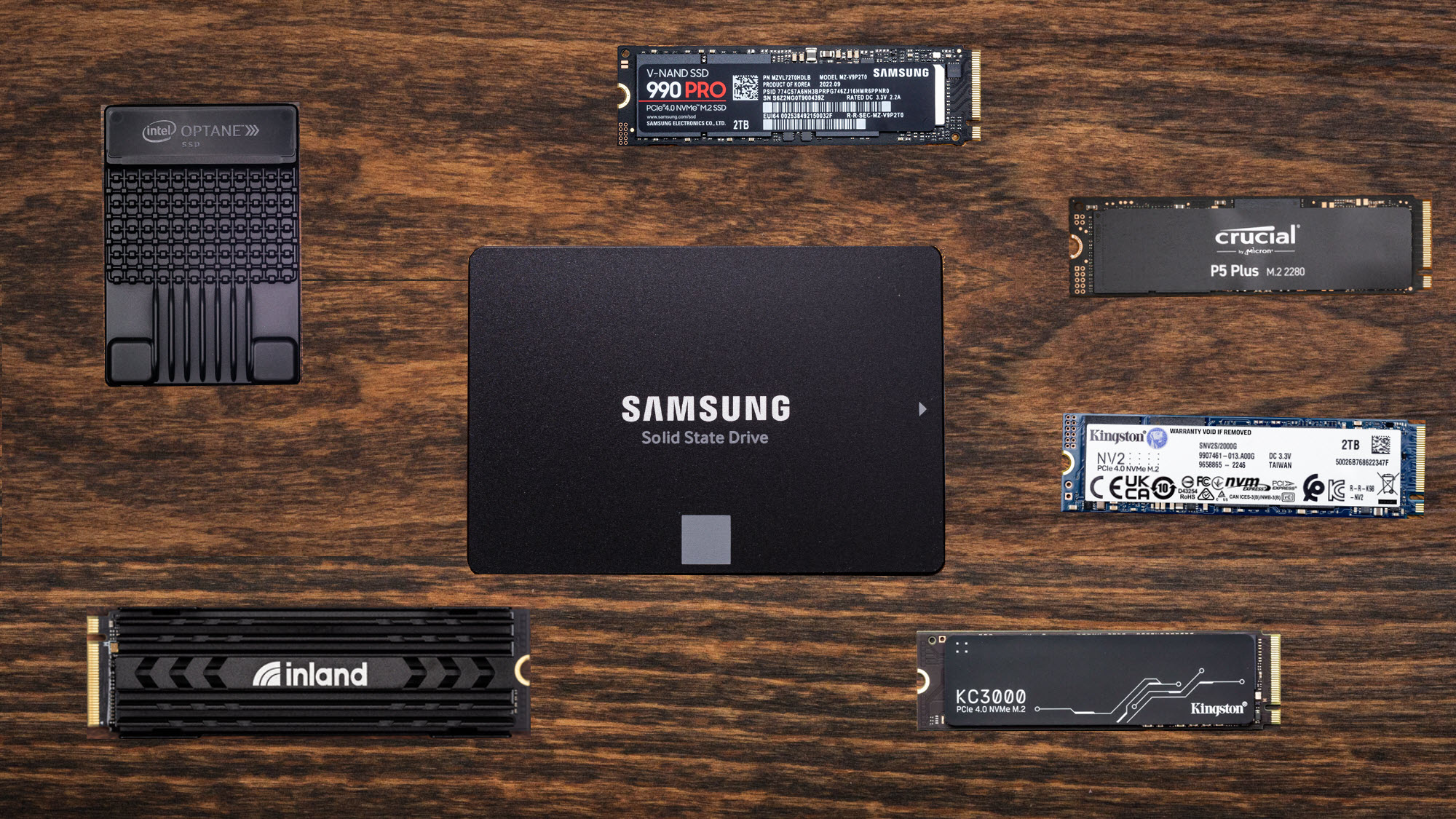
The most common size is M.2 2280. The number 22 means the drive is 22 millimeters wide, while 80 means it is 80 millimeters long. Nearly all consumer gaming NVMe drives use this size.
A PCIe 4.0 SSD usually works in a PCIe 3.0 slot, but it will run at PCIe 3.0 speeds. A PCIe 5.0 SSD also works in older compatible slots, but backward compatibility does not turn a PCIe 3.0 or 4.0 slot into a PCIe 5.0 connection.
Some motherboards disable one or more SATA ports when certain M.2 slots are used. This is not a major problem, but it is worth checking before installing the drive.
CPU and platform limits
Your processor and chipset can affect available PCIe lanes. On some systems, the top M.2 slot connects directly to the CPU and offers the best performance. Other slots may connect through the chipset and share bandwidth with USB devices, SATA drives, or expansion cards.
For a gaming PC, install your main NVMe SSD in the recommended top M.2 slot when possible. The motherboard manual will usually identify it clearly.

Choose the Right PCIe Generation
PCIe generation is one of the most visible SSD specifications. It shows how much bandwidth the drive can use.
PCIe 3.0
PCIe 3.0 NVMe SSDs can reach roughly 3,000 to 3,500 MB/s in sequential read tests. They are still good for gaming, especially in older systems or budget builds.
A PCIe 3.0 model can be a smart choice when:
• Your motherboard only supports PCIe 3.0
• You find a large drive at a very low price
• You mainly play older games
• You need a secondary game library
PCIe 4.0
PCIe 4.0 drives can reach around 5,000 to 7,500 MB/s, depending on the controller and NAND flash. They are now the common choice for new gaming PCs.
PCIe 4.0 offers a strong balance of:
• High real-world performance
• Wide motherboard support
• Reasonable prices
• Better heat levels than many PCIe 5.0 drives
For most people researching how to choose the right NVMe SSD for gaming PC use, PCIe 4.0 is the safest recommendation.
PCIe 5.0
PCIe 5.0 SSDs can exceed 10,000 MB/s in sequential read tests. Some newer models are even faster. They are attractive for high-end workstations, future-ready builds, and users who often move huge files.
The limits are clear, though. PCIe 5.0 models often cost more and run hotter. Many need a large motherboard heatsink or an active cooling fan. Game loading gains may also be small compared with a quality PCIe 4.0 drive.
Do not buy PCIe 5.0 only because the number is larger. Buy it when your board supports it and you have a real need for its extra bandwidth.

Select the Right SSD Capacity
Capacity is a major part of how to choose the right NVMe SSD for gaming PC builds. Modern games can be very large, and some single-player titles use more than 100 GB after updates and downloadable content.
Here is a useful guide:
• 500 GB: Suitable for Windows and a small game collection
• 1 TB: The best starting point for most gamers
• 2 TB: Ideal for large libraries and frequent installs
• 4 TB or more: Useful for enthusiasts, creators, and long-term storage
A 1 TB drive does not provide the full 1,000 GB for files. The operating system, formatting, and overprovisioning reduce usable space. It is also wise to leave around 10% to 20% free.
An almost full SSD may slow down during heavy writes. It has fewer empty flash blocks available for background management, garbage collection, and wear leveling.
In my practical upgrade advice, the most common mistake is buying a fast 500 GB drive to save money, then running out of space within months. A slightly slower 1 TB SSD often creates a better gaming experience because you can keep more games installed and avoid constant file management.

Understand NAND Flash Types
NAND flash stores your games and system files. The type of NAND affects speed, endurance, cost, and capacity.
TLC NAND
TLC stores three bits per cell. It usually offers a good balance of performance, endurance, and price.
For most gaming PCs, a quality TLC NVMe SSD is the best choice. It can handle game installs, updates, downloads, and everyday use without concern.
QLC NAND
QLC stores four bits per cell. It allows manufacturers to make larger drives at a lower cost.
QLC drives can work well for game libraries, especially when most use involves reading data. They may slow down during long write tasks after their dynamic cache fills. This matters more when copying hundreds of gigabytes or editing large video files.
QLC is not automatically bad. It is simply more dependent on workload, free space, and cache size. A good QLC drive can be a sensible secondary game drive.
SLC and MLC
SLC stores one bit per cell, while MLC stores two. These technologies can offer excellent endurance, but they are uncommon in affordable consumer gaming SSDs because they cost more.
Do not judge an SSD only by NAND type. The controller, firmware, cache design, warranty, and sustained performance also matter.
Look at the Controller, DRAM, and HMB
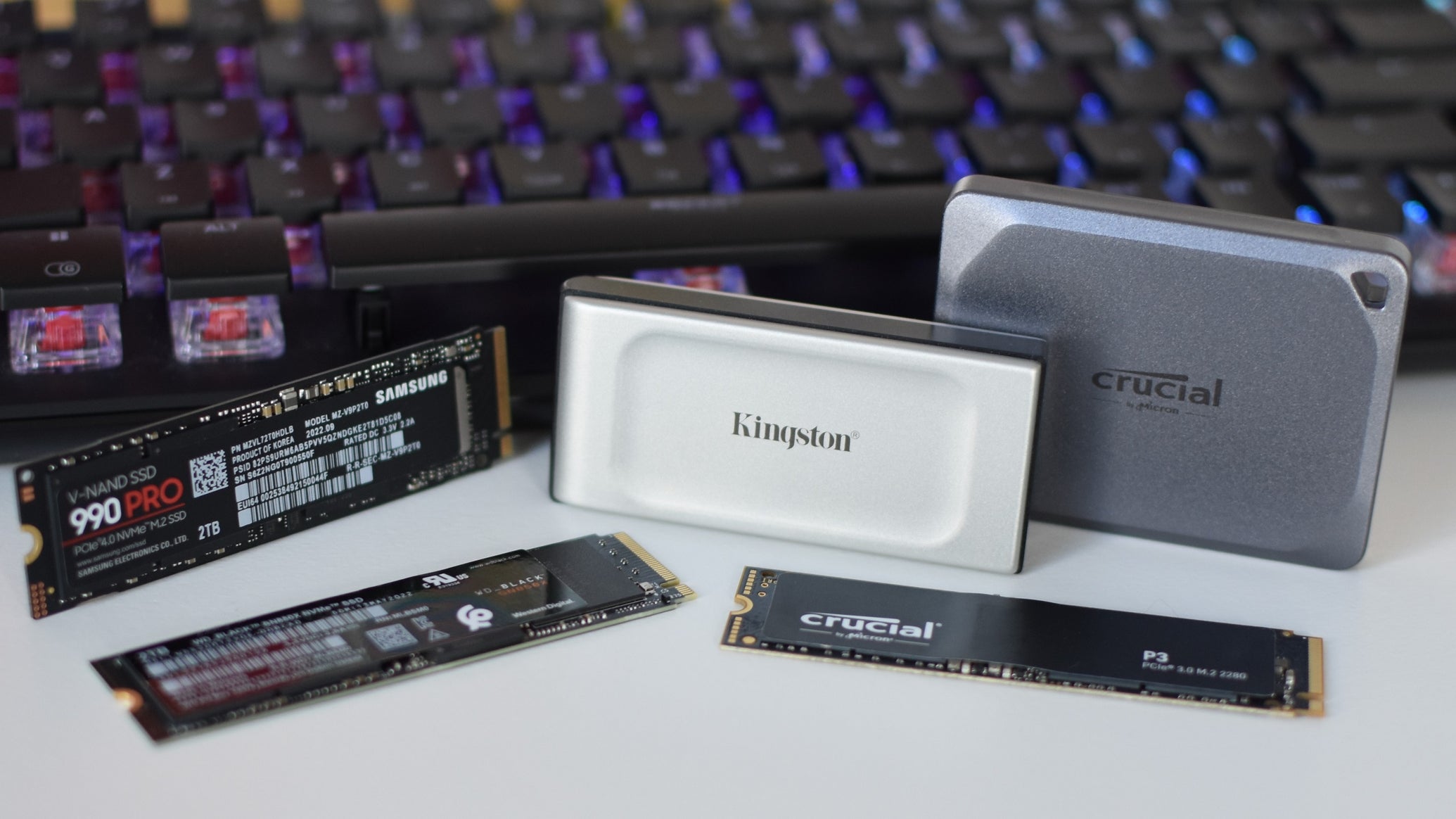
The controller manages data between the computer and NAND flash. It affects speed, heat, endurance, and how the drive behaves during long workloads.
A drive with DRAM has dedicated memory for its mapping table. This can improve consistency and reduce some workload delays. DRAM is especially useful for heavy file transfers and demanding desktop tasks.
DRAM-less SSDs use Host Memory Buffer, or HMB. HMB lets the drive use a small amount of system memory for mapping information. Modern DRAM-less drives can perform well in games and everyday tasks, especially when they use fast TLC NAND.
When deciding how to choose the right NVMe SSD for gaming PC use, do not treat DRAM as an automatic requirement. Consider the full product design.
A DRAM-equipped SSD is attractive when you:
• Frequently move large files
• Install many games at once
• Use the PC for editing or content creation
• Want strong sustained performance
• Plan to keep the drive for many years
A good DRAM-less SSD may be enough when you:
• Mainly play games
• Use the drive for normal desktop work
• Want to reduce the upgrade cost
• Keep enough free space available
Independent reviews that test full-drive performance are more useful than marketing claims alone.

Compare Real Gaming Performance, Not Just Speed
SSD companies often advertise sequential read speeds. These numbers show how quickly a drive can read one large, continuous file. Games usually load many smaller files, so random performance and latency can matter more.
Look for reviews that measure:
• Game loading times
• Random read performance
• Application loading
• Sustained write speed
• Performance after the cache is full
• Temperature under long workloads
• Performance when the drive is nearly full
The difference between a budget NVMe SSD and a premium model may be easy to see in a benchmark but small in a game. A loading screen that takes 12 seconds on one drive may take 11 seconds on another.
Newer game technologies may make fast storage more useful over time. DirectStorage, for example, can allow supported games to stream assets from an NVMe SSD with less CPU involvement. Support depends on the game, operating system, and hardware, so it should not be the only reason to buy an expensive drive.
The practical lesson is simple: prioritize a reliable 1 TB or 2 TB SSD over a premium model with extreme headline speeds and limited capacity.
Plan for SSD Heat and Cooling
NVMe SSDs can become warm during large transfers. PCIe 4.0 and PCIe 5.0 models often produce more heat than older PCIe 3.0 drives.
High temperatures can cause thermal throttling. The drive reduces its speed to protect itself. This may not affect a normal game launch, but it can slow large installs, backups, and file transfers.
Good cooling steps include:
• Use the motherboard M.2 heatsink
• Remove the protective film before installation
• Place the drive away from a hot graphics card when possible
• Maintain steady case airflow
• Avoid covering the drive with loose cables
• Use an active cooler for some PCIe 5.0 models
Do not install an M.2 heatsink with the plastic film still attached. This common mistake prevents proper contact and can trap heat.
A small temperature increase during a benchmark is not always dangerous. Check the manufacturer’s operating range and review sustained test results instead of judging the drive from one short temperature reading.

Check Endurance, Warranty, and Reliability
Endurance is often listed as TBW, or terabytes written. It estimates how much data can be written before the drive reaches its rated limit.
For gaming, most users write far less data than they expect. Installing a 100 GB game writes roughly 100 GB, although updates and system activity add more over time. Even frequent players may take years to approach the TBW rating of a reputable SSD.
Also check:
• Warranty length
• TBW rating
• Manufacturer support
• Firmware update tools
• Power-loss behavior
• Independent reliability testing
A longer warranty does not guarantee that a drive will never fail. It does show the manufacturer’s coverage period and can provide peace of mind.
Keep backups of save files and important documents. An SSD can fail suddenly, just like any other storage device. Cloud saves help protect game progress, but they do not replace a full backup of personal data.
Decide Between a Primary and Secondary Game Drive
Many gamers use two drives. One holds Windows and important applications. The other stores games.
A fast PCIe 4.0 NVMe SSD makes a strong primary drive. A less expensive PCIe 3.0, PCIe 4.0, or QLC model can work well as a secondary game library.
This approach can reduce cost without creating a major gaming penalty. You can reserve the faster drive for the operating system, active games, and programs that benefit most from quick access.
When learning how to choose the right NVMe SSD for gaming PC storage, ask how you will use it:
• Primary system drive: Choose a dependable 1 TB or 2 TB TLC model
• Secondary game drive: A value-focused 1 TB, 2 TB, or 4 TB model may be enough
• Creative workstation: Favor strong sustained writes, DRAM, and higher endurance
• Small PC: Prioritize efficient cooling and low power use
• Future upgrade: Choose capacity first, then interface speed
This simple use-based approach is often more useful than choosing the most expensive SSD on the shelf.
Avoid These Common Buying Mistakes
Knowing how to choose the right NVMe SSD for gaming PC use also means knowing what not to do.
• Buying PCIe 5.0 for a PCIe 3.0 motherboard
• Choosing a 500 GB drive for a large modern game library
• Trusting sequential speed as the only performance measure
• Ignoring the need for an M.2 heatsink
• Buying from an unknown seller with unclear warranty coverage
• Filling the SSD to nearly 100% capacity
• Forgetting to check M.2 slot length and motherboard support
• Paying extra for speed that your games cannot use
Also watch for counterfeit or mislabeled drives from unofficial marketplaces. Buy from a trusted retailer and confirm the model number after installation.
A good SSD should be boring in the best way. It should install easily, maintain stable performance, and let you focus on playing rather than troubleshooting.
A Simple Buying Checklist
Use this checklist before ordering an NVMe SSD:
- Confirm that your motherboard has a compatible M.2 slot.
- Check whether the slot supports PCIe 3.0, 4.0, or 5.0.
- Choose 1 TB as a practical minimum for most gaming PCs.
- Select 2 TB if you install many large games.
- Prefer TLC NAND for a balanced primary drive.
- Review sustained performance, not only advertised peak speed.
- Check the SSD’s temperature and heatsink requirements.
- Compare warranty length and TBW rating.
- Leave free space for reliable long-term performance.
- Buy from a trusted seller with clear return support.
This process makes how to choose the right NVMe SSD for gaming PC decisions much less confusing. You do not need to memorize every controller name or benchmark chart. You only need to match the drive to your system and your actual workload.
Frequently Asked Questions
Is a PCIe 4.0 NVMe SSD good enough for gaming?
Yes. A quality PCIe 4.0 NVMe SSD is fast enough for nearly all current gaming PCs and offers excellent value. PCIe 5.0 can be faster in benchmarks, but many games show only small loading-time differences.
Should I buy a 1 TB or 2 TB NVMe SSD for gaming?
Choose 1 TB for a smaller library and 2 TB if you play many large games. A 2 TB drive also gives you more free space, which can help maintain consistent performance and reduce the need to uninstall games.
Does an NVMe SSD increase FPS?
Usually, no. An NVMe SSD mainly improves loading times, system response, game installation, and file transfers, while the CPU and graphics card control most frame rates.
Is DRAM important in a gaming NVMe SSD?
DRAM can improve consistency during demanding storage tasks, but it is not essential for every gaming drive. A well-designed DRAM-less SSD with Host Memory Buffer can provide good gaming performance at a lower price.
Do NVMe SSDs need a heatsink?
Many PCIe 4.0 and PCIe 5.0 SSDs benefit from a heatsink during long transfers. For gaming alone, temperatures may remain acceptable, but using the motherboard’s M.2 heatsink is a smart and simple precaution.
Is QLC NAND bad for gaming?
No. QLC NAND can work well for game storage because games are often read more than written. It may slow during very large sustained writes, so TLC is usually better for a primary drive or heavy workstation use.
How much free space should an NVMe SSD have?
Try to keep around 10% to 20% of the drive free. Extra space helps the SSD manage background tasks and maintain more stable performance over time.
Conclusion
The best way to choose the right NVMe SSD for gaming PC use is to match the drive to your motherboard, game library, budget, and workload. For most players, a reliable 1 TB or 2 TB PCIe 4.0 SSD with TLC NAND, good cooling, and a solid warranty is the strongest choice.
Do not let extreme sequential speed numbers distract you from capacity, sustained performance, and reliability. Check your M.2 slot, compare trusted reviews, and choose a drive that leaves room for future games. Use this guide to build a faster, more flexible gaming setup, then share your SSD choice or upgrade plans in the comments.
