

Connect wired headphones to the DualSense controller, or use a compatible USB wireless adapter with your PS5.
Learning how to use headphones with PS5 is simple once you know which connection your headset uses. I have tested wired headsets, USB audio devices, and wireless models, and the biggest issue is usually choosing the right port or changing one sound setting. This guide explains each method, solves common audio problems, and helps you get clear game sound without disturbing anyone nearby.

Which headphones work with PS5?
The PS5 works with several types of headphones, but each type connects in a different way. Your best option depends on whether you want the lowest delay, the easiest setup, or a fully wireless experience.
Compatible options include:
• Wired headphones with a 3.5 mm plug
• USB headsets with a USB-A or USB-C connector
• Wireless headsets that include a USB wireless transmitter
• Some PlayStation-licensed headsets made for PS5
• Bluetooth headphones used with a compatible USB Bluetooth audio adapter
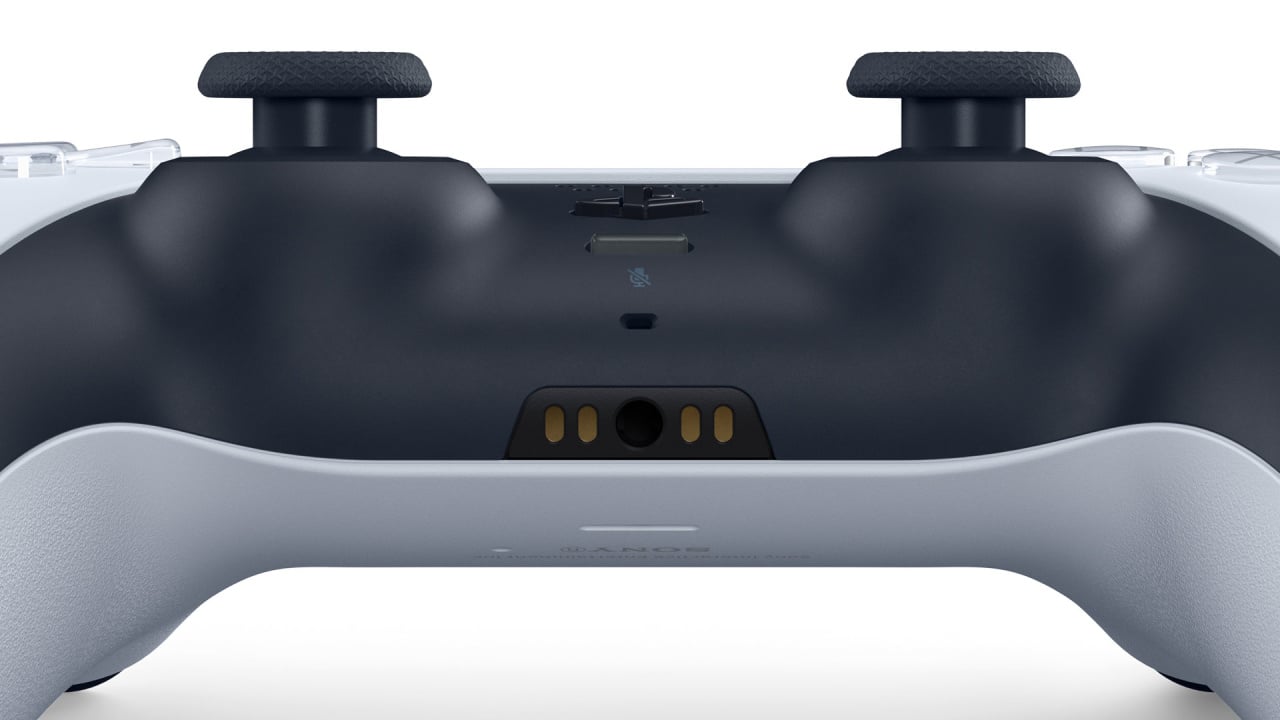
A standard 3.5 mm headset is often the easiest choice. The DualSense controller has a 3.5 mm headset jack, so you can connect the headphones without running a cable across the room.
Most regular Bluetooth headphones cannot connect directly to the PS5 for game audio. The console does not broadly support Bluetooth audio because wireless delay and interference can affect gameplay. A compatible USB transmitter or Bluetooth adapter can solve this limitation.
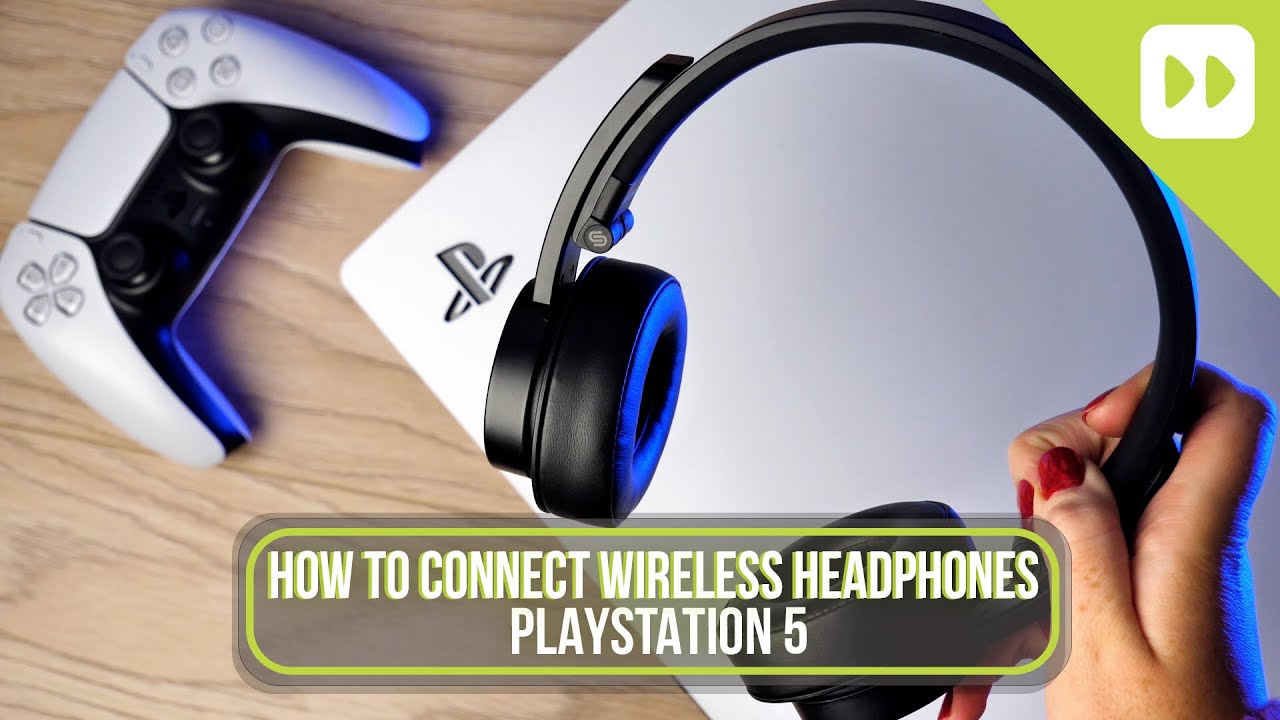
How to use wired headphones with PS5
Wired headphones offer the simplest setup. They also provide very low audio delay, which is useful in games such as Call of Duty, Fortnite, Apex Legends, and rhythm games.
Follow these steps:
Turn on your PS5 and sign in to your profile.
Plug the 3.5 mm headphone connector into the headset jack on the bottom of the DualSense controller.
Press the PS button on the controller.
Select the Sound option from the control center.
Choose Output Device and select Headphones Connected to Controller.
Select Output to Headphones.
Choose All Audio if you want game sound and chat through the headphones.
The PS5 should switch to the headset automatically. If it does not, unplug the connector and insert it again. Check that the plug is fully seated, since a loose connection can cause one-sided sound or loud static.
You can adjust the volume from the control center. Press the PS button, select Sound, and move the Headphones volume slider. You can also use the volume buttons on the headset if it has them.
For voice chat, open the control center and select Mic. Choose the microphone built into the headset or the DualSense controller. The headset microphone usually gives clearer speech, while the controller microphone is useful when your headset has no mic.
In my testing, the most common mistake was leaving Output to Headphones set to Chat Audio. That setting sends only voice chat to the headset while game sound continues through the TV. Choose All Audio for a complete game and chat mix.
How to use USB headphones with PS5
USB headphones connect directly to the console. They may include extra features such as virtual surround sound, a volume wheel, a mute button, and custom sound profiles.
To connect a USB headset:
Turn on the PS5.
Insert the headset’s USB plug into a USB-A or USB-C port on the console.
Press the PS button.
Open Sound from the control center.
Select Output Device.
Choose your USB headset.
Set Output to Headphones to All Audio.
The PS5 has both USB-A and USB-C ports. Check the headset plug before connecting it. If the headset uses USB-A, use one of the larger rectangular ports. If it uses USB-C, use the smaller oval-shaped port.
Some USB headsets need a short setup period. The console may take a few seconds to recognize the device. If the headset does not appear, disconnect it, restart the PS5, and connect it again after the console loads.
USB headsets do not always support every computer feature on PS5. Software-based equalizers, RGB controls, and advanced microphone tools may require a Windows or Mac app. The basic audio and microphone functions should still work if the headset is compatible with PS5.
How to use wireless headphones with PS5
The most reliable wireless headphones for PS5 use a USB wireless transmitter. This transmitter creates a direct link between the headset and the console. It is different from ordinary Bluetooth pairing.
Here is how to set up a wireless PS5 headset:
Charge the headset fully.
Plug the included USB transmitter into the PS5.
Turn on the headset.
Wait for the headset and transmitter to pair.
Press the PS button on the controller.
Open Sound and select Output Device.
Choose the wireless headset or USB headset option.
Set Output to Headphones to All Audio.
Many wireless gaming headsets include a switch for PlayStation, PC, or mobile mode. Set the switch to PlayStation before plugging in the transmitter. If the headset has a pairing button, hold it for the time listed in the manual.
Wireless headsets can offer a cleaner setup because there is no cable between the controller and your head. However, battery life matters. A headset that loses power during a long game can be frustrating, so charge it after each session or keep a wired backup nearby.
Wireless range also depends on your room. Walls, metal furniture, routers, and other wireless devices can reduce performance. Keep the transmitter in a clear position when possible. Avoid placing it behind the console or inside a crowded entertainment cabinet.

How to connect Bluetooth headphones to PS5
The PS5 does not normally pair with standard Bluetooth headphones for game audio. You may see the headphones in the console’s accessory menu, but the connection may fail or the audio may not work correctly.
A USB Bluetooth audio adapter can provide another option. Choose an adapter that clearly states it supports PS5 audio and microphone functions if you need voice chat. Some adapters support sound only and do not support the headset microphone.
To use a Bluetooth adapter:
Plug the adapter into a USB port on the PS5.
Put the Bluetooth headphones into pairing mode.
Put the adapter into pairing mode.
Wait for both devices to connect.
Open Settings, then Sound, then Audio Output.
Select the USB audio device if it is not selected automatically.
Test game sound and microphone input.
Bluetooth adapters vary widely. Some create noticeable delay, while others may disconnect during use. For competitive games, a dedicated PS5 wireless headset with its own USB transmitter is usually more dependable.
AirPods and similar earbuds may also require a Bluetooth adapter. Even when they connect, the microphone may reduce audio quality or introduce delay. Use them for casual play, but consider a gaming headset for online competition.
How to change PS5 headphone settings
The PS5 includes several audio settings that control where sound goes and how chat is mixed. These settings are important when learning how to use headphones with PS5.
Open the settings menu by selecting the gear icon in the upper-right corner. Then choose Sound. You will see options for:
• Microphone: Select the input device and adjust mic level.
• Audio Output: Choose the output device and sound format.
• Volume: Adjust headphones, speakers, and chat volume.
• 3D Audio: Enable supported 3D sound features.
• Audio Sharing Settings: Control how audio is shared through the controller.
For most headsets, use Linear PCM as the audio format when available. It sends uncompressed sound and works well with many wired and USB headsets. Some headset manufacturers recommend Bitstream or Dolby settings for specific products, so follow the headset manual when it gives different instructions.
You can also adjust the game and chat balance from the control center. Press the PS button, select Sound, and move the Voice Chat Balance slider. This lets you hear friends clearly without making the game too quiet.
If you use the DualSense microphone, press the small mute button below the PS button. An orange light means the microphone is muted. This simple detail prevents many accidental moments when other players can hear conversations in your room.
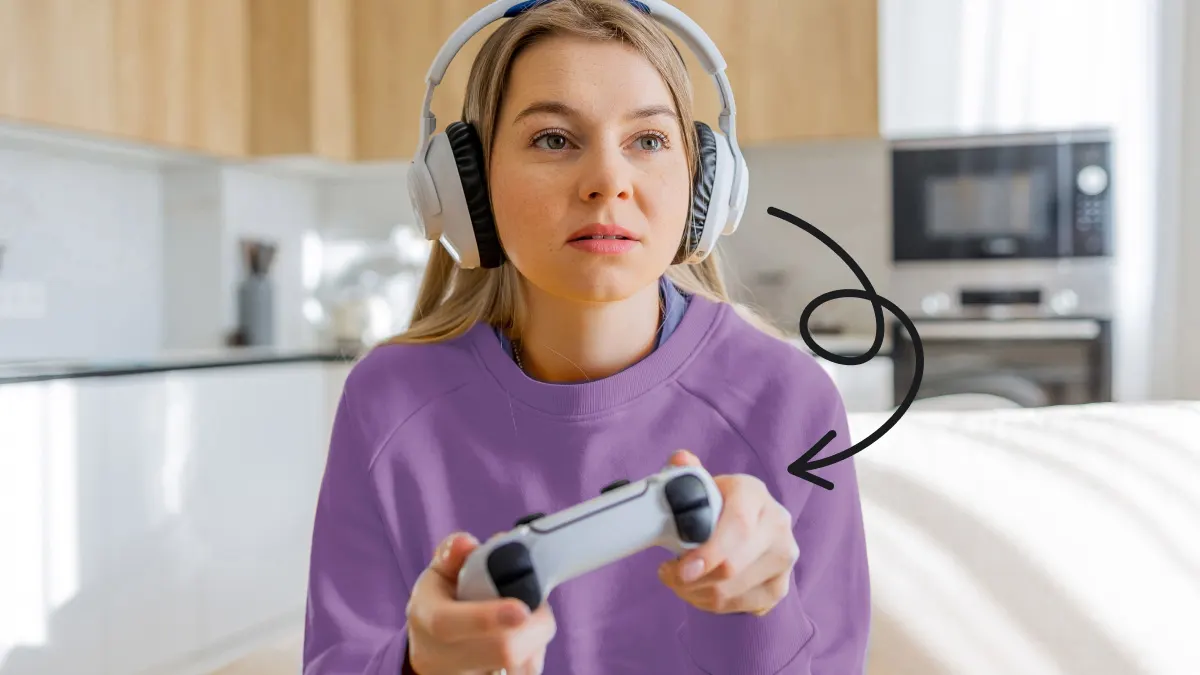
How to enable 3D audio on PS5
The PS5 Tempest 3D AudioTech system can create a wider and more natural sound field. It may help you notice footsteps, reload sounds, and movement from different directions.
To set up 3D audio:
Open Settings.
Select Sound.
Choose 3D Audio for Headphones.
Enable 3D audio.
Choose a profile that sounds comfortable.
The console may ask you to adjust the sound height. Listen to the sample and move the level until the sound seems close to ear height. This calibration does not need to be perfect, but a careful setup can make the effect feel more natural.
Not every game uses 3D audio in the same way. Some games have their own sound modes, such as headphones, surround, or immersive audio. Avoid enabling several virtual surround effects at once. Too many processing layers can make voices sound hollow or reduce positional accuracy.
In my experience, 3D audio sounds best after testing it for several minutes. It can seem unusual at first, especially if you normally use stereo headphones. Compare the same game with the feature on and off, then keep the setting that gives you the clearest sound.

How to use headphones for PS5 voice chat
A headset microphone lets you speak with friends without using the microphone on the controller. The PS5 allows you to control microphone input, volume, and chat balance from the control center.
To choose a microphone:
Press the PS button.
Select Mic.
Choose Input Device.
Select the headset microphone.
Speak and watch the input level.
The input meter should respond when you talk. If it does not, check whether the headset has a physical mute switch. Also make sure the microphone boom is fully connected if the headset uses a removable microphone.
You can adjust microphone level in Settings, Sound, and Microphone. Keep the level high enough for clear speech but low enough to prevent distortion. If friends hear breathing, keyboard clicks, or room noise, lower the input level or move the microphone slightly away from your mouth.
The PS5 also includes voice chat controls for individual players. From the Game Base menu, you can adjust a friend’s volume or mute them. These controls are useful when one person is much louder than the rest of the group.
For privacy, review the microphone status before joining a party. The DualSense mute light is easy to miss in a dark room. A quick check can prevent private conversations from reaching your entire team.

How to fix PS5 headphones with no sound
If your headphones do not work, check the connection first. A loose 3.5 mm plug, a muted headset, or a wireless transmitter in the wrong mode can stop audio.
Try these fixes in order:
• Confirm that the headset is powered on.
• Check the headset’s physical volume wheel.
• Press the PS button and select Sound.
• Choose the correct Output Device.
• Set Output to Headphones to All Audio.
• Disconnect other USB audio devices.
• Test the headset with another device.
• Restart the PS5 with the headset connected.
If you hear sound from the TV instead, the console has likely selected the wrong output. Open Settings, choose Sound, and select Audio Output. Set the correct headset manually.
If only one ear works, inspect the cable and plug for damage. With a 3.5 mm headset, remove any adapter that may not support microphone and stereo audio together. A four-pole TRRS connector is normally needed for a headset with a combined audio and microphone plug.
If the sound cuts out, move a wireless transmitter away from other USB devices. Some USB ports and crowded wireless spaces can create interference. A short USB extension cable can help place the transmitter in a clearer location.
If the microphone fails but game sound works, check Input Device and the mute controls. Some headsets have separate controls for microphone mute and audio mute, so test both.
How to improve PS5 headphone sound
Good sound is not only about volume. Clear audio depends on the headset fit, console settings, game settings, and room noise.
Use these practical tips:
• Keep the volume at a comfortable level. Loud sound can cause ear fatigue and may damage hearing over time.
• Choose closed-back headphones if you play near other people.
• Use a headset with soft ear cushions for long sessions.
• Keep the microphone close to your mouth but slightly to the side.
• Turn down music in the game if dialogue and footsteps are hard to hear.
• Use a stable wireless connection for online games.
• Keep the headset firmware updated when the maker provides an update.
The World Health Organization recommends reducing loud sound exposure and taking listening breaks. If your ears ring after gaming, lower the volume and rest your ears. Better sound does not require extreme loudness.
A comfortable fit can improve awareness because you do not need to keep adjusting the headset. I have found that many players blame the PS5 audio settings when the real issue is a poor seal around the ears. Try adjusting the headband and ear cups before changing every console option.
Wired versus wireless PS5 headphones
Both connection types can work well. The right choice depends on your habits and priorities.
| Feature | Wired headphones | Wireless headphones |
|---|---|---|
| Setup | Very simple | Simple after pairing |
| Delay | Usually very low | Low with a gaming transmitter |
| Battery | No charging needed | Requires charging |
| Movement | Limited by cable | More freedom |
| Cost | Often lower | Often higher |
| Reliability | Usually consistent | Can face interference |
| Microphone | Often reliable | Depends on the model |
Wired headphones are ideal if you want a low-cost solution with no battery concerns. Plug them into the DualSense controller and start playing.
Wireless headphones are better for people who move around or dislike a cable. Choose a model with a PS5-compatible USB transmitter rather than assuming every Bluetooth headset will work.
Your TV or monitor may also affect the setup. If you connect headphones to the TV, the PS5 may not control the headset volume or microphone correctly. Connecting to the controller or console usually gives you better access to chat and audio controls.
Common mistakes to avoid
Many PS5 headphone problems come from small setup errors. Avoid these mistakes before buying a new headset.
• Assuming all Bluetooth headphones work directly with PS5: Most do not provide a reliable direct connection.
• Choosing Chat Audio instead of All Audio: This sends only voice chat to the headset.
• Forgetting to charge a wireless headset: Check battery level before a long session.
• Plugging in the wrong USB transmitter: Use the transmitter designed for that headset.
• Leaving the microphone muted: Check both the headset mute switch and DualSense mute button.
• Using several surround modes at once: This can make sound less clear.
• Ignoring firmware updates: Updates may improve connection stability and compatibility.
• Buying a PC-only headset: Look for clear PS5 support on the product box or manufacturer page.
One mistake I often see is buying a headset based only on its Bluetooth label. Bluetooth describes the wireless technology, not guaranteed PS5 compatibility. Always check whether the headset includes a PlayStation-compatible USB receiver.
Frequently Asked Questions
Can I use any headphones with a PS5?
You can use most wired 3.5 mm headphones through the DualSense controller. USB headsets and wireless models need to support PS5 audio, while standard Bluetooth headphones usually need a compatible USB adapter.
Why will my Bluetooth headphones not connect to PS5?
The PS5 does not generally support standard Bluetooth audio connections. Use a PS5-compatible USB wireless transmitter or a Bluetooth audio adapter instead.
How do I get all PS5 sound through my headphones?
Open the control center by pressing the PS button, select Sound, and choose Output to Headphones. Set the option to All Audio so game sound and voice chat play through the headset.
Can I use AirPods with PS5?
AirPods can work with a compatible USB Bluetooth audio adapter, but the microphone and sound delay may not be ideal. A dedicated wireless gaming headset usually provides better voice chat performance.
Why can I hear game sound but not my friends?
Open the Sound menu and check the Voice Chat Balance slider. Also confirm that your headset is set to All Audio and that the party chat volume is not muted.
Can I use headphones without a microphone on PS5?
Yes. Headphones without a microphone can play game audio, but you will need the DualSense microphone or another supported microphone for voice chat.
Do PS5 headphones work with the PS5 controller?
Headphones with a 3.5 mm plug can connect directly to the DualSense controller. USB and wireless headphones normally connect to the PS5 console instead.
Conclusion
Learning how to use headphones with PS5 comes down to choosing the right connection and selecting the correct audio output. Use the DualSense jack for simple wired listening, a USB port for compatible headsets, or a dedicated wireless transmitter for cable-free play. Standard Bluetooth headphones may need an adapter, and the All Audio setting is essential when you want both game sound and chat.
Start with the connection you already own, test the microphone, and adjust the volume and 3D audio settings to suit your ears. With the right setup, your PS5 can deliver clear game sound, better voice chat, and a more private gaming experience. Explore your headset settings, try these steps today, and share your setup or questions in the comments.
