
Turn on the earbuds, enable your laptop’s Bluetooth, pick Bose from devices, and connect.
I’ve paired dozens of headsets and earbuds across PCs and Macs. This guide explains how to connect Bose earbuds to laptop step by step, with clear checks, quick fixes, and real tips from hands-on testing. You’ll get simple instructions for Windows and macOS, troubleshooting for common Bluetooth problems, and practical advice to keep audio stable and clear. Read on to set up your Bose earbuds fast and reliably.
Why pair your Bose earbuds with a laptop?
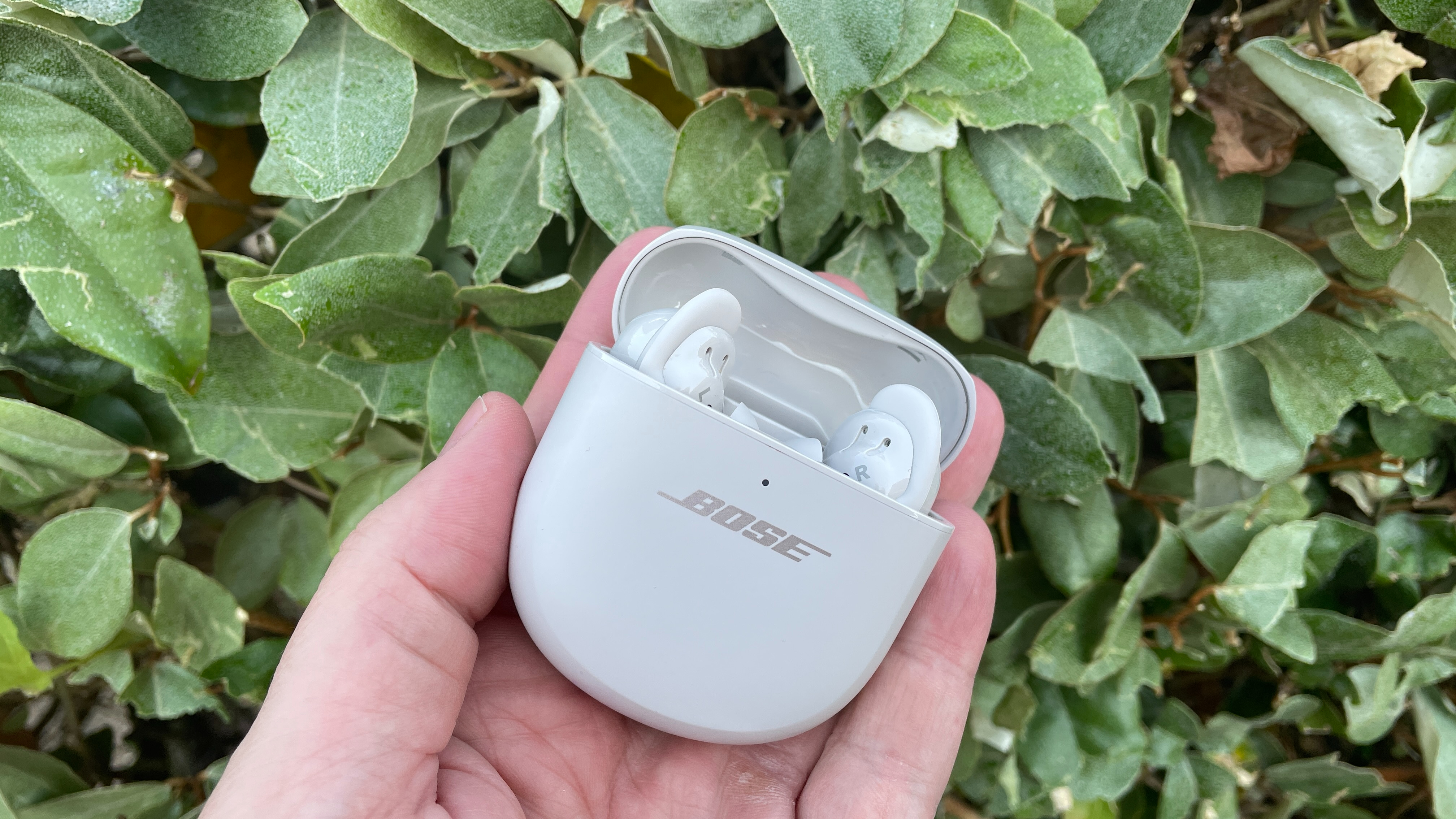
Connecting Bose earbuds to a laptop gives you quiet, private listening and better mic quality for calls. You can watch videos, join meetings, and game without messy cables. Modern Bose earbuds offer strong Bluetooth range and good battery life, so your laptop becomes a clean, mobile audio station. Knowing how to connect Bose earbuds to laptop saves time and avoids frustration when you need sound that just works.
Before you start: compatibility and quick prep
Make these checks to avoid surprises.
- Confirm your earbuds are charged and in pairing mode.
- Check that your laptop has Bluetooth and that it is turned on.
- Note the operating system: Windows 10, Windows 11, or macOS. Steps vary a bit by OS.
- If you use a USB Bluetooth adapter, ensure its drivers are installed.
- Turn off nearby Bluetooth devices if pairing fails due to interference.
These quick prep steps will make pairing smoother and faster when you learn how to connect Bose earbuds to laptop.
How to connect Bose earbuds to laptop (Windows 10 and Windows 11)
Follow these short steps. I’ll use general Windows labels that match both Windows 10 and 11.
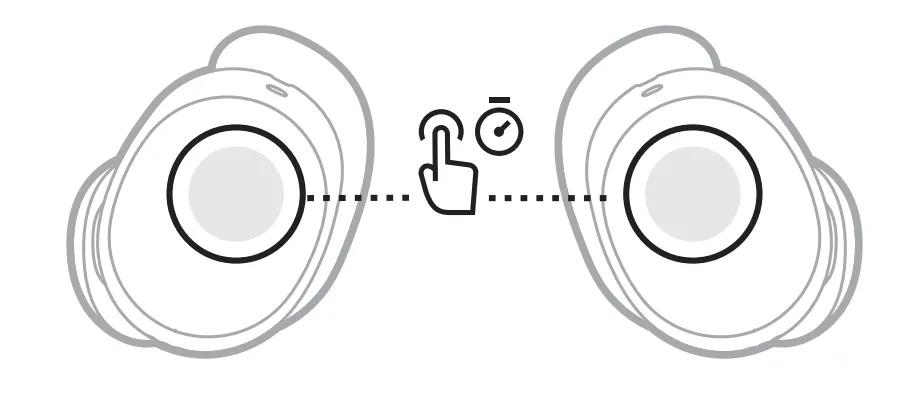
- Put your Bose earbuds into pairing mode.
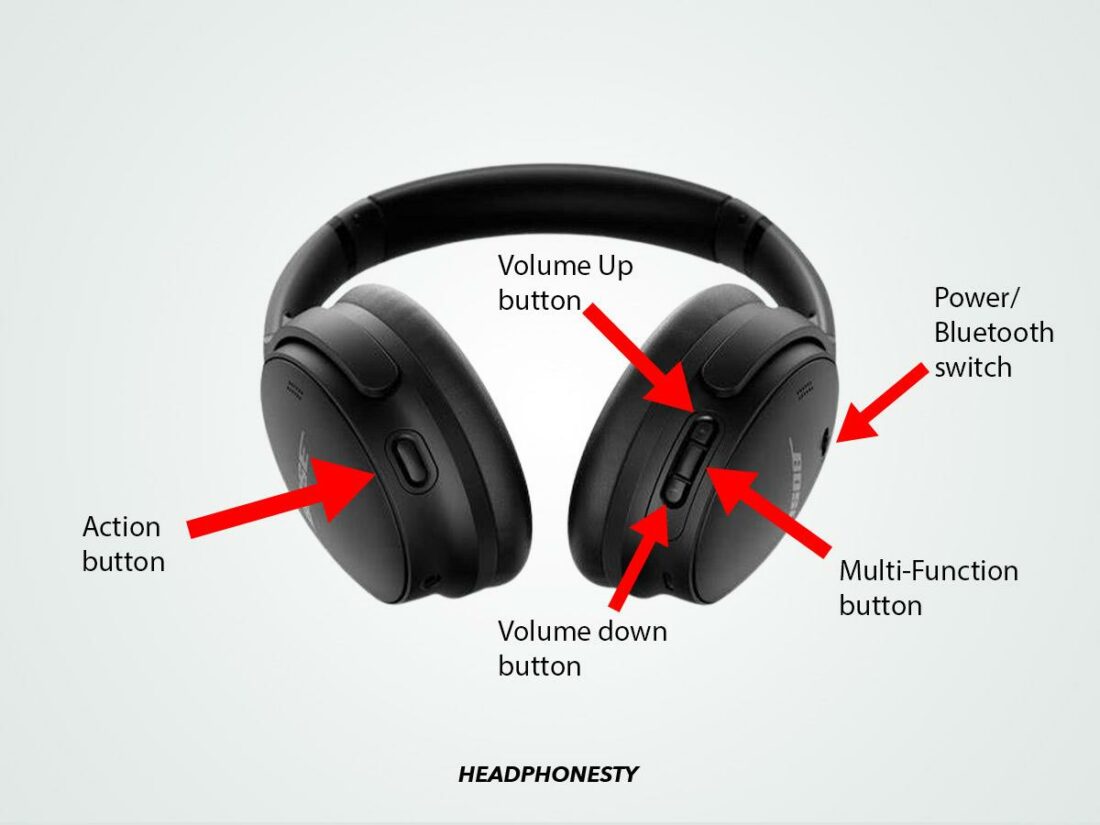
- Most Bose models enter pairing mode when you press and hold the power or Bluetooth button until a light flashes or you hear a voice prompt.
- Open Settings on your laptop.
- Click Start > Settings > Bluetooth & devices.
- Turn Bluetooth on.
- Toggle Bluetooth to On. Windows will scan for devices.
- Select your Bose earbuds in the devices list.
- They might appear with the model name. Click Connect.
- Confirm connection and set as audio device if needed.
- Click the speaker icon in the taskbar, then choose your Bose earbuds for output and input.
If Windows asks for a PIN, try 0000 or 1234. Most modern Bose models do not require a PIN. These steps are the main way to learn how to connect Bose earbuds to laptop on Windows.
How to connect Bose earbuds to laptop (macOS)
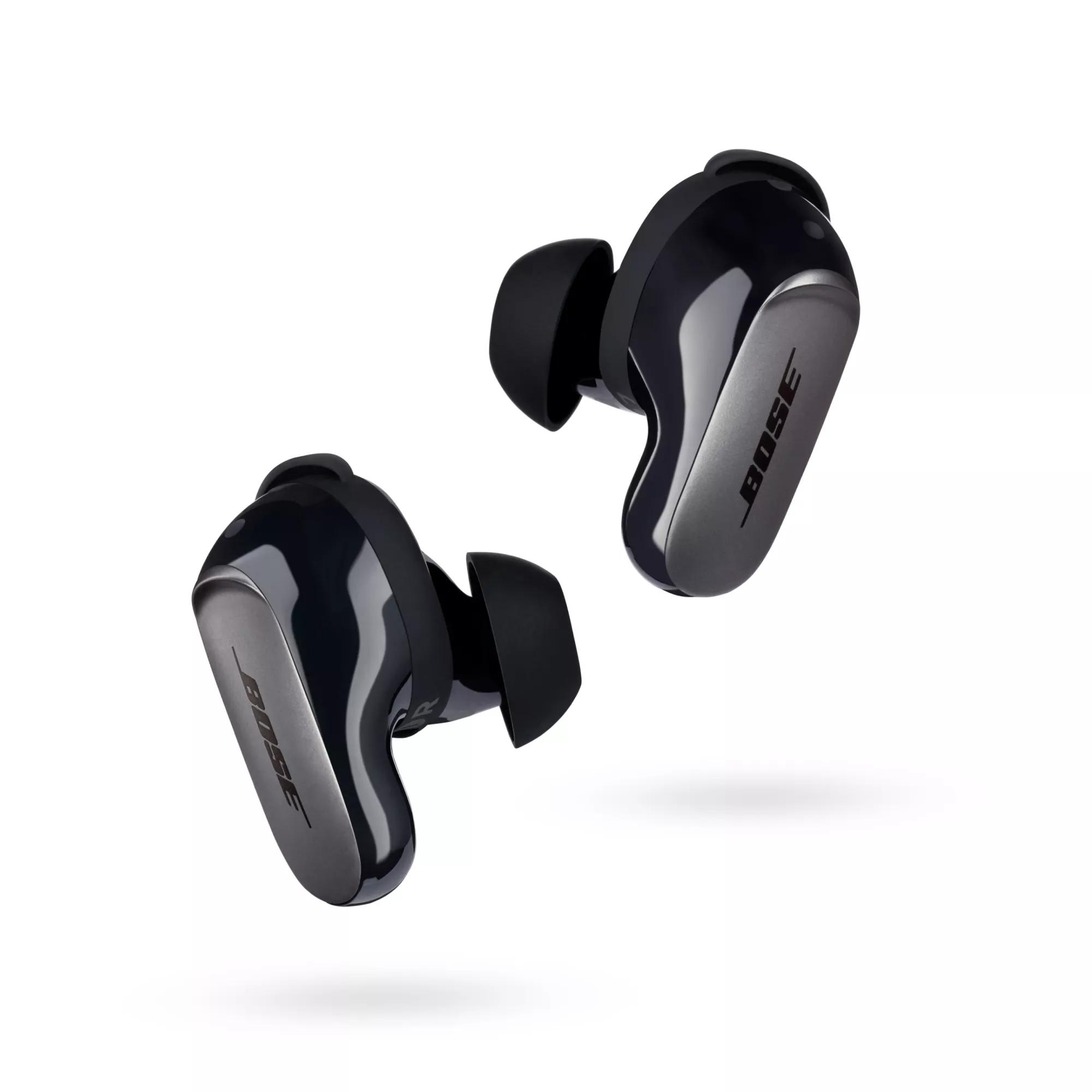
macOS makes Bluetooth simple. Use these steps for MacBook Air, MacBook Pro, or other Macs.
- Put the earbuds in pairing mode.
- Hold the Bluetooth button until the LED flashes or you hear a voice prompt.
- Open Bluetooth preferences.
- Click the Apple menu > System Settings (or System Preferences) > Bluetooth.
- Enable Bluetooth and watch available devices.
- Your Bose earbuds should appear in the list.
- Click Connect next to the earbuds.
- Wait a few seconds. The status will change to Connected.
- Choose the earbuds as the audio device.
- Open Control Center or Sound settings and pick the earbuds for input and output.
Knowing how to connect Bose earbuds to laptop on macOS helps when switching between iPhone handoffs and laptop audio.
Troubleshooting common Bluetooth problems
If pairing fails or audio drops, try these fixes.
- Restart both the earbuds and the laptop, then attempt pairing again.
- Remove any old Bluetooth pairings of the earbuds on your laptop and the earbuds’ phone list.
- Move closer and remove obstacles like thick walls or metal objects.
- Make sure the earbuds firmware and laptop Bluetooth drivers are up to date.
- Reset the earbuds to factory settings (check your Bose manual for model-specific steps).
Common quick questions
Why won’t my laptop find my Bose earbuds?
Ensure the earbuds are in pairing mode and visible. Also turn Bluetooth off and on on the laptop and retry.
Why is audio choppy after I connect?
Choppy audio often means interference, low battery, or outdated drivers. Move closer, charge the earbuds, and update drivers.
How do I reset Bose earbuds?
Most Bose models reset by holding power or Bluetooth buttons for 10–30 seconds. Check your model’s guide and try pairing again.
These quick answers help when you need fast solutions for how to connect Bose earbuds to laptop.
Advanced tips and settings to improve audio and stability
Small tweaks can make the connection feel professional.
- Update drivers and firmware
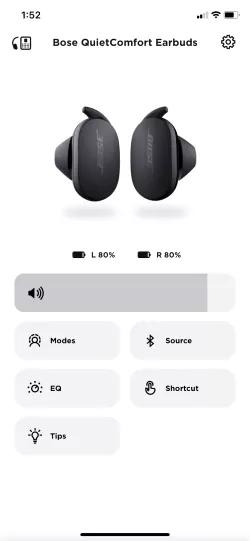
- Keep laptop Bluetooth drivers current and update earbuds firmware via the Bose app when available.
- Choose the right audio profile
- Use A2DP for high-quality audio. Some laptops switch to a lower profile during calls; change the sound settings if needed.
- Manage Bluetooth power and interference
- Disable unused Bluetooth devices and Wi-Fi on crowded 2.4 GHz bands if you notice drops.
- Use a USB Bluetooth adapter
- If your laptop’s Bluetooth is weak, a modern USB adapter with Bluetooth 5.x helps range and reliability.
- Reset and re-pair as a last resort
- If nothing works, reset earbuds and remove the pairing from the laptop before pairing again.
Mastering these settings makes the experience of how to connect Bose earbuds to laptop smooth for daily use.

Personal experience and lessons learned
I pair different Bose earbuds with laptops every week. One recurring tip: always update firmware first. A stubborn pairing issue I had with an older laptop cleared after a driver update. Another lesson is to limit the number of paired devices on the earbuds; fewer saved devices often mean faster connections. When I travel, I keep a compact USB Bluetooth dongle in my bag. It’s a small extra that solves big problems in conference rooms or older machines.
Frequently Asked Questions of how to connect bose earbuds to laptop
How do I put my Bose earbuds into pairing mode?
Press and hold the power or Bluetooth button until the LED blinks or you hear a voice prompt. Pairing mode timing varies by model, typically 5–10 seconds.
My laptop shows the earbuds but won’t connect. What now?
Remove the earbuds from the laptop’s Bluetooth list, restart both devices, and try pairing again. Update drivers and firmware if the issue persists.
Can I use the Bose app on my laptop for updates?
Bose apps are usually mobile-first. Use the mobile app for firmware updates, then pair the earbuds to your laptop afterward.
Why is my mic not working when connected to my laptop?
Some Bluetooth profiles limit mic quality. Check sound input settings and switch profiles if your laptop supports it. Try re-pairing or a USB headset if needed.
Do Bose earbuds work with any laptop?
Most modern laptops with Bluetooth will work. If a laptop lacks Bluetooth or has old drivers, add a USB Bluetooth adapter to connect.
Summary and next steps
You now have a clear path for how to connect Bose earbuds to laptop on both Windows and macOS. Start by prepping devices, use the step-by-step pairing guides, apply troubleshooting tips if needed, and try advanced settings for the best sound. Update firmware and drivers, and keep a USB Bluetooth adapter handy for older laptops. Try these steps now and leave a comment about which Bose model you used or any pairing challenges you solved. Subscribe or bookmark this guide for quick reference on future setups.