

Yes, you can plug in an SSD while your computer is on if the connection supports hot swapping.
The answer to “can I plug in SSD while computer is on” depends on the SSD type, port, operating system, and hardware settings. External USB SSDs are usually safe to connect while the computer runs, while internal SATA and M.2 drives need more care. This guide explains the safe method, the risks, and when you should shut down first.

Can I plug in SSD while computer is on?
In many cases, yes. However, “can I plug in SSD while computer is on” does not have one answer for every drive. The correct answer depends on whether the SSD is external or internal.
You can normally connect an external SSD through USB while Windows, macOS, or Linux is running. The operating system is designed to detect USB storage without a restart.
Internal SSDs are different. A 2.5-inch SATA SSD may support hot swapping, but the motherboard, SATA controller, BIOS settings, drive bay, and operating system must all support it. An M.2 SSD should almost always be installed with the computer powered off.
Think of an external USB SSD like plugging in a keyboard. Think of an internal M.2 SSD like changing a car battery while the engine is running. Both involve hardware, but the risk is not the same.

When it is safe to connect an SSD while the computer is on
The safest situation is an external SSD with a USB cable. USB storage is built for connection and removal during normal computer use.
You can usually connect these drives while the system is active:
• External USB-A SSDs
• External USB-C SSDs
• Thunderbolt SSDs when the computer and enclosure support hot plugging
• SSDs inside approved hot-swap bays
• SATA SSDs connected through a hot-swap docking station
Before connecting the drive, check that the cable and enclosure are in good condition. A damaged cable can cause an unstable connection or repeated disconnects.
Your computer should detect the SSD within a few seconds. On Windows, check File Explorer or Disk Management. On macOS, check Finder or Disk Utility. On Linux, open the file manager or use a disk utility.
Even when connection is safe, removal still matters. Always eject or unmount the drive before unplugging it. This reduces the chance of file corruption and protects data that may still be waiting in the write cache.
When you should turn the computer off
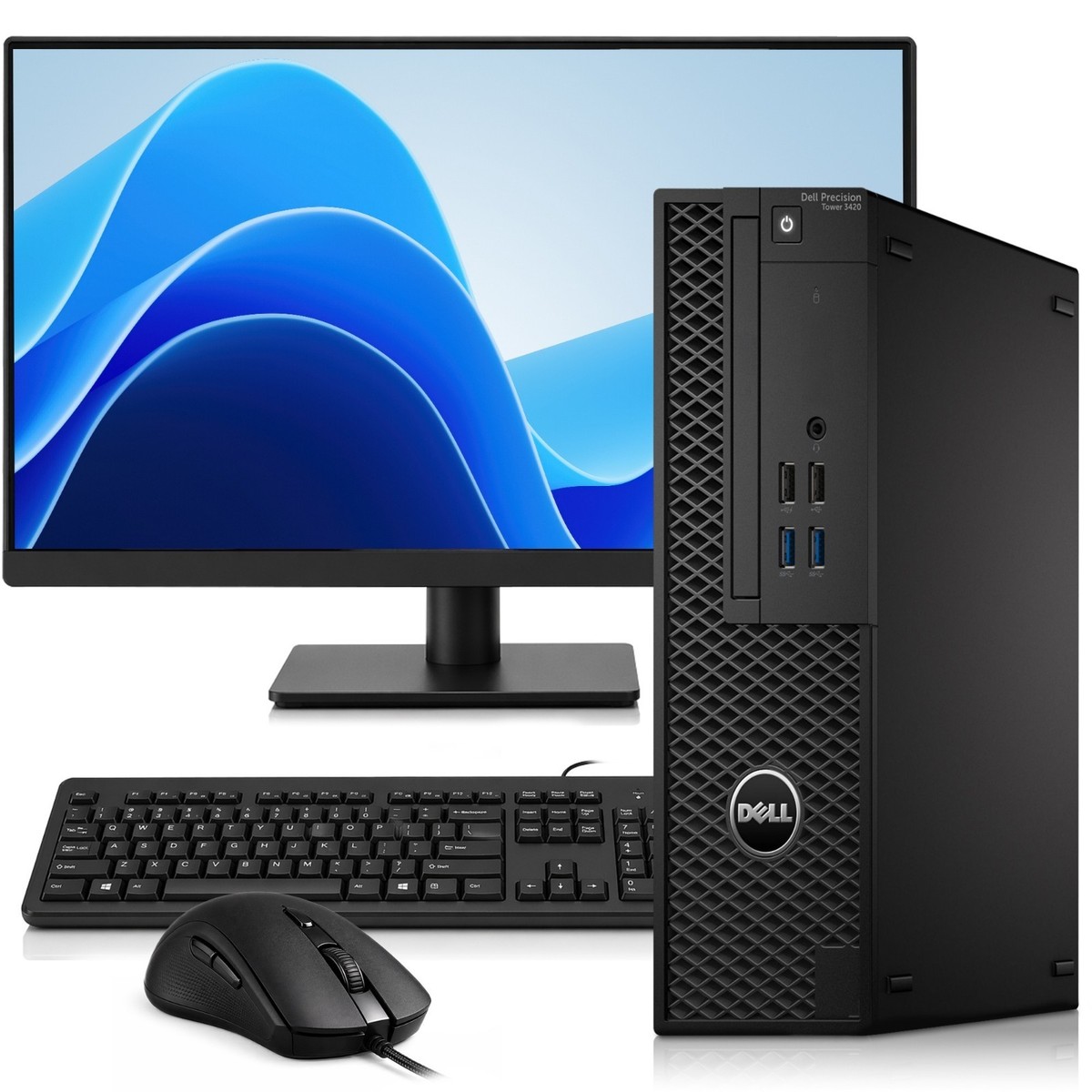
If you are asking, “can I plug in SSD while computer is on” because you want to install an internal drive, shutting down is the safer choice.
Power off the computer before installing:
• An M.2 SATA SSD
• An M.2 NVMe SSD
• A 2.5-inch SATA SSD inside a normal desktop case
• An SSD that requires opening the laptop
• An SSD connected directly to a motherboard SATA port without hot-swap support
M.2 drives slide into a small slot on the motherboard. They use exposed contacts and sit close to other components. Inserting one while power is present can cause an electrical short, damage the drive, or harm the motherboard.
A standard internal SATA SSD has separate data and power connectors. Some systems support hot swapping through their SATA controller, but many consumer computers do not enable it by default. Unless the motherboard manual clearly states that the port supports hot swapping, shut down first.
Laptops require even more care. Some laptops keep parts of the system powered during sleep or fast startup. A full shutdown is better than sleep, hibernation, or simply closing the lid.

External SSD versus internal SSD
Understanding the drive type makes the answer much easier.
External USB SSD
An external SSD uses an enclosure and cable. The enclosure changes the SSD’s internal connection into USB, making it suitable for hot connection in most cases.
It is usually safe to connect an external USB SSD while the computer is on. The main risks are a bad cable, a loose port, unsafe removal, or a damaged enclosure.
Internal SATA SSD
An internal SATA SSD connects directly to the motherboard and power supply. It may support hot swapping, but support is not automatic.
Hot swapping requires several parts to work together:
• The motherboard SATA port must support hot plugging
• The BIOS or UEFI setting may need hot plug enabled
• The operating system must handle the device correctly
• The drive bay or connector must be designed for repeated insertion
Internal M.2 SSD
An M.2 SSD connects directly to the motherboard. Most M.2 installation guides require the computer to be fully powered down.
Do not treat an M.2 NVMe drive like a USB flash drive. It is fast and compact, but it is not normally designed for casual insertion while powered.

How to safely connect an external SSD while the computer is on
If you are still wondering, “can I plug in SSD while computer is on,” follow these steps for an external USB model.
Save open work before connecting the drive.
Inspect the USB cable for cuts, bent ends, or loose connectors.
Connect the cable directly to the computer when possible.
Wait for the operating system to detect the SSD.
Open the drive and check that its folders appear normally.
Copy a small test file before moving important data.
Eject or unmount the SSD before removing it.
Use a direct computer port instead of an unpowered USB hub. Some portable SSDs draw more power than a weak hub can provide. A direct USB-C port often gives better power and speed.
If the SSD does not appear, do not immediately unplug it. Wait a moment, try another port, and check Disk Management, Disk Utility, or a Linux disk tool.
If the system asks you to format the SSD, stop first. Formatting can erase existing data. The drive may use a file system that your operating system cannot read, or it may have a partition problem.
How to install an internal SSD safely
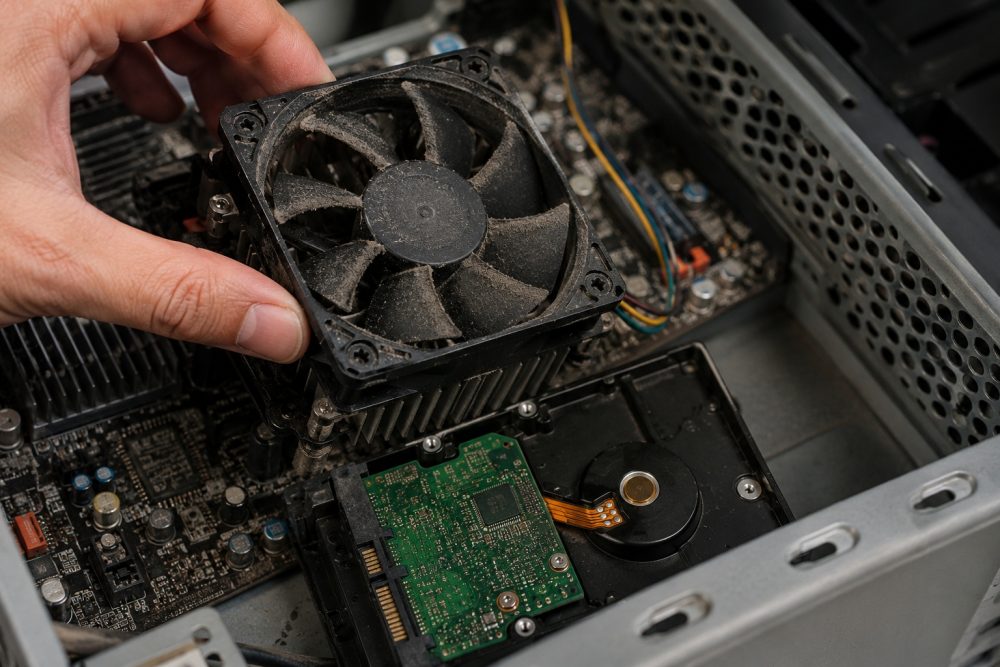
For an internal SSD, the safest answer to “can I plug in SSD while computer is on” is usually no. Use this process instead.
Back up important files.
Shut down the operating system.
Turn off the power supply if the desktop has a rear switch.
Unplug the power cable.
Hold the computer’s power button for several seconds.
Use an anti-static wrist strap or touch a grounded metal part of the case.
Install the SSD in the correct slot or drive bay.
Secure the SSD with the correct screw or mounting bracket.
Reconnect cables and close the case.
Start the computer and check whether the drive appears.
For an M.2 SSD, line up the notch with the slot. Insert the drive at a slight angle, then press it down gently and secure it. Never force the drive into the slot.
For a SATA SSD, connect both the SATA data cable and the SATA power cable. A missing power cable can make the drive appear dead even when the data cable is connected correctly.
After installation, open your system’s disk management tool. A new SSD may need initialization, partitioning, and formatting before it appears in File Explorer or Finder.

What hot swapping means
Hot swapping means connecting or removing hardware while the computer remains powered on. The feature depends on both hardware and software.
SATA hot plug support is common in servers, storage arrays, and professional workstations. It is less consistent in ordinary desktop computers. A motherboard may support hot plugging on some SATA ports but not others.
BIOS or UEFI menus may include settings such as:
• SATA hot plug
• External SATA support
• Hot plug enable
• AHCI mode
AHCI, or Advanced Host Controller Interface, helps operating systems manage SATA devices. Older IDE or compatibility modes may not offer the same hot-swap behavior.
Changing storage settings in BIOS can create boot problems. If your current operating system uses a certain controller mode, changing it without preparation may cause a startup error. Check the motherboard manual before changing AHCI or RAID settings.
Hot swapping is not the same as simply having an available port. An open port does not guarantee that the drive can be connected safely while powered.
Risks of connecting an SSD while the computer is running
The risks vary by drive type and connection method. The most common problems include:
• Electrical damage from incorrect internal connection
• File corruption from unplugging without ejecting
• Data loss caused by a failing cable or enclosure
• Drive detection errors
• System freezes or unexpected restarts
• Static electricity damage
• Short circuits from dropped screws or metal tools
• Damage to a motherboard port
With an external USB SSD, the main practical risk is unsafe removal. Modern operating systems often use write caching, so a file may look copied while some data is still being written.
With an internal SSD, the risk is higher because power and data contacts are exposed during installation. A small mistake can affect the drive, motherboard, or power supply.
In storage work, a careful approach saves more time than a rushed one. A few minutes spent shutting down is far better than recovering a damaged file system.

What to do if the SSD is not detected
If you connect an SSD and nothing happens, do not assume it is defective. Follow a basic troubleshooting process.
• Try another USB port or SATA cable.
• Test the SSD on another computer.
• Check Disk Management in Windows.
• Check Disk Utility on macOS.
• Check whether the drive appears in BIOS or UEFI.
• Confirm that the external enclosure supports the SSD type.
• Check whether the drive needs initialization.
• Look for a missing drive letter in Windows.
• Check whether the drive is mounted in Linux.
A drive can appear in Disk Management but not in File Explorer. This often means it has no drive letter, no partition, or an unsupported file system.
An M.2 SSD may also fail to appear because the slot supports SATA M.2 but not NVMe, or the reverse. Some M.2 slots disable certain SATA ports when occupied. The motherboard manual is the best source for these details.
Do not format a drive that contains needed files. If the SSD has important data, stop troubleshooting before making changes that could overwrite its structure.
Can connecting an SSD cause data loss?
Connecting a healthy external SSD usually does not erase data. Data loss is more likely when the drive is disconnected during a write, formatted by mistake, or affected by a failing cable or enclosure.
The safest habits are simple:
• Keep at least one backup of important files.
• Eject the SSD before unplugging it.
• Do not interrupt a file transfer.
• Avoid cheap or damaged cables.
• Do not format an unfamiliar drive.
• Keep the SSD away from heat, moisture, and physical shocks.
Solid-state drives have no moving parts, but they can still fail. Their controllers, flash memory, firmware, and power circuits can develop faults. An SSD is not a backup by itself.
The 3-2-1 backup approach remains useful: keep three copies of important data, on two different types of storage, with one copy stored away from the computer.
Practical examples
Suppose you have a portable USB-C SSD and want to move photos from a desktop computer. Connect it while the computer is running, wait for it to appear, copy the files, and eject it when finished. This is a normal and low-risk use case.
Now suppose you bought an M.2 NVMe SSD for a desktop upgrade. Do not slide it into the motherboard while Windows is running. Shut down, unplug the system, install the drive, and then configure it after startup.
A third example involves a server with a labeled hot-swap bay. If the server, drive tray, backplane, and storage controller support hot swapping, you can replace a drive while the system runs. Follow the server maker’s instructions because RAID systems may require a specific replacement process.
The key lesson is that the connector alone does not decide safety. The whole system must support the action.
Common mistakes to avoid
Many SSD problems come from small mistakes rather than complex hardware faults.
• Installing an M.2 drive while the computer is powered
• Using the wrong M.2 key or drive type
• Removing an external SSD without ejecting it
• Connecting through an unreliable USB hub
• Formatting the wrong disk
• Forgetting the SATA power cable
• Changing BIOS storage mode without preparation
• Touching contacts with bare, damp, or dirty fingers
• Applying force when the SSD does not fit
• Assuming a missing drive letter means the SSD is broken
One mistake I often see in hands-on troubleshooting is rushing because the drive looks simple to install. Small hardware does not mean risk-free hardware. Taking a photo of the original cable layout before opening a desktop can prevent a frustrating rebuild.
Frequently Asked Questions About Can I Plug In SSD While Computer Is On
Can I plug in an external SSD while my computer is running?
Yes, an external USB SSD is normally safe to connect while Windows, macOS, or Linux is running. Wait for the drive to appear and eject it before disconnecting it.
Can I plug in an internal SATA SSD while the computer is on?
Only if the motherboard, SATA port, controller, and drive bay support hot swapping. If you cannot confirm hot-swap support, shut down the computer before connecting the SSD.
Can I plug in an M.2 SSD while the computer is on?
No, you should normally power off the computer before installing an M.2 SATA or NVMe SSD. Installing it while powered can cause electrical damage or data loss.
Do I need to eject an external SSD before unplugging it?
Yes, ejecting or unmounting the SSD helps ensure that all write operations are complete. Removing it without ejecting may corrupt files or the file system.
Why is my SSD not showing up after I connect it?
The SSD may need a drive letter, partition, initialization, mounting, or a compatible file system. Check Disk Management, Disk Utility, or your Linux disk tool before formatting anything.
Can a USB hub safely connect an external SSD?
Some powered, high-quality USB hubs work well, but an unpowered hub may not provide enough power. For the most reliable connection, plug the SSD directly into the computer.
Will plugging in an SSD while the computer is on damage it?
An external USB SSD is unlikely to suffer damage from normal connection. An internal SSD can be damaged if it is connected without hot-swap support, especially an M.2 drive.
Conclusion
So, can I plug in SSD while computer is on? Yes, in most cases, you can connect an external USB SSD while the computer is running. Internal SATA drives may support hot swapping, but only when the entire system is designed for it. M.2 SSDs should be installed with the computer fully powered off.
Use the safest rule: external USB storage can usually be connected live, while internal storage should be installed after shutdown unless hot swapping is clearly supported. Eject external drives properly, back up important files, and check your motherboard manual before changing internal hardware. Share your SSD setup or question in the comments, and explore more storage guides before your next upgrade.
