How To Connect Beats Earbuds To Laptop: Easy Pairing Guide
Open Bluetooth settings, put your Beats earbuds in pairing mode, then select them from your laptop’s device list.
Learning how to connect Beats earbuds to laptop devices is simple once you know where pairing mode and Bluetooth settings are located. I have tested this process on both Windows PCs and MacBooks, and most connection problems come from one of three things: the earbuds are not in pairing mode, they are connected to another device, or the laptop’s Bluetooth setting is off.
This guide explains how to connect Beats earbuds to laptop computers, fix common pairing errors, improve sound quality, and keep your earbuds connected for calls, music, and video meetings.

What to check before connecting Beats earbuds
Before you start, check a few basic items. Your earbuds should have enough battery power, and your laptop should support Bluetooth. Almost every modern Windows laptop and MacBook includes Bluetooth, but older computers may need a USB Bluetooth adapter.


Keep the earbuds and laptop close together during setup. A distance of less than three feet is best for the first connection.
Make sure your Beats earbuds are not still connected to your phone, tablet, or another computer. Bluetooth earbuds often reconnect to the last device they used. Turning Bluetooth off on nearby devices can make the first setup much easier.
You should also check these points:
• Charge the earbuds and charging case.
• Turn on Bluetooth on the laptop.
• Install pending Windows or macOS updates.
• Keep the earbuds inside the case until you are ready to pair them.
• Remove thick objects or electronic devices that may interfere with the Bluetooth signal.
Bluetooth pairing is like introducing two people in a busy room. Both devices must be visible, ready, and close enough to recognize each other.

How to connect Beats earbuds to a Windows laptop
The steps for how to connect Beats earbuds to laptop computers running Windows 10 or Windows 11 are nearly the same. The names of a few menus may differ slightly based on your Windows version.
Put Beats earbuds in pairing mode
Use these steps:


-
Place both earbuds in the charging case.
-
Open the case lid.
-
Leave the earbuds inside the case.
-
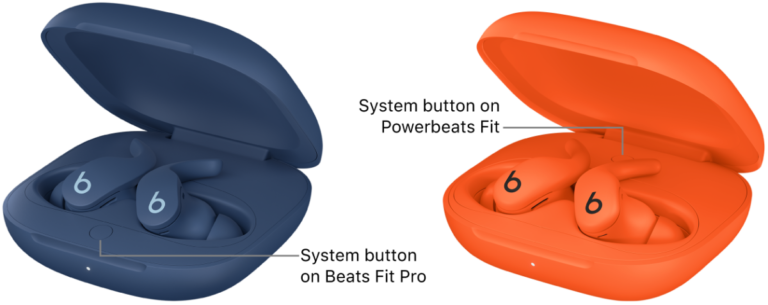
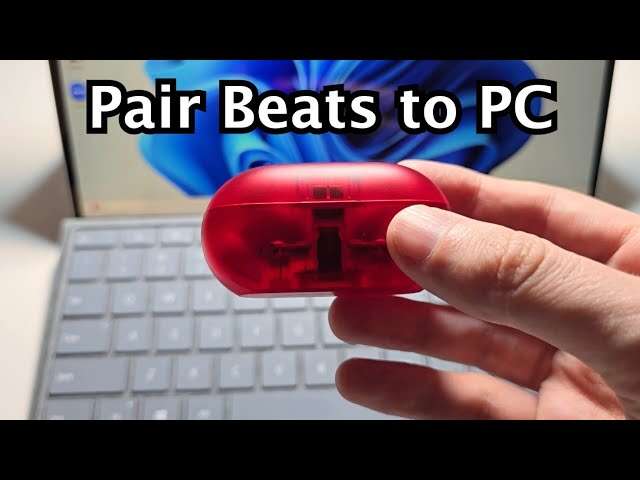
Press and hold the system button on the case.
-
Release the button when the indicator light begins flashing white.
The system button is usually located on the front or inside of the charging case. On some Beats models, the pairing button may be placed in a slightly different position. Check the model guide if you cannot find it.
A flashing white light usually means the earbuds are ready to pair. If the light does not flash, close the case, wait a few seconds, open it again, and repeat the process.
Turn on Bluetooth in Windows
On Windows 11:
-
Select the Start menu.
-
Open Settings.
-
Select Bluetooth & devices.
-
Turn on Bluetooth.
-
Select Add device.
-
Choose Bluetooth.
-
Select your Beats earbuds from the list.
On Windows 10:
-
Open Start.
-
Select Settings.
-
Choose Devices.
-
Select Bluetooth & other devices.
-
Turn on Bluetooth.
-
Select Add Bluetooth or other device.
-
Choose Bluetooth.
-
Select your Beats earbuds.
Windows may display the earbuds using a name such as “Beats Studio Buds,” “Beats Fit Pro,” or “Powerbeats Pro.” Select the name that matches your model.
After a few seconds, Windows should show a message that the device is connected. Your Beats earbuds should now work for music, videos, games, and other laptop audio.
Set Beats as the sound output
Sometimes Windows connects the earbuds but continues sending sound through the laptop speakers. To change this, select the speaker icon in the taskbar and choose your Beats earbuds.
You can also go to Settings, select System, choose Sound, and select your Beats earbuds under Output. This step is important because Bluetooth connection and audio output are separate settings in Windows.

How to connect Beats earbuds to a MacBook
The process for how to connect Beats earbuds to laptop computers from Apple is quick. macOS usually recognizes Beats products smoothly, especially when the earbuds have been reset and are not connected to another device.
Pair Beats earbuds with macOS
Follow these steps:
-
Put both earbuds in the charging case.
-
Open the lid.
-
Press and hold the case’s system button.
-
Wait for the light to flash white.
-
Select the Apple menu in the top left corner.
-
Open System Settings.
-
Select Bluetooth.
-
Find your Beats earbuds in the list of nearby devices.
-
Select Connect.
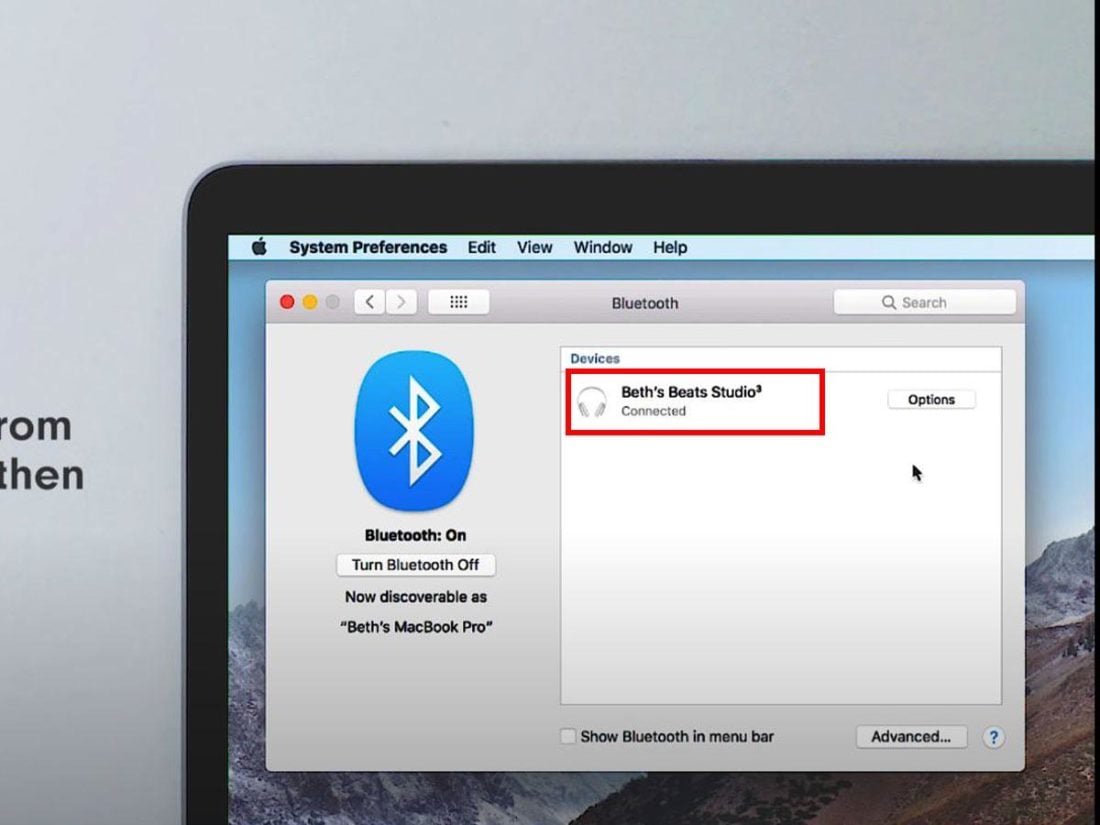
On older MacBooks, you may need to open System Preferences instead of System Settings. Then select Bluetooth and choose your Beats earbuds from the device list.
If macOS asks you to confirm the connection, select Connect or Accept. Once paired, the earbuds should appear as connected.


Select Beats earbuds for Mac audio
If your MacBook connects to the earbuds but plays sound through its speakers, select the Control Center icon in the menu bar. Choose Sound, then select your Beats earbuds.
You can also open System Settings, select Sound, and choose the earbuds under Output. If you plan to use the earbuds for Zoom, Teams, or another video app, select them inside that app’s audio settings as well.

How to connect different Beats earbud models
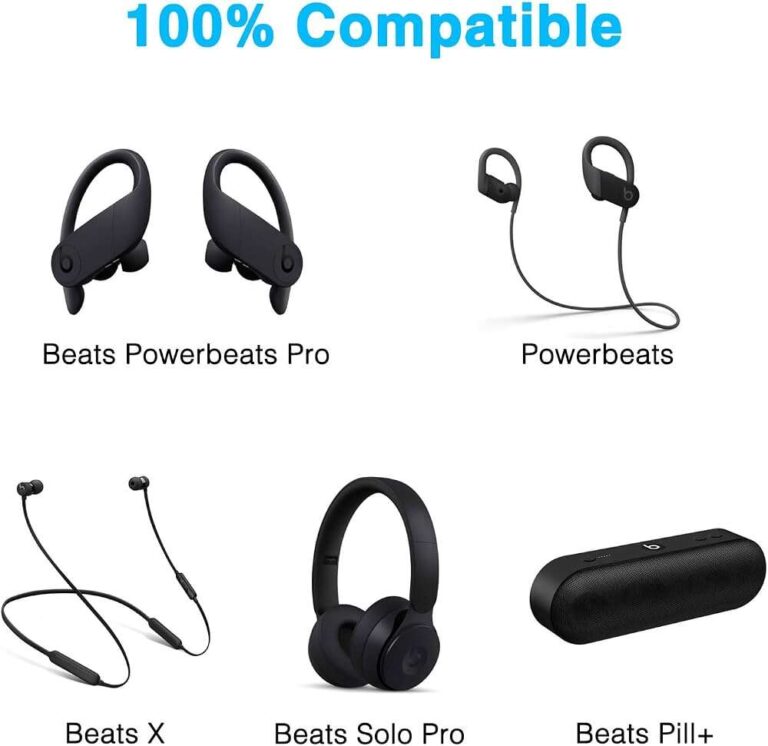
The basic pairing process is similar across Beats products, but the button location and features can vary. Knowing your model can help you avoid confusion.
Beats Studio Buds and Studio Buds Plus
Place the earbuds in the case, open the lid, and press the system button until the light flashes white. These models support standard Bluetooth pairing with Windows laptops, MacBooks, tablets, and phones.
Beats Fit Pro
Place the earbuds in the case and open the lid. Press and hold the system button until the light flashes white. Beats Fit Pro may switch between Apple devices more easily when connected to the same Apple account, but you can still pair them manually with Windows.
Powerbeats Pro
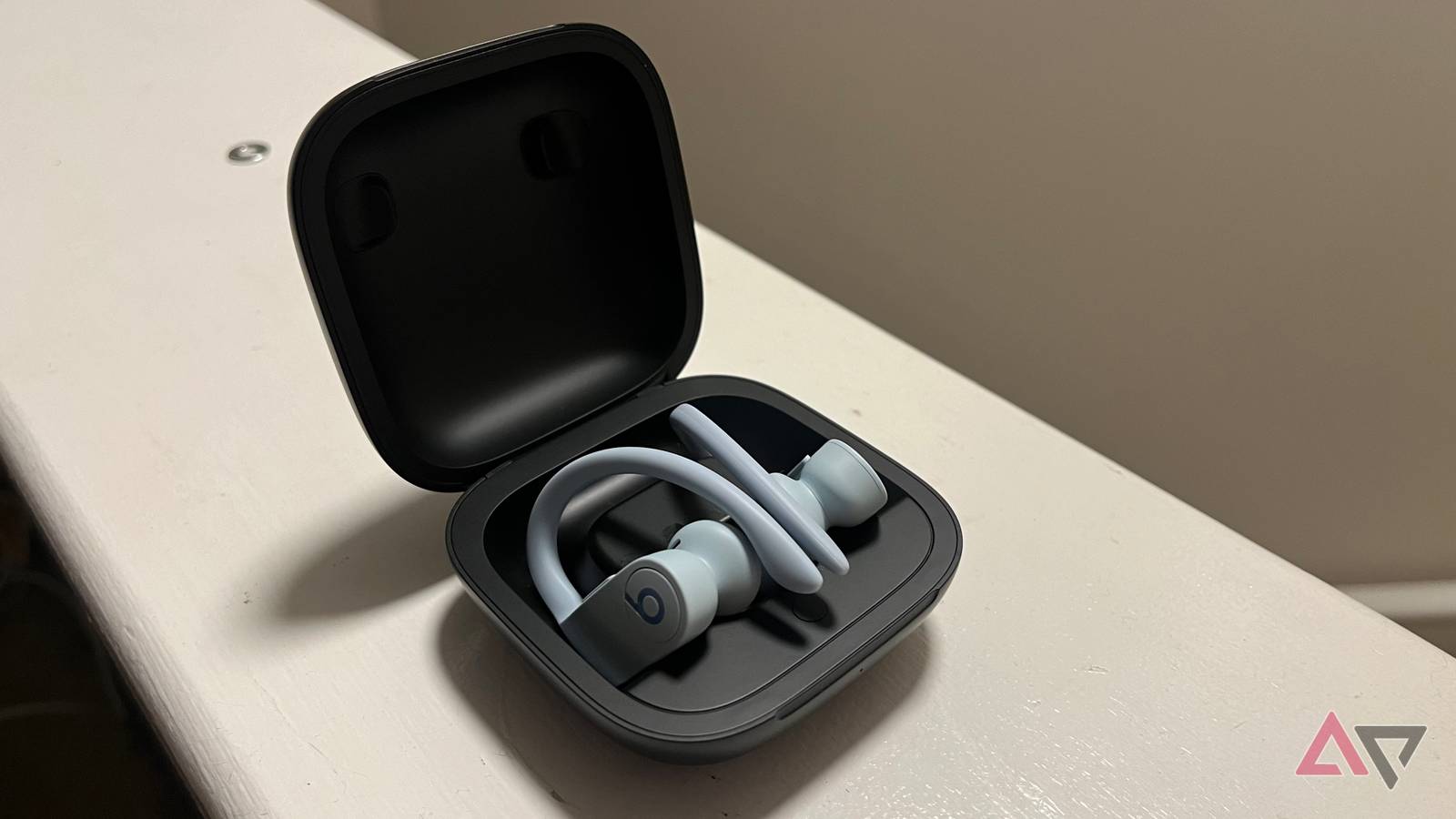
Place the earbuds in the charging case and open the lid. Press the button inside the case until the indicator flashes white. Keep both earbuds in the case during pairing.
Beats Solo Buds
Open the case and press the pairing button as described in the model instructions. If the laptop does not detect them, close the case, reopen it, and press the button again until the status light flashes.
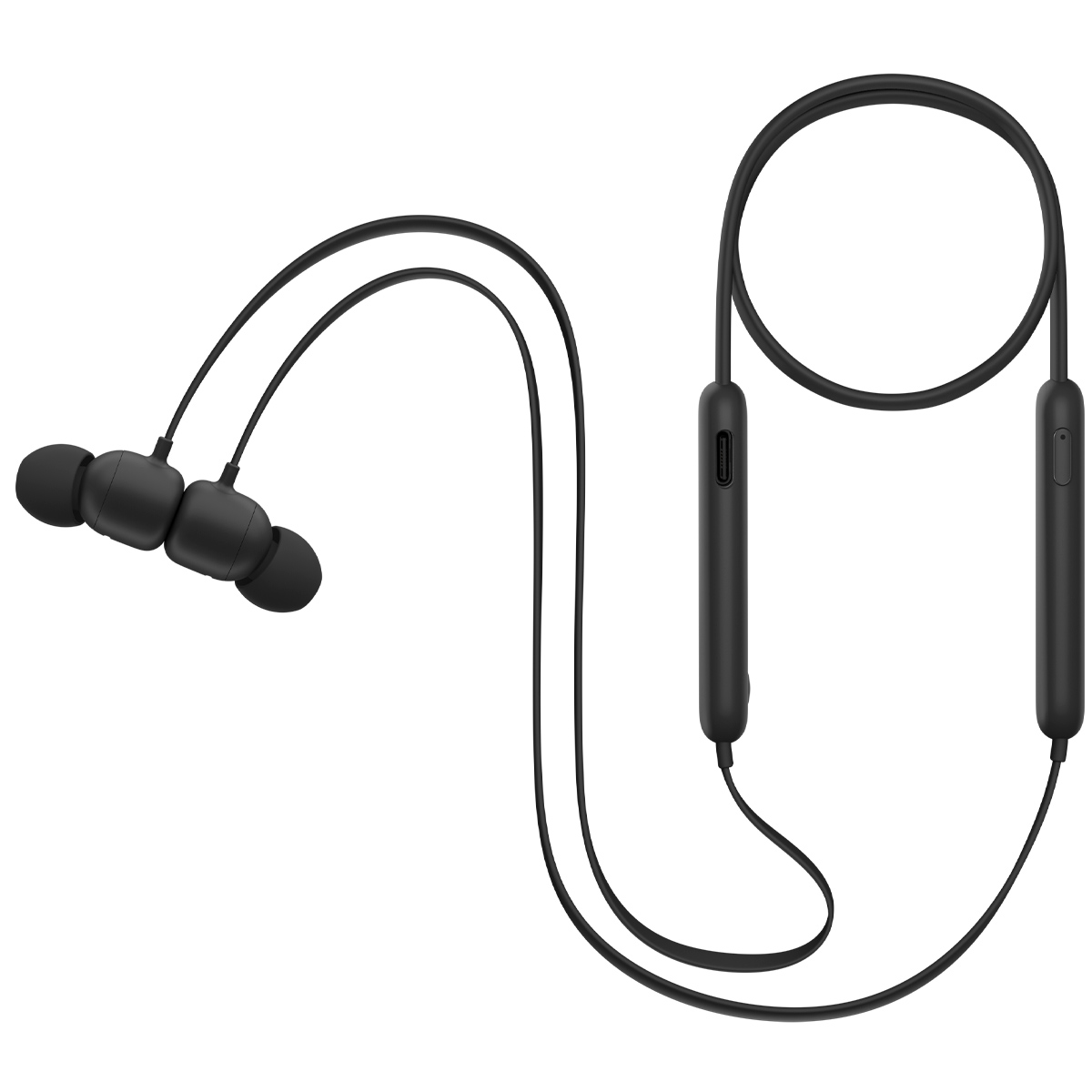
Beats Flex
Turn on the earphones and hold the power button until the indicator light flashes. Then open the laptop’s Bluetooth menu and select Beats Flex.
The exact light pattern can differ by model. A flashing white light usually signals pairing mode, while a solid light often means the earbuds are already connected or have enough charge.
How to fix Beats earbuds that will not connect
If how to connect Beats earbuds to laptop instructions do not work on the first try, do not assume the earbuds are broken. Most failures are caused by an old Bluetooth record, another active connection, low battery, or a temporary software issue.
Try these fixes in order.
Disconnect other devices
Turn off Bluetooth on your phone, tablet, smartwatch, or other nearby device. If the earbuds connect to that device first, they may disappear from the laptop’s Bluetooth list.
Restart Bluetooth
Turn Bluetooth off on the laptop. Wait about ten seconds, then turn it back on. Put the Beats earbuds into pairing mode again before searching for them.
Remove and re-add the earbuds
On Windows, open Bluetooth & devices, select the three-dot menu beside the Beats earbuds, and choose Remove device. Then select Add device and pair them again.
On a Mac, open Bluetooth settings, select the information button beside the earbuds, and choose Forget This Device. Put the earbuds back into pairing mode and reconnect them.
Reset the earbuds
If pairing still fails, reset the earbuds. Put them in the case, leave the lid open, and press and hold the system button for about 15 seconds. Release it when the light flashes red and white, then flashes white.


The exact reset process may vary by model. Resetting removes saved connection data, so you may need to pair the earbuds with your other devices again.
Update Bluetooth drivers on Windows
An outdated driver can prevent a laptop from detecting Bluetooth accessories. Open Device Manager, expand Bluetooth, right-click the Bluetooth adapter, and select Update driver.
You can also install drivers from the laptop maker’s official support page. Avoid random driver websites, since they may provide unsafe or incorrect software.
Restart the laptop
A full restart often fixes Bluetooth services that have stopped responding. This simple step is easy to overlook, but it solved many connection problems during laptop setup and support work.

How to fix sound, microphone, and connection problems
Knowing how to connect Beats earbuds to laptop devices is only part of the setup. You also want stable sound and a working microphone.
If the audio cuts out, keep the laptop within a reasonable range and remove barriers between the laptop and earbuds. USB 3.0 devices, wireless routers, and crowded Bluetooth areas can sometimes cause interference.
If only one earbud works, place both earbuds in the case, close the lid, wait a few seconds, and try again. Clean the charging contacts with a dry, soft cloth. Dirt on the contacts can stop one earbud from charging or connecting.
For video calls, select the Beats microphone inside the meeting app. On Windows, open the app’s audio settings and choose the Beats earbuds for both speaker and microphone. On a Mac, select them under the app’s microphone and speaker options.
There is one important limitation: Bluetooth headsets may use a lower-quality audio mode when the microphone is active. This can make music sound less clear during a call. For the best music quality, use the earbuds for output and a separate microphone when possible.
In my experience, users often blame the earbuds when the real problem is the video app. Apps such as Zoom and Microsoft Teams can use their own audio settings instead of the laptop’s default settings. Always check both places.
Tips for a stronger Bluetooth connection
A few habits can make how to connect Beats earbuds to laptop devices easier in the future.
• Keep the laptop’s operating system and Bluetooth drivers updated.
• Charge the earbuds before long meetings or travel.
• Store the earbuds in their case when not in use.
• Avoid pairing the earbuds with many devices at the same time.


• Turn off Bluetooth on devices you are not using.
• Keep the earbuds within a clear range of the laptop.
• Use the official Beats app or device support tools when available for your model.
• Do not reset the earbuds unless normal pairing steps fail.
Windows and macOS may remember several Bluetooth devices, but saved connections can still become confusing. If you regularly move between a phone and laptop, disconnect the earbuds from one device before connecting them to the other.
It also helps to give the earbuds a few seconds to connect after opening the case. Quickly opening several Bluetooth menus can create the impression that the earbuds are not working when they are simply still reconnecting.

How to connect Beats earbuds to laptop for automatic use
After the first successful pairing, your laptop should remember the earbuds. The next time you use them, open the case near the laptop and select the earbuds from the Bluetooth menu if they do not connect automatically.
On Windows, select the speaker icon in the taskbar and choose the Beats earbuds as the output device. On macOS, open Control Center, select Sound, and choose the earbuds.
Automatic connection is not guaranteed if the earbuds are already connected to another device. This is normal Bluetooth behavior, not necessarily a fault. Disconnect them from the phone or tablet first, then select them on the laptop.
If you use the same laptop every day, leave Bluetooth enabled and keep the earbuds charged. This creates a smooth routine and reduces the need to repeat the pairing process.
Frequently asked questions about how to connect Beats earbuds to laptop
Can I connect Beats earbuds to a Windows laptop?
Yes. Beats earbuds connect to Windows laptops through Bluetooth. Put the earbuds in pairing mode, open Bluetooth settings, select Add device, and choose the Beats earbuds from the list.
Can I connect Beats earbuds to a MacBook?
Yes. Open the case, press the pairing button until the light flashes white, then open System Settings and select Bluetooth. Choose the Beats earbuds and select Connect.
Why are my Beats earbuds not showing up on my laptop?
They may not be in pairing mode, may be connected to another device, or may have low battery power. Turn off Bluetooth on nearby devices, reset the earbuds if needed, and search again.
Do I need an app to connect Beats earbuds to a laptop?
No. You can connect most Beats earbuds through the laptop’s built-in Bluetooth settings. An app may provide extra features, updates, or battery details, but it is not required for basic pairing.
How do I reset Beats earbuds before pairing?
Place both earbuds in the case, leave the lid open, and hold the system button for about 15 seconds. Release it when the light changes to red and white, then flashes white; model instructions may vary.


Why do my Beats earbuds connect but have no sound?
The laptop may still be using its internal speakers as the output device. Open the sound settings and select your Beats earbuds as the output, then check the audio settings inside the app you are using.
Can I use Beats earbuds for laptop video calls?
Yes. Select the Beats earbuds as the speaker and microphone in your video call app. Bluetooth microphone mode may reduce music quality, so a separate microphone can provide better sound during calls.
Conclusion
Connecting Beats earbuds to laptop computers usually takes only a few minutes. Put the earbuds in pairing mode, turn on Bluetooth, select the correct device, and choose the earbuds as your audio output.
If the connection fails, disconnect nearby devices, remove the old Bluetooth record, restart the laptop, or reset the earbuds. Once you understand these steps, how to connect Beats earbuds to laptop devices becomes a simple routine instead of a frustrating tech problem.
Try the steps above with your Beats model today, and share your experience or any model-specific tips in the comments.