

Most headphone static comes from loose connections, interference, dirty ports, bad cables, or faulty audio hardware.
Learning how to fix static in headphones starts with finding the source, not simply turning the volume down. After testing wired, wireless, and noise-canceling headphones in real-world setups, I’ve found that most cases have a simple cause and a practical fix. This guide will help you diagnose the noise, repair common problems, and know when replacement is the smarter choice.
What Headphone Static Sounds Like
Headphone static is a crackling, buzzing, hissing, or popping sound that should not be part of your music or call. It may happen all the time, or only when you move the cable, open an app, charge a device, or raise the volume.
The sound can come from the headphones, the audio source, the connection, or nearby electrical equipment. Think of your audio system as a chain. If one link is weak, the entire chain can sound poor.
Common forms of headphone static include:
• A soft hiss during quiet parts of music
• Crackling when the cable moves
• A buzzing sound near a laptop charger
• Popping when you plug in or remove the headphones
• Static in only one earcup
• Noise that appears during phone calls
• Intermittent sound that stops when you press the plug
Static is not always a sign that the headphones are broken. A dirty headphone jack, weak Bluetooth signal, outdated driver, or damaged adapter can create the same symptom.

Why Your Headphones Make Static
Before learning how to fix static in headphones, identify when the noise appears. The timing often points directly to the cause.
Dirty headphone jack or plug
Dust, pocket lint, and skin oil can collect inside a phone, computer, or audio jack. This blocks a clean electrical connection and may cause crackling or sound that cuts in and out.
A dirty plug can cause the same issue. Even a thin layer of dirt may prevent the metal contacts from touching correctly.
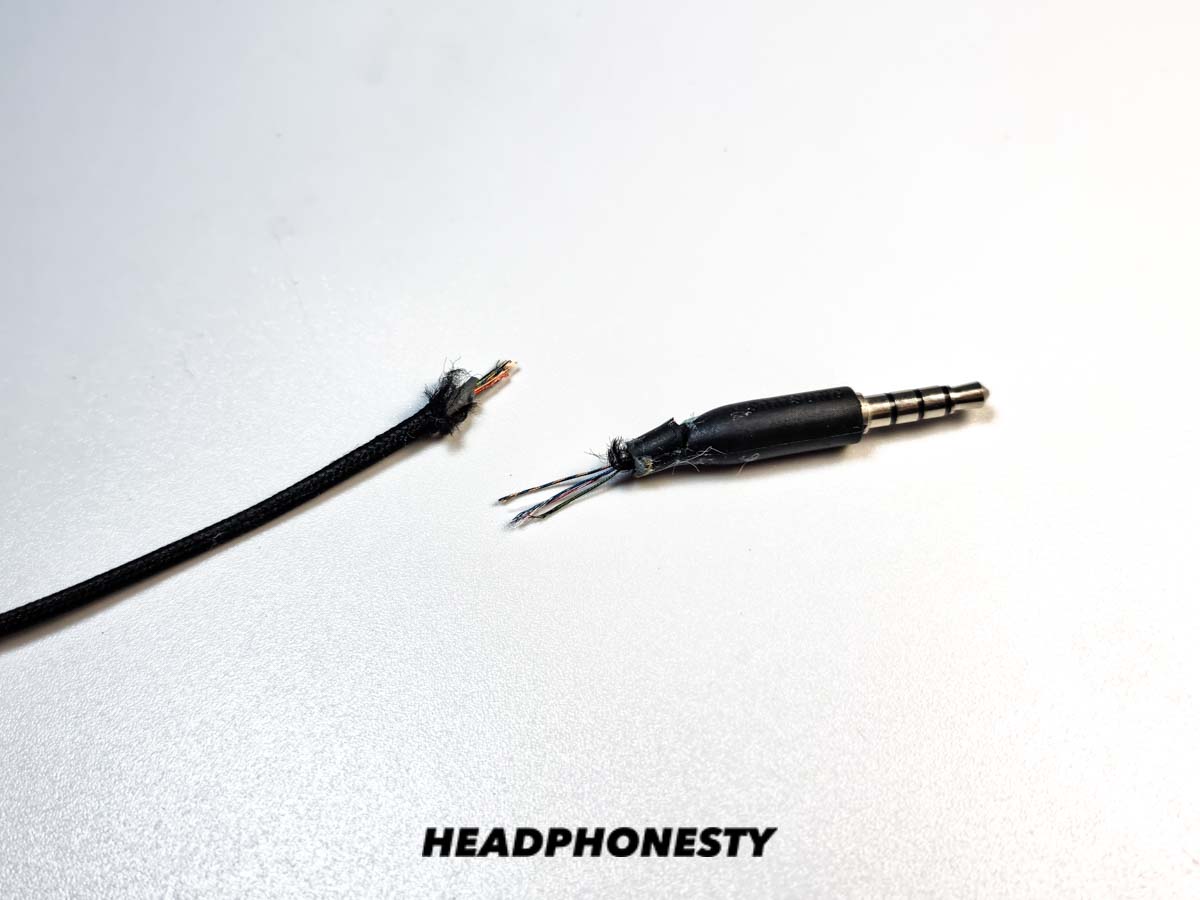
Damaged cable or connector
Wired headphones often develop a weak spot near the plug, remote, or earcup. Bending this area can break the small wires inside the cable.
If static changes when you twist or move the cable, the cable is likely damaged. This is one of the clearest signs that you need to repair or replace the cable.
Electrical interference
Chargers, power strips, monitors, fluorescent lights, and other electronics can produce electromagnetic interference. This noise may enter the audio system through a cable or poorly shielded adapter.
A buzzing sound that appears only when your laptop is charging often points to interference or a grounding issue.
Bluetooth connection problems
Wireless headphones can produce static when they are too far from the device or when the signal is blocked. Walls, crowded Wi-Fi networks, smartwatches, and other Bluetooth devices may also create brief audio glitches.
Low battery power, outdated firmware, and an overloaded Bluetooth connection can make the problem worse.
Software or audio driver issues
A computer may produce static because of an outdated sound driver, incorrect sample rate, audio enhancement, or operating system error. Some apps also use special audio effects that conflict with the system sound settings.
If the same headphones work normally with another device, your original device is the more likely cause.
Faulty adapter, dongle, or DAC
USB-C, Lightning, and 3.5 mm adapters contain electronic parts that process or carry audio. A low-quality or damaged adapter may add hiss, buzzing, or crackling.
External DACs can improve sound quality, but they cannot fix a damaged cable or a dirty port.

How to Fix Static in Headphones: Quick Troubleshooting
Use these steps in order. Start with simple checks before changing drivers or opening hardware.
Pause the audio and lower the volume. Very high volume can make normal electronic hiss sound like serious static.
Unplug the headphones and connect them again. Push the plug in firmly, but never force it.
Test another app. If static happens in one app only, the app or its audio settings may be responsible.
Test another pair of headphones on the same device. This tells you whether the problem is in the headphones or the source.
Test your headphones on another device. Try a phone, tablet, computer, or game console.
Restart the device. A restart can clear a temporary audio driver or Bluetooth error.
Disconnect nearby accessories. Remove chargers, USB hubs, external monitors, and other devices one at a time.
Check the cable for cuts, sharp bends, loose plastic, or exposed wire.
Charge wireless headphones fully. Then test them close to the source.
Clean the connector and port carefully.
This process helps you avoid a common mistake: replacing good headphones because the real problem is a damaged adapter or laptop port.

How to Fix Static in Wired Headphones
Wired headphones are usually easier to test because the signal path is direct. Follow these checks if your headphones use a 3.5 mm, USB, USB-C, or Lightning connection.
Clean the plug and port
Turn off the device before cleaning. Wipe the headphone plug with a clean, dry microfiber cloth.
For a port, use a small amount of compressed air from a safe distance. Keep the can upright, and use short bursts. Do not pour liquid into the port, and do not push a metal object inside it.
A wooden or plastic pick may help remove visible lint, but use extreme care. Damaging the contacts inside the port can create a bigger repair.
Check the connection
Insert the plug fully. Some headphone plugs have two or three black rings that separate the audio contacts. If the plug is not fully inserted, the contacts may not align.
Remove a thick phone case if it blocks the plug. A case can make the connection look secure even when the plug is slightly loose.
Move the cable gently
Play audio at a low volume. Bend the cable gently near the plug, remote, and earcups.
If the static appears during movement, stop using force. Repeated bending can worsen the break. A replacement cable may solve the problem if the headphones have detachable cables.
Try a different port or adapter
Connect the headphones to another port. If you use a USB-C or Lightning adapter, test a different adapter that is designed for audio.
Avoid very cheap adapters with poor shielding. They may work for music but produce noise during charging or high-volume playback.
Check for a ground loop
A ground loop can create a steady hum or buzz when several powered devices are connected. For example, a laptop may buzz through wired headphones while connected to a monitor and charger.
Test the laptop on battery power. If the noise disappears, disconnect accessories one at a time to identify the source. Do not remove the ground pin from a power plug or use unsafe electrical workarounds.

How to Fix Static in Bluetooth Headphones
Bluetooth static often comes from signal problems rather than damaged speakers. Try these steps before resetting the headphones.
Move closer to the device
Keep the headphones within a few feet of the phone or computer. Place the device where your body, a desk, or a wall does not block the signal.
Bluetooth uses short-range radio signals. The connection may weaken in busy areas with many wireless devices.
Remove and reconnect the headphones
Open your Bluetooth settings and forget the headphones. Turn Bluetooth off, restart the device, and pair the headphones again.
This clears an old connection profile that may contain incorrect settings.
Charge both devices
Charge the headphones and the source device. Some headphones reduce performance when the battery is very low.
If static appears only near the end of the battery cycle, the battery or internal power circuit may be failing.
Disable extra Bluetooth connections
Disconnect unused speakers, watches, keyboards, and earbuds. Some phones and computers manage several connections at once, which can increase interruptions.
You can also test the headphones with Bluetooth turned off on nearby devices.
Update firmware and operating system software
Check the headphone maker’s app for firmware updates. Also install available system updates for your phone, tablet, or computer.
Updates can improve Bluetooth stability, codec support, and power management. However, update only through the device maker’s official app or settings.
Turn off audio enhancements
Some headphones offer bass boost, spatial audio, equalizers, or noise-control modes. Turn these features off temporarily.
If the static stops, enable each feature one at a time. This will show which setting causes the problem.

Fix Static on Windows and Mac
A computer may add static through software, drivers, power settings, or connected equipment.
Windows checks
Open the sound settings and select the correct output device. Then try these steps:
• Turn off audio enhancements
• Change the output format
• Update or reinstall the sound driver
• Disable unused recording devices
• Test another USB port
• Turn off exclusive mode for the audio device
• Restart the Windows Audio service
If you use a USB headset, connect it directly to the computer. Avoid testing through a low-cost USB hub until the issue is solved.
Mac checks
On a Mac, open the sound settings and confirm that the correct output is selected. If the headphones are Bluetooth, remove them from the device list and pair them again.
For USB audio devices, test another port and disconnect other USB accessories. Some hubs share power and may introduce noise.
Check the sample rate
Different audio devices may use different sample rates. A mismatch can cause clicks or distortion, though it is less likely to create a steady analog buzz.
Use the computer’s audio utility to select a standard format, such as 44.1 kHz or 48 kHz, then test the headphones again.

Fix Static on Phones and Tablets
Phones and tablets have small ports, tight cases, and many wireless radios. These factors make simple testing important.
Remove the case and reconnect the headphones. Check the port with a light, and look for lint or dirt. Do not use water, alcohol, pins, or paper clips inside the port.
If you use wireless headphones, reset the Bluetooth connection. If you use wired headphones, test a different adapter. A damaged USB-C or Lightning adapter is a common cause of crackling on newer devices.
Also check whether static occurs during calls, music, and videos. If it happens only during calls, the issue may involve the microphone, cellular signal, or call app rather than the headphone speakers.

How to Clean Headphones Safely
Cleaning can help when dirt blocks the connector or speaker grille. It cannot repair a torn cable or damaged circuit.
Follow these safe cleaning steps:
Turn off and unplug the headphones.
Wipe the earcups, cable, and plug with a dry microfiber cloth.
Use a soft, dry brush to remove dust from the speaker grille.
Use a small amount of isopropyl alcohol on a cloth for exterior surfaces only, if the manufacturer allows it.
Let every surface dry fully before reconnecting the headphones.
Never soak the headphones. Do not spray liquid directly onto the earcups, ports, microphone openings, or controls.
In my own troubleshooting, over-cleaning has caused more trouble than light dirt. Gentle cleaning is useful; forcing a brush into a grille can push debris deeper into the speaker.
Advanced Troubleshooting for Persistent Static
If basic steps do not work, isolate each part of the audio chain. The goal is to change only one item at a time.
Test this setup:
• The same headphones with a different device
• A different pair of headphones with the original device
• A different cable with detachable headphones
• A different adapter or DAC
• The original device on battery power
• The headphones with all audio effects disabled
Write down what changes. A simple note can reveal the pattern.
For example, if two pairs of headphones crackle on one laptop but work on a phone, the laptop, charger, port, or driver is likely at fault. If one pair crackles on every device, the headphones or cable are likely damaged.
A consistent buzz may indicate power interference. Random pops may suggest a loose connection or digital audio problem. Static in only one side often points to a cable, plug contact, or speaker driver issue.
When to Repair or Replace Your Headphones
Repair may make sense when the headphones are expensive, modular, or still under warranty. A detachable cable is often easy to replace. Some models also allow battery or ear pad replacement.
Replacement is usually more practical when:
• The cable is permanently attached and broken
• The static happens on every device
• One speaker is much quieter than the other
• The headphones became wet
• The battery swells or becomes unusually hot
• The repair cost is close to a new pair
• The headphones are old and have several faults
Stop using headphones that become hot, smell like burning plastic, or show a swollen battery. Do not open a lithium battery or attempt an unsafe repair.
If the product is under warranty, contact the manufacturer before opening it. Internal repairs may cancel warranty coverage.
How to Prevent Static in Headphones
A few habits can prevent many audio problems.
• Store wired headphones without tight loops or sharp bends
• Hold the plug instead of pulling the cable
• Keep ports free from lint and moisture
• Avoid charging wireless headphones with damaged cables
• Keep Bluetooth devices within a reasonable range
• Use reliable adapters and chargers
• Update device software when stable releases are available
• Keep headphone firmware current
• Disconnect unused wireless devices
• Clean ear pads and connectors gently
Do not wrap a cable tightly around your phone or music player. That places stress on the same area that often fails first.
Good care does not make headphones indestructible, but it reduces strain on the cable, connector, battery, and speaker housing.
Frequently Asked Questions About How to Fix Static in Headphones
Why do my headphones have static when I move the cable?
Static that changes when you move the cable usually means the cable, plug, or internal connection is damaged. Try another cable if the headphones have a detachable design; otherwise, replacement may be needed.
Can a dirty headphone jack cause static?
Yes. Dust and lint can prevent the plug from making a clean connection. Turn off the device, clean the plug gently, and remove visible debris from the port without using metal tools or liquid.
Why do my Bluetooth headphones sound static?
Bluetooth static may result from distance, signal blockage, low battery, wireless congestion, outdated firmware, or a faulty device. Move closer, charge both devices, forget and reconnect the headphones, and test them with another source.
How do I fix static in headphones on a laptop?
Test the headphones with the laptop unplugged from its charger. Then try another port, disable audio enhancements, update the sound driver, and test a different pair of headphones to identify whether the laptop or headset is responsible.
Can a headphone adapter cause static?
Yes. A damaged, poorly shielded, or incompatible adapter can create hiss, buzzing, or crackling. Test a high-quality compatible adapter and compare the result with a direct connection.
Is headphone static dangerous?
Low-level static is usually an audio quality problem, not a safety risk. Stop using the headphones if they become hot, smell unusual, spark, or show battery swelling.
Should I replace headphones that have static in one ear?
Not always. Static in one ear may come from a loose plug, dirty contact, or damaged cable. Clean and test the connection first; if the issue remains on every device, the headphone hardware may need repair or replacement.
Conclusion
The best way to fix static in headphones is to test the full audio chain: headphones, cable, adapter, port, device, software, and nearby electronics. Clean connections, reconnect Bluetooth devices, disable audio effects, and test another source before buying new headphones.
Most static problems reveal themselves through simple patterns. If the noise changes when you move the cable, suspect the cable. If it disappears when you unplug the charger, investigate power interference. Work through the steps patiently, and you can often restore clear sound without spending money. Share your results or explore more headphone troubleshooting guides to keep your audio setup working at its best.
