

To connect onn earbuds, turn on bluetooth, open the case, and select them from your device’s list.
Learning how to connect onn earbuds is simple once you know the pairing steps. This guide explains the process for iPhone, Android, Windows, and Mac, plus fixes for pairing errors, one-earbud issues, and repeated disconnections.
How to connect onn earbuds for the first time
Most onn wireless earbuds use Bluetooth pairing. You do not need a special app for basic audio, calls, or music playback.
Before you begin, charge the earbuds and charging case. Keep the earbuds close to your phone or computer. Bluetooth works best when the devices are within a few feet of each other.
Follow these steps:
- Place both earbuds inside the charging case.
- Open the case lid.
- Remove the earbuds from the case.
- Check for flashing indicator lights. Flashing lights usually mean the earbuds are ready to pair.
- Open Bluetooth settings on your device.
- Look for a name such as “onn Earbuds,” “onn.,” or a similar model name.
- Tap or click the name.
- Wait for the status to change to “Connected.”
The first connection may take up to a minute. After pairing, the earbuds should connect automatically when you remove them from the case.

How to connect onn earbuds to an iPhone
You can connect onn earbuds to an iPhone through the Bluetooth menu. The process works on newer and older iPhone models that support Bluetooth audio.
- Open the charging case with both earbuds inside.
- Remove the earbuds. If they do not enter pairing mode, press and hold the touch controls or power buttons for several seconds.
- On your iPhone, open Settings.
- Tap Bluetooth.
- Turn Bluetooth on if it is off.
- Wait under “Other Devices.”
- Tap your onn earbuds when they appear.
- Accept the pairing request if one appears.
When the connection works, the earbuds move to the “My Devices” area and show “Connected.” You can then play music, watch videos, and make calls.
If the earbuds do not appear, turn Bluetooth off and on again. You can also place the earbuds back in the case, close the lid, wait 10 seconds, and try again.
One mistake I often see is tapping an old onn entry before putting the earbuds into pairing mode. If your iPhone shows the earbuds as disconnected, tap the information icon beside the name and choose “Forget This Device.” Then pair them again as if they were new.
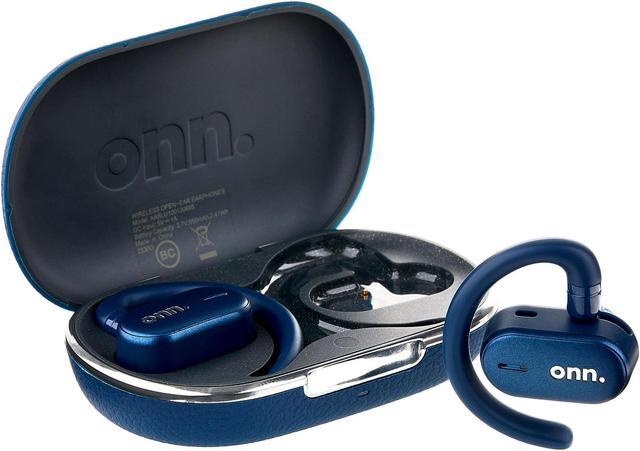
How to connect onn earbuds to an Android phone
The steps are similar on Samsung Galaxy, Google Pixel, Motorola, and other Android phones. Menu names may differ slightly by Android version.
- Open the onn earbud case.
- Remove both earbuds.
- Open Settings on your Android phone.
- Tap Connected devices, Connections, or Bluetooth.
- Select Pair new device if needed.
- Find your onn earbuds in the available devices list.
- Tap the earbud name.
- Tap Pair to confirm.
Some Android phones display a pop-up when they detect the earbuds. If the pop-up appears, follow the on-screen instructions.
After pairing, Android may show separate options for phone calls and media audio. Make sure both options are enabled if you want to use the earbuds for music and calls.
If only one earbud works, check the Bluetooth settings and confirm that the device is connected as one pair. Do not connect each earbud separately unless the model instructions specifically require it.
To connect onn earbuds to another Android phone, disconnect them from the first phone or turn off Bluetooth on that phone. Many budget earbuds connect to only one device at a time.

How to connect onn earbuds to a Windows PC
You can use onn earbuds with a Windows laptop or desktop that has Bluetooth. If the computer does not support Bluetooth, you may need a small USB Bluetooth adapter.
- Put the earbuds into pairing mode.
- On Windows 11, open Settings.
- Select Bluetooth & devices.
- Turn Bluetooth on.
- Click Add device.
- Choose Bluetooth.
- Select your onn earbuds.
- Click Done after Windows confirms the connection.
On Windows 10, open Settings, select Devices, choose Bluetooth & other devices, and click Add Bluetooth or other device.
After pairing, select the speaker icon on the taskbar. Choose your onn earbuds as the sound output device. If you want to use the earbuds for meetings, also select them as the microphone in your meeting app.
Windows may list two sound options. One may say “Stereo,” while another may say “Hands-Free.” Stereo usually gives better music quality. Hands-Free mode may activate the microphone but reduce sound quality during calls.
This is a normal Bluetooth behavior, not always a defect in the earbuds. For the best computer call experience, test the microphone and speaker settings before joining an important meeting.

How to connect onn earbuds to a Mac
A Mac can connect to onn earbuds through System Settings or System Preferences, depending on the macOS version.
- Remove the earbuds from their case.
- Make sure the indicator lights are flashing.
- Open the Apple menu.
- Select System Settings.
- Click Bluetooth.
- Find the onn earbuds under Nearby Devices.
- Click Connect.
- Confirm that the status says Connected.
On older macOS versions, open System Preferences and select Bluetooth instead.
If sound still comes from the Mac speakers, click Control Center in the menu bar. Select Sound, then choose your onn earbuds. You can also select them from the Sound settings.
A Mac may remember several Bluetooth devices. If it keeps choosing another headset, disconnect that headset or manually select the onn earbuds before playing audio.

How to put onn earbuds into pairing mode
Pairing mode allows a phone or computer to find the earbuds. Most onn models enter pairing mode when you remove them from a charged case for the first time.
Common signs include:
• A white, blue, or red light that flashes
• A voice prompt such as “pairing”
• The earbuds appearing in the Bluetooth device list
• The earbuds turning on after removal from the case
If the earbuds do not enter pairing mode, try this method:
- Put both earbuds in the charging case.
- Close the lid for about 10 seconds.
- Open the lid.
- Remove both earbuds at the same time.
- Press and hold each earbud control for about 5 to 10 seconds.
- Look for a flashing light.
- Search for the earbuds again in Bluetooth settings.
Button placement and light patterns vary by onn model. Some versions use touch controls, while others use physical buttons. Avoid pressing too hard on touch controls, since repeated tapping can pause music or activate voice control.
Knowing how to connect onn earbuds starts with recognizing pairing mode. If the earbuds are not flashing or visible, the problem is usually power, an old Bluetooth connection, or an incomplete reset.

How to reconnect onn earbuds automatically
Once you connect onn earbuds to a device, they should reconnect when you remove them from the case. The device must have Bluetooth turned on, and the earbuds must not already be connected to another device.
For reliable reconnection:
• Turn on Bluetooth before removing the earbuds
• Keep the earbuds charged
• Stay within about 30 feet in an open space
• Disconnect them from devices you no longer use
• Place both earbuds in the case after use
• Keep the phone or computer software updated
Walls, metal objects, Wi-Fi congestion, and other Bluetooth devices can affect the signal. Bluetooth range is not a guaranteed distance because the real result depends on the device, room layout, and interference.
If the earbuds connect to a tablet when you want to use your phone, turn off Bluetooth on the tablet. Many onn earbuds do not support multipoint connection, which means they may not switch between two devices automatically.

How to fix onn earbuds that will not connect
When you cannot connect onn earbuds, start with the simple checks. Confirm that both earbuds and the case have power. A dead case can prevent the earbuds from entering pairing mode.
Try these fixes in order:
- Turn Bluetooth off and on.
- Restart your phone, tablet, or computer.
- Put both earbuds in the case.
- Close the lid for 10 to 15 seconds.
- Remove the earbuds again.
- Delete the old onn Bluetooth entry.
- Search for the earbuds again.
- Move away from other Bluetooth devices.
- Charge the earbuds for at least 30 minutes.
- Reset the earbuds if pairing still fails.
If the earbuds connect but produce no sound, check the audio output menu. Your device may remain set to its built-in speakers.
If the sound cuts out, keep the phone on the same side as the stronger earbud connection. Also check for dirt or moisture around the charging contacts. A dirty contact can stop one earbud from charging, which may look like a Bluetooth problem.
I have found that forgetting the old Bluetooth record solves many pairing problems faster than repeatedly tapping the same device name. The old record can contain failed pairing data, much like a saved address with the wrong house number.
How to reset onn earbuds
A reset removes old pairing information and returns the earbuds to a fresh connection state. The exact reset method depends on the onn model.
Try the following general method:
- Forget the onn earbuds in your phone or computer Bluetooth settings.
- Turn Bluetooth off on nearby devices.
- Place both earbuds in the charging case.
- Keep the case open.
- Press and hold the earbud buttons or touch controls for about 10 to 15 seconds.
- Watch for a change in the indicator lights.
- Close the case, wait a few seconds, and open it again.
- Remove both earbuds and try pairing again.
Some models reset when you tap each earbud several times while they are in the case. Others use a button on the case. Because the designs differ, check the printed manual or the support instructions for your exact model if the general method does not work.
Resetting should be a later step, not the first one. It removes the connection record, so you will need to connect onn earbuds again on every device you use.
Tips for better onn earbud performance
A good Bluetooth connection depends on more than the first pairing. Small habits can improve battery life, sound, and connection stability.
• Clean the charging contacts with a dry cotton swab
• Keep the case away from water and high heat
• Charge the case before long trips
• Store both earbuds in the case after use
• Avoid covering the earbuds with thick clothing during calls
• Keep your phone software and computer drivers current
• Check the earbud fit for clearer sound and better bass
• Use only the correct charging cable and power source
Do not use liquid inside the charging case. Moisture can damage the contacts and may create charging problems.
Also remember that many onn earbuds are designed as affordable Bluetooth accessories. They may not offer advanced features such as active noise cancellation, multipoint pairing, or a companion app. That is a limitation of some models, not necessarily a fault.
The best approach is to learn the controls for your specific version. A model may use a single tap for play, a double tap for the next track, and a long press for pairing or voice control.
Frequently Asked Questions About How to Connect Onn Earbuds
How do I connect onn earbuds to my phone?
Open the earbud case, remove both earbuds, and turn on Bluetooth on your phone. Select the onn earbuds from the available device list and tap Pair or Connect.
Why are my onn earbuds not showing up on Bluetooth?
They may be turned off, out of battery, or connected to another device. Charge them, place them in pairing mode, turn off Bluetooth on nearby devices, and search again.
Can I connect onn earbuds to an iPhone?
Yes. Onn earbuds connect to an iPhone through Settings and Bluetooth. Select the earbuds under Other Devices, then wait for the connection to finish.
Can I connect onn earbuds to a laptop?
Yes, if the laptop has Bluetooth. Open the computer’s Bluetooth settings, choose Add device, select your onn earbuds, and then choose them as the sound output.
How do I connect onn earbuds when only one earbud works?
Place both earbuds in the case and charge them. Forget the old Bluetooth connection, reset the earbuds if needed, and pair both earbuds again as one device.
Do onn earbuds connect automatically?
They usually reconnect to the last paired device when Bluetooth is on and the earbuds have power. Automatic connection may fail if they are connected to another phone or computer.
How do I reset onn earbuds before pairing them again?
Forget the earbuds in Bluetooth settings, place them in the case, and use the model’s reset button or touch-control method. Reset instructions vary, so check the guide for your exact onn model.
Conclusion
To connect onn earbuds, charge them, place them in pairing mode, open Bluetooth settings, and select the correct onn device name. The same basic process works on iPhone, Android, Windows, and Mac.
When pairing fails, forget the old Bluetooth record, restart both devices, check the charging contacts, and reset the earbuds if necessary. Try these steps in order, and you should be listening within a few minutes. Share this guide with someone having trouble pairing their earbuds, and explore your device settings to get the best sound and call quality.