

Use Bose quietcomfort headphones by pairing them with your device, learning the controls, and adjusting noise cancellation.
Learning how to use Bose QuietComfort headphones is simple once you understand the Bose Music app, Bluetooth pairing, noise control, and touch or button commands. This guide covers common QuietComfort models, including the QuietComfort 35, QuietComfort 45, QuietComfort, QuietComfort Ultra, and QuietComfort Earbuds, while noting where controls may differ. You will also find practical setup tips, battery advice, and solutions for common problems.

Getting started with Bose QuietComfort headphones
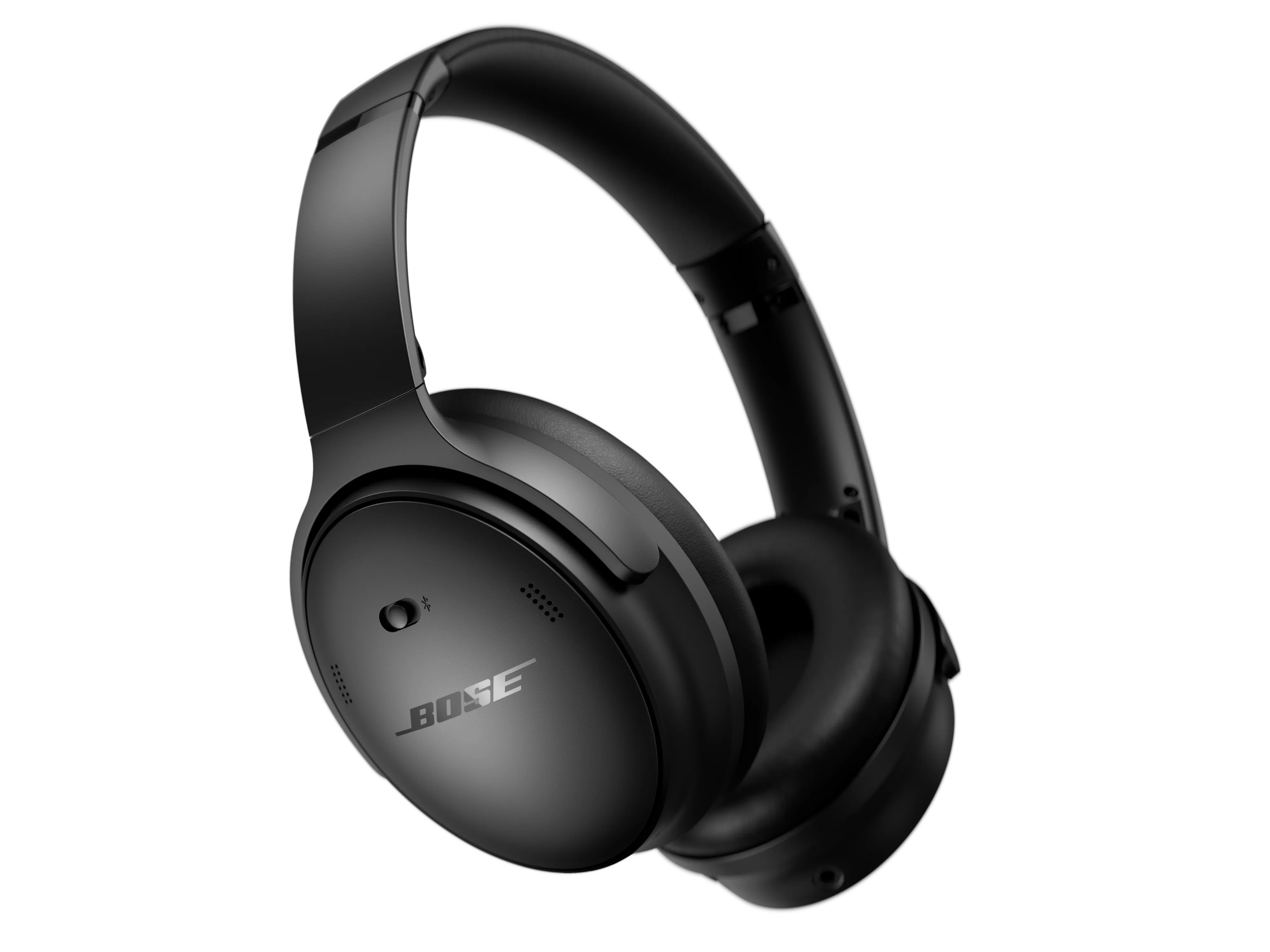
Bose QuietComfort headphones are wireless headphones made for clear sound and strong noise reduction. Most models use Bluetooth for wireless listening, while some also support a wired connection. The exact buttons and features vary by model, but the basic setup is much the same.
Before learning how to use Bose QuietComfort headphones, check these items:
• Your headphones have enough battery power.
• Your phone, tablet, or computer has Bluetooth turned on.
• The Bose Music app is installed if your model supports it.
• Your headphones are close to the device you want to connect.
• No other nearby device is trying to pair with the headphones.
On a new pair, remove any protective film from the charging contacts or earbud case. Charge the headphones before the first long listening session. A full charge gives you more time to test the controls and update the software.
The Bose Music app is useful, but it is not always required for basic Bluetooth listening. You can often pair your headphones through your device’s Bluetooth menu. The app adds features such as software updates, device settings, custom modes, and battery information.
How to charge Bose QuietComfort headphones
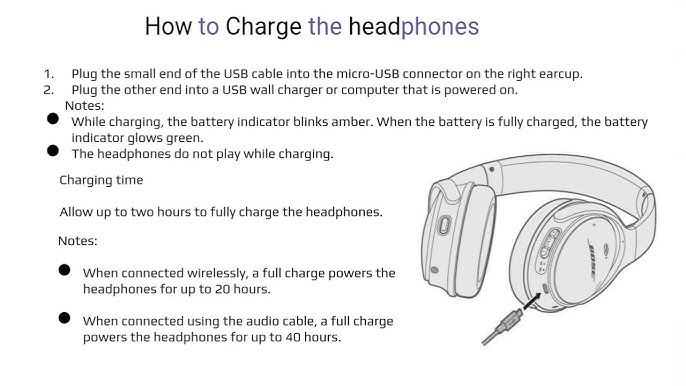
Charging is the first practical step in how to use Bose QuietComfort headphones. Most over-ear QuietComfort models charge through a USB-C port. Older models, such as some QuietComfort 35 versions, use a micro-USB port.
Follow these steps:
Find the charging port on the right earcup or the edge of the earbud case.
Connect the supplied cable or a compatible charging cable.
Plug the other end into a USB wall adapter, computer, or power bank.
Check the status light or the Bose Music app for the battery level.
Allow the headphones to charge until the indicator shows a full charge.
Use a reliable wall adapter and cable. A damaged cable may charge slowly or stop charging. Avoid exposing the headphones, cable, or charging port to water while connected.
Most Bose headphones can play while charging only in limited ways, and some do not support listening during charging. If you need uninterrupted use, charge them before travel. A short charge before leaving home can provide useful extra listening time, but the exact result depends on the model and battery condition.
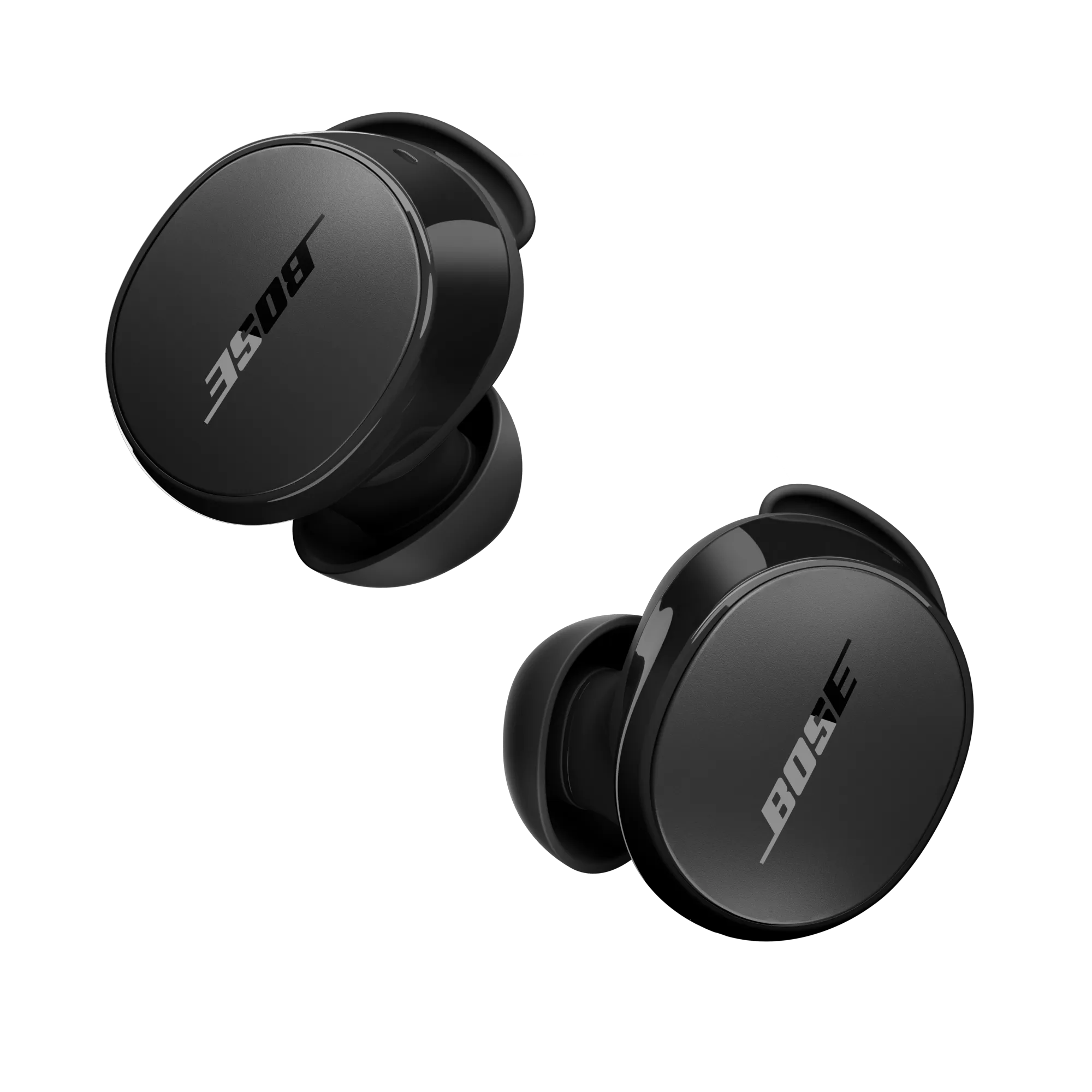
For Bose QuietComfort Earbuds, place both earbuds in the charging case. Make sure each earbud sits correctly on its charging contacts. If one earbud does not charge, remove it, wipe the contacts with a dry cotton swab, and place it back in the case.

How to pair Bose QuietComfort headphones with Bluetooth
Bluetooth pairing lets you use Bose QuietComfort headphones with a phone, laptop, tablet, smart TV, or other compatible device. The steps below explain how to use Bose QuietComfort headphones with most Bluetooth devices.
Pairing with a phone or tablet
Turn on the headphones.
Move the Power or Bluetooth switch to the Bluetooth symbol and hold it there for several seconds.
Wait for the voice prompt or status light to indicate pairing mode.
Open Settings on your phone or tablet.
Select Bluetooth.
Choose your Bose headphones from the list of available devices.
Wait for the connection message.
On some models, the headphones may enter pairing mode automatically during first setup. If the device does not appear, turn Bluetooth off and on again. You can also move away from other active Bluetooth devices to reduce confusion.
The Bose Music app can guide you through pairing on supported models. It may also help you name the headphones, choose a preferred voice prompt language, and manage connections.
Pairing with a computer
Open your computer’s Bluetooth settings and search for new devices. Select the Bose headphone name, then wait for the connection to finish.
Windows computers may show separate options for headphones and headset audio. Choose the headphone option for better music quality. Select the headset option only when you need the built-in microphone for calls.
On a Mac, open System Settings, choose Bluetooth, and select the Bose device. Then open Sound settings to confirm that the headphones are selected for audio output.
Using multipoint Bluetooth
Some Bose QuietComfort models support multipoint connections. This feature allows the headphones to stay connected to two devices, such as a phone and a laptop.
For example, you can listen to music on your computer and answer a call from your phone. The headphones usually pause the first device when the second device receives a call or starts audio.
Multipoint behavior can vary by model and software version. If switching does not work well, disconnect one device or manage connections in the Bose Music app.
How to use the Bose Music app
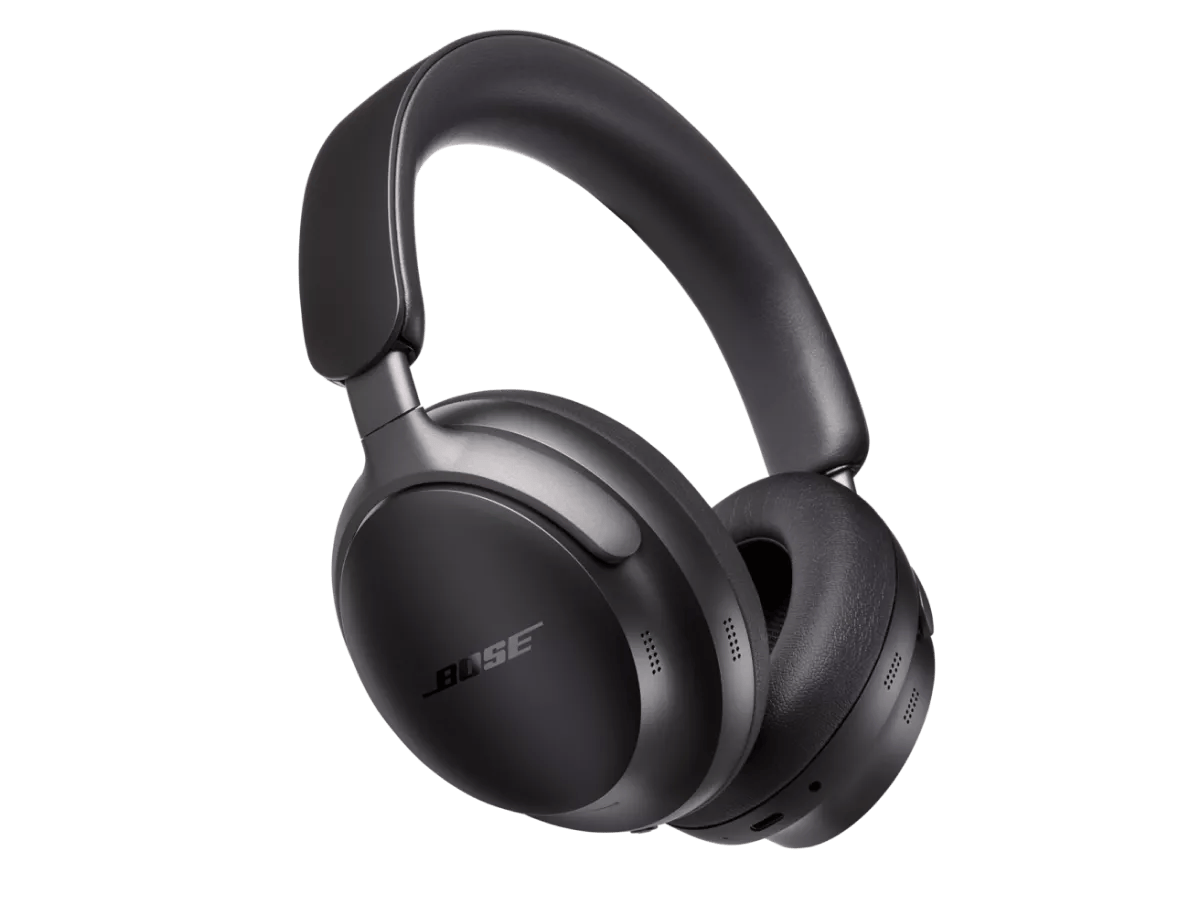
The Bose Music app gives you more control over compatible QuietComfort headphones. Download it from the official app store for your phone, then sign in or continue with the setup options shown on screen.
The app may let you:
• Install firmware updates.
• View battery status.
• Change noise cancellation modes.
• Adjust the equalizer on supported models.
• Manage Bluetooth connections.
• Customize shortcuts.
• Rename your headphones.
• Control voice prompts.
• Set an auto-off timer.
Software updates can improve stability and add features, but the process may take several minutes. Keep the headphones near your phone and connected to power if the app asks you to do so. Do not close the app during an update unless the app tells you it is safe.
When I set up Bose headphones, I check the app before changing advanced settings. This avoids a common mistake: adjusting a feature that the model does not support and assuming the headphones are faulty. The app usually shows which settings are available for your specific product.
If the app cannot find the headphones, check that Bluetooth permissions are enabled. On some phones, the app also needs permission to access nearby devices. Restarting the app and headphones often solves a temporary connection problem.
How to control music, calls, and volume
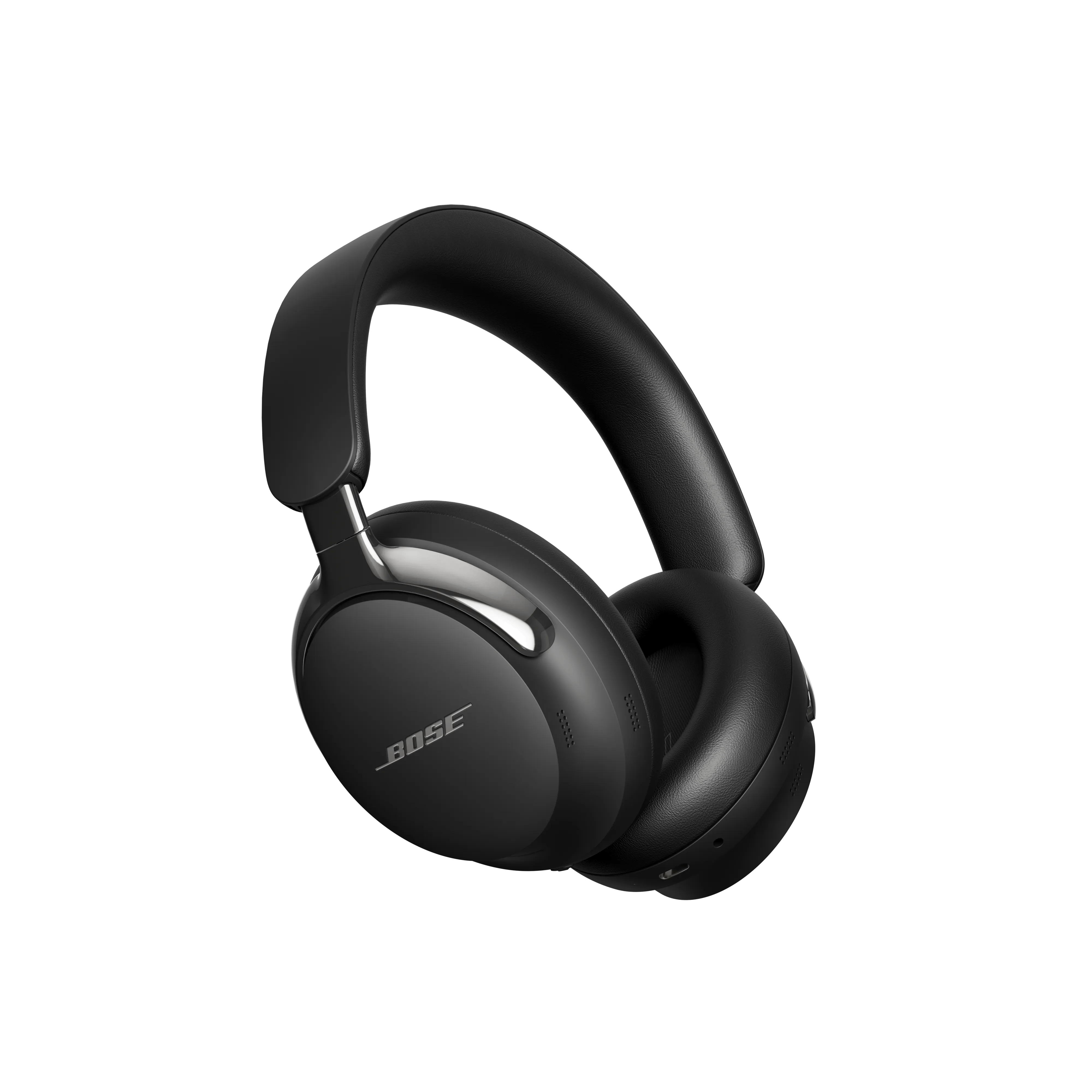
The controls depend on the model. Over-ear QuietComfort headphones often use physical buttons, while QuietComfort Ultra Headphones include touch controls on the earcup. QuietComfort Earbuds use touch surfaces and tap commands.
Common controls include:
• Press the play or multifunction button once to play or pause audio.
• Press the same button twice to skip to the next track.
• Press it three times to return to the previous track.
• Press the volume-up or volume-down button to change volume.
• Press the answer or multifunction button to answer a call.
• Press it again to end a call.
• Press and hold the voice assistant button to access your phone’s assistant.
These commands can change by model. Read the quick-start guide that came with your headphones or check the Bose Music app for the correct control map.
For touch models, swipe up or down to adjust volume and tap to control playback. Use a light, steady touch rather than tapping hard. Moisture, gloves, hair, or a hat can interfere with touch controls.
During calls, place the microphone area in a clear position. Wind and busy streets can reduce call quality even when music sounds excellent. If the person on the other end hears too much background noise, move indoors or lower the wind exposure.
How to use Bose QuietComfort noise cancellation
Noise cancellation is one of the main reasons people choose these headphones. The microphones listen to outside sound, and the headphones create an opposing signal to reduce steady noise. It works especially well with airplane engines, air conditioners, buses, and office hum.
Most QuietComfort models offer several listening modes:
• Quiet mode provides strong active noise cancellation.
• Aware mode lets more outside sound reach your ears.
• Custom modes allow you to save preferred noise control settings on supported models.
Use Quiet mode for flights, trains, study sessions, or focused work. Use Aware mode near traffic, at an airport, or when someone may need to speak with you. Noise cancellation is not a substitute for hearing safety, and it may not remove sudden sounds such as voices, alarms, or horns completely.
To change modes, press the dedicated Action button or use the Bose Music app. On some models, you can press and hold the button to cycle through saved modes. On QuietComfort Ultra models, the control may use a capacitive strip or a physical button, depending on the product.
A common lesson from testing noise-canceling headphones is that a good seal matters. Adjust the headband and earcups so they sit evenly. Glasses, thick hair, or a poor fit can create gaps and reduce the effect of noise cancellation.

How to choose the right fit and comfort settings
Comfort affects sound quality, battery life, and your ability to wear headphones for a long time. The earcups should surround your ears without pressing hard against them. The headband should rest securely without creating a painful pressure point.
Try these fit tips:
• Extend both sides of the headband equally.
• Center each ear inside the earcup.
• Keep the ear cushions flat against your head.
• Move thick hair away from the cushion seal.
• Loosen the headband if you feel pressure after 20 to 30 minutes.
• Use Aware mode when you need to hear your surroundings.
Ear cushions naturally wear over time. Flattened or cracked cushions may reduce comfort and noise cancellation. Replace them with compatible parts when needed, and avoid pulling hard on the cushion ring.
For earbuds, select the correct ear tip size. A loose tip can reduce bass and noise control, while a tip that is too large may feel sore. Turn the earbud slightly until it feels stable, but do not force it deep into the ear canal.
Your listening volume matters as well. The World Health Organization recommends reducing exposure to loud sound and taking breaks. Noise cancellation can help because you may not need to raise the volume to overcome background noise.
How to connect Bose QuietComfort headphones with a cable
Many over-ear Bose QuietComfort models include an audio cable. Wired listening is useful when Bluetooth is unavailable, the battery is low, or an airplane entertainment system requires a cable.
To use a wired connection:
Insert the correct end of the cable into the headphone port.
Connect the other end to the phone, computer, airplane adapter, or music player.
Start playback on the connected device.
Adjust volume on the device or headphone controls if supported.
Some newer phones do not include a traditional headphone jack. In that case, you may need a USB-C or Lightning audio adapter. The adapter must support audio output.
Features can change during wired use. Bluetooth controls, app settings, and active noise cancellation may not work in the same way. Check your model’s manual if the headphones remain silent after you connect the cable.

How to use Bose QuietComfort headphones on an airplane
Bose QuietComfort headphones are popular for air travel because steady engine noise is a strong use case for active noise cancellation. Charge the headphones before boarding, and pack the audio cable and airline adapter if you have them.
At your seat:
Turn on the headphones before connecting to the entertainment system.
Set the headphones to Quiet mode.
Connect the cable to the airplane’s audio jack.
Use the seat screen to start audio.
Lower the volume before playback begins, then raise it slowly.
Bluetooth availability varies by airline and aircraft. Some planes permit Bluetooth use, while others may restrict it during certain parts of the flight. Follow the crew’s instructions.
Keep one important limitation in mind: noise cancellation reduces sound, but it does not make an airplane silent. You may still hear announcements, voices, and sudden cabin sounds.
How to clean and maintain Bose QuietComfort headphones
Regular care helps preserve comfort and performance. Turn off the headphones before cleaning them, and disconnect all cables.
Use these safe care habits:
• Wipe the headband and earcups with a soft, dry cloth.
• Clean earbud tips with a slightly damp cloth, then dry them fully.
• Keep liquids away from ports, microphones, and charging contacts.
• Do not use bleach, alcohol, aerosol sprays, or strong cleaning products unless Bose specifically approves them for your model.
• Store the headphones in their case when traveling.
• Keep the headphones away from extreme heat, such as a hot car dashboard.
Sweat and moisture can damage electronics, even when a product has some water resistance. Many over-ear QuietComfort models are not designed for heavy rain or workouts. Earbuds may have a water-resistance rating, but that rating does not mean they are waterproof.
Clean the microphones gently. Blocked microphone openings can affect noise cancellation, Aware mode, and call quality. Never push a sharp object into a microphone or charging port.
How to fix common Bose QuietComfort problems
Knowing how to use Bose QuietComfort headphones also means knowing what to do when something goes wrong. Most issues come from pairing conflicts, low battery power, software errors, or blocked contacts.
Headphones will not connect
Try these steps:
Turn Bluetooth off on devices you are not using.
Restart the headphones.
Remove the Bose headphones from your device’s Bluetooth list.
Put the headphones into pairing mode again.
Pair them as a new device.
Update the Bose Music app and headphone software.
If the issue continues, restart your phone or computer. A full reset may help, but reset steps differ by model. Check the official model guide before performing one, since a reset may remove saved connections and settings.
Only one earbud works
Place both earbuds in the case and check whether both charging lights respond. Clean the charging contacts, then close and reopen the case. Reconnect the earbuds through the Bose Music app if the model supports that function.
Also check your device’s left-right audio balance. A balance slider moved fully to one side can make one earbud seem broken.
Sound is weak or distorted
First, lower the volume and test a different app or audio file. Then check the earcup seal, Bluetooth connection, and equalizer settings. Dirt on the earbud mesh can also reduce sound.
If distortion happens only near a microwave, router, or crowded public area, move away and test again. Bluetooth interference is often temporary.
Noise cancellation feels uneven
Adjust the fit and clean the microphones. Try Quiet mode and compare it with Aware mode. If the problem affects only one side after a software update or physical impact, contact Bose support rather than opening the headphones.
Mistakes to avoid when using Bose QuietComfort headphones
A few simple errors can reduce performance or shorten product life. Avoid these common habits:
• Leaving Bluetooth active on many nearby devices during pairing.
• Wearing the headphones with a poor earcup or earbud seal.
• Charging with a wet port.
• Using strong cleaners on leather-like cushions.
• Expecting noise cancellation to remove every sound.
• Wearing over-ear headphones in heavy rain.
• Ignoring software updates when connection issues continue.
• Listening at high volume because the headphones feel quiet in Aware mode.
In my experience, the most common setup mistake is skipping the fit adjustment. People often assume the headphones should work perfectly straight from the box, but a small change in earcup position can improve bass, comfort, and noise reduction at the same time.
Another mistake is treating the Bose Music app as optional forever. You can use Bluetooth without it, but the app makes it easier to see battery status, change modes, and manage updates.
Frequently asked questions about how to use Bose QuietComfort headphones
How do I turn on Bose QuietComfort headphones?
Move the Power or Bluetooth switch to the power position, or press the power button on models that use one. A voice prompt or status light usually confirms that the headphones are on.
How do I put Bose QuietComfort headphones in pairing mode?
Move and hold the Power or Bluetooth switch toward the Bluetooth symbol until you hear a pairing prompt. Then choose the headphones from your phone, tablet, or computer’s Bluetooth menu.
Can I use Bose QuietComfort headphones without the Bose Music app?
Yes, most compatible models can connect through the normal Bluetooth settings on your device. The app is helpful for firmware updates, noise control modes, equalizer settings, and other features.
How do I switch between Quiet mode and Aware mode?
Press the Action or noise-control button, if your model has one, to cycle through saved modes. You can also change modes in the Bose Music app on supported headphones.
Why will my Bose QuietComfort headphones not connect?
Turn off Bluetooth on unused nearby devices, restart the headphones, and remove the old Bose connection from your device. Pair the headphones again, and update the Bose Music app if the problem continues.
Can I use Bose QuietComfort headphones with a cable?
Many over-ear QuietComfort models support a wired audio connection. Connect the supplied cable to the headphones and your audio source, but remember that some wireless features may not work while connected by wire.
How do I reset Bose QuietComfort headphones?
Reset steps differ between models, so use the instructions for your exact product. A reset can clear connection problems, but it may also erase saved Bluetooth connections and custom settings.
Conclusion
Learning how to use Bose QuietComfort headphones comes down to a few key habits: charge them fully, pair them correctly, adjust the fit, choose the right noise-control mode, and keep the software and ear cushions in good condition. The Bose Music app adds useful control, but basic listening works through standard Bluetooth on most models.
Use Quiet mode for steady background noise and Aware mode when you need to stay alert. If pairing or sound problems appear, start with simple checks such as battery level, Bluetooth conflicts, fit, and clean charging contacts.
Try these steps with your own headphones today, then explore the settings in the Bose Music app to create a setup that suits your commute, workday, travel plans, or quiet time. Share your favorite Bose QuietComfort tip or model in the comments.
