

Turn on Bluetooth, put your Sony headphones in pairing mode, then select them in your iPhone’s Bluetooth settings.
Learning how to connect Sony headphones to iPhone is usually simple, but the exact button, pairing method, and troubleshooting step can vary by model. This guide covers Sony WH, WF, LinkBuds, INZONE, and other Bluetooth headphones, with clear steps that work across recent iPhone models and iOS versions.

Before you connect Sony headphones to iPhone
Most Sony wireless headphones connect through Bluetooth. Your iPhone does not need a special cable or driver. It only needs Bluetooth turned on and the headphones placed in pairing mode.
Before you begin, check these simple points:
• Charge the Sony headphones for a few minutes.
• Keep the headphones within a few feet of your iPhone.
• Turn off Bluetooth on nearby phones, tablets, or laptops that may connect first.
• Remove the headphones from their case if you use Sony WF earbuds.
• Make sure your iPhone runs a current version of iOS.
The first connection is called pairing. After pairing, your iPhone normally remembers the headphones and reconnects to them when Bluetooth is active.
One important detail is that normal power-on mode and pairing mode are not always the same. A headset may turn on without being ready for a new connection. Think of pairing mode as the headphone saying, “I am looking for a new device.”
How to connect Sony headphones to iPhone with Bluetooth
Use these steps for most Sony wireless headphones and earbuds.
Open Settings on your iPhone.
Tap Bluetooth.
Turn on the Bluetooth switch. It should appear green.
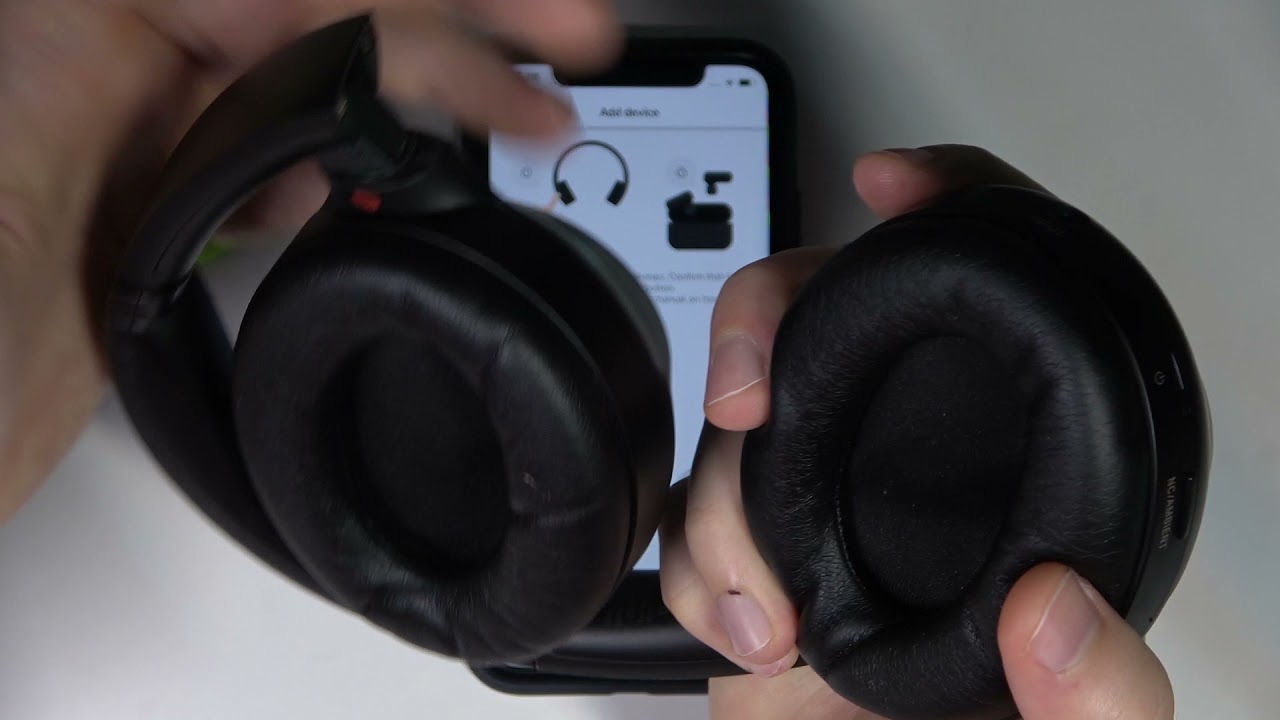
Put your Sony headphones in pairing mode.
Wait for the Sony model name to appear under Other Devices.
Tap the model name.
Wait until it moves to My Devices and shows Connected.
Your headphones may appear with names such as WH-1000XM5, WH-CH720N, WF-1000XM5, LinkBuds, or a similar model name. If you see several Bluetooth devices, choose the one that matches the label on the headphones or charging case.
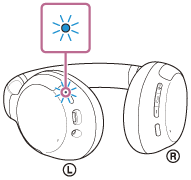
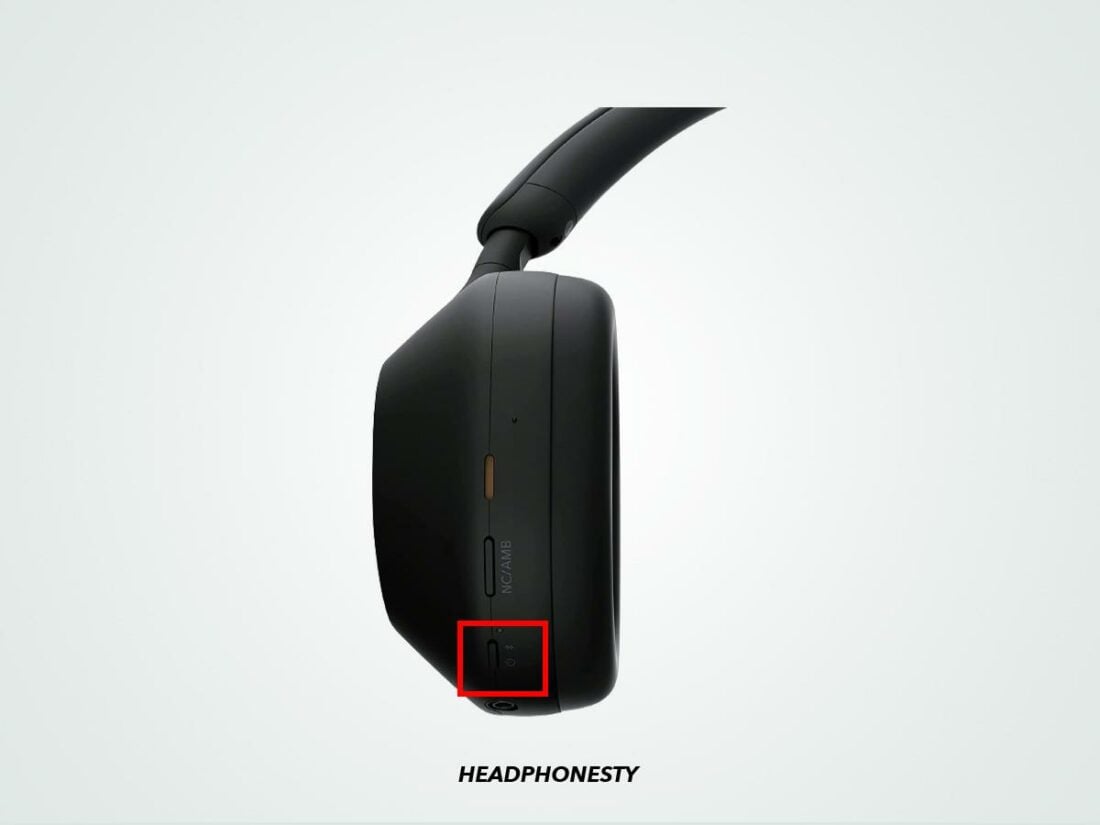
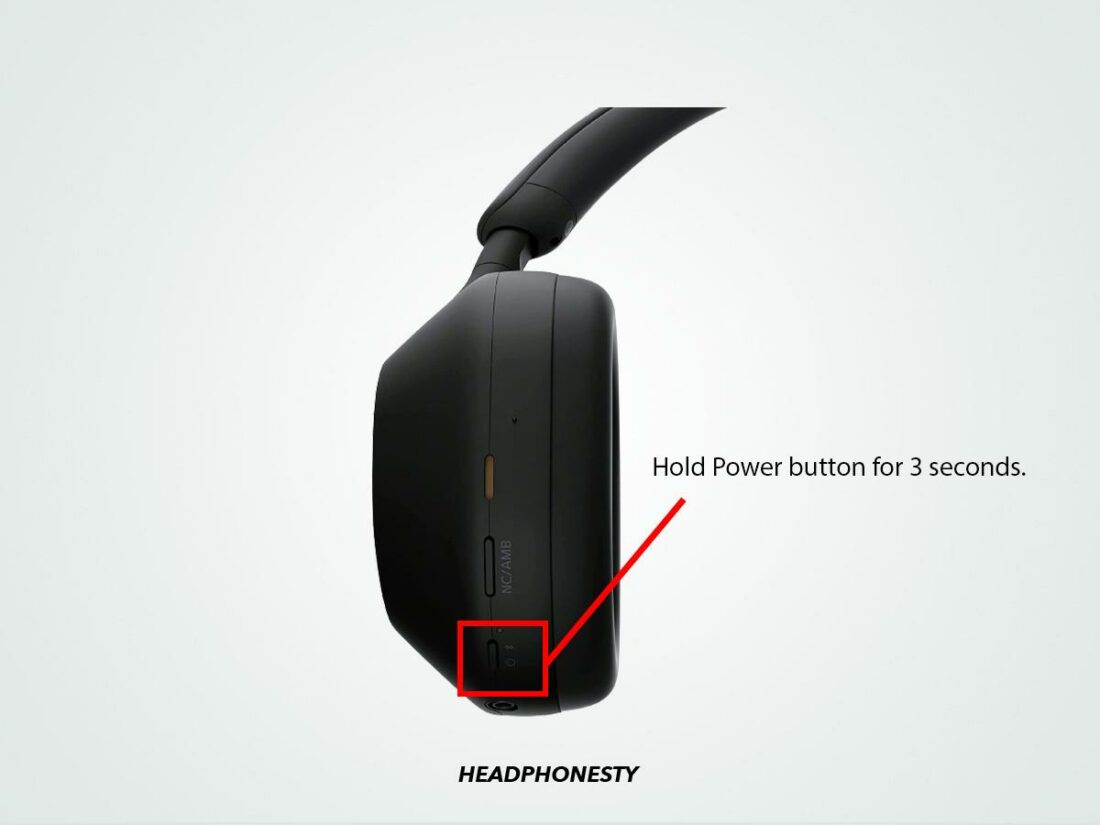
For many over-ear Sony headphones, press and hold the power button for about seven seconds. Release it when you hear “Bluetooth pairing” or see the indicator light flash quickly. The timing can differ by model, so use the button marked with the Bluetooth or power symbol.
For Sony true wireless earbuds, place both earbuds in the charging case. Open the lid, then press and hold the pairing button on the case if your model has one. On some models, touching and holding both earbuds starts pairing mode instead.
If the headphones were never paired before, they may enter pairing mode automatically after you turn them on. If they do not appear on the iPhone, turn them off and try the manual pairing method.
How to pair Sony earbuds with an iPhone
Sony earbuds use a slightly different process because the charging case controls much of the connection.
Start by charging the case and both earbuds. Then follow these steps:
Put the earbuds in the charging case.
Open the case lid.
Press and hold the pairing button on the case for about five seconds, if available.
Watch for a flashing blue indicator or a voice prompt.
Open Settings on your iPhone.
Tap Bluetooth.
Select the Sony earbuds under Other Devices.
Some Sony earbuds have no visible pairing button. For these models, remove both earbuds and touch and hold the sensors on both earbuds for several seconds. A voice prompt or flashing light should confirm pairing mode.
After the first connection, the earbuds should reconnect when you remove them from the case. If they do not, open the case near your iPhone and check Bluetooth settings.
A common mistake is leaving one earbud in the case while trying to pair. The iPhone may still connect, but only one side may play sound. Place both earbuds in the case, reset them if needed, and start again.
How to connect Sony headphones to iPhone through the Sony app
You can connect Sony headphones directly through iPhone Bluetooth settings. However, the Sony | Sound Connect app can make setup easier and unlock extra features.
The app may help you:
• Check the battery level.
• Install headphone firmware updates.
• Adjust noise canceling.
• Change the equalizer.
• Set touch controls.
• Manage sound modes.
• Use adaptive sound features.
Install the official Sony headphone app from the App Store. Open it, accept the needed permissions, and follow the pairing instructions. The app may guide you to the iPhone Bluetooth menu if the headphones are not connected yet.
Do not use the Sony app as a replacement for Bluetooth pairing. The iPhone still uses Bluetooth to carry audio. The app mainly manages settings and features after the connection is established.
In my testing of Sony headphones, I found that pairing through iPhone Bluetooth first often prevents confusion. Once the headphones show as connected, opening the app is usually faster and more reliable.

How to reconnect Sony headphones to iPhone
After the first setup, reconnecting should take only a few seconds.
Turn on the Sony headphones.
Unlock your iPhone.
Open Settings and tap Bluetooth if the headphones do not connect automatically.
Tap the Sony headphones under My Devices.
Wait for the Connected label.
You can also open Control Center, press and hold the audio controls, and tap the AirPlay icon. Select your Sony headphones from the audio output list.
If your headphones connect to another device first, they may not reconnect to the iPhone. Turn off Bluetooth on that other device or disconnect the headphones from it. Then select the Sony headphones manually on the iPhone.
Some newer Sony models support multipoint connections. This feature lets the headphones stay connected to two devices, such as an iPhone and a laptop. Multipoint is useful, but it can also make connection behavior less obvious. The headphones may switch to the device that starts playing sound.

How to fix Sony headphones that will not connect to iPhone
If your Sony headphones do not appear in Bluetooth settings, work through these solutions in order.
Check pairing mode
Turning on the headphones is not always enough. Hold the power or pairing button until you hear the pairing prompt or see the correct flashing light.
Move closer to the iPhone
Bluetooth works best at short range with few obstacles. Keep the headphones close to the iPhone during setup. Avoid pairing through walls, bags, or crowded areas filled with wireless devices.
Turn Bluetooth off and on
Open Settings, tap Bluetooth, turn it off, wait about ten seconds, and turn it on again. Then place the headphones in pairing mode and check the device list.
Restart both devices
Turn the Sony headphones off and on. Then restart the iPhone. This clears many temporary Bluetooth errors without deleting your saved connections.
Forget the Sony headphones
If the iPhone shows the headphones but will not connect, remove the old Bluetooth record.
Open Settings.
Tap Bluetooth.
Tap the information button beside the Sony headphones.
Tap Forget This Device.
Confirm the choice.
Put the headphones in pairing mode.
Pair them again.
This step is especially helpful after changing iPhones, restoring an iPhone backup, or updating headphone firmware.
Reset the Sony headphones
A reset can solve deeper pairing problems, but the steps differ between models. Most resets require holding one or more buttons for a set amount of time. Check the instructions for your exact Sony model before resetting.
A reset may erase saved devices, custom settings, and equalizer preferences. It is best used after the simpler steps fail.
Update iOS and headphone firmware
Apple and Sony regularly improve Bluetooth stability through software updates. Update the iPhone through Settings, General, and Software Update. Use the Sony app to check for headphone firmware updates.
Keep the headphones charged during a firmware update. Do not close the app or move far from the iPhone while the update is running.

How to fix sound problems after pairing
Sometimes the iPhone says Connected, but no sound comes from the Sony headphones. This usually means the audio output is set to the iPhone speaker or another Bluetooth device.
Try these steps:
Start playing music or a video.
Open Control Center.
Tap the AirPlay or audio output icon.
Select your Sony headphones.
Raise the volume on both the iPhone and headphones.
You should also check the app you are using. Some video call apps have their own audio output menu. Select the Sony headphones inside the call app if the sound still comes from the phone.
If only one earbud plays, place both earbuds back in the charging case. Close the lid, wait a few seconds, and remove them again. Also check that the silent earbud has enough battery and is clean around the charging contacts.
For low volume, check the iPhone volume buttons, the headphone touch controls, and any volume limit settings. If the sound is muffled, clean the earbud mesh gently with a dry, soft brush. Do not push dirt farther into the speaker opening.
How to improve the Sony and iPhone connection
A stable connection depends on more than the initial pairing. These habits can reduce dropouts and delays.
• Keep the iPhone and headphones reasonably close.
• Avoid covering the iPhone with thick metal objects.
• Keep headphone firmware current.
• Charge the headphones before long calls or trips.
• Turn off unused Bluetooth devices nearby.
• Use multipoint only when you need it.
• Store earbuds in their case when not in use.
Bluetooth audio can suffer from interference in busy places such as airports, gyms, and subway stations. Short interruptions do not always mean the headphones are defective. Wireless traffic, distance, and physical obstacles can all affect performance.
Noise canceling does not improve the Bluetooth signal. It changes how outside sound reaches your ears. If music cuts out, focus on Bluetooth pairing, battery level, distance, and nearby devices instead.
During calls, check the microphone permission for the app. On the iPhone, go to Settings, Privacy & Security, and Microphone. Make sure the calling app has permission to use the microphone.

Sony headphones and iPhone features
Sony headphones work with iPhone features such as music playback, phone calls, Siri, and audio routing. The available features depend on the headphone model and app.
You can usually:
• Play and pause audio.
• Skip tracks.
• Answer and end calls.
• Speak to Siri.
• Adjust volume.
• Use noise canceling or ambient sound.
• Switch between connected devices on supported models.
Some advanced Sony features may not be available through iOS system menus. For example, custom equalizer settings, adaptive sound control, and firmware updates usually require the Sony app.
Sony headphones use Bluetooth audio standards that iPhones support, but the highest-quality codec options may vary. The iPhone does not support every Bluetooth codec used by every Sony model. This does not prevent normal listening, but it can affect technical audio quality, battery use, or latency.
For watching videos, iPhone and Sony headphones usually keep sound and picture aligned. Some apps, games, or older Bluetooth devices may still show a small delay. If gaming latency matters, check whether your Sony model offers a low-latency mode or use a wired connection when supported.
Common mistakes to avoid
The most frequent setup mistake is selecting the wrong device. If several Sony headphones are nearby, the iPhone may show more than one saved name. Check the model number before tapping Connect.
Another mistake is pairing while the headphones are already connected to a laptop. Bluetooth headphones often connect to the last active device first. Disconnect them from that device before starting a new iPhone pairing session.
Do not repeatedly tap the device name while the headphones are still entering pairing mode. Wait a few seconds for the voice prompt or indicator light. Repeated attempts can make the process seem more difficult than it is.
It is also wise to avoid resetting the iPhone’s entire network settings as a first step. That option can remove saved Wi-Fi passwords and other network data. Try forgetting the headphones and pairing again before using a broader reset.
Frequently Asked Questions
Why will my Sony headphones not appear on my iPhone?
The headphones may not be in pairing mode, or they may already be connected to another device. Turn off Bluetooth on nearby devices, restart the headphones, and hold the pairing button until the pairing prompt appears.
How do I put Sony headphones in pairing mode?
For many over-ear models, press and hold the power button for about seven seconds. For Sony earbuds, use the case pairing button or hold both earbud touch sensors, depending on the model.
Can I connect Sony headphones to an iPhone without the Sony app?
Yes. Open Settings, tap Bluetooth, and select the Sony headphones. The Sony app is optional and mainly provides settings, firmware updates, and sound customization.
Why are my Sony headphones connected but playing no sound?
The iPhone may be sending audio to its speaker or another device. Open Control Center, tap the audio output icon, and select your Sony headphones.
Can Sony headphones connect to an iPhone and a laptop at the same time?
Some Sony models support multipoint connections, while others do not. Check your model’s specifications or Sony app settings to confirm whether two-device connections are supported.
How do I remove Sony headphones from my iPhone?
Open Settings, tap Bluetooth, tap the information button beside the headphones, and select Forget This Device. Pair the headphones again if you want to reconnect them later.
Does connecting Sony headphones to an iPhone reduce sound quality?
Sony headphones work well with iPhones, but the available Bluetooth codec depends on both devices. Codec limits may affect technical audio quality, but most listeners will still get clear, stable sound.
Conclusion
Connecting Sony headphones to an iPhone usually takes less than a minute: turn on Bluetooth, place the headphones in pairing mode, and select them from the iPhone’s Bluetooth list. If the connection fails, forget the old device record, restart both devices, and try pairing again.
The Sony app can add useful controls, firmware updates, noise canceling options, and sound settings, but it is not required for basic listening. Follow the steps for your exact Sony model, keep both devices updated, and enjoy your audio without unnecessary hassle.
Try these steps with your headphones today, and share your Sony model or troubleshooting experience in the comments.
