How To Connect Jabra Headphones To Iphone: Easy Fix
Introduction
To connect Jabra headphones to an iPhone, turn on Bluetooth, put the headphones in pairing mode, and select them from the iPhone’s Bluetooth list. Most Jabra earbuds and headphones connect in a few minutes without a cable.
These steps work for many Jabra models, including Jabra Elite earbuds, Evolve2 headphones, and other Bluetooth models. Button names and reset steps can differ by model, so check the manual if your controls do not match.
Before You Connect Jabra Headphones
You need three things before you start:
- An iPhone with Bluetooth turned on
- Charged Jabra headphones or earbuds
- The Jabra headphones within a few feet of the iPhone


For the best result, place the earbuds in their charging case, or turn the headphones off before you begin. If the Jabra device has connected to another phone, tablet, or computer, turn Bluetooth off on that device for now.
Jabra headphones use Bluetooth pairing to create a wireless link with the iPhone. The first connection is called pairing. After pairing, the iPhone usually reconnects to the headphones when both devices are on and within range.
Check the iPhone software
Update the iPhone if it has an available iOS update. Newer Jabra models may need a recent version of iOS or the Jabra Sound+ app for full features.
You can check for an iOS update here:
- Open Settings.
- Tap General.
- Tap Software Update.
- Install an available update if needed.
The basic Bluetooth connection may work without the Jabra app. However, the app can provide firmware updates, sound settings, battery details, and device controls when your model supports them.
How to Pair Jabra Headphones With an iPhone
Follow these steps to connect most Jabra Bluetooth headphones and earbuds.
1. Open Bluetooth settings on the iPhone
- Open the Settings app.
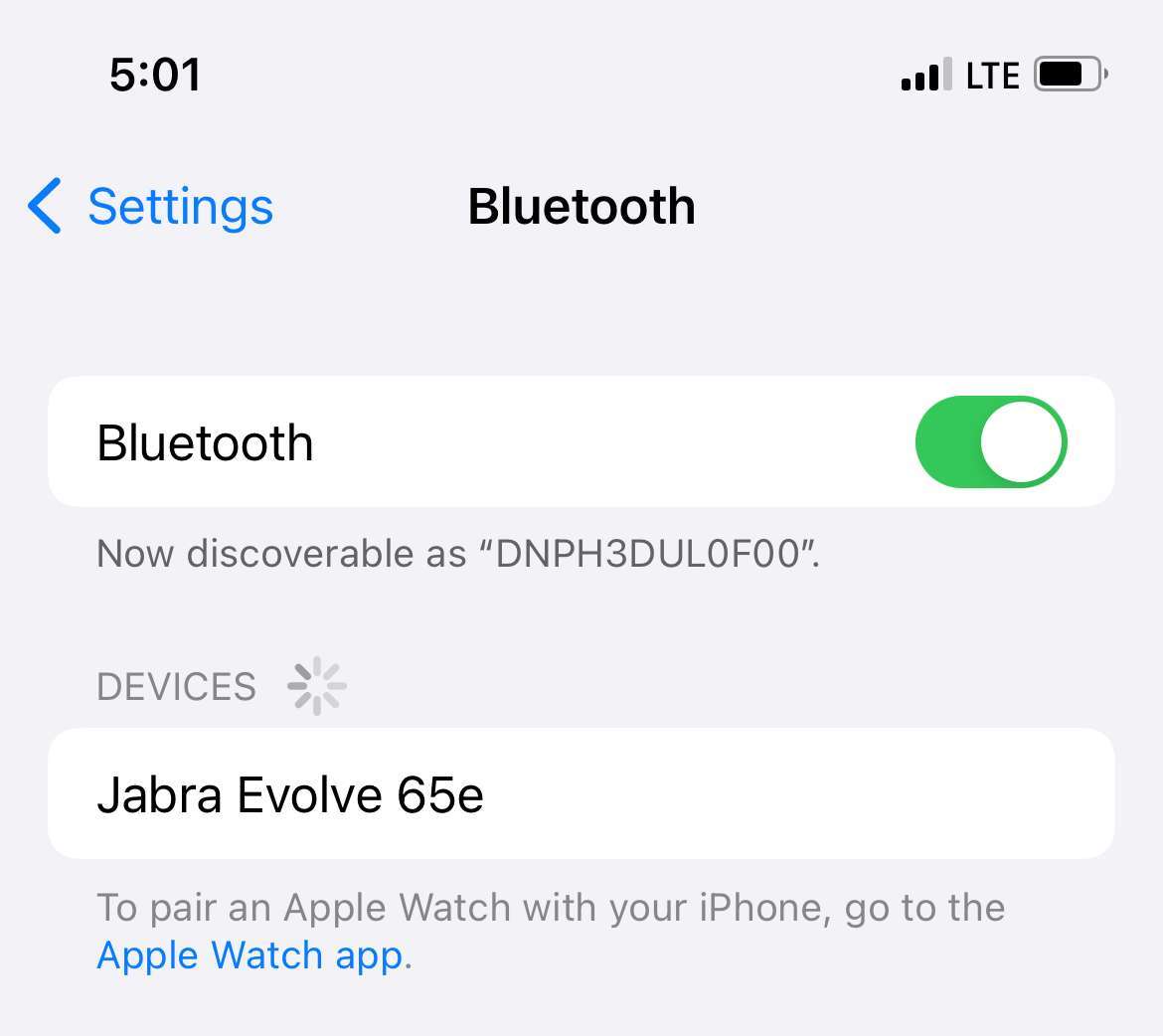
- Tap Bluetooth.
- Turn on the Bluetooth switch.
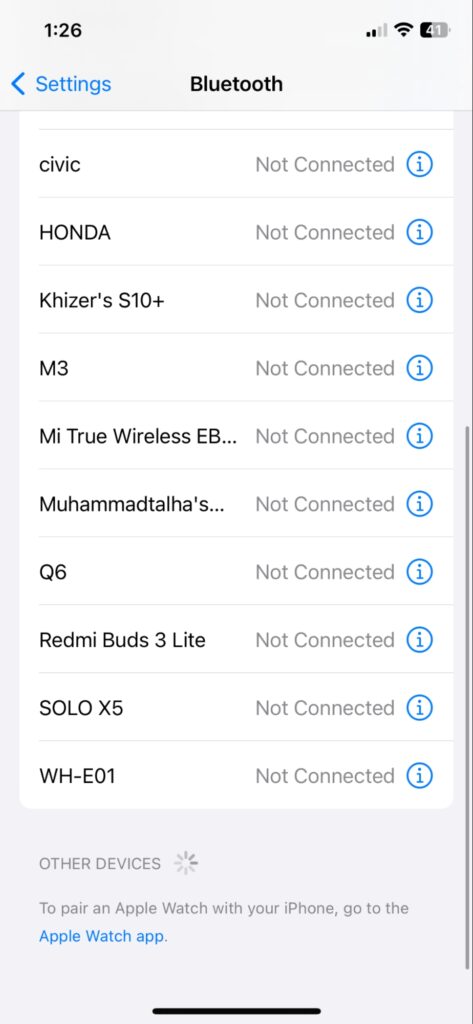
Keep the Bluetooth screen open. The iPhone will show nearby devices under Other Devices.
You can also open Bluetooth from Control Center, but the Settings app is better for pairing. Tapping the Bluetooth icon in Control Center may disconnect current accessories without fully turning Bluetooth off.
2. Put the Jabra headphones in pairing mode
The headphones must be in pairing mode before the iPhone can find them.


For many Jabra headphones:
- Turn off the headphones if they are on.
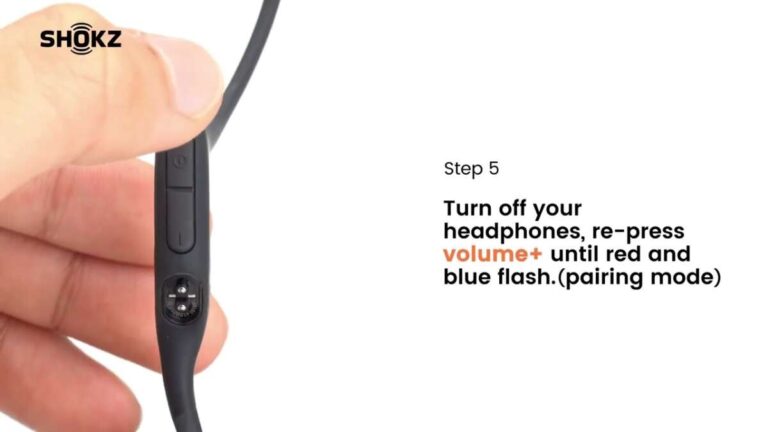
- Press and hold the Multi-function or Bluetooth button for about three seconds.
- Release the button when the LED flashes or the headphones announce pairing mode.
For many Jabra Elite earbuds:
- Remove both earbuds from the charging case.
- Press and hold the left and right earbud buttons at the same time for about three seconds.
- Release the buttons when the earbuds enter pairing mode.
Some models enter pairing mode automatically during first setup. If your Jabra headphones do not flash or announce pairing mode, consult the model’s guide. Holding the button longer may turn the headphones off or start a reset instead.
3. Select the Jabra device on the iPhone
On the iPhone’s Bluetooth screen:
- Look under Other Devices.
- Find the Jabra name, such as Jabra Elite 8 Active, Jabra Elite 75t, or Jabra Evolve2 65.
- Tap the name.
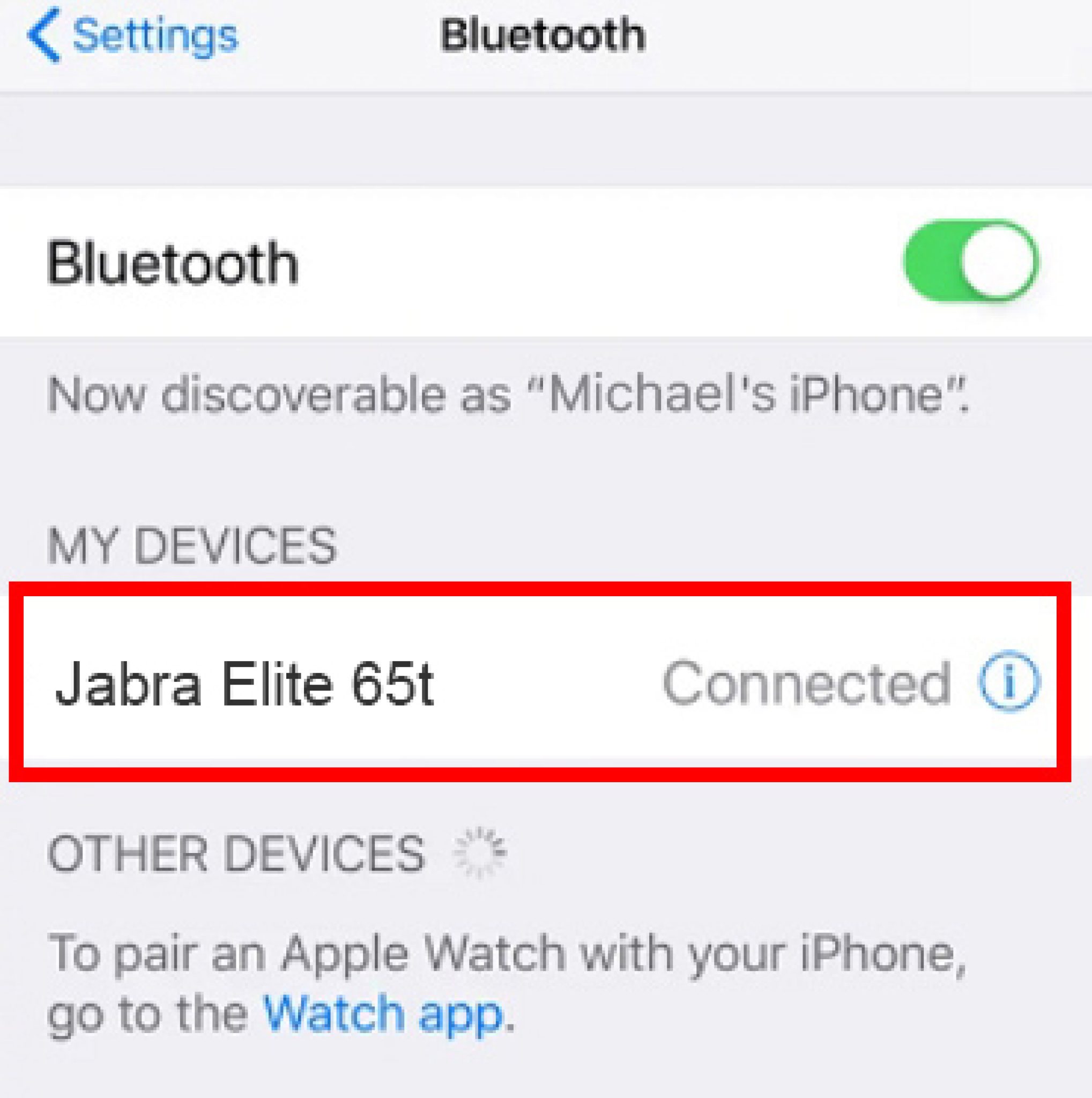
- Wait for the status to change to Connected.
The headphones may play a sound or show a solid LED when the connection is complete.
If the iPhone asks for a PIN, try 0000. Most newer Bluetooth headphones do not need a PIN, so do not enter random codes if the connection fails.
4. Test the connection
Play a song, podcast, or video. Then check that sound comes through the Jabra headphones.
If the iPhone still uses its speaker, tap the Audio Output button in the media controls and select the Jabra device. During a phone call, tap the audio button and choose the Jabra headphones if needed.
How to Connect Jabra Earbuds to an iPhone
Jabra earbuds use the same basic Bluetooth process, but the charging case affects setup.
First, charge the case and earbuds. Low battery can prevent pairing or cause the earbuds to switch off during setup. Remove both earbuds from the case unless the model’s manual gives different instructions.
Next, place both earbuds into pairing mode. On many Jabra Elite models, this means holding both earbud buttons for about three seconds. The LEDs or voice prompt should confirm pairing mode.
Then open Settings > Bluetooth on the iPhone and tap the Jabra earbuds under Other Devices. Once connected, return the earbuds to the case and remove them again to test automatic reconnection.
If only one earbud works
A single working earbud can point to several causes:
- The second earbud is not charged.
- The earbuds are not synchronized with each other.
- One earbud is connected to another device.
- The earbuds need a model-specific reset.
- The charging contacts are dirty or not touching.


Put both earbuds in the case. Confirm that each one shows a charging light, then remove them together. If one still does not work, clean the charging contacts with a dry, soft cloth. Do not use water or metal tools inside the case.

How to Connect Jabra Headphones After Pairing Them Before
If your Jabra headphones were paired with the iPhone before, you usually do not need to repeat the full setup.
- Turn on the Jabra headphones.
- Make sure Bluetooth is on in the iPhone.
- Open Settings > Bluetooth.
- Tap the Jabra device if it does not connect on its own.
The headphones may connect to the last device used. If they connect to a laptop, tablet, or another phone instead, turn Bluetooth off on that device or disconnect the Jabra headphones from it.
You can also check the connection under Settings > Bluetooth > My Devices. The label should say Connected.
How to reconnect after using another Apple device
Jabra headphones can remember several devices, but they may not switch to the iPhone automatically every time. If the headphones are connected to an iPad or Mac, disconnect them there first.
Then select the Jabra headphones from the iPhone’s Bluetooth menu. Some Jabra models support connections to two devices at once, while other models may have more limited connection behavior. The exact feature depends on the model and firmware.

How to Use the Jabra Sound+ App With an iPhone
The Jabra Sound+ app is optional for basic Bluetooth audio. It can be useful for supported Jabra consumer earbuds and headphones.
To set it up:
- Open the App Store.
- Search for Jabra Sound+.
- Install the official app from Jabra.
- Connect the Jabra headphones to the iPhone through Bluetooth first.
- Open the app and follow its setup instructions.
The app may offer:
- Battery information
- Firmware updates
- Equalizer settings
- Sound modes
- Find My Jabra features on supported models
- Button and voice assistant controls
App features vary by product. Business headsets may use a different Jabra application or management tool. If Sound+ does not recognize your device, confirm that the product is supported by the app and that the iPhone has granted the needed permissions.
Do not remove the headphones or close the app during a firmware update. Keep the earbuds in the case if the app instructs you to do so.

What to Do When Jabra Headphones Will Not Connect
Use the checks below in order. Start with the simple steps before deleting settings or resetting the headphones.
1. Confirm that the headphones have power
Charge the headphones and case. If the LED does not light up, try another charging cable or power adapter that is suitable for the device.


Do not assume the case is charged because it looks closed. Check the battery level in the Jabra app or look for the case’s charging indicator.
2. Turn Bluetooth off and on
On the iPhone:
- Open Settings.
- Tap Bluetooth.
- Turn Bluetooth off.
- Wait about 10 seconds.
- Turn Bluetooth on again.
Put the Jabra headphones back into pairing mode and try again.
3. Move away from other Bluetooth devices
Keep the Jabra headphones close to the iPhone. Temporarily turn off Bluetooth on nearby phones, computers, tablets, and smart TVs.
This prevents the headphones from connecting to the wrong device. It also reduces confusion when several saved devices have similar names.
4. Forget the Jabra device
If the iPhone shows the headphones but will not connect, remove the old Bluetooth record.
- Open Settings > Bluetooth.
- Tap the ⓘ button beside the Jabra device.
- Tap Forget This Device.
- Tap Forget Device to confirm.
- Put the Jabra headphones into pairing mode again.
- Select them under Other Devices.
Forgetting a device removes its saved pairing record from the iPhone. It does not usually erase the headphones’ full device memory.
5. Restart both devices
Turn the iPhone off and on. Then turn the Jabra headphones off and on, if the model allows it. Try pairing again after both devices restart.
6. Reset the Jabra headphones only as a last step
A reset can remove saved Bluetooth connections and personal settings. The reset method differs between Jabra models. Use the instructions for the exact model rather than guessing.
After a reset, place the headphones in pairing mode and connect them again through Settings > Bluetooth.
Troubleshooting table
| Symptom | Likely cause | Best first action |
|---|---|---|
| Jabra headphones do not appear | Pairing mode is not active | Hold the pairing button or both earbud buttons as directed by the manual |
| Device appears but will not connect | Old or damaged pairing record | Forget the device and pair it again |
| Headphones connect to another device | Another phone or computer has priority | Turn off Bluetooth on the other device |
| Only one earbud plays sound | Earbuds are out of sync or one is not charging | Charge both, place them in the case, and retry |
| Audio cuts out | Distance, obstacles, interference, or low battery | Keep the iPhone nearby and charge the headphones |
| Jabra app cannot find headphones | Unsupported model, permissions, or outdated app | Check model support and update the app |
| Sound comes from the iPhone speaker | Wrong audio output is selected | Choose the Jabra device in the media or call audio controls |
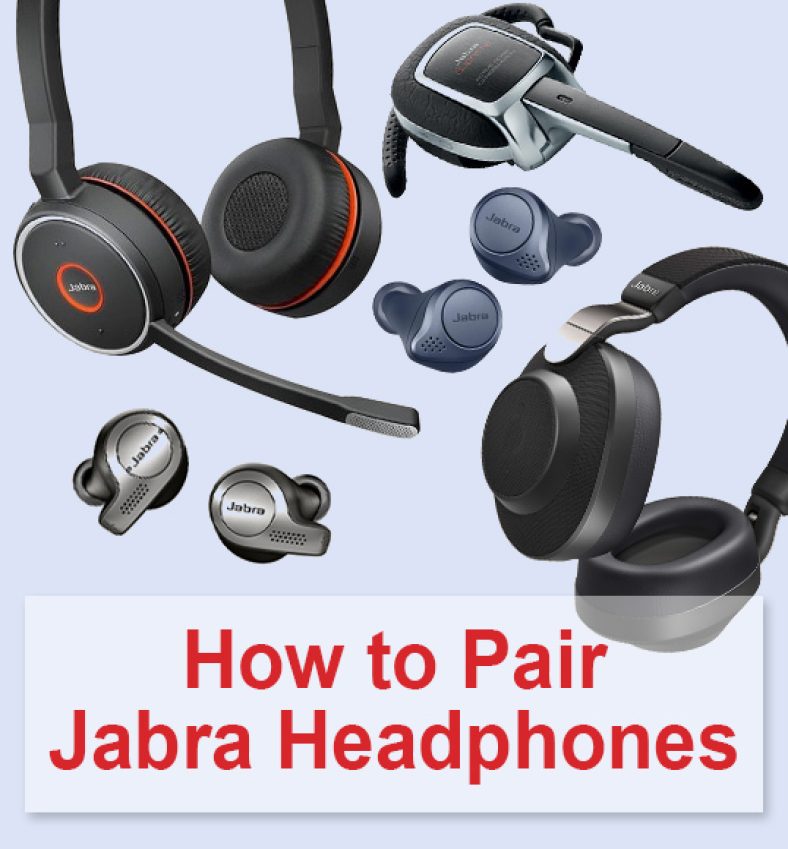
Fix Jabra Bluetooth Audio Problems on iPhone
A connection can show as active even when sound quality is poor. First, confirm that the Jabra headphones are selected as the audio output.
Open the media controls, tap the audio output icon, and choose the Jabra device. For calls, tap the audio button and select the headphones.


If sound cuts out, keep the iPhone close to the headphones. Walls, crowded wireless areas, a low battery, and other active Bluetooth connections can affect performance. If the problem happens only in one app, close and reopen that app before changing Bluetooth settings.
For call problems, check the microphone selection and iPhone permissions. Open Settings > Privacy & Security > Microphone and confirm that the affected app has access. Some work or school devices may also use management settings that limit Bluetooth or microphone functions.

How to Disconnect or Remove Jabra Headphones From an iPhone
To disconnect the headphones without deleting the pairing:
- Open Settings > Bluetooth.
- Tap the ⓘ button next to the Jabra device.
- Tap Disconnect if that option appears.
You can also turn off the headphones or place the earbuds in their case.
To remove the saved pairing:
- Open Settings > Bluetooth.
- Tap the ⓘ button beside the Jabra headphones.
- Tap Forget This Device.
- Confirm by tapping Forget Device.
Use Forget This Device when you plan to pair the headphones again from the beginning or give them to another person.
Common Mistakes to Avoid
The most common setup mistake is selecting the Jabra device before it enters pairing mode. Turning on the headphones is not always enough. The device must be discoverable.
Another common mistake is leaving the headphones connected to a laptop or another phone. Bluetooth headphones often reconnect to a familiar device before the iPhone can find them.
Avoid resetting the iPhone’s network settings as a first step. That broader reset can remove saved Wi-Fi networks, VPN settings, and other network information. Forgetting the Jabra device usually solves pairing problems with less disruption.
Do not force buttons, pry open the earbuds, or use liquid to clean the charging case. If the battery swells, becomes very hot, leaks, or smells unusual, stop using the device and contact Jabra support or an appropriate electronics service provider.
Key Takeaways
- Turn on Bluetooth at Settings > Bluetooth.
- Put the Jabra headphones or earbuds into pairing mode.
- Select the Jabra device under Other Devices.
- Test music or a call to confirm the connection.
- If pairing fails, forget the device, restart both products, and try again.
- Use the exact Jabra manual before performing a factory reset.
FAQs
Why can’t my iPhone find my Jabra headphones?
The headphones may not be in pairing mode, may have a low battery, or may be connected to another device. Charge them, turn off Bluetooth on nearby devices, and activate pairing mode again.
Do I need the Jabra Sound+ app to connect to an iPhone?
No. You can connect supported Jabra headphones through the iPhone’s Bluetooth settings. The Jabra Sound+ app is mainly for extra controls, firmware updates, sound settings, and battery information on supported products.
Can I connect Jabra headphones to an iPhone and a Mac?
Some Jabra models support simultaneous connections to two devices. Other models connect to one device at a time. Check the specifications or manual for your exact model.


Why do my Jabra earbuds keep disconnecting from my iPhone?
Possible causes include low battery, distance, interference, outdated firmware, or an unstable saved pairing. Charge the earbuds, keep the iPhone nearby, update the Jabra app and firmware when available, and pair the earbuds again if needed.
How do I connect Jabra headphones to a new iPhone?
Put the headphones into pairing mode, open Settings > Bluetooth on the new iPhone, and select the Jabra device. If the headphones connect to the old iPhone, turn Bluetooth off on the old phone first.
Conclusion
Connecting Jabra headphones to an iPhone usually takes only three steps: turn on Bluetooth, activate pairing mode, and select the Jabra device. If the iPhone cannot connect, forgetting the old pairing and starting again is often the quickest fix.
For model-specific button commands, reset instructions, and app support, use the official guide for the exact Jabra model.