

Most Bose headphones reset by holding the Power or Bluetooth button for about 10 seconds.
Knowing how to reset Bose headphones can fix pairing errors, frozen controls, poor app connections, and strange battery behavior. The exact steps vary by model, so this guide explains safe reset methods for QuietComfort, QuietComfort Ultra, Bose 700, and other popular headphones. You will also learn when to use a soft reset, when to clear Bluetooth data, and when a factory reset is the better choice.
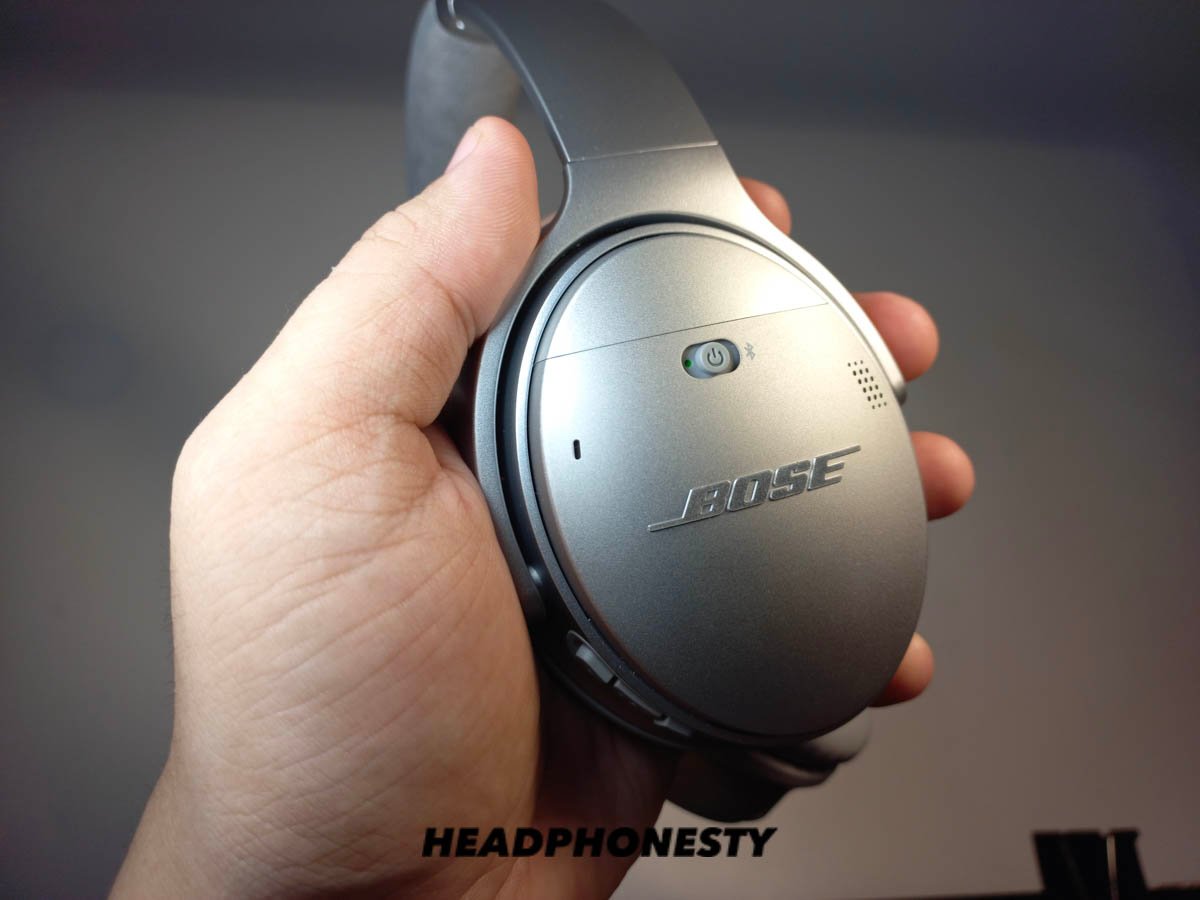
Why reset your Bose headphones?
A reset gives your headphones a fresh start. It can clear temporary software errors without damaging the device or deleting your music apps.
You may need to reset Bose headphones when you notice:
• Your headphones will not connect to a phone or computer
• Bluetooth pairing fails again and again
• The Bose app cannot find the headphones
• Only one earcup produces sound
• The buttons or touch controls stop working
• Noise cancellation behaves strangely
• The headphones keep turning off
• The battery level looks wrong
• Audio cuts out even when your phone is nearby
A reset is similar to restarting a frozen laptop. It does not repair physical damage, a worn battery, or a broken speaker. However, it often fixes small software problems that build up during daily use.
In my troubleshooting work, the most common mistake is resetting the headphones before checking the simple causes. A dead battery, blocked Bluetooth permission, or two connected devices can look like a serious fault.
Before you reset Bose headphones
Take a few simple steps first. They can save time and may solve the problem without erasing your settings.
Charge the headphones for at least 15 minutes. Use a reliable wall charger and cable.
Turn off Bluetooth on nearby devices that may connect automatically.
Move your phone within a few feet of the headphones.
Close and reopen the Bose app.
Restart your phone, tablet, or computer.
Check that the headphones are not connected to another device.
Install available firmware updates in the Bose app.
Bose headphones often support multipoint connections. This means they can remember or connect to two devices at once. For example, your headphones may connect to a laptop while you expect them to connect to your phone.
If the headphones are completely unresponsive, connect them to power before trying a reset. Do not press buttons with excessive force. A reset should feel controlled, not like a repair job.
How to soft reset Bose headphones
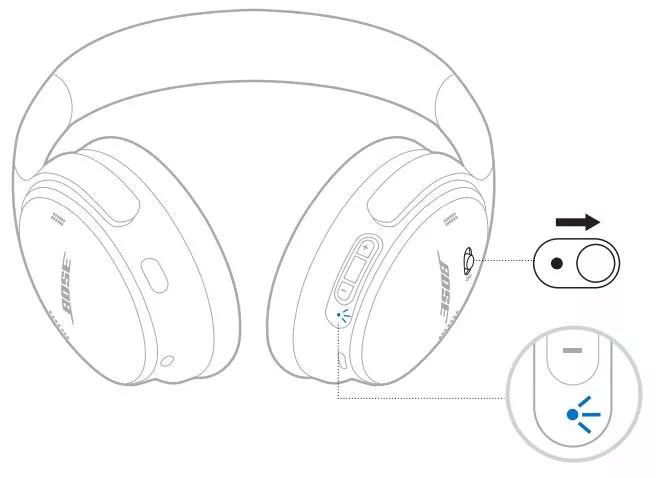
A soft reset is the safest first method. It restarts the headphone electronics and usually keeps your saved Bluetooth information.
Use these steps:
Turn off the headphones.
Wait about 30 seconds.
Turn them on again.
Test the Bluetooth connection.
If the headphones do not respond, connect the charging cable to a wall charger. Leave the headphones charging for a few minutes, then try the power button again.
Some Bose models respond to a deeper power reset:
Turn off the headphones.
Disconnect the charging cable.
Wait 30 seconds.
Connect the charging cable to a wall charger.
Wait five seconds.
Disconnect the cable.
Wait one minute.
Turn on the headphones.
This process helps clear a temporary power state. It is useful when the status light stays on, the headphones will not shut down, or the buttons appear frozen.
The steps for how to reset Bose headphones can differ slightly by model. If your model has a physical Power/Bluetooth button, use that button rather than a touch panel.

How to reset Bose QuietComfort headphones
The steps below apply to many Bose QuietComfort models, including several QC35, QC35 II, QC45, and newer QuietComfort versions. Button names and light patterns may vary.
Standard QuietComfort reset
Turn off the headphones.
Connect the charging cable to the headphones and a wall charger.
Press and hold the Power/Bluetooth button for about 10 seconds.
Release the button when the status lights flash or the headphones respond.
Disconnect the charging cable.
Turn the headphones on and test them.
If this does not work, try the same process after removing the headphones from your phone’s Bluetooth settings. On an iPhone, tap Settings, Bluetooth, the information icon beside the Bose device, and then Forget This Device. On Android, open Bluetooth settings, tap the gear beside the headphones, and choose Forget or Unpair.
After that, open the Bose app and add the headphones again.
Resetting QuietComfort 35 or QC35 II
For many QC35 and QC35 II units, the reset process uses the Power/Bluetooth switch:
Turn off the headphones.
Connect the micro USB charging cable.
Press and hold the Power/Bluetooth switch for 10 seconds.
Release the switch.
Disconnect the cable.
Turn the headphones on.
A successful reset may cause the Bluetooth light to blink. If the headphones still do not connect, remove the old Bose entry from every nearby device. Old pairing records can act like an outdated address in your phone’s contact list.
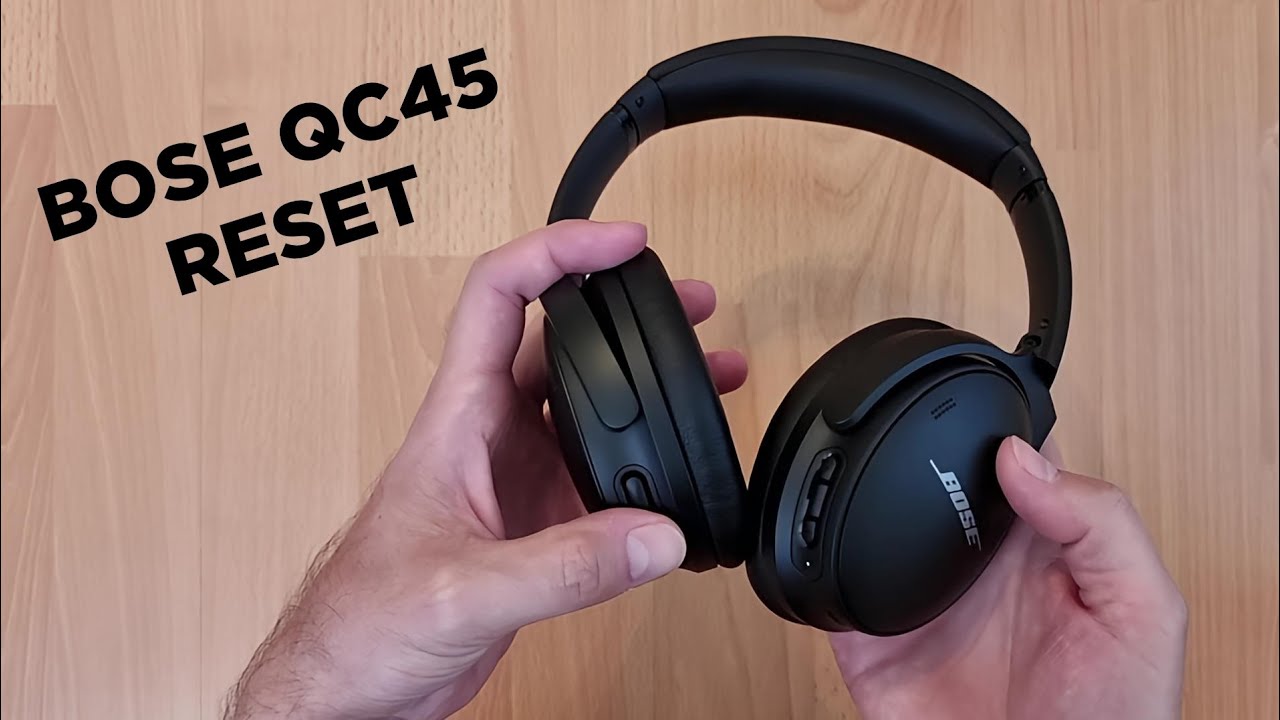
Resetting QuietComfort 45
For QC45 headphones, use the same charging and Power/Bluetooth button method. If the reset does not solve the issue, use the Bose app to remove the product and then pair it again.
Do not assume that a light pattern is identical on every QuietComfort model. Bose has changed button layouts and firmware behavior across generations. When in doubt, check the support instructions for the exact model printed inside the headband or shown in the Bose app.
How to reset Bose QuietComfort Ultra headphones
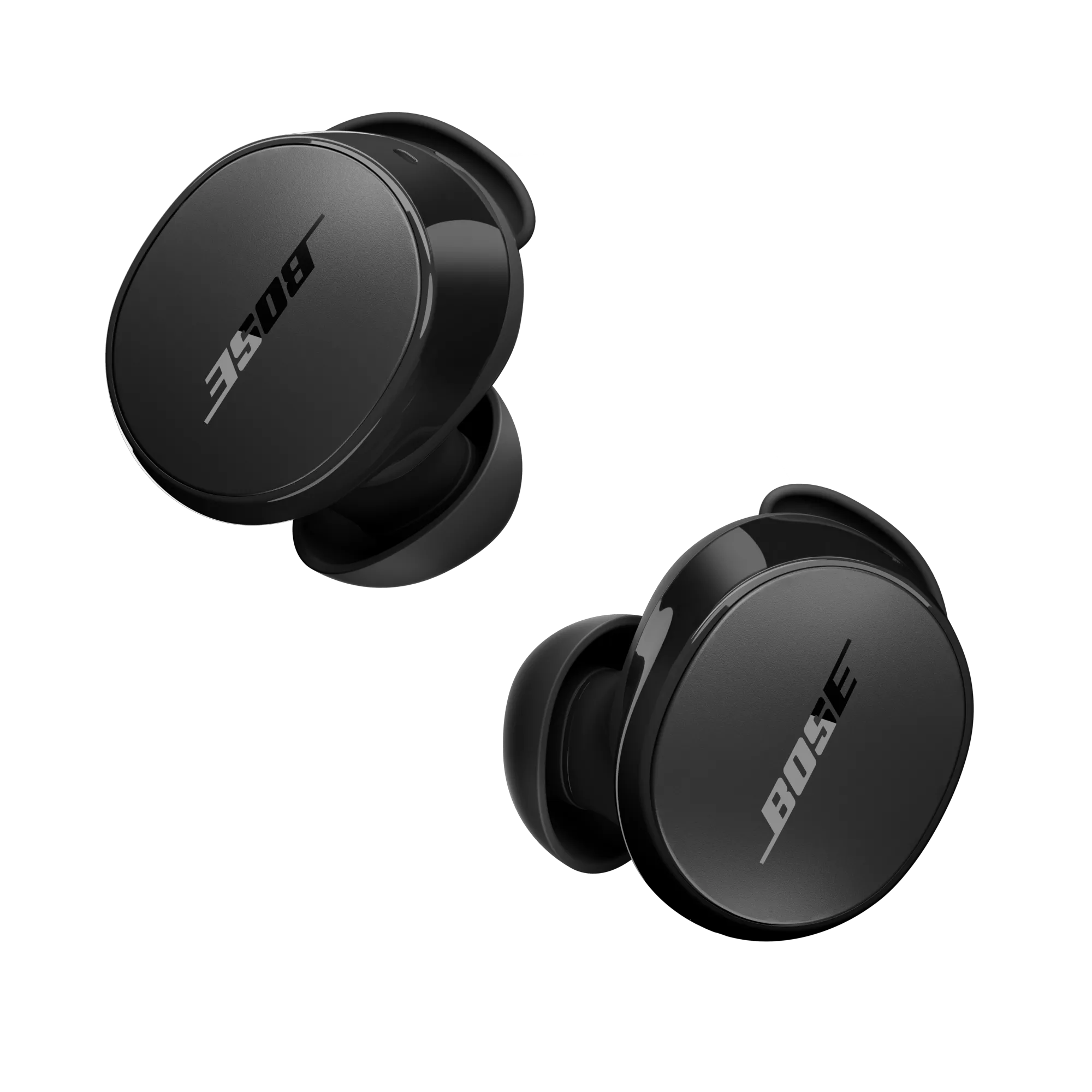
QuietComfort Ultra Headphones use a physical button on the right earcup. A reset can help with pairing problems, app errors, or controls that stop responding.
Basic reset for QuietComfort Ultra
Turn off the headphones.
Connect the USB cable to the headphones and a wall charger.
Press and hold the Power/Bluetooth button for about 15 seconds.
Release the button when the status light responds.
Disconnect the cable.
Turn on the headphones and pair them again.
If your unit does not respond to this process, charge it longer and repeat the steps. Also check the Bose app for a firmware update.
Clear QuietComfort Ultra Bluetooth connections
A reset may not remove every saved connection. To start fresh:
Open the phone or computer Bluetooth menu.
Select the Bose headphones.
Choose Forget, Unpair, or Remove Device.
Turn Bluetooth off for a few seconds.
Turn Bluetooth back on.
Put the headphones into pairing mode.
Select the headphones from the device list.
The best way to reset Bose headphones is to use the physical controls first and the app second. This avoids unnecessary changes to your phone.
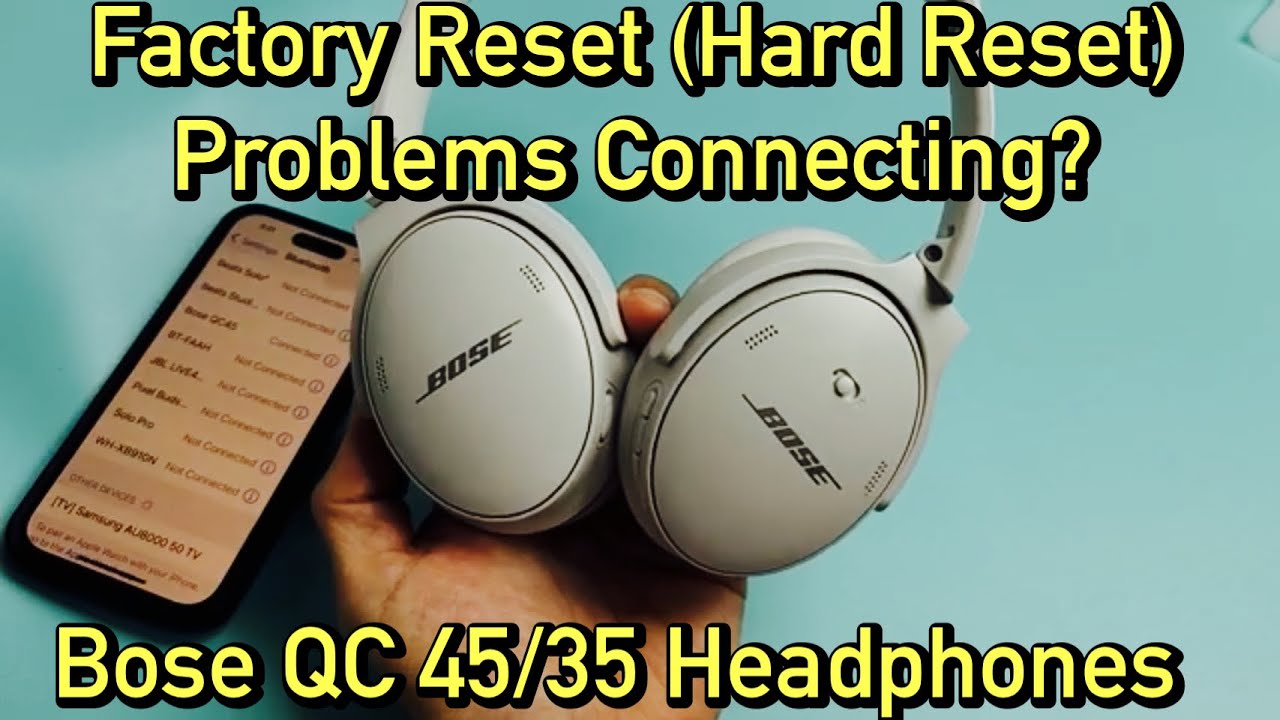
How to reset Bose Noise Cancelling Headphones 700
The Bose Noise Cancelling Headphones 700 use a Power/Bluetooth button and touch controls.
Power reset for Bose 700
Turn off the headphones.
Disconnect the USB charging cable.
Wait 30 seconds.
Turn the headphones on again.
If the headphones remain frozen, connect them to a wall charger and hold the Power/Bluetooth button for about 10 seconds. Release it when the status lights respond.
Reconnect Bose 700 through the app
If the headphones turn on but do not connect, use the Bose app:
Open the Bose app.
Select your headphones.
Open the product settings.
Remove or clear the product from the app if that option appears.
Forget the headphones in your phone’s Bluetooth menu.
Restart the phone.
Add the Bose 700 headphones again.
The app wording can change after firmware updates. Look for options such as Remove Product, Clear Product, or Forget Product. These options may remove saved connections and settings, so use them after a normal power reset fails.
How to factory reset Bose headphones
A factory reset removes stored settings and pairing data. It returns the headphones to a cleaner starting state.
Use a factory reset when:
• The headphones connect but behave incorrectly on several devices
• The Bose app repeatedly loses the product
• Bluetooth records remain corrupted
• A normal power reset does not help
• You are giving the headphones to another person
The safest factory reset method is usually found in the Bose app:
Open the Bose app.
Select the headphones.
Open Settings or Product Settings.
Look for Remove Product, Clear Product, or Restore Factory Settings.
Follow the instructions on screen.
Forget the headphones in every phone, tablet, and computer that used them.
Restart the headphones and pair them again.
Not every Bose model offers the same factory reset option. Some models use a button sequence, while others rely on removing the product from the app and Bluetooth menus. This is why the exact model matters.
A factory reset does not fix a cracked earcup, water damage, a weak battery, or a damaged charging port. It also cannot correct sound caused by a poor audio source or an equalizer setting in another app.

How to reset Bose headphones without the app
You can reset Bose headphones without using the Bose app. This is helpful if the app will not open, the headphones are not detected, or you use a computer instead of a phone.
Try this process:
Turn off the headphones.
Connect them to a wall charger.
Hold the Power/Bluetooth button for 10 to 15 seconds.
Release the button when the light pattern changes.
Disconnect the charging cable.
Forget the headphones from your device’s Bluetooth menu.
Turn the headphones on.
Hold the Bluetooth button to enter pairing mode.
Pair the headphones again.
This method usually handles a soft reset and a fresh Bluetooth setup. It may not perform a complete factory reset on every model.
If your Bose headphones have no physical Power/Bluetooth button, consult the model instructions before trying random touch gestures. A wrong button sequence can place the headphones in pairing mode instead of resetting them.

What to do after resetting Bose headphones
After you reset Bose headphones, pair them as if they were new. This helps prevent old Bluetooth data from causing the same problem.
Follow these steps:
Keep the headphones close to your phone.
Turn on Bluetooth.
Open the Bose app if you use it.
Put the headphones into pairing mode.
Choose the correct Bose product from the list.
Allow nearby-device and Bluetooth permissions.
Play audio for several minutes.
Test calls, music, noise cancellation, and the buttons.
If you use both a phone and a laptop, connect one device first. Once that connection works, connect the second device. This makes it easier to identify a multipoint problem.
Check the sound balance too. On iPhone, look under Accessibility and Audio/Visual. On Android, look for Accessibility or Hearing settings. A shifted balance can make one earcup seem broken after a reset.
Common mistakes when resetting Bose headphones
Resetting Bose headphones is simple, but a few mistakes can make the problem worse.
Holding the button for too little time
A quick press may only turn the headphones on or off. Hold the button for the full time listed for your model.
Keeping the charging cable connected
Some reset methods require the cable, while others require it to be removed. Follow the correct sequence. Do not guess based on another Bose model.
Forgetting old Bluetooth records
Pairing can fail if your phone keeps using an old connection record. Remove the Bose device from the Bluetooth menu before pairing again.
Resetting with a nearly empty battery
A very low battery may prevent the reset from finishing. Charge the headphones first.
Using a laptop charger or damaged cable
Most USB chargers work, but a faulty cable can create confusing symptoms. Try a known-good cable and wall adapter.
Expecting a reset to repair hardware
A reset cannot fix water damage, a broken hinge, damaged microphones, or a battery that no longer holds a charge.
One lesson stands out in real-world troubleshooting: change one thing at a time. If you reset the headphones, update the firmware, change the phone, and alter audio settings all at once, you may not know what solved the issue.
When a Bose headphone reset does not work
If the problem remains, test the headphones with another device. This separates a headphone problem from a phone or computer problem.
Try these checks:
• Test music from a different phone.
• Turn off multipoint connections.
• Remove thick phone cases that may affect wireless range.
• Keep the headphones away from Wi-Fi routers and other wireless devices.
• Check the charging port for dust or damage.
• Inspect the ear cushions and buttons for physical wear.
• Confirm that the issue happens in more than one app.
If the headphones fail on several devices after a reset, contact Bose support or an authorized repair center. Have the model name, serial number, purchase date, and steps already tried ready.
Do not open the earcups yourself if the headphones are under warranty. Opening the product can create further damage and may affect warranty service.
Frequently Asked Questions About How to Reset Bose Headphones
How do I reset Bose headphones that will not turn on?
Charge the headphones for at least 15 minutes, then try holding the Power/Bluetooth button for 10 to 15 seconds. If they still show no light or response, test another charging cable and wall adapter before contacting support.
Will resetting Bose headphones delete Bluetooth connections?
A soft reset usually keeps saved connections, but a factory reset or app removal can delete them. You may need to forget and pair the headphones again on your phone or computer.
How do I reset Bose headphones without the Bose app?
Turn off the headphones, connect them to power, and hold the Power/Bluetooth button for about 10 to 15 seconds. Then remove the old Bose entry from your device’s Bluetooth menu and pair the headphones again.
Why will my Bose headphones not connect after a reset?
Your phone may still have an old Bluetooth record, or another device may be connecting first. Forget the headphones, restart Bluetooth, turn off nearby devices, and pair again with the headphones close to your phone.
Does resetting Bose headphones improve sound quality?
A reset can fix software or connection problems that affect sound. It will not improve sound caused by damaged speakers, blocked ear cushions, poor audio files, or incorrect equalizer settings.
How often should I reset Bose headphones?
You should not need to reset them on a set schedule. Reset them only when you have a connection, control, app, or power issue that normal charging and restarting do not solve.
Conclusion
Resetting Bose headphones is often a quick way to solve pairing errors, frozen controls, and app connection problems. Start with a simple power reset, then forget the Bluetooth connection, and use the Bose app for a deeper reset when needed.
Use the instructions for your exact model, charge the headphones first, and avoid random button combinations. If the headphones still fail on multiple devices, the problem may be hardware rather than software. Try the steps today, and share your model and results in the comments or explore the official support resources for more help.
