

Use the Bose app or Bose Updater to install the correct firmware for your headphone model.
Knowing how to update Bose headphones can improve sound, fix connection bugs, and add useful features. The process is usually simple, but the right method depends on whether you own QuietComfort, Bose 700, QuietComfort Ultra, SoundLink, or an older wireless model.
This guide explains each safe update method, what to do when an update fails, and how to avoid common mistakes. The steps reflect Bose’s current support practices, while noting that app names and features can vary by model and region.
Why you should update Bose headphones
A headphone update is like a tune-up for a car. It does not change the hardware, but it can help the headphones run more smoothly.
Firmware updates may improve:
- Bluetooth stability
- Noise cancellation performance
- Audio balance
- Battery reporting
- Microphone quality
- Multipoint connections
- Touch and button controls
- Compatibility with newer phones
- Security and general system reliability
Bose does not add every feature to every model. Older headphones may receive only bug fixes, while newer products may receive broader improvements.
Updating can also solve small problems that seem unrelated. For example, headphones that disconnect when you move between a laptop and phone may need a firmware update rather than a factory reset.
Before you update Bose headphones
A few minutes of preparation can prevent most update problems. Before you begin, check these points:
- Charge the headphones to at least 30 percent. A higher charge is safer.
- Use a stable Wi-Fi or mobile data connection.
- Keep your phone close to the headphones.
- Turn off battery-saving mode on your phone if the app stops working.
- Close other apps that may use Bluetooth.
- Do not power off the headphones during the update.
- Do not remove the charging cable if Bose instructs you to use one.
- Use the official Bose app or Bose website.
The update may take several minutes. Some firmware installations can take longer if the app must download a large file or reconnect to the headphones.
I have seen many update failures happen because someone walked away from the phone during installation. Bluetooth is like an invisible conversation. If the two devices move too far apart, the conversation can break.

How to update Bose headphones with the Bose app
Most newer Bose headphones use the Bose app. Depending on the product and software version, you may see the name Bose app or Bose Music app.
This method commonly applies to models such as:
- Bose QuietComfort Ultra Headphones
- Bose QuietComfort Headphones
- Bose Noise Cancelling Headphones 700
- Bose QuietComfort 45
- Bose QuietComfort Earbuds
- Other newer Bose wireless products
Step 1: Install the correct Bose app
Open the Apple App Store or Google Play Store. Search for the official Bose app and check that Bose is listed as the developer.
Avoid unofficial update apps. They may not support your model and could create privacy or connection issues.
Step 2: Turn on Bluetooth
Open your phone’s Bluetooth settings and turn Bluetooth on. You usually do not need to pair the headphones again if they already connect to your phone.
If the headphones are new, pair them first through the Bose app. Follow the instructions shown on the screen.
Step 3: Open the Bose app
Launch the app and sign in if requested. The app should detect nearby Bose headphones.
Tap your headphone name. If you own more than one Bose device, select the product that you want to update.
Step 4: Look for an update notice
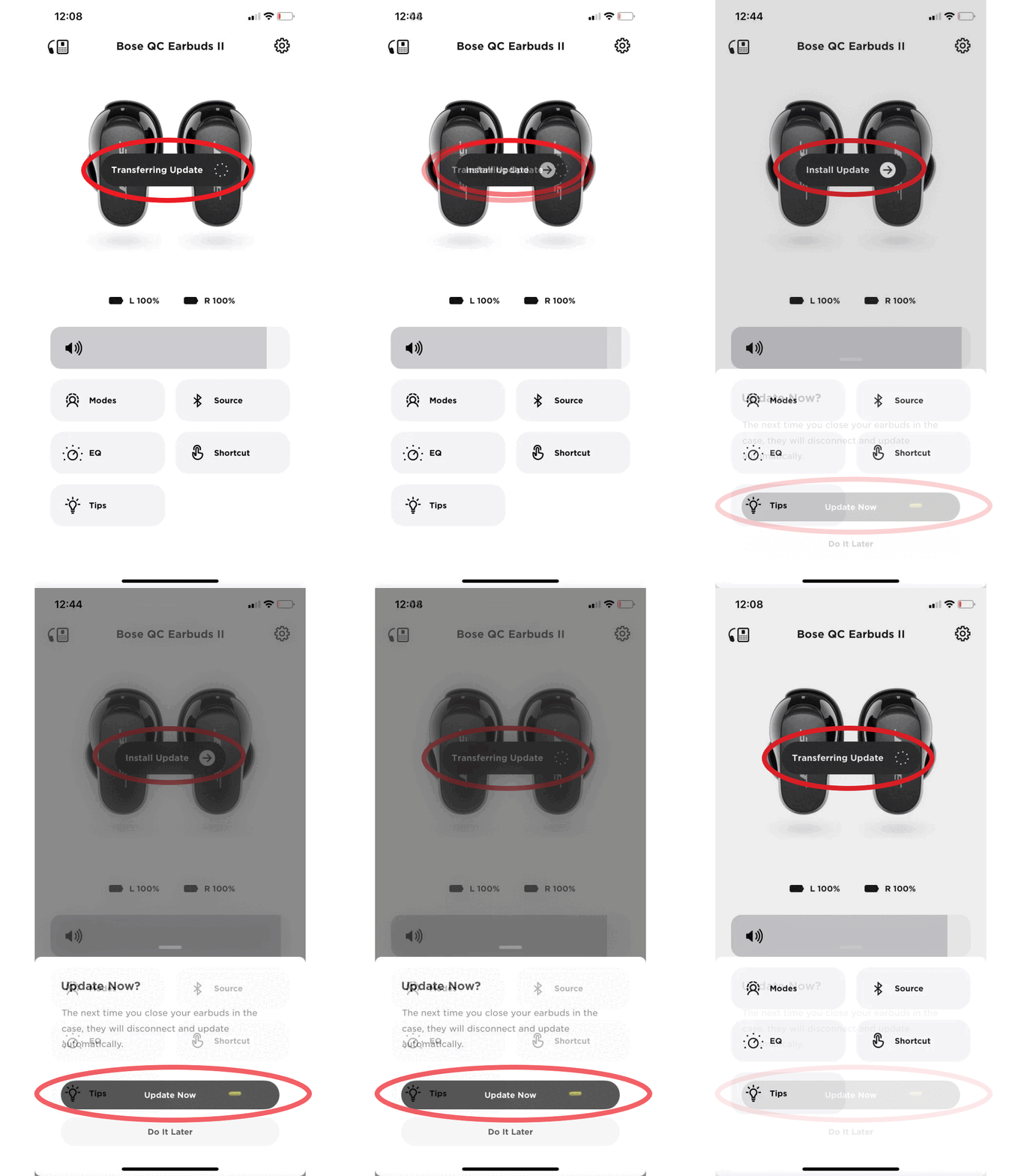
If an update is available, the app may show a message such as Update available, Install update, or a similar prompt.
Tap the update option. Read the instructions before starting the installation.
Step 5: Keep the connection active
Place the phone near the headphones. Keep the app open and avoid switching to another Bluetooth device.
The app may show a progress bar. The headphones may restart, make a tone, or briefly disconnect. These actions are normal during some firmware updates.
Step 6: Confirm the update
When the process ends, the app should show a completed message. Test the headphones by playing music and checking the controls.
You can also open the product settings in the Bose app to view the firmware version. The exact menu name may differ by model.
How to update Bose headphones with Bose Updater
Some Bose headphones can update through Bose’s web-based Bose Updater. This method is useful when the mobile app does not support your model or cannot complete the installation.
You may need:
- A Windows PC or Mac
- A USB charging cable
- An active internet connection
- Your Bose headphones
- A compatible web browser
Step-by-step Bose Updater instructions
- Open the official Bose support or update page on your computer.
- Connect the headphones to the computer with a compatible USB cable.
- Turn on the headphones if the instructions request it.
- Allow the website or updater tool to detect the product.
- Review the available firmware update.
- Select the update option.
- Keep the headphones connected until the process ends.
- Disconnect the cable only when the updater says it is safe.
Some older Bose products may require a separate updater tool or a specific browser process. Follow the instructions shown for your exact model.
Do not assume that every Bose headphone works with the same website method. If the updater cannot identify your product, use the Bose app or visit Bose support for model-specific instructions.

How to update older Bose headphones
Older products may use the Bose Connect app rather than the newer Bose app. This can include some SoundSport wireless headphones, older QuietControl products, and other legacy models.
To update an older Bose product:
- Install Bose Connect from the official app store.
- Turn on Bluetooth.
- Open Bose Connect.
- Connect your headphones.
- Check for an update prompt.
- Follow the instructions in the app.
- Keep the phone and headphones close together.
Bose has changed its app structure over time. That means an older model may not appear in the current Bose app. If the app says that your product is not supported, do not keep trying random apps. Check the product support page for the correct software.
Some older headphones may no longer receive new firmware. That does not always mean they are faulty. It may simply mean Bose has ended software support for that model.
How to check the Bose firmware version
Checking the firmware version helps confirm whether the update worked.
In many cases, you can find it in the Bose app by following a path similar to this:
- Open the Bose app.
- Select your headphones.
- Open Settings.
- Choose Technical Info, Product Information, or a similar option.
- Look for the firmware or software version.
The wording may differ across iPhone, Android, and Bose product families. Some models show one version number for the headphones and another for the charging case.
You can compare the version shown in the app with the latest version listed on the official Bose support page. Do not rely on a random forum post for version information. Community forums can be useful for troubleshooting, but official Bose documentation is the better source for firmware details.

What to do if a Bose headphone update fails
A failed update does not always mean the headphones are damaged. Most failures come from a weak connection, low battery, an outdated app, or a temporary software problem.
Try these solutions in order.
Restart the headphones
Turn the headphones off. Wait about 30 seconds, then turn them on again.
Restart your phone as well. This clears temporary Bluetooth and app errors.
Charge the headphones
Connect the headphones to power and let them charge. If the battery is very low, the update may not start or may stop before completion.
Use a reliable charging cable. A damaged cable can provide power but fail to transfer data during a computer-based update.
Update the Bose app
Open the App Store or Google Play Store and check for an app update. An older app may not properly recognize newer firmware.
Also update your phone’s operating system if an update is available and compatible with your device.
Remove and reconnect the headphones
Open your phone’s Bluetooth settings. Select the Bose headphones and choose Forget This Device or Remove Device.
Then restart Bluetooth and pair the headphones again through the Bose app. This can fix a damaged Bluetooth profile.
Move away from other Bluetooth devices
Temporarily disconnect smartwatches, speakers, tablets, and nearby headphones. Too many active wireless connections can make setup confusing.
This is especially helpful in busy places such as airports, gyms, and offices.
Try another update method
If the Bose app fails, try Bose Updater on a computer if your model supports it. If the computer cannot detect the headphones, return to the official Bose support page and check the instructions for your exact model.
Reset only when needed
A reset can solve deeper software problems, but it may remove saved settings or Bluetooth connections. Use the reset steps listed for your model instead of using a generic reset method.
Common mistakes when updating Bose headphones
Learning how to update Bose headphones is easy when you avoid a few common errors.
Using the wrong Bose app
A newer Bose app may not support an older product. Likewise, Bose Connect may not support a newer product.
Always identify the exact model first. Names such as QuietComfort and QuietComfort Ultra are not interchangeable.
Interrupting the installation
Do not close the app, turn off Bluetooth, or power down the headphones during the update. If the app says the headphones are restarting, wait for the process to finish.
Updating with a weak battery
A low battery can stop the installation halfway through. Charge the headphones before starting, even if they appear to have enough power.
Using a poor USB cable
Some cables charge but do not transfer data. If Bose Updater cannot detect the headphones, try another high-quality USB cable and a different USB port.
Trusting unofficial firmware files
Never download firmware from an unknown website. Incorrect files can cause serious problems and may expose your computer or phone to harmful software.
Assuming every update changes sound quality
A firmware update may improve performance, but it may not create a noticeable sound change. Updates often focus on stability, compatibility, or small fixes.

Does updating Bose headphones erase settings?
Usually, a normal firmware update does not erase all settings. Your custom equalizer choices, device name, and Bluetooth connections often remain in place.
However, an update can sometimes change how a setting works. A reset or major troubleshooting step is more likely to remove saved connections and preferences.
After updating, check:
- Noise cancellation mode
- Aware mode or transparency settings
- Equalizer settings
- Shortcut controls
- Multipoint connections
- Voice assistant preferences
- Automatic power settings
If something feels different, open the Bose app and review the product settings. This quick check can save you from thinking the update caused a problem when a setting simply changed.
How long does a Bose headphone update take?
Many updates finish within several minutes. The exact time depends on the model, internet speed, phone, battery level, and firmware size.
Keep the headphones near the phone until the app confirms completion. Do not judge the process by the progress bar alone. A bar that seems stuck may still be working in the background.
If nothing changes for a long time, wait at least 15 to 30 minutes before closing the app. Then restart the headphones and phone and try again.
How to update Bose headphones safely on iPhone and Android
The main process is similar on both platforms, but permissions can differ.
On an iPhone, allow the Bose app to use Bluetooth. On Android, the app may also need nearby-device or location-related permissions, depending on the Android version and app design.
If the app cannot find the headphones:
- Check Bluetooth permissions.
- Turn off airplane mode.
- Keep the app open.
- Confirm that the headphones are powered on.
- Remove any old Bluetooth connection from another phone.
- Restart the app.
- Restart the phone.
Android phones use many different brands and software versions. Because of this, the exact menus may vary more than they do on an iPhone.
When you should contact Bose support
Contact Bose support if the headphones remain unusable after the update process fails several times.
Ask for help when:
- The headphones will not power on.
- The updater repeatedly stops at the same point.
- The Bose app cannot identify the correct model.
- The headphones restart continuously.
- The firmware version does not change after a confirmed installation.
- Charging and connection problems continue after a reset.
- The headphones show a red or unusual status light.
Have the model name, serial number, phone type, app version, and error message ready. This helps support identify the problem faster.
Bose support may provide a model-specific recovery process. Do not attempt advanced firmware recovery from unofficial instructions unless Bose directly recommends it.
Frequently Asked Questions About How to Update Bose Headphones
How do I update Bose headphones?
Use the Bose app for most newer models, or Bose Connect for some older products. Connect the headphones, open the correct app, select the product, and follow the update prompt.
Can I update Bose headphones without the app?
Some Bose models can update through Bose Updater on a Windows PC or Mac. However, not every model supports this method, so check the official Bose instructions for your product.
Why will my Bose headphones not update?
The most common causes are low battery, weak Bluetooth, an outdated app, poor internet, or using the wrong Bose app. Charge the headphones, restart both devices, update the app, and try again.
How long does it take to update Bose headphones?
Many updates take several minutes, but the time can vary by model and connection speed. Keep the headphones near the phone and do not interrupt the process while it is running.
Will updating Bose headphones delete my Bluetooth connections?
A standard firmware update usually does not delete saved connections. A factory reset may remove them, so avoid resetting the headphones unless normal update steps fail.
Can I use my Bose headphones during an update?
You should not use the headphones during installation. Keep them close to the phone or connected to the computer until the update is complete.
How can I tell if my Bose headphones are up to date?
Open the Bose app and check the product information or technical information screen. Compare the displayed firmware version with the latest version listed in official Bose support information.
Conclusion
Updating Bose headphones is usually a quick way to improve stability, compatibility, and daily performance. Use the correct Bose app for your model, keep the battery charged, maintain a strong connection, and never interrupt the installation.
If the update fails, restart the devices, check permissions, reconnect the headphones, and try Bose Updater when supported. Follow these steps carefully, then check your firmware version and test the controls.
Take a few minutes today to check your Bose headphones for an available update. If this guide helped, explore more Bose support resources or share your experience in the comments.
