How To Connect To JBL Bluetooth Headphones: Quick Guide
Connecting JBL Bluetooth headphones is usually quick. Turn on the headphones, place them in pairing mode, open the Bluetooth menu on your device, and select the JBL name. Once paired, the headphones should connect automatically the next time you use them.
This guide covers JBL headphones and earbuds with iPhones, Android phones, Windows PCs, Macs, tablets, and many smart TVs in the United States. Menu names may vary by device and JBL model, but the basic process is the same.
Before You Connect Your JBL Headphones
Before pairing, charge the headphones and keep them close to the device. A low battery, long distance, or an existing connection to another device can stop the pairing process.
You will need:
- JBL Bluetooth headphones or earbuds
- A phone, tablet, computer, or TV with Bluetooth
- Enough battery power on both devices
- The JBL headphones near the device, ideally within a few feet
- The correct JBL model name, such as JBL Tune 510BT, JBL Live 660NC, or JBL Wave Buds


Bluetooth pairing creates a wireless link between two devices. Pairing happens once. After that, the devices can reconnect when Bluetooth is on and the headphones are available.
Check the headphone state
Look for these signs before you start:
- The headphones power on.
- A blue or white light flashes.
- You hear a sound such as “pairing.”
- The headphones appear ready to connect in the Bluetooth menu.
The exact light color and button action depend on the JBL model. JBL’s official user guides are the best source for model-specific button instructions. The JBL support page lets you search by product name.

How to Put JBL Bluetooth Headphones in Pairing Mode
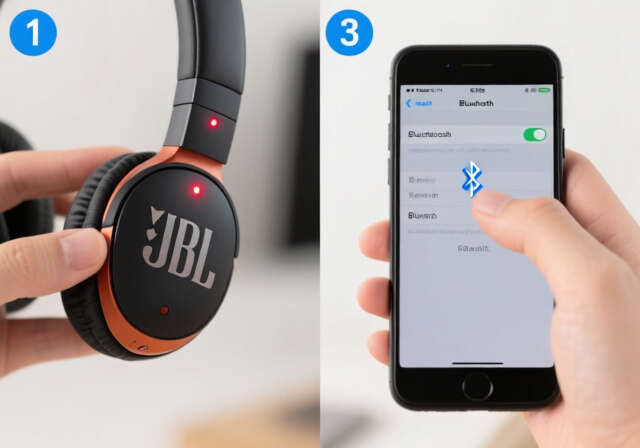
Most JBL headphones enter pairing mode when you turn them on for the first time. If they have connected to another device before, you may need to start pairing mode manually.
Follow these steps:
- Turn off the JBL headphones if they are already on.
- Press the power button to turn them on.
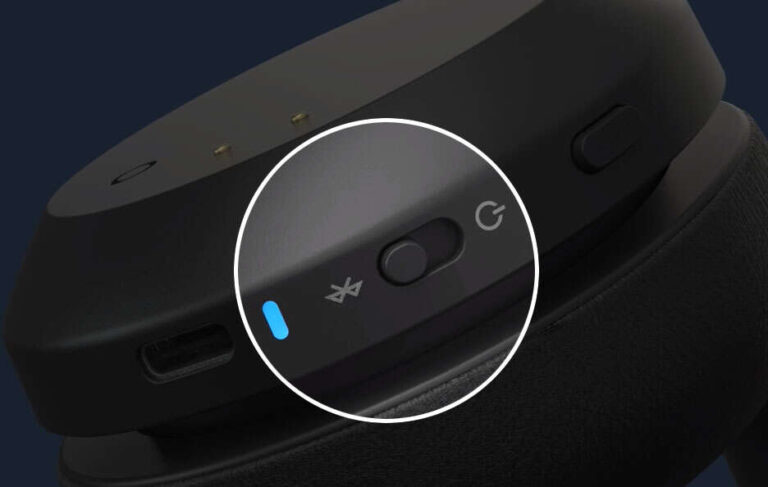
- Press and hold the Bluetooth or power button for several seconds.
- Release the button when the indicator light flashes or the headphones announce pairing mode.
- Keep the headphones close to the device you want to connect.
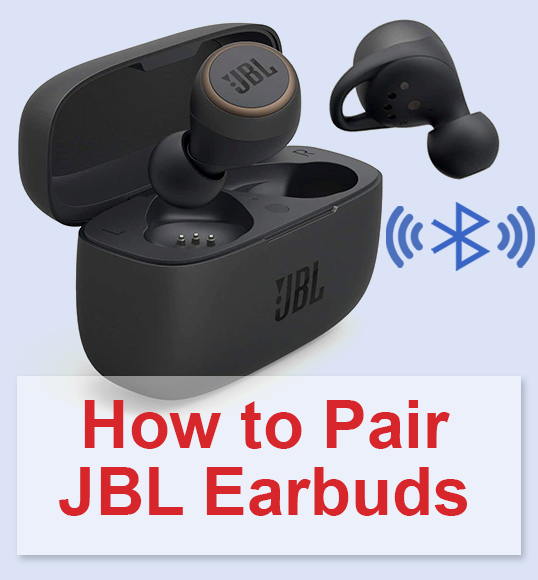
Many JBL over-ear and on-ear models use a short press to power on and a longer press to enter pairing mode. Some JBL earbuds enter pairing mode when you open the charging case or remove both earbuds.
Do not assume every JBL product uses the same button. For example, some models have a separate Bluetooth button, while others use the power button. If the headphones do not appear in the device list, check the manual for the exact model.
What pairing mode looks like
Your JBL headphones are likely in pairing mode when:
- The light blinks repeatedly.
- The headphones make a pairing sound.
- The device name appears in the Bluetooth list.
- The headphones stop connecting to a device they used earlier.
If the light stays solid, the headphones may already be connected. Turn off Bluetooth on nearby phones, tablets, or computers that have used the headphones before. Then try pairing mode again.


How to Connect JBL Headphones to an iPhone or iPad
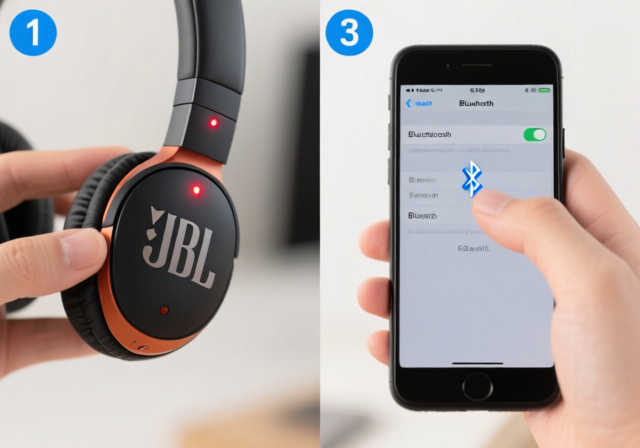
You can connect JBL Bluetooth headphones to an iPhone or iPad through the Settings app. You do not need the JBL Headphones app for basic Bluetooth pairing.
- Put the JBL headphones in pairing mode.
- Open Settings on your iPhone or iPad.
- Tap Bluetooth.
- Turn Bluetooth on if it is off.
- Wait for the JBL model name under Other Devices.
- Tap the JBL name.
- Wait until it moves to My Devices and shows Connected.
You may hear a tone or voice prompt when the connection succeeds. Play music or a short video to confirm that sound comes through the headphones.
If the headphones do not appear, keep the Bluetooth screen open while you place the JBL headphones back into pairing mode. Avoid tapping a similar device name unless you know it belongs to your headphones.
If your iPhone connects to the wrong device
An iPhone may connect to a JBL speaker, car system, or another Bluetooth product nearby. Tap the information button next to the unwanted device and choose Disconnect or Forget This Device when appropriate.
To remove old JBL pairing data:
- Open Settings.
- Tap Bluetooth.
- Tap the information icon next to the JBL product.
- Choose Forget This Device.
- Put the headphones into pairing mode.
- Select them again.
For more than one Apple device, Bluetooth pairing may be shared through your Apple account in some situations. The headphones still connect to only one active audio source unless the specific JBL model supports multipoint or another switching feature.
How to Connect JBL Headphones to an Android Phone
Android phones from Samsung, Google, Motorola, OnePlus, and other brands use similar Bluetooth steps. The names may differ slightly by manufacturer.
- Put the JBL headphones in pairing mode.
- Open Settings.
- Tap Connected devices, Connections, or Bluetooth.
- Tap Pair new device if that option appears.
- Select the JBL headphone or earbud name.
- Approve the pairing request if Android displays one.
- Confirm that the status says Connected.
Some Android phones show a quick Bluetooth panel. You can swipe down from the top of the screen, press and hold the Bluetooth icon, and open the full Bluetooth settings.
Some JBL models support Google Fast Pair. When supported, an Android phone may show a pop-up with the JBL product name. Tap Connect and follow the on-screen instructions. Fast Pair availability depends on the JBL model, Android version, Google services, and phone settings.
Give Android the right permissions
Some Android versions ask for permission to scan for nearby devices. Allow the requested Bluetooth or nearby-device permission if you want the phone to find the headphones.
You usually do not need to install the JBL Headphones app to listen to audio. The app can add features on supported models, such as firmware updates, sound controls, or noise-control settings. JBL documents supported products inside its app and support materials.

How to Connect JBL Headphones to a Windows PC
Windows 11 and Windows 10 can connect to JBL headphones through Bluetooth. First, make sure the computer has Bluetooth. Most modern laptops do. Some desktop PCs need a Bluetooth adapter.


Windows 11
- Put the JBL headphones in pairing mode.
- Select the network, sound, or battery area on the taskbar.
- Select the arrow next to the Bluetooth control.
- Choose More Bluetooth settings or open Settings.
- Go to Bluetooth & devices.
- Turn Bluetooth on.
- Select Add device.
- Choose Bluetooth.
- Select the JBL model name.
- Select Done when Windows confirms the connection.
You can also open Settings > Bluetooth & devices > Add device directly.
Windows 10
- Put the JBL headphones in pairing mode.
- Open Start > Settings.
- Select Devices.
- Select Bluetooth & other devices.
- Turn Bluetooth on.
- Select Add Bluetooth or other device.
- Choose Bluetooth.
- Select the JBL headphones.
After pairing, choose the JBL headphones as the sound output:
- Select the speaker icon on the taskbar.
- Open the output device list.
- Select the JBL headphones.
Windows may show two audio options for some Bluetooth headsets:
- Headphones or Stereo: better for music and video.
- Headset or Hands-Free: allows microphone use but may reduce audio quality.
This change is normal. It happens because Bluetooth audio modes use different connection profiles.
How to Connect JBL Headphones to a Mac
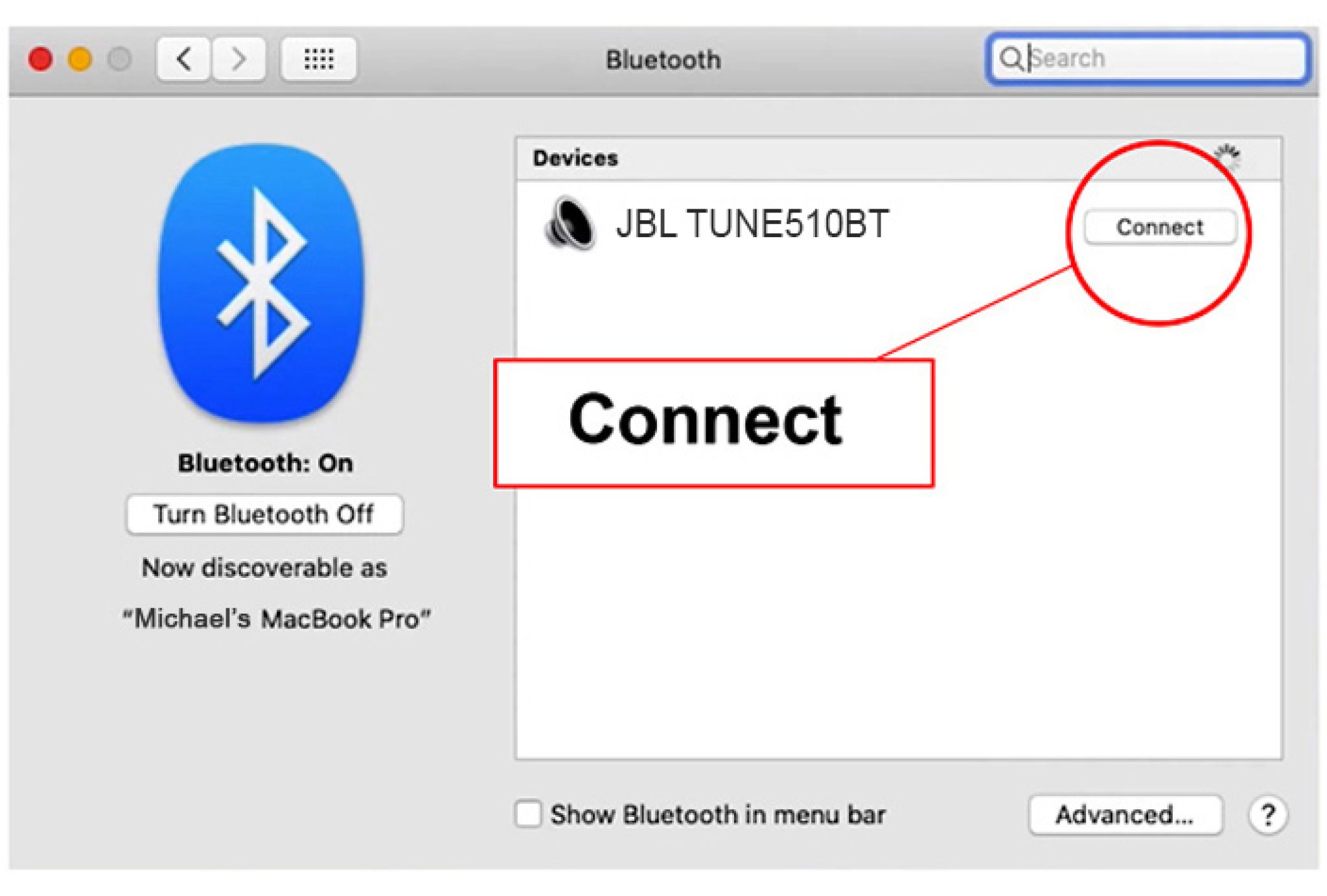
A Mac can pair with JBL headphones through System Settings or System Preferences, depending on the macOS version.
- Put the JBL headphones in pairing mode.
- Select the Apple menu.
- Open System Settings.
- Select Bluetooth.
- Turn Bluetooth on.
- Find the JBL model in the device list.
- Select Connect.
On older macOS versions, open System Preferences > Bluetooth instead.
If the Mac pairs with the headphones but keeps using its built-in speakers:
- Open System Settings.
- Select Sound.
- Choose Output.
- Select the JBL headphones.
You can also select the sound icon in the macOS menu bar and choose the JBL headphones as the output device.
For video calls, check both the microphone and speaker settings in the call app. A Mac may use the JBL headphones for sound but keep the Mac’s built-in microphone active.


How to Connect JBL Headphones to a Smart TV
Smart TV Bluetooth support varies by brand and model. Some TVs support Bluetooth headphones, while others support only certain Bluetooth accessories or remote controls.
To try a connection:
- Put the JBL headphones in pairing mode.
- Open the TV’s Settings menu.
- Look for Sound, Audio, Bluetooth, or Controllers & Bluetooth Devices.
- Choose Bluetooth audio, Add device, or a similar option.
- Select the JBL headphone name.
- Confirm the connection.
- Play a program to test the sound.
Samsung, LG, Sony, Roku, Fire TV, and other platforms use different menus. Search the TV maker’s support site for the exact model if you cannot find a Bluetooth audio setting.
TV limits to expect
Some TVs allow only one Bluetooth audio connection. Others may have a delay between the picture and sound. A TV may also send audio to the headphones while disabling its built-in speakers.
If the TV does not support Bluetooth headphones, possible alternatives include:
- A TV Bluetooth transmitter connected to the TV’s audio output
- A streaming device that supports Bluetooth audio
- Wired headphones connected to the TV
- A compatible sound system
A transmitter must match the TV’s available port, such as optical, 3.5-millimeter audio, or USB. A USB port does not always send audio, so check the TV and transmitter manuals first.

What to Do When JBL Headphones Will Not Connect
Start with simple checks before resetting the headphones. Most pairing failures come from the headphones being connected to another device, not being in pairing mode, or having an old saved pairing entry.
1. Check the battery
Charge the headphones or earbuds for at least a short period. If the battery is very low, the product may power on but fail to complete pairing.
For earbuds, place both earbuds in the charging case. Check whether the case and earbuds show charging lights.
2. Turn Bluetooth off and on
Turn Bluetooth off on the phone, computer, or TV. Wait a few seconds, then turn it on again. Put the JBL headphones back into pairing mode and search again.
3. Disconnect nearby devices
A JBL product may reconnect to a phone, tablet, or laptop that it remembers. Turn Bluetooth off on nearby devices that have used the headphones before.
This is one of the most useful checks when the JBL name does not appear.
4. Forget the old JBL entry
If the device lists the JBL headphones but will not connect, remove the old entry.
- On iPhone or iPad, choose Forget This Device.
- On Android, choose Forget, Unpair, or Remove.
- On Windows, select the JBL device and choose Remove device.
- On Mac, remove or forget the device in Bluetooth settings.


Then restart pairing from the beginning.
5. Restart both devices
Power off the headphones and restart the phone, computer, or TV. This clears temporary Bluetooth errors without deleting other settings.
6. Move closer
Keep the headphones within a few feet during setup. Walls, metal objects, and other wireless devices can interfere with the first connection.
7. Confirm the output device
The headphones may be connected but silent because the device still sends sound to its speakers. Select the JBL headphones under sound output.
8. Reset the JBL headphones
A reset can clear stored Bluetooth connections, but the button process differs by model. Use the instructions for your exact JBL product. A reset may erase saved devices and custom settings.
Do not keep trying random button combinations. If the wrong buttons are pressed, you may change a setting or fail to reset the product.

JBL Headphones Connect but Have No Sound
A Bluetooth connection does not always mean the device is using the headphones for audio. Check the output setting first.
On an iPhone
- Start playing audio.
- Open Control Center.
- Tap the audio output icon.
- Select the JBL headphones.
On Android
- Start playing audio.
- Open the media panel or volume controls.
- Select the JBL headphones as the output.
- Check that Media audio is enabled in the JBL Bluetooth settings.
On Windows
- Select the speaker icon.
- Open the output device list.
- Select the JBL headphones.
- Raise the volume on both Windows and the headphones.
On a Mac
- Open System Settings.
- Select Sound.
- Select Output.
- Choose the JBL headphones.
Also check whether the app itself is muted. Some music, video, and meeting apps have their own output controls.

How to Pair JBL Headphones With a Second Device
Many JBL headphones can remember several paired devices, but the exact number varies. Some models support multipoint, which lets the headphones maintain active links with two devices. Others can remember devices but connect to only one at a time.
To pair a second device:
- Disconnect or turn off Bluetooth on the first device if the headphones keep reconnecting to it.
- Put the JBL headphones into pairing mode.
- Open Bluetooth settings on the second device.
- Select the JBL model name.
- Confirm the connection.
- Turn Bluetooth back on for the first device if needed.
If the model supports multipoint, the headphones may switch between a phone call and computer audio. The feature may need to be enabled in the JBL Headphones app, and support varies by model.


If the second device cannot find the headphones, do not immediately reset them. First disconnect the original device and try pairing mode again.
JBL Bluetooth Pairing Mistakes to Avoid
Avoid these common errors:
- Holding the power button for too long or too little: The correct action varies by model.
- Searching before pairing mode starts: The JBL name may not appear until the indicator flashes.
- Leaving Bluetooth on for the old device: The headphones may reconnect to it.
- Choosing the wrong JBL name: Nearby JBL speakers or other products may look similar.
- Assuming the JBL app is required: Basic Bluetooth pairing normally works through the device’s Bluetooth menu.
- Resetting too soon: A reset removes saved connections and may not solve a device-side problem.
- Ignoring sound output settings: The headphones can show “connected” while the phone or computer still uses its own speakers.
- Pairing at too great a distance: Complete the first pairing close to the phone, computer, or TV.
A clear pairing name, a flashing indicator, and a successful sound test are the best signs that setup is complete.

Key Takeaways
- Put the JBL headphones in pairing mode before searching.
- Open Bluetooth settings on the phone, computer, tablet, or TV.
- Select the exact JBL model name.
- Choose the JBL headphones as the audio output if there is no sound.
- Turn off Bluetooth on nearby devices that may reconnect automatically.
- Use the manual for the exact model before attempting a reset.
- The JBL Headphones app is optional for basic pairing but may add model-specific features.
FAQs About Connecting JBL Bluetooth Headphones
Why are my JBL headphones not showing up in Bluetooth?
The headphones may not be in pairing mode, may already be connected to another device, or may have a low battery. Turn off Bluetooth on nearby devices, restart the JBL headphones, and hold the Bluetooth or power button until the indicator flashes.
Can I connect JBL headphones without the JBL app?
Yes. You can pair most JBL Bluetooth headphones through the Bluetooth settings on your phone, tablet, computer, or TV. The JBL Headphones app is mainly for supported features such as firmware updates, sound controls, and noise-control settings.
How do I connect JBL headphones to a new phone?
Turn off Bluetooth on the old phone or disconnect the JBL headphones from it. Put the headphones into pairing mode, open Bluetooth settings on the new phone, and select the JBL model name.
Why do my JBL headphones say connected but play no sound?
The device may still use its built-in speakers. Open the sound output menu and select the JBL headphones. On Android, also check that Media audio is enabled for the JBL Bluetooth connection.
How do I reset JBL Bluetooth headphones?
The reset method depends on the JBL model. Check the official JBL manual for the exact instructions. A reset usually clears saved Bluetooth connections, so you will need to pair the headphones again afterward.
Can JBL headphones connect to two devices at once?
Some JBL models support multipoint connections, while others do not. Check the product manual or JBL support page for your model. A product may remember several devices without staying connected to two devices at the same time.
Conclusion
To connect JBL Bluetooth headphones, place them in pairing mode, open Bluetooth settings on the device, and select the JBL model name. If the connection fails, disconnect nearby devices, forget the old pairing, restart both products, and confirm the audio output.
For model-specific buttons, reset steps, and supported features, use the manual for your exact JBL headphones on the official JBL support site.