

Press and hold the Bluetooth or Power button, then select your Bose headphones from your device’s Bluetooth menu.
Learning how to connect Bose headphones to Bluetooth is usually quick, but the exact buttons can vary by model. Whether you own Bose QuietComfort, QuietComfort Ultra, Noise Cancelling Headphones 700, Sport Earbuds, or another Bose model, this guide explains the pairing process, fixes common problems, and shares practical tips for a stable connection.
How to connect Bose headphones to Bluetooth
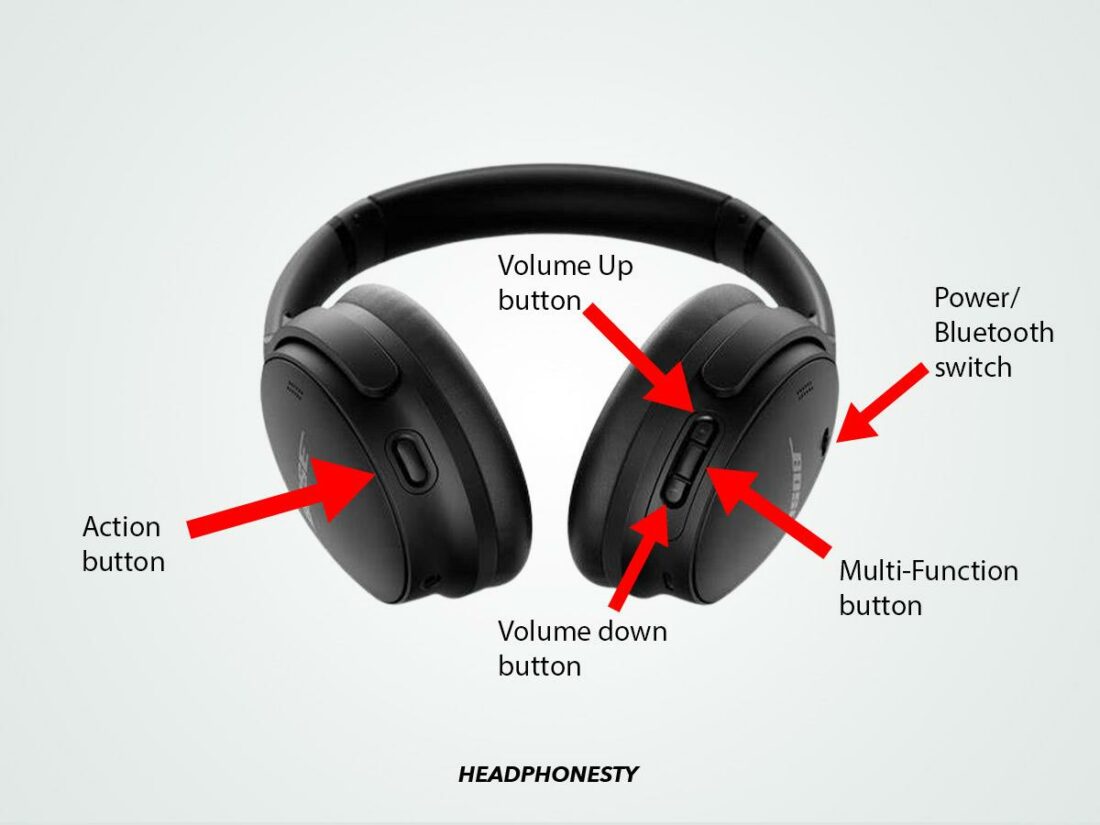
Most Bose headphones use the same basic pairing method. Your headphones must be turned on and placed in pairing mode before your phone, tablet, computer, or TV can find them.
Follow these steps:
- Turn on your Bose headphones.
- Find the Power or Bluetooth button.
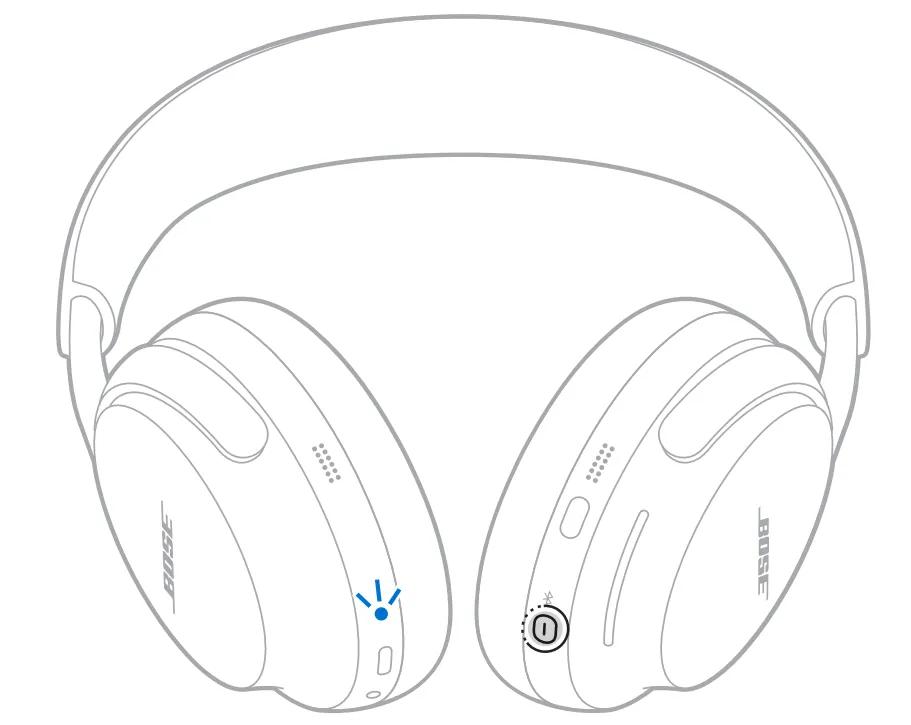
- Press and hold the button for about 3 seconds.
- Release it when you hear “Ready to connect” or see a flashing blue light.
- Open Bluetooth settings on your device.
- Turn Bluetooth on.
- Select your Bose headphones from the list of available devices.
- Wait for the connection message or confirmation sound.
The device name may show the model name, such as “Bose QuietComfort Ultra,” “Bose NC 700,” or “Bose Sport Earbuds.” Once connected, your headphones should reconnect to that device automatically when both Bluetooth and the headphones are on.
Bluetooth pairing works like an introduction. Your headphones announce that they are ready, and your phone or computer chooses them from the list. If the headphones do not appear, turn Bluetooth off and on again, then repeat the pairing process.

How to connect Bose headphones to Bluetooth on an iPhone
An iPhone can connect to Bose headphones through the Settings app. You do not need a special app for basic Bluetooth pairing.
Pair Bose headphones with an iPhone
- Put your Bose headphones into pairing mode.
- Open the Settings app on your iPhone.
- Tap Bluetooth.
- Make sure Bluetooth is turned on.
- Look under Other Devices.
- Tap the name of your Bose headphones.
- Wait until the headphones move to My Devices and show Connected.
If your Bose headphones have connected before, they may appear under My Devices. Tap the name to reconnect them.
The Bose app can add useful features, such as firmware updates, noise control settings, device naming, and connection management. However, the app is not required to connect Bose headphones to Bluetooth on an iPhone.
A common mistake is opening the Bose app before putting the headphones into pairing mode. The app may not find the headphones until your iPhone can see them through Bluetooth.
How to connect Bose headphones to Bluetooth on Android
Android phones and tablets use a similar process. Menu names can differ slightly by phone brand and Android version.
Pair Bose headphones with an Android device
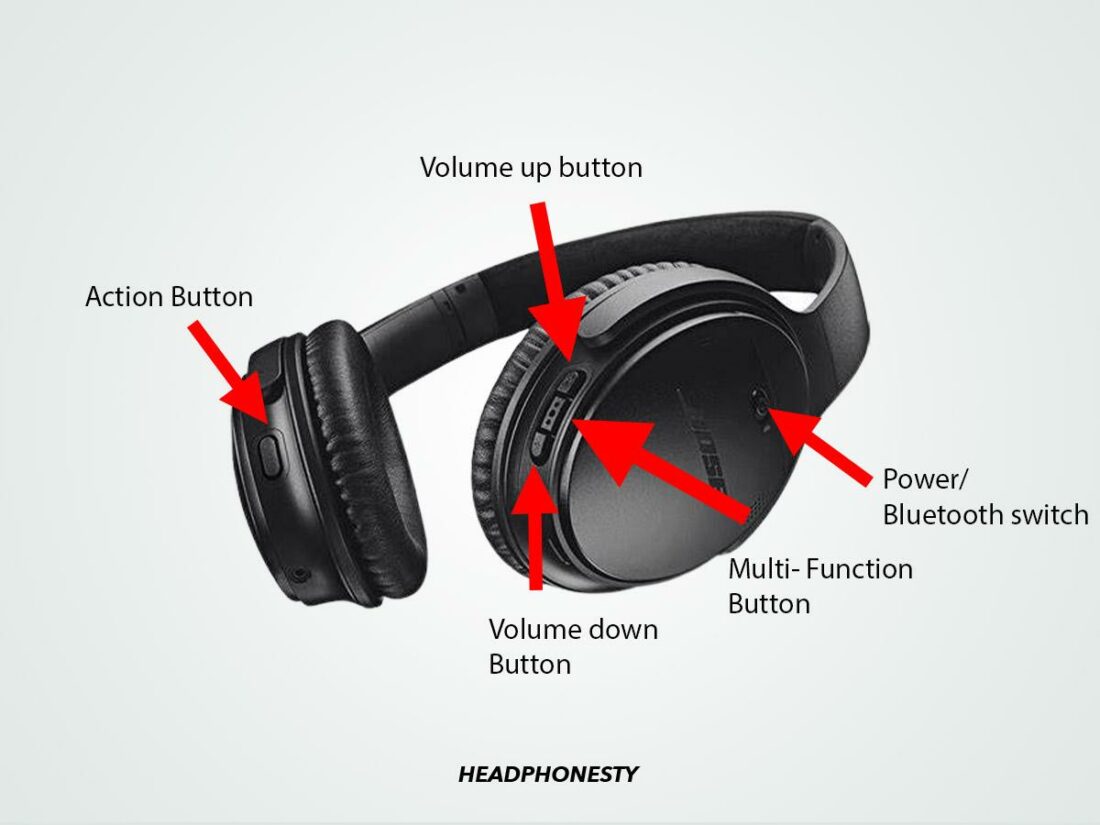
- Turn on your Bose headphones.
- Press and hold the Bluetooth or Power button.
- Wait for the pairing voice prompt or flashing blue indicator.
- Open Settings on your Android device.
- Tap Connected devices, Connections, or Bluetooth.
- Select Pair new device if needed.
- Tap your Bose headphones under Available devices.
- Approve the pairing request if one appears.
Some Android devices show a gear icon beside the headphones after pairing. Tap it to check options such as phone calls, media audio, or contact access.
If your phone asks for a PIN, try 0000 or 1234. Most modern Bose headphones do not require a PIN, so this request often means the device is using an older Bluetooth pairing system.
Android’s Fast Pair feature may display a pop-up when compatible Bose headphones are nearby. Follow the on-screen instructions if the pop-up appears, but use the standard Bluetooth menu if it does not.
How to connect Bose headphones to a Windows PC
You can connect Bose headphones to a Windows laptop or desktop for music, meetings, games, and video calls. Make sure the headphones are not actively connected to another nearby device first.
Pair Bose headphones with Windows 11
- Put the Bose headphones into pairing mode.
- Open the Start menu.
- Select Settings.
- Choose Bluetooth & devices.
- Turn Bluetooth on.
- Click Add device.
- Select Bluetooth.
- Choose your Bose headphones.
- Click Done after Windows confirms the connection.
Windows may list the headphones under Audio. If you see two entries, choose the normal headphones entry for general listening. An entry labeled Headset may use a lower-quality microphone mode during calls.
After pairing, click the speaker icon on the Windows taskbar and select your Bose headphones as the sound output. If you are using Zoom, Microsoft Teams, or another calling app, select the Bose microphone and speaker settings inside that app too.
Pair Bose headphones with Windows 10
- Open Settings.
- Select Devices.
- Click Bluetooth & other devices.
- Turn Bluetooth on.
- Click Add Bluetooth or other device.
- Select Bluetooth.
- Choose your Bose headphones.
If your computer has no Bluetooth option, it may need a USB Bluetooth adapter. Office computers can also have Bluetooth disabled by an administrator.
How to connect Bose headphones to a Mac
A Mac can pair with Bose headphones through System Settings or System Preferences, depending on the macOS version.
- Place your Bose headphones in pairing mode.
- Click the Apple menu.
- Open System Settings.
- Select Bluetooth.
- Find your Bose headphones under Nearby Devices.
- Click Connect.
On older versions of macOS, open System Preferences and select Bluetooth instead.
After the connection is complete, click the Control Center icon in the menu bar. Select Sound and choose your Bose headphones as the output device.
For video calls, check the microphone setting in the calling app. When macOS switches to the headphone microphone, sound quality may change. This is normal for many Bluetooth headsets because calls use a different Bluetooth audio profile than music playback.

How to connect Bose headphones to a TV
Bluetooth TV support varies by brand and model. Some smart TVs connect directly to Bluetooth headphones, while others need a Bluetooth transmitter.
Connect Bose headphones to a Bluetooth TV
- Put your Bose headphones into pairing mode.
- Open the TV’s Settings menu.
- Find Sound, Audio, or Bluetooth settings.
- Open the Bluetooth speaker list.
- Select your Bose headphones.
- Confirm the connection.
Your TV may call this feature Bluetooth Audio, Wireless Speaker, Sound Output, or Device List.
TV Bluetooth connections can have a small audio delay. This delay may be noticeable when people speak on screen. Look for an Audio Delay or Lip Sync setting if the picture and sound do not match.
Some TVs support only one Bluetooth audio device at a time. Others may disconnect your headphones when a soundbar or wireless speaker connects. If your TV cannot find the headphones, a compatible Bluetooth transmitter connected to the TV’s optical or headphone output may help.

How to connect Bose headphones to Bluetooth with the Bose app
The Bose app can simplify setup and provide extra control. The app name may vary by product generation, so use the official Bose app recommended for your model.
Use the Bose app for setup
- Install the correct Bose app from the Apple App Store or Google Play Store.
- Turn on Bluetooth on your phone.
- Open the app.
- Sign in or continue without an account if that option is available.
- Select Add Product or Set Up New Product.
- Choose your headphones.
- Follow the instructions on the screen.
The app may ask for location, Bluetooth, or nearby-device permission. These permissions help the app find and manage your headphones. You can review app permissions later in your phone settings.
The app is useful for checking battery level, updating firmware, changing noise cancellation, and managing two connected devices. Still, standard Bluetooth settings remain the best backup when the app fails to detect the headphones.

How to connect Bose headphones to a second device
Many Bose headphones support multipoint Bluetooth. This feature lets the headphones stay connected to two devices, such as a laptop and a phone.
To add a second device:
- Connect the headphones to the first device.
- Put the headphones back into pairing mode.
- Open Bluetooth settings on the second device.
- Select the Bose headphones.
- Confirm the connection.
Some models manage two active connections, while others store several devices but connect actively to only one or two. The exact behavior depends on the model and firmware.
For example, you may listen to music on a laptop and still receive a call on your phone. The headphones can pause the laptop audio when the phone rings. If switching behaves strangely, disconnect one device temporarily and connect the device you need.
In my experience helping people set up wireless audio, old saved connections cause more trouble than weak Bluetooth hardware. Removing devices you no longer use often makes multipoint switching much smoother.
What to do when Bose headphones will not connect
If your Bose headphones do not appear in the Bluetooth list, work through these checks in order.
Check the pairing mode
The headphones may be on without being discoverable. Press and hold the Power or Bluetooth button until you hear the pairing prompt or see the blue light.
Move closer to the device
Keep the headphones within a few feet of the phone or computer during setup. Walls, metal objects, and other wireless devices can reduce the signal.
Disconnect other devices
Your headphones may be trying to reconnect to a laptop, tablet, or old phone. Turn Bluetooth off on nearby devices or remove the headphones from their Bluetooth menus.
Charge the headphones
Low battery power can interrupt pairing. Charge the headphones for at least a few minutes before trying again.
Restart both devices
Turn off the headphones and restart the phone, computer, or TV. This simple step clears many temporary Bluetooth errors.
Remove and pair again
On your phone or computer, select the Bose headphones and choose Forget, Remove Device, or Unpair. Then place the headphones into pairing mode and start again.
How to reset Bose Bluetooth connections
A Bluetooth reset can help when the headphones connect to the wrong device or refuse to enter pairing mode. The reset method differs by Bose model, so avoid using a button combination unless it matches your product instructions.
For many Bose headphones, pressing and holding the Bluetooth button for several seconds clears the Bluetooth device list. Some models use the Power switch or a combination of buttons. The headphones usually confirm the action with a voice prompt.
After clearing the list:
- Turn Bluetooth off on nearby devices.
- Restart the Bose headphones.
- Turn Bluetooth on for the device you want to use.
- Put the headphones into pairing mode.
- Select the headphones from the available-device list.
A factory reset is more extensive. It may erase device settings and return the headphones to their original setup state. Use it only after normal pairing steps and a Bluetooth list reset fail.
Check the support instructions for your exact Bose model before performing a factory reset. Button combinations can differ between QuietComfort headphones, earbuds, and older products.
Tips for a stronger Bose Bluetooth connection
A good Bluetooth connection should feel invisible. You press play, and the sound arrives without cuts or delay. These habits help keep it that way:
• Keep the headphones and source device within the normal Bluetooth range.
• Update the Bose app and headphone firmware when updates are offered.
• Keep your phone or computer software current.
• Avoid storing the headphones beside strong wireless transmitters.
• Do not pair the headphones with many unused devices if you often use multipoint.
• Keep the headphones charged during long calls or travel.
• Check the selected audio output after connecting to a computer.
• Turn off Bluetooth on a device that keeps stealing the connection.
Bluetooth performance can vary in busy places such as airports, gyms, and offices. Wi-Fi routers, other headphones, and many nearby devices may create radio traffic. The connection may still work, but range and stability can change.
Firmware updates can improve performance, but they cannot fix every issue. Older phones, TVs, and computers may have limited Bluetooth support. This is especially important for advanced features such as high-quality audio codecs, multipoint, and low-latency sound.
Common Bose Bluetooth problems and solutions
Headphones connect but have no sound
Check the audio output on your device. Your phone, computer, or TV may still be sending sound through its built-in speakers.
Sound cuts out
Move closer to the source device and remove obstacles. Also disconnect other Bluetooth devices and check whether the headphones need a firmware update.
Only one earbud works
Place both earbuds in the charging case, close the lid, and wait several seconds. Then remove them together and pair them again. Clean the charging contacts if one earbud does not charge.
The microphone sounds poor
Bluetooth headsets often switch to a lower-bandwidth call mode when the microphone is active. In computer meetings, choose the Bose headphones for output and use the computer’s built-in microphone if you want better music quality.
The headphones connect to the wrong device
Turn off Bluetooth on nearby devices or remove the Bose headphones from their saved lists. Then connect them manually to the device you want.
The Bose app cannot find the headphones
Confirm that the app has Bluetooth and nearby-device permission. Close and reopen the app, restart Bluetooth, and use the phone’s standard Bluetooth menu if needed.
Frequently Asked Questions About How to Connect Bose Headphones to Bluetooth
How do I put Bose headphones into Bluetooth pairing mode?
Turn on the headphones, then press and hold the Power or Bluetooth button for about 3 seconds. Release it when you hear a pairing message or see a flashing blue light.
Why are my Bose headphones not showing up on Bluetooth?
They may already be connected to another device or may not be in pairing mode. Turn off Bluetooth on nearby devices, restart the headphones, and try searching again.
Can I connect Bose headphones to two devices?
Many Bose models support two active Bluetooth connections through multipoint. The exact feature depends on the model and firmware, so check the product settings in the Bose app.
How do I connect Bose headphones to an iPhone?
Open Settings, tap Bluetooth, and turn Bluetooth on. Put the headphones into pairing mode, then tap their name under Other Devices.
How do I connect Bose headphones to a laptop?
Place the headphones in pairing mode, open the laptop’s Bluetooth settings, and select the Bose model from the available devices. After pairing, choose the headphones as the laptop’s audio output.
Do Bose headphones need the Bose app to use Bluetooth?
No. You can connect them through the normal Bluetooth settings on your phone, computer, or TV. The app adds features such as firmware updates, sound controls, and device management.
How do I remove a Bose device from Bluetooth?
Open Bluetooth settings, select the Bose headphones, and choose Forget, Remove Device, or Unpair. Then pair the headphones again if you want to reconnect them.
Conclusion
Learning how to connect Bose headphones to Bluetooth takes only a few steps: enter pairing mode, open Bluetooth settings, select the Bose device, and choose it as your audio output. If pairing fails, restart both devices, remove old Bluetooth connections, charge the headphones, and try again.
The best setup also depends on your device, Bose model, firmware, and Bluetooth support. Follow the steps above for your phone, computer, or TV, then explore the Bose app for updates and extra controls. If this guide helped, share it with someone setting up Bose headphones or explore more Bluetooth troubleshooting tips.
