

Most Bluetooth headphones reset by holding the power and volume buttons until the status light flashes.
Knowing how to reset Bluetooth headphones can fix pairing errors, one-sided audio, random disconnects, and connection problems that a simple restart cannot solve. The exact button combination varies by brand and model, so this guide explains safe reset methods, what each reset removes, and how to reconnect your headphones without guesswork.
What Does Resetting Bluetooth Headphones Do?
Resetting Bluetooth headphones returns their wireless settings to a clean state. It usually removes saved Bluetooth devices, clears pairing data, and restores connection settings to their factory defaults.
Think of it like wiping a small contact list from the headphones. Your music, phone, and computer remain unchanged, but the headphones forget the devices they once trusted.
A reset can help when:
• Your headphones will not enter pairing mode
• Your phone sees the headphones but cannot connect
• Audio plays through only one earbud
• The headphones connect to the wrong device
• Bluetooth keeps disconnecting
• The headphones were paired with another person’s phone
• Firmware updates or setting changes caused unusual behavior
A reset is different from turning headphones off and on. A restart closes the current session, while a factory reset clears stored connection information.
Before You Reset Your Bluetooth Headphones
A reset is safe for most Bluetooth headphones, but it should not be your first step for every problem. Try a few simple checks before clearing your settings.
- Charge the headphones for at least 15 to 30 minutes. Low battery power can prevent a reset or pairing mode from working.
- Turn Bluetooth off on nearby phones, tablets, laptops, and smart TVs. Another device may connect before your preferred device does.
- Restart the phone or computer you want to use.
- Move the headphones within a few feet of the device.
- Check that the headphones are not connected to a cable, USB charger, or audio adapter unless the manual allows it.
- Remove the headphones from your device’s Bluetooth list if you plan to pair them again.
It also helps to find the model name. “Wireless headphones” is a broad term, and a reset method for Sony headphones may not work on JBL, Bose, Beats, Sennheiser, or AirPods.
In hands-on troubleshooting, the most common mistake is holding the wrong buttons while the headphones are still connected. Disconnect them first, then try the reset with the headphones powered off or in pairing mode, depending on the instructions.

How to Reset Bluetooth Headphones
The best method depends on the brand. If your model has a companion app or printed manual, use that information first. The steps below cover the most common reset patterns.
General Bluetooth headphone reset method
Try this method if you do not know the exact instructions for your model:
- Turn off the headphones.
- Remove them from your phone or computer’s Bluetooth settings.
- Press and hold the Power button for about 10 to 15 seconds.
- Release the button when the indicator light flashes in a new pattern or you hear a voice prompt.
- Wait 30 seconds.
- Turn the headphones on.
- Put them into pairing mode.
- Select them from your device’s Bluetooth menu.
Some models use the Power and Volume Up buttons together. Others use Power and Volume Down. If the general method does not work, avoid repeated random button combinations. Check the model guide to prevent activating a different feature.
How to reset JBL Bluetooth headphones
Many JBL over-ear and on-ear models use one of these combinations:
• Press and hold Volume Up and Volume Down for several seconds
• Press and hold the Volume Up and Play buttons
• Hold the Power button while the headphones are turned on
The exact combination differs among JBL product families. After a successful reset, the headphones may shut down or announce that they have been reset.
To finish, open your phone’s Bluetooth settings, forget the old JBL entry, and pair the headphones again. If the old name still appears, wait a moment or restart Bluetooth on your phone.
How to reset Sony Bluetooth headphones
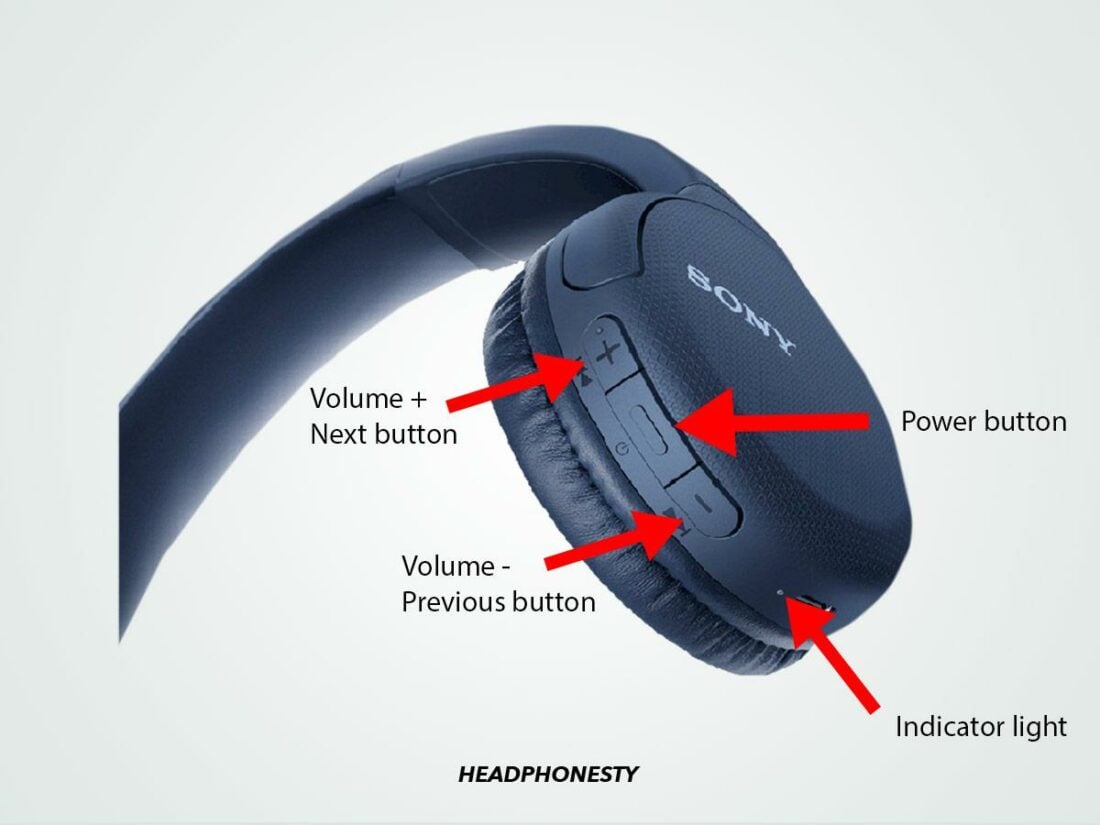
Many Sony headphones can be initialized by holding the Power button and a second button, often Custom, Link, or the volume controls. The headphones usually need to be turned off before you begin.
A Sony reset may clear pairing information but keep some app preferences. After the reset, remove the headphones from the Sony companion app and your phone’s Bluetooth list if they do not reconnect normally.
How to reset Bose Bluetooth headphones
Bose headphones often use the Power or Bluetooth switch along with a separate button. Some models reset through the Bose app, while others require a button sequence.
For app-supported models, open the Bose app and look for device settings, product information, or reset instructions. Do not confuse “remove product” in the app with a full factory reset. The app may only remove the headphones from your account.
How to reset Beats headphones
Many Beats models reset by holding the Power button and the Volume Down button together. The light may flash several times when the reset is complete.
For Beats earbuds, the case button is often important. Place both earbuds in the case, leave the lid open, and hold the case button until the light changes or flashes. Then forget the old Bluetooth connection and pair the earbuds again.
How to reset AirPods
AirPods reset through the charging case:
- Put both AirPods in the case.
- Close the lid and wait about 30 seconds.
- Open the lid.
- On your iPhone, go to Bluetooth settings.
- Tap the information button beside the AirPods.
- Choose Forget This Device.
- Press and hold the setup button on the case.
- Keep holding until the status light flashes amber and then white.
- Pair the AirPods again.
The case button location can vary by model. Newer case designs may use a touch-sensitive area rather than a traditional button.
How to reset Samsung Galaxy Buds
Galaxy Buds usually reset through the Galaxy Wearable app. Open the app, choose your earbuds, and look for Earbuds settings or Reset.
Some Galaxy Buds models can also be reset by placing both earbuds in the case and using the app’s reset command. Make sure both earbuds have charge and are detected by the app first.
How to reset earbuds with a charging case
For many true wireless earbuds, the reset process follows this pattern:
- Put both earbuds in the charging case.
- Leave the lid open.
- Press and hold the case button for 10 to 20 seconds.
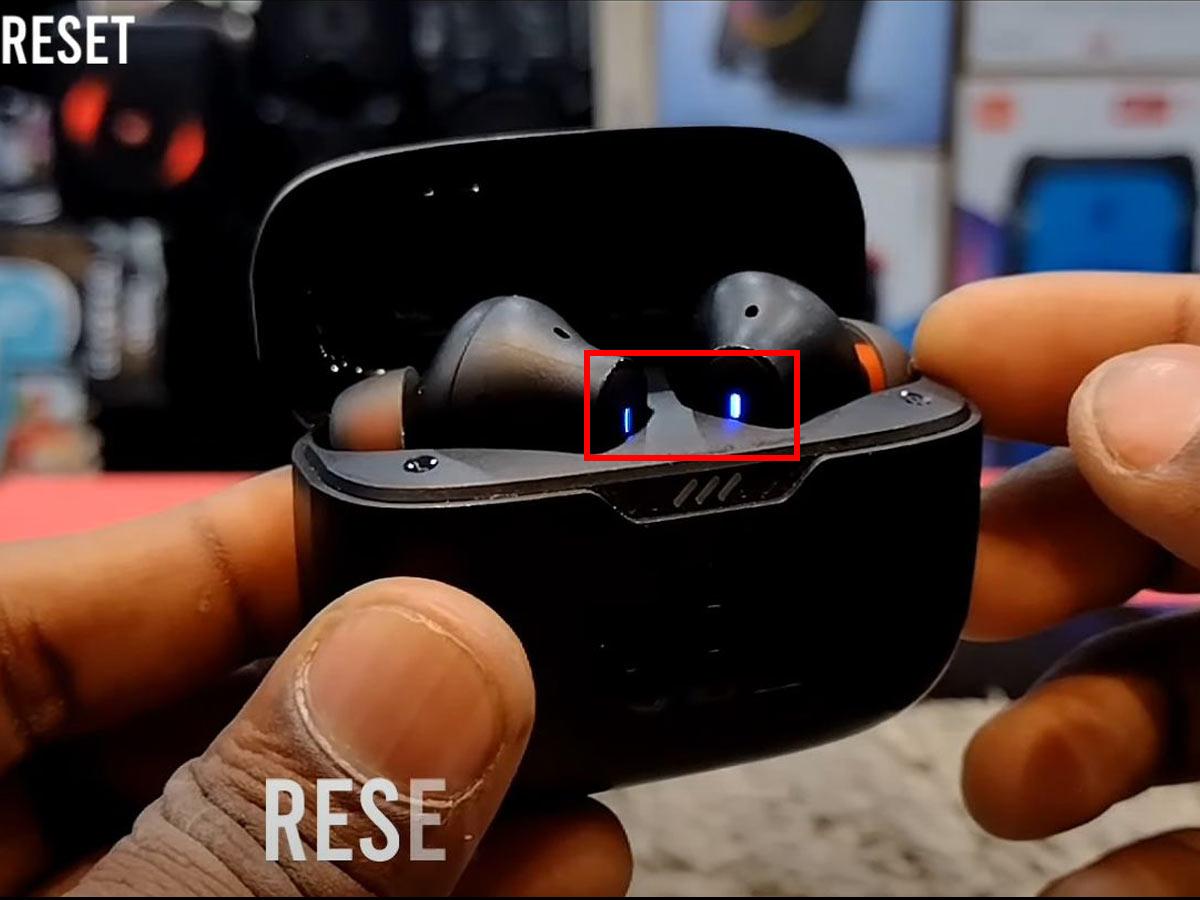
- Watch for a white, blue, red, or amber flashing light.
- Close and reopen the case.
- Forget the old Bluetooth connection.
- Pair the earbuds again.
If your earbuds have no case button, touch both earbuds at the same time while they are in the case or outside it. The correct method depends on the manufacturer.

How to Reset Bluetooth Headphones Without a Power Button
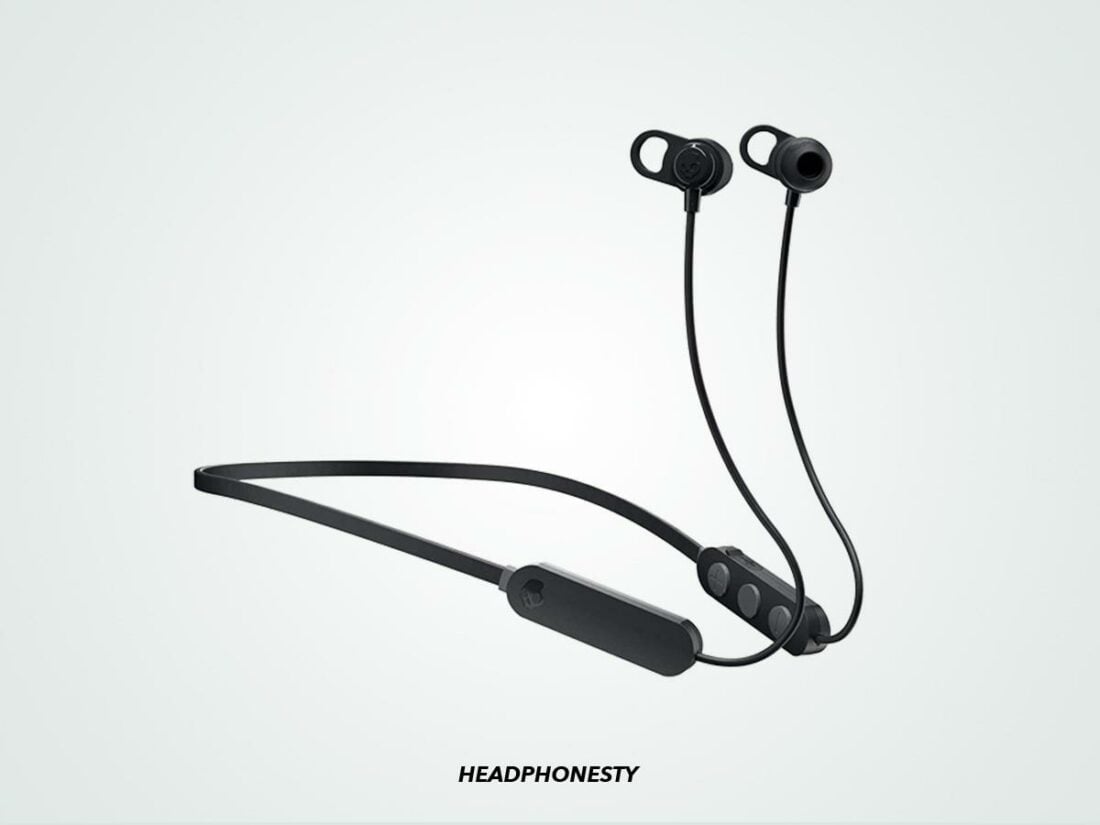
Some small earbuds and touch-control headphones do not have a traditional power button. Their reset process usually uses touch panels, the charging case, or the charging contacts.
Try these steps:
- Place both earbuds in the charging case.
- Make sure they are charging.
- Keep the case open.
- Touch and hold both earbuds for 10 to 15 seconds.
- Look for a flashing light or sound prompt.
- Close the case for 30 seconds.
- Open it and try pairing again.
If nothing happens, clean the charging contacts with a dry cotton swab. An earbud that is not making contact with the case may not receive the reset command.
Avoid using water, metal tools, or sharp objects near the charging pins. Moisture and scratches can create a new problem while you are trying to solve the old one.
How to Forget Bluetooth Headphones Before Pairing Again
A factory reset clears the headphones, but your phone may still keep the old connection record. Removing that record creates a cleaner second attempt.
On an iPhone or iPad
- Open Settings.
- Tap Bluetooth.
- Find your headphones.
- Tap the information button.
- Choose Forget This Device.
- Confirm the action.
- Turn Bluetooth off and on again.
- Put the headphones in pairing mode.
- Select them from the list.
On an Android phone
- Open Settings.
- Go to Connected devices or Connections.
- Tap Bluetooth.
- Select the settings icon beside the headphones.
- Tap Forget, Unpair, or Remove.
- Turn Bluetooth off and on.
- Pair the headphones again.
On a Windows PC
- Open Settings.
- Select Bluetooth & devices.
- Find the headphones.
- Select the three-dot menu.
- Choose Remove device.
- Turn Bluetooth off and on.
- Add the headphones again.
On a Mac
- Open System Settings.
- Select Bluetooth.
- Find the headphones.
- Select the information button.
- Choose Forget This Device.
- Put the headphones into pairing mode.
- Connect them again.
The menu names may change slightly with software updates. The key action is to remove the saved device, not merely disconnect it.

What to Do After Resetting Bluetooth Headphones
After you reset Bluetooth headphones, pair them as if they are new. Keep the headphones close to the phone, and temporarily disable Bluetooth on other nearby devices.
Use this order:
- Turn on Bluetooth on your phone, tablet, or computer.
- Put the headphones into pairing mode.
- Wait for the name to appear.
- Tap the correct model name.
- Accept any pairing request.
- Play a short audio file.
- Test the microphone if you use the headphones for calls.
- Reopen the manufacturer’s app and complete any available firmware update.
If the headphones support multipoint Bluetooth, connect them to one device first. Then add the second device through the brand’s app or normal Bluetooth settings. Multipoint is useful, but it can make troubleshooting harder because the headphones may switch between devices.
Do not pair with a name that looks unfamiliar. A nearby device may use a similar model name, especially in an apartment, office, gym, or airport.

Resetting Bluetooth Headphones When Only One Earbud Works
One-sided audio is common with true wireless earbuds. It may happen because one earbud lost its link to the other, has a low battery, or has blocked charging contacts.
Try this process:
- Put both earbuds in the charging case.
- Charge the case and earbuds.
- Clean the speaker mesh and charging contacts.
- Forget the earbuds from your phone.
- Reset the earbuds using the case button or touch controls.
- Remove both earbuds at the same time.
- Pair them again as one device.
Check the left and right audio balance on your phone. On an iPhone, this is under Accessibility and Audio & Visual. Android phones may place the balance control under Accessibility, Hearing, or Sound settings.
If one earbud still does not respond, test it alone. No light, sound, or charging response may indicate a battery or hardware problem rather than a Bluetooth problem.
Resetting Bluetooth Headphones When They Keep Disconnecting
Frequent disconnections can come from several sources. A reset may help, but it cannot fix every cause.
Common causes include:
• Low battery
• Excessive distance from the phone
• Walls, metal objects, or crowded wireless areas
• Outdated headphone firmware
• Phone power-saving settings
• Two devices competing for the connection
• Damaged charging contacts
• Physical damage or battery wear
Bluetooth works best when the headphones and source device are close and unobstructed. Wi-Fi routers, USB 3 devices, and many nearby wireless devices can add interference, although modern Bluetooth systems are designed to manage much of it.
Update the headphone firmware only through the official app or manufacturer instructions. Do not interrupt an update by turning off the headphones or closing the app.
If disconnections happen with several phones, the headphones may be at fault. If they happen with only one phone, focus on that phone’s Bluetooth settings, operating system, and saved connections.
Common Reset Mistakes to Avoid
Resetting Bluetooth headphones is simple, but a few mistakes can waste time.
• Holding buttons for too little time: Some resets require 10 to 30 seconds, not just a quick press.
• Resetting while connected: A live Bluetooth connection may block the reset command.
• Forgetting the old device: Your phone may keep trying to use outdated pairing data.
• Resetting only one earbud: Both earbuds often need to reset together.
• Using the wrong charger: Weak or damaged power sources can make the reset fail.
• Guessing button combinations repeatedly: Random commands may activate voice assistants, noise control, or pairing mode instead.
• Ignoring the manual: Model names can cover several versions with different controls.
• Expecting a reset to repair hardware: A broken speaker, failed battery, or damaged charging port needs service or replacement.
One practical lesson is to watch the indicator light closely. The color and flash pattern often tell you whether the headphones are charging, pairing, resetting, or reporting an error.
When a Factory Reset Does Not Work
If you cannot reset Bluetooth headphones, use a wider troubleshooting plan.
First, charge both the headphones and the case. Then try a different USB cable and power adapter. A case with an almost empty battery may show a light but still lack enough power to complete a reset.
Next, test the headphones with another phone or computer. This separates a headphone problem from a device problem. Also check the manufacturer’s support page for model-specific instructions.
You may need professional service when:
• The headphones never turn on
• No indicator light appears after charging
• One side stays completely silent
• The charging case does not detect the earbuds
• The headphones were exposed to water
• The battery swells or becomes unusually hot
• The reset works but the problem returns immediately
Stop using headphones that become hot, smell unusual, or show signs of a swollen battery. Lithium-ion batteries can be dangerous when damaged.
Frequently Asked Questions About How to Reset Bluetooth Headphones
How do I reset Bluetooth headphones that will not connect?
Turn off the headphones, remove them from your phone’s Bluetooth list, and hold the required reset buttons for about 10 to 20 seconds. Then turn them on, enter pairing mode, and connect them as a new device.
Will resetting Bluetooth headphones delete everything?
A reset usually deletes saved Bluetooth pairings and connection settings. It does not delete music from your phone or change your phone’s other settings.
Why are my Bluetooth headphones not showing up after a reset?
The headphones may not be in pairing mode, or another nearby device may already be connected. Turn Bluetooth off on nearby devices, restart your phone, and activate pairing mode again.
How often should I reset Bluetooth headphones?
You should reset Bluetooth headphones only when normal steps do not solve the problem. Frequent resets are not needed and may erase useful pairing records.
Can I reset Bluetooth headphones without the original phone?
Yes. Most resets happen on the headphones or charging case, so the original phone is not required. You may still need to forget the old connection on any device that you plan to use later.
Do I need to reset both earbuds?
Usually, yes. Resetting both earbuds together helps them rebuild their left-right connection and prevents one earbud from keeping old pairing data.
Does a factory reset improve Bluetooth sound quality?
A reset can fix connection errors, dropouts, or incorrect audio routing. It usually does not improve sound quality caused by damaged speakers, poor audio settings, or a low-quality audio source.
Conclusion
Resetting Bluetooth headphones can solve many pairing, connection, and one-earbud problems. Start by charging the headphones, removing old Bluetooth records, and using the correct model-specific button sequence. After the reset, pair the headphones again as a new device and check for firmware updates.
If a reset does not help, test the headphones with another device and look for battery, charging, or hardware issues. Use these steps to restore a stable connection, then explore your manufacturer’s support resources or share your model and results in the comments.
