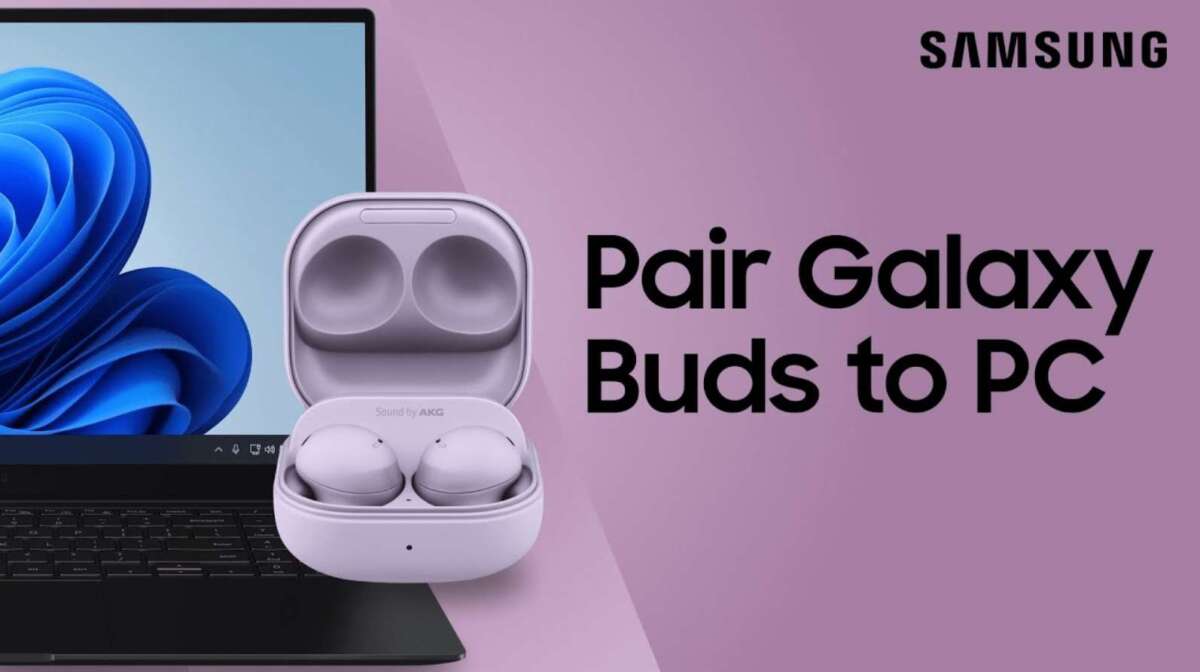
How To Connect Samsung Earbuds To MacBook: Easy Guide
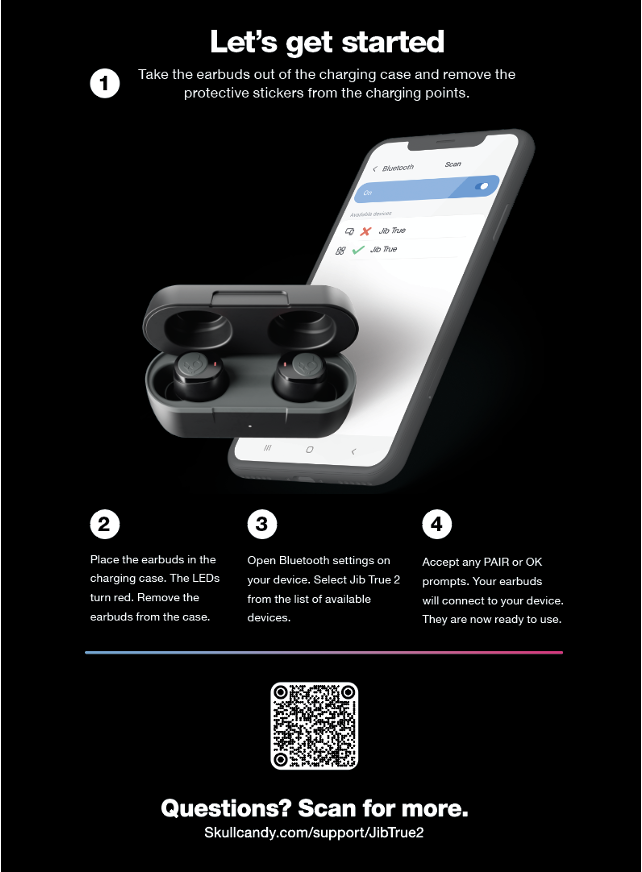
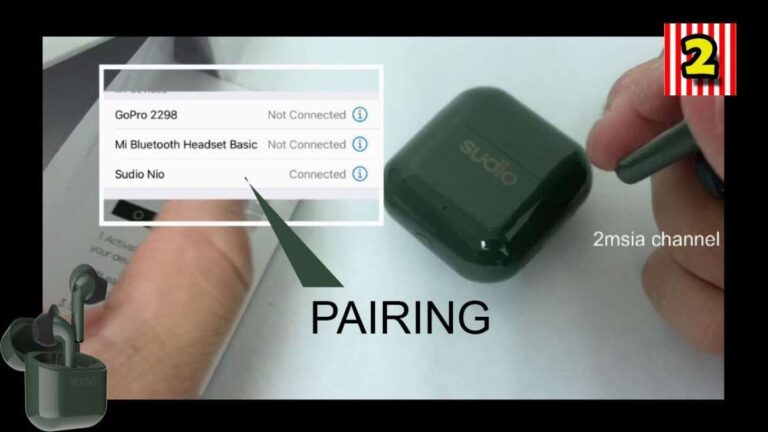
If you use a MacBook in the United States, you can connect Samsung Galaxy Buds through the MacBook’s built-in Bluetooth settings. Put the earbuds in pairing mode, open System Settings > Bluetooth, and select the earbuds from the device list.
The steps work with most Galaxy Buds models, including Galaxy Buds, Buds+, Buds Live, Buds Pro, Buds2, Buds2 Pro, Buds3, and Buds3 Pro. The menu names may vary slightly based on your macOS version.
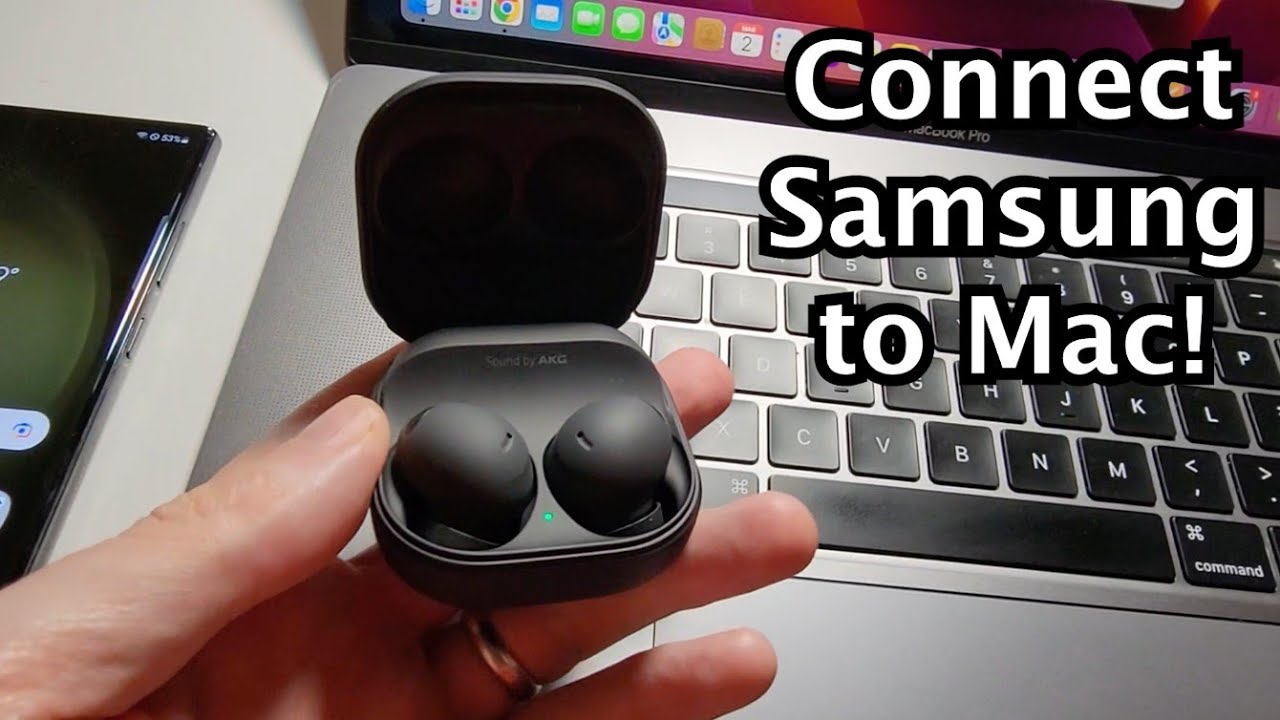
What You Need Before Pairing
You need three things before you start:
- A MacBook with Bluetooth turned on
- Charged Samsung earbuds and charging case
- A Galaxy Buds model that supports Bluetooth audio


You do not need a Samsung phone or a special cable. You also do not need to install a Mac app to play sound through the earbuds.
For the smoothest setup, place the earbuds in the case and charge them for a few minutes first. Keep the case near your MacBook during pairing.
If the earbuds are connected to an iPhone, Android phone, tablet, or another computer, disconnect them from that device. Some Galaxy Buds models may reconnect to the last device they used before your MacBook can find them.
How to Put Samsung Earbuds in Pairing Mode
Your Galaxy Buds must be in pairing mode before your MacBook can connect to them. The method depends on whether the earbuds are new or have already been paired.
New or unpaired Galaxy Buds
For most models:
- Place both earbuds in the charging case.
- Leave the case open.
- Remove both earbuds.
- Put the earbuds in your ears.
- Touch and hold both earbuds until you hear a sound or pairing tone.
Some newer models may enter pairing mode when you open the case for the first time. If your MacBook does not find them, use the manual method above.
Galaxy Buds already paired with another device
Try these steps:
- Put both earbuds in your ears.
- Touch and hold both touch areas at the same time.
- Keep holding until you hear a pairing sound.
- Turn off Bluetooth on the device that was connected before.
For models with physical controls or a different touch layout, check the user guide for your exact model. Samsung changes the pairing gesture across some generations.
If the earbuds do not enter pairing mode
Place both earbuds in the case, close the lid, wait about 10 seconds, and open it again. Then try the pairing process once more.


Make sure both earbuds are seated correctly in the charging case. Dirty charging contacts can stop one earbud from charging or entering pairing mode.
How to Connect Samsung Earbuds to a MacBook
Once the earbuds are in pairing mode, follow the steps for your version of macOS.
On macOS Ventura, Sonoma, Sequoia, and newer versions
- Select the Apple menu in the top-left corner.
- Open System Settings.
- Select Bluetooth in the left sidebar.
- Turn Bluetooth on if it is off.
- Find your Galaxy Buds under Nearby Devices.
- Select Connect next to the earbuds.
- Wait for the status to change to Connected.
Your MacBook should now route audio to the Samsung earbuds.
On macOS monterey, Big Sur, and older versions
- Select the Apple menu.
- Open System Preferences.
- Select Bluetooth.
- Turn Bluetooth on.
- Find your Galaxy Buds in the device list.
- Select Connect.
If macOS asks you to confirm the connection, follow the on-screen instructions.
How to confirm the connection
Play a video or song. You should hear sound through the earbuds.
You can also check the output device:
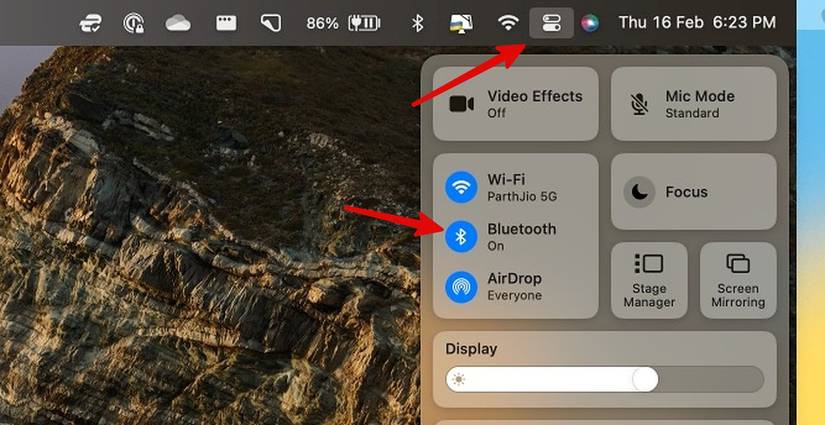
- Select the Control Center icon in the menu bar.
- Select Sound.
- Choose your Galaxy Buds.
On older macOS versions, select the speaker icon in the menu bar or open System Preferences > Sound > Output.

How to Use Galaxy Buds for MacBook Calls
Galaxy Buds can work as both headphones and a microphone on a MacBook. You may need to choose them separately for sound output and microphone input.
Select the earbuds for audio output
- Open Control Center from the menu bar.
- Select Sound.
- Choose your Galaxy Buds.
Select the earbuds as the microphone
- Open the Apple menu.
- Select System Settings.
- Select Sound.
- Scroll to Input.
- Choose your Galaxy Buds.
For older macOS versions, open System Preferences > Sound > Input.
You can also select the earbuds inside apps such as Zoom, Microsoft Teams, Google Meet, FaceTime, and Discord. If a call app uses the MacBook microphone instead, open that app’s audio settings and choose the Galaxy Buds manually.


Why call sound may seem different
Bluetooth headsets often use different audio modes for music and calls. Music mode can provide better stereo sound. When the microphone is active, macOS may switch to a two-way headset mode with lower audio quality.
This is normal Bluetooth behavior. It does not mean the earbuds are damaged.
How to Fix Samsung Earbuds That Will Not Connect
Most pairing problems come from an existing connection, pairing mode, low battery, or an old Bluetooth record. Follow these checks in order.
1. Check Bluetooth on the MacBook
Open System Settings > Bluetooth and make sure Bluetooth is on. Turn it off, wait a few seconds, and turn it on again.
2. Move the earbuds close to the MacBook
Keep the charging case and earbuds near the MacBook. Move away from other Bluetooth devices during setup if several devices are trying to connect at once.
3. Disconnect the earbuds from another device
Turn off Bluetooth on your phone or tablet for a moment. If the earbuds connect to that device first, they may not appear on the MacBook.
You can also open the Bluetooth menu on the other device and select Disconnect or Forget This Device.
4. Remove the old Galaxy Buds entry from macOS
If the earbuds appear but will not connect:
- Open System Settings > Bluetooth.
- Find the Galaxy Buds.
- Select the information button or details control.
- Choose Forget This Device.
- Put the earbuds back into pairing mode.
- Pair them again.
On older macOS versions, select the earbuds and choose the remove or forget option.
5. Restart both devices
Place the earbuds in the case and close the lid. Restart the MacBook. After the MacBook starts again, open the case and repeat the pairing steps.
6. Reset the earbuds only as a last resort
A reset can remove saved connections and settings. The reset method differs by Galaxy Buds model and may require the Galaxy Wearable app on an Android phone.
Before resetting, check Samsung’s support instructions for your exact model. A reset is not usually needed for a simple MacBook connection problem.
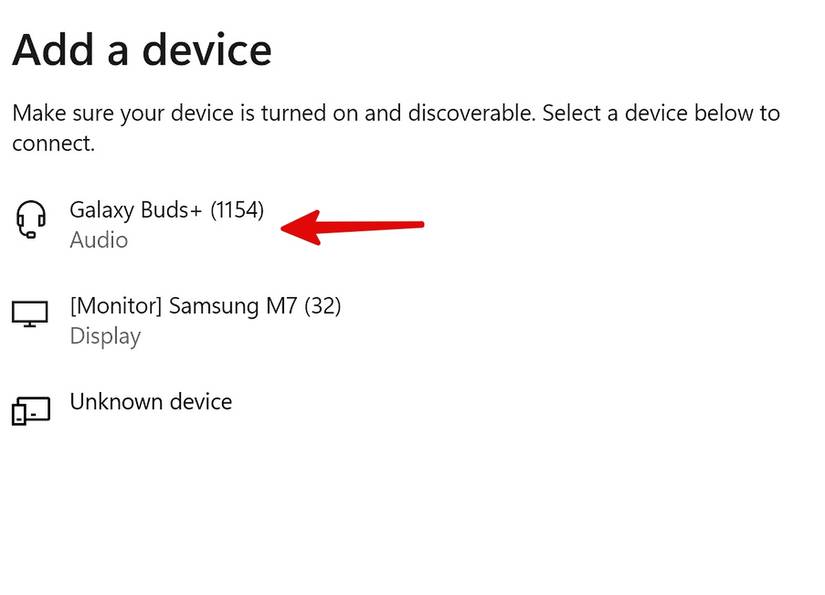
What Features Work With Galaxy Buds on a MacBook?
Basic Bluetooth features usually work well on a MacBook:
- Music and video playback
- Stereo sound
- Volume control
- Play and pause controls
- Basic microphone use
- Audio for calls and meetings
- Connection to one MacBook at a time


Some Samsung-specific features may not be available through macOS. These can include:
- Samsung Galaxy Wearable controls
- Earbud firmware updates
- Touch-control customization
- Battery details for each earbud
- Samsung Auto Switch
- Some advanced equalizer or sound settings
- Some device-finding features
Samsung’s Galaxy Buds app support is mainly built around Galaxy phones and selected Windows PCs. macOS does not offer the same Galaxy Wearable control panel found on Samsung phones.
A practical workaround is to set up the earbuds with the Galaxy Wearable app on a compatible Android phone before connecting them to your MacBook. Features such as noise control or touch settings may remain available through the earbuds, but the exact behavior depends on the model and firmware.
How to Switch Galaxy Buds Between a MacBook and Phone
Galaxy Buds may not switch between a MacBook and a phone as smoothly as AirPods switch between Apple devices.
To move the connection:
- Disconnect the earbuds from the current device.
- Open Bluetooth settings on the device you want to use.
- Select the Galaxy Buds.
- Choose Connect.
If the earbuds keep returning to your phone, turn off Bluetooth on the phone while pairing with the MacBook. After the MacBook connects, you can turn Bluetooth on again.
Some Galaxy Buds models support Samsung-specific automatic switching between compatible Galaxy devices. That feature does not provide the same automatic switching experience with a MacBook.
Common Problems and Quick Fixes
| Problem | Likely cause | What to try |
|---|---|---|
| Galaxy Buds do not appear | Earbuds are not in pairing mode | Touch and hold both earbuds or reopen the case |
| Only one earbud works | One earbud is not charged or connected | Charge both earbuds and reseat them in the case |
| MacBook says “Connection failed” | Old Bluetooth record or another active connection | Forget the earbuds and pair again |
| Sound still comes from MacBook speakers | The output device did not change | Open Control Center > Sound and select Galaxy Buds |
| Microphone does not work | MacBook is using its built-in microphone | Select Galaxy Buds under Sound > Input |
| Audio cuts out | Low battery, distance, or radio interference | Charge the earbuds and move them closer |
| Earbuds connect to the phone instead | Phone has an active Bluetooth connection | Disconnect or temporarily disable phone Bluetooth |
| Music sounds poor during a call | Bluetooth changed to headset mode | Choose another microphone if call quality matters |
How to Improve the Connection
Keep the earbuds within a short distance of the MacBook. Walls, crowded wireless areas, and other active Bluetooth devices can affect the connection.
Charge both earbuds and the case. If one earbud has a very low battery, the MacBook may show an incomplete connection or send sound to only one side.
Keep macOS and the Galaxy Buds firmware updated when possible. macOS updates may improve Bluetooth behavior, while Samsung firmware updates can fix model-specific bugs. Firmware updates usually require the Galaxy Wearable app on a compatible device.
Clean the charging contacts with a dry, soft cloth. Do not pour liquid into the case or use sharp tools inside the charging ports.
If the earbuds connect but sound is delayed, test another video or app first. Some delay may come from the app rather than the Bluetooth connection.
MacBook Bluetooth Settings to Know
The main Bluetooth controls are found here:


- macOS Ventura and newer: Apple menu > System Settings > Bluetooth
- macOS Monterey and older: Apple menu > System Preferences > Bluetooth
- Audio output: Control Center > Sound
- Microphone input: System Settings > Sound > Input
The name shown on your MacBook may be “Galaxy Buds,” “Galaxy Buds2 Pro,” “Galaxy Buds3,” or another model name. If you renamed the earbuds in the Galaxy Wearable app, macOS may show the updated name.
The first connection creates a saved Bluetooth pairing. Later, the earbuds may reconnect when they are removed from the case, but automatic reconnection is not guaranteed if another device connects first.
Frequently Asked Questions
Can I connect Samsung Galaxy Buds to a MacBook without an app?
Yes. A MacBook can connect to Galaxy Buds through Bluetooth without a separate app. An Android phone may still be needed for some Samsung settings, firmware updates, and advanced controls.
Why are my Galaxy Buds not showing in MacBook Bluetooth?
They may not be in pairing mode, may be connected to another device, or may have low battery. Turn off Bluetooth on nearby phones, charge the earbuds, and put both earbuds into pairing mode again.
Can I use Galaxy Buds with Zoom on a MacBook?
Yes. Select the Galaxy Buds as the speaker and microphone in Zoom’s audio settings. You can also select them in System Settings > Sound before joining the meeting.
Can I connect Galaxy Buds to a MacBook and iPhone at the same time?
The answer depends on the specific model and connection mode. Many Galaxy Buds do not offer the same two-device automatic switching found with Apple AirPods. For reliable results, disconnect the earbuds from one device before connecting to the other.
How do I disconnect Galaxy Buds from a MacBook?
Open System Settings > Bluetooth, find the earbuds, and select Disconnect. To remove the saved pairing, choose the details button and select Forget This Device.
Key Takeaways
- Turn on Bluetooth on the MacBook.
- Put both Samsung earbuds into pairing mode.
- Select the earbuds under System Settings > Bluetooth.
- Choose Galaxy Buds under Control Center > Sound if audio stays on the MacBook.
- Select the earbuds under Sound > Input for calls.
- Forget the old Bluetooth record if pairing fails.
- Use a compatible phone or Windows device for Galaxy Wearable features and firmware updates.
Conclusion
Connecting Samsung earbuds to a MacBook usually takes only a few minutes. Put the Galaxy Buds in pairing mode, open the MacBook’s Bluetooth settings, and select the earbuds.
If the connection fails, first disconnect the earbuds from nearby phones. Then charge them, forget the old MacBook pairing, and try again. The earbuds can handle music, video, and calls on macOS, but Samsung-only features may require the Galaxy Wearable app on another compatible device.