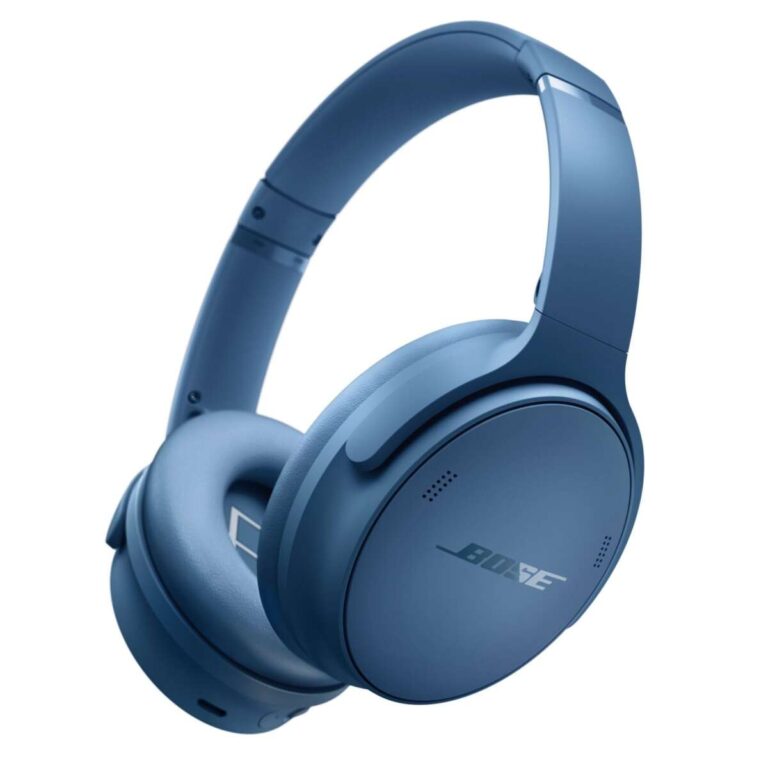
How To Add Headphones To Xbox One: Easy Setup Guide
For Xbox One players in the United States, the easiest way to add headphones is to plug a compatible 3.5 mm headset into the controller. Newer Xbox One controllers have a headset port built in. Older controllers need the official Xbox One Stereo Headset Adapter or another compatible adapter.
You can also use a compatible Xbox wireless headset. Standard Bluetooth headphones usually do not connect directly to an Xbox One for game sound.
This guide explains each option, how to adjust sound and chat, and what to do if your headset does not work.
Choose the Right Headphone connection
The best setup depends on your controller and headset type. Check the table before you begin.


| Headphone type | What you need | Works with Xbox One? |
|---|---|---|
| 3.5 mm wired headset | Xbox One controller with a 3.5 mm port | Yes |
| 3.5 mm headset with an older controller | Xbox One Stereo Headset Adapter | Yes |
| Xbox wireless headset | Xbox-compatible wireless model | Yes |
| USB headset | Model specifically designed for Xbox One | Some models |
| Standard Bluetooth headphones | Bluetooth support built into the headphones | Usually no |
| TV-connected headphones | TV with a compatible headphone output | Yes, but voice chat may not work |
A 3.5 mm headset has one small round plug. It carries both game audio and microphone chat when the headset and controller support those functions.
The headset port is usually on the bottom edge of a newer Xbox One controller, between the left and right grips. If you do not see that port, your controller may be an older model.
Microsoft introduced built-in 3.5 mm audio on later Xbox One controllers. The original Xbox One controller commonly requires the Stereo Headset Adapter for wired headset support.
How to Connect Wired Headphones to an Xbox One Controller
Connecting a wired headset takes only a few steps.
- Turn on the Xbox One console and controller.
- Find the 3.5 mm headset port on the bottom of the controller.
- Insert the headset plug firmly into the port.
- Put on the headphones and check for game sound.
- Open a game or party chat to test the microphone.
The plug should sit fully inside the controller. A loose connection can cause one-sided sound, crackling, or a microphone that cuts in and out.
If your headset has separate plugs for headphones and microphone, it may need a compatible headset splitter. Most gaming headsets made for Xbox use one combined 3.5 mm plug instead.
How to connect headphones to an older Xbox One controller
Use an Xbox One Stereo Headset Adapter if the controller has no 3.5 mm port.
- Attach the adapter to the controller's expansion port.
- Plug the headset into the 3.5 mm jack on the adapter.
- Turn on the controller.
- Use the adapter buttons to adjust volume, mute the microphone, and balance game audio with chat audio.
Some third-party adapters may work, but compatibility can vary. If the controller does not detect the headset, use a Microsoft-certified adapter or test the headset on another device.
Signs that the wired connection works
You should hear the Xbox dashboard, game, or chat audio through the headset. When you speak, the microphone indicator in party chat should respond.


If you hear sound but others cannot hear you, the headset microphone may be muted, unsupported, or damaged. If the microphone works but there is no game sound, check the headset volume and chat mixer settings.
How to Connect a Wireless Headset to Xbox One
A wireless headset must support Xbox One's wireless connection method. Many Xbox wireless headsets pair directly with the console, much like an Xbox controller.
To connect a compatible Xbox wireless headset:
- Turn on the Xbox One console.
- Turn on the wireless headset.
- Press and hold the headset's pairing button if required.
- Press the Pair button on the Xbox One console.
- Wait for the headset and console to connect.
- Play a game or open party chat to test sound and voice input.
The exact pairing steps differ by headset model. Follow the instructions supplied with the headset if it does not pair through the normal Xbox process.
Some wireless models use a USB transmitter. Insert the transmitter into the Xbox One, then turn on the headset. This method only works when the manufacturer states that the transmitter supports Xbox One.
Can you use Bluetooth headphones with Xbox One?
Most ordinary Bluetooth headphones do not connect directly to an Xbox One console. Xbox One does not provide general Bluetooth audio pairing in the same way as a phone or Windows PC.
A Bluetooth headset may work indirectly through a television, Bluetooth transmitter, or another supported device. However, this can introduce audio delay, and the microphone may not work with Xbox party chat.
For game audio and voice chat, choose a headset labeled for Xbox One or connect a wired headset to the controller.
Adjust Headset Volume and Chat Settings
After connecting the headphones, use the Xbox settings to control audio.
- Press the Xbox button on the controller.
- Open Profile & system.
- Select Settings.
- Choose General.
- Select Volume & audio output.
- Adjust the headset volume and chat mixer settings.
Depending on the controller, headset, and Xbox system version, you may also see microphone monitoring or other headset controls.
What the main audio controls do
- Headset volume: Raises or lowers all sound sent to the headphones.
- Headset chat mixer: Changes the balance between game sound and party chat.
- Mic monitoring: Lets you hear some of your own voice through the headset.
- Mute control: Stops the microphone from sending your voice to other players.
If party members sound too quiet, move the chat mixer toward chat. If game sound is too low during a conversation, move it toward game audio.
Avoid setting the volume so high that it causes discomfort or masks nearby sounds. Lower the volume if you notice ringing, pain, or muffled hearing.


Fix Xbox One Headphones That Are Not Working
Start with the simple checks first. Most headset problems come from a loose plug, a muted microphone, a low headset volume, or an unsupported connection.
No sound in the headphones
Try these steps in order:
- Unplug and reconnect the headset.
- Confirm that the headset plug is fully inserted.
- Raise the headset volume with the Xbox button menu or headset controls.
- Test the headset with another device.
- Test a different headset with the Xbox controller.
- Restart the Xbox One and reconnect the headset.
- Check Settings > General > Volume & audio output.
If another headset works, the first headset may be faulty or incompatible. If no headset works, the controller port, adapter, or console settings may be the cause.
The microphone does not work
Check the headset's mute switch first. Many headsets mute the microphone when the boom is raised or when a button is pressed.
Then:
- Confirm that the headset is designed for Xbox One.
- Make sure the 3.5 mm plug is fully connected.
- Open Xbox party chat and check whether your voice indicator responds.
- Disconnect any second controller that may be assigned to the account.
- Restart the console and reconnect the headset.
- Test the headset on another device with voice chat.
A headset can play game sound even when its microphone wiring is not compatible with the controller. This is common with some phone earbuds and computer headsets.
Other players hear an echo
Echo usually comes from sound leaking out of speakers and back into the microphone. Lower the headset volume and make sure the microphone is near your mouth but not touching the ear cup.
If you use a TV or soundbar at the same time, mute the TV speakers. Also ask party members whether the echo occurs only when one person speaks. The problem may be on their side rather than yours.
The headset disconnects or cuts out
A wired headset may cut out because of a damaged cable, worn plug, or loose controller port. Gently move the cable near the plug. If the sound changes, the cable or plug may be damaged.
For wireless models, charge the headset, move it closer to the console, and remove possible sources of interference. Update the headset firmware if the manufacturer provides an Xbox-compatible update method.
Do not force a plug into the controller. A bent or damaged port can make the problem worse.
Update the Xbox Controller and Headset
Updating the controller can fix connection and audio problems. Xbox One controllers can receive firmware updates through the Xbox Accessories app.
To check for an update:
- Connect the controller to the Xbox One with a USB cable if needed.
- Open My games & apps.
- Go to Apps.
- Open Xbox Accessories.
- Select the controller.
- Look for an available firmware update.
The menu name can vary slightly by system version. Keep the controller connected during the update and follow the instructions on screen.


Wireless headset updates depend on the manufacturer. Check the headset maker's official support page for the correct app, cable, firmware, and Xbox compatibility information. Do not install firmware intended only for a PC, PlayStation console, or mobile device.
Which Headset Setup Should You Use?
Use the simplest setup that meets your needs.
| Your situation | Best starting option |
|---|---|
| You want the lowest cost | Wired 3.5 mm headset |
| Your controller has no headset port | Wired headset plus Xbox Stereo Headset Adapter |
| You dislike cables | Xbox-compatible wireless headset |
| You already own Bluetooth headphones | Use them through a compatible TV or transmitter, if supported |
| You need party chat | Use an Xbox-compatible headset with a working microphone |
| You play near other people | Headphones connected to the controller or console |
A wired headset is usually the easiest option because it does not need charging or wireless pairing. A wireless headset offers more freedom but adds batteries, pairing steps, and possible firmware requirements.
TV audio can be useful when your headphones do not support Xbox connection. However, it may not provide microphone chat, and Bluetooth audio can have a delay.
Common Mistakes to Avoid
Buying a headset with the wrong console support
A headset may work with a PC, PlayStation, or phone but not with Xbox One. Check the product box or support page for clear Xbox One compatibility.
Using the wrong controller adapter
An older controller needs an adapter that connects to its Xbox expansion port. A simple USB-to-3.5 mm adapter usually is not the same thing and may not carry headset chat.
Expecting every USB headset to work
Xbox One USB support is not universal. A USB headset must be made or approved for Xbox use. A USB headset designed only for Windows may receive power but produce no audio.
Forgetting the microphone mute switch
Many headsets have a physical mute button. Check both the headset and the Xbox party chat screen before assuming the microphone is broken.
Changing TV volume instead of headset volume
When headphones connect to the controller, TV volume may not change the headset level. Use the Xbox guide menu, controller adapter, or headset controls instead.
Frequently Asked Questions
Can I connect headphones directly to an Xbox One?
Yes, if the headphones use a compatible 3.5 mm plug and you connect them to a controller with a headset port. You can also use a compatible Xbox wireless headset. Standard Bluetooth headphones usually cannot connect directly.
Do Xbox One controllers have a headphone jack?
Many later Xbox One controllers have a built-in 3.5 mm headset port. The original Xbox One controller may not have one and usually needs a Stereo Headset Adapter.
Can I use AirPods with Xbox One?
AirPods do not normally pair directly with Xbox One for game audio and party chat. They may work through a compatible television, Bluetooth transmitter, or Xbox mobile app arrangement, but these methods may not support low-delay game audio and microphone chat.
Why can I hear the game but not talk to other players?
The microphone may be muted, unsupported, disconnected, or blocked by a damaged cable. Check the headset mute switch, confirm Xbox compatibility, and test the microphone in an Xbox party.
Why is my headset sound too quiet?
Increase headset volume from the Xbox guide menu and check the headset's own volume wheel. Also inspect the chat mixer. A mixer set fully toward chat or game audio can make the other sound seem too quiet.
Can I use a headset with a separate microphone and headphone plug?
You may need a compatible splitter or adapter. Xbox One controllers are designed for headsets with one combined 3.5 mm plug, so separate PC-style plugs may not work without the right connection.


Final Takeaway
For most Xbox One users, plug a compatible 3.5 mm headset into the controller and adjust the volume through Profile & system > Settings > General > Volume & audio output. If the controller lacks a headset port, add an Xbox Stereo Headset Adapter.
For a cable-free setup, use a headset that specifically supports Xbox One wireless connections. Avoid assuming that standard Bluetooth or PC USB headphones will work. Confirm Xbox compatibility before pairing, then test both game audio and party chat.