

You can transfer data from one SSD to another by cloning the drive or copying files through an adapter.
Learning how to transfer data from one SSD to another can make upgrades safer and less stressful. The right method depends on whether you want to move personal files, clone an entire operating system, or migrate to a larger drive. This guide explains each option in clear steps, with practical tips to help you avoid data loss, boot errors, and wasted time.
Choose the right SSD transfer method
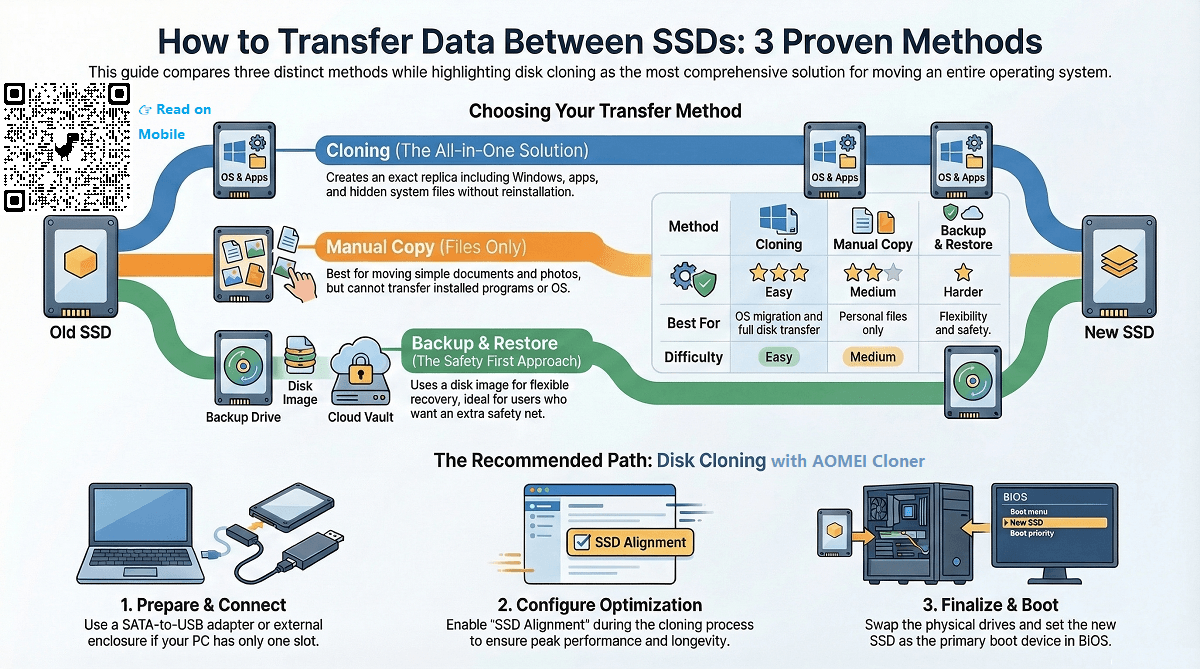
Before learning how to transfer data from one SSD to another, decide what you need to move. There are two main choices: cloning the full drive or copying selected files.
Drive cloning creates an exact copy. It can include Windows, apps, settings, hidden partitions, and personal files. This is the best choice when replacing your main SSD and you want the new drive to boot in the same way.
File copying moves only the folders and files you select. It is safer when you want to keep your current operating system on the old drive. It also works well for photos, videos, documents, game files, and backups.
Use cloning when:
• You are upgrading to a larger SSD.
• You want the new SSD to become your boot drive.
• You need to keep your apps and Windows settings.
• You want a near-identical replacement for the old drive.
Use file copying when:
• You only need personal files.
• The new SSD will be used as extra storage.
• The old drive has system errors or malware.
• You want a clean installation of Windows or macOS.
Cloning is like photocopying an entire notebook, including every page and tab. File copying is like moving only the pages you still need. Both methods are useful, but they solve different problems.

Check compatibility before transferring data
A smooth SSD transfer starts with the hardware. SSDs may use different physical shapes and connection types, so check the drives before buying an enclosure or adapter.
The most common SSD types are:
• 2.5-inch SATA SSDs, which use SATA data and power connections.
• M.2 SATA SSDs, which look like small circuit boards.
• M.2 NVMe SSDs, which use PCIe and are much faster than SATA models.
• PCIe expansion SSDs, which connect through a desktop motherboard slot.
An M.2 SATA drive and an M.2 NVMe drive may look almost identical. However, they use different protocols. An enclosure made for NVMe may not work with an M.2 SATA SSD, and the reverse is also true.
Check these details:
• The old SSD’s form factor, such as 2.5-inch or M.2 2280.
• The interface, such as SATA or NVMe PCIe.
• The new SSD’s storage capacity.
• Whether your computer has an open slot.
• Whether your adapter supports the correct drive type.
The destination SSD should usually be the same size or larger than the used space on the source drive. For example, a 500 GB SSD with 220 GB of data can often be cloned to a 250 GB SSD, but a full-disk clone may require manual partition resizing.

Back up your files first
Even when learning how to transfer data from one SSD to another, never treat cloning as your only backup. A failed cable, power loss, damaged source drive, or wrong disk selection can cause permanent loss.
Create a backup of important files before you start. Save the backup to an external hard drive, cloud storage account, or another trusted computer.
Prioritize these files:
• Family photos and videos.
• Work and school documents.
• Password vaults and recovery codes.
• Financial records.
• Browser bookmarks.
• Project folders.
• Game saves.
• Email archives.
Open several backed-up files to confirm that they work. A backup that cannot be restored is not a reliable backup.
If the old SSD is failing, copy your most important files first. Avoid repeated scans or lengthy transfers if the drive makes clicking sounds, disconnects, freezes, or reports read errors. SSDs do not click like hard drives, but sudden disappearance and very slow reads can still signal trouble.

What you need to transfer data between SSDs
The tools you need depend on your computer and the type of SSD. In many cases, the setup is simple.
You may need:
• The new SSD.
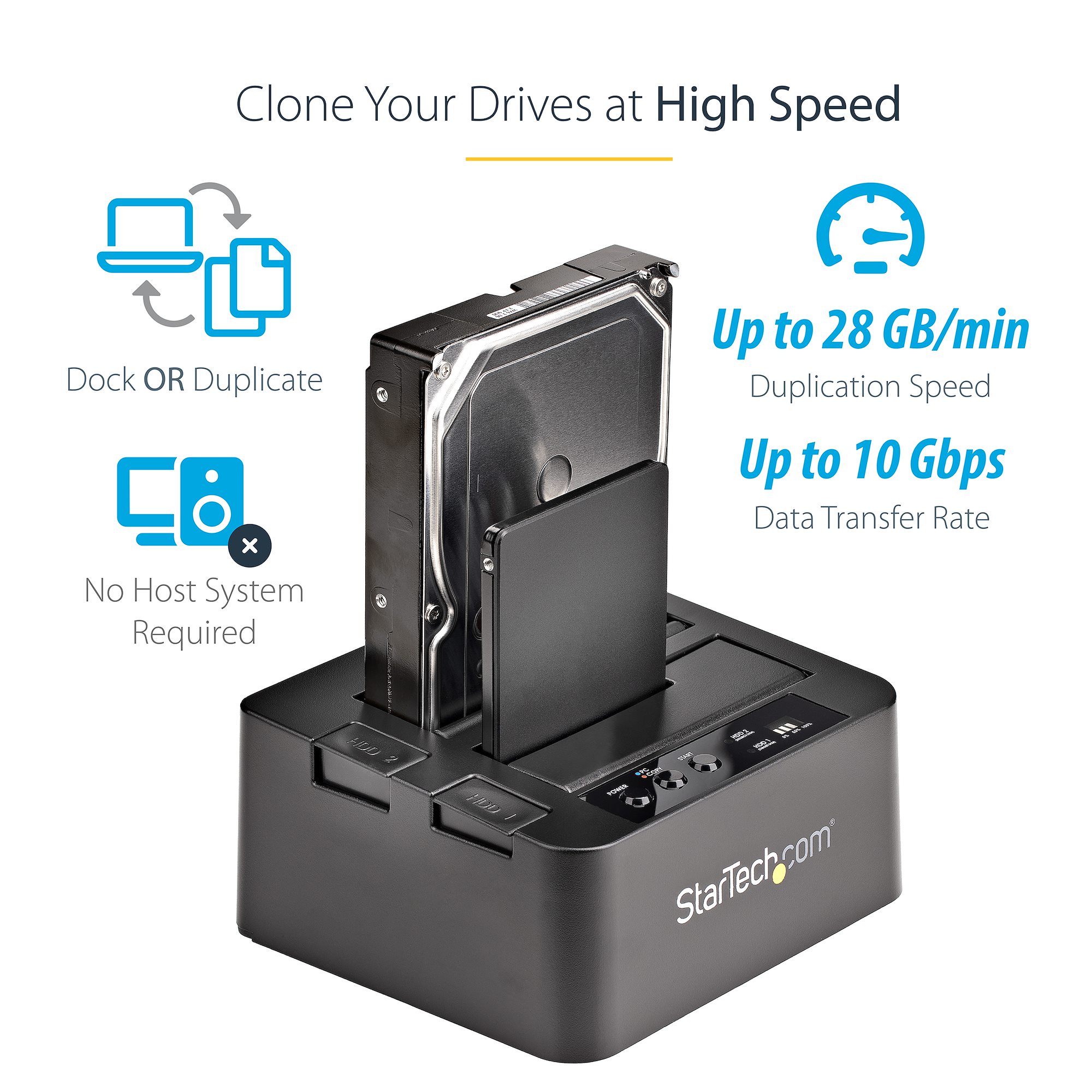
• A compatible USB-to-SATA adapter or M.2 enclosure.
• A small screwdriver.
• Drive cloning software.
• A reliable power connection.
• An external backup drive.
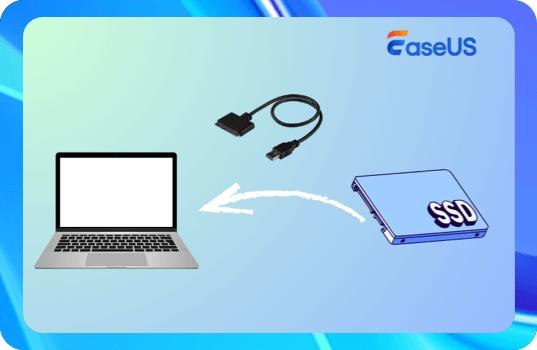
For a desktop computer with an open drive bay, you can often install both SSDs inside the case. A laptop usually has room for only one internal drive, so connect the new SSD through a USB enclosure during cloning.
Use a USB 3.0, USB 3.2, or USB-C connection when possible. Older USB ports still work, but the transfer may take much longer. NVMe drives can be very fast, yet a slow USB enclosure will limit their speed.
Keep the computer connected to AC power. Do not move a laptop during a long transfer. A loose USB cable can interrupt the process and leave the destination drive incomplete.
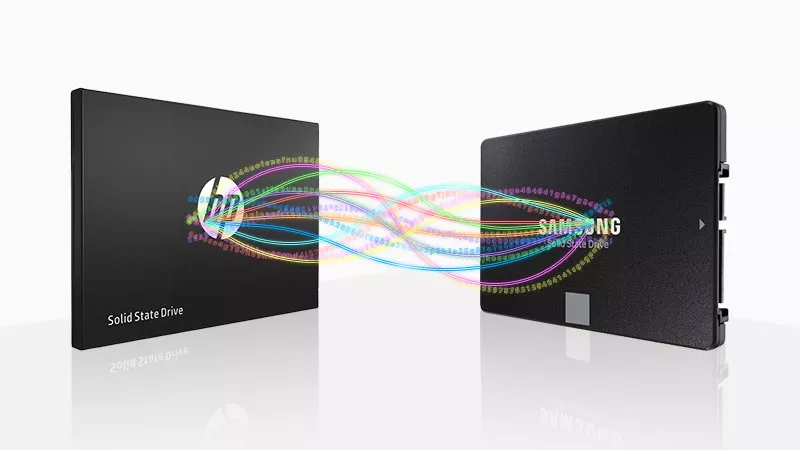
How to transfer data from one SSD to another by cloning
Cloning is the most complete way to move an operating system and all data. The steps are similar across many disk-cloning programs.
1. Connect the new SSD
Install the new SSD internally or connect it with a compatible adapter. Start the computer and check whether the operating system detects it.
In Windows, open Disk Management by right-clicking the Start button. In macOS, open Disk Utility. The new drive may appear as unallocated or uninitialized space.
Do not format the wrong drive. Compare the capacity and model number carefully. This is one of the most common mistakes when people learn how to transfer data from one SSD to another.
2. Initialize the destination drive if required
Modern computers usually use GPT partitioning. GPT works well with UEFI systems and supports large drives. Older computers may use MBR, but changing between GPT and MBR can affect boot settings.
If the cloning software asks you to initialize the drive, choose the partition style that matches your computer. For most newer Windows PCs, GPT is the correct choice.
Some cloning tools handle this step for you. Read each screen before accepting the default settings.
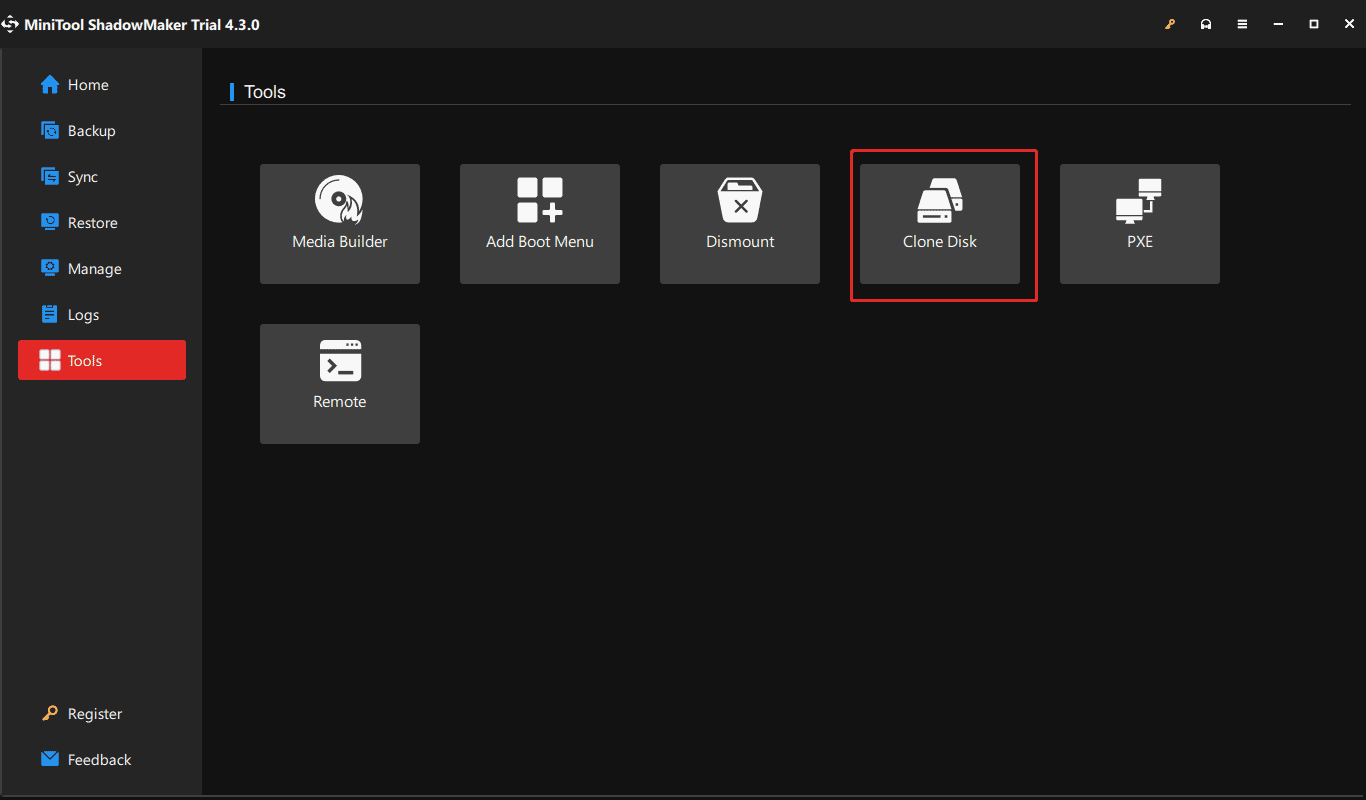
3. Open trusted cloning software
Choose a reputable disk-cloning application that supports your operating system and drive type. Many SSD makers provide migration tools for their own drives, while other programs support a wide range of hardware.
Look for features such as:
• Full-disk cloning.
• Automatic partition resizing.
• SSD alignment.
• Bootable media creation.
• Verification after cloning.
• Support for encrypted drives.
Avoid downloading unknown “free” tools from suspicious websites. Malware can hide inside fake migration programs.
4. Select the source and destination
Choose the old SSD as the source disk. Select the new SSD as the destination disk.
Check the model names, sizes, and partition layouts twice. The destination drive will usually be erased during cloning. If you reverse the source and destination, you may wipe the only good copy of your files.
5. Resize the partitions if needed
When the new SSD is larger, many tools can expand the main partition to use the extra space. If you skip this option, the clone may finish successfully while leaving part of the new drive unused.
When the destination SSD is smaller, the software must shrink the source partitions. The used space must fit within the destination drive. Move or delete large files first if the program cannot reduce the partition.
6. Start the clone
Begin the process and leave the computer alone. The time can range from several minutes to many hours. It depends on the amount of data, drive speed, connection type, and number of small files.
Do not open large programs or disconnect the drive during the process. If the software offers a shutdown option after completion, you can use it.
How to transfer data from one SSD to another by copying files
File copying is easier when you do not need an exact copy of the operating system. It is also a good way to organize files instead of moving years of clutter.
On Windows
Connect the destination SSD and open File Explorer. Create folders on the new drive, such as Documents, Pictures, Videos, and Projects.
Copy files in small groups. Start with the most important folders, then move larger media files. Right-click the folders, choose Copy, open the destination folder, and choose Paste.
You can also drag files between windows. Copying is safer than moving because the originals remain on the source drive until you verify the new files.
Check the transfer afterward:
• Compare folder sizes.
• Open random photos and videos.
• Open several documents.
• Check project files inside their original applications.
• Confirm that hidden files or application data were not missed.
On macOS
Connect the new SSD and open Finder. Use Disk Utility to format the drive with a suitable file system before copying data.
APFS is commonly used for Mac-only storage. exFAT is useful when the drive must work with both macOS and Windows. NTFS may be readable on a Mac but often needs extra software for writing.
Copy files from your Home folder to the new SSD. Important locations may include Documents, Desktop, Downloads, Pictures, Movies, and Music. Some apps store data in hidden Library folders, so copying personal files does not always copy application settings.
How to make the new SSD bootable
If you cloned the old system drive, the new SSD may boot right away. If it does not, do not assume the clone failed. Boot settings, partition type, and connection order can cause the issue.
First, shut down the computer. Disconnect the old SSD if possible, then start the computer with only the new SSD connected. This prevents the system from booting from the wrong disk.
If the computer does not start:
• Enter the UEFI or BIOS setup.
• Check whether the new SSD appears.
• Move the new SSD to the top of the boot order.
• Confirm that UEFI or Legacy mode matches the old setup.
• Check that the EFI System Partition was copied.
• Use Windows Startup Repair if needed.
• Reconnect the old SSD only after the new one boots.
On a Mac with an Intel processor, select the new startup disk in Startup Disk settings. Apple silicon Macs handle startup drives differently, and a clean installation or proper migration process may be better than a traditional clone.
Some operating systems may ask for reactivation after hardware changes. Keep your product key, account details, and recovery codes available.
How to transfer data from one SSD to another without losing files
The safest process has several checkpoints. Do not rush from one step to the next.
Follow this order:
Back up important files.
Confirm the source and destination drives.
Connect the new SSD.
Check that the computer detects it.
Choose cloning or file copying.
Start the transfer.
Verify the new data.
Test the new SSD before erasing the old one.
Keep the old SSD untouched for a few days. This gives you a fallback if you discover a missing file, broken application, or boot problem.
Do not erase the old SSD immediately after cloning. A clone can appear successful but still have a missing boot partition or damaged file. Test the new drive through normal daily use before treating the old one as disposable.
If the old SSD contains sensitive data, use a secure erase method before selling or recycling it. Deleting files or formatting a drive may not remove every recoverable trace. SSDs also use wear-leveling, so software-based wiping methods may vary by model.
Common problems when transferring SSD data
The new SSD is not detected
Check the cable, enclosure, power connection, and adapter type. An NVMe enclosure will not normally support an M.2 SATA drive.
For an internal drive, reseat the SSD and confirm that the slot supports its interface. Some M.2 slots support only SATA or only NVMe.
The destination drive shows less space
Manufacturers list drive capacity using decimal units, while operating systems display capacity differently. A small difference is normal.
If the difference is large, the clone may have copied the original partition size. Open the partition manager and extend the main volume into the unallocated space.
The computer keeps booting from the old SSD
Shut down and temporarily disconnect the old drive. If the new SSD boots alone, reconnect the old drive and adjust the boot order.
You may also see two similar operating system entries. Select the one linked to the new SSD.
The clone stops or reports errors
The source drive may contain bad sectors, file-system errors, or encryption issues. Run a file-system check when appropriate, free up space, and try again.
If the drive is failing, use a recovery-focused tool that can skip damaged sectors. Do not repeatedly clone a failing drive if the data is valuable. Professional recovery may be safer.
Files have permission problems
Files copied from another operating system account may not open normally. On Windows, ownership and permissions can affect access. On macOS, privacy settings and account permissions may block certain folders.
Copy personal files into the correct user account, and avoid changing security settings unless you understand the result.
SSD transfer tips from real upgrade work
One lesson I have learned from SSD upgrades is to label every drive before starting. A small piece of tape marked “old” and “new” can prevent a very expensive mistake.
I have also seen people begin a clone without checking free space. The destination drive looked larger by its advertised capacity, but the usable partition space was too small after encryption and recovery partitions were considered. Checking the actual used space first would have avoided the failed attempt.
Another practical lesson is to close cloud-sync apps before copying files. Services such as OneDrive, iCloud Drive, and Dropbox may still be changing files during the transfer. Pause syncing, copy the data, then allow the service to sync again after verification.
Avoid these mistakes:
• Selecting the wrong disk as the destination.
• Using an incompatible M.2 enclosure.
• Disconnecting the SSD during cloning.
• Forgetting encrypted folders.
• Assuming a completed clone is automatically bootable.
• Erasing the old SSD too soon.
• Skipping a backup because the source drive “seems healthy.”
Treat the process like moving a home. Pack carefully, check each room, and keep the old key until you know the new place works.
How long does an SSD transfer take?
The time depends on the amount of data and the connection speed. A transfer of 100 GB may finish quickly on a fast internal NVMe connection, while the same data can take much longer through an older USB port.
Small files often transfer more slowly than one large video file. Encryption, antivirus scanning, drive health, and background applications can also reduce speed.
Use these rough expectations:
• A few gigabytes of documents may take minutes.
• Hundreds of gigabytes may take 30 minutes to several hours.
• A nearly full drive may take several hours.
• A failing source SSD may take much longer or stop with errors.
Do not judge progress by the percentage alone. Cloning programs may spend extra time on small files, system partitions, or final verification.
Is cloning better than a clean installation?
Cloning is faster because it preserves your existing setup. You keep your apps, preferences, files, and account configuration. It is ideal for a simple storage upgrade.
A clean installation removes old drivers, unused programs, temporary files, and possible system problems. It takes more work because you must reinstall applications and restore files, but it can provide a fresh start.
Choose cloning when your current system works well. Choose a clean installation when the system is unstable, infected, cluttered, or changing to a different hardware platform.
You can also combine both methods. Back up personal files, install the operating system cleanly on the new SSD, and then restore only the files you need.
Frequently Asked Questions About How to Transfer Data From One SSD to Another
Can I transfer data from one SSD to another without cloning?
Yes. Connect the second SSD with an internal slot or compatible USB enclosure, then copy your folders manually. This moves personal files but does not create a bootable copy of the operating system.
Can I transfer Windows to a new SSD?
Yes. Use disk-cloning software that supports Windows system partitions, or perform a clean Windows installation and restore your files. After cloning, you may need to change the boot order in UEFI or BIOS.
Can I clone to a smaller SSD?
Yes, if the used data and required partitions fit on the smaller drive. Delete unnecessary files and shrink the source partition before cloning if the software cannot do it automatically.
Will transferring data erase the old SSD?
File copying does not erase the old SSD. Cloning normally erases the destination SSD, not the source, so always confirm the selected disks before starting.
Do I need an SSD enclosure?
You need an enclosure or adapter when the computer has no free internal slot. Choose one that matches the SSD interface, such as SATA or NVMe.
How do I know the transfer worked?
Open files from the new SSD, compare important folders, and boot from the new drive if you cloned an operating system. Keep the old SSD until you have tested the new one for several days.
Conclusion
The best way to transfer data from one SSD to another depends on your goal. Use cloning for a full system migration, and use file copying for selected documents, media, and backups. Confirm drive compatibility, back up important data, verify the source and destination, and test the new SSD before deleting anything.
Take your time and treat the transfer as a careful move rather than a quick drag-and-drop task. With the right adapter, software, and checks, you can upgrade your storage with little risk. Explore your SSD maker’s migration tools, review your backup plan, and share your experience if this guide helped.
