How To Pair Heyday Earbuds: Easy Bluetooth Setup Guide
To pair Heyday earbuds, turn on Bluetooth, open the case, and select Heyday from your device’s list.
Learning how to pair Heyday earbuds is simple once you know the correct order. Most Heyday wireless earbuds use standard Bluetooth pairing, but small differences between models can cause confusion. This guide explains the setup, fixes common connection problems, and shares practical tips for keeping your earbuds connected.
How to Pair Heyday Earbuds for the First Time
Before you begin, charge the earbuds and the charging case. A low battery can stop the earbuds from entering pairing mode or make the connection drop during setup.
Keep the earbuds close to your phone, tablet, computer, or TV. Bluetooth usually works best within about 30 feet, with no thick walls or large metal objects between the devices.


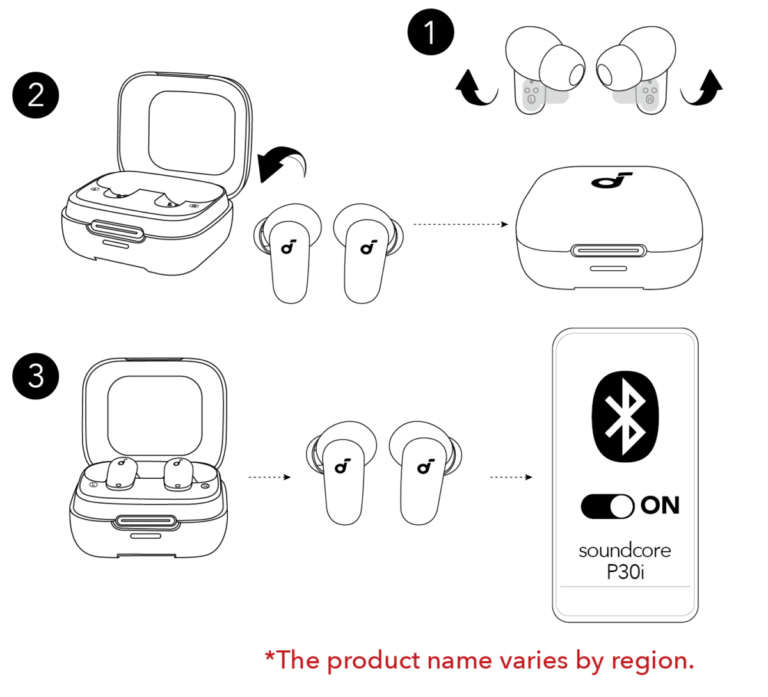
Follow these steps to pair Heyday earbuds:
- Place both earbuds inside the charging case.
- Open the case lid.
- Remove both earbuds from the case.
- Turn on Bluetooth on your device.
- Open the Bluetooth settings menu.
- Look for a device name such as “Heyday Earbuds,” “Heyday TWS,” or a similar Heyday label.
- Tap the Heyday name.
- Wait for the status to change to “Connected” or “Paired.”
- Play audio to test both earbuds.
Some Heyday models enter pairing mode as soon as you remove them from the case. Others may require you to press and hold the touch controls for a few seconds. If the earbuds do not appear, return them to the case, close the lid, open it again, and repeat the process.

How to Pair Heyday Earbuds With an iPhone
Pairing Heyday earbuds with an iPhone takes only a few taps. Apple devices show nearby Bluetooth accessories in the Settings app, so you do not need a separate Heyday app for basic use.
- Unlock your iPhone.
- Open Settings.
- Tap Bluetooth.
- Turn Bluetooth on.
- Leave the Bluetooth screen open.
- Remove the Heyday earbuds from their case.
- Tap the Heyday earbuds when they appear under “Other Devices.”
- Wait until they move to “My Devices” and show “Connected.”
If your iPhone asks for a PIN, try 0000 or 1234. Most modern Bluetooth earbuds do not need a code, but some older models may request one.
When learning how to pair Heyday earbuds with an iPhone, avoid tapping a duplicate listing too quickly. If you see two similar names, wait a few seconds and choose the listing that appears after the earbuds enter pairing mode.

How to Pair Heyday Earbuds With an Android Phone
The Android pairing process is very similar. Menu names can vary by phone brand, but the main path is usually Settings, Connected Devices, and Bluetooth.
- Open Settings on your Android phone.
- Tap Connected Devices, Connections, or Bluetooth.
- Select Pair New Device if that option appears.
- Remove the Heyday earbuds from the case.
- Choose the Heyday name from the available devices.
- Tap Pair or Connect.
- Confirm that the earbuds show as connected.
On some Android phones, you can swipe down twice to open Quick Settings. Press and hold the Bluetooth icon, then tap Pair New Device. This is often faster than opening the full Settings menu.
If only one earbud connects, place both earbuds back in the case. Wait for a few seconds, remove them together, and try again. Many true wireless earbuds first connect to each other and then connect to the phone.


How to Pair Heyday Earbuds With a Laptop or Computer
Heyday earbuds can connect to most Windows PCs, Mac computers, and many Chromebooks. The computer must have Bluetooth support. If it does not, a small USB Bluetooth adapter may solve the problem.
Windows
- Open Settings.
- Select Bluetooth & devices.
- Turn Bluetooth on.
- Click Add device.
- Choose Bluetooth.
- Select the Heyday earbuds.
- Click Done after the connection completes.
Mac
- Open the Apple menu.
- Select System Settings.
- Click Bluetooth.
- Turn Bluetooth on.
- Find the Heyday earbuds in the list.
- Click Connect.
Chromebook
- Click the time in the lower-right corner.
- Turn Bluetooth on.
- Open the Bluetooth menu.
- Select the Heyday earbuds.
- Approve the connection if asked.
When you pair Heyday earbuds with a computer, pause music on your phone first. Earbuds often reconnect to the last device they used. Disconnecting them from the phone makes the computer setup much smoother.
How to Put Heyday Earbuds Into Pairing Mode
Pairing mode allows another device to find the earbuds. Most Heyday earbuds enter this mode automatically when they are removed from a charged case, but not every model works the same way.
Try these methods:
• Remove both earbuds from the case and wait several seconds.
• Press and hold the touch area or button on both earbuds for about three to five seconds.
• Place the earbuds in the case, close the lid, reopen it, and remove them again.
• Turn Bluetooth off on nearby phones, tablets, and computers that may connect first.
A flashing white, blue, or red-and-blue light often signals pairing mode. The exact light pattern depends on the Heyday model, so use the product guide if the indicator behaves differently.
Do not hold the controls for too long at first. A longer press may turn the earbuds off or start a reset instead of pairing. This is one of the most common mistakes people make when learning how to pair Heyday earbuds.

How to Pair Heyday Earbuds Again After a Previous Connection
Heyday earbuds often try to reconnect to the last device they used. This feature is convenient, but it can make pairing with a new device feel difficult.
Start by turning off Bluetooth on the old device. You can also open its Bluetooth settings and choose Forget This Device, Remove Device, or Unpair.
Next, place the earbuds in the case, close the lid, and wait about 10 seconds. Remove them together and open Bluetooth settings on the new device. The Heyday earbuds should now appear as an available accessory.


If the old device is nearby and still has Bluetooth enabled, it may take control of the earbuds before the new device can connect. I have seen this happen often with family members who share earbuds between a phone and a tablet. Turning off Bluetooth on the first device usually fixes the issue in seconds.

How to Reset Heyday Earbuds
A reset can fix failed pairing, one-earbud problems, random disconnects, and incorrect battery readings. The exact reset process varies by model, so check the instructions that came with your earbuds when possible.
A common reset method is:
- Forget the Heyday earbuds from every device.
- Turn Bluetooth off on nearby devices.
- Place both earbuds in the charging case.
- Leave the case open.
- Press and hold the earbud controls for about 10 to 15 seconds.
- Watch for a change in the indicator lights.
- Close the case for several seconds.
- Open it and remove both earbuds.
- Turn Bluetooth back on and pair them again.
Some models reset through the case button instead. Press and hold the case button while the earbuds are inside. Do not assume every Heyday model uses the same button pattern.
Resetting removes stored connection data. It does not usually repair physical damage, water damage, or a worn-out battery. If the earbuds remain unresponsive after charging and resetting, the problem may be hardware-related.
Heyday Earbuds Not Showing Up on Bluetooth
If your Heyday earbuds do not appear in the Bluetooth list, work through these checks in order:
• Confirm that both earbuds and the case have power.
• Keep the earbuds within a few feet of the device.
• Turn Bluetooth off, wait five seconds, and turn it back on.
• Close Bluetooth settings and reopen them.
• Disconnect the earbuds from other phones and computers.
• Restart the phone or computer.
• Reset the earbuds if they still do not appear.
Bluetooth discovery can fail when too many nearby accessories are active. Moving away from smartwatches, speakers, cars, and other wireless devices may also help.
A useful test is to try pairing Heyday earbuds with a second phone. If they connect to the second phone, the original device likely has a Bluetooth setting or software issue. If they fail everywhere, charge the earbuds and consider a reset.
One Heyday Earbud Is Not Working
One earbud may stop working because the earbuds lost their internal connection. It can also happen when one side has a very low charge or when the charging contacts are dirty.


Try this process:
- Put both earbuds into the case.
- Check that each earbud shows a charging light.
- Clean the metal contacts with a dry cotton swab.
- Charge the case and earbuds fully.
- Forget the Heyday earbuds on your phone.
- Reset the earbuds.
- Remove both earbuds at the same time.
- Pair them again.
Do not use water or household cleaner on the charging contacts. A dry, soft cloth is safer. If one earbud still has no light, no sound, or no charging response, it may have a battery or hardware fault.
Heyday Earbuds Keep Disconnecting
Frequent disconnections usually come from distance, interference, low power, or a second device trying to connect. Bluetooth audio can also become unstable when the phone is inside a bag or behind a large object.
Keep the phone nearby and charge the earbuds above a low battery level. Turn off Bluetooth on devices that you are not using. You should also install available updates for your phone, tablet, or computer.
If the issue continues, forget the earbuds and pair them again. In my testing, a fresh pairing often fixes unstable connections after a phone update. Still, it cannot solve a damaged case, failing battery, or defective earbud.
Tips for a Better Heyday Earbud Connection
Good pairing is only the first step. These habits can make the connection more stable and extend battery life:
• Keep the charging contacts clean.
• Store both earbuds in the case when they are not in use.
• Charge the case before starting a long call or trip.
• Keep the connected device within a normal Bluetooth range.
• Avoid pairing the earbuds with many devices at once.
• Remove the earbuds from Bluetooth settings before selling or giving away a phone.
• Keep the phone and earbuds updated when updates are available.
Bluetooth uses short-range radio signals. Walls, crowded wireless areas, and the human body can weaken the signal. For the best sound, keep your phone on the same side of your body as the earbud that seems to cut out.
Benefits and Limits of Heyday Earbuds Pairing
The main benefit of Heyday earbuds is their simple Bluetooth setup. Once paired, many models reconnect automatically when removed from the case. They can also work with phones, tablets, computers, and other Bluetooth audio devices.


However, the experience can vary by model. Heyday has released different earbuds with different controls, light patterns, case designs, and reset steps. That is why a method that works for one pair may not work for another.
Bluetooth also has limits. It does not provide unlimited range, perfect connection stability, or automatic switching between every device. Understanding these limits helps you tell the difference between a normal Bluetooth issue and a possible hardware problem.
Frequently Asked Questions About How to Pair Heyday Earbuds
How do I put Heyday earbuds in pairing mode?
Remove both earbuds from the charging case and wait for the indicator lights to flash. If they do not appear, press and hold the earbud controls for a few seconds, or reset the earbuds and try again.
Why are my Heyday earbuds not showing on Bluetooth?
They may already be connected to another nearby device, or the battery may be too low. Turn off Bluetooth on nearby devices, recharge the earbuds, and reopen the Bluetooth settings on your phone.
Can I pair Heyday earbuds with an iPhone?
Yes. Open Settings, tap Bluetooth, and select the Heyday earbuds from the available device list. Most models do not require a special app for basic audio pairing.
Can I pair Heyday earbuds with two devices at the same time?
Most Heyday earbuds support a connection with one active device at a time. You usually need to disconnect them from the first device before pairing them with another one.
How do I fix one Heyday earbud that is not working?
Place both earbuds in the case, confirm that both are charging, and clean the charging contacts. If the problem remains, forget the earbuds, reset them, and pair them again.
Do Heyday earbuds need an app to pair?
No. Basic pairing normally uses the Bluetooth settings on your device. Some models may offer extra features through an app, but an app is not usually required for standard listening.
Conclusion
Learning how to pair Heyday earbuds comes down to three steps: charge the earbuds, place them in pairing mode, and select them from your device’s Bluetooth menu. If the connection fails, forget the old pairing, disable nearby Bluetooth devices, and reset the earbuds.
Start with the simple steps before assuming the earbuds are broken. Keep the case charged, clean the contacts, and check the model guide for special reset instructions. If this guide helped, share it with someone having trouble connecting their Heyday earbuds or explore more device setup guides.