How To Connect Two Headphones To One Phone: Easy Guide
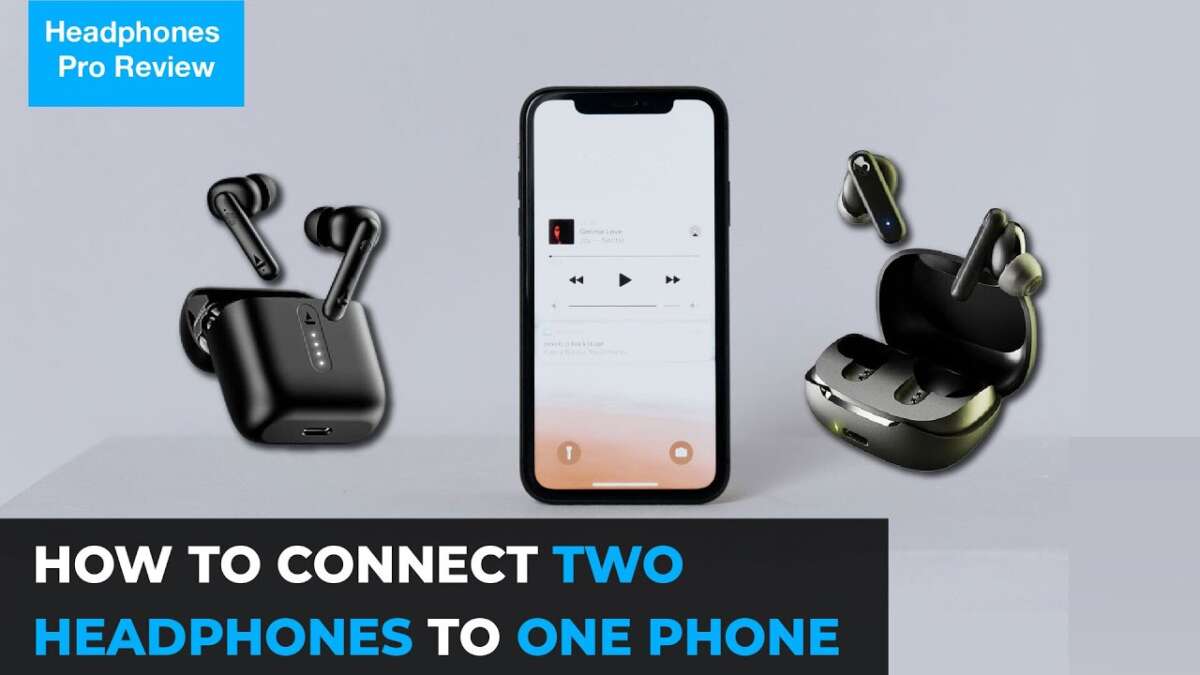
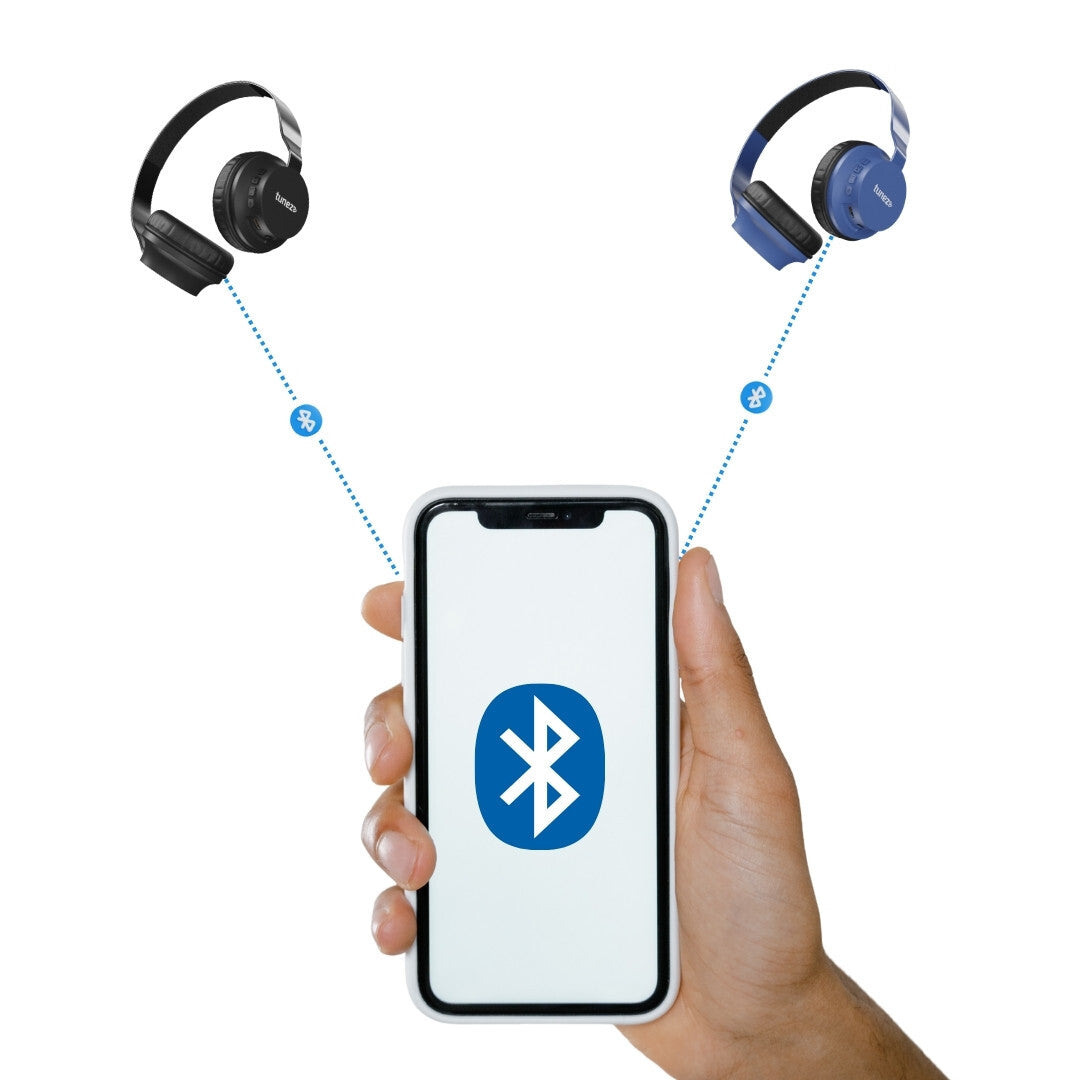
If you want two people in the United States to hear the same song, podcast, or movie from one phone, you have three main options: use built-in audio sharing, use a wired splitter, or use a bluetooth transmitter that supports two devices.
The best method depends on your phone and headphones. iPhones work best with Apple Audio Sharing. Some Samsung Galaxy phones support Dual Audio. Most other Android phones may need a wired splitter or a special Bluetooth transmitter.
Introduction
Before you begin, check two things:
- What type of phone do you have: iPhone or Android?
- Are your headphones wired, Bluetooth, AirPods, or Beats?


Wireless sharing is simple when your phone supports it. A wired splitter works with almost any phone that supports a headphone adapter. A Bluetooth transmitter can help when your phone does not offer built-in dual audio, but it may add sound delay.
Method 1: Use Audio Sharing on an iPhone
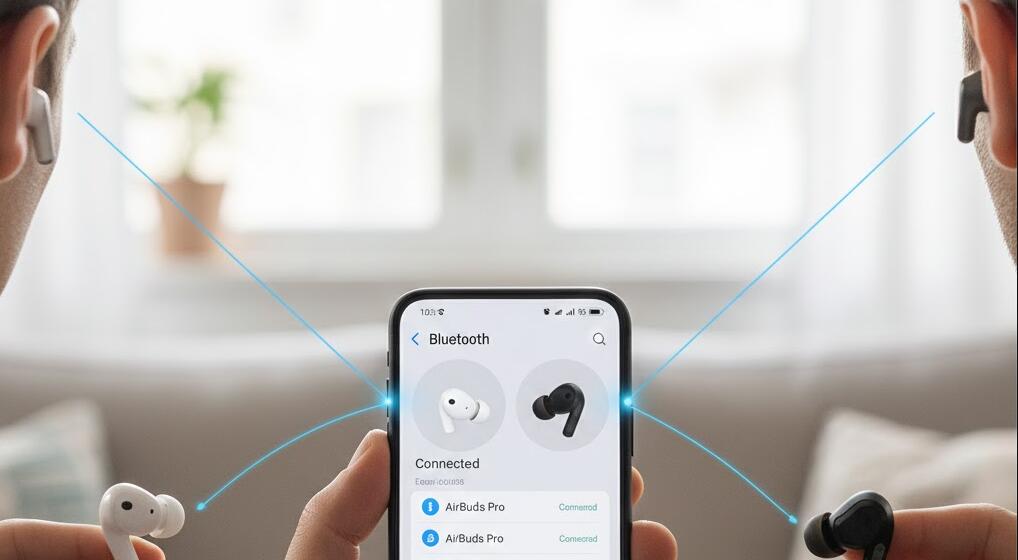
Apple’s Audio Sharing feature lets a compatible iPhone send audio to two pairs of supported wireless headphones. It works with many AirPods and Beats models.
What you need
You typically need:
- An iPhone 8 or later, or a compatible newer iPad or iPod touch
- A recent version of iOS or iPadOS
- Two supported pairs of AirPods or compatible Beats headphones
- Bluetooth turned on
Apple’s support documentation lists supported AirPods and Beats models. Compatibility can change by device, so check Apple’s current Audio Sharing support page if the option does not appear.
Steps to connect two headphones to an iPhone
- Connect the first pair of AirPods or Beats to the iPhone.
- Start playing music or video.
- Open Control Center.
- On Face ID iPhones, swipe down from the upper-right corner.
- On iPhones with a Home button, swipe up from the bottom.
- Tap the audio control in the upper-right area of the media panel.
- Tap Share Audio.
- Place the second pair of supported headphones near the iPhone.
- Open the charging case if needed.
- Follow the prompt on the iPhone to connect the second pair.
- Adjust the volume for each pair if separate controls are shown.
You can also open Settings > Bluetooth and connect the second device from there when the model supports Audio Sharing.
How to know it worked
Both pairs should appear in the audio output panel. Sound should play through both headphones at the same time. If only one pair plays, disconnect both headphones, restart Bluetooth, and repeat the setup.
What if “Share Audio” is missing?
The feature may be missing because:
- The iPhone model is not supported.
- One or both headphones are not compatible.
- The iPhone needs an iOS update.
- The second pair is connected to another nearby device.
- The headphones are too far from the phone.
- Bluetooth pairing data needs to be cleared.
Put both headphones in their cases, close the lids, wait a few seconds, and try again. If that fails, forget the headphones under Settings > Bluetooth, then pair them again.
Method 2: Use Dual Audio on a Samsung Galaxy Phone
Many Samsung Galaxy phones include a feature called Dual Audio. It can send sound to two Bluetooth devices at once.


The exact menu name and location can vary by Galaxy model and One UI version. Samsung’s current support instructions are available on its Bluetooth Dual Audio support page.
Steps to use Samsung Dual Audio
- Open Settings.
- Tap Connections.
- Tap Bluetooth.
- Turn Bluetooth on.
- Pair the first pair of headphones.
- Pair the second pair of headphones.
- Tap the three-dot menu in the upper-right corner.
- Select Dual Audio.
- Turn the feature on if it is not already active.
- Play music or video to test both headphones.
Some Galaxy phones show both connected headphones in the media output panel. You may be able to control volume from the phone or from each headset.
If Dual Audio does not appear
Your Galaxy model or software version may not support the feature. Other possible causes include:
- One headset is still linked to another phone.
- One headset is not fully paired.
- Bluetooth is turned off on one device.
- The phone software is out of date.
- A connected speaker or car system is using one of the Bluetooth slots.
Restart the phone and both headphones. Then pair the headphones one at a time. If the Dual Audio setting still does not appear, use a wired splitter or a Bluetooth transmitter.

Method 3: Try Bluetooth Audio Sharing on Other Android Phones
Android does not offer one universal dual-headphone method for every phone. Support depends on the phone maker, model, Android version, and Bluetooth hardware.
Some Android phones support features based on Bluetooth LE Audio, Auracast, or a brand-specific audio-sharing system. However, both the phone and headphones must support the same feature. Standard Bluetooth pairing alone does not guarantee that two headphones can play at once.
Check your Android phone
Look in these areas:
- Settings > Connected devices
- Settings > Bluetooth
- Settings > Sound
- Media output
- The phone maker’s support guide
Search the settings for terms such as:
- Dual Audio
- Audio sharing
- Share audio
- Media output
- Broadcast audio
- Auracast
Do not assume that an app can add this feature. Many apps only play audio inside the app itself. They cannot control all phone audio or overcome a Bluetooth hardware limit.
What is Auracast?
Auracast is a Bluetooth LE Audio broadcast feature. It can let compatible devices join the same audio stream. Support is still dependent on the phone, headphones, operating system, and software setup.
If your phone supports Auracast, the headphones must also support it. Ordinary Bluetooth headphones may not work with an Auracast broadcast.


Method 4: Use a Wired Headphone Splitter
A wired splitter is often the simplest choice. It sends the same audio signal to two headphones through one phone connection.
What you need
Choose the setup that matches your phone:
- A 3.5 mm headphone splitter for a phone with a headphone jack
- A USB-C to 3.5 mm adapter plus a 3.5 mm splitter
- A Lightning to 3.5 mm adapter plus a 3.5 mm splitter for older iPhones
- Two compatible wired headphones
The adapter must support audio output. Some low-cost USB-C adapters support charging only or do not work with every phone.
Steps to use a wired splitter
- Plug the splitter into the phone’s headphone jack or audio adapter.
- Plug the first pair of headphones into one splitter port.
- Plug the second pair into the other port.
- Start playing audio.
- Set a comfortable volume on both headphones.
A basic splitter does not create two separate Bluetooth connections. It simply copies the same wired audio signal to both outputs.
Limits of a wired splitter
A splitter may have these drawbacks:
- Both listeners usually share the phone’s volume control.
- Headphone cables can tangle.
- Some headsets may not support microphone input through the splitter.
- The phone may not recognize headset buttons on both connections.
- Very demanding headphones may play quietly if the phone cannot provide enough power.
For normal earbuds, these limits are usually minor. For large studio headphones, test the volume before starting a long listening session.

Method 5: Use a Bluetooth Transmitter With Dual-Link Support
A Bluetooth transmitter can send audio from one phone to two Bluetooth headphones. This is useful when the phone lacks built-in audio sharing.
Look for a transmitter that clearly states:
- Two-headphone support
- Dual Bluetooth connection
- Dual-link or multipoint audio transmission
- Compatibility with your phone’s connector
- Support for the Bluetooth profiles used by your headphones
Some transmitters connect through a 3.5 mm jack. Others use USB-C, Lightning, or an adapter.
General setup steps
- Connect the transmitter to the phone.
- Put the transmitter into pairing mode.
- Put the first headphones into pairing mode.
- Connect the first headphones.
- Put the transmitter into pairing mode again, if required.
- Connect the second headphones.
- Play audio and check both devices.
The exact process differs by transmitter. Follow the manual for the device you use.


Common transmitter problems
Bluetooth transmitters can cause:
- A delay between video and sound
- Different delays between the two headphones
- Lower sound quality
- Trouble connecting headphones from different brands
- No microphone support for phone calls
- Extra charging needs
- Conflicts with the phone’s normal Bluetooth connection
For music, a small delay may not matter. For movies, games, and video calls, delay can be distracting. Look for a transmitter and headphones that support a low-latency mode, but remember that both ends must support the needed technology.
Which Method Should You Choose?
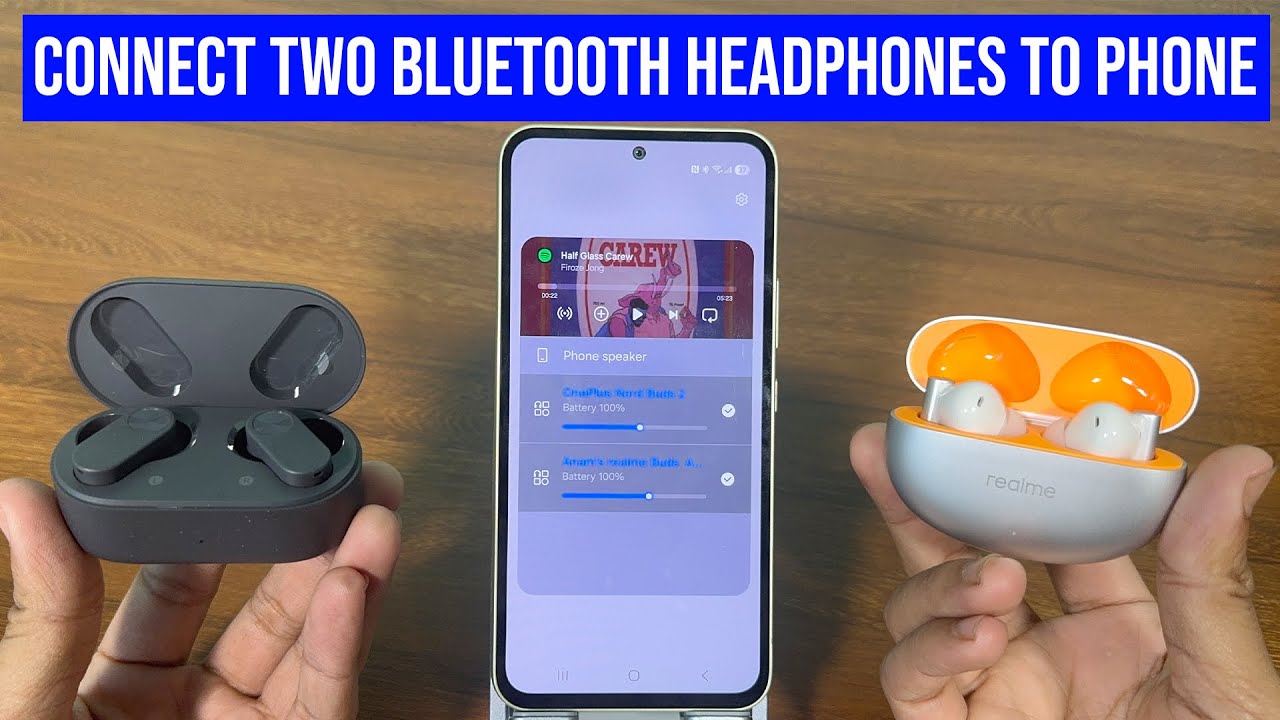
Use this table to pick the right approach.
| Your phone and headphones | Best first choice | Main limitation |
|---|---|---|
| iPhone with two supported AirPods or Beats sets | Apple Audio Sharing | Works only with supported devices |
| Samsung Galaxy with two Bluetooth headsets | Samsung Dual Audio | Not available on every Galaxy model |
| Other Android phone | Check for audio sharing first | Support varies by phone |
| Any phone with a headphone jack or audio adapter | Wired splitter | Cables and shared volume |
| Phone without built-in dual audio | Dual-link Bluetooth transmitter | May add delay and needs charging |
| Two wired headphones | Headphone splitter | Both listeners use the same audio source |
The most reliable choice is usually the one with the fewest wireless connections. If both people can use wired headphones, a splitter is simple and stable. If you want freedom to move around, built-in audio sharing is more convenient.
Troubleshooting: Why Do Only One Pair of Headphones Work?
When two headphones fail to connect, start with the phone’s built-in limits. Many phones can pair with several Bluetooth devices but play sound through only one at a time.
If the second pair will not connect
Try these steps:
- Charge both headphones.
- Turn Bluetooth off and back on.
- Disconnect the headphones from other nearby phones, tablets, and computers.
- Restart the phone.
- Pair the first headset again.
- Pair the second headset again.
- Check for a Dual Audio or Audio Sharing option.
- Update the phone and headphone firmware when updates are available.
- Move away from other active Bluetooth devices.
- Try a wired splitter to confirm that the phone can output audio normally.
If both connect but only one plays sound
Open the phone’s media output control. Make sure both headphones are selected. On Samsung devices, check that Dual Audio is enabled. On iPhone, check the Audio Sharing panel.
If both devices appear selected but one stays silent, the headphones may use incompatible Bluetooth features. Remove both devices from the Bluetooth list and pair them again.
If the sound is delayed
A delay often comes from Bluetooth processing. It may be more noticeable with video than with music.
Try:
- Using the phone’s built-in sharing feature instead of a transmitter
- Using headphones with low-latency support
- Updating the phone and headphones
- Using a wired splitter
- Avoiding mixed headphone models with different Bluetooth codecs
A wired connection is usually the best fix when accurate lip sync matters.
If the sound cuts out
Keep the phone near both headphones. Also:
- Turn off unused Bluetooth devices.
- Avoid placing the phone behind your body or inside a bag.
- Charge the headphones.
- Reduce nearby wireless interference.
- Test each headset alone.
- Use a wired setup if the problem continues.


Volume, Battery, and Hearing Safety
Two headphones can increase battery use because the phone maintains two audio links. The headphones also use their own batteries. Check the battery level before a long trip or flight.
Set the volume before sharing the audio. A safe level for one listener may feel too loud to another. The World Health Organization recommends reducing exposure to loud sound and taking breaks. If the sound feels sharp, painful, or tiring, lower the volume or stop listening.
A wired splitter does not protect hearing simply because it uses a cable. The same safety rule applies to wired and wireless headphones: use the lowest volume that lets you hear clearly.

Can Two People Listen to Different Audio From One Phone?
Usually, no. Most phone sharing features send the same audio stream to both headphones.
For example, both listeners may hear the same song, video, or podcast. The phone generally cannot send a movie to one headset and a different song to another headset at the same time.
Different audio streams require separate playback systems, such as two phones, two apps with independent audio support, or a computer with special audio-routing software.
Can Two Bluetooth Headphones Connect to One Phone Without an App?
Yes, but only when the phone supports a built-in feature such as Apple Audio Sharing or Samsung Dual Audio. If the phone does not support dual output, an app usually cannot fix the hardware or operating system limit.
A dual-link Bluetooth transmitter is the more dependable workaround. A wired splitter is often cheaper and has less delay.
Do Both Headphones Need to Be the Same Brand?
No. A wired splitter can work with headphones from different brands. Bluetooth sharing is more selective.
Apple Audio Sharing requires supported AirPods or Beats models. Samsung Dual Audio may work with many Bluetooth audio devices, but results can vary by headset. A Bluetooth transmitter may pair with different brands, but different sound delays can occur.
Can Two People Use the Microphones for a Call?
Usually not in a useful way. Audio sharing is mainly designed for playback. Phone calls and video calls may use only one headset microphone, the phone microphone, or no headset microphone through a splitter or transmitter.
If both people need to speak during a call, use the phone’s speaker mode or a call system designed for multiple microphones.
Does a Headphone Splitter Reduce Sound Quality?
A good passive splitter normally sends the same signal to both outputs. It can reduce volume in some setups, especially when the connected headphones need more power.
If the sound becomes faint, distorted, or unbalanced, try a different splitter, lower-power earbuds, or an adapter with a built-in amplifier. Do not force a connector that does not fit.


Can I Connect Two Wired and Wireless Headphones at the Same Time?
Sometimes, but not on every phone. A phone may support one wired output and one Bluetooth output, or it may switch fully to the wired connection when an adapter is plugged in.
Test the combination before relying on it. Built-in audio-sharing features and dual-link transmitters are usually more predictable.
Key Takeaways
- iPhone: Use Audio Sharing with compatible AirPods or Beats.
- Samsung Galaxy: Look for Dual Audio in Bluetooth settings.
- Other Android phones: Check for built-in audio sharing, but do not assume it exists.
- Any compatible phone: Use a wired splitter for a simple and stable connection.
- No built-in support: Try a dual-link Bluetooth transmitter.
- Video delay: Use wired headphones when timing matters.
- Calls: Two headphones may not provide two working microphones.
Conclusion
The best way to connect two headphones to one phone depends on the devices you already own. Start with the phone’s built-in option: Audio Sharing on compatible iPhones or Dual Audio on supported Samsung Galaxy phones.
If that option is not available, use a wired splitter for the most reliable result. Choose a dual-link Bluetooth transmitter when wireless listening matters more than cost, charging, and possible delay. After connecting both headphones, test the volume, sound timing, and microphone before starting a long movie, call, or trip.