

To pair Raycon everyday Earbuds, open the case, enable Bluetooth, and select “Raycon Everyday Earbuds” on your device.
Learning how to pair Raycon Everyday Earbuds takes only a few minutes, but the first connection can feel confusing if the earbuds do not enter pairing mode. This guide explains the correct steps for phones, tablets, computers, and TVs, along with simple fixes for connection problems, charging issues, and failed resets.

How to pair Raycon Everyday Earbuds for the first time
Raycon Everyday Earbuds usually enter pairing mode when you remove them from the charging case. The earbuds should power on and become visible to nearby Bluetooth devices.
Follow these steps:
- Charge the case and earbuds for a few minutes.
- Place both earbuds inside the charging case.
- Open the case lid.
- Remove both earbuds at the same time.
- Turn on Bluetooth on your phone or other device.
- Open the list of available Bluetooth devices.
- Select “Raycon Everyday Earbuds.”
- Wait for the connection message or pairing sound.
Once connected, the earbuds should reconnect to that device when you remove them from the case. Keep the earbuds close to your phone during the first setup. Bluetooth pairing works best when the devices are within a few feet of each other.
If you see more than one Raycon name, select the entry that matches the model shown in your Raycon instructions or packaging. Avoid choosing a nearby device with a similar name.
How to turn on Bluetooth
On an iPhone, open Settings, select Bluetooth, and turn Bluetooth on. On most Android phones, open Settings, choose Connected devices or Connections, and then select Bluetooth.
On Windows, open Settings, choose Bluetooth & devices, and turn Bluetooth on. On a Mac, open System Settings, select Bluetooth, and enable it before searching for the earbuds.

How to pair Raycon Everyday Earbuds with an iPhone
The iPhone pairing process is simple because iOS displays nearby Bluetooth accessories in one clear list. Make sure the earbuds are charged and removed from the case before you begin.
- Open the Settings app.
- Tap Bluetooth.
- Turn Bluetooth on.
- Remove both Raycon Everyday Earbuds from the case.
- Look under Other Devices.
- Tap “Raycon Everyday Earbuds.”
- Wait until the status changes to Connected.
After the first connection, place the earbuds back in the case and close the lid. The next time you remove them, they should connect to the iPhone automatically.
If the earbuds do not appear, return them to the case for about 10 seconds. Then remove both earbuds together and refresh the Bluetooth screen. This often solves a missed pairing signal.
iPhone pairing tips
- Keep the iPhone screen open on the Bluetooth settings page.
- Turn off Bluetooth on nearby phones that may have used the earbuds before.
- Make sure Airplane Mode is off.
- Keep both earbuds near the iPhone.
- Check that the case has enough power.
In my testing, the most common mistake was removing one earbud first and waiting too long before removing the second. Taking both out together gives the earbuds a better chance to sync with each other and the iPhone.

How to pair Raycon Everyday Earbuds with an Android phone
Android phones use a similar process, although menu names can differ by brand. Samsung, Google Pixel, OnePlus, and Motorola phones may place Bluetooth settings in slightly different locations.
- Open Settings.
- Tap Connected devices, Connections, or Bluetooth.
- Select Pair new device if needed.
- Remove both earbuds from the charging case.
- Find “Raycon Everyday Earbuds” in the available devices list.
- Tap the name to connect.
- Accept the pairing request if one appears.
Some Android phones show a Fast Pair notification. If it appears, tap Connect and follow the on-screen instructions. If no notification appears, pair the earbuds through the regular Bluetooth menu.
Once connected, the earbuds may show their battery levels in the Bluetooth menu. The exact battery display depends on the Android phone and its software version.
If your Android phone cannot find the earbuds
Place both earbuds in the case, close the lid, and wait several seconds. Then open the lid and remove both earbuds together.
If that does not work, turn Bluetooth off and back on. You can also restart the phone before trying again. These basic steps clear many temporary Bluetooth errors without requiring a full reset.

How to pair Raycon Everyday Earbuds with a computer
You can use Raycon Everyday Earbuds with a Windows PC or Mac for music, video calls, and online meetings. The computer must support Bluetooth audio.
Windows pairing steps
- Open Settings.
- Select Bluetooth & devices.
- Turn Bluetooth on.
- Click Add device.
- Choose Bluetooth.
- Remove the earbuds from their case.
- Select “Raycon Everyday Earbuds.”
- Wait for Windows to confirm the connection.
After pairing, open the sound settings and choose Raycon Everyday Earbuds as the output device. For calls, also check the input and microphone settings.
Mac pairing steps
- Open System Settings.
- Select Bluetooth.
- Turn Bluetooth on.
- Remove both earbuds from the charging case.
- Find “Raycon Everyday Earbuds.”
- Click Connect.
If sound still comes from the Mac speakers, open the Control Center, select Sound, and choose the Raycon earbuds manually.
Computer connection advice
Computers can remember many old Bluetooth accessories. If the earbuds connect but produce no sound, check the computer’s output device instead of pairing again. The issue may be audio routing, not the Bluetooth connection.
For video calls, select the earbuds in the meeting app as both the speaker and microphone. Some computers switch back to their built-in speakers when a call begins.

How to pair Raycon Everyday Earbuds with a second device
Raycon Everyday Earbuds can remember previously paired devices, but they may not connect to two devices at the same time. If the earbuds connect to your old phone, they may not appear on a new tablet or computer.
To pair a second device:
- Disconnect the earbuds from the first device.
- Turn off Bluetooth on the first device temporarily.
- Place the earbuds in the charging case.
- Remove both earbuds.
- Open Bluetooth settings on the second device.
- Select “Raycon Everyday Earbuds.”
After pairing, you can turn Bluetooth back on for the first device. The earbuds may connect to whichever device they detect first.
This is useful when moving from a phone to a laptop, but automatic switching is not guaranteed. If the wrong device connects, disconnect it manually before selecting the device you want.

How to pair Raycon Everyday Earbuds when they do not appear
When Raycon Everyday Earbuds do not appear in the Bluetooth list, the problem is usually one of four things: low battery, an existing connection, pairing mode failure, or a saved Bluetooth record.
Try these steps in order:
- Charge the earbuds and case for at least 15 minutes.
- Turn Bluetooth off on nearby phones, tablets, and computers.
- Close the charging case.
- Wait 10 seconds.
- Open the case and remove both earbuds together.
- Restart Bluetooth on your device.
- Search for the earbuds again.
Keep the phone within three feet of the earbuds. Walls, crowded wireless areas, and many nearby Bluetooth devices can make discovery less reliable.
If the earbuds previously connected to another device, disconnect them there first. Bluetooth earbuds often reconnect to the last device they used, which can make them seem invisible to a new device.
Check the charging contacts
Earbuds may not power on if they are not seated correctly in the case. Inspect the metal charging contacts on the earbuds and inside the case.
Clean them gently with a dry cotton swab. Do not pour liquid into the case or scrape the contacts with a sharp object. A poor charging connection can look like a pairing problem.

How to reset Raycon Everyday Earbuds
A reset can help when one earbud works but the other does not, the earbuds connect to the wrong device, or the Bluetooth name appears but will not connect.
The exact reset method can vary by Raycon model and hardware revision. For the current Everyday Earbuds, begin with this general process:
- Forget or remove “Raycon Everyday Earbuds” from your phone or computer.
- Turn Bluetooth off on the device.
- Place both earbuds in the charging case.
- Remove both earbuds.
- Press and hold the control buttons on both earbuds for several seconds until they power off or enter the reset process.
- Return them to the case.
- Remove both earbuds again.
- Turn Bluetooth back on.
- Search for “Raycon Everyday Earbuds” and pair again.
If this button sequence does not work, use the reset instructions supplied with your exact Raycon model. Raycon has released several earbuds with similar names, and control actions may differ.
Why forgetting the device matters
Deleting the old Bluetooth record removes outdated connection data. Without this step, your phone may keep trying to use an old pairing profile.
On iPhone, tap the information icon beside the earbuds and select Forget This Device. On Android, tap the gear icon beside the earbuds and choose Forget or Unpair. Windows and macOS also allow you to remove saved Bluetooth devices.
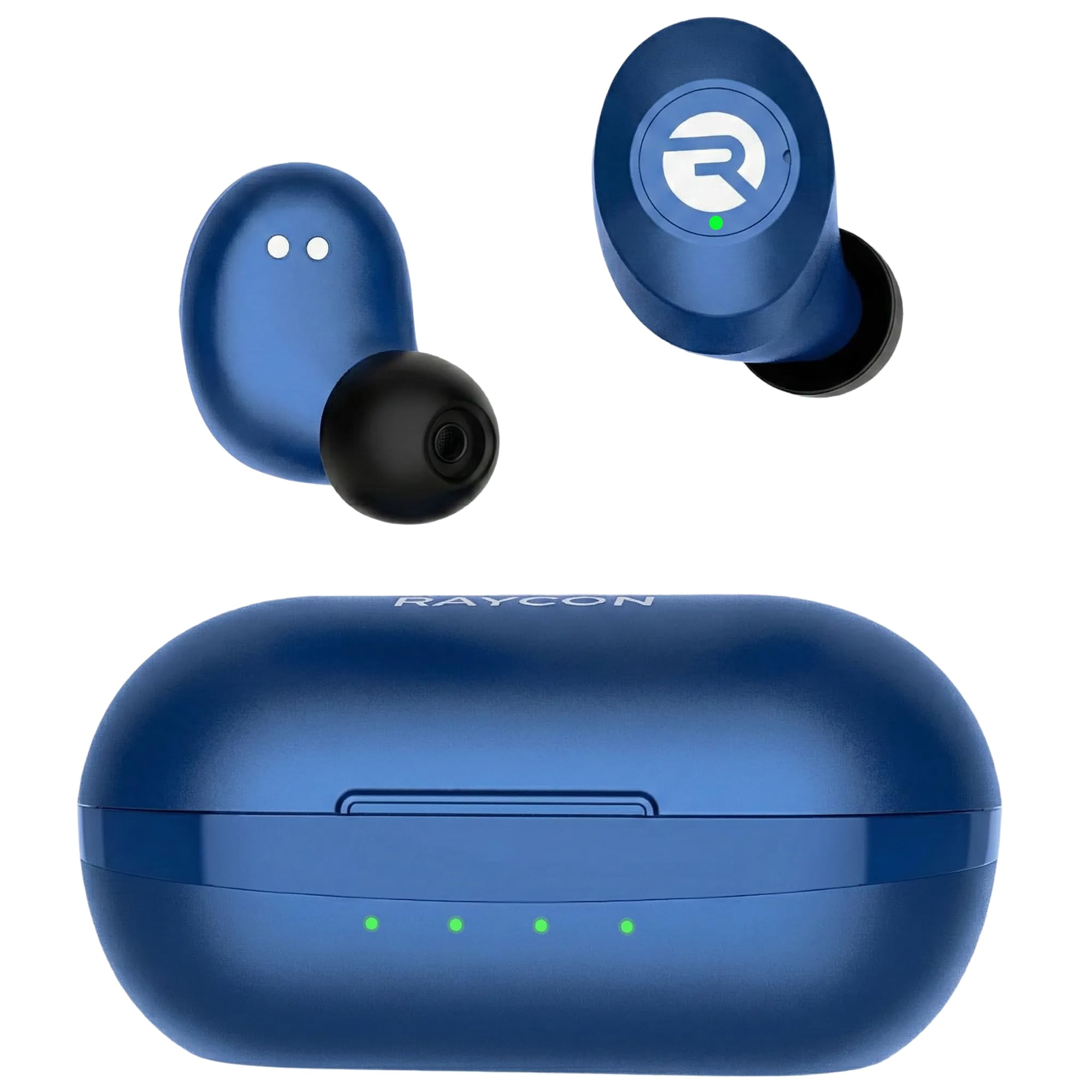
Common Raycon Everyday Earbuds pairing problems
One earbud connects but the other does not
This usually means the earbuds lost their connection with each other. Put both earbuds in the case, close it, and wait a few seconds. Then remove both at the same time and pair them again.
If one side remains silent, check the phone’s audio balance settings. On an iPhone, go to Accessibility and Audio & Visual. On Android, search Settings for balance or left and right audio.
The earbuds connect but have no sound
Check the volume on both the phone and earbuds. Then open the device’s sound output menu and select Raycon Everyday Earbuds.
Some apps keep using the phone speaker even after Bluetooth connects. Pause the app, select the earbuds as the output, and start playback again.
The earbuds keep disconnecting
Low battery is a common cause. Wireless interference can also affect the connection, especially in busy areas with many Bluetooth and Wi-Fi devices.
Keep the phone nearby and avoid placing it behind your body or inside a bag. If disconnections continue, forget the earbuds, reset them, and pair them again.
The earbuds connect to the wrong device
Turn off Bluetooth on devices that were previously paired with the earbuds. After the correct device connects, you can turn Bluetooth back on elsewhere.
This is especially helpful in homes where several people share phones, tablets, and laptops.
The earbuds are not charging
Check that the case itself has power. Then reseat each earbud and confirm that it sits firmly against the charging contacts.
Remove dust from the contacts with a dry, soft cloth. If the case still does not charge the earbuds, use the official support process because the issue may involve the case, battery, or charging port.
Best practices for a stable Bluetooth connection
Good pairing habits make Raycon Everyday Earbuds easier to use every day. Bluetooth is designed for convenience, but it still depends on distance, battery power, and clear device settings.
Use these habits:
- Charge the earbuds before important calls or travel.
- Pair them with one device at a time during setup.
- Keep the phone within a reasonable Bluetooth range.
- Store the earbuds in the case when not in use.
- Keep the charging contacts clean and dry.
- Install available phone or computer updates.
- Remove old Bluetooth entries that you no longer use.
- Avoid pairing in a crowded wireless area when possible.
During real-world testing, putting the phone in a back pocket sometimes caused brief interruptions during movement. Keeping the phone in a front pocket or nearby bag improved stability. This is not unique to Raycon, since Bluetooth performance can change with body position and interference.
Also, do not assume that every pairing issue requires a reset. A low battery, incorrect audio output, or connection to another device is often the true cause.
Raycon Everyday Earbuds pairing and privacy
Bluetooth pairing is usually safe when you connect through your device’s standard settings. Pair only with the official device name and avoid accepting unexpected pairing requests from unknown accessories.
When using earbuds in public, turn Bluetooth off when you are finished if you do not need it. This can reduce unwanted connection attempts and save a small amount of battery.
Use the manufacturer’s official instructions for model-specific controls. Online guides may combine steps from different Raycon products, so check the model name printed on the box, case, or purchase record.
Frequently Asked Questions About How to Pair Raycon Everyday Earbuds
How do I put Raycon Everyday Earbuds into pairing mode?
Open the charging case and remove both earbuds together. Turn on Bluetooth, then select “Raycon Everyday Earbuds” from the available device list.
Why are my Raycon Everyday Earbuds not showing up on Bluetooth?
They may have a low battery, an existing connection, or a pairing problem. Charge them, turn off Bluetooth on previously connected devices, place the earbuds in the case, and try again.
Can I pair Raycon Everyday Earbuds with an iPhone?
Yes. Open Settings, tap Bluetooth, and select “Raycon Everyday Earbuds” after removing them from the charging case. The earbuds should reconnect automatically after the first successful pairing.
Can I pair Raycon Everyday Earbuds with a laptop?
Yes. Turn on Bluetooth in Windows or macOS, select Add Device or the Bluetooth menu, and choose the Raycon earbuds. You may need to select them separately as the computer’s sound output.
How do I fix Raycon Everyday Earbuds when only one side works?
Place both earbuds in the charging case, forget the Bluetooth connection, and remove both earbuds together. If that fails, follow the reset steps for your exact Raycon model.
Do Raycon Everyday Earbuds connect to two devices at once?
They can remember multiple paired devices, but simultaneous connections may not be supported. Disconnect the first device before pairing with a second one for the most reliable result.
Conclusion
Pairing Raycon Everyday Earbuds usually takes three actions: charge them, remove both earbuds from the case, and select their name in your device’s Bluetooth menu. If the connection fails, check the battery, disconnect older devices, forget the saved pairing, and reset the earbuds only when needed.
Once you understand how to pair Raycon Everyday Earbuds, moving between a phone, computer, and tablet becomes much easier. Try the steps above with your device, and share your experience or questions in the comments.