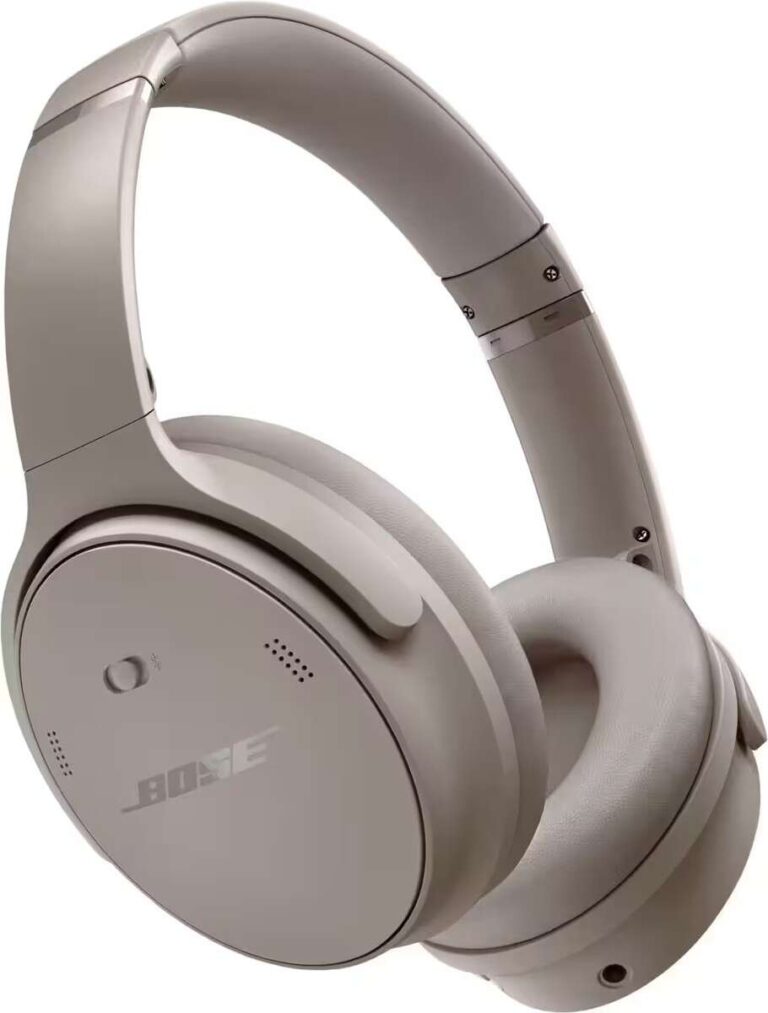
How To Tell Which Bose Headphones I Have: Find Your Model
Find your Bose headphone model by checking the Bose app, product label, Bluetooth settings, or the original packaging.
Wondering how to tell which Bose headphones you have? The fastest method is to open the Bose app and view the connected product name. If the app cannot identify them, check the model number printed inside the headband, on the earcup, beneath the ear cushion, or on the charging case. This guide explains each method, helps you avoid common mistakes, and shows how to identify older Bose headphones with confidence.
Start With the Bose App
The Bose app is usually the simplest way to tell which Bose headphones you have. It can often recognize the exact product family after you connect the headphones to your phone.


Bose uses different apps for different product generations. Most newer headphones work with the Bose app, while some older products may use Bose Connect. If one app does not detect your headphones, try the other official Bose app.
Follow these steps:
- Install the Bose app from the Apple App Store or Google Play Store.
- Turn on Bluetooth on your phone.
- Power on your Bose headphones.
- Open the app and allow it to search for nearby products.
- Select your headphones when they appear.
- Read the product name shown on the main screen or product settings page.
The app may show names such as QuietComfort Ultra Headphones, QuietComfort Headphones, Noise Cancelling Headphones 700, or SoundLink around-ear headphones. It may also display firmware details and product support options.
If the app identifies your device, this is often more reliable than the Bluetooth name alone. The Bluetooth name can be changed, shortened, or left over from a previous phone connection.
Find the Model Number on the Headphones
If the Bose app does not work, look for a small model label on the headphones. The model number is more useful than the color, button layout, or Bluetooth name because several Bose products look very similar.
Check these locations:
• Inside the headband, especially beneath the padding
• On the inside of one earcup
• Under a removable ear cushion
• Near the charging port
• Inside the battery compartment on some older models
• On a small label attached to the headband or earcup
Look for terms such as “Model,” “M/N,” “Model No.,” or “Product Code.” You may see a code made of letters and numbers rather than a clear product name.
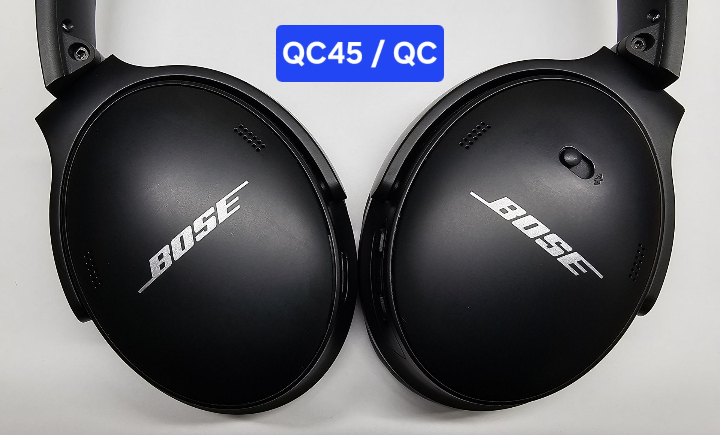
Write down the full code exactly as shown. A single letter or number can separate one generation from another. For example, a QuietComfort model may look almost the same as a later QuietComfort 45, but the internal model code will be different.


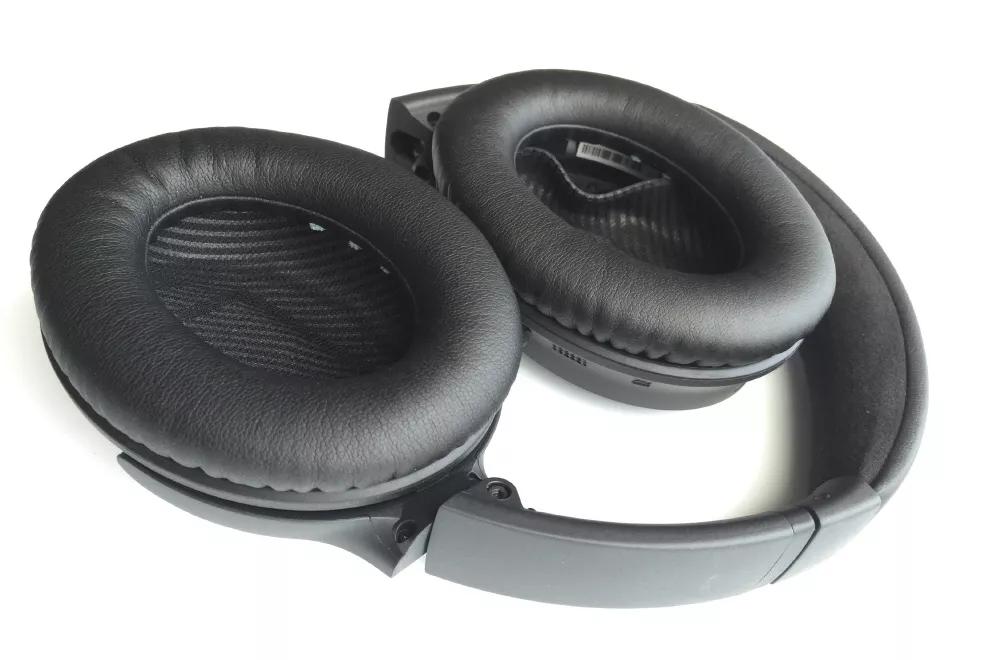
When removing an ear cushion, work slowly around the edge. Some cushions clip into place, while others use a retaining ring. Pulling too hard can damage the cushion or its mounting clips.

Check the Serial Number and Product Label
A Bose serial number can help confirm the product, but it is not always the same as the model number. The serial number identifies your individual unit. The model number identifies the product type.
You may find the serial number:
• In the Bose app under product information
• On the original product box
• On the warranty card
• Beneath an ear cushion
• Inside the charging case
• On a label near the headband hinge
Some labels include both a serial number and a model number. If you see several codes, do not assume the longest code is the model. Look for the label that specifically says “Model” or “M/N.”
Avoid posting a full serial number publicly. It is usually safe to share the model number when asking for help, but your serial number is a unique identifier for your device.
Bose support pages can also help match a model code to a product family. When an online search gives several possible results, compare the buttons, ports, case shape, and earcup design before choosing a match.
Use Your Phone’s Bluetooth Settings
Your phone’s Bluetooth menu can provide a useful clue. It may show a name such as “Bose QC 45,” “Bose 700,” “Bose QuietComfort,” or “LE-Bose.”
To check it, open:
• iPhone: Settings, then Bluetooth
• Android: Settings, then Connected devices or Bluetooth
Tap the information icon or settings icon next to the connected Bose headphones. The device name may reveal the product family.
However, Bluetooth identification has limits. The name may have been edited by a previous owner, changed by a computer, or saved incorrectly by your phone. Some entries show only a generic name, such as “Bose Headphones.”
Treat Bluetooth as a starting point, not final proof. To tell which Bose headphones you have with certainty, confirm the Bluetooth name with the Bose app, model label, or original packaging.


Compare the Headphone Design
Physical features can narrow down the model when the label is hard to read. Bose headphones often share a clean design, so compare several features instead of relying on one detail.
Look at the following:
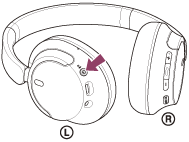
Earcup buttons
The number and position of buttons can separate Bose families. Some models use physical buttons for power and volume. Others use a touch control surface or a combination of buttons and touch controls.
Charging port
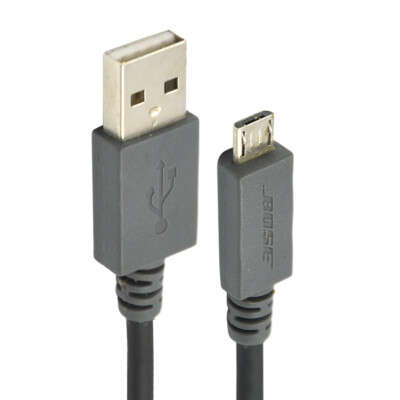
Check whether the headphones use USB-C or Micro-USB. Newer Bose products commonly use USB-C, while many older models use Micro-USB. The port alone cannot prove the exact model, but it can help identify the product generation.
Headband and hinges
Inspect the hinge shape, headband padding, and folding action. QuietComfort models often fold into a compact case, while some newer designs have different hinge lines and smoother earcup arms.
Microphone openings
Noise-canceling headphones often have several small microphone openings on the earcups. Their location can help distinguish models, but microphone placement is best used with other clues.
Case shape
The original case may show the model name or have a distinctive molded shape. A case can also reveal whether the headphones were sold as a premium noise-canceling model or a simpler wireless model.
Physical comparison works best when you use official product images. Be careful with online photos, since replacement ear cushions, third-party cases, and color changes can make one model look like another.
Identify Common Bose Headphone Families
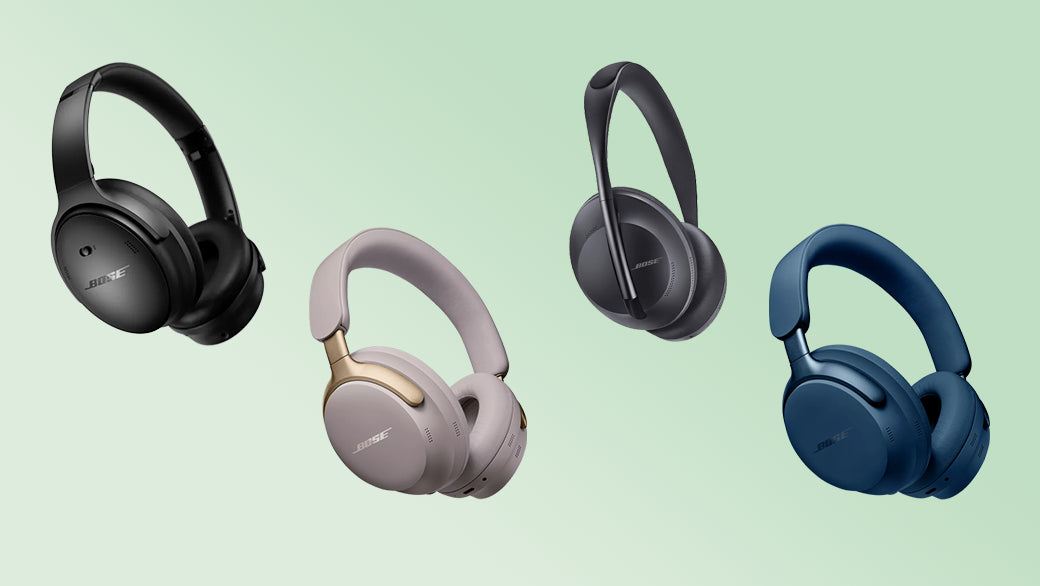
Knowing the main Bose headphone families makes identification easier. These product lines have different features and release periods.
Bose QuietComfort Ultra Headphones
The QuietComfort Ultra Headphones are a newer premium model. They support advanced noise cancellation, spatial audio features, and USB-C charging. The design has a refined metal hinge area and a modern, high-end appearance.
Bose QuietComfort Headphones
The current QuietComfort Headphones are part of the long-running QuietComfort family. They focus on comfort, active noise cancellation, and physical controls. The exact name may appear as “QuietComfort Headphones” rather than “QuietComfort 45.”
Bose QuietComfort 45
The QuietComfort 45 is an over-ear noise-canceling model with USB-C charging. It has a recognizable button layout and usually folds into a hard carrying case.
Bose Noise Cancelling Headphones 700
The Bose Noise Cancelling Headphones 700 have a distinctive slim headband and touch-sensitive controls on the right earcup. Their earcups do not fold in the same way as many QuietComfort models.
Bose QuietComfort 35 and QuietComfort 35 II
The QuietComfort 35 series uses physical buttons and Micro-USB charging. The QuietComfort 35 II includes a dedicated action button that can be assigned to noise control or a voice assistant.
Bose SoundLink around-ear headphones
SoundLink models are primarily wireless headphones and may not include the same level of active noise cancellation found in QuietComfort products. Older versions often use Micro-USB charging and have a lighter, simpler build.
Bose Sport or wireless earbuds
If your Bose product has separate left and right earpieces, it is likely a Bose earbuds model rather than an over-ear headphone model. The model name may be printed inside the charging case or shown in the Bose app.


Check the Original Box and Accessories
The retail box is one of the clearest ways to tell which Bose headphones you have. Product packaging usually lists the full model name, supported features, color, and included accessories.
Search for the following:
• Product name on the front of the box
• Model number on the barcode label
• Color or finish description
• Regulatory information
• Serial number sticker
• Quick-start guide
• Charging cable and audio cable
The accessories can also provide useful clues. A compact hard case, airline adapter, audio cable, or USB charging cable may match a particular Bose generation.
Still, do not rely on the box alone if you bought the headphones used. Sellers sometimes place a different model in the wrong box. Compare the box information with the physical product and app details.

Use the Bose App Product Information Page
Once the headphones connect to the Bose app, open the settings or product information area. The exact menu names can change with app updates, but the product page often includes the model name, software version, serial number, and support options.
This information can help when you need:
• Replacement ear cushions
• A replacement charging case
• A compatible audio cable
• Firmware updates
• Warranty support
• A user guide
The product information screen may also show whether the headphones are linked to your Bose account. If you see an unfamiliar name, check the physical label before changing the device name.
A renamed product can cause confusion. For example, a previous owner may have named the headphones “Dad’s Bose” or “Travel Headset.” Renaming them inside the app can make future identification easier, but it does not change the actual model.

Search the Bose Support Library
Bose’s official support library is helpful when you have a model code but cannot match it to a product name. Search the code with quotation marks, then compare the result with your headphones.


Use a search pattern such as:
Bose model [your model code]
You can also search the product name shown in Bluetooth settings along with the word “Bose.” Give priority to official Bose support pages, user guides, and product manuals.
Avoid relying only on marketplace listings. Online sellers may use incorrect model names or combine photos from several products. Product manuals are usually more dependable because they show button layouts, charging ports, indicator lights, and setup steps.
Regulatory labels can provide extra confirmation. In the United States, wireless devices often include FCC information. An FCC identifier can help locate technical records, but it may identify a radio module rather than the consumer-facing product name.

Check the Headphones Without the Bose App
You can still identify Bose headphones if the app is unavailable, the battery is dead, or the headphones will not enter pairing mode.
Use this order:
- Inspect the headband, earcup, and charging case for a model number.
- Check the box, receipt, or user guide.
- Review the Bluetooth name on a phone or computer.
- Compare the controls and charging port with official product photos.
- Search the model code in the Bose support library.
- Contact Bose support with the code and a clear product description.
Take close photos of the label, buttons, charging port, and case. A clear photo is often more useful than a long description, especially when the printed text is small.
If the headphones are secondhand, ask the seller for the original receipt or a photo of the model label. Do not assume that “Bose wireless headphones” is a complete product name. Bose has released many wireless models with similar shapes.
Avoid Common Identification Mistakes
Several mistakes make it harder to tell which Bose headphones you have. Most are easy to avoid once you know what to check.
• Do not identify the model by color alone. The same model may come in black, white, silver, blue, or limited-edition finishes.
• Do not treat the Bluetooth name as final proof. It can be edited or displayed incorrectly.
• Do not confuse the series name with the exact model. “QuietComfort” may refer to several different generations.
• Do not remove ear cushions carelessly. The clips and retaining rings can break.
• Do not buy replacement parts before confirming the model. Ear cushions and cables may look similar but have different fits.
• Do not share your full serial number in a public forum. Share the model number instead.


• Do not assume every Bose product uses the same app. Older products may require Bose Connect, while newer products may use the Bose app.
One practical lesson is to record the model number as soon as you identify the headphones. Save it in your phone’s notes with the purchase date and color. This small step can save time years later when you need a replacement part.
Why Correct Identification Matters
Knowing which Bose headphones you have is more than a naming exercise. It helps you choose the right accessories, update the correct software, and follow the right repair instructions.
Correct identification matters when you need to:
• Replace worn ear cushions
• Find a compatible charging cable
• Troubleshoot pairing problems
• Download the right user guide
• Check warranty coverage
• Sell or insure the headphones
• Compare battery and noise-canceling features
It also prevents wasted money. A replacement cushion made for the Bose Noise Cancelling Headphones 700 may not fit a QuietComfort 45. Both are over-ear Bose headphones, but their mounting systems differ.
Model identification is especially important for older products. Batteries, charging ports, and firmware support can vary widely between generations. The exact model gives you a more accurate picture of what the headphones can and cannot do.
A Reliable Three-Minute Identification Method
If you want the shortest dependable process, use this checklist.
- Open the Bose app and connect the headphones.
- If the app fails, check the model label inside the headband or beneath the ear cushion.
- Compare the model number with the official Bose support library.
- Confirm the result using the charging port, buttons, and case.
- Record the model number for future use.
This method combines digital information with physical evidence. Think of it like checking a car’s badge, registration, and engine label instead of guessing from its color.
In practice, the model label is often the deciding clue. The Bose app is faster, but the printed model code remains valuable when the headphones are old, used, or unable to connect.
Frequently Asked Questions About How to Tell Which Bose Headphones I Have
How can I tell which Bose headphones I have without the box?
Check the Bose app first, then inspect the inside of the headband, earcup, or charging case for a model number. You can also compare the controls, charging port, and case with official Bose product images.
Where is the model number on Bose headphones?
The model number may be inside the headband, beneath an ear cushion, on the inner earcup, near the charging port, or inside the case. Look for labels marked “Model,” “M/N,” or “Model No.”
Can Bluetooth settings tell me which Bose headphones I have?
Bluetooth settings can provide a helpful product name, but they are not always accurate. The device name may be edited or shortened, so confirm it with the Bose app or printed model number.
What app do I use to identify my Bose headphones?
Many newer Bose headphones use the Bose app. Some older products use Bose Connect, so try both official apps if your headphones are not detected.
How do I tell whether my Bose headphones are QuietComfort 35 or QuietComfort 45?
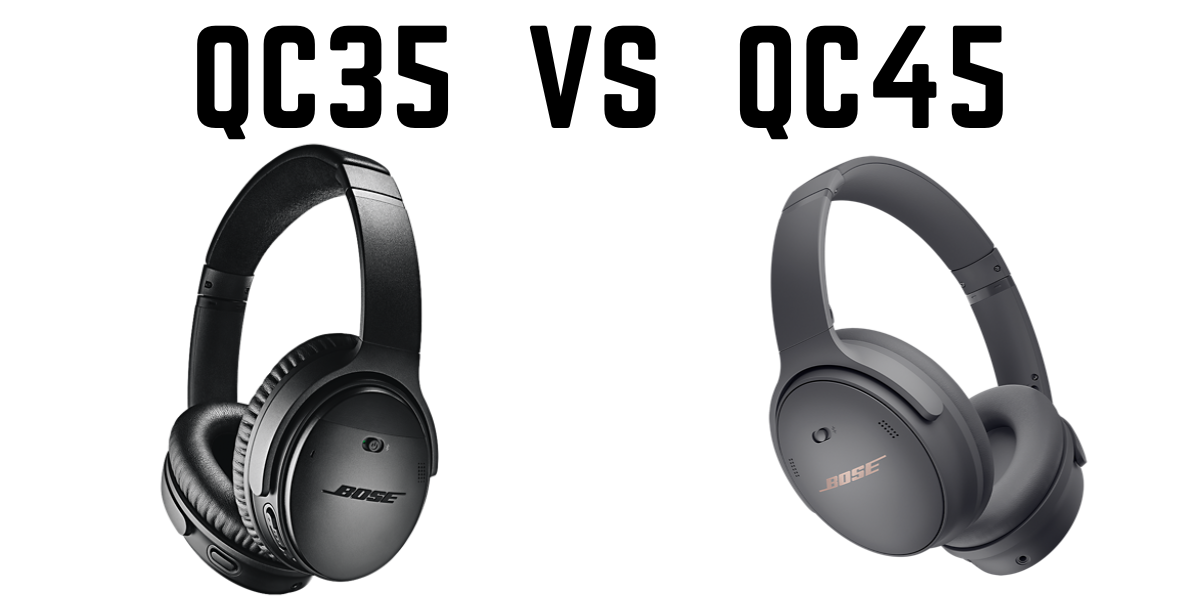
QuietComfort 35 models typically use Micro-USB charging, while QuietComfort 45 models use USB-C. The button layout and printed model label provide stronger confirmation than the charging port alone.
Can I identify Bose headphones by the serial number?
A serial number identifies your individual unit, and Bose support may use it to locate product details. The model number is usually better for identifying the exact headphone family and buying accessories.
How do I identify Bose earbuds?
Open the charging case and inspect the inside for a model label. You can also connect the earbuds to the Bose app, which usually displays the exact product name.
Conclusion
The best way to tell which Bose headphones you have is to combine the Bose app with the printed model number. If those options are unavailable, use the Bluetooth name, product box, charging port, controls, and official Bose support pages to confirm the result.
Do not guess from appearance alone. Record the model number once you find it, then use that information when downloading manuals, buying replacement parts, or requesting support. Explore the official Bose app and support resources today, and share your model identification experience in the comments.