

To connect Bose headphones to iPhone, turn on bluetooth, select your headphones, and follow the pairing prompt.
Learning how to connect Bose headphones to iPhone is simple once you know where pairing mode is located. This guide covers the standard Bluetooth method, Bose app setup, common connection problems, calls, battery checks, and steps for switching between devices. The process works for many Bose QuietComfort, Noise Cancelling Headphones, Sport, SoundLink, and other Bluetooth models.
Before you connect Bose headphones to iPhone
Before you connect Bose headphones to iPhone, check a few simple things. Your iPhone should have Bluetooth enabled, and your Bose headphones should have enough battery power to complete setup.
Most Bose Bluetooth headphones work with modern iPhone models. However, menus and button names may vary slightly between models. For example, some headphones use a physical Bluetooth or Power switch, while newer models may use a multifunction button.
Check these points first:
• Charge the Bose headphones for at least a few minutes.
• Keep the headphones within a few feet of the iPhone.
• Turn off Bluetooth on nearby devices if the headphones keep connecting elsewhere.
• Remove the headphones from their case if they are true wireless earbuds.
• Update iOS if your iPhone has not been updated in a long time.
Bose headphones can usually remember several paired devices, but they may connect to only one active audio source at a time. This is why an old laptop or tablet can sometimes “steal” the connection before your iPhone gets it.

How to connect Bose headphones to iPhone with Bluetooth
Bluetooth is the fastest way to connect Bose headphones to iPhone. You do not need a cable, a special adapter, or a Bose account for basic audio playback.
Follow these steps:
Turn on your Bose headphones.
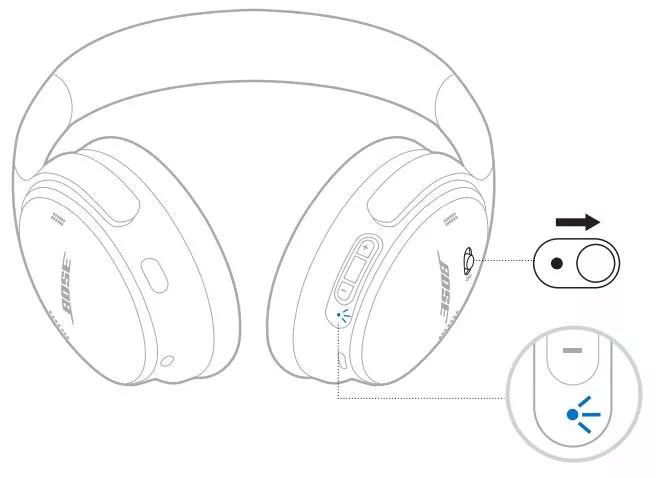
Put the headphones into pairing mode. On many models, slide and hold the Power or Bluetooth switch toward the Bluetooth symbol. Hold it until you hear “Ready to connect” or see a blinking blue light.
Unlock your iPhone and open the Settings app.
Tap Bluetooth.
Turn on Bluetooth if it is off.
Wait for your Bose headphones to appear under Other Devices.
Tap the name of your headphones.
Wait until the status changes to Connected.
Play music or a video to test the sound.
The name may look like “Bose QuietComfort,” “Bose NC 700,” “Bose Sport Earbuds,” or a custom name you chose in the Bose app. If you see several Bose devices, select the one that matches your headphones.
When you connect Bose headphones to iPhone for the first time, the process can take a few seconds. Do not repeatedly tap the device name during this stage. Give the iPhone time to complete the Bluetooth handshake.

How to put different Bose headphones into pairing mode
The pairing method depends on the Bose model. The goal is always the same: make the headphones visible to nearby Bluetooth devices.
Bose QuietComfort headphones
For many QuietComfort models, slide the Power or Bluetooth switch to the Bluetooth position and hold it there. Release the switch when you hear a voice prompt or see the Bluetooth light flash.
Some newer QuietComfort models use a Bluetooth button. Press and hold it until the headphones announce that they are ready to connect.
Bose Noise Cancelling Headphones 700
Press and hold the Bluetooth button on the right earcup. Continue holding it until the light bar pulses or the voice prompt says the headphones are ready.
Open Bluetooth settings on your iPhone and select the headphones from the list.
Bose Sport Earbuds and QuietComfort Earbuds
Place both earbuds in the charging case. Open the case, then press and hold the Bluetooth or setup button on the case if your model includes one.
For some earbud models, opening the case makes them discoverable automatically. If they do not appear on the iPhone, close the case, wait a few seconds, open it again, and retry pairing mode.
Bose SoundLink headphones
Turn on the headphones and hold the Bluetooth button until the indicator flashes blue. Then select the headphones in your iPhone’s Bluetooth menu.
If you are unsure which button to use, check the label on the headphones or the model guide in the Bose app. Holding the correct button is often the difference between a quick setup and a frustrating one.

How to connect Bose headphones to iPhone with the Bose app
The Bose app can make setup easier, especially for newer headphones and earbuds. It may also provide firmware updates, battery information, sound controls, and device settings.
To connect Bose headphones to iPhone through the app:
Download the official Bose app from the App Store.
Open the app and allow Bluetooth access when prompted.
Turn on your Bose headphones.
Put them into pairing mode.
Select Add Product or Set Up New Product.
Choose your headphone model.
Follow the instructions on the screen.
The app may ask you to create or sign in to a Bose account. An account is not always needed for basic Bluetooth audio, but it can help you manage settings and access product support.
You should still pair the headphones through iPhone Bluetooth settings when the app requests it. The app guides the setup, but the iPhone remains the device that manages the wireless connection.
In my experience, the app is most useful after the first pairing. It can show battery levels, adjust noise cancellation, install firmware updates, and help identify the correct model when several Bose products are nearby.

How to connect Bose headphones to iPhone after pairing
After you connect Bose headphones to iPhone once, they should reconnect automatically when both devices are on and within range.
If they do not reconnect, try this:
• Open Settings on the iPhone.
• Tap Bluetooth.
• Find your Bose headphones under My Devices.
• Tap the headphone name.
• Wait for the Connected label.
You can also open Control Center, press and hold the audio controls, and tap the AirPlay or audio output icon. Select your Bose headphones from the list.
Automatic reconnection may fail when the headphones are connected to another device. Turn off Bluetooth on that device or disconnect the Bose headphones from it manually. Then select the headphones on your iPhone.
Keep in mind that Bluetooth range is limited. Walls, metal objects, crowded wireless areas, and other Bluetooth devices can affect the signal. For the most stable connection, keep the iPhone nearby, especially during phone calls.
How to fix Bose headphones that will not connect to iPhone
If you cannot connect Bose headphones to iPhone, start with the easiest fixes. Most pairing problems come from an incorrect pairing mode, a low battery, or an old saved connection.
Confirm pairing mode
The headphones must be discoverable before they appear in the iPhone Bluetooth list. Turn them off, turn them on again, and hold the Bluetooth button until the voice prompt or light confirms pairing mode.
Check the battery
A very low battery can prevent pairing or cause the headphones to disconnect. Charge both earbuds and the charging case if you use Bose earbuds.
Move away from other devices
A nearby Mac, iPad, Windows computer, or Android phone may connect to the headphones first. Disable Bluetooth on those devices for a moment and try again.
Forget the Bose headphones
If the iPhone shows the headphones but refuses to connect, remove the saved Bluetooth record.
Open Settings.
Tap Bluetooth.
Tap the information icon beside the Bose headphones.
Choose Forget This Device.
Confirm the selection.
Put the headphones into pairing mode again.
Select them under Other Devices.
Forgetting a device does not damage the headphones. It simply clears the saved connection so the iPhone can create a fresh one.
Restart both devices
Restart the iPhone and power off the Bose headphones. Wait about 30 seconds, then turn both devices back on. This simple step can clear a temporary Bluetooth error.
Reset network settings
If Bluetooth problems affect several devices, reset the iPhone’s network settings. Go to Settings, General, Transfer or Reset iPhone, Reset, and then Reset Network Settings.
This removes saved Wi-Fi networks, VPN settings, and Bluetooth connections. You will need to reconnect other wireless devices afterward, so use this step only when simpler fixes fail.

How to reset Bose headphones before pairing
A reset can help when the headphones keep connecting to the wrong device or fail to appear on your iPhone. The exact reset method differs by model.
A common approach is to turn off the headphones, wait a few seconds, and then hold the Power or Bluetooth button for several seconds. Some Bose earbuds require placing them in the case and holding the case button.
Do not guess if your model uses a special reset sequence. Check the model instructions in the Bose app or the official product guide. A reset may clear device connections, but it does not always erase every setting.
After resetting the headphones, connect Bose headphones to iPhone as if they were new. Open Bluetooth settings, place the headphones in pairing mode, and select the correct device name.
A reset is helpful, but it should not be your first step. Forgetting the device on the iPhone and restarting both products usually solves basic pairing issues without changing additional settings.
How to use Bose headphones with iPhone calls
Once connected, Bose headphones can handle phone calls, FaceTime calls, and many video meeting apps. The iPhone normally routes sound through the headphones automatically.
During a call, tap the audio button on the iPhone and choose your Bose headphones if the sound is coming from the phone speaker. You can also check the microphone option in the call app.
If the other person cannot hear you clearly, move the iPhone closer or check whether the app has microphone permission. Wind, traffic, and loud rooms can also reduce microphone quality.
Some Bose models let you answer calls by tapping an earbud or pressing a button. The exact controls vary by model. The Bose app can help you review or customize available controls.
Music may pause when a call begins. That behavior is normal. After the call ends, playback should resume, although some apps require you to press Play again.
How to improve sound after connecting Bose headphones to iPhone
Connecting Bose headphones to iPhone gives you basic audio, but a few settings can improve the experience.
Start by checking the volume on both devices. Press the iPhone volume buttons while audio is playing, then use the headphone controls if your model has them.
You can also review these options:
• Adjust noise cancellation in the Bose app.
• Choose a suitable listening mode for travel, work, or quiet rooms.
• Turn off unnecessary audio enhancements if music sounds unusual.
• Keep the iPhone and headphones updated.
• Clean earbud tips and speaker openings carefully.
Firmware updates can improve stability, but updates may take time. Keep the headphones charged and near the iPhone while an update runs. Avoid closing the app or turning off Bluetooth during the process.
As a practical tip, I recommend testing music, a phone call, and a video after setup. A connection can appear successful while the microphone or call audio still uses the iPhone.
Common mistakes when connecting Bose headphones to iPhone
Small mistakes can make Bluetooth setup feel harder than it is. Avoid these common problems:
• Selecting a nearby Bose speaker instead of your headphones.
• Releasing the Bluetooth button before pairing mode starts.
• Trying to pair while the headphones are already connected to a laptop.
• Ignoring a low battery warning.
• Installing an unofficial app with a similar name.
• Forgetting to grant Bluetooth permission to the Bose app.
• Resetting the iPhone before trying to forget and reconnect the headphones.
One mistake I often see is repeated tapping. People tap the headphone name several times because nothing happens right away. This can create more confusion. Tap once, wait a few seconds, and watch for the Connected label.
Another common issue involves earbuds that remain inside the charging case. If the contacts do not connect well, the earbuds may not turn on or enter pairing mode. Clean the contacts with a dry, soft cloth and charge the case before trying again.
Frequently asked questions about how to connect Bose headphones to iPhone
Why are my Bose headphones not showing up on my iPhone?
Put the headphones into Bluetooth pairing mode and keep them close to the iPhone. If they still do not appear, turn off Bluetooth on nearby devices, restart both products, and try again.
Can I connect Bose headphones to iPhone without the Bose app?
Yes. Open Settings, tap Bluetooth, and select the Bose headphones when they appear. The Bose app is optional for basic listening, but it provides updates and extra controls.
How do I disconnect Bose headphones from my iPhone?
Open Settings, tap Bluetooth, and select the information icon beside the headphones. Choose Disconnect or Forget This Device, depending on whether you want to keep or remove the saved pairing.
Can Bose headphones connect to an iPhone and another device?
Many Bose models support multipoint connections, but features vary by model. If your headphones connect to only one device, disconnect them from the first device before selecting them on the iPhone.
Why do my Bose headphones keep disconnecting from my iPhone?
Low battery, distance, wireless interference, and connection to another device can cause dropouts. Charge the headphones, keep them nearby, update the software, and forget and re-pair the device if needed.
Can I use Bose headphones with an iPhone for phone calls?
Yes. Bose headphones can usually provide both call audio and microphone input. During a call, select the Bose headphones from the iPhone audio menu if the sound does not switch automatically.
Conclusion
Learning how to connect Bose headphones to iPhone takes only a few steps: charge the headphones, enable pairing mode, open Bluetooth settings, and select the correct Bose device. The Bose app can add useful features, but it is not required for basic listening.
If the connection fails, forget the saved device, restart both products, check nearby devices, and try pairing again. These steps solve most everyday Bluetooth problems without a full reset.
Now connect your Bose headphones, test music and calls, and explore the Bose app for sound and noise-control options. If this guide helped, share it with someone who is setting up Bose headphones for the first time.
