

Turn on your Bose QC Ultra Headphones, hold the Bluetooth button, and select them from your device’s Bluetooth menu.
Learning how to pair Bose QC Ultra Headphones is simple once you know which button to use and what the voice prompts mean. This guide explains first-time pairing, app setup, pairing with phones and computers, device switching, connection problems, and useful fixes based on Bose instructions and common real-world Bluetooth issues.
How to pair Bose QC Ultra Headphones for the first time
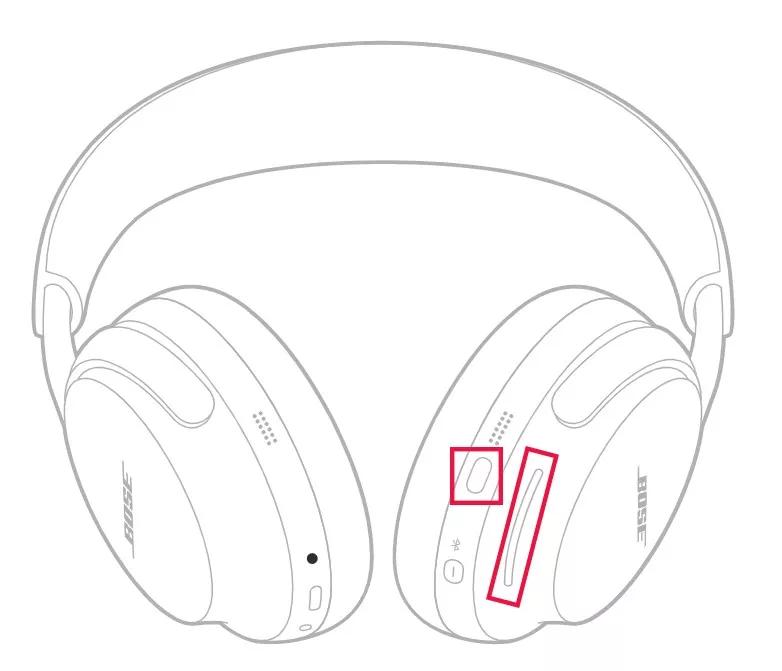
The Bose QC Ultra Headphones enter pairing mode when you press and hold the Bluetooth or power button. A blue light and voice prompt confirm that the headphones are ready to connect.
Follow these steps:
- Charge the headphones for a few minutes.
- Find the Bluetooth or power button on the right earcup.
- Press and hold the button for about three seconds.
- Release it when you hear “Ready to connect” or see the blue light.
- Open the Bluetooth settings on your phone, tablet, or computer.
- Turn Bluetooth on.
- Select Bose QC Ultra Headphones from the device list.
- Wait for the status to show Connected.
Once paired, the headphones should reconnect to that device when you turn them on nearby. Keep the headphones within a few feet of the device during the first setup.
If you see more than one Bose entry, choose the one that clearly says Bose QC Ultra Headphones. Avoid selecting a generic listing unless Bose specifically instructs you to do so.

Pair Bose QC Ultra Headphones with the Bose app
The Bose app gives you more control than the normal Bluetooth menu. You can adjust noise cancellation, change listening modes, install firmware updates, and manage connected devices.
To use the app:
- Download the Bose app from the Apple App Store or Google Play Store.
- Open the app and sign in or continue without an account, if available.
- Turn on your Bose QC Ultra Headphones.
- Press and hold the Bluetooth button until pairing mode starts.
- Follow the on-screen steps to add the headphones.
- Allow Bluetooth access when your phone requests it.
- Install any available firmware update.
The app may ask for location or nearby-device permission on some Android phones. These permissions can help the app find Bluetooth products during setup.
I recommend pairing through the app after the basic Bluetooth connection works. This avoids a common mistake: trying to use the app while the headphones are still connected to another phone nearby.
How to pair Bose QC Ultra Headphones with an iPhone
Pairing with an iPhone takes less than a minute in most cases. Make sure the headphones are not already connected to a tablet, laptop, or another phone.
- Open Settings on your iPhone.
- Tap Bluetooth.
- Turn Bluetooth on.
- Put the Bose QC Ultra Headphones into pairing mode.
- Tap Bose QC Ultra Headphones under Other Devices.
- Wait until the status changes to Connected.
After pairing, play a song or podcast to test the connection. You can also open Control Center, press the audio card, and check that the Bose headphones are selected.
If the headphones appear under My Devices but will not connect, tap the information icon beside them. Choose Forget This Device, restart Bluetooth, and pair them again.
How to pair Bose QC Ultra Headphones with Android
Android menus can look different by brand, but the basic process is the same. Samsung Galaxy, Google Pixel, Motorola, and other Android phones use similar Bluetooth steps.
- Open Settings.
- Tap Connected devices, Connections, or Bluetooth.
- Select Pair new device if needed.
- Put the Bose QC Ultra Headphones into pairing mode.
- Tap Bose QC Ultra Headphones in the available devices list.
- Confirm the pairing request if one appears.
Some Android phones support Google Fast Pair. If your phone detects the headphones nearby, a pop-up may appear. Tap Connect and follow the instructions on the screen.
If Fast Pair does not appear, use the regular Bluetooth menu. The headphones do not need Fast Pair to work properly.

How to pair Bose QC Ultra Headphones with a Windows PC
You can connect the headphones to a Windows laptop or desktop for music, video calls, games, and general audio. Windows may list the headphones under both audio and input devices.
Use these steps:
- Turn on the Bose QC Ultra Headphones.
- Press and hold the Bluetooth button until pairing mode begins.
- On your PC, open Settings.
- Select Bluetooth & devices.
- Turn Bluetooth on.
- Click Add device.
- Choose Bluetooth.
- Select Bose QC Ultra Headphones.
- Wait for Windows to finish the connection.
For better sound during music, select the headphones as the output device in Windows sound settings. During a call, Windows may show a hands-free option that uses the headset microphone but can reduce audio quality.
That quality change is normal with many Bluetooth headsets. It happens because Bluetooth handles microphone input and high-quality stereo sound differently.
How to pair Bose QC Ultra Headphones with a Mac
macOS has a short pairing process. Before you begin, close any music app that may already be using another audio device.
- Open the Apple menu.
- Choose System Settings.
- Click Bluetooth.
- Turn Bluetooth on.
- Put the Bose QC Ultra Headphones into pairing mode.
- Find Bose QC Ultra Headphones in the device list.
- Click Connect.
Afterward, go to System Settings, then Sound, and select the Bose headphones as the output device. This step helps if the Mac connects but continues playing sound through its built-in speakers.
If the microphone sounds poor during a video call, check the audio settings in the calling app. The app may choose a different input device even when the Bose headphones are connected.

Pair Bose QC Ultra Headphones with a second device
The Bose QC Ultra Headphones can remember multiple paired devices. However, remembering a device is not always the same as maintaining two active connections.
To pair another device:
- Disconnect the headphones from the first device, or move it out of range.
- Press and hold the Bluetooth button on the headphones.
- Open Bluetooth settings on the second device.
- Select Bose QC Ultra Headphones.
- Complete the connection.
Some Bose QC Ultra Headphones models and firmware versions support multipoint Bluetooth. Multipoint lets the headphones stay connected to two devices, such as a phone and a laptop.
If multipoint is available, you can usually manage it in the Bose app. Firmware updates may also improve connection behavior, so check the app before troubleshooting further.
A practical example is listening to music from a laptop while staying connected to a phone. When a call arrives, the headphones may pause the laptop audio and switch to the phone.

How to switch between paired devices
The headphones may reconnect to the last device used. If several devices are nearby, they can sometimes connect to the wrong one.
Try these methods:
• Turn off Bluetooth on devices you do not want to use.
• Open the Bose app and review the connected-device list.
• Disconnect the headphones from the current device before selecting them on another device.
• Use the Bluetooth settings on the target device to connect manually.
• Keep the unused device farther away during setup.
When I troubleshoot Bluetooth headphones, I first turn off Bluetooth on nearby tablets and laptops. This simple step solves many connection problems because the headphones often reconnect to the first familiar device they find.
Think of the paired-device list like a short guest list. The headphones remember guests, but they still need a clear signal about which guest should enter now.

What to do when Bose QC Ultra Headphones will not pair
Pairing can fail because of an old Bluetooth record, low battery, distance, software issues, or another active connection. Work through these fixes in order.
Check the basics
• Charge the headphones.
• Place the headphones within three feet of the device.
• Turn Bluetooth off and back on.
• Restart the phone, tablet, or computer.
• Move away from other Bluetooth devices during setup.
• Confirm that the headphones are in pairing mode.
A solid or flashing blue light usually indicates Bluetooth activity, but the exact light behavior can vary by product state. Follow the voice prompt when possible.
Forget and pair again
Old pairing records can become corrupted. Remove the headphones from your device, then add them again.
On iPhone, tap the information icon beside the headphones and select Forget This Device. On Android, Windows, or Mac, choose the option that removes or forgets the Bose device from Bluetooth settings.
Then restart both devices and repeat the normal pairing process.
Clear the headphone Bluetooth list
If the headphones keep connecting to the wrong device, clear their stored Bluetooth list. On the Bose QC Ultra Headphones, press and hold the Bluetooth or power button for about 15 seconds, or follow the exact reset instructions in the current Bose user guide.
The headphones should provide a voice prompt when the list is cleared. Afterward, pair them again as if they were new.
Clearing the list removes stored connections. It does not usually fix physical damage, a failed battery, or a damaged Bluetooth radio.
Reset Bose QC Ultra Headphones when pairing still fails
A reset can help when normal Bluetooth troubleshooting does not work. Before resetting, remove the headphones from your phone or computer and close the Bose app.
A basic reset process usually includes:
- Disconnect the headphones from charging.
- Turn the headphones off.
- Wait a few seconds.
- Turn them on again.
- Clear the Bluetooth list if needed.
- Pair them with one device only.
Bose products can receive firmware updates that change reset steps or button behavior. For that reason, use the current Bose support instructions for a full factory reset rather than relying on an old video.
Resetting should be a later step, not the first one. In many cases, forgetting the Bluetooth connection and restarting the devices is enough.
Update the Bose app and headphone firmware
Software can affect pairing, multipoint connections, noise control, and battery reporting. The Bose app can notify you when a firmware update is available.
For the best result:
• Use a stable Wi-Fi connection.
• Keep the headphones charged.
• Keep your phone close to the headphones.
• Do not close the Bose app during the update.
• Do not turn off the headphones until the process ends.
A firmware update may improve performance, but it cannot guarantee compatibility with every old computer or Bluetooth adapter. Older PCs may need updated Bluetooth drivers from the computer manufacturer.
If the Bose app cannot find the headphones, first pair them through the phone’s Bluetooth menu. Then close and reopen the app.
Tips for a more stable Bluetooth connection
Good pairing is only the first step. These habits can help maintain a steady connection.
• Keep the headphones and source device nearby.
• Avoid placing the phone inside a crowded bag or metal case.
• Keep the headphones charged.
• Update the Bose app and device operating system.
• Disconnect unused Bluetooth accessories.
• Avoid pairing several new devices at the same time.
• Use the Bose app to check available connection settings.
Bluetooth works through radio signals. Walls, metal objects, Wi-Fi congestion, and nearby wireless devices can sometimes reduce reliability. Most indoor connections work well at short range, but distance and obstacles still matter.
For video calls, connect the headphones before opening the meeting app. This gives the app a better chance to choose the Bose microphone and speakers automatically.
Pairing Bose QC Ultra Headphones with a TV
TV pairing depends on the television model. The TV must support Bluetooth audio, and some TVs may introduce a small delay between the picture and sound.
To try it:
- Put the headphones into pairing mode.
- Open the TV’s Settings menu.
- Find Sound, Audio Output, or Bluetooth Devices.
- Choose Add device or Pair device.
- Select Bose QC Ultra Headphones.
- Confirm the connection.
Some TVs can connect to only one Bluetooth audio device. Others may not support Bluetooth headphones at all. If the TV does not detect the headphones, check the TV manual or use a compatible Bluetooth transmitter.
A transmitter can work well, but it may add another control point and may not support every advanced Bose feature.
Common pairing mistakes to avoid
Most failed setups come from a few small errors. Avoid these mistakes:
• Selecting the headphones before putting them into pairing mode.
• Leaving Bluetooth active on a nearby device that already knows the headphones.
• Pairing through the Bose app while the phone blocks Bluetooth permissions.
• Using an outdated Bose app.
• Expecting a TV or desktop computer to support every Bluetooth feature.
• Resetting the headphones before trying a simple forget-and-repair cycle.
• Assuming a connected status means the headphones are the active audio output.
The last mistake is especially common. A phone can show the headphones as connected while sound still comes from its speaker. Always check the active audio output when testing the connection.
How to pair Bose QC Ultra Headphones: key facts to remember
The core process is quick:
- Press and hold the Bluetooth button.
- Open Bluetooth settings on the source device.
- Select Bose QC Ultra Headphones.
- Test the audio.
- Use the Bose app for updates and extra controls.
For stubborn problems, forget the old Bluetooth record, restart both devices, clear the headphone list, and pair again. These steps solve many issues without requiring technical support.
The exact menu names may differ between iPhone, Android, Windows, Mac, and smart TVs. The Bluetooth principles remain the same: pairing mode, nearby devices, clear permissions, and one active connection at a time.
Frequently Asked Questions About How to Pair Bose QC Ultra Headphones
How do I put Bose QC Ultra Headphones in pairing mode?
Press and hold the Bluetooth or power button on the right earcup for about three seconds. Release it when you hear a pairing prompt or see the blue Bluetooth light.
Why are my Bose QC Ultra Headphones not showing up in Bluetooth?
Make sure the headphones are in pairing mode and close to your device. If they still do not appear, turn Bluetooth off and on, restart both devices, and clear the headphones’ stored Bluetooth list.
Can Bose QC Ultra Headphones connect to two devices?
They can remember multiple paired devices, and supported firmware may allow multipoint connections with two active devices. The available behavior can depend on the firmware, device type, and settings in the Bose app.
How do I pair Bose QC Ultra Headphones with an iPhone?
Open Settings, tap Bluetooth, turn Bluetooth on, and select Bose QC Ultra Headphones. The headphones must be in pairing mode before they appear in the list.
How do I pair Bose QC Ultra Headphones with a Windows laptop?
Open Settings, choose Bluetooth & devices, select Add device, and choose Bluetooth. Put the headphones in pairing mode, then select Bose QC Ultra Headphones from the available devices.
How do I reset the Bluetooth connection on Bose QC Ultra Headphones?
Remove or forget the headphones from your phone or computer first. Then clear the headphone Bluetooth list by following the current Bose reset instructions and pair the headphones again.
Do I need the Bose app to pair the headphones?
No. You can pair Bose QC Ultra Headphones through the normal Bluetooth settings on your device. The Bose app is useful for updates, listening modes, controls, and connection management.
Conclusion
Pairing Bose QC Ultra Headphones usually takes only a few steps: enter pairing mode, open Bluetooth settings, select the headphones, and confirm the connection. The Bose app adds useful tools for firmware updates, listening modes, and managing supported connections.
If pairing fails, start with simple fixes. Move the devices closer, disable Bluetooth on nearby devices, forget the old connection, and pair again. Clear the headphone list or reset the headphones only when those steps do not work.
Try the process with your phone first, then connect your computer or TV. If this guide helped, explore more Bose setup tips or share your pairing experience in the comments.
