

Turn on bluetooth, select your Bose headphones on the iPad, and tap Pair to connect them.
Learning how to connect Bose headphones to iPad is simple once you know where to look. I have tested this process with several Bose models, and most pairing problems come from one small issue: the headphones are not in pairing mode or are still linked to another device. This guide explains the setup, fixes common errors, and shares practical tips for a stable connection.

What You Need Before Pairing Bose Headphones With an iPad
Before you connect Bose headphones to iPad, check a few basic items. These steps take less than a minute and can prevent most connection problems.
• Charge the Bose headphones. A low battery can stop pairing or cause random disconnects.
• Keep the headphones near the iPad. Place them within 3 feet during the first setup.
• Update the iPad if an update is available. Newer iPadOS versions often improve Bluetooth support.
• Turn off Bluetooth on nearby phones, tablets, or laptops that have used the headphones before.
• Know your Bose model. The steps work with popular models such as QuietComfort, QuietComfort Ultra, Noise Cancelling Headphones 700, SoundLink, and many Bose Sport earbuds.
Bluetooth pairing works like introducing two devices for the first time. The headphones must announce themselves, and the iPad must be ready to listen. If either device is busy, the connection may not appear.
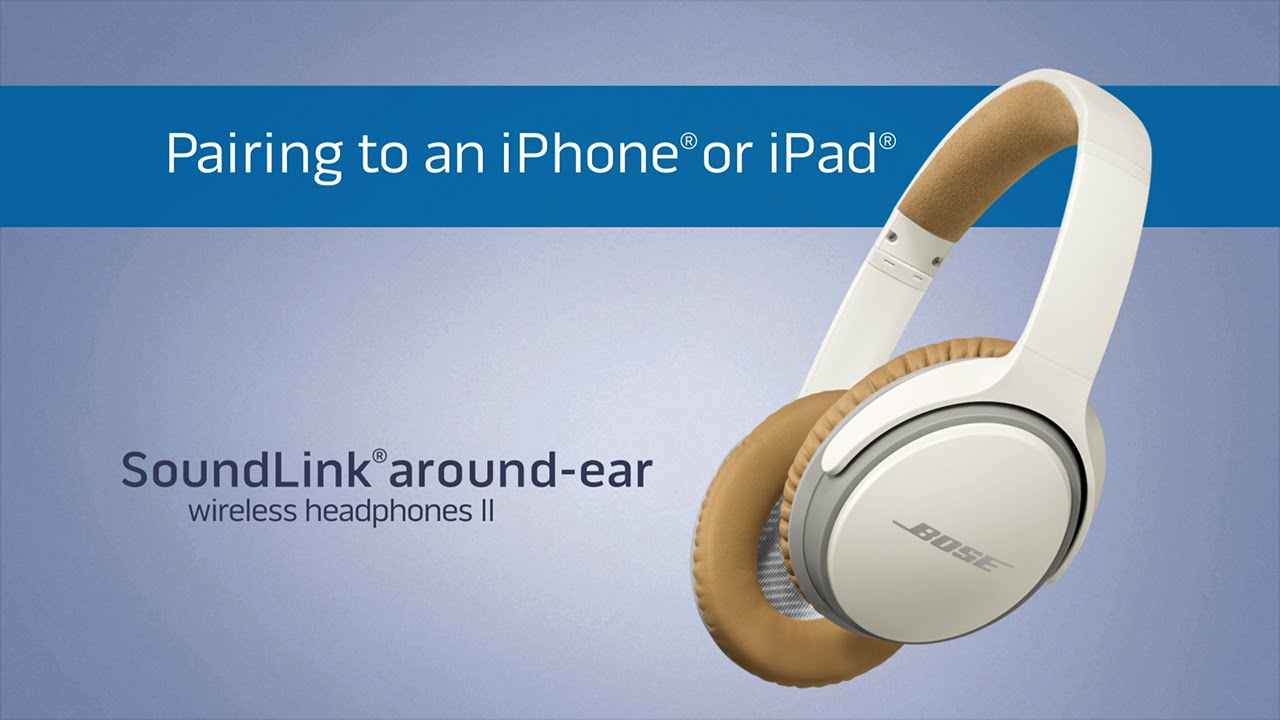
How to Connect Bose Headphones to iPad
The standard Bluetooth method works for most Bose wireless headphones and earbuds. Follow these steps in order.
Turn on your Bose headphones.
Find the Power or Bluetooth switch on the headphones.
Move and hold the switch toward the Bluetooth symbol for about 3 seconds. On some models, press and hold the Bluetooth button instead.
Wait for the voice prompt or light that says the headphones are ready to connect. The indicator usually flashes blue or shows a similar pairing signal.
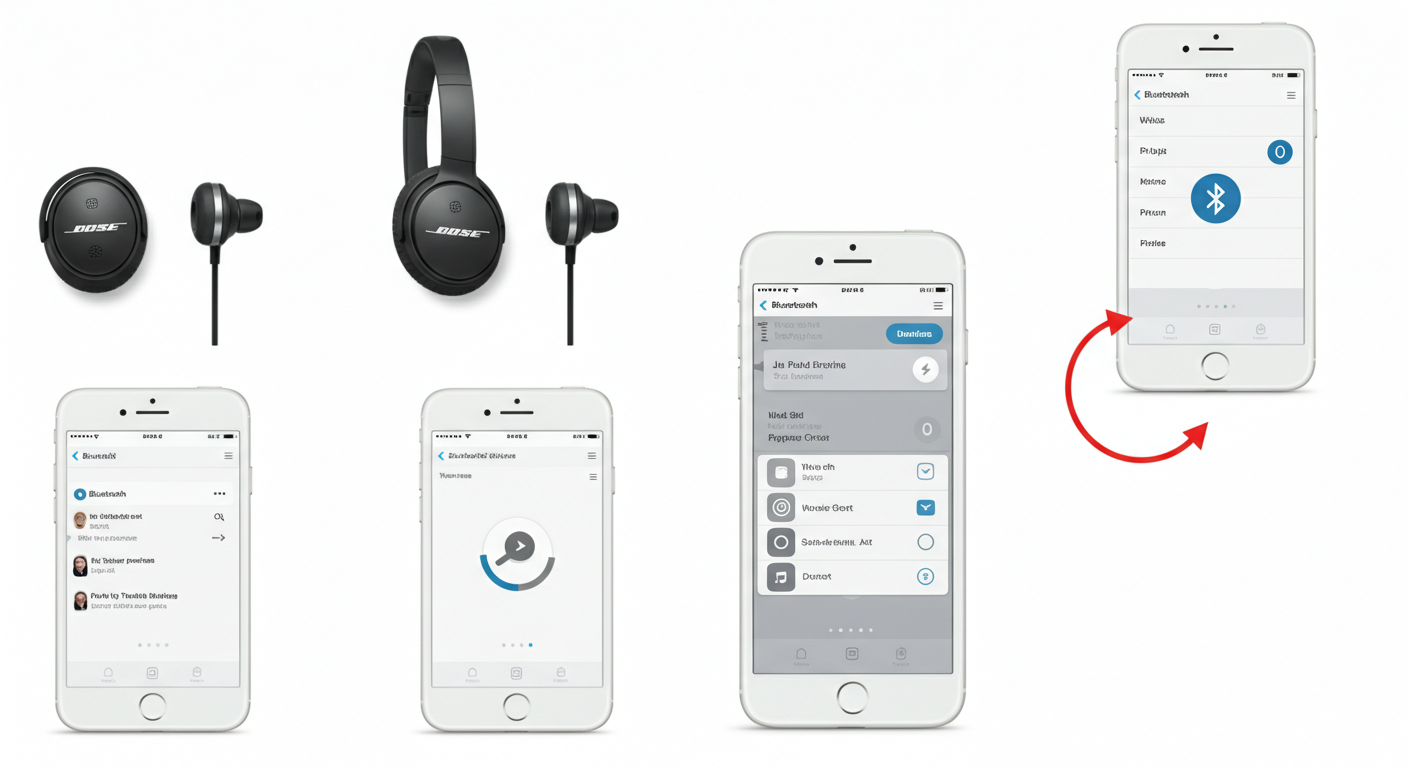
Open Settings on your iPad.
Tap Bluetooth.
Turn on the Bluetooth switch if it is off.
Look under Other Devices.
Tap the name of your Bose headphones.
Wait until the device appears under My Devices and shows Connected.
Your Bose headphones should now play sound from the iPad. Open a video or song to test them. If you connect Bose headphones to iPad for the first time, the iPad may take a few seconds to complete the setup.
Some Bose models use a slider instead of a button. Hold the slider in the Bluetooth position until the light flashes. Do not release it after a quick tap, because a short press may only turn the headphones on.

How to Pair Bose Headphones With the Bose App
The Bose app is optional. You can connect Bose headphones to iPad through the Bluetooth menu without installing anything. However, the app can help with updates, sound settings, device names, and connection management.
To use the Bose app:
Open the App Store on your iPad.
Search for the official Bose app.
Install and open the app.
Sign in or continue without an account, if that option appears.
Allow Bluetooth access when iPadOS requests it.
Select your Bose headphones from the list.
Follow the on-screen pairing instructions.
The app does not replace iPad Bluetooth. It works with Bluetooth to find and manage the headphones. If the app cannot find your device, first connect Bose headphones to iPad through Settings, then reopen the app.
A firmware update may improve stability, but it can take several minutes. Keep the headphones charged and near the iPad during the update. Avoid closing the app or turning off either device until the update finishes.

How to Connect Bose Headphones to iPad After Pairing
After the first setup, your Bose headphones should reconnect automatically. Turn on the headphones, open Bluetooth on the iPad, and wait a few seconds.
If they do not reconnect, use this method:
Open Settings on the iPad.
Tap Bluetooth.
Find your Bose headphones under My Devices.
Tap the device name.
Wait for the Connected label.
You can also open Control Center by swiping down from the top-right corner of the iPad. Press and hold the audio control, tap the AirPlay icon, and choose your Bose headphones.
This shortcut is useful when your iPad is connected to more than one audio device. For example, it may send sound to an Apple TV, speaker, or wired adapter instead of your Bose headphones.
If the headphones connect but no sound plays, check the audio output first. The Bluetooth label can say Connected even when another device is selected for sound.

How to Fix Bose Headphones That Will Not Connect to iPad
When you cannot connect Bose headphones to iPad, start with the easiest fixes. Most issues do not mean the headphones are damaged.
Put the headphones back into pairing mode
Turn the headphones off. Turn them on again, then hold the Bluetooth button or switch until the light flashes and the voice prompt announces pairing mode.
This step matters because headphones may connect only to a known device when they start normally. Pairing mode makes them visible to a new iPad.
Remove the old Bluetooth connection
If the Bose headphones appear on the iPad but will not connect, remove the saved record.
Open Settings.
Tap Bluetooth.
Tap the information button next to the Bose device.
Tap Forget This Device.
Confirm the choice.
Then place the Bose headphones in pairing mode and select them again under Other Devices.
Disconnect other devices
Bose headphones often remember several devices. They may try to connect to a nearby phone or computer before the iPad can respond.
Temporarily turn off Bluetooth on nearby devices. You can also move away from a laptop or phone that has used the headphones recently. Once the iPad connects, you can turn Bluetooth back on elsewhere.
Restart both devices
Turn off the Bose headphones and restart the iPad. This clears small Bluetooth errors and refreshes the wireless connection.
On most iPads without a Home button, press and hold the top button with either volume button. Slide to power off, wait a few seconds, and turn the iPad back on.
Reset network settings as a last resort
If Bluetooth remains unreliable, reset the iPad’s network settings. Go to Settings, tap General, choose Transfer or Reset iPad, tap Reset, and select Reset Network Settings.
This removes saved Wi-Fi networks, VPN settings, and Bluetooth connections. It does not erase photos, apps, or personal files. You will need to pair Bose headphones to iPad again afterward.

What to Do When Bose Headphones Keep Disconnecting
A Bose connection may drop because of distance, interference, low battery, or an outdated device. Wireless headphones work best when the iPad and headphones have a clear path between them.
Try these solutions:
• Keep the iPad within about 30 feet in an open space. Walls, metal objects, and busy wireless areas can reduce range.
• Charge both the iPad and Bose headphones.
• Close apps that use heavy wireless or audio features, then test again.
• Install available iPadOS and Bose firmware updates.
• Avoid placing the iPad inside a bag surrounded by metal items.
• Forget the headphones and pair them again.
Bluetooth audio can also pause when another device takes control. If the headphones disconnect each time you open a phone, tablet, or laptop, turn off Bluetooth on that device and test the iPad alone.
In my own troubleshooting tests, forgetting the headphones and pairing them again fixed more connection issues than repeatedly tapping the device name. Think of it as giving both devices a clean introduction instead of asking them to remember a confusing conversation.

How to Improve Bose Headphone Sound on iPad
Once you connect Bose headphones to iPad, you can adjust the listening experience through the Bose app and iPad settings.
For better sound:
• Use the Bose app to adjust noise cancellation, aware mode, or equalizer settings when your model supports them.
• Check the iPad volume with the side buttons or Control Center.
• Keep the headphones fitted correctly. A poor seal can make bass sound weak and outside noise seem louder.
• Turn off audio enhancements if music sounds harsh or unnatural.
• Check whether the app or streaming service has its own volume control.
For calls, make sure the Bose headphones are selected as the microphone and speaker. During a FaceTime or other supported call, tap the audio button and choose the Bose device.
Some apps may continue using the iPad microphone. That behavior depends on the app and iPadOS, not always on the headphones. Test a call in another app before assuming the Bose headphones are faulty.

Can You Connect Bose Headphones to iPad and iPhone at the Same Time?
Many newer Bose headphones support multipoint connections. This feature lets the headphones stay connected to two devices, such as an iPad and iPhone.
However, multipoint behavior varies by model and firmware. Some headphones may pause iPad audio when an iPhone receives a call. Others may connect to only one device for active sound at a time.
To manage this:
Connect the headphones to the first device.
Connect them to the second device.
Open the Bose app if your model supports connection management.
Select or remove devices from the connection list.
If switching becomes unreliable, disconnect the headphones from the second device while using the iPad. A single active connection is often more dependable for movies, online classes, and long listening sessions.
Common Mistakes to Avoid
Knowing how to connect Bose headphones to iPad also means knowing what not to do. These mistakes are easy to make.
• Tapping the Bose name before pairing mode is active. The iPad cannot connect to a device it cannot discover.
• Pairing while the headphones are connected to another device. The headphones may ignore the iPad.
• Holding the Bluetooth switch for too long. On some models, this can start a reset instead of normal pairing.
• Installing unofficial companion apps. Use the official Bose app from the App Store.
• Resetting the entire iPad too soon. Forgetting the Bluetooth device usually solves the problem first.
• Assuming Connected means sound is playing. Always check the audio output selector.
If the headphones never appear on any device, charge them fully and inspect the charging cable or case. If they still fail, check the model’s manual or contact Bose support. Bluetooth problems can come from hardware, and software steps cannot fix a damaged radio or battery.
How to Connect Bose Headphones to iPad for Different Uses
The basic pairing steps stay the same, but the best settings depend on how you use the headphones.
Watching movies
Choose a stable connection and keep the iPad near you. If audio and video become out of sync, pause the movie, disconnect, and pair again. App updates can also resolve playback delays.
Taking online classes
Charge the headphones before class. Test the microphone and speaker in the class app. If possible, join the class a few minutes early so you have time to choose the Bose device as the audio output.
Making FaceTime calls
Connect Bose headphones to iPad before starting the call. During the call, open the audio menu and confirm that the Bose headphones are selected. Speak near the microphone area for clearer voice pickup.
Listening while traveling
Noise cancellation can make flights and public transit more comfortable. Keep the headphones charged, because some features may change when the battery is very low. Downloaded media also helps when Wi-Fi is weak.
Frequently Asked Questions
Can I connect Bose headphones to any iPad?
Most Bose Bluetooth headphones work with iPads that support Bluetooth audio. Very old iPad models may have limited compatibility, so update iPadOS when possible and check the headphone model’s requirements.
Why are my Bose headphones not showing up on my iPad?
The headphones may not be in pairing mode, or they may still be connected to another device. Turn off Bluetooth on nearby devices, place the headphones in pairing mode, and look again under Other Devices.
How do I connect Bose headphones to iPad without the Bose app?
Open Settings, tap Bluetooth, turn Bluetooth on, and select the Bose headphones when they appear. The Bose app is helpful for updates and settings, but it is not required for basic audio.
Can I use Bose headphones with an iPad for FaceTime?
Yes. Bose headphones can usually provide both speaker audio and microphone input during FaceTime. Select the headphones from the call’s audio menu if the iPad does not switch automatically.
How do I disconnect Bose headphones from my iPad?
Open Settings, tap Bluetooth, and tap the connected Bose device. Choose Disconnect for a temporary break, or choose Forget This Device if you want to remove the saved pairing.
Why do my Bose headphones connect but have no sound?
The iPad may be sending audio to another output, such as its built-in speakers or an Apple TV. Open Control Center, tap the AirPlay audio icon, and choose your Bose headphones.
How many Bose headphones can connect to an iPad?
An iPad can remember multiple Bluetooth devices, but it normally sends audio to one Bluetooth headphone or speaker at a time. You can switch between saved devices from the Bluetooth or AirPlay menus.
Conclusion
Learning how to connect Bose headphones to iPad takes only a few steps: turn on pairing mode, open Settings, choose Bluetooth, and select the Bose device. If the connection fails, forget the old pairing, disconnect nearby devices, restart both products, and try again.
Keep the headphones charged, install trusted updates, and check the audio output when sound does not play. Try these steps now, then share your experience or explore more Bose and iPad setup guides for smoother wireless listening.
