

Turn on Bluetooth, put your skullcandy headphones in pairing mode, then select them in your iPhone’s Bluetooth menu.
Learning how to connect Skullcandy headphones to iPhone is simple once you know the correct button sequence. I have tested this process across common Skullcandy earbuds and wireless headphones, and the same basic steps work for most models. This guide covers first-time pairing, reconnection, pairing problems, sound issues, and helpful settings that make daily use easier.

How to connect Skullcandy headphones to iPhone
Most Skullcandy headphones use Bluetooth, so you do not need a special app for the first connection. Your iPhone only needs Bluetooth turned on, while the headphones must be switched on and placed in pairing mode.
Follow these steps:
- Charge your Skullcandy headphones or earbuds for a few minutes.
- Keep the headphones close to your iPhone.
- Open the Settings app on your iPhone.
- Tap Bluetooth.
- Turn on the Bluetooth switch.
- Put your Skullcandy headphones into pairing mode.
- Wait for the Skullcandy device name to appear under Other Devices.
- Tap the device name.
- Wait until the status changes to Connected.
After pairing, play a song or video to test the connection. You should hear sound through the headphones instead of the iPhone speaker.
The device name may include the model name, such as “Crusher,” “Dime,” “Jib,” “Rail,” “Sesh,” or “Push.” Some models may show a longer product name or a name created by a previous owner.

How to put Skullcandy headphones in pairing mode
Pairing mode makes your headphones visible to nearby devices. Without it, your iPhone may not find them, even when Bluetooth is working correctly.
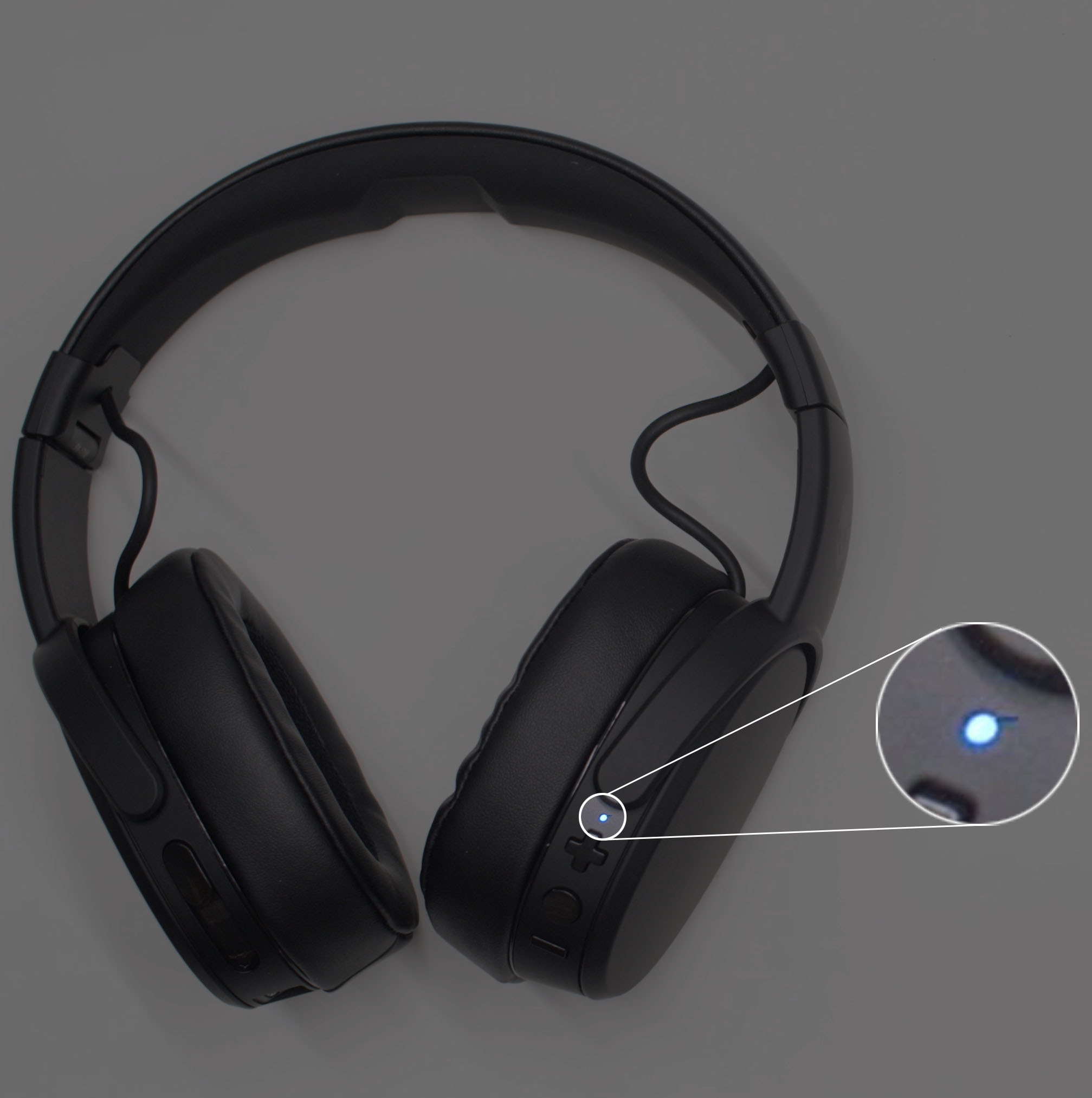
For many Skullcandy wireless headphones, press and hold the power button for several seconds. A voice prompt may say “Pairing,” or the LED may flash red and blue, blue and white, or another color pattern.
For Skullcandy true wireless earbuds, the steps can vary:
• Remove both earbuds from the charging case.
• Press and hold the main button or touch control on one or both earbuds.
• If the earbuds do not enter pairing mode, place them back in the case and remove them again.
• Hold the control until the LED begins flashing or you hear a pairing prompt.
Some newer earbuds enter pairing mode automatically when first removed from the case. If they have already connected to another phone, automatic pairing may not start. In that case, disconnect them from the old phone or reset the earbuds.
Do not tap the device name repeatedly. Wait a few seconds between attempts. Bluetooth discovery can take a short time, especially when several wireless devices are nearby.
How to connect Skullcandy earbuds to iPhone
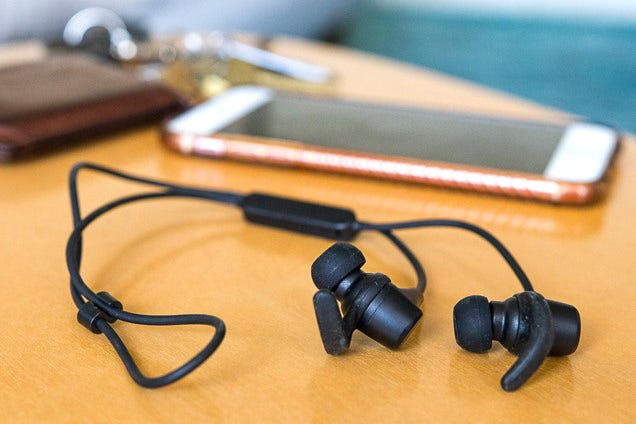
Connecting Skullcandy earbuds to an iPhone follows the same Bluetooth process, but the earbuds often need extra attention because each bud has its own battery and wireless connection.
Start by placing both earbuds in the charging case. Make sure the case has power. Then open the lid and remove the earbuds. If they do not flash or announce pairing mode, press and hold their controls until the pairing signal begins.
Next, open Settings > Bluetooth on your iPhone. Select the Skullcandy earbuds from the device list. Once connected, place the earbuds in your ears and test both sides.
If only one earbud works, the buds may not be synced with each other. Place both earbuds in the case, close the lid, wait about 10 seconds, and try again. If that fails, follow the reset instructions for your exact model because the button sequence differs between products.
The Skullcandy app can add features such as sound controls, firmware updates, and device settings on supported models. It is useful, but it is not normally required to connect Skullcandy headphones to iPhone.

How to reconnect Skullcandy headphones to iPhone
After the first successful pairing, your Skullcandy headphones should reconnect automatically when both devices are nearby. Turn on the headphones, unlock your iPhone, and wait a few seconds.
If they do not reconnect, check these points:
• Open Settings > Bluetooth and confirm Bluetooth is on.
• Make sure the headphones have enough battery power.
• Tap the Skullcandy device name under My Devices.
• Turn the headphones off and on again.
• Keep the headphones within about 30 feet of the iPhone in an open area.
Walls, metal objects, busy wireless areas, and other Bluetooth connections can reduce reliability. In daily use, I have found that simply putting earbuds back in their case and removing them again often fixes a failed reconnection.
Your iPhone usually remembers paired accessories. You should not need to repeat the full pairing process every time unless the headphones were reset, removed from the Bluetooth list, or connected to another device.
How to fix Skullcandy headphones that do not appear on iPhone
If your Skullcandy headphones do not appear in the Bluetooth list, the headphones may not be in pairing mode. This is the most common cause.
Try this basic checklist:
- Turn Bluetooth off on the iPhone.
- Turn the Skullcandy headphones off.
- Wait 10 seconds.
- Turn Bluetooth back on.
- Put the headphones into pairing mode.
- Search for the device again.
Also check whether the headphones are connected to another phone, tablet, laptop, or television. Bluetooth headphones often reconnect to the last device they used. Turn off Bluetooth on nearby devices for a moment, then try pairing with the iPhone again.
If the battery is very low, the headphones may power on but fail to broadcast a stable pairing signal. Charge both the headphones and, for earbuds, the charging case before trying again.
Updating your iPhone can also help. Apple regularly improves Bluetooth support through iOS updates. Open Settings > General > Software Update to check for an available update.

How to fix Skullcandy headphones connected but with no sound
Sometimes the iPhone shows the headphones as connected, but audio still comes from the phone. This is usually an output selection problem rather than a failed Bluetooth connection.
While playing music or a video, open Control Center. On Face ID iPhones, swipe down from the upper-right corner. On iPhones with a Home button, swipe up from the bottom. Tap the audio output button and select your Skullcandy headphones.
You can also check the active output from the Lock Screen media controls. Confirm that the Skullcandy device is selected instead of iPhone Speaker.
If calls work but music does not, inspect the Bluetooth device settings:
- Open Settings.
- Tap Bluetooth.
- Tap the information button beside the Skullcandy device.
- Check that the connection is active for audio.
Some headphones support separate media and call functions. A temporary Bluetooth error can also cause one audio type to work while another fails. Restarting the iPhone and reconnecting the headphones often clears the issue.

How to forget and reconnect Skullcandy headphones
Removing the Bluetooth record can solve repeated connection failures, incorrect device names, and connection loops. This process is often called forgetting a device.
On your iPhone:
- Open Settings.
- Tap Bluetooth.
- Find your Skullcandy headphones under My Devices.
- Tap the information button.
- Choose Forget This Device.
- Confirm the choice.
- Put the headphones into pairing mode.
- Select them again from Other Devices.
Forgetting a device does not damage the headphones. It only removes the saved connection from the iPhone. You can pair them again whenever you want.
This was one of the most useful fixes I learned when testing wireless audio. Repeatedly tapping Connect rarely helps if the saved Bluetooth profile is damaged. Removing the old profile gives the iPhone and headphones a clean start.
How to reset Skullcandy headphones
A factory reset may help when your headphones refuse to pair, connect to the wrong device, or play sound through only one earbud. However, reset instructions vary by model.
Common reset methods include:
• Holding the power and volume buttons together.
• Holding the main earbud controls for several seconds.
• Removing the earbuds from the case and tapping a control a specific number of times.
• Holding both earbuds’ buttons while they are outside the case.
Do not assume that one Skullcandy reset method works for every product. Check the manual or official support instructions for your exact model. A reset may erase paired devices, custom settings, and saved connections.
After resetting, forget the old Skullcandy entry on your iPhone. Then restart the headphones and pair them as if they were new. This order matters because the iPhone may otherwise try to use an outdated connection record.
How to improve the Bluetooth connection
A strong Bluetooth connection depends on more than distance. Your phone and headphones must also have enough power and a clear wireless environment.
Use these practical tips:
• Keep your iPhone and headphones on the same side of your body when possible.
• Avoid placing the iPhone inside a crowded bag or behind thick objects.
• Keep the headphones away from strong wireless equipment.
• Close unused audio apps if playback behaves strangely.
• Keep iOS and the Skullcandy firmware up to date.
• Clean charging contacts if the earbuds do not charge evenly.
• Charge both earbuds fully before testing sound problems.
Bluetooth is designed for short-range use. It usually works well across a room, but performance can drop when your body, walls, or other electronics block the signal. Water and heavy physical barriers can also affect wireless performance.
Battery level matters too. Low power can create brief dropouts, delayed controls, or sudden disconnections. A full charge is a simple step, but it prevents many false troubleshooting diagnoses.
Using the Skullcandy app with an iPhone
Supported Skullcandy headphones may work with the Skullcandy mobile app. The app can provide extra controls, equalizer options, firmware updates, and information about battery status.
First, connect the headphones through the iPhone’s Bluetooth settings. Then open the app and follow its setup instructions. If the app cannot find the headphones, confirm that the headphones already appear as connected in Settings > Bluetooth.
The app does not replace Bluetooth pairing. Think of Bluetooth as the road between your iPhone and headphones, while the app is an optional control panel beside that road.
App features depend on the model. Older or simpler Skullcandy products may support Bluetooth audio but offer limited app functions. This is normal and does not mean the headphones are defective.
iPhone settings that affect Skullcandy audio
Your iPhone includes several settings that can change the listening experience. These settings are useful when sound is too quiet, unbalanced, or routed incorrectly.
Check the following areas:
• Settings > Sounds & Haptics: Adjust alert and system sound behavior.
• Settings > Accessibility > Audio & Visual: Check the left and right balance slider.
• Settings > Music: Review volume limits and audio options.
• Control Center: Confirm the correct audio output.
• Settings > Bluetooth: View connection status and device options.
If sound plays only on the left or right side, make sure the balance slider is centered. Also inspect the earbud speaker grilles for dust or debris. Clean them gently with a dry, soft brush. Avoid pushing liquid or sharp objects into the earbuds.
Some audio apps have their own volume controls. Raise the iPhone volume while the headphones are connected, then adjust the app volume if needed.
Common mistakes when pairing Skullcandy headphones
The pairing process is easy, but a few habits create avoidable problems.
One common mistake is opening the iPhone Bluetooth menu without putting the headphones into pairing mode. Being powered on is not always enough. The headphones must be discoverable.
Another mistake is pairing with a device name that belongs to someone else’s headphones. Check the model name and wait for your own device to appear. If you are in a home or office with many Bluetooth products, temporarily turn off nearby headphones.
Do not keep trying to pair while the headphones are connected to a laptop. Disconnect them from the laptop first. Many Skullcandy models remember the last device and may connect to it before the iPhone has a chance.
Finally, avoid resetting the headphones as your first step. Start with charging, pairing mode, and Bluetooth settings. A reset is useful, but it should be reserved for persistent problems.
Frequently asked questions about how to connect Skullcandy headphones to iPhone
Why will my Skullcandy headphones not connect to my iPhone?
The headphones may not be in pairing mode, may be connected to another device, or may have a low battery. Turn off Bluetooth on nearby devices, charge the headphones, and pair them again through Settings > Bluetooth.
Do I need the Skullcandy app to connect headphones to an iPhone?
No. You can connect most Skullcandy headphones directly through the iPhone Bluetooth menu. The app is optional and adds features on supported models.
How do I put Skullcandy earbuds into pairing mode?
Place the earbuds in the case, remove them, and press or hold their controls until the LED flashes or a voice prompt announces pairing mode. The exact method differs by model, so check the instructions for your earbuds if this does not work.
Why are my Skullcandy headphones connected but not playing sound?
Your iPhone may be using its speaker or another audio device as the output. Play media, open the audio output menu in Control Center, and select your Skullcandy headphones.
Can Skullcandy headphones connect to an iPhone and another device?
Some Skullcandy models support multipoint or similar connection features, while others connect to one device at a time. Check your model’s specifications and disconnect other devices if pairing becomes unreliable.
How do I remove Skullcandy headphones from my iPhone?
Go to Settings > Bluetooth, tap the information button beside the Skullcandy device, and choose Forget This Device. You can pair the headphones again later as a new Bluetooth accessory.
Conclusion
Connecting Skullcandy headphones to an iPhone usually takes only a few steps: charge the headphones, enable Bluetooth, enter pairing mode, and select the device name. If the connection fails, check for another connected device, forget the old Bluetooth record, and reset the headphones only when necessary.
Once you know how to connect Skullcandy headphones to iPhone, everyday listening becomes much easier. Try the steps with your exact Skullcandy model, keep the firmware and iOS updated, and share your experience or questions in the comments.
