How To Connect Raycon Earbuds To iPhone: Easy Guide
Introduction
To connect Raycon earbuds to an iPhone in the United States, turn on Bluetooth, place the earbuds in pairing mode, and select them from the iPhone’s Bluetooth list. Most Raycon models connect in less than a minute and do not need a separate app.
These steps work for common models such as the Everyday Earbuds, Fitness Earbuds, Impact Earbuds, and other Bluetooth Raycon products. Button names and pairing sounds may vary by model, so check the quick-start guide if your earbuds do not respond as described.
What You Need Before Pairing
You need three things:
- An iPhone with Bluetooth turned on
- Raycon earbuds with some charge
- The earbuds and charging case close to the iPhone


Keep the earbuds within a few feet of the phone during setup. Also, turn off Bluetooth on nearby phones, tablets, or computers that have used the Raycon earbuds before. The earbuds may try to reconnect to the old device instead of appearing on your iPhone.
Raycon earbuds use Bluetooth to send sound from the iPhone to the earbuds. Bluetooth pairing creates the first connection. After that, the earbuds may connect on their own when you remove them from the case.
Check the earbud charge
Place both earbuds in the charging case for at least a few minutes. Make sure the charging contacts are clean and that the case itself has power.
If one earbud does not light up, remove it and place it back in the case. A poor contact can stop one side from charging or entering pairing mode.
Turn off unwanted connections
If the earbuds are connected to another device, disconnect them there first. You can also turn off Bluetooth on that device for a moment.
This step matters because many Raycon earbuds automatically reconnect to the last device they used. That can make it seem as if your iPhone cannot find them.

How to Pair Raycon Earbuds With an iPhone
Follow this order for the most reliable setup.
1. Open Bluetooth settings on your iPhone
- Open Settings.
- Tap Bluetooth.
- Turn on the Bluetooth switch.
- Keep this screen open.
You can also turn Bluetooth on from Control Center. However, the Settings screen is better for pairing because it shows the full list of available devices.
2. Put the Raycon earbuds into pairing mode
Take both earbuds out of the charging case. On many Raycon models, the earbuds enter pairing mode automatically when they power on.
If they do not, press and hold the button or touch control on each earbud. Hold it for a few seconds until you hear a pairing sound or see the indicator lights flash.


Some Raycon models use a button on the charging case. If your case has one, open the lid and press the case button as directed in the model’s guide.
Pairing mode means the earbuds are actively looking for a new Bluetooth device. The earbuds may not appear on your iPhone until this mode is active.
3. Select the Raycon name on your iPhone
Under Other Devices, look for a name such as:
- The Everyday Earbuds
- The Fitness Earbuds
- Raycon Earbuds
- A model name listed in the Raycon manual
tap the name. Wait until it moves to the My Devices section and shows Connected.
Do not select a similarly named device unless you know it belongs to your earbuds. If more than one Raycon product is nearby, use the one that appears immediately after you put your earbuds into pairing mode.
4. Test the connection
Play a song or short video. Check that sound comes through both earbuds.
You can also open Control Center, tap the audio output button, and confirm that the Raycon earbuds are selected. If the iPhone connects but sound still plays through the phone, the earbuds may not be the active audio output.
How to Reconnect Raycon Earbuds After the First Setup
After the first pairing, Raycon earbuds usually reconnect when you remove them from the case and turn on Bluetooth on the iPhone.
If they do not reconnect:
- Open Settings > Bluetooth.
- Find the Raycon earbuds under My Devices.
- Tap the name.
- Wait for the status to change to Connected.
If the earbuds show Not Connected, put them back in the case. Close the lid, wait several seconds, then remove them again.
The earbuds may connect to another device first. Turn off Bluetooth on nearby devices if the iPhone keeps missing the connection.
How to check the battery level
On many iPhones, the battery level appears in the Batteries widget after the earbuds connect. You may also see a battery pop-up when you open the Raycon case near the iPhone, although this behavior can vary by model.
The exact battery display may differ between Raycon models and iOS versions. A missing battery percentage does not always mean the Bluetooth connection failed.

Raycon Earbuds Are Not Showing on the iPhone
If your Raycon earbuds do not appear under Other Devices, check the simple causes first.


Restart pairing mode
Put both earbuds back in the charging case. Close the lid, wait about 10 seconds, and open it again. Remove the earbuds and place them into pairing mode.
If the earbuds have physical buttons, press and hold them according to the Raycon model instructions. If they use touch controls, hold the touch area rather than tapping it quickly.
Check the charge
Low power can prevent the earbuds from entering pairing mode. Charge the case and earbuds before trying again.
Look for charging lights on both earbuds. If only one side lights up, clean the metal contacts with a dry, soft cloth. Do not use water or spray cleaner inside the case.
Move away from other Bluetooth devices
Temporarily turn off Bluetooth on nearby phones, laptops, tablets, smart TVs, and cars. Then search again on the iPhone.
This reduces confusion when several devices are searching for or trying to claim the same earbuds.
Restart the iPhone
Turn the iPhone off and back on. Then open Settings > Bluetooth and try the pairing process again.
A restart can clear a temporary Bluetooth problem without removing saved connections.
Raycon Earbuds Appear but Will Not Connect
If the Raycon name appears but the connection fails, remove the old Bluetooth record and pair again.
- Open Settings > Bluetooth.
- Tap the i button beside the Raycon earbuds.
- Tap Forget This Device.
- Confirm by tapping Forget Device.
- Put the Raycon earbuds into pairing mode.
- Select them under Other Devices.
Forgetting a device removes its saved pairing information from the iPhone. It does not damage the earbuds or erase music from the phone.
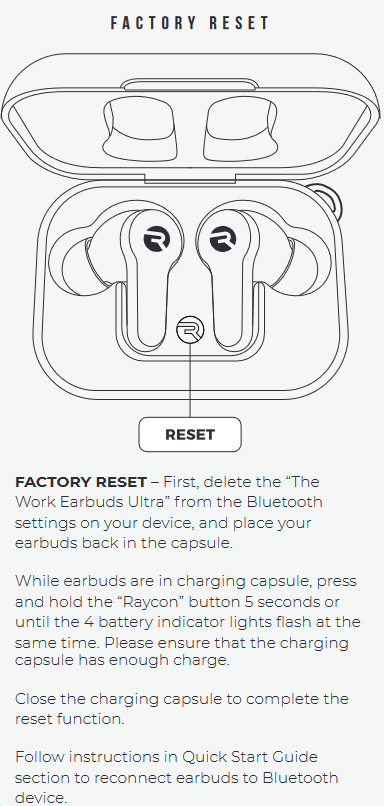
If the earbuds still will not connect, reset them using the instructions for the exact Raycon model. Reset methods differ. Some models require holding both earbud controls, while others use the charging case or a longer button press.
Do not guess at a reset sequence if the model uses touch controls. An incorrect sequence may simply turn the earbuds off or change another setting. Use the model’s Raycon support page or printed guide.

Only One Raycon Earbud Works
One-sided audio often means the earbuds are not synced with each other, rather than a problem with the iPhone.
Try this sequence:
- Put both earbuds in the charging case.
- Make sure both earbuds charge.
- On the iPhone, open Settings > Bluetooth.
- Tap the i beside the Raycon device.
- Choose Forget This Device.
- Remove both earbuds from the case at the same time.
- Reset or resync them using the instructions for your Raycon model.
- Pair the earbuds with the iPhone again.


Also check the iPhone’s audio balance:
- Open Settings.
- Tap Accessibility.
- Tap Audio & Visual.
- Make sure the Balance slider is centered.
If the balance is pushed fully left or right, one earbud may appear to be silent. If one earbud still does not charge or power on after cleaning and charging, the issue may be with that earbud or the case.

Raycon Earbuds Connect but Have No Sound
A Bluetooth connection does not always mean the iPhone has selected the earbuds for audio output.
Open Control Center while the earbuds are connected. Tap the audio output control in the media player, then select the Raycon earbuds.
If you still hear no sound:
- Raise the iPhone’s media volume.
- Check the video or music app’s volume.
- Pause and restart playback.
- Disconnect other Bluetooth speakers or headphones.
- Turn the earbuds off and back on.
- Forget and re-pair the earbuds if the problem continues.
For phone calls, check the call’s audio button and select the Raycon earbuds. The iPhone can use the phone speaker even when the earbuds are connected for other audio.

How to Disconnect or Remove Raycon Earbuds From an iPhone
To disconnect the earbuds without deleting the saved pairing:
- Open Settings > Bluetooth.
- Tap the i beside the Raycon earbuds.
- Tap Disconnect, if shown.
You can also place the earbuds in the charging case and close the lid.
To remove the saved connection completely, select Forget This Device. Use this option when you are giving the earbuds to someone else or when repeated pairing errors continue.
For a full iPhone network reset, open Settings > General > Transfer or Reset iPhone > Reset > Reset Network Settings. Use this only as a later troubleshooting step. It removes saved Wi-Fi passwords and other network settings, so it is more disruptive than forgetting the earbuds.
Common Pairing Mistakes to Avoid
The most common mistakes are simple:
- Searching while the earbuds are in the case: Remove them or activate pairing mode first.
- Pairing only one earbud: Use both earbuds during the first setup unless the model guide says otherwise.
- Ignoring an old connection: Disconnect the earbuds from another phone, tablet, or computer.
- Choosing the wrong device name: Select the Raycon entry that appears after pairing mode starts.
- Skipping the charge check: Low battery can stop pairing.
- Resetting without the model guide: Raycon reset steps vary by product.
- Using the Control Center toggle as a full reset: Control Center can disconnect accessories, but it does not erase all saved pairing data.
Raycon earbuds should not need unsafe tools, excessive heat, or liquid cleaners. If the case becomes unusually hot, smells burnt, swells, or shows damage, stop charging and contact Raycon support.


Frequently Asked Questions
Do Raycon earbuds work with an iPhone?
Yes. Raycon earbuds that support standard Bluetooth audio can connect to an iPhone through Settings > Bluetooth. An iPhone does not need a special Raycon app for basic music, video, and call audio.
Why do my Raycon earbuds keep disconnecting from my iPhone?
Possible causes include low battery, distance, interference, or an active connection to another device. Charge the earbuds, keep them near the iPhone, turn off nearby Bluetooth devices, and forget and re-pair the earbuds if needed.
Can I connect Raycon earbuds to an iPhone without the Raycon app?
Yes. Basic Bluetooth pairing does not require the app. If your specific model offers an app, it may provide extra features, but the iPhone’s Bluetooth settings handle the main connection.
How do I make Raycon earbuds discoverable?
Remove the earbuds from the charging case and activate pairing mode. On many models, they enter pairing mode automatically. If they do not, press and hold the earbud or case control as described in the model instructions.
Can I use one Raycon earbud by itself?
Many Raycon models support single-earbud use, but the exact behavior depends on the model. If one earbud will not work alone, resync both earbuds and check the model’s guide.
Conclusion
To connect Raycon earbuds to an iPhone, open Settings > Bluetooth, put the earbuds into pairing mode, and tap their name under Other Devices. If the connection fails, charge both earbuds, stop other Bluetooth connections, forget the old pairing, and try again.
Start with the basic pairing steps. Use a model-specific reset only when simpler checks do not solve the problem.