How To Connect Soundcore Earbuds To Laptop: Easy Guide
To connect Soundcore earbuds to a laptop, turn on Bluetooth, place the earbuds in pairing mode, and select them.
Learning how to connect Soundcore earbuds to laptop devices is simple once you know where pairing mode and Bluetooth settings are located. This guide covers Windows, Mac, and Chromebook laptops, plus fixes for connection errors, sound issues, and earbuds that do not appear in the device list.
How to connect Soundcore earbuds to a Windows laptop
Most Windows 10 and Windows 11 laptops can connect to Soundcore earbuds through Bluetooth. Before you begin, charge the earbuds and place them near the laptop.
Follow these steps to learn how to connect Soundcore earbuds to laptop computers running Windows:


- Put both Soundcore earbuds in the charging case.
- Keep the case open.
- Press and hold the case button for about three seconds.
- Wait for the case light to flash white or blue.
- On your laptop, open the Start menu.
- Select Settings.
- Choose Bluetooth & devices.
- Turn on Bluetooth.
- Select Add device.
- Choose Bluetooth.
- Select your Soundcore earbuds from the list.
- Click Connect.
Some Soundcore models enter pairing mode when you open the case for the first time. If the earbuds do not appear, press and hold the case button until the indicator starts flashing.
Your earbuds may appear under a name such as “soundcore Liberty 4,” “soundcore Life P3,” or “soundcore Space A40.” The exact name depends on the model.

How to connect Soundcore earbuds to a MacBook
The process for how to connect Soundcore earbuds to laptop computers from Apple is also quick. macOS includes Bluetooth support, so you do not need a special adapter unless your Mac has a hardware problem.
Use these steps:
- Place the earbuds in the charging case.
- Open the case lid.
- Press and hold the case button until the status light flashes.
- On your MacBook, select the Apple menu.
- Open System Settings.
- Select Bluetooth.
- Turn Bluetooth on if it is off.
- Find your Soundcore earbuds under Nearby Devices.
- Select Connect.
On older Mac computers, Bluetooth may appear under System Preferences instead of System Settings. The menu names differ, but the basic process remains the same.
After connecting, select the Control Center icon in the macOS menu bar. Choose Sound, then select your Soundcore earbuds as the output device if your Mac continues using its built in speakers.
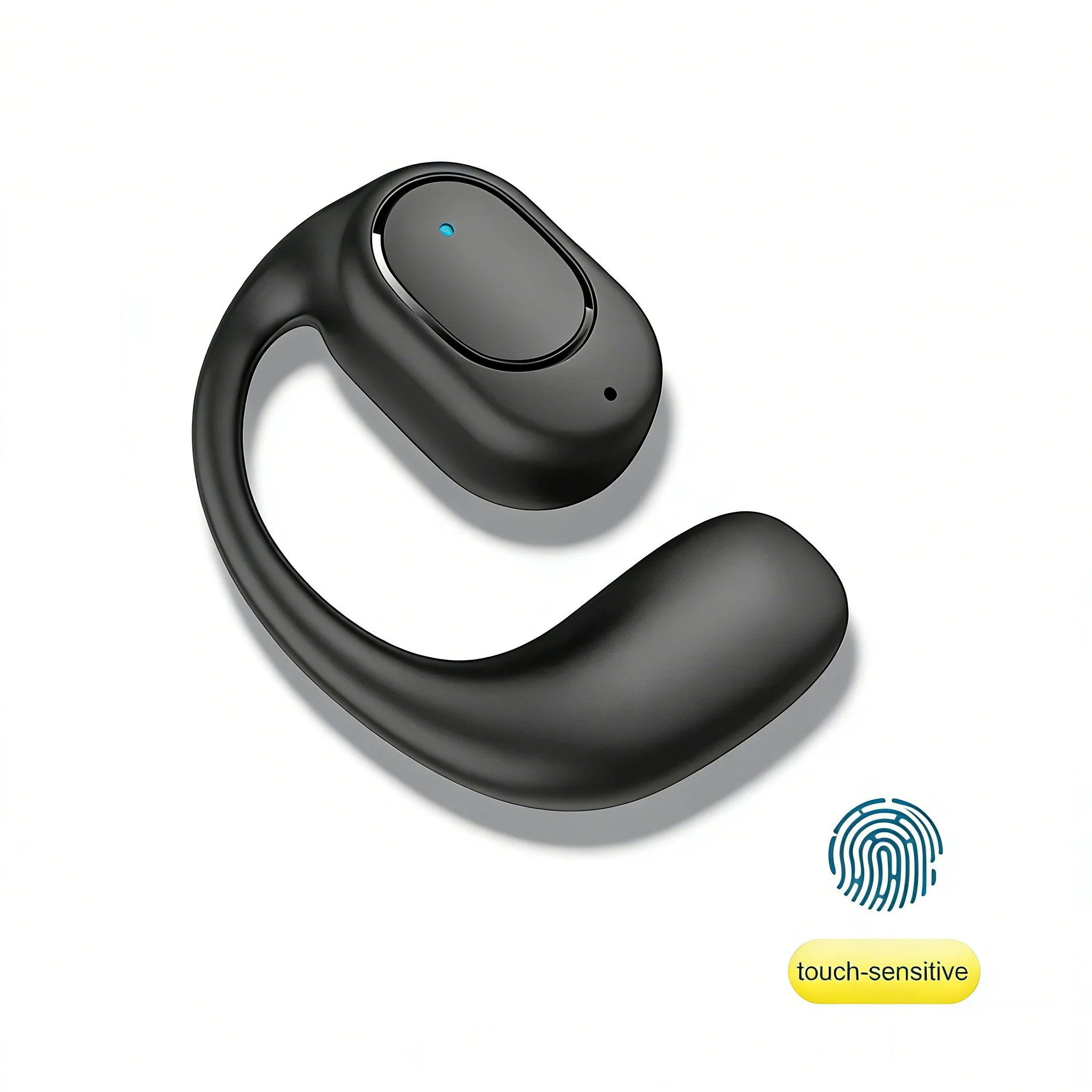
How to connect Soundcore earbuds to a Chromebook
Chromebooks use a simple Bluetooth menu. This makes how to connect Soundcore earbuds to laptop devices with ChromeOS almost as easy as connecting them to a phone.
- Click the clock in the lower right corner.
- Select Bluetooth.
- Turn Bluetooth on.
- Place the Soundcore earbuds in pairing mode.
- Select the earbuds under Unpaired devices.
- Confirm the connection if ChromeOS asks for permission.
If the earbuds were connected to your phone a moment ago, turn Bluetooth off on the phone first. Earbuds often reconnect to the last device they used, which can prevent the Chromebook from finding them.


Once connected, click the clock again and select the audio output menu. Choose your Soundcore earbuds to make sure music, videos, and calls use them.
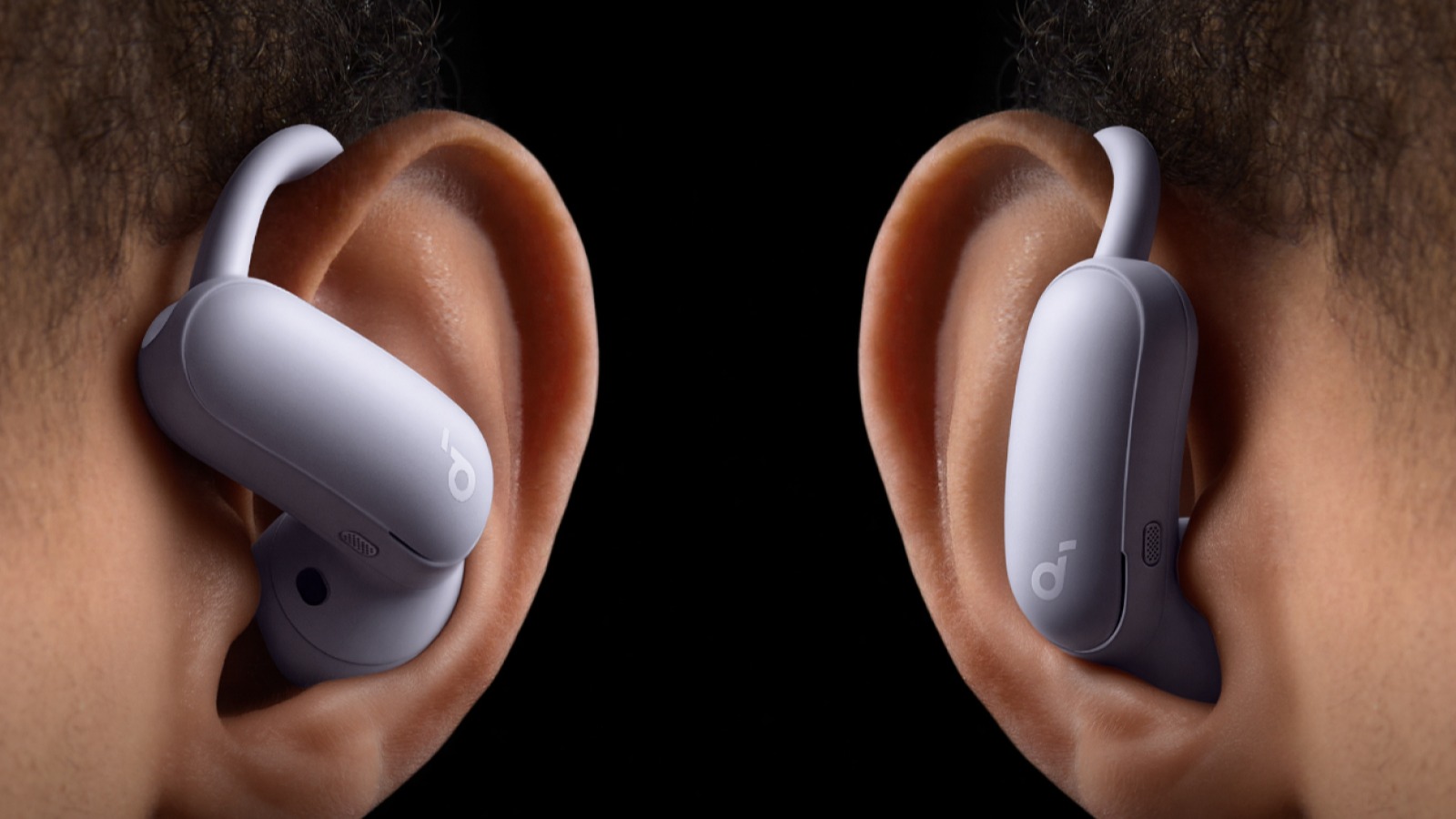
How to put Soundcore earbuds in pairing mode
Pairing mode makes the earbuds visible to a laptop. Without it, your laptop may not detect them, even when Bluetooth is turned on.
For many Soundcore models, the process works like this:
- Put both earbuds into the charging case.
- Leave the lid open.
- Press and hold the case button for three to ten seconds.
- Watch for a flashing white or blue light.
- Open the laptop’s Bluetooth menu.
- Select the Soundcore device.
Some models have touch controls instead of a case button. In that case, place the earbuds in the case, keep the lid open, and follow the pairing instructions for that model.
The light pattern can vary. A flashing light usually means the earbuds are searching for a device. A steady light often means they are charging or already connected.
How to connect Soundcore earbuds to laptop after previous pairing
Once you complete the first connection, the laptop should remember the earbuds. Future connections usually happen when you open the case near the laptop.
If automatic connection does not happen, follow these steps:
- Open the laptop’s Bluetooth settings.
- Find the Soundcore earbuds under Saved devices or Paired devices.
- Select Connect.
- Confirm that the earbuds are outside the case.
- Check that the case and earbuds have enough battery.
You may need to choose the earbuds as the audio output device. On Windows, select the speaker icon in the taskbar and choose the Soundcore earbuds. On macOS, open Control Center, select Sound, and choose the earbuds.
A saved Bluetooth connection is not always an active audio connection. Think of pairing as saving a contact and connecting as making the call.
Soundcore earbuds do not appear on the laptop
If you are still learning how to connect Soundcore earbuds to laptop devices, the most common problem is that the earbuds are not in pairing mode. They may also be connected to another nearby device.
Try these checks:
- Turn Bluetooth off on your phone, tablet, or another nearby computer.
- Put both earbuds in the charging case.
- Close the lid for 10 seconds.
- Open the lid and hold the case button again.
- Restart Bluetooth on the laptop.
- Move the earbuds within a few feet of the laptop.
- Charge the case and earbuds.
- Remove old Soundcore entries from the laptop’s Bluetooth list.
- Restart the laptop.
On Windows, remove the old connection by opening Settings, selecting Bluetooth & devices, choosing the three dot menu beside the earbuds, and selecting Remove device. Then repeat the pairing process.


On a Mac, open Bluetooth settings, select the information button beside the earbuds, and choose Forget This Device. Pair them again afterward.

Soundcore earbuds connect but have no sound
Sometimes how to connect Soundcore earbuds to laptop devices is not the real issue. The earbuds may be connected correctly but not selected as the active speaker.
On Windows:
- Select the speaker icon on the taskbar.
- Open the sound output menu.
- Select your Soundcore earbuds.
- Raise the volume.
- Check the app’s own volume settings.
On a Mac:
- Open Control Center.
- Select Sound.
- Choose your Soundcore earbuds.
- Check the output volume.
- Make sure mute is turned off.
Some laptops show two Bluetooth audio choices. One may say Stereo, while another may say Hands Free or Headset. Stereo mode usually provides better music quality. Hands Free mode may be needed for microphone use but can reduce sound quality.

Soundcore earbuds keep disconnecting
Bluetooth range, low battery, wireless interference, and outdated drivers can cause dropped connections. Walls, USB 3.0 devices, Wi Fi equipment, and crowded office spaces may also affect performance.
Use these practical fixes:
- Keep the laptop and earbuds within about 30 feet in an open area.
- Charge the earbuds above a low battery level.
- Disconnect unused Bluetooth devices.
- Update Windows or macOS.
- Restart the laptop and earbuds.
- Avoid placing the laptop behind a metal object.
- Test the earbuds in another room or location.
- Install the latest Bluetooth driver from the laptop maker.
Bluetooth range is not fixed in every room. The advertised range is measured under controlled conditions, while real homes and offices contain walls and competing signals.

How to reset Soundcore earbuds before pairing
A reset can solve pairing problems when the earbuds connect to a phone but not a laptop. It can also help when an old Bluetooth profile is causing errors.
The reset steps vary by model, but many Soundcore earbuds use a similar process:
- Place both earbuds in the charging case.
- Keep the lid open.
- Press and hold the case button for about 10 seconds.
- Release the button when the indicator flashes several times.
- Remove the old Soundcore entry from the laptop.
- Put the earbuds into pairing mode.
- Connect them again.
Resetting erases stored pairing information. You will need to reconnect the earbuds to your phone, tablet, and laptop afterward.
Check the model guide in the Soundcore app or the product manual before resetting. A few models use a different button combination.

How to improve Soundcore earbud sound on a laptop
After learning how to connect Soundcore earbuds to laptop systems, you can improve the listening experience with a few settings.
First, choose the correct audio mode. Stereo mode is best for music, films, and games. Headset mode is designed for two way communication and may sound narrower.


Next, check the Soundcore mobile app. Many models support an equalizer, noise cancellation, transparency mode, and firmware updates through the app. These settings are usually changed on the phone and then stored on the earbuds.
For video calls, select the Soundcore microphone only when needed. Bluetooth headset mode can lower music quality because the earbuds must send microphone audio back to the laptop.
Using Soundcore earbuds for laptop calls
Soundcore earbuds can work with Zoom, Microsoft Teams, Google Meet, Skype, and other calling apps. You must select them in the meeting app as both the speaker and microphone.
Before joining a call:
- Connect the earbuds to the laptop.
- Open the call app’s audio settings.
- Select the Soundcore earbuds as the speaker.
- Select the Soundcore earbuds as the microphone.
- Run the app’s test call if available.
If the microphone sounds weak, keep the earbuds close to the laptop and reduce background noise. Also check whether the app has permission to use the microphone.
In many cases, selecting the earbuds as the microphone changes them to Bluetooth headset mode. This is normal and explains why music quality may drop during a call.
Common mistakes when connecting Soundcore earbuds
Knowing how to connect Soundcore earbuds to laptop devices is easier when you avoid a few common mistakes.
- Leaving the earbuds connected to a phone.
- Searching for the earbuds before turning on pairing mode.
- Selecting a similarly named device.
- Forgetting to choose the earbuds as the sound output.
- Pairing only one earbud.
- Ignoring a low case battery.
- Using an old Bluetooth driver.
- Resetting the earbuds before removing the old laptop profile.
- Expecting the earbuds to connect to two devices when the model does not support multipoint.
Multipoint support varies by Soundcore model. Some earbuds can stay connected to two devices, while others must switch between devices manually.
In my usual device testing routine, the fastest fix is to turn off Bluetooth on every nearby device, reset the earbuds’ connection, and remove the saved laptop profile. This avoids the common “invisible earbuds” problem without changing advanced computer settings.
Bluetooth adapter requirements for older laptops
Most modern laptops include Bluetooth. Older Windows laptops may not have it, or their Bluetooth hardware may not support current audio features.
To check on Windows:
- Right click the Start button.
- Open Device Manager.
- Look for Bluetooth.
- Expand the Bluetooth section.
- Check for a working adapter.
If Bluetooth is missing, you can use a USB Bluetooth adapter. Choose one that supports Bluetooth audio and works with your version of Windows.
After installing the adapter, restart the laptop and repeat how to connect Soundcore earbuds to laptop devices through Bluetooth settings. Avoid installing random drivers from unknown websites. Use the laptop maker, adapter maker, or Windows Update when possible.
Frequently Asked Questions
How do I connect Soundcore earbuds to a laptop?
Place the earbuds in the case, open the lid, and hold the case button until the light flashes. Then open Bluetooth settings on the laptop and select the Soundcore earbuds.


Why are my Soundcore earbuds not showing up on my laptop?
They may not be in pairing mode, or they may still be connected to a phone. Turn off Bluetooth on nearby devices, reset the earbuds if needed, and search again from the laptop’s Bluetooth menu.
Can Soundcore earbuds connect to a Windows laptop?
Yes. Soundcore earbuds can connect to most Windows 10 and Windows 11 laptops with Bluetooth. Select them from Bluetooth & devices after putting them in pairing mode.
Can I connect Soundcore earbuds to a MacBook?
Yes. Open System Settings, select Bluetooth, and choose the Soundcore earbuds from the available device list. You may also need to select them as the sound output.
Why do my Soundcore earbuds connect but have no sound?
The laptop may still be using its internal speakers. Open the sound output menu and choose the connected Soundcore earbuds.
Can I use Soundcore earbuds as a laptop microphone?
Yes. Select the earbuds as the microphone in Windows, macOS, or your calling app. The earbuds may switch to headset mode, which can reduce music quality during calls.
Do I need the Soundcore app to connect earbuds to a laptop?
No. You can connect them through the laptop’s Bluetooth settings. The Soundcore app is useful for firmware updates, equalizer controls, and model specific features.
Conclusion
How to connect Soundcore earbuds to laptop devices comes down to three steps: place the earbuds in pairing mode, turn on laptop Bluetooth, and select the correct Soundcore name. If the connection fails, disable Bluetooth on nearby devices, remove old pairing records, reset the earbuds, and check the audio output setting.
Once connected, test music, video, and microphone performance separately. Keep the earbuds updated, charge the case, and check your model’s manual for special controls. Try the steps today, then share your experience or explore more Bluetooth audio guides for your devices.