

To connect Raycon earbuds, turn on Bluetooth, open the case, and select your Raycon model from the device list.
Learning how to connect Raycon earbuds is simple once you know the correct pairing order. Most connection problems come from Bluetooth settings, low battery, or earbuds that are still linked to another device. This guide explains the steps for iPhone, Android, Windows, and Mac, plus reliable fixes for pairing issues.
How to Connect Raycon Earbuds for the First Time
Raycon earbuds use Bluetooth to connect with phones, tablets, computers, and other compatible devices. Before you start, charge both earbuds and place them near the device you want to use.
Follow these steps:
- Remove both Raycon earbuds from the charging case.
- Turn on Bluetooth on your phone, tablet, or computer.
- Open the Bluetooth settings menu.
- Look for your Raycon model in the list of available devices.
- Tap or click the Raycon name.
- Wait for the status to show “Connected.”
- Play a song or video to test the sound.
Many Raycon models enter pairing mode automatically the first time you remove them from the case. You may see flashing blue or red and blue lights. The exact light pattern can vary by model, so check the guide that came with your earbuds if the lights look different.
When helping someone connect Raycon earbuds, I usually remind them to keep both earbuds inside the case until Bluetooth is ready. Taking out only one earbud can sometimes make the process less clear, especially during the first setup.

How to Connect Raycon Earbuds to an iPhone
Connecting Raycon earbuds to an iPhone takes less than a minute in most cases. Apple devices use a standard Bluetooth menu, so you do not need a special app for basic audio.
- Open the Settings app on your iPhone.
- Tap Bluetooth.
- Turn Bluetooth on if it is off.
- Open the Raycon charging case.
- Remove both earbuds.
- Find the Raycon model under “Other Devices.”
- Tap the model name.
- Wait until it moves to “My Devices” and says “Connected.”
After pairing, your iPhone should send music, calls, and other audio to the earbuds. If sound still comes from the phone speaker, tap the audio output icon in the media player and choose your Raycon earbuds.
If you have used the earbuds before, they may appear under “My Devices.” Tap the name to reconnect. If the status says “Not Connected,” place the earbuds in the case for a few seconds, take them out again, and try once more.
If your iPhone cannot find the earbuds
Try these simple checks:
• Make sure the earbuds have enough charge.
• Move the earbuds within a few feet of the iPhone.
• Turn Bluetooth off, wait five seconds, and turn it on again.
• Close the charging case, reopen it, and remove both earbuds.
• Disconnect the earbuds from another nearby phone or tablet.
These steps solve many basic pairing problems without requiring a reset.

How to Connect Raycon Earbuds to Android
The process for Android phones is similar, although menu names can differ between Samsung, Google Pixel, Motorola, and other brands.
- Open Settings.
- Select Connected devices, Connections, or Bluetooth.
- Turn Bluetooth on.
- Open the Raycon case and remove the earbuds.
- Tap Pair new device if your phone shows that option.
- Select your Raycon earbuds from the available devices.
- Approve the pairing request if one appears.
Once connected, the earbuds should show as “Connected for calls and audio” or a similar message. You can now open a music app, make a call, or watch a video.
If you are learning how to connect Raycon earbuds on Android, do not rely only on the quick settings panel. The full Bluetooth settings page often shows more details and gives you access to options such as calls, media audio, and device removal.
Android permissions and battery settings
Some Android phones limit background Bluetooth activity to save power. This usually does not stop basic pairing, but it can affect features in a companion app or cause delayed reconnection.
Check that:
• Bluetooth is enabled.
• The Raycon earbuds are allowed to connect for calls and media.
• Battery Saver is not blocking a related Raycon app.
• The phone software is up to date.
Android menus change over time, so the names may not match exactly on every phone.

How to Connect Raycon Earbuds to a Windows PC
Raycon earbuds can connect to a Windows laptop or desktop if the computer supports Bluetooth. Most modern laptops include Bluetooth, while some desktop computers need a small USB Bluetooth adapter.
- Put the Raycon earbuds in pairing mode.
- On Windows, open Settings.
- Select Bluetooth & devices.
- Turn Bluetooth on.
- Click Add device.
- Choose Bluetooth.
- Select your Raycon earbuds.
- Click Done when pairing is complete.
Windows may list the earbuds with their full model name. It may also show separate options for stereo audio and hands-free calling. Choose the stereo option for music and video when available.
If the earbuds connect but sound does not play through them, click the speaker icon in the taskbar. Select the Raycon earbuds as the active output device. For calls, choose them as both the speaker and microphone in the meeting app.
A common mistake is pairing the earbuds with Windows but leaving the computer set to its built-in speakers. The Bluetooth connection can be active even when the wrong audio output is selected.
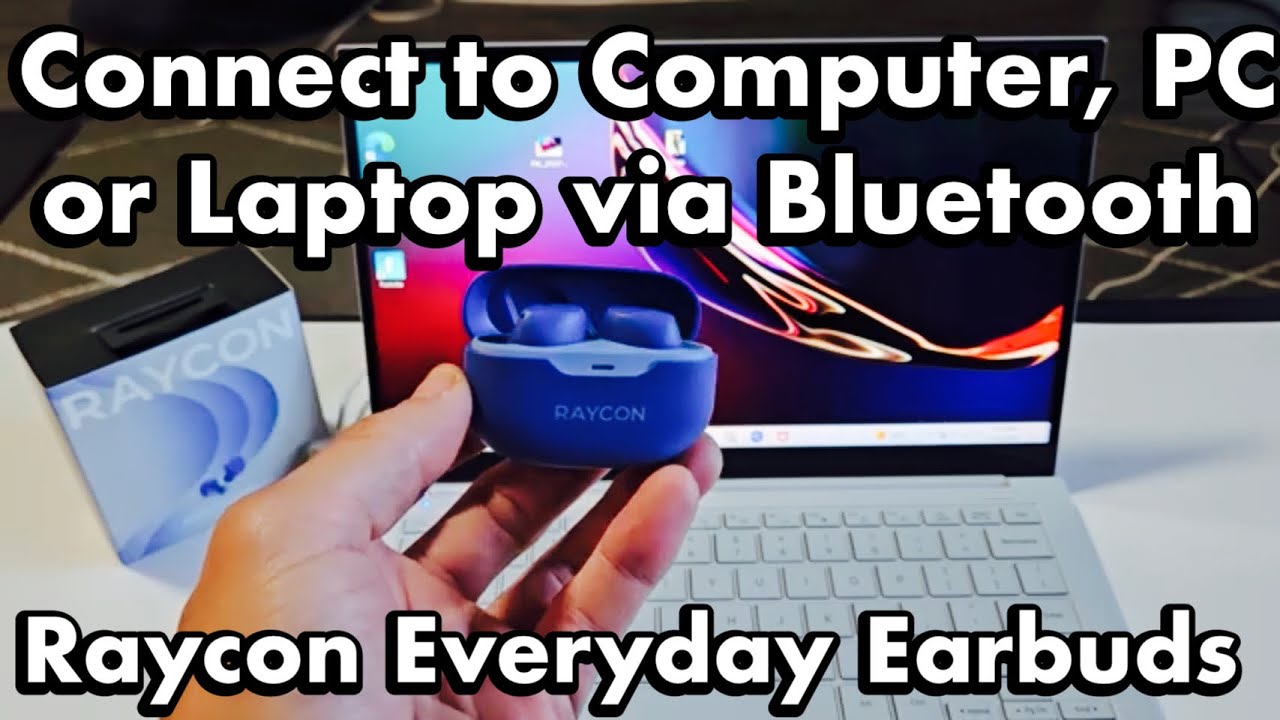
How to Connect Raycon Earbuds to a Mac
Mac computers use the Bluetooth menu in System Settings. The steps are quick and work with most Raycon models.
- Open the Apple menu.
- Select System Settings.
- Click Bluetooth.
- Turn Bluetooth on.
- Open the Raycon charging case.
- Remove both earbuds.
- Find the Raycon model under nearby devices.
- Click Connect.
On older Mac versions, Bluetooth may be inside System Preferences instead of System Settings. The button names can differ, but the basic process remains the same.
After pairing, click the Control Center icon in the menu bar. Select Sound, then choose the Raycon earbuds as the output device. This is useful if your Mac connects to the earbuds but continues playing audio through its built-in speakers.
If you use the earbuds with several devices, the Mac may reconnect automatically when it is the last device used. If it does not, open Bluetooth and click Connect beside the Raycon name.

How to Put Raycon Earbuds in Pairing Mode
Pairing mode makes the earbuds visible to a phone or computer. Most Raycon earbuds enter this mode when you remove them from the case for the first time or after they have been reset.
Try this process:
- Put both earbuds in the charging case.
- Close the lid for about five seconds.
- Open the lid.
- Remove both earbuds at the same time.
- Wait for the indicator lights to flash.
- Open the Bluetooth menu on your device.
- Select the Raycon model.
If the earbuds do not appear, press and hold the touch controls or buttons on both earbuds. The required time differs by model, so avoid holding them for too long if you are not sure whether you are activating a reset.
Pairing mode is not the same as normal use. In pairing mode, the earbuds search for a new device. When they are already connected to a phone nearby, they may stop searching for another device.
How to tell whether pairing mode is active
Signs may include:
• Flashing indicator lights.
• A voice prompt.
• The earbuds appearing under available Bluetooth devices.
• The earbuds disconnecting from the previous device.
Some models use different light colors or patterns. Treat the user manual as the final reference for your specific Raycon model.

How to Reconnect Raycon Earbuds Automatically
After the first successful setup, Raycon earbuds usually reconnect to the last device they used. This saves time and makes daily use easier.
To encourage automatic reconnection:
• Turn on Bluetooth before opening the case.
• Keep the earbuds charged.
• Use the same phone or computer when possible.
• Avoid connecting them to several devices at the same time.
• Select the earbuds manually if they do not reconnect within a few seconds.
Bluetooth range is often around 30 feet in open space, but walls, furniture, metal, and other wireless devices can reduce that distance. For stable audio, keep your phone or computer close to the earbuds.
In everyday use, I find that most failed auto-connections happen because the phone connected to a car system, smartwatch, speaker, or another pair of headphones first. Bluetooth often chooses the most recent or available connection, not always the one you want.
How to Connect Raycon Earbuds to a Second Device
Most Raycon earbuds can remember more than one paired device, but many models do not support active Bluetooth multipoint. This means the earbuds may remember a laptop and phone but connect actively to only one at a time.
To pair a second device:
- Disconnect the earbuds from the first device.
- Place the earbuds in pairing mode.
- Open Bluetooth on the second device.
- Select the Raycon model.
- Confirm the connection.
If the earbuds keep connecting to the first device, turn Bluetooth off on that device temporarily. Then pair with the second one.
For example, turn off Bluetooth on your phone before connecting the earbuds to a work laptop. Afterward, turn Bluetooth back on for the phone and reconnect when you are finished.
This small step prevents the earbuds from jumping between devices during a call or video.
How to Fix Raycon Earbuds That Will Not Connect
When Raycon earbuds will not connect, work through the simplest fixes first. Most problems do not require advanced troubleshooting.
Check the battery
Place both earbuds in the charging case. Confirm that the case and earbuds show signs of charging. Dirty charging contacts can prevent one earbud from charging, which may stop the pair from working correctly.
Wipe the metal contacts gently with a dry, soft cloth. Do not use water or spray cleaner inside the case.
Forget the Bluetooth connection
Old pairing data can become damaged or confused. Remove the earbuds from the device and pair them again.
On iPhone:
- Open Settings.
- Tap Bluetooth.
- Tap the information icon beside the Raycon name.
- Choose Forget This Device.
- Put the earbuds into pairing mode.
- Pair them again.
On Android, open Bluetooth settings, tap the gear icon beside the Raycon name, and choose Forget or Unpair. Windows and Mac also let you remove saved Bluetooth devices.
Restart both devices
Turn Bluetooth off and restart the phone or computer. Place the earbuds in the case, close it, wait several seconds, and then try again.
This clears temporary wireless errors. It is a basic step, but it is often overlooked.
Move away from wireless interference
Wi-Fi routers, crowded public spaces, USB 3.0 devices, and other Bluetooth products can sometimes create interference. Move to a quieter area and keep the earbuds close to the source device.
Reset the earbuds
A reset may remove stored pairing information and return the earbuds to a fresh setup state. The exact reset method depends on the Raycon model. Use the instructions for your model rather than guessing, because button and touch-control steps are not identical across the product line.
Resetting should be the last step after charging, forgetting the device, and restarting have failed.
How to Reset Raycon Earbuds Before Pairing Again
A reset is useful when the earbuds connect to the wrong device, only one earbud works, or the Bluetooth name does not appear. It also helps when the earbuds were previously owned or paired with many devices.
Because Raycon has several product families, reset steps may differ. A common process looks like this:
- Remove the Raycon earbuds from your phone’s Bluetooth list.
- Turn off Bluetooth on nearby devices.
- Place both earbuds in the charging case.
- Remove them together.
- Press or hold the control areas as directed by your model’s guide.
- Return the earbuds to the case.
- Remove them again and pair them as new devices.
Do not assume that a quick tap resets every model. Some earbuds use a long press, while others require a sequence involving the case.
After a reset, the earbuds may no longer remember your phone, tablet, or computer. That is expected. You will need to follow the normal pairing process again.
Why Only One Raycon Earbud Connects
One earbud may fail to connect if it did not charge, lost contact with the other earbud, or entered a separate pairing state. This problem is common after one earbud is removed from the case before the other.
Try these steps:
• Put both earbuds in the case and make sure they charge.
• Clean the charging contacts gently.
• Forget the Raycon connection on your device.
• Turn Bluetooth off on nearby devices.
• Remove both earbuds at the same time.
• Reset and pair the earbuds again if needed.
If one earbud has no light, no sound, or no charging response after these steps, the issue may be hardware-related. Check the warranty and support options before opening the earbud or attempting a repair.
How to Improve Raycon Bluetooth Connection Quality
A good Bluetooth connection depends on more than pairing. Distance, obstacles, battery level, and software can all affect performance.
Use these habits for better results:
- Keep the source device within a reasonable range.
- Avoid covering the earbuds with a phone or thick clothing.
- Charge the earbuds before long listening sessions.
- Keep your phone and computer updated.
- Remove unused Bluetooth connections when the device has trouble choosing the right one.
- Avoid using damaged charging cables or cases.
- Keep the earbuds and case clean and dry.
Bluetooth audio can briefly cut out in busy areas with many wireless devices. This does not always mean the Raycon earbuds are defective. Testing them in another location can help separate interference from a hardware problem.
Also check whether the problem happens with one app or every app. If music works but calls do not, review the call audio settings and microphone permissions on your phone or computer.
Using the Raycon App and Earbud Controls
Some Raycon products may work with a companion app or offer model-specific controls. These features can include battery information, touch-control settings, firmware updates, or product guidance.
The app is not usually required for basic Bluetooth pairing. You can connect Raycon earbuds through the standard Bluetooth menu without installing extra software.
Use the app only when it supports your model and comes from a trusted official source. Keep in mind that features may vary by product, phone operating system, and region.
After connecting, learn the controls for your model. A tap may play or pause audio, while another gesture may answer a call or activate a voice assistant. Exact controls differ, so check the model guide instead of relying on a control chart for another Raycon series.
Safety and Care Tips for Raycon Earbuds
Good care can prevent connection problems and extend battery life. Store the earbuds in their case when you are not using them.
Keep these points in mind:
• Do not place wet earbuds in the charging case.
• Avoid extreme heat, such as a hot car dashboard.
• Use a clean, dry cloth for the case and charging contacts.
• Do not force the earbuds into the case.
• Keep the case charged so the earbuds can reconnect properly.
• Use the correct charging cable and a safe power adapter.
Earbuds are small, so dust and moisture can affect both charging and sound. A quick cleaning routine can be more useful than repeated Bluetooth resets.
If the earbuds become hot, swell, smell unusual, or show physical damage, stop charging and using them. Contact the manufacturer or an authorized service provider.
Frequently Asked Questions About How to Connect Raycon Earbuds
How do I connect Raycon earbuds to my phone?
Turn on Bluetooth, open the Raycon case, and remove both earbuds. Select the Raycon model from the available Bluetooth devices and wait for the connection message.
Why are my Raycon earbuds not showing up on Bluetooth?
Make sure the earbuds are charged and in pairing mode. If they still do not appear, turn Bluetooth off and on, disconnect nearby devices, and reset the earbuds according to the model instructions.
Can I connect Raycon earbuds to an iPhone and Android phone?
You can pair Raycon earbuds with both types of phones, but many models connect actively to only one device at a time. Disconnect the first phone or turn off its Bluetooth before pairing with the second phone.
How do I connect only one Raycon earbud?
Remove the earbud you want to use and select the Raycon device in Bluetooth settings. If it does not work, place both earbuds in the case, reset the pairing data, and try again.
Do Raycon earbuds need an app to connect?
No. Basic Bluetooth pairing does not require an app. A compatible app may provide extra features for certain models, but you can connect the earbuds through your phone, tablet, or computer settings.
How do I reset Raycon earbuds?
First forget the Raycon device in your Bluetooth settings and turn off Bluetooth on nearby devices. Then follow the reset steps for your exact Raycon model, since the button or touch sequence can vary.
Conclusion
Learning how to connect Raycon earbuds usually takes only a few steps: charge them, place them in pairing mode, turn on Bluetooth, and select the correct Raycon name. If the connection fails, forget the old pairing, restart both devices, and reset the earbuds only when simpler fixes do not work.
Keep this guide nearby during setup, and check your model’s instructions for light patterns and reset controls. Try the steps now, then share this guide with anyone who needs help connecting their Raycon earbuds.
