

No, an M.2 SSD usually does not need a SATA cable because it connects directly to the motherboard.
The answer to “do you need a SATA cable for M.2 SSD” depends on the drive type and the hardware in your PC. M.2 describes the drive’s shape, not its connection method. This guide explains the difference between M.2 SATA and M.2 NVMe drives, shows when cables are needed, and helps you avoid common installation mistakes.
Do you need a SATA cable for an M.2 SSD?
In most desktop and laptop installations, you do not need a SATA cable for an M.2 SSD. The drive slides into a matching M.2 slot on the motherboard and is held in place with a small screw.
An M.2 slot provides both data and power. This is different from a 2.5-inch SATA SSD, which needs a SATA data cable and a separate SATA power connector from the power supply.
The important detail is that M.2 is only a physical format. An M.2 SSD may use either:
• SATA technology, which uses the older SATA data protocol
• PCIe technology, usually with the NVMe protocol
Both types can look almost identical. The motherboard must support the same type as the drive.
What is an M.2 SSD?
An M.2 SSD is a small storage drive shaped like a thin circuit board. It connects directly to an M.2 connector instead of using the cables required by a traditional 2.5-inch drive.
M.2 drives come in several lengths. The most common desktop size is 2280, which means the drive is 22 millimeters wide and 80 millimeters long. Shorter sizes, such as 2242 and 2230, are common in laptops and compact devices.
The term M.2 does not automatically mean NVMe. This is one of the most common points of confusion. A drive can be:
• M.2 SATA, which uses SATA communication
• M.2 NVMe, which uses PCIe communication
• M.2 PCIe without NVMe, although this is less common in modern consumer systems
When asking “do you need a SATA cable for M.2 SSD,” first check whether the drive fits an M.2 slot. If it does, the drive normally receives its power and data connection through that slot.
M.2 SATA versus M.2 NVMe
Knowing the difference between M.2 SATA and M.2 NVMe prevents compatibility problems.
M.2 SATA SSD
An M.2 SATA SSD communicates through the SATA interface. It offers speeds similar to a 2.5-inch SATA SSD, often around 500 to 550 MB/s for sequential reads under ideal conditions.
An M.2 SATA drive still installs directly into a compatible M.2 slot. It usually does not need an external SATA cable. However, not every M.2 slot supports SATA drives.
M.2 NVMe SSD
An M.2 NVMe SSD uses PCI Express lanes. It communicates through the NVMe protocol, which was designed for fast flash storage and low delay.
Many PCIe 3.0 NVMe drives can reach several thousand MB/s. PCIe 4.0 and PCIe 5.0 drives can be faster, but the motherboard and processor must support the required PCIe generation.
An NVMe M.2 drive also connects directly to the motherboard. Therefore, the answer to “do you need a SATA cable for M.2 SSD” is still no for a standard internal installation.

When do you need a SATA cable?
You need a SATA cable when installing a 2.5-inch SATA SSD or a 3.5-inch SATA hard drive. These drives do not plug directly into an M.2 slot.
A standard SATA storage setup needs two connections:
• A SATA data cable from the drive to the motherboard
• A SATA power cable from the power supply to the drive
Some modular power supplies use a special power cable that connects to the power supply on one end and provides several SATA power plugs on the other. Never use a modular cable from a different power supply model unless the manufacturer confirms that it is compatible.
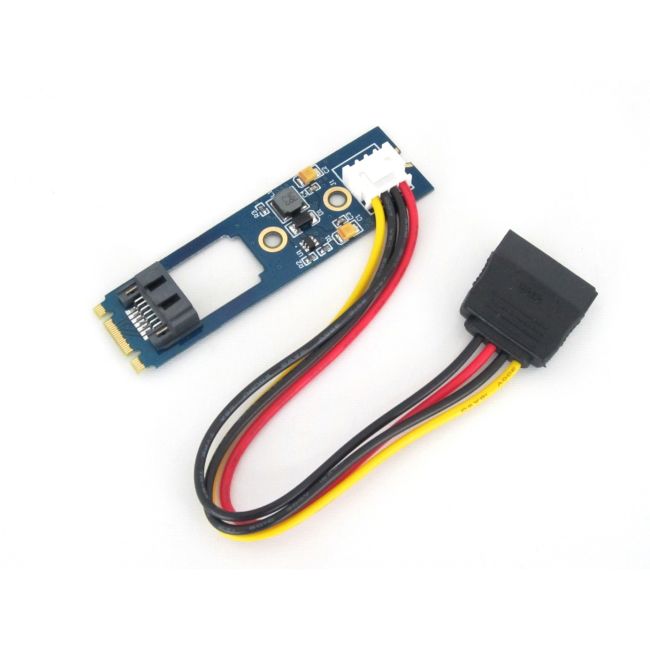
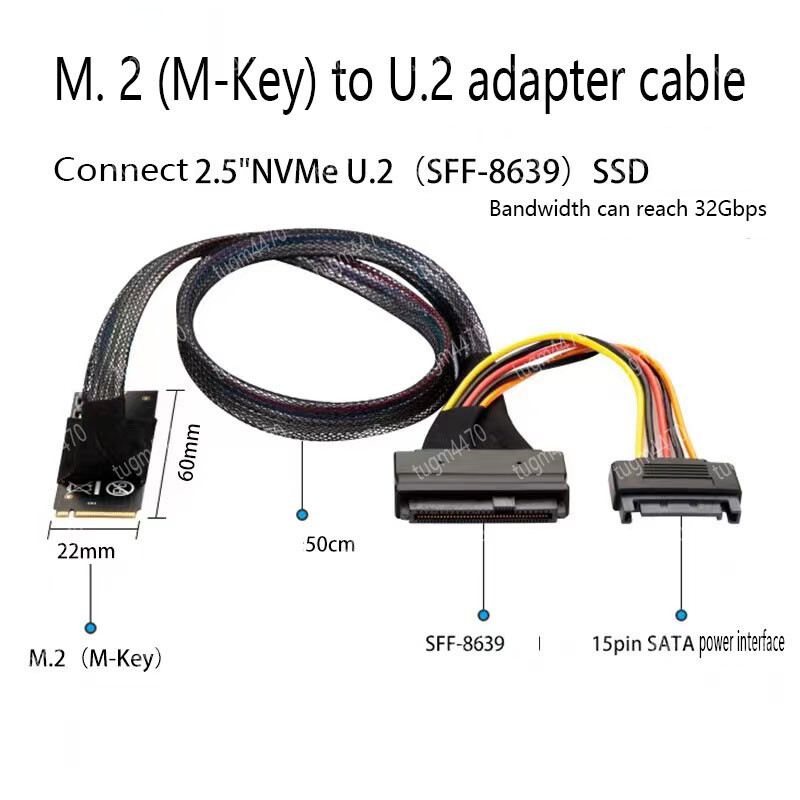
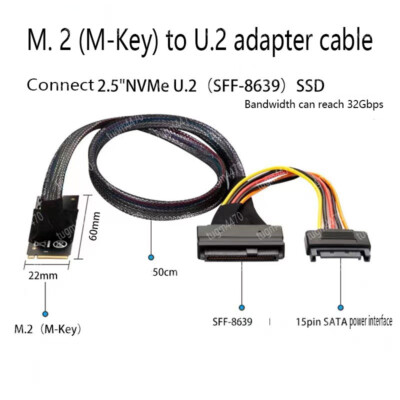
You may also need a SATA cable in special M.2 situations. For example, an M.2 SATA drive installed in a 2.5-inch adapter may connect to the motherboard through a SATA data cable. This setup is less common and depends on the adapter.

Do M.2 SATA drives need a SATA cable?
Normally, an M.2 SATA drive does not need a SATA cable when installed in a compatible motherboard slot. The slot carries the required power and data signals.
The word “SATA” describes the communication method, not always the cable requirement. Think of it like a language. An M.2 SATA drive speaks SATA, but it can communicate through the motherboard’s M.2 connector instead of a separate cable.
There is one major limitation. Some M.2 slots support only PCIe NVMe drives. Others support only SATA drives. Some support both, but using the slot may disable one or more regular SATA ports.
This is why the answer to “do you need a SATA cable for M.2 SSD” cannot rely on the drive’s appearance alone. Check the motherboard manual and the SSD specifications before installation.
How to check M.2 compatibility
Before buying or installing an M.2 SSD, check four important details.
Check the motherboard slot
Look at the motherboard manual or product page. The slot may be labeled with terms such as:
• M.2 SATA
• M.2 PCIe
• M.2 PCIe x4
• M.2 Socket 3
• NVMe
A slot labeled PCIe or NVMe may not support M.2 SATA. A slot labeled SATA may not support NVMe.
Check the key notch
M.2 drives have notches called keys. The key helps show which interface the drive may use, but it is not a perfect compatibility guide.
A common M-keyed drive is usually PCIe NVMe. A B-keyed or B+M-keyed drive may support SATA or PCIe, depending on the model. Always confirm the specifications.
Check the drive length
Make sure the motherboard has a mounting point for the drive length you plan to use. A 2280 drive needs a 2280 standoff and screw position.
Check shared ports
On some motherboards, installing an M.2 SATA drive disables a specific SATA port. This is normal. The manual usually lists which ports share bandwidth with the M.2 slot.

How to install an M.2 SSD
Installing an M.2 SSD is simple when the slot is compatible. Follow these steps:
Shut down the computer and unplug the power cable.
Press the power button for a few seconds to discharge leftover power.
Open the case and locate the M.2 slot.
Remove the small M.2 mounting screw if it is already installed.
Hold the SSD by its edges and align the notch with the slot key.
Insert the drive at a slight angle, usually close to 30 degrees.
Press the drive down gently.
Secure it with the correct screw.
Reinstall any motherboard heatsink, if included.
Close the case and start the computer.
Do not force the drive into the slot. If the notch does not line up, stop and check the drive type. Forcing an M.2 SSD can damage the connector or the drive.
In builds I have helped troubleshoot, the most common mistake was not forgetting a SATA cable. It was installing the drive correctly but leaving the protective film on the thermal pad or failing to install the mounting screw.
Do you need a SATA cable for M.2 SSD on a laptop?
Most laptop M.2 SSD upgrades do not need a SATA cable. The drive fits into an internal M.2 connector and uses the laptop’s built-in power and data connections.
Laptop upgrades require extra care because the correct drive length and interface matter. A laptop may support only M.2 NVMe, only M.2 SATA, or both.
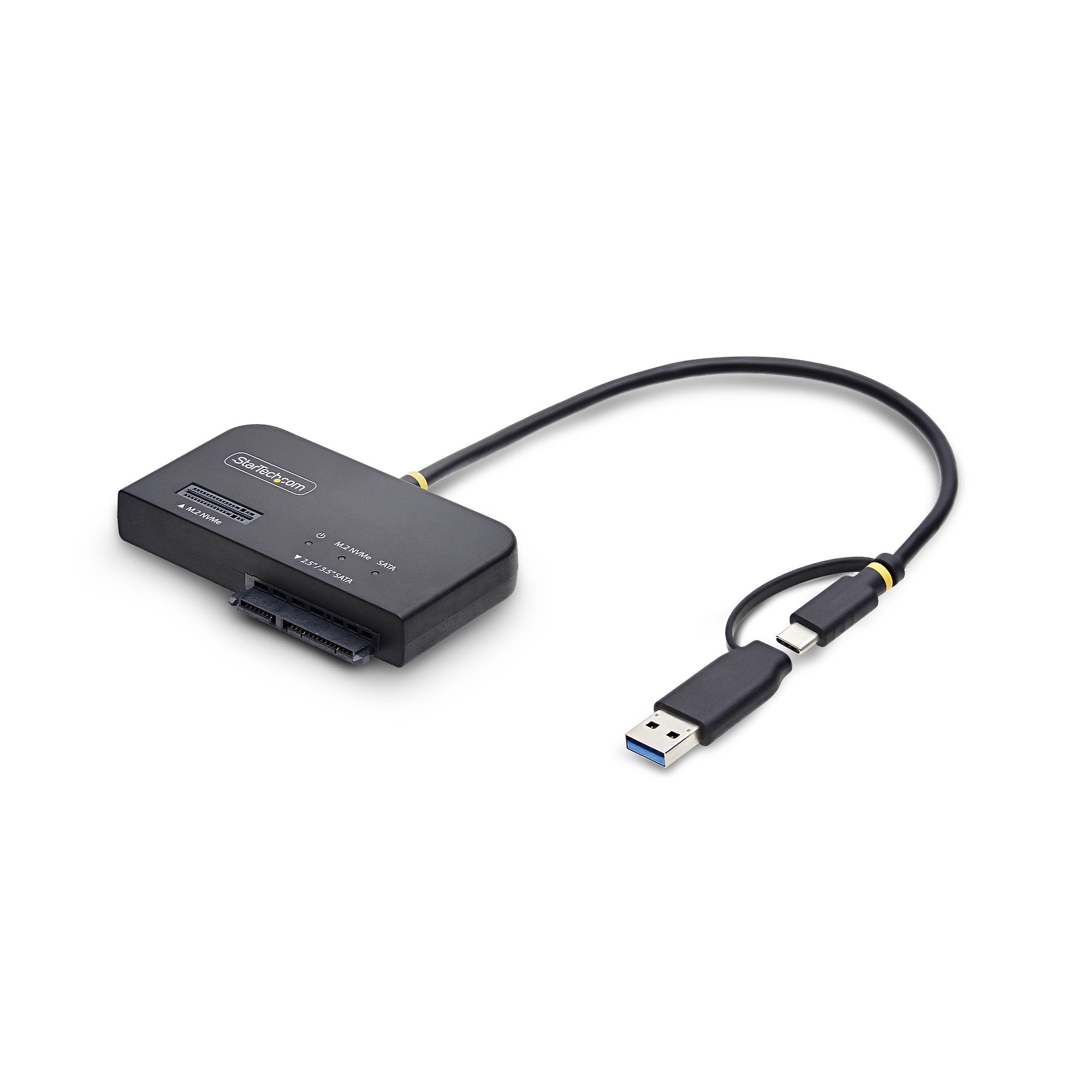
Some laptops use a 2.5-inch SATA drive instead of an M.2 drive. In that case, the computer may need a drive caddy, connector, or ribbon cable designed for that laptop model.
Before opening a laptop, check the service manual. Also back up your files, disconnect the battery when practical, and avoid touching the gold contacts on the SSD.

Common mistakes to avoid
Several mistakes can make a working SSD appear faulty.
• Buying an M.2 SATA drive for an NVMe-only slot
• Buying an NVMe drive for a SATA-only slot
• Forgetting that an M.2 slot may disable another SATA port
• Using the wrong screw or losing the motherboard standoff
• Installing the SSD at the wrong angle
• Forgetting to initialize or format a new drive in Windows
• Leaving the motherboard firmware outdated when support is limited
• Removing a heatsink without checking the thermal pad
• Treating M.2 and NVMe as identical terms
The question “do you need a SATA cable for M.2 SSD” often comes from seeing the word SATA in the drive’s specifications. The cable is usually not needed for an M.2 slot, but interface compatibility still matters.
What if the M.2 SSD is not detected?
If the SSD does not appear, start with the physical installation. Turn off the PC, remove power, and check that the drive is fully inserted and secured.
Next, enter the motherboard’s UEFI or BIOS menu. If the drive appears there but not in Windows, open Disk Management. A new SSD may need to be initialized and assigned a drive letter before it appears in File Explorer.
If the drive does not appear in firmware, check these points:
• The M.2 slot may not support the drive’s interface
• The drive may need a firmware or BIOS update
• Another SATA port may be disabled
• The SSD may not have power because it is not seated correctly
• The drive or motherboard slot may be defective
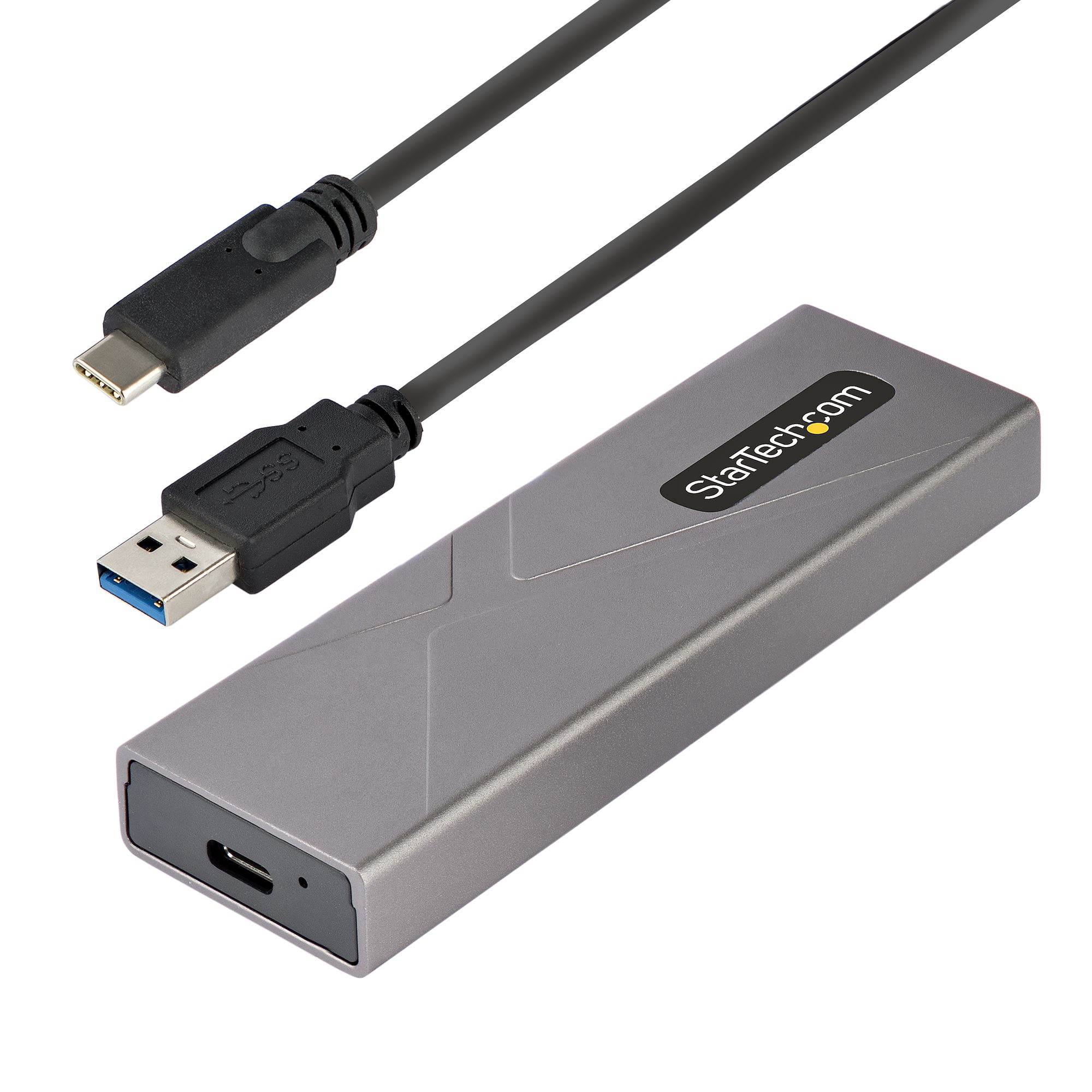
Test the SSD in another compatible system or USB enclosure when possible. An enclosure must also support the correct interface, since an NVMe enclosure cannot always accept an M.2 SATA drive.
M.2 SSD performance and limitations
An M.2 NVMe SSD is usually faster than a SATA SSD, especially during large file transfers and demanding workloads. It can reduce game load times and improve tasks such as video editing, compiling code, and moving large project files.
However, faster benchmark results do not always mean a dramatic everyday difference. Boot time, app launches, and normal web use may feel similar on a good SATA SSD and a good NVMe SSD.
Heat can also affect performance. Some high-speed NVMe drives reduce their speed when they become too hot. A motherboard heatsink or a well-ventilated case can help, but not every system needs extra cooling.
The correct buying choice depends on your budget, workload, motherboard support, and storage needs. A compatible SATA M.2 drive is better than an unsupported NVMe drive that cannot work in the available slot.
Frequently Asked Questions About Do You Need a SATA Cable for M.2 SSD
Do all M.2 SSDs connect without cables?
Most internal M.2 SSDs connect directly to the motherboard and need no SATA data cable. They use the M.2 slot for both power and data.
Do M.2 NVMe drives need SATA power?
No. An M.2 NVMe drive receives power from the motherboard’s M.2 connector. It does not use a separate SATA power cable.
Can an M.2 SATA SSD work in any M.2 slot?
No. The motherboard’s M.2 slot must support SATA drives. Some slots support only PCIe NVMe devices.
Is M.2 faster than SATA?
M.2 is a physical size, so it is not automatically faster. M.2 NVMe is usually much faster than SATA, while M.2 SATA performs much like a 2.5-inch SATA SSD.
Can an M.2 SSD replace a 2.5-inch SATA SSD?
Yes, if the computer has a compatible M.2 slot and the correct mounting support. Check the motherboard or laptop manual before buying the replacement drive.
Why does my M.2 SSD not show in Windows?
It may not be initialized, formatted, or assigned a drive letter. If it is missing from BIOS or UEFI too, check slot compatibility, installation, firmware, and possible hardware faults.
Do you need a SATA cable for M.2 SSD installation?
No, not when the M.2 SSD is installed directly into a compatible motherboard slot. A SATA cable is needed only when using a separate 2.5-inch SATA drive or a special adapter setup.
Conclusion
You usually do not need a SATA cable for an M.2 SSD. The drive connects directly to a compatible M.2 slot, which supplies both power and data. The key is to match the SSD interface, such as SATA or NVMe, with the motherboard slot.
Remember that M.2 describes the shape, not the speed or protocol. Check the motherboard manual, confirm the drive length, and watch for shared SATA ports before you install the drive.
With those checks complete, your upgrade should be quick and trouble-free. Explore your motherboard’s storage guide, choose a compatible SSD, and share your upgrade experience in the comments.
