

No, SSD drives usually do not need defragmentation because they store data electronically without moving read heads.
If you are asking, “do SSD drives need to be defragmented,” the practical answer is simple: avoid traditional manual defragmentation. Modern operating systems can identify solid-state drives and run safer maintenance tasks, such as TRIM, which help an SSD manage deleted data and maintain steady performance. This guide explains how SSDs work, what Windows Optimize Drives actually does, and which storage habits help your drive last longer.
What does defragmentation mean?
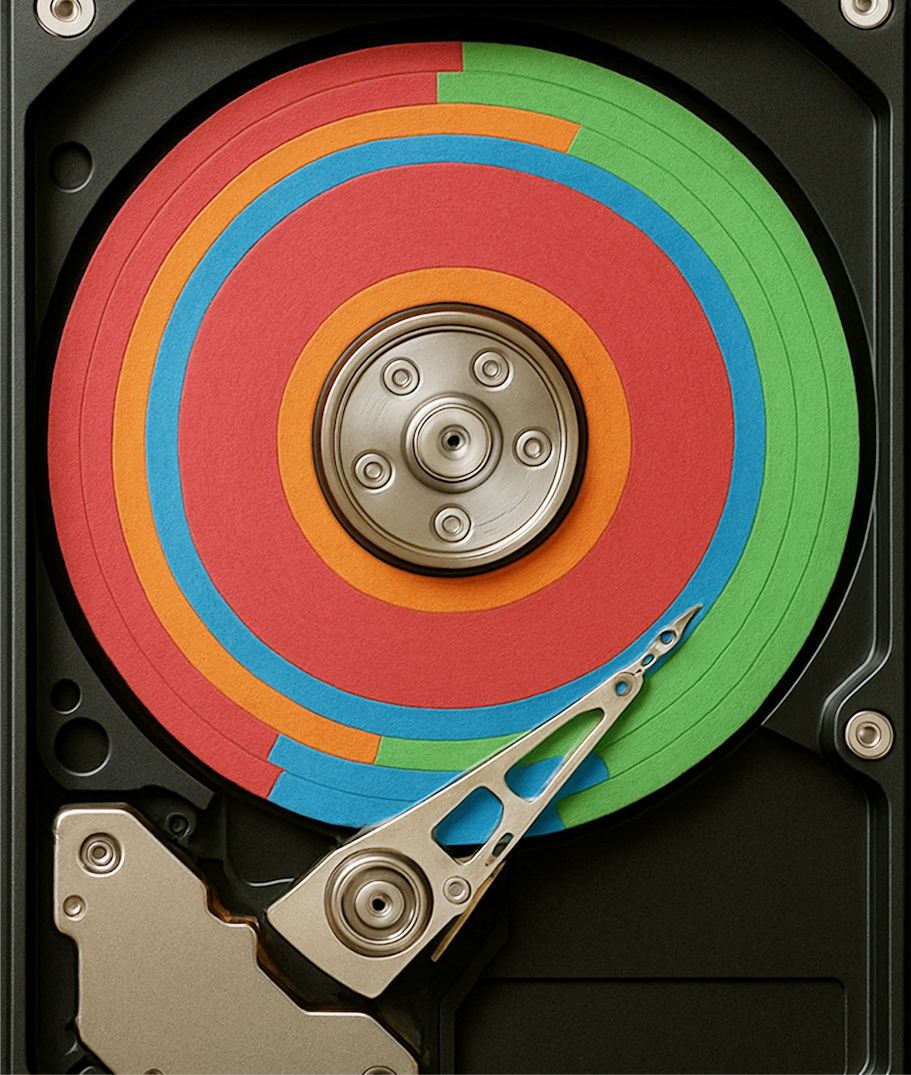
Defragmentation is the process of rearranging parts of a file so they sit together in nearby storage blocks. On a traditional hard disk drive, this can improve speed because the disk’s mechanical read head does not need to move as far.
Imagine a paper book with pages scattered across a room. Finding a story takes time because you must walk from page to page. Defragmentation puts those pages back in order.
Hard disk drives use spinning platters and moving heads. As files are created, edited, and deleted, parts of those files can become spread across the disk. This is called file fragmentation.
An SSD works in a different way:
• It stores data in flash memory chips.
• It has no spinning platters.
• It has no mechanical read head.
• It can access many memory locations quickly.
• It uses a controller to manage data placement and wear.
That difference is why the answer to “do SSD drives need to be defragmented” is not the same as it is for hard drives.
Do SSD drives need to be defragmented?
No, you should not manually defragment an SSD as you would a hard drive. Defragmentation offers little practical speed benefit on an SSD and creates extra write activity.
An SSD can read data from different memory cells without waiting for a mechanical arm to move. Fragmented files may still require several read operations, but those operations are usually fast enough that traditional defragmentation is unnecessary.
The more important maintenance task is TRIM. When you delete a file, the operating system marks its space as available. TRIM tells the SSD which blocks no longer contain useful data. The SSD can then prepare those blocks for future writes.
So, do SSD drives need to be defragmented? In normal use, no. They need proper operating system support, enough free space, current firmware when appropriate, and healthy TRIM behavior.
There is one important detail. Some versions of Windows may occasionally perform a limited optimization or defragmentation operation as part of scheduled maintenance. This is not the same as repeatedly running an old-style manual defragmenter. Windows manages this process based on the drive type and system needs.
Why traditional defragmentation is not useful for SSDs
Traditional defragmentation was designed for mechanical storage. It reduces physical movement inside a hard drive, but an SSD has no moving parts to reduce.
Running a manual defragmenter on an SSD can cause several problems:
• It creates extra write operations.
• It can reduce available write endurance over time.
• It rarely creates a noticeable performance gain.
• It uses system resources for little benefit.
• It may interrupt other maintenance tasks.
Modern SSDs can handle many writes, and one occasional mistake will not usually destroy a drive. Still, repeated manual defragmentation is a poor habit. It is like rearranging every book on a digital reading app because physical books once needed tidying.
This explains why the question “do SSD drives need to be defragmented” matters. The wrong maintenance tool can solve a problem that the SSD does not have.
What is TRIM, and why does it matter?
TRIM is a command that helps an operating system tell an SSD which data blocks are no longer needed. It does not defragment files. Instead, it helps the SSD manage unused space.
SSDs cannot overwrite data in exactly the same way that hard drives can. Before certain flash blocks can be reused, the controller may need to erase them. TRIM gives the controller advance notice, which can make future write operations more efficient.
TRIM can help with:
• Maintaining write performance.
• Improving garbage collection.
• Reducing unnecessary internal work.
• Managing deleted data more effectively.
• Supporting long-term drive health.
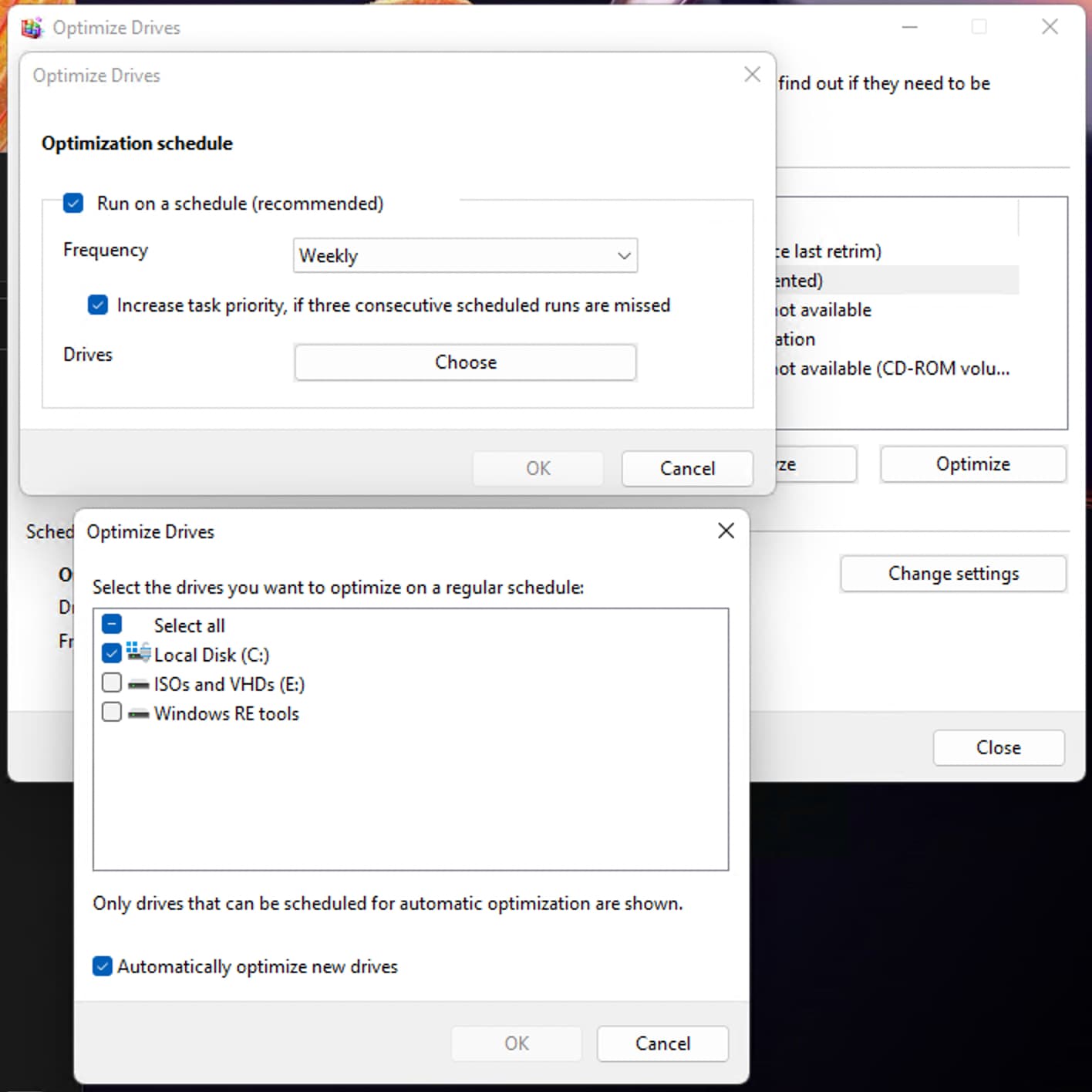
Most modern versions of Windows, macOS, and Linux support TRIM. On Windows, the feature may appear as “Optimize Drives.” The word “optimize” is important because Windows does not treat every storage device the same way.
For an SSD, Optimize Drives normally sends a TRIM command. For a hard drive, it may run a traditional defragmentation process. This automatic distinction is another reason most people do not need to worry about whether do SSD drives need to be defragmented.
What happens when you use Windows Optimize Drives?
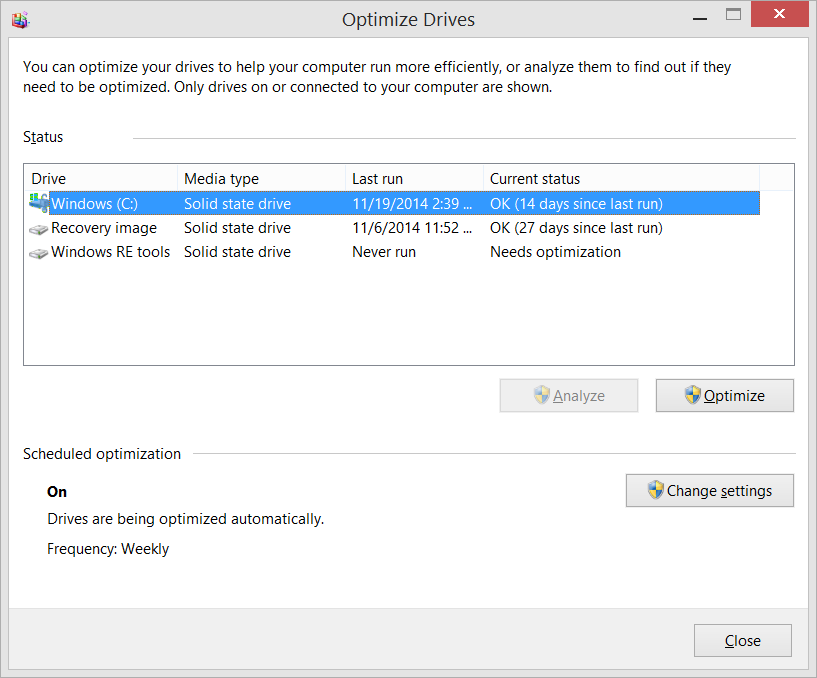
Windows includes a built-in tool called Optimize Drives. You can find it by searching for “Defragment and Optimize Drives” in the Start menu.
The tool displays the media type for each drive. It may label a drive as:
• Solid state drive.
• Hard disk drive.
• Removable drive.
When Windows recognizes an SSD, its scheduled optimization usually uses TRIM rather than a full traditional defragmentation. The tool may still use familiar words from the hard drive era, which can cause confusion.
You can check the status with these steps:
Open the Start menu.
Search for “Defragment and Optimize Drives.”
Open the utility.
Select the SSD.
Check the “Media type” field.
Review the optimization status.
Click “Optimize” only if Windows recommends it or if TRIM has not run recently.
Do not disable every scheduled storage task simply because you see the word “defragment.” Windows storage maintenance can include useful operations. The safest approach is to let the operating system identify the drive and choose the correct action.
This is the practical answer to do SSD drives need to be defragmented on Windows: let Windows manage SSD optimization instead of forcing a manual defrag.
Can SSD fragmentation still affect performance?
SSD fragmentation is usually far less important than hard drive fragmentation, but it is not completely meaningless in every situation.
At the file system level, a highly fragmented file can involve more metadata and more individual reads. On a modern SSD, the impact is often small. Other issues usually matter more, such as low free space, a nearly full system drive, outdated firmware, heat, or background software.
Fragmentation may matter more in special cases:
• The SSD is almost full.
• The drive is very old or slow.
• The system handles huge files often.
• The file system has severe metadata fragmentation.
• The device uses a low-end controller.
• The computer has very limited memory.
Even in these cases, manually defragmenting the SSD is not the first solution. Start by checking free space, system health, drive temperature, firmware, and background processes.
In testing and troubleshooting, I have often seen people blame fragmentation when the real issue was a nearly full boot drive. Freeing space and removing unnecessary startup programs produced a much clearer improvement than running a defragmenter.

When should you optimize an SSD?
You do not need to optimize an SSD every week. Most users should simply leave automatic maintenance enabled.
Consider checking the drive when:
• Windows reports that optimization is needed.
• TRIM appears disabled.
• Write performance drops for no clear reason.
• The drive is almost full.
• You recently restored a large system image.
• The SSD came from another computer.
• You installed a new operating system.
Windows usually schedules maintenance automatically. macOS and Linux also include their own storage management methods, although the exact tools and commands differ.
Avoid third-party “SSD booster” programs that promise dramatic improvements through constant optimization. Some tools are useful for monitoring health, but aggressive cleaning, secure erasing, or repeated optimization may add risk without adding speed.
If you want to verify TRIM on Windows, open Command Prompt as an administrator and run:
fsutil behavior query DisableDeleteNotify
A result of 0 generally means TRIM commands are enabled. A result of 1 means they are disabled for that file system setting. The command reports configuration, not the complete physical health of the SSD.

Best ways to maintain an SSD
Good SSD care is simple. You do not need a complicated tuning plan.
Keep free space available
Try to avoid filling the drive completely. Many SSDs perform better when they have spare space for garbage collection, wear leveling, and temporary writes.
A practical target is to keep at least 10% to 20% free when possible. This is not a strict rule for every model, but it gives the controller more room to work.
Let TRIM run
Keep your operating system updated and allow its scheduled storage maintenance to operate. Do not disable TRIM without a specific reason.
Monitor drive health
Use a trusted tool to check SMART data, remaining life estimates, temperature, and reported errors. Health readings can vary by manufacturer, so treat them as useful warnings rather than perfect predictions.
Update firmware carefully
SSD firmware updates can fix bugs and improve compatibility. Before updating, back up important files and follow the manufacturer’s instructions.
Maintain backups
No storage device is permanent. An SSD can fail suddenly, even when its reported health looks good. Keep at least one current backup of important photos, documents, and work files.
Avoid unnecessary writes
You do not need to obsess over every write. Modern SSDs are built for regular use. Simply avoid wasteful programs that repeatedly rewrite large amounts of data for no clear reason.
These habits are more valuable than asking repeatedly, do SSD drives need to be defragmented. The answer remains no for routine manual maintenance.

SSD versus HDD maintenance
The difference between SSD and HDD maintenance comes down to how each device reads and writes data.
| Feature | SSD | HDD |
|---|---|---|
| Moving parts | None | Spinning platters and moving heads |
| Main maintenance | TRIM and health monitoring | Defragmentation and health monitoring |
| Impact of fragmentation | Usually small | Can be noticeable |
| Noise | Silent | May produce mechanical noise |
| Shock resistance | Generally higher | Generally lower |
| Best performance habit | Keep free space available | Defragment when needed |
Hard drives can benefit from defragmentation because file placement affects head movement. SSDs do not gain the same benefit because electronic access is fast across the drive.
If your computer has both types of storage, treat them separately. Store the operating system and frequently used applications on the SSD. Use the hard drive for large archives, backups, or files that do not need fast access.
Common mistakes to avoid
Many SSD problems come from using old hard drive advice on newer technology.
Avoid these mistakes:
• Running a third-party defragmenter on an SSD every day.
• Disabling TRIM because you think it causes wear.
• Keeping the SSD at nearly 100% capacity.
• Ignoring warning signs from health-monitoring tools.
• Treating a benchmark score as proof of real-world performance.
• Updating firmware without making a backup.
• Using secure erase tools on a drive that only needs normal cleanup.
• Assuming an SSD cannot fail because it has no moving parts.
One mistake usually causes no immediate harm. The risk comes from repeated behavior, especially forced defragmentation and unnecessary write-heavy tools.
When I help someone improve a slow computer, I check storage capacity, health, temperature, startup apps, and malware before considering fragmentation. That order prevents wasted effort and protects the user’s data.
Do SSD drives need to be defragmented for gaming?
No, gaming SSDs normally do not need manual defragmentation. Game loading speed depends more on the SSD’s interface, controller, free space, game files, CPU, memory, and software settings.
If a game loads slowly, check for updates, background downloads, overheating, and low storage space. Moving a game from a hard drive to an SSD often creates a much larger improvement than defragmenting either drive.
Do SSD drives need to be defragmented on Windows 10 or Windows 11?
No, not manually. Windows can identify SSDs and use scheduled optimization, including TRIM, instead of treating them like mechanical hard drives.
You can safely open Optimize Drives to check the drive type and status. Let Windows choose the appropriate maintenance method.
Can defragmenting an SSD damage it?
One accidental defragmentation is unlikely to cause immediate damage. However, repeated defragmentation creates unnecessary writes and provides little useful benefit, so it should be avoided.
Should I disable automatic defragmentation for my SSD?
Usually, no. Modern Windows versions can distinguish between SSDs and HDDs and apply different maintenance actions.
Disabling all scheduled optimization may also prevent useful TRIM activity. Check the media type and let the operating system manage the drive.
How often should an SSD be optimized?
For most users, automatic maintenance is enough. You do not need to run a manual optimization schedule.
Check the drive if Windows reports a problem, TRIM is disabled, performance changes sharply, or the SSD is almost full.
Is TRIM the same as defragmentation?
No. Defragmentation rearranges file parts, while TRIM tells an SSD which blocks are no longer needed.
TRIM helps the SSD prepare unused space for future writes. It is the more relevant maintenance feature for solid-state storage.
Conclusion
SSD drives do not need traditional manual defragmentation. Their flash memory has no moving read head, so rearranging file fragments brings little benefit and can create unnecessary write activity.
Use built-in operating system maintenance, keep TRIM enabled, leave free space on the drive, monitor its health, and maintain reliable backups. If your SSD feels slow, investigate capacity, temperature, firmware, background programs, and drive health before blaming fragmentation.
Now check your storage settings, confirm that your operating system recognizes the SSD correctly, and share this guide with anyone still using old hard drive maintenance habits.
