

Pair AirFly with headphones by turning both devices on, holding the pairing button, and selecting the AirFly signal.
Learning how to connect AirFly to headphones is simple once you understand which device starts pairing and which device receives the audio. AirFly works as a small Bluetooth transmitter, sending sound from an airplane seat, TV, gym machine, or game system to wireless headphones.
This guide explains how to connect AirFly to headphones, including AirFly Duo, AirFly Pro, AirFly SE, and AirFly USB-C models. You will also learn how to fix pairing problems, connect two headphones, and avoid common mistakes that can make the process feel harder than it is.

What Is AirFly and How Does It Work?
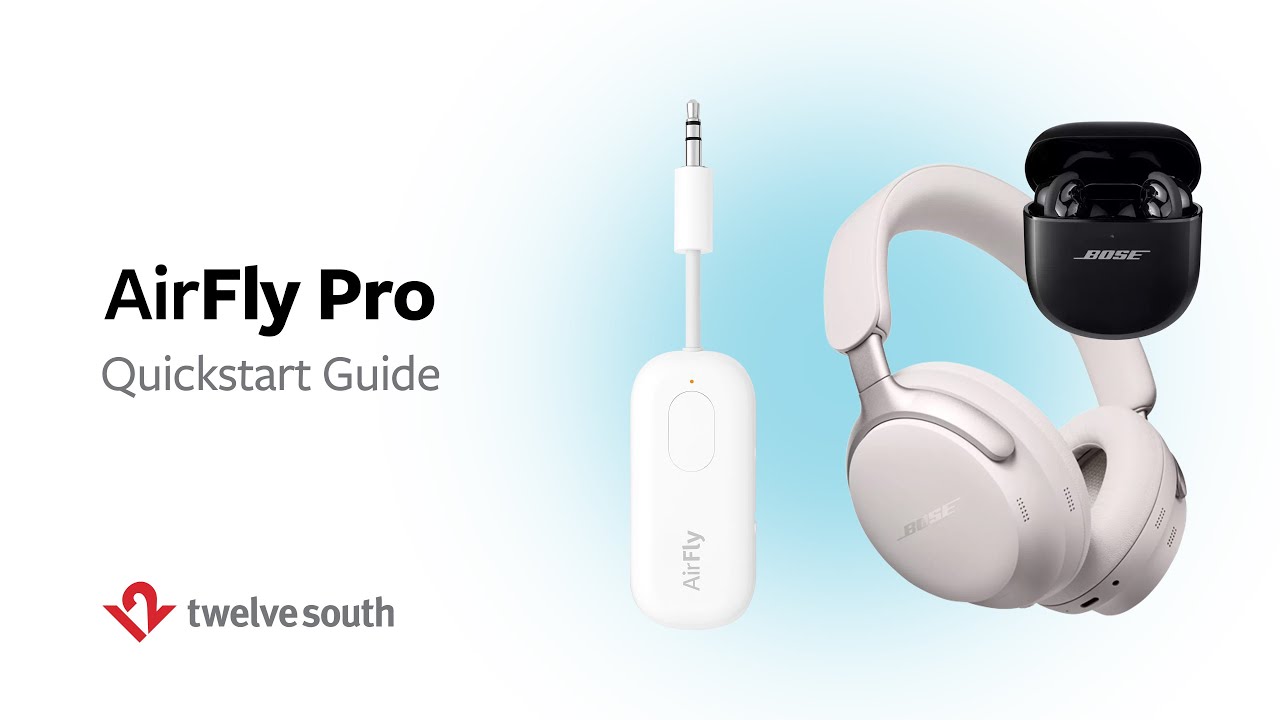
AirFly is a Bluetooth audio transmitter made by Twelve South. It connects to a device with a headphone jack or USB-C audio output. It then sends that sound to Bluetooth headphones or earbuds.
Think of AirFly as a wireless bridge. One side plugs into the audio source. The other side connects to your headphones through Bluetooth.
AirFly does not usually receive music from your phone. Instead, it sends audio from devices that may not support Bluetooth, such as:
• Airplane seat-back entertainment systems
• Treadmills and other gym equipment
• Older televisions
• Handheld gaming devices
• Computers with a headphone output
• In-flight entertainment systems with a 3.5 mm jack
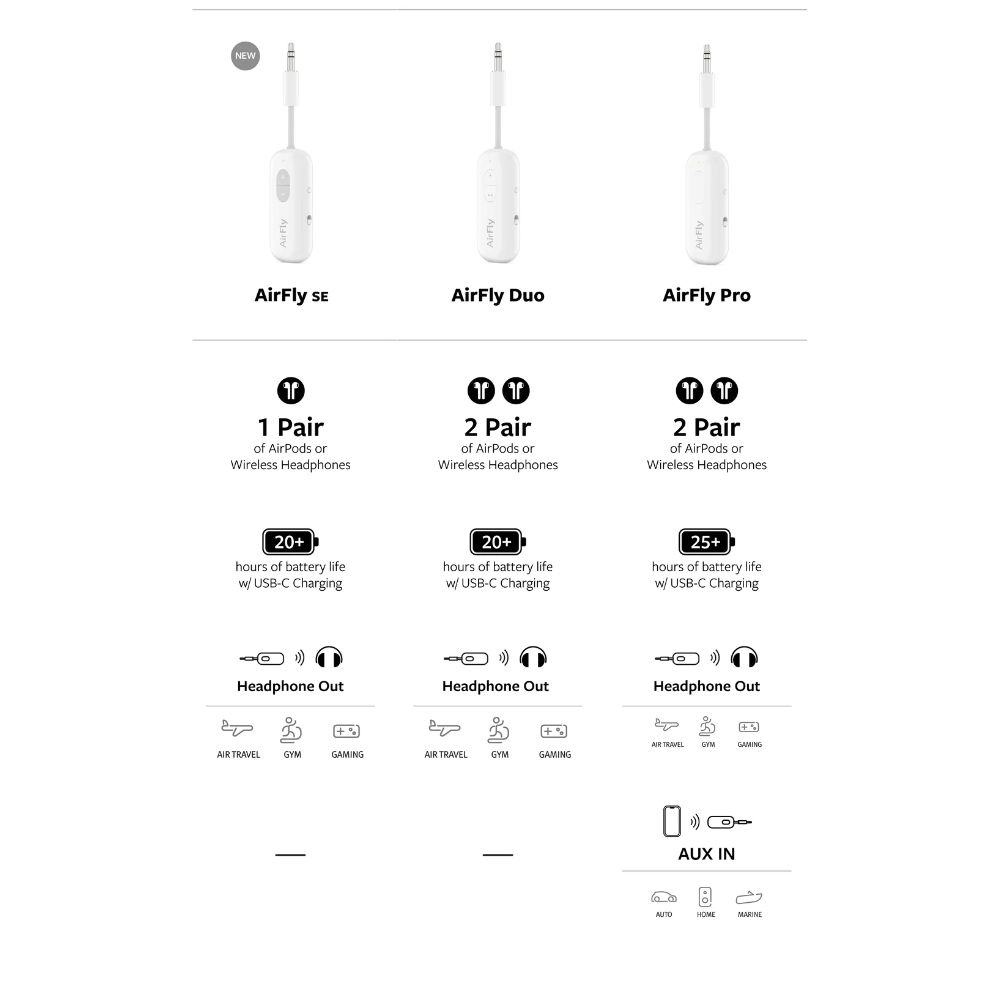
Most AirFly models use a 3.5 mm plug. AirFly Pro can also support receiving audio, while AirFly USB-C models connect to compatible USB-C devices.
Before learning how to connect AirFly to headphones, check your model. The button layout, charging port, and connection method may differ slightly.
How to Connect AirFly to Headphones
The basic pairing process takes about one minute. Keep your headphones close to AirFly during setup. A distance of less than three feet works best.
Step 1: Charge AirFly
Charge AirFly before your first use. A low battery can cause failed pairing or sudden disconnections.
Most AirFly models use a USB charging cable. The status light usually shows charging and power status, but the exact color can vary by model.
Step 2: Turn on your headphones
Turn on your Bluetooth headphones or earbuds. Put them into pairing mode.
On many headphones, you do this by pressing and holding the power button for several seconds. Some earbuds enter pairing mode when you open their charging case. Others need a button press on the case.
Look for a flashing blue, white, or red-and-blue light. That light usually means the headphones are ready to pair.
Step 3: Turn on AirFly
Press and hold the AirFly power button until its status light begins to flash. AirFly should enter pairing mode automatically when it has no saved connection.
If it does not start pairing, press and hold the pairing button. On some models, the button is marked with a Bluetooth symbol.
Step 4: Wait for the connection
Keep AirFly and your headphones close together. The devices should find each other without a phone or app.
When pairing finishes, the light on AirFly or the headphones may stop flashing or change color. Start the audio source and raise the volume slowly.
Step 5: Connect AirFly to the audio source
Plug AirFly into the device you want to hear.
For most models, use the built-in 3.5 mm plug. If the airplane has two audio ports, plug AirFly into one port. A dual-prong airline adapter may be needed on some older aircraft.
For AirFly USB-C, connect the transmitter to a USB-C audio source. Not every USB-C port supports audio, so check the device specifications if you hear nothing.
This process is the simplest answer to how to connect AirFly to headphones:
- Charge AirFly.
- Put headphones into pairing mode.
- Turn on AirFly.
- Wait for both devices to connect.
- Plug AirFly into the audio source.
- Play audio and adjust the volume.
How to Connect AirFly to Headphones on an Airplane
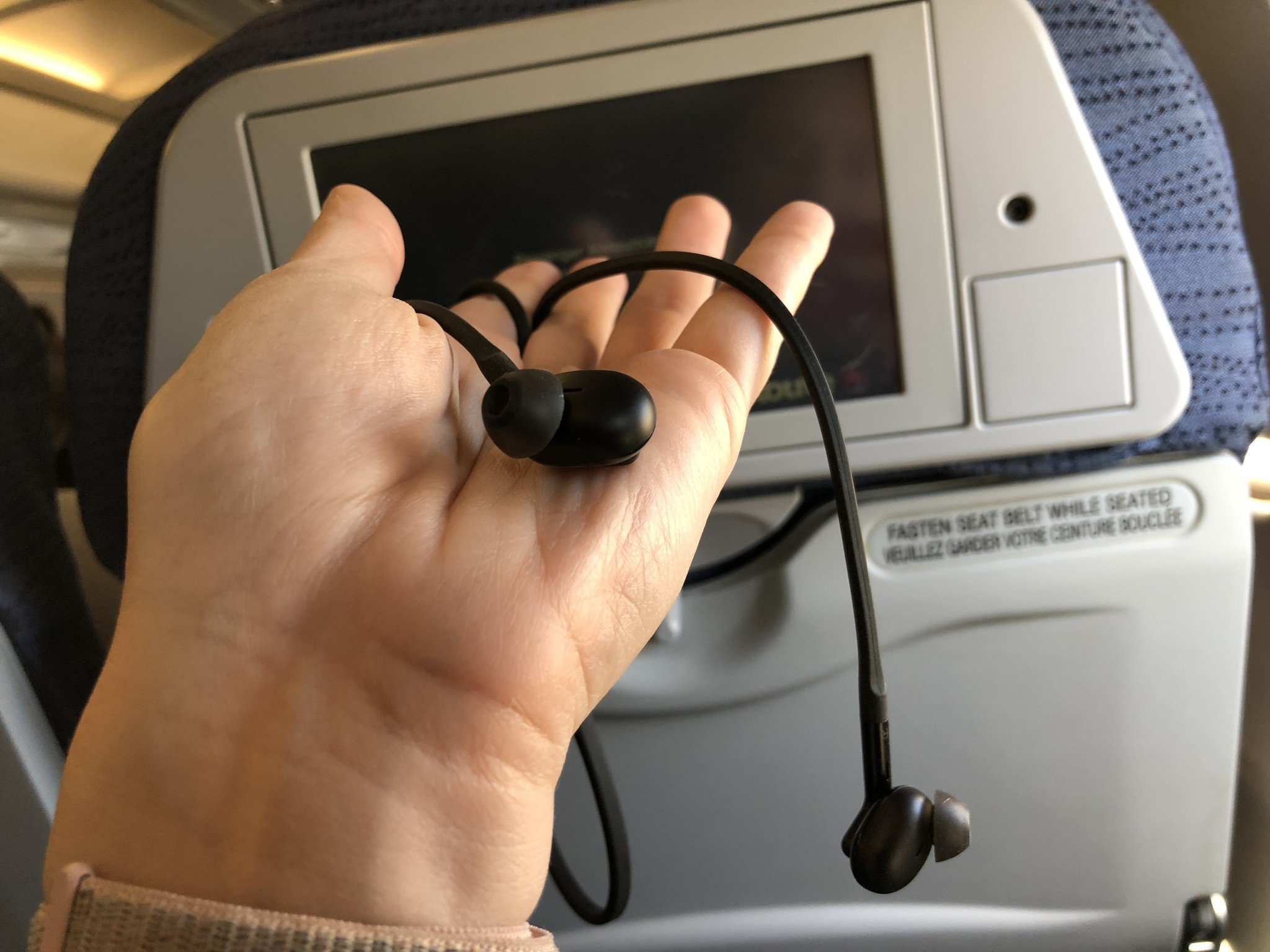
AirFly is popular with travelers because many airplane entertainment systems still use a wired headphone jack. The setup is nearly the same, but the audio port may need an adapter.
Before takeoff, charge AirFly and pair it with your headphones at home. This saves time and avoids troubleshooting in a busy cabin.
Once you are seated, follow these steps:
- Turn off Bluetooth on nearby devices that may connect to your headphones.
- Turn on your headphones.
- Turn on AirFly.
- Plug AirFly into the airplane’s headphone port.
- Select a movie, show, or music channel.
- Adjust the airplane audio volume first.
- Adjust your headphone volume to a comfortable level.
Some airplane systems have two small audio holes instead of one standard jack. In that case, use a two-pin airplane adapter. Do not force a plug into the port.
A short delay between the picture and sound can occur with Bluetooth audio. This is caused by wireless audio processing and the aircraft entertainment system. A small delay is normal, but a large delay may point to a compatibility issue.
When I test AirFly during travel, I pair it before boarding and keep the transmitter in an easy-to-reach pocket. This avoids the common mistake of trying to pair tiny earbuds while the cabin lights are dim.
How to Connect AirFly to Two Headphones
Some AirFly models can connect to two pairs of Bluetooth headphones at the same time. This feature is useful when two people want to watch the same movie or listen to the same audio source.
AirFly Duo and AirFly Pro are designed for two headphone connections. The exact steps may vary, but the general method is:
- Pair the first headphones with AirFly.
- Turn off the first headphones or disconnect them for a moment.
- Press the pairing button again to add the second headphones.
- Put the second headphones into pairing mode.
- Wait for both headphones to connect.
- Turn the first headphones back on if needed.
- Start the audio source.
Some models use separate pairing controls for the first and second connection. Follow the symbols printed on the AirFly body or the instructions for your model.
Two headphones may slightly reduce battery life. Audio can also become less stable if the headphones are far apart or surrounded by wireless interference.
If the second pair will not connect, reset AirFly and start with both headphone sets nearby. Pair one set at a time. This is often more reliable than trying to connect both at once.

How to Connect AirFly Pro in Receive Mode
AirFly Pro has a receive mode that lets it accept Bluetooth audio from a phone, tablet, or computer. This is different from the normal transmit mode.
In transmit mode, AirFly sends audio to headphones. In receive mode, AirFly receives audio from a Bluetooth device and sends it through a wired connection to speakers, a car stereo, or wired headphones.
To use AirFly Pro in receive mode:
- Move the mode switch to receive mode.
- Turn on AirFly Pro.
- Put your phone or tablet into Bluetooth pairing mode.
- Select AirFly Pro from the Bluetooth menu.
- Connect wired headphones or speakers to the audio output.
- Play audio from the phone or tablet.
This mode is not the usual answer to how to connect AirFly to headphones. Use transmit mode when you want wireless headphones to hear audio from an airplane, TV, or other wired source.
Checking the mode switch is important. Many failed setup attempts happen because AirFly Pro is in receive mode when the user needs transmit mode.

How to Connect AirFly to Headphones When It Does Not Pair
Pairing problems are usually caused by an old Bluetooth connection, low battery, or the wrong mode. Try the fixes below in order.
Move the devices close together
Place AirFly and the headphones within a few feet of each other. Walls, metal objects, and crowded wireless spaces can weaken the first connection.
Disconnect the headphones from another device
Your headphones may automatically connect to a phone, tablet, or laptop. Turn off Bluetooth on nearby devices or manually disconnect the headphones.
This is one of the most common reasons how to connect AirFly to headphones instructions seem not to work.
Restart both devices
Turn off AirFly and the headphones. Wait about ten seconds, then turn them on again. Put both devices into pairing mode before moving them apart.
Reset the AirFly connection
If AirFly remembers an old pair, clear its Bluetooth memory using the model’s reset procedure. The reset method can differ between AirFly versions, so use the instructions supplied with your device.
A reset is useful when AirFly connects to the wrong headphones or refuses to find a new pair.
Charge both devices
Low power can interrupt pairing. Charge AirFly and the headphones for at least a short time before trying again.
Check the audio source
If the devices pair but you hear no sound, test the source with wired headphones. If wired headphones also produce no audio, the problem is probably the airplane jack, television, console, or USB-C port.
Check volume controls
Some audio systems have separate volume controls. Raise the source volume first, then adjust the headphone volume. Also check whether the source is muted.
Common AirFly Connection Mistakes to Avoid
Even a simple Bluetooth setup can fail when one small step is missed. These mistakes appear often during travel and at the gym.
• Pairing AirFly with a phone instead of headphones: AirFly normally connects to the headphones, not the phone, when used as a transmitter.
• Leaving headphones connected to another device: Automatic multipoint connections can prevent AirFly from pairing.
• Plugging AirFly into the wrong port: A charging-only USB-C port may not carry audio.
• Using the wrong AirFly mode: AirFly Pro must be in transmit mode when sending audio to wireless headphones.
• Pairing from a phone’s Bluetooth menu: Standard AirFly transmitters may not appear in that menu because the headphones pair directly with AirFly.
• Starting with the devices too far apart: Keep them close during the first connection.
• Forgetting the airplane adapter: Older airplane systems may use two audio contacts.
• Ignoring audio delay: Bluetooth transmission can create a small lip-sync delay. This is a technology limitation, not always a defect.
The most useful lesson I have learned from testing wireless transmitters is to simplify the setup. Turn off nearby Bluetooth devices, charge everything, and pair one device at a time.

AirFly Battery, Range, and Compatibility Tips
AirFly battery life depends on the model and how it is used. Check the product guide for the exact rating. Charging AirFly before a flight is wise because battery estimates can change with volume, distance, and Bluetooth activity.
Keep AirFly close to the headphones. A pocket or seat-back area is usually fine, but avoid placing it under heavy luggage or behind large metal objects.
AirFly generally works with Bluetooth headphones and earbuds that support standard Bluetooth audio profiles. However, some specialized headphones may not pair correctly. Gaming headsets that rely on a USB receiver are one example.
AirFly also cannot turn every USB-C device into an audio source. The USB-C port must support digital audio output. Some devices may need a compatible adapter or may not support external audio at all.
For the best result:
• Update your headphones if the manufacturer offers firmware updates.
• Use a full charge before long trips.
• Keep AirFly within a few feet of the headphones.
• Avoid pairing near many active Bluetooth devices.
• Test the setup before leaving home.
• Carry a wired backup for important travel.
Benefits and Limitations of Using AirFly
AirFly solves a clear problem: it lets you use wireless headphones with devices that only offer wired audio.
Key benefits include:
• No long headphone cable across your seat
• Better comfort during long flights
• Support for many TVs, gym machines, and game systems
• Simple controls with no required phone app
• The ability to share audio on supported models
• Compatibility with many common Bluetooth headphones
There are also limits. AirFly needs its own battery, and Bluetooth audio may have a short delay. Some airplane entertainment systems have unusual ports, and not every USB-C device supports audio output.
AirFly is also not a noise-canceling device. Noise cancellation comes from your headphones. AirFly only transfers the audio signal.
Understanding these limits helps set realistic expectations. It is a bridge between an audio source and headphones, not a universal replacement for every wireless audio feature.
How to Connect AirFly to Headphones: Quick Troubleshooting Table
| Problem | Likely cause | Best fix |
|---|---|---|
| AirFly does not turn on | Low battery | Charge AirFly |
| Headphones do not appear | Headphones are not in pairing mode | Hold the headphone power button |
| AirFly connects to the wrong pair | Old saved connection | Reset AirFly and pair again |
| Pairing works but there is no sound | Wrong source, muted audio, or bad port | Test the source and raise volume |
| Only one earbud works | Earbuds are not paired as a set | Reset the earbuds and reconnect |
| Second headphones will not connect | Model or pairing mode limitation | Check whether the AirFly model supports two sets |
| Audio cuts out | Distance or interference | Move devices closer |
| Sound is delayed | Bluetooth processing | Try another headphone set or accept the small delay |
This table covers the most common issues people face when learning how to connect AirFly to headphones. Work through the basic checks before assuming the transmitter is defective.
How to Connect AirFly to Headphones: Frequently Asked Questions
Can AirFly connect to any Bluetooth headphones?
AirFly works with many Bluetooth headphones and earbuds that support standard wireless audio. Compatibility can vary with specialized headsets, older models, and devices that use a dedicated USB receiver.
Why will my headphones not connect to AirFly?
Your headphones may still be connected to a phone or another nearby device. Disconnect them, put them into pairing mode, restart AirFly, and keep both devices close together.
Do I need a phone app to connect AirFly to headphones?
No. AirFly usually pairs directly with Bluetooth headphones through its physical buttons. A phone app is not required for the standard transmitter setup.
Can AirFly connect to two pairs of headphones?
Some models, including AirFly Duo and AirFly Pro, support two headphone connections. Follow the pairing steps for your model because the second-device process can differ.
Can I use AirFly with airplane entertainment systems?
Yes. Most AirFly transmitters work with airplane systems that have a compatible headphone jack. Older aircraft may require a two-prong airline adapter.
Why is there a delay between the video and sound?
Bluetooth audio can create a small delay because the sound must be encoded, transmitted, and decoded. A slight delay is common, but a large delay may be caused by incompatible equipment or the audio source.
Can I connect AirFly to AirPods?
Yes. Put the AirPods in their case, open the lid, and hold the case button until the status light flashes. Then turn on AirFly and wait for the AirPods to pair.
Conclusion
Learning how to connect AirFly to headphones takes only a few basic steps: charge both devices, place the headphones in pairing mode, turn on AirFly, and connect it to the audio source. Keep the devices close, disconnect nearby Bluetooth connections, and check the AirFly mode when troubleshooting.
For flights, test the setup before boarding and bring the correct airplane adapter if needed. Once paired, AirFly makes wired audio sources feel much more convenient with wireless headphones.
Try these steps with your AirFly today, and share your setup or troubleshooting experience in the comments.
