

Connect Bluetooth headphones to a PS5 with a compatible USB Bluetooth adapter or the DualSense controller’s audio jack.
The PS5 does not support most Bluetooth headphones directly because standard Bluetooth audio can cause lag and connection issues. However, you can still enjoy wireless sound with a USB Bluetooth transmitter, a PlayStation-compatible headset, or a wired connection through the DualSense controller. This guide explains how to connect Bluetooth headphones to PS5, fix common problems, and choose the best method for your setup.
Can You Connect Bluetooth Headphones Directly to a PS5?
In most cases, no. The PS5 can detect some Bluetooth accessories, such as keyboards and mice, but it usually blocks standard Bluetooth audio headphones. This limit helps prevent audio delay, poor sound quality, and wireless interference during games.
When you try to pair regular Bluetooth headphones, you may see a message that the PS5 does not support the Bluetooth audio device. This does not mean your headphones are broken. It means the console needs a different connection method.
The good news is that you have several reliable options:
- Use a USB Bluetooth audio adapter.
- Use a PlayStation-compatible wireless headset with its USB receiver.
- Connect wired headphones to the DualSense controller.
- Connect headphones to a compatible TV, monitor, or home theater system.
The most direct way to connect Bluetooth headphones to PS5 is with a USB Bluetooth transmitter. The adapter acts as a bridge between the console and your headphones.

How to Connect Bluetooth Headphones to PS5 With a USB Adapter
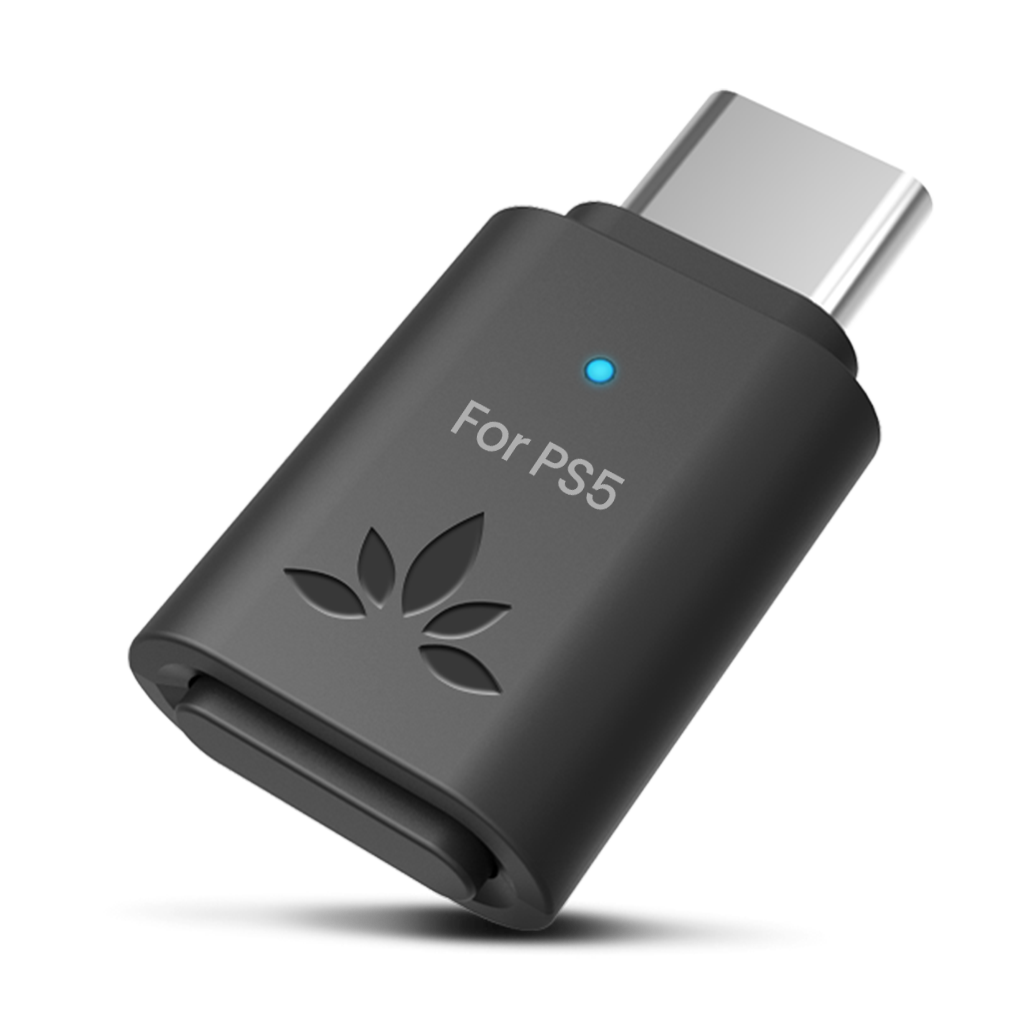
A USB Bluetooth adapter is usually the easiest option for headphones you already own. Look for an adapter that clearly supports Bluetooth audio transmission and PS5 compatibility. Some adapters plug into a USB-A port, while others use USB-C.
Before you begin, charge your headphones and check that the adapter is designed for audio output. A basic Bluetooth receiver may not work because the PS5 needs a transmitter.
Step 1: Choose a compatible Bluetooth transmitter
Select a USB adapter made for game consoles. Many models include a small pairing button and support common audio profiles such as A2DP. Some also support a microphone channel, but microphone support is not guaranteed.
A low-latency adapter is best for fast games. Standard Bluetooth may create a small delay between an action on the screen and the sound you hear. That delay can be distracting in games such as Call of Duty, Fortnite, or rhythm titles.
Step 2: Insert the adapter into the PS5
Plug the adapter into an available USB port on your PS5. You can use a front or rear port, depending on the adapter’s size and your other devices.
If the adapter uses USB-A and your PS5 has no convenient USB-A port available, use a safe USB-C adapter made for data and audio devices. Avoid loose hubs that may cause power or connection problems.
Step 3: Put your headphones in pairing mode
Turn off your headphones first if needed. Then hold the Bluetooth or power button until the indicator flashes.
The exact process varies by brand. Some headphones enter pairing mode when you hold the power button for several seconds. Others require you to press a separate Bluetooth button.
Step 4: Pair the headphones with the adapter
Press the pairing button on the USB transmitter. Keep the headphones close to the adapter while they search for each other.
A steady light usually means the connection is complete. If the devices do not pair, turn both off and repeat the process. Also disconnect the headphones from your phone, tablet, or laptop, since many models automatically reconnect to the last device used.
Step 5: Set the PS5 audio output
Open the PS5 home screen and go to:
- Settings
- Sound
- Audio Output
- Output Device
- Select the USB headset or USB audio device
Set the output to headphones if the console gives you that choice. Adjust the volume under the Headphones section.
This method lets you connect Bluetooth headphones to PS5 without changing the console’s internal hardware. The final experience depends on the adapter, headphone codec, wireless range, and nearby signal traffic.

How to Connect Bluetooth Headphones to PS5 Through the DualSense Controller
The DualSense controller has a 3.5 mm headset jack. This does not create a Bluetooth connection, but it gives you a simple way to use headphones with a cable.
Some Bluetooth headphones include a 3.5 mm audio cable. If yours do, connect one end to the headphones and the other end to the bottom of the DualSense controller.
Then open:
- Settings
- Sound
- Audio Output
- Output Device
- Headphones Connected to Controller
Choose All Audio if you want game sound and chat through the headphones. You can also adjust the balance between game audio and voice chat from the control center.
This approach is often more stable than wireless audio. It has almost no noticeable delay, and it does not require a USB adapter. The tradeoff is that you must keep the controller connected to the headphones.
I have found this method especially useful when testing a new headset. It quickly shows whether the issue comes from the headphones or from a wireless adapter. If wired audio works, the headphones are likely fine, and the pairing setup needs attention.
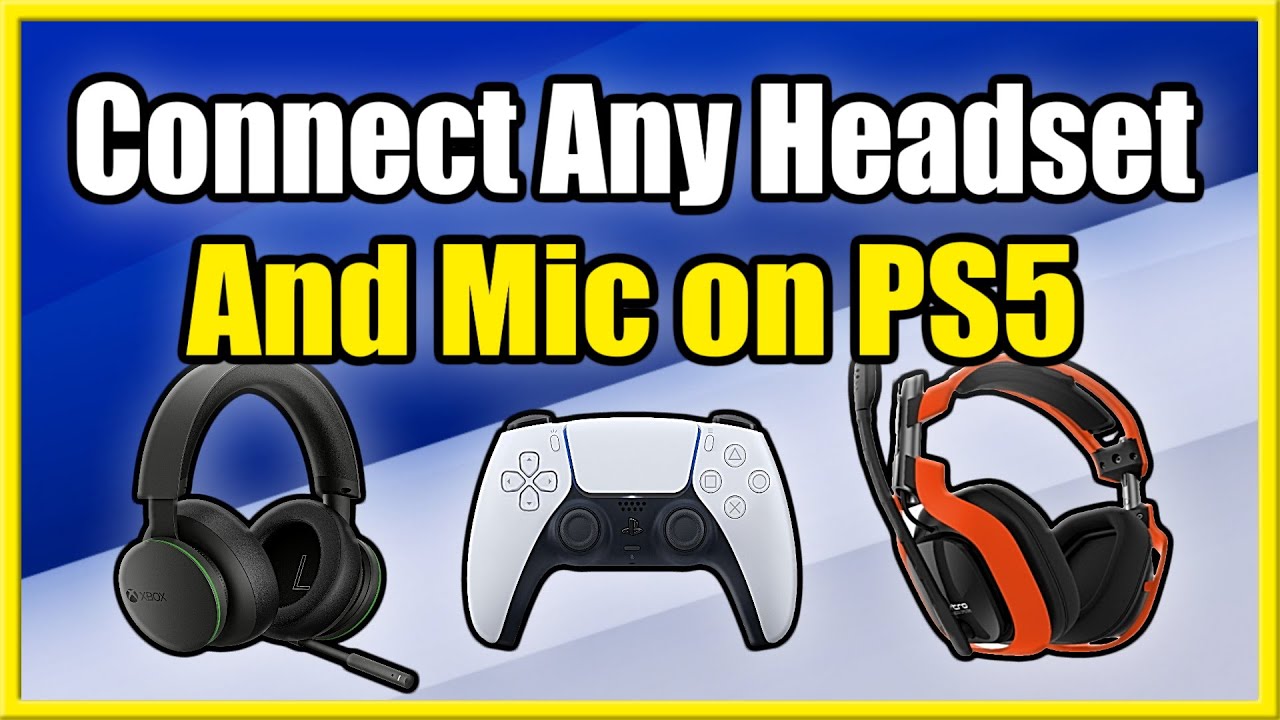
How to Connect Bluetooth Headphones to PS5 Using a PlayStation Wireless Headset
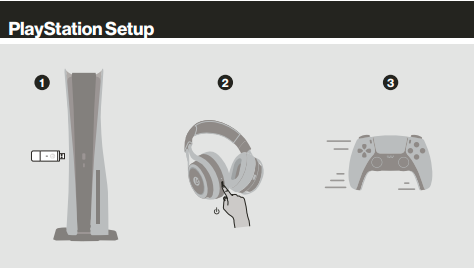
A PlayStation wireless headset is different from regular Bluetooth headphones. Most compatible models use a dedicated USB receiver instead of connecting through the PS5’s Bluetooth menu.
To set one up:
- Charge the headset.
- Plug its USB receiver into the PS5.
- Turn on the headset.
- Wait for the headset and receiver to pair.
- Open Settings, Sound, and Audio Output.
- Choose the USB headset as the output device.
Dedicated wireless headsets often provide better gaming performance than general Bluetooth headphones. They may offer lower latency, a stronger range, a built-in microphone, and controls designed for PlayStation.
Some models also support a wired mode, which is helpful if the battery runs low. Before buying one, check whether the package includes a PS5-compatible receiver. A headset labeled only as “Bluetooth” may not work directly with the console.
This is the cleanest long-term way to connect Bluetooth headphones to PS5 if you play often. You avoid repeated pairing and usually get better chat support.
How to Use Bluetooth Headphones Through Your TV or Monitor
Some smart TVs and gaming monitors support Bluetooth audio. In this setup, the PS5 sends sound to the display through HDMI, and the display sends that sound to your headphones.
First, connect the PS5 to the TV or monitor with HDMI. Then open the display’s Bluetooth settings and pair the headphones there. Select the headphones as the TV’s audio output.
This method is convenient, but it has limits. Your TV may add audio delay, and the PS5 may not recognize the headphone microphone. Voice chat usually works best through a controller microphone, a USB microphone, or a headset connected directly to the console.
If the sound feels late, check the TV’s game mode and audio delay settings. Turn off extra sound processing, such as virtual surround effects, if they increase latency.
You can connect Bluetooth headphones to PS5 this way when you mainly want private game sound or streaming audio. It is less suitable for competitive play unless the TV and headphones both handle low-latency audio well.

How to Set Up the Microphone and Voice Chat
Audio output and microphone input are separate settings on the PS5. Your headphones may play game sound correctly but fail to provide voice chat.
To check your microphone:
- Open Settings.
- Select Sound.
- Select Microphone.
- Choose Input Device.
- Select the connected USB headset, controller microphone, or USB microphone.
- Speak and watch the input level.
You can also press the PS button to open the control center. Choose the microphone icon to mute or unmute yourself. Use the voice chat card to adjust party chat volume.
Many standard Bluetooth adapters support audio output only. If your friends cannot hear you, this may be a feature limitation rather than a fault. Some adapters have a separate microphone mode, but that mode may reduce sound quality or work only with certain headsets.
For the most dependable chat setup, use a PS5 headset with a USB receiver or connect a wired headset to the DualSense controller. Test the microphone in a party before starting a long multiplayer session.
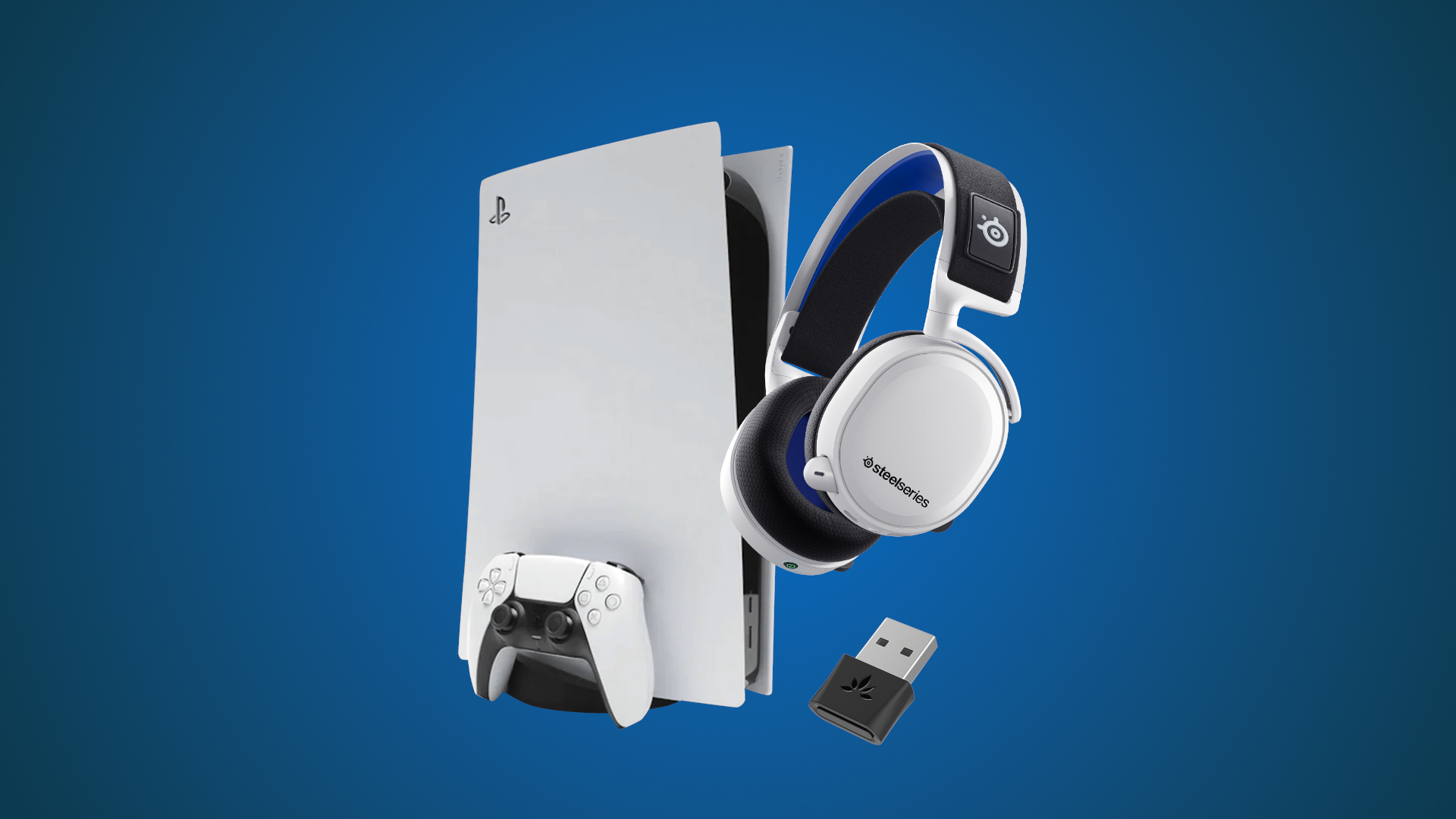
Common Problems When Connecting Bluetooth Headphones to PS5
Even when you follow the correct steps, wireless audio can fail for simple reasons. Most problems involve pairing mode, audio output settings, or adapter compatibility.
The PS5 does not recognize the adapter
Try another USB port. Then restart the PS5 with the adapter connected.
If the adapter still does not appear, confirm that it is a Bluetooth transmitter, not a Bluetooth receiver. The product description should state that it sends audio from a console or other source.
The headphones connect but produce no sound
Go to Settings, Sound, and Audio Output. Select the USB audio device or the correct output option.
Also increase the headphone volume. Some headphones save a separate volume level for each device.
The sound has a delay
Audio delay usually comes from the Bluetooth connection, the adapter, or the TV. Try a low-latency transmitter, reduce TV sound processing, or use the controller’s 3.5 mm jack.
For competitive games, even a small delay may feel uncomfortable. Wired audio remains the safest choice when timing matters.
The headphones keep disconnecting
Keep the headphones near the PS5 and remove other wireless devices from the immediate area. Turn off Bluetooth on nearby phones and tablets if the headphones keep switching connections.
Check the headphone battery as well. Low power can cause short dropouts before the headset shuts down.
The microphone does not work
Confirm that the adapter supports microphone input. If it does not, connect a separate USB microphone or use the DualSense controller microphone.
You should also check the PS5 input device setting. The console may still be using the controller microphone even after the headphones connect.

Tips for Better PS5 Bluetooth Audio
A few small changes can make wireless sound more stable and easier to manage.
- Keep the adapter in direct range of the headphones.
- Use a low-latency Bluetooth transmitter for gaming.
- Charge the headphones before long sessions.
- Disconnect the headphones from phones and laptops.
- Update the PS5 system software and headphone firmware.
- Avoid placing the PS5 inside a closed cabinet.
- Use the 5 GHz Wi-Fi band if your router supports it.
- Test game audio and voice chat before joining a party.
- Choose a dedicated wireless headset if you play online often.
- Use a wired cable when you need the lowest possible delay.
In my own troubleshooting work, the most common mistake is leaving the headphones connected to a phone. Many models quietly reconnect to the phone as soon as they turn on. Turning off Bluetooth on nearby devices often solves the issue in seconds.
Another common mistake is buying a USB adapter that supports Bluetooth data but not Bluetooth audio transmission. Check the product details carefully before ordering.
Bluetooth Headphones Versus PS5 Wireless Headsets
Bluetooth headphones are useful because they are often comfortable, familiar, and easy to use with phones and computers. If you already own a good pair, a compatible USB transmitter may be cheaper than buying a new gaming headset.
However, PS5 wireless headsets usually offer a smoother experience. They often include a USB receiver, game and chat controls, better microphone support, and lower audio delay.
Bluetooth headphones are best when:
- You already own them.
- You mainly play single-player games.
- You want to use one headset with several devices.
- You do not need a wireless microphone.
- You want a lower-cost solution.
A PS5 wireless headset is best when:
- You play online multiplayer games.
- You need clear voice chat.
- You want simple plug-and-play setup.
- You care about low latency.
- You want controls made for PlayStation.
There is no single best choice for everyone. The right option depends on whether you value convenience, chat quality, delay-free sound, or cost.
Is Bluetooth Audio Safe and Reliable for Gaming?
Bluetooth headphones are generally safe for normal use. The main concerns for PS5 gaming are performance, battery life, compatibility, and delay—not safety.
Wireless signals can become less reliable when many devices share the same space. Walls, metal furniture, routers, and other Bluetooth devices may reduce range. Keeping the transmitter and headphones close usually improves the connection.
Audio quality also depends on the Bluetooth codec supported by both devices. The transmitter and headphones must agree on a compatible codec. If they do not, they may connect using a basic mode with lower quality or higher delay.
For the most reliable result, use a transmitter and headset that are designed to work together. If a product page does not clearly mention PS5 support, treat that as a warning sign.
Frequently Asked Questions About How to Connect Bluetooth Headphones to PS5
Can you connect any Bluetooth headphones directly to a PS5?
No. The PS5 does not support most standard Bluetooth headphones for direct audio pairing. You usually need a compatible USB Bluetooth transmitter, a PlayStation wireless headset, or a wired connection through the DualSense controller.
Why does my PS5 say Bluetooth audio devices are not supported?
The console restricts many Bluetooth audio devices because of possible latency, interference, and compatibility problems. This message is normal and does not mean your headphones are defective.
Can Bluetooth headphones work with PS5 voice chat?
They can, but only if the connection method supports microphone input. Many USB Bluetooth transmitters provide audio output without microphone support, so a wired headset, USB headset, or separate microphone may work better.
How do I connect AirPods to a PS5?
AirPods do not normally connect directly to a PS5. You can use a compatible USB Bluetooth transmitter or pair them with a Bluetooth-enabled TV, but microphone support and audio delay may vary.
Can I use Bluetooth headphones with a PS5 controller?
The controller does not provide a direct Bluetooth audio connection for wireless headphones. If your headphones include a 3.5 mm cable, connect them to the DualSense headset jack for wired audio.
Why is there a delay with my Bluetooth headphones on PS5?
Bluetooth audio can take extra time to encode, transmit, and decode. A low-latency transmitter may reduce the delay, but wired headphones or a dedicated PS5 wireless headset usually provide the best timing.
Do I need a special Bluetooth adapter for PS5?
Yes. Choose a USB Bluetooth audio transmitter that specifically supports PS5 or game consoles. A general Bluetooth receiver may not send sound from the PS5 to your headphones.
Conclusion
The best way to connect Bluetooth headphones to PS5 is to use a compatible USB Bluetooth transmitter, a dedicated PlayStation wireless headset, or a 3.5 mm cable through the DualSense controller. Direct Bluetooth pairing usually does not work, so choosing the right connection method matters.
For low delay and reliable voice chat, a PS5-compatible wireless headset is the strongest choice. For casual gaming, a USB transmitter or wired controller connection can work very well. Try the method that matches your headphones, test both game audio and chat, and adjust the PS5 sound settings before you start playing.
If this guide helped, explore more PlayStation setup tips and share your preferred PS5 headphone connection in the comments.
