

To connect Bose headphones, turn on Bluetooth, enter pairing mode, and select them in your device’s settings.
Learning how to connect Bose headphones is simple once you know where pairing mode lives. The steps vary slightly by model and device, but this guide covers Bose QuietComfort, Noise Cancelling Headphones, Sport Earbuds, and most other Bluetooth models with clear, tested instructions.
Before You Connect Bose Headphones
Before you connect Bose headphones, check a few basic items. These quick steps prevent most pairing problems.
• Charge the headphones for at least a few minutes.
• Keep the headphones close to your phone, tablet, computer, or TV.
• Turn off Bluetooth on nearby devices that may connect first.
• Remove the headphones from their case if you use Bose earbuds.
• Install the latest Bose app for your model when available.
Most Bose headphones use Bluetooth for wireless audio. Some models also support a wired connection through a 3.5 mm cable or USB audio, but Bluetooth is the fastest way to get started.
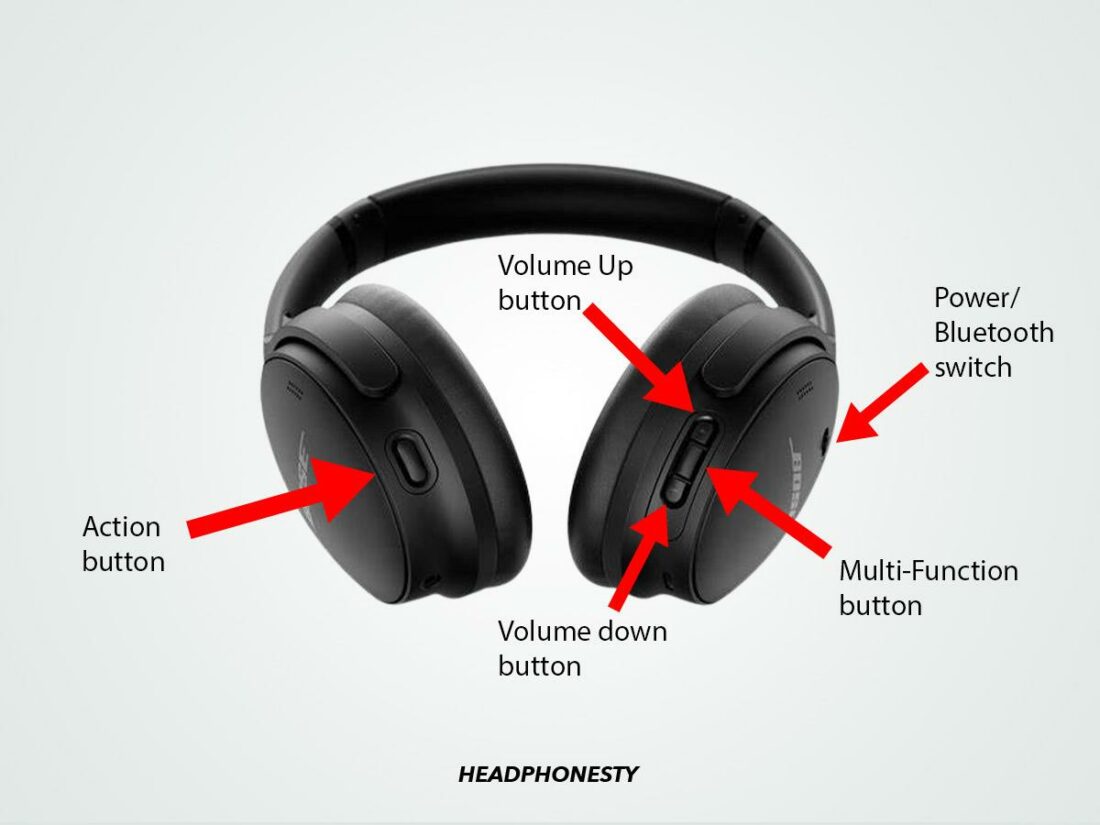
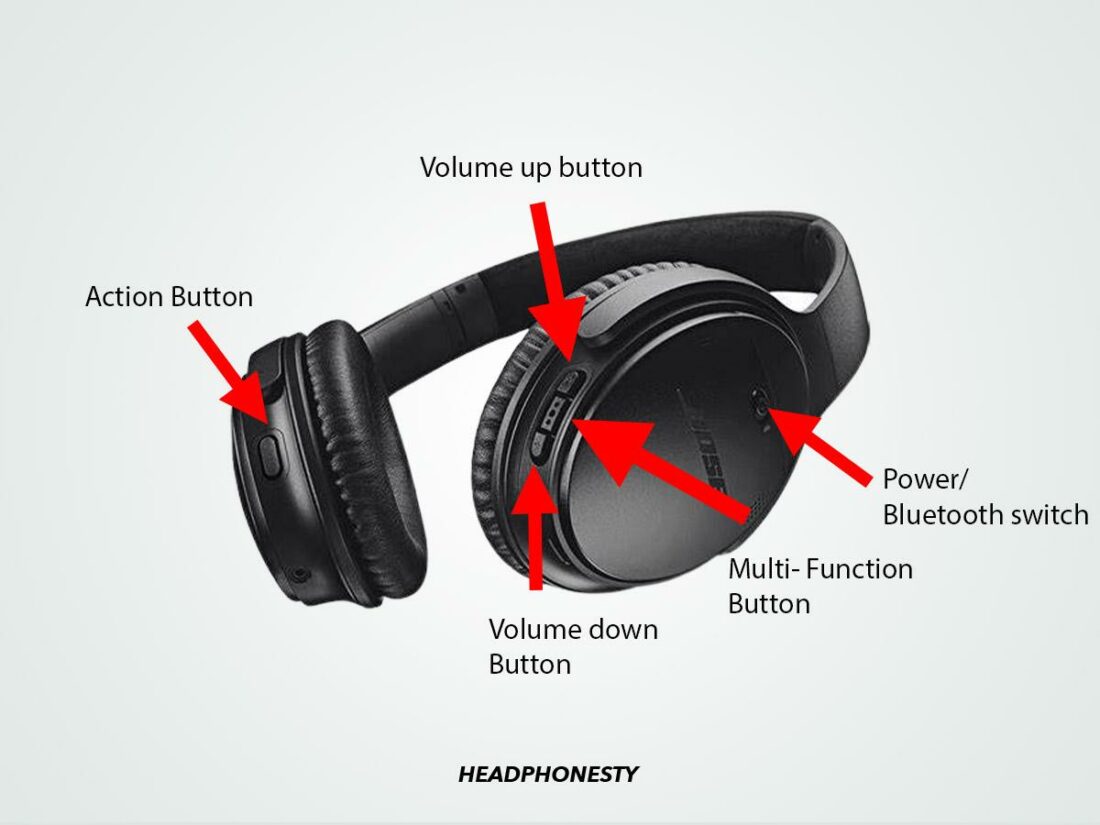
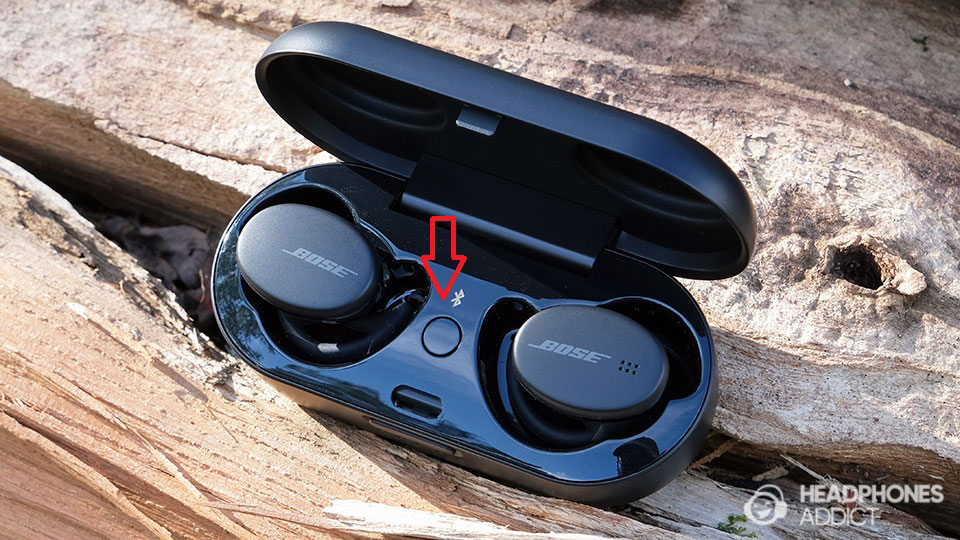
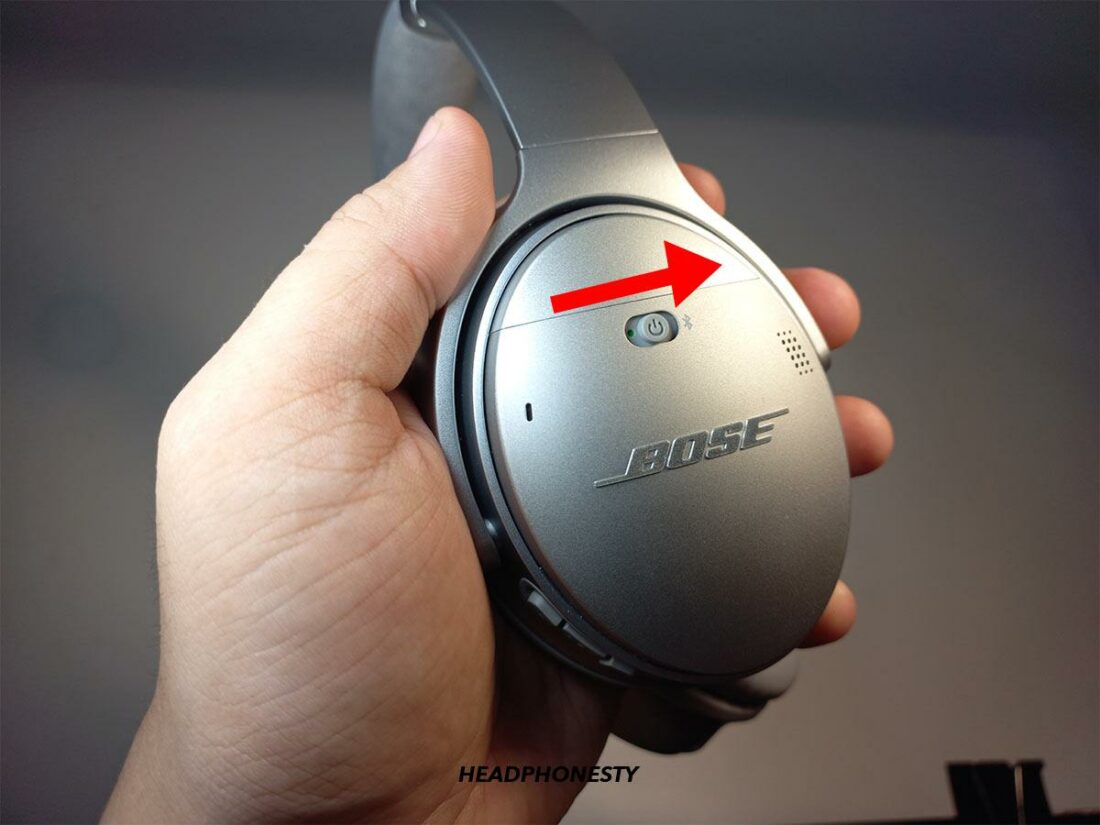
Bose headphones may use slightly different controls. For example, many QuietComfort models use a Power/Bluetooth switch, while some earbuds enter pairing mode through the charging case.
How to Put Bose Headphones in Pairing Mode
Pairing mode makes your Bose headphones visible to another device. Think of it as opening the front door so your phone or computer can find them.
Follow these steps:
Turn on your Bose headphones.
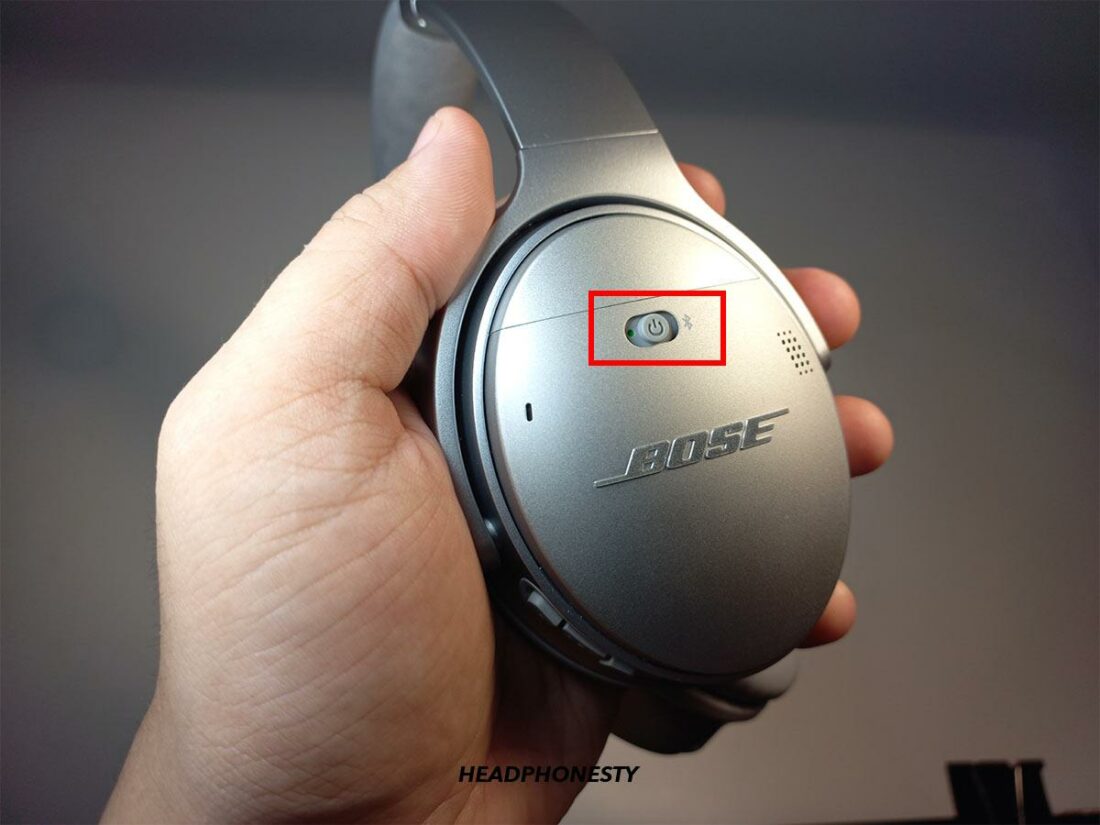
Find the Power/Bluetooth switch or Bluetooth button.
Press and hold it for about three seconds.
Release the button when you hear “Ready to connect” or see a blinking blue light.
Open the Bluetooth menu on your device.
Select your Bose headphones from the list.
The exact button may differ by model. On many Bose over-ear headphones, the power switch slides toward the Bluetooth symbol and stays there for several seconds. On Bose earbuds, placing both earbuds in the case and opening the lid may start pairing mode. Some models use a button on the case.
If your headphones do not announce pairing mode, turn them off and repeat the process. A blue or white blinking light usually means the headphones are ready to connect.

How to Connect Bose Headphones to an iPhone
You can connect Bose headphones to an iPhone through the Settings app. The process works with most current iPhone models and iOS versions.
Turn on your Bose headphones.
Press and hold the Bluetooth or Power button until pairing mode starts.
Open Settings on your iPhone.
Tap Bluetooth.
Turn Bluetooth on if it is disabled.
Find your Bose headphones under Other Devices.
Tap the headphone name.
Wait until the status changes to Connected.
Your Bose headphones may appear under a name such as “Bose QuietComfort 45,” “Bose Headphones 700,” or “Bose QuietComfort Ultra.” Once connected, the device usually moves to My Devices.
If you use Bose earbuds, keep both earbuds in the case while starting the connection. Then remove them after the iPhone shows the Bose name. This can help the earbuds connect as a pair instead of appearing separately.
How to Connect Bose Headphones to Android
Android menus can look different between Samsung, Google Pixel, Motorola, and other phones. However, the Bluetooth process is nearly the same.
Turn on your Bose headphones.
Hold the Bluetooth button until the headphones enter pairing mode.
Open Settings on your Android phone.
Tap Connected devices, Connections, or Bluetooth.
Select Pair new device if needed.
Tap your Bose headphones in the available devices list.
Approve the pairing request.
After pairing, your Bose headphones should show as Connected. Android may also display separate controls for calls, media audio, and battery level.
If your phone asks for a PIN, try 0000. Most modern Bose headphones do not require a code, so a PIN request may indicate an older device or a connection issue.
How to Connect Bose Headphones to a Windows PC
Windows computers can connect Bose headphones for music, video calls, and gaming. You may need to choose the headphones as the audio output after pairing.
Windows 11
Put your Bose headphones into pairing mode.
Open Settings.
Select Bluetooth & devices.
Turn Bluetooth on.
Click Add device.
Select Bluetooth.
Choose your Bose headphones.
Click Done.
To select them for sound, click the speaker icon on the Windows taskbar. Then choose your Bose headphones as the output device.
For calls, open the sound settings and confirm that the Bose headset is selected as both the speaker and microphone. Windows can sometimes choose the laptop microphone instead.
Windows 10
Open Settings.
Select Devices.
Click Bluetooth & other devices.
Turn Bluetooth on.
Choose Add Bluetooth or other device.
Select Bluetooth.
Click your Bose headphones.
Windows may show two audio profiles. The Stereo option usually offers better music quality, while the Hands-Free option supports microphone use but may sound less clear. This is a normal Bluetooth limitation, not necessarily a fault with your headphones.
How to Connect Bose Headphones to a Mac
Connecting Bose headphones to a Mac takes only a few steps through System Settings or System Preferences.
Turn on your Bose headphones.
Hold the Bluetooth button until pairing mode begins.
Open the Apple menu.
Select System Settings on newer macOS versions.
Click Bluetooth.
Find your Bose headphones.
Click Connect.
On older macOS versions, open System Preferences and choose Bluetooth instead. Your Bose headphones should appear under Devices.
If sound still comes from the Mac speakers, click the Control Center icon in the menu bar. Select Sound, then choose your Bose headphones. You can also open System Settings, select Sound, and set them as the output device.
How to Connect Bose Headphones to a TV
Many smart TVs support Bluetooth headphones. The menu names vary, but the basic process remains familiar.
Put your Bose headphones in pairing mode.
Open your TV’s Settings menu.
Find Sound, Audio, or Bluetooth.
Choose Bluetooth devices or Wireless speakers.
Select your Bose headphones.
Confirm the connection.
Some TVs do not support Bluetooth audio. In that case, you may need a Bluetooth transmitter connected to the TV’s optical, USB, or headphone output.
Bluetooth audio can also create a small delay between the picture and sound. If your TV offers an audio delay or lip-sync setting, adjust it until voices match the video. A transmitter with low-latency support may reduce this problem, but compatibility depends on both devices.

How to Connect Bose Headphones With the Bose App
The Bose app can make setup easier and add extra controls. Depending on your model, the app may be called Bose Music or Bose Connect.
Download the correct Bose app from your device’s official app store.
Turn on your headphones.
Enable Bluetooth on your phone.
Open the Bose app.
Follow the setup instructions.
Select your headphones when they appear.
The app can help with firmware updates, device names, noise cancellation, shortcut settings, and connection management. It may also show battery information.
Not every Bose product uses the same app. Older headphones may work with Bose Connect, while newer products often use Bose Music. If the app cannot find your headphones, check the product name and use the app recommended for that model.
The app is helpful, but it is not always required. You can usually connect Bose headphones directly through your phone or computer’s Bluetooth settings.

How to Connect Bose Headphones to Two Devices
Some Bose headphones support multipoint Bluetooth. This feature lets the headphones stay connected to two devices, such as a phone and laptop.
To use multipoint:
Connect the headphones to the first device.
Pause the audio.
Connect the headphones to the second device.
Start audio on the device you want to use.
Some models switch automatically when a call arrives. Others require you to pause one device before playing sound from the second device.
Multipoint performance depends on the Bose model and firmware. If switching does not work, update the headphones through the Bose app. You can also disconnect one device and reconnect it manually.
A common mistake is assuming every Bose model supports two active connections. Check your model’s official specifications before relying on multipoint for work calls or travel.
How to Disconnect or Forget Bose Headphones
You may need to remove Bose headphones before connecting them to a new phone or computer.
On an iPhone:
Open Settings.
Tap Bluetooth.
Tap the information icon beside your Bose headphones.
Select Forget This Device.
On Android:
Open Bluetooth settings.
Tap the gear icon beside the Bose device.
Choose Forget, Unpair, or Remove.
On Windows or Mac, open Bluetooth settings and remove the headphones from the saved device list.
For a simple disconnect, turn off the headphones or disable Bluetooth on the current device. Forgetting the device is more useful when pairing has failed or the headphones keep reconnecting to the wrong product.
How to Fix Bose Headphones That Will Not Connect
If you cannot connect Bose headphones, start with the simplest solutions. Most connection problems come from an old Bluetooth record, low battery, or another device connecting first.
Try these steps in order:
• Move the headphones within a few feet of the device.
• Turn Bluetooth off and on again.
• Restart the phone, computer, or TV.
• Turn the Bose headphones off, then turn them on again.
• Forget the Bose headphones in the device’s Bluetooth menu.
• Put the headphones back into pairing mode.
• Disconnect nearby devices that may be using the headphones.
• Charge the headphones.
• Update the Bose app and headphone firmware.
If the headphones still do not appear, clear the Bluetooth device list on the headphones. The reset method differs by model, so use the instructions for your exact product.
In many Bose models, holding the Power/Bluetooth switch for an extended period clears the saved device list. Do not guess if your model uses a different button combination. A model-specific reset guide is safer and prevents accidental changes.
How to Reset Bose Headphones
A reset can solve repeated pairing failures, connection drops, or incorrect device names. It can also remove saved Bluetooth connections.
Before resetting, write down any custom settings you want to restore. A reset may remove paired devices and return preferences to their default values.
General reset steps often include:
Turn off the headphones.
Connect them to a USB charger if the model requires it.
Disconnect the charging cable when instructed.
Hold the Power or Bluetooth button for the required time.
Release the button when the light pattern changes.
Pair the headphones again.
Reset instructions are not identical across Bose products. QuietComfort headphones, Bose 700 headphones, and Bose earbuds may use different procedures. Always match the instructions to the exact model.
Tips for a Stable Bose Bluetooth Connection
A good Bluetooth connection should feel almost invisible. These habits can make it more reliable.
• Keep the headphones and source device nearby.
• Avoid thick walls and crowded wireless areas.
• Keep headphone firmware current.
• Remove unused saved devices if the headphones become confused.
• Use the Bose app to check battery and software status.
• Avoid pairing with many devices at the same time unless your model supports it.
• Keep your phone’s operating system updated.
Bluetooth uses the crowded 2.4 GHz wireless band. Wi-Fi routers, smart home devices, and other Bluetooth products can sometimes add interference. Moving a few feet away from a crowded router or turning off unused wireless devices may improve performance.
In testing and everyday setup, one mistake appears often: people open the Bluetooth menu before putting the headphones in pairing mode. The phone then searches for a device that is not visible. Put the headphones into pairing mode first, and the rest becomes much easier.
Bose Headphones Connected but No Sound
A successful Bluetooth connection does not always mean the correct audio output is selected. Your device may still send sound through its speakers, monitor, or another headset.
Check the following:
• Confirm that Bose headphones are selected as the audio output.
• Raise the volume on both the source device and headphones.
• Pause and restart the media.
• Close and reopen the music or video app.
• Disconnect other Bluetooth speakers.
• Check whether a wired cable is plugged into the headphones.
On a computer, the Bose headset may appear as both an output and input device. Select the correct output for music. During calls, the system may switch to a hands-free profile, which can reduce sound quality.
Frequently Asked Questions About How to Connect Bose Headphones
How do I put Bose headphones into pairing mode?
Turn on the headphones and press and hold the Power/Bluetooth button for about three seconds. Release it when you hear a pairing message or see a blinking blue light.
Why are my Bose headphones not showing up on Bluetooth?
They may already be connected to another device, or they may not be in pairing mode. Turn off nearby Bluetooth devices, restart the headphones, and hold the Bluetooth button until the pairing prompt appears.
Can I connect Bose headphones to an iPhone and Android phone?
Yes, most Bose Bluetooth headphones can pair with both types of phones. Some models also support multipoint, which allows two devices to remain connected at the same time.
Do Bose headphones need the Bose app to connect?
No. You can usually pair them through your phone, computer, or TV’s Bluetooth settings. The Bose app is useful for updates, settings, battery details, and product management.
How do I connect Bose headphones to a laptop?
Put the headphones into pairing mode, open the laptop’s Bluetooth settings, and select the Bose product from the available devices list. Then choose the headphones as the laptop’s audio output.
Why do my Bose headphones connect but have no sound?
Your device may still use its built-in speakers as the audio output. Open the sound settings and select your Bose headphones manually.
Can I connect Bose headphones without Bluetooth?
Yes, if your model supports a wired connection. Use the correct audio cable, or use a compatible Bluetooth transmitter with a TV or other device that lacks Bluetooth.
Conclusion
To connect Bose headphones, turn on Bluetooth, place the headphones in pairing mode, and select them from your device’s Bluetooth menu. The Bose app can simplify setup, while forgetting old connections, updating firmware, and selecting the correct audio output can solve most problems.
Start with the simple steps before trying a reset. Once your headphones connect, explore multipoint pairing, noise control, and the Bose app to get more from your device. If this guide helped, save it for your next setup or share it with someone who is having trouble connecting Bose headphones.
