

To connect Bose wireless earbuds, turn on Bluetooth, open the case, and select your earbuds from your device’s Bluetooth menu.
Learning how to connect Bose wireless earbuds is simple once you understand pairing mode, Bluetooth settings, and the Bose app. This guide covers phones, computers, tablets, pairing problems, device switching, resets, and model-specific tips so you can enjoy clear sound without the usual guesswork.
Before You Connect Bose Wireless Earbuds
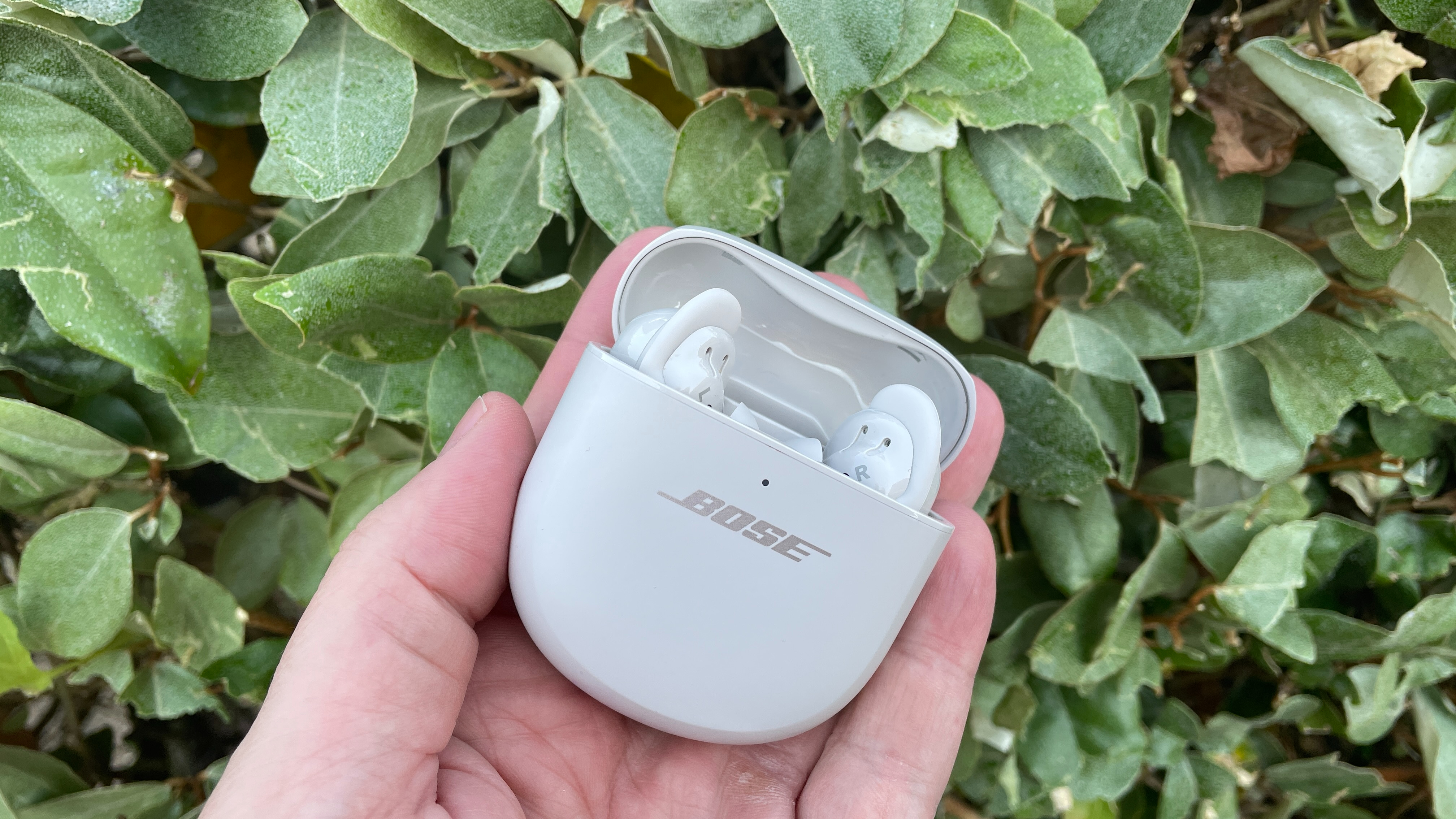
Before you connect Bose wireless earbuds, charge both earbuds and the charging case. A low battery can interrupt pairing or make the earbuds disappear from your device’s Bluetooth list.
Keep the earbuds close to your phone, tablet, or computer. Bluetooth works best over a short range, especially during the first connection.
Check these points first:
• Remove any protective film from the charging contacts.
• Place both earbuds in the charging case for a few seconds.
• Turn on Bluetooth on your device.
• Move away from other devices that may connect to the earbuds.
• Close the Bose app if it is frozen, then open it again.
Most Bose earbuds, including QuietComfort Earbuds, QuietComfort Ultra Earbuds, Sport Earbuds, and newer models, follow a similar setup process. Button names and app screens may differ slightly by model.

How to Connect Bose Wireless Earbuds to an iPhone or Android Phone
The fastest way to connect Bose wireless earbuds is through your phone’s Bluetooth menu. The steps are almost the same on iPhone and Android.
Step 1: Open the charging case
Put both earbuds inside the case. Open the lid and keep the earbuds in the case during setup.
Some Bose models enter pairing mode automatically when they are new. If they do not, use the case button or touch controls to start pairing mode.
Step 2: Enter pairing mode
Press and hold the Bluetooth or setup button on the charging case. Hold it until the status light slowly flashes blue.
On some Bose models, you may need to press and hold one or both earbuds instead. The flashing blue light usually means the earbuds are ready to pair.
Step 3: Open Bluetooth settings
On an iPhone:
- Open Settings.
- Tap Bluetooth.
- Turn Bluetooth on.
- Wait for your Bose earbuds to appear under Other Devices.
On an Android phone:
- Open Settings.
- Tap Connected devices or Connections.
- Select Bluetooth.
- Turn Bluetooth on.
- Tap Pair new device if needed.
Your earbuds may appear as “Bose QuietComfort Earbuds,” “Bose QC Ultra Earbuds,” or a similar product name.
Step 4: Select your Bose earbuds
Tap the Bose earbuds in the device list. Wait a few seconds for the connection to complete.
You may hear a voice prompt or see the earbuds move to the Connected section. Play music for a moment to confirm that both earbuds work.
This basic process is the most reliable answer to how to connect Bose wireless earbuds for everyday phone use. Once paired, the earbuds should connect automatically when you remove them from the case.
How to Connect Bose Wireless Earbuds With the Bose App
The Bose app can make setup easier and unlock extra features. Depending on your model and region, the app may be called the Bose app or Bose Music.
The app can help you:
• Complete the first-time setup.
• Rename your earbuds.
• Check battery levels.
• Adjust noise cancellation.
• Change touch controls.
• Install firmware updates.
• Manage connected devices.
To connect Bose wireless earbuds with the app, download the official Bose app from the Apple App Store or Google Play Store. Open the app, allow Bluetooth access, and follow the on-screen instructions.
Keep the charging case open during setup. If the app cannot find the earbuds, first pair them through your phone’s Bluetooth settings. Then close and reopen the app.
A firmware update may take several minutes. Keep the earbuds near your phone, leave the case open, and avoid switching to another app during the update. An interrupted update can cause connection problems.

How to Connect Bose Wireless Earbuds to a Windows PC
You can connect Bose wireless earbuds to a Windows computer for music, video calls, and games. The process depends on your version of Windows.
Windows 11
- Open Settings.
- Select Bluetooth & devices.
- Turn Bluetooth on.
- Click Add device.
- Choose Bluetooth.
- Put the Bose earbuds into pairing mode.
- Select the earbuds from the list.
Windows 10
- Open Settings.
- Select Devices.
- Click Bluetooth & other devices.
- Turn Bluetooth on.
- Choose Add Bluetooth or other device.
- Select Bluetooth.
- Click your Bose earbuds.
After pairing, open the sound menu and select the Bose earbuds as the output device. For calls, choose the earbuds as both the speaker and microphone in apps such as Zoom, Microsoft Teams, or Google Meet.
A common Windows issue is seeing two audio options. One may say “Stereo,” while another may say “Hands-Free.” Stereo usually offers better music quality. Hands-Free mode is designed for calls and may reduce audio quality.

How to Connect Bose Wireless Earbuds to a Mac
To connect Bose wireless earbuds to a Mac, use the Bluetooth menu in macOS.
- Open the Apple menu.
- Select System Settings.
- Click Bluetooth.
- Turn Bluetooth on.
- Put the earbuds into pairing mode.
- Find the Bose earbuds in the list.
- Click Connect.
On older Mac computers, open System Preferences instead of System Settings. Then choose Bluetooth and select your earbuds.
After pairing, open System Settings, choose Sound, and select the Bose earbuds under Output. Select them under Input as well if you plan to use the microphone.
If your Mac connects but plays no sound, check the output device first. This small setting causes many false connection complaints.
How to Connect Bose Wireless Earbuds to a Second Device
Most modern Bose earbuds can remember several devices. However, they may not play audio from two devices at the same time unless your model supports multipoint Bluetooth.
To connect Bose wireless earbuds to a second device:
- Disconnect the earbuds from the first device, or turn Bluetooth off on it.
- Put the earbuds into pairing mode.
- Open Bluetooth settings on the second device.
- Select the Bose earbuds.
- Confirm the connection.
Some Bose models support multipoint connections. This feature lets you stay connected to two devices, such as a phone and laptop. The earbuds may pause music on the laptop when a call arrives on your phone.
If automatic switching does not work, open the Bose app and check the connection settings. You may also need to disconnect one device before connecting another.

How to Connect Bose Wireless Earbuds When They Do Not Appear
If you cannot connect Bose wireless earbuds because they do not appear in Bluetooth settings, try these steps in order.
Confirm pairing mode
The earbuds must be discoverable. Place them in the case, open the lid, and hold the case button until the light flashes blue.
Restart Bluetooth
Turn Bluetooth off on your phone or computer. Wait about 10 seconds, then turn it back on and search again.
Move closer
Keep the earbuds within a few feet of the device. Walls, metal objects, and crowded wireless areas can weaken the first connection.
Remove an old pairing
Your device may already remember the earbuds but fail to reconnect. Tap the settings icon beside the Bose earbuds and choose Forget This Device, Unpair, or Remove Device. Then pair them again.
Charge the earbuds
Place both earbuds in the case and confirm that the charging lights respond. Clean dirty contacts with a dry, soft cloth. Do not use water or metal tools inside the case.
These steps solve many pairing issues without a factory reset. In practice, forgetting the old Bluetooth record is often the quickest fix when how to connect Bose wireless earbuds instructions seem to fail.
How to Reset Bose Wireless Earbuds
A reset can help when the earbuds connect to one device but not another, disconnect repeatedly, or behave differently after an update. The exact reset method depends on the Bose model.
Start with a soft reset:
- Place both earbuds in the charging case.
- Close the lid for about 30 seconds.
- Open the lid.
- Try pairing again.
If that does not help, use the Bose app to look for a reset, clear product settings, or remove the earbuds from your Bose account. Some models use a case button sequence, while others require touch controls.
Read the instructions for your exact model before performing a factory reset. A factory reset can erase saved Bluetooth connections and customized settings.
After resetting, remove the old Bose entry from every nearby phone and computer. Then connect Bose wireless earbuds as if they were new.
Common Mistakes to Avoid
Small setup mistakes can make a simple Bluetooth connection feel broken. Avoid these common problems:
• Searching for the earbuds while they are still connected to another phone.
• Holding the case button for too short a time.
• Choosing a nearby device with a similar name.
• Pairing through the Bose app while Bluetooth access is blocked.
• Keeping the earbuds too far from the device.
• Ignoring a low battery warning.
• Trying to update firmware during an unstable connection.
• Using a damaged or non-certified charging cable.
One useful habit is to turn off Bluetooth on your old phone before setting up a new phone. This prevents the earbuds from reconnecting to the wrong device.
Also, do not repeatedly tap random Bluetooth entries. Remove old pairings, place the earbuds in pairing mode, and start with a clean connection.
Tips for a Stable Bose Earbud Connection
A successful first pairing is only part of the experience. These habits can improve daily performance:
• Keep your phone’s operating system and Bose app updated.
• Install official firmware updates when your connection is stable.
• Store the earbuds in the case when you are not using them.
• Keep the charging contacts clean and dry.
• Avoid covering the phone with thick metal objects during use.
• Keep the earbuds within the normal Bluetooth range.
• Use the correct audio output on computers.
Bluetooth range varies with walls, body position, interference, and the connected device. A phone in a back pocket may produce more dropouts than a phone on a desk.
Bose earbuds are designed for wireless convenience, but no Bluetooth connection is perfect in every setting. Busy gyms, airports, and offices can contain many competing wireless signals.
How to Check Whether Both Earbuds Are Connected
After you connect Bose wireless earbuds, test the left and right sides separately. Play audio at a low volume and gently remove one earbud at a time.
If only one earbud works, place both earbuds in the case. Check that each one sits correctly on its charging contact. Then remove them together and reconnect.
You can also check battery levels in the Bose app. A missing battery reading may indicate that one earbud is not making contact or has not completed the pairing process.
If one earbud remains silent, clean the charging contacts, restart the earbuds, and update the app. Persistent problems may point to a hardware fault, especially if the earbud will not charge or show any light.
Frequently Asked Questions About How to Connect Bose Wireless Earbuds
Why are my Bose wireless earbuds not showing in Bluetooth?
They may not be in pairing mode, or they may still be connected to another device. Place them in the case, hold the pairing button until the light flashes blue, and search again.
Can I connect Bose wireless earbuds to an iPhone?
Yes. Open Settings, select Bluetooth, and tap the Bose earbuds when they appear. You can also use the Bose app for setup and control features.
Can I connect Bose wireless earbuds to a laptop?
Yes. Turn on Bluetooth on the Windows PC or Mac, place the earbuds in pairing mode, and select them from the available devices. Choose the earbuds as the computer’s sound output after pairing.
Why do my Bose earbuds connect but have no sound?
Your device may be using its built-in speakers instead of the earbuds. Open the sound or audio output settings and select the connected Bose earbuds.
How do I connect Bose wireless earbuds to a new phone?
Turn off Bluetooth on the old phone or remove the old pairing. Then place the earbuds in pairing mode and select them from the new phone’s Bluetooth menu.
Do Bose earbuds connect to more than one device?
Some models support multipoint connections, while others remember multiple devices but connect to one at a time. Check the Bose app or product guide for your exact model.
[CodeImg? no, prohibited after FAQ]
Conclusion
To connect Bose wireless earbuds, charge them, activate pairing mode, open your device’s Bluetooth settings, and select the correct Bose name. The Bose app can make setup easier, while forgetting old pairings and resetting the earbuds can solve stubborn connection issues.
Start with a clean pairing process and check the audio output if sound does not play. Once your earbuds are connected, explore the Bose app for updates, noise control, battery details, and custom controls. Share this guide with someone setting up Bose earbuds, or explore more device setup tips for a smoother wireless experience.
