

Most Bose headphones reset by clearing bluetooth connections, restarting the headset, or restoring model-specific settings.
Learning how to factory reset Bose headphones can solve pairing errors, app glitches, frozen controls, and strange audio problems. The exact steps depend on whether you own QuietComfort, QuietComfort Ultra, Noise Cancelling Headphones 700, or an older SoundLink model. This guide explains the safest process, what a reset removes, and what to try if the first reset does not work.
What a Factory Reset Does on Bose Headphones
A factory reset returns your Bose headphones to a clean starting state. It can remove stored Bluetooth connections, clear temporary software errors, and restore normal behavior after a failed update or connection problem.
However, Bose uses different reset methods across its product range. Some models offer a true reset, while others mainly clear their Bluetooth memory and restart the internal system.
A reset may help when your headphones:
• Will not connect to a phone, tablet, or computer
• Connect but produce no sound
• Keep disconnecting
• Do not appear in the Bose app
• Stop responding to buttons
• Have unusual noise cancellation or audio behavior
• Remain linked to an old device
Before you begin, charge the headphones for at least 15 minutes. A low battery can interrupt the reset and make the process appear unsuccessful.
Before You Reset Your Bose Headphones
A factory reset should not be your first step for every problem. It removes saved connections, so you will need to pair the headphones again afterward.
Try these quick checks first:
- Turn Bluetooth off and back on on your phone.
- Restart the phone, tablet, or computer.
- Move away from other active Bluetooth devices.
- Close and reopen the Bose app.
- Check for a firmware update in the Bose app.
- Charge the headphones.
- Remove the headphones from the Bluetooth settings on your device.
On an iPhone, open Settings, select Bluetooth, tap the information icon beside your Bose headphones, and choose Forget This Device. On Android, open Settings, select Connected devices or Bluetooth, tap the gear icon beside the headphones, and choose Forget or Unpair.
On a Windows PC or Mac, remove the Bose headphones from the Bluetooth device list. This step matters because your computer may keep trying to use an old connection even after you reset the headphones.
How to Factory Reset Bose QuietComfort Headphones
This process generally applies to newer Bose QuietComfort headphones that use a USB charging port and a Power/Bluetooth control. Product names can vary by release, so check the label inside the headband or the Bose app if you are unsure.
Reset newer Bose QuietComfort models
- Turn the headphones off.
- Wait about 30 seconds.
- Connect the USB charging cable to the headphones.
- Wait about five seconds.
- Disconnect the USB cable.
- Wait one minute.
- Turn the headphones on.
- Open the Bose app and pair the headphones again.
This process restarts the headset’s internal software. It does not always erase every account or app setting. For a clean connection, also remove the headphones from your phone’s Bluetooth menu before pairing again.
If the headphones still connect to an old device, clear the Bluetooth list through the Bose app when that option is available. You can then pair the headphones with only the device you want to use.

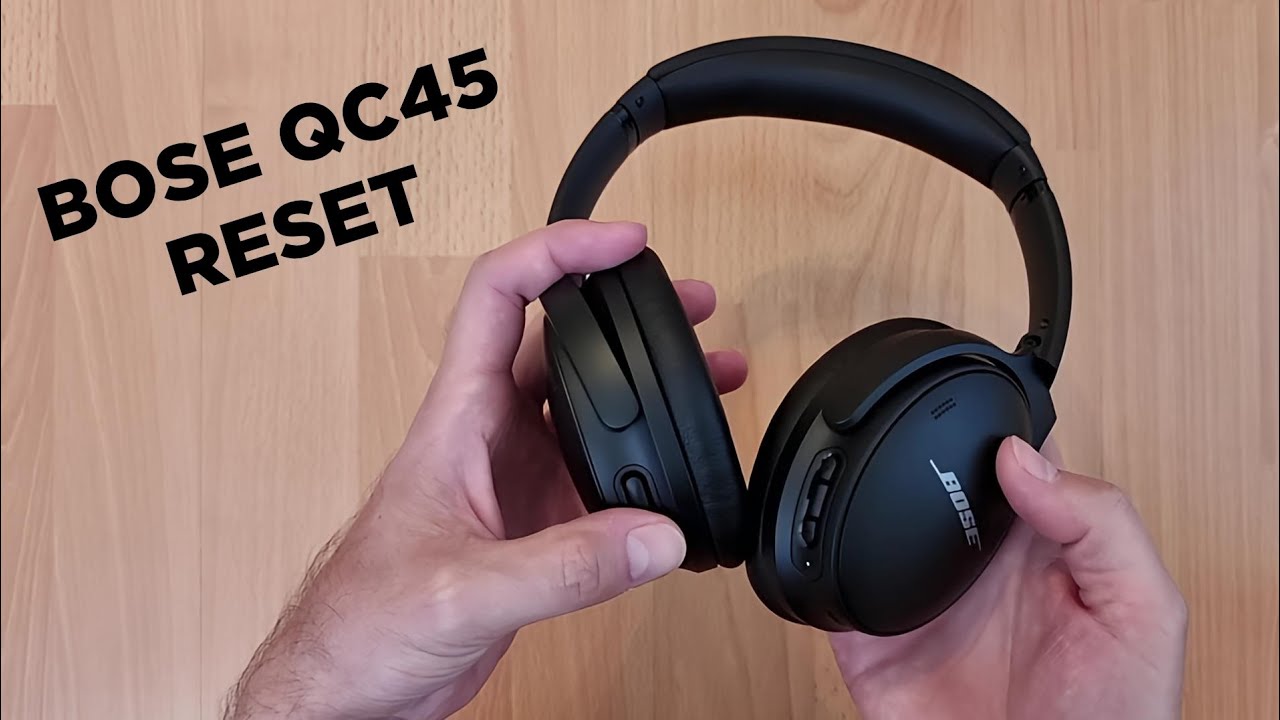
How to Factory Reset Bose QuietComfort 45 Headphones
The Bose QuietComfort 45 uses a reset process similar to several QuietComfort models. The reset can help when the headset freezes, refuses to enter pairing mode, or behaves differently after a firmware update.
Bose QuietComfort 45 reset steps
- Switch the headphones off.
- Wait 30 seconds.
- Plug the USB cable into the charging port.
- Leave the cable connected for around five seconds.
- Unplug the cable.
- Wait one minute.
- Turn the headphones on.
- Test the connection with your phone.
If pairing still fails, clear the phone’s saved Bose connection. Then restart both devices and pair them as if they were new.
A common mistake is to hold buttons randomly while the USB cable is connected. That can place the headset in a different mode instead of resetting it. Follow the timing closely and use a reliable charging cable.

How to Factory Reset Bose QuietComfort Ultra Headphones
The Bose QuietComfort Ultra Headphones use a control button for power and Bluetooth functions. Bose may change the button behavior through firmware updates, so the Bose app and the current product guide should be treated as the final reference.
Recommended reset process
- Turn the headphones off.
- Wait about 30 seconds.
- Connect a USB cable to the headphones.
- Wait approximately five seconds.
- Disconnect the cable.
- Wait one minute.
- Turn the headphones on.
- Open the Bose app and complete setup again.
If the Ultra headphones remain visible but will not connect, remove them from the Bluetooth settings on your phone first. Also remove the product from the Bose app if the app provides that option.
The reset does not fix physical damage, a worn battery, or a damaged charging port. If the headphones do not show any lights or respond after charging, the issue may need hardware service.
How to Factory Reset Bose Noise Cancelling Headphones 700
The Bose Noise Cancelling Headphones 700, often called Bose 700, use a slightly different control layout from the QuietComfort line.
Bose 700 reset steps
- Disconnect the USB charging cable from the headphones.
- Turn the headphones off.
- Connect the charging cable.
- Press and hold the Power/Bluetooth button for about 10 seconds.
- Release the button.
- Disconnect the charging cable.
- Wait briefly, then turn the headphones on.
- Pair them with your device again.
If this does not work, repeat the process with the headphones charged. A weak battery can prevent the headset from completing a reset.
You should also forget “Bose NC 700” from every nearby device that previously used the headphones. Multiple saved connections can make a successful reset look unsuccessful because a phone, laptop, or tablet may reconnect automatically.

How to Clear Bluetooth Memory on Bose Headphones
Clearing Bluetooth memory is different from restoring every setting. It removes remembered devices so the headphones can build a new connection list.
The exact button combination depends on the model. Many older Bose wireless headphones use the Power/Bluetooth control, while newer models rely more heavily on the Bose app.
Try this general approach:
- Turn the headphones on.
- Press and hold the Bluetooth or Power/Bluetooth button for about 10 seconds.
- Watch for a voice prompt or flashing Bluetooth light.
- Release the button when the headset confirms that the device list was cleared.
- Forget the headphones from your phone or computer.
- Turn Bluetooth off and back on.
- Pair the headphones again.
Do not use this timing as a universal instruction for every Bose model. If your headphones do not provide a voice prompt, stop and check the guide for that exact model.
In hands-on troubleshooting, clearing Bluetooth memory solves many problems that people call a “factory reset.” It is often the best first fix because it removes old pairing data without changing every feature setting.

Reset Bose Headphones Through the Bose App
The Bose app can make the reset process easier, especially on newer headphones. Depending on the product and software version, the app may let you remove the product, clear connections, install updates, or review device settings.
Use the Bose app safely
- Open the Bose app.
- Select your headphones.
- Open Settings.
- Look for Product Settings, Bluetooth, or Remove Product.
- Follow the instructions shown for your model.
- Close the app after removal.
- Restart your phone.
- Add the headphones again.
The app cannot repair every problem. It may also fail to find headphones that are frozen, out of battery, or already linked to another account. In that case, use the physical reset steps first.
Always update the Bose app through the official app store. Avoid unofficial firmware files or random button combinations from online forums. Incorrect firmware or unsupported steps can create more problems than they solve.

What to Do After a Bose Headphones Factory Reset
After you complete how to factory reset Bose headphones, set them up as a new Bluetooth accessory. This gives you the cleanest test.
Follow these steps:
- Keep the headphones within a few feet of your phone.
- Turn off Bluetooth on nearby phones and computers.
- Turn on the Bose headphones.
- Wait for pairing mode.
- Select the headphones in your device’s Bluetooth menu.
- Open the Bose app and finish setup.
- Test music, calls, noise cancellation, and touch controls.
If you use more than one device, connect the headphones to one device first. Test that connection before adding a laptop, tablet, or second phone.
This approach helps identify the source of the problem. If the headphones work with one phone but not another, the headset may be fine and the second device may need a Bluetooth reset or software update.

Common Mistakes to Avoid
Resetting Bose headphones is simple, but small mistakes can affect the result.
• Do not reset with a nearly empty battery. Charge the headphones first.
• Do not pair during the reset. Wait until the reset and restart are complete.
• Do not leave several devices searching for the headphones. Turn Bluetooth off on devices you are not testing.
• Do not confuse “Forget This Device” with a full headphone reset. The first action affects your phone or computer, not the headset.
• Do not press buttons for much longer than instructed. Some combinations activate pairing, voice assistant, or other functions.
• Do not assume every QuietComfort model uses the same steps. The QuietComfort 45, QuietComfort Ultra, and older QC35 models have different controls.
• Do not rely on a reset to fix a cracked hinge, broken button, battery failure, or water damage.
A useful rule is to reset once, then test carefully. Repeating the same reset many times rarely improves a hardware fault.
Bose Headphones Still Will Not Reset
If how to factory reset Bose headphones does not solve the issue, work through these checks.
Check the charging system
Try a different USB cable and power adapter. Look inside the charging port for dust or damage, but do not push metal objects into the port.
Test another device
Pair the headphones with a different phone or computer. This shows whether the issue comes from the headphones or the original device.
Check the Bose app
Install the latest app version and look for a firmware update. Keep the headphones close to the phone during the update, and do not turn them off until the process finishes.
Remove competing connections
Turn off Bluetooth on nearby devices. Some Bose headphones can remember more than one product, and automatic reconnection may interrupt your test.
Contact Bose support
Contact official Bose support if the headphones do not power on, refuse to charge, or remain unresponsive after the correct reset. Have the model name, serial number, purchase date, and steps you already tried ready.
Reset instructions can change with firmware and product revisions. Official support is the safest option when your exact model does not match the steps in this guide.
Frequently Asked Questions About How to Factory Reset Bose Headphones
Does a factory reset erase all Bose headphone settings?
A reset can erase saved Bluetooth connections and temporary system data. It may not remove every setting stored in the Bose app, so you may also need to remove the product from the app and pair it again.
How long does it take to factory reset Bose headphones?
Most Bose headphone reset procedures take one to three minutes. Setup and Bluetooth pairing may take a few extra minutes after the reset finishes.
Why will my Bose headphones not reset?
A low battery, damaged charging cable, frozen software, or incorrect button sequence can prevent a reset. Charge the headphones, follow the instructions for the exact model, and test another cable if needed.
Will resetting Bose headphones improve sound quality?
A reset can fix software-related sound problems, such as missing audio or incorrect connection profiles. It will not repair a damaged speaker, worn ear cushion, blocked microphone, or failing battery.
Do I need the Bose app to reset my headphones?
No. Many Bose models can be reset with the physical controls and a charging cable. The Bose app is useful for updates, removing the product, checking settings, and completing setup afterward.
Will a Bose headphone reset remove multipoint connections?
It can remove saved Bluetooth devices and connection preferences. Afterward, pair the headphones again and turn multipoint or device-switching features back on if your model supports them.
Conclusion
Knowing how to factory reset Bose headphones can restore a clean connection and fix many common software problems. Start by charging the headset, forget the old Bluetooth connection, and use the reset method designed for your exact Bose model.
Remember that a reset cannot repair physical damage or a failing battery. If the headphones remain unresponsive after a careful reset and charging test, contact Bose support for model-specific help. Try the steps today, then share your model and result in the comments or explore the official Bose support resources for further guidance.
