

To connect JLab earbuds to a laptop, turn on Bluetooth, enter pairing mode, and select the earbuds from your device list.
Learning how to connect JLab earbuds to a laptop is simple once you know where pairing mode lives. The steps vary slightly between Windows and Mac, and some JLab models use touch controls while others use a button on the case or earbud. This guide explains the full process, fixes common connection problems, and shares practical tips for stable sound during work, calls, and streaming.
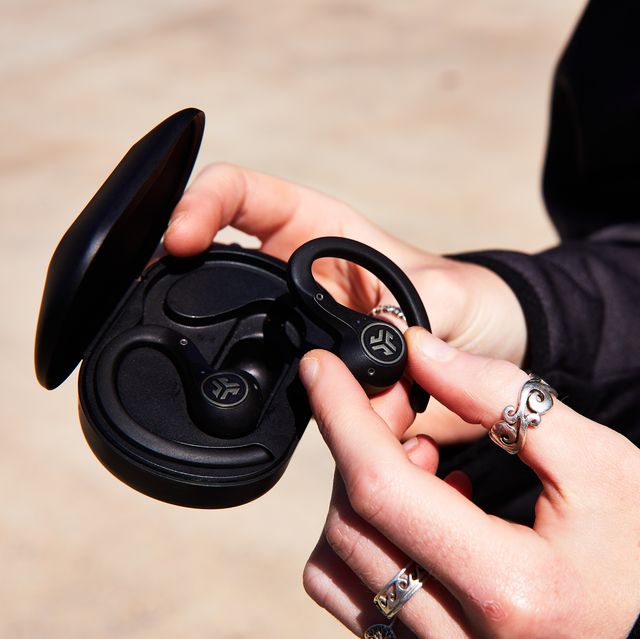
How to connect JLab earbuds to a Windows laptop
Most Windows 10 and Windows 11 laptops connect to JLab earbuds through the Bluetooth settings menu. Before you begin, charge the earbuds and place them close to the laptop. A distance of less than three feet is best during the first pairing.
Follow these steps:
- Put both JLab earbuds inside the charging case.
- Open the case lid.
- Remove the earbuds, or press and hold the pairing button if your model has one.
- Wait for the earbuds to flash white, blue, or another pairing color.
- On your laptop, open the Start menu.
- Select Settings.
- Choose Bluetooth & devices.
- Turn on Bluetooth.
- Select Add device.
- Choose Bluetooth.
- Select your JLab earbuds from the list.
- Wait for the message that says your device is connected.
Your JLab earbuds may appear with a name such as “JLab GO Air Pop,” “JLab JBuds Air,” “JLab Epic Air,” or a similar model name. If several Bluetooth devices appear, check the name printed on the case or product box.
After pairing, play a short video or song. This confirms that the earbuds are connected for sound and not only listed as an available device.

How to connect JLab earbuds to a MacBook
The process for connecting JLab earbuds to a MacBook is also quick. macOS uses a Bluetooth menu in System Settings, although the menu name may differ slightly between older and newer versions of macOS.
Use these steps:
- Place the JLab earbuds in the charging case.
- Open the lid and remove the earbuds.
- Put the earbuds into pairing mode.
- Open the Apple menu in the top-left corner.
- Select System Settings.
- Click Bluetooth.
- Turn Bluetooth on if it is off.
- Find your JLab earbuds under Nearby Devices.
- Click Connect beside the earbud name.
- Wait until the status changes to Connected.
On older Mac computers, open System Preferences instead of System Settings. Select Bluetooth, find the JLab earbuds, and click Connect.
If the MacBook connects but sound still comes from its speakers, open System Settings, select Sound, and choose your JLab earbuds under Output. This step is often needed after a Mac connects to a new Bluetooth audio device.

How to put JLab earbuds in pairing mode
Pairing mode allows a laptop to find the earbuds. Without it, the earbuds may turn on but remain connected to a phone or another device.
JLab models do not all use the same pairing method. Try the method that matches your earbuds:
• Earbuds with a charging case button: Put both earbuds in the case, leave the lid open, and press the case button until the indicator begins to flash.
• Earbuds with touch controls: Remove both earbuds and touch or press the controls for several seconds. The exact timing depends on the model.
• Earbuds with physical buttons: Press and hold the button on one or both earbuds until the LED flashes.
• Earbuds that pair automatically: Take both earbuds out of the case. They may enter pairing mode after a few seconds if no saved device is nearby.
The first pairing usually happens automatically. If the earbuds were previously connected to a phone, turn off Bluetooth on that phone for a moment. Otherwise, the earbuds may reconnect to the phone before your laptop can find them.
A flashing light normally means the earbuds are ready to pair. A solid light often means they are already connected. Because LED colors vary by model, check the guide for your specific JLab earbuds when the light pattern seems unclear.
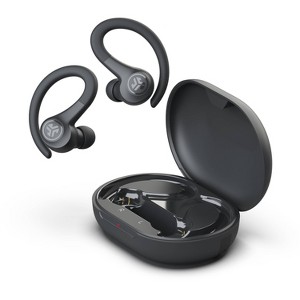
How to connect JLab earbuds to a laptop after using a phone
JLab earbuds usually remember recently paired devices. This is convenient, but it can cause confusion when the earbuds connect to your phone instead of your laptop.
To switch devices, follow this process:
- Turn off Bluetooth on your phone, or disconnect the JLab earbuds from the phone.
- Place the earbuds in their case.
- Remove them and activate pairing mode.
- Open Bluetooth settings on the laptop.
- Select the saved JLab device.
- Choose Connect.
Some newer JLab products support multipoint Bluetooth. This feature can keep the earbuds connected to two devices at once, such as a laptop and a phone. However, multipoint support depends on the model and may need to be enabled through the JLab app.
If your earbuds support multipoint but do not switch audio correctly, pause media on the first device before starting audio on the second. Bluetooth can behave like a single-lane road when both devices try to send sound at the same time.

How to connect JLab earbuds to a laptop with a Bluetooth adapter
Older desktop computers and some laptops may not have working Bluetooth. A USB Bluetooth adapter can add wireless support.
Choose an adapter that supports Bluetooth audio and works with your version of Windows. After plugging it in, allow Windows to install its driver. Then restart the computer if the adapter instructions request it.
Next, open Bluetooth & devices and follow the normal pairing steps. The adapter should appear as the computer’s Bluetooth radio, while the JLab earbuds appear as the audio device.
A Bluetooth adapter may help when the laptop’s built-in Bluetooth is damaged or outdated. It will not fix earbuds that are out of battery, still connected to another device, or not in pairing mode.

How to choose JLab earbuds as the laptop sound output
Sometimes the laptop says the earbuds are connected, but audio still plays through the built-in speakers. This means the Bluetooth connection works, but the laptop has selected the wrong output device.
On Windows, select the speaker icon on the taskbar. Open the sound output menu and choose your JLab earbuds. You can also go to Settings, select System, choose Sound, and set the earbuds as the output device.
On a MacBook, open System Settings and select Sound. Choose the JLab earbuds under Output. You may also select them from the Control Center by clicking the sound controls in the menu bar.
For video calls, check the meeting app too. Zoom, Microsoft Teams, Google Meet, and other apps can use separate microphone and speaker settings. Select the JLab earbuds inside the app if the call uses the wrong microphone or speaker.
Bluetooth headsets often show two audio profiles. A high-quality stereo profile is best for music. A hands-free profile may activate during calls and reduce sound quality. This is normal Bluetooth behavior, not always a defect in the JLab earbuds.

How to connect JLab earbuds to a laptop when they do not appear
If your JLab earbuds do not appear in the Bluetooth list, work through these checks in order:
• Charge the earbuds and case for at least 15 minutes.
• Keep the earbuds within a few feet of the laptop.
• Turn Bluetooth off, wait ten seconds, and turn it on again.
• Close the charging case, reopen it, and remove both earbuds.
• Turn off Bluetooth on nearby phones, tablets, and smart TVs.
• Restart the laptop.
• Put the earbuds back into pairing mode.
• Check whether the earbuds appear under a different model name.
Wireless signals can become crowded in busy homes, offices, dorms, and apartments. Moving away from a Wi-Fi router, USB 3.0 hub, or other wireless accessory may also help.
In my own device checks, the most common mistake is trying to pair earbuds while they are still linked to a phone. Turning off the phone’s Bluetooth before starting saves time and prevents the laptop from showing an old or incomplete connection.

How to fix JLab earbuds that connect but have no sound
A connected status does not always mean the earbuds are the active audio output. First, select the JLab earbuds from the laptop’s sound menu.
Then check the volume on both the laptop and the earbuds. Play a sound from a basic source, such as a local video or system notification. This helps you determine whether the problem affects one app or the entire computer.
If there is still no sound, try these actions:
- Disconnect the earbuds from Bluetooth.
- Restart the laptop.
- Put the earbuds in the case for 15 seconds.
- Remove them and pair them again.
- Select the JLab earbuds as the output device.
- Test audio with another app.
On Windows, open the sound troubleshooter if available. Also check that the earbuds are not disabled under the computer’s sound device settings.
On a Mac, remove the earbuds from Bluetooth by selecting the information button beside the device and choosing Forget This Device. Pair them again afterward.
How to reset JLab earbuds before pairing again
A reset can clear old pairing records when normal steps fail. The exact reset method differs across JLab product lines, so use the instructions for your model when possible.
Many JLab earbuds can be reset by placing them in the charging case and tapping or holding their controls in a specific pattern. Some models require several taps on each earbud. Others use a case button.
A reset may remove saved Bluetooth connections. After resetting, repeat the steps for how to connect JLab earbuds to a laptop as if the earbuds were new.
Do not reset the earbuds as your first step. Re-pairing is faster and safer in most cases. Use a reset when the earbuds connect to the wrong device, only one earbud works, or the laptop repeatedly refuses the connection.
How to improve the Bluetooth connection
A good Bluetooth connection depends on more than the earbuds. The laptop, software, distance, and nearby wireless devices all affect performance.
Use these habits for a more stable connection:
• Keep the laptop and earbuds within 30 feet in an open area, with fewer obstacles between them.
• Keep the laptop’s Bluetooth driver and operating system updated.
• Avoid placing the laptop behind a metal desk panel or inside a crowded laptop bag.
• Keep the JLab case charged so the earbuds can complete pairing correctly.
• Disconnect unused Bluetooth accessories during troubleshooting.
• Avoid using a damaged or loose USB Bluetooth adapter.
• Keep the earbuds clean, especially around the charging contacts.
Bluetooth audio can lose quality when the signal is blocked or when the computer switches to hands-free mode. Walls, metal objects, and crowded radio environments may increase delays or brief audio cuts.
JLab earbuds are designed for wireless convenience, but they may not match the low delay of wired headphones. For fast gaming or professional audio editing, a wired headset or a model with a dedicated low-latency mode may work better.
Common mistakes to avoid when pairing JLab earbuds
Many connection problems come from a small step being missed. Avoid these mistakes:
• Pairing only one earbud when the model expects both earbuds to be synchronized.
• Leaving the earbuds connected to a phone during laptop setup.
• Choosing the laptop’s internal speakers after the earbuds connect.
• Ignoring the microphone settings in a video call app.
• Trying to pair with a nearly empty charging case.
• Resetting the earbuds without checking the model instructions.
• Assuming every flashing LED color means the same thing across JLab models.
The safest approach is to treat pairing like introducing two people. The earbuds must be ready to meet, and the laptop must be listening at the same time. If either device is busy with another connection, the introduction may fail.
Frequently Asked Questions About How to Connect JLab Earbuds to a Laptop
Why are my JLab earbuds not showing up on my laptop?
The earbuds may not be in pairing mode, or they may still be connected to another device. Turn off Bluetooth on nearby devices, charge the earbuds, and place them into pairing mode again.
Can I connect JLab earbuds to a Windows laptop?
Yes. Turn on Bluetooth in Windows Settings, select Add device, choose Bluetooth, and click your JLab earbuds when they appear. The steps work with most JLab Bluetooth earbud models.
Can I connect JLab earbuds to a MacBook?
Yes. Open System Settings, select Bluetooth, and click Connect beside the JLab earbuds. If sound comes from the MacBook speakers, select the earbuds under Sound and Output.
Why do my JLab earbuds say connected but have no sound?
Your laptop may still be using its built-in speakers as the output device. Open the sound settings and select the JLab earbuds as the active output.
How do I disconnect JLab earbuds from my laptop?
Open the laptop’s Bluetooth settings and select Disconnect beside the JLab earbuds. You can also place the earbuds in their charging case to end the active connection.
Can JLab earbuds connect to two devices at once?
Some JLab models support multipoint Bluetooth, while others connect to one device at a time. Check your model’s specifications or companion app to confirm whether multipoint is available.
Do I need a JLab app to connect the earbuds to a laptop?
No. Basic Bluetooth pairing does not require the JLab app. The app may provide extra controls, firmware updates, or battery information on supported models.
Conclusion
Connecting JLab earbuds to a laptop usually takes only a few minutes. Put the earbuds in pairing mode, turn on Bluetooth, select the correct JLab model, and choose the earbuds as the laptop’s sound output.
If the connection fails, start with the simple fixes: charge the earbuds, disconnect the phone, restart Bluetooth, and pair again. Once you know how to connect JLab earbuds to a laptop, switching between work calls, music, and videos becomes much easier. Try the steps above with your model, then explore your laptop’s sound settings for the best listening experience.
