

To connect MINISO earbuds, turn on Bluetooth, open the case, select the earbuds, and confirm pairing.
Learning how to connect MINISO earbuds is simple once you understand pairing mode, Bluetooth settings, and the reset process. This guide covers first-time setup, Android and iPhone steps, laptop connections, common problems, and practical fixes for models with slightly different controls.
How to Connect MINISO Earbuds for the First Time
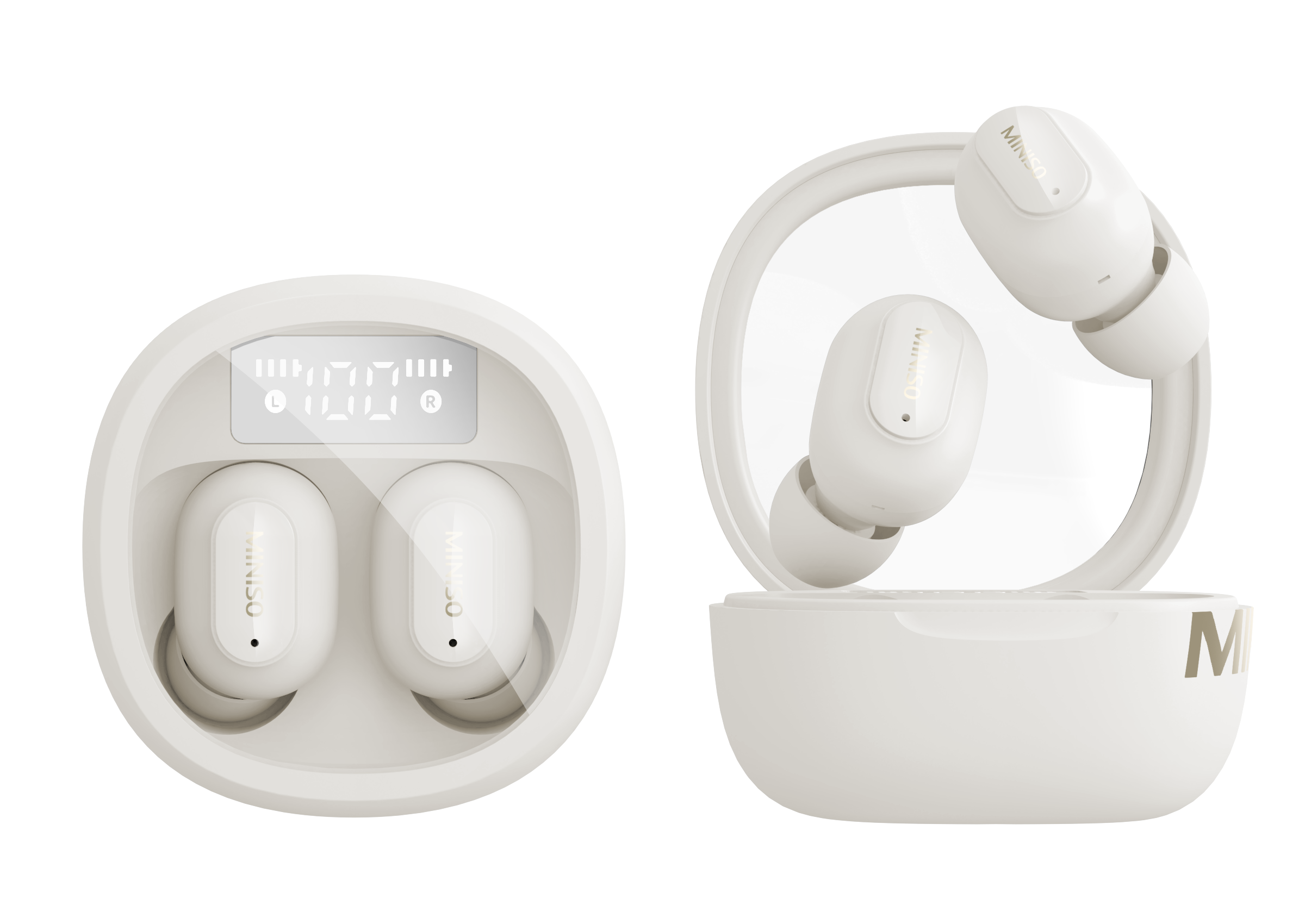
Most MINISO wireless earbuds use Bluetooth to connect to a phone, tablet, computer, or smart TV. The names of buttons may differ by model, but the basic process is much the same.
Before you begin, charge the earbuds and charging case. Low power can stop the earbuds from entering pairing mode or make the connection drop.
Follow these steps to connect MINISO earbuds:
- Place both earbuds inside the charging case.
- Open the case lid.
- Remove the earbuds from the case.
- Wait for the LED lights to flash.
- Open Bluetooth settings on your device.
- Turn Bluetooth on.
- Look for a name such as “MINISO,” “MINISO TWS,” or a model number.
- Tap the name to pair the earbuds.
- Wait for the status to say “Connected.”
Some MINISO earbuds enter pairing mode as soon as you remove them from the case. Others require you to press and hold the touch areas or power buttons for a few seconds.

How to Connect MINISO Earbuds to an iPhone
Connecting MINISO earbuds to an iPhone takes less than a minute in most cases. Apple devices use standard Bluetooth pairing, so you do not need a special MINISO app.
iPhone pairing steps
- Unlock your iPhone.
- Open the Settings app.
- Tap Bluetooth.
- Turn on the Bluetooth switch.
- Open the MINISO earbud case.
- Remove both earbuds.
- Find the MINISO device name under “Other Devices.”
- Tap the name.
- Wait until it moves to “My Devices” and shows “Connected.”
If the earbuds do not appear, place them back in the case. Close the lid for about 10 seconds, open it again, and remove both earbuds at the same time.
The first connection may take a few seconds. After pairing, the earbuds should connect automatically when you open the case near the iPhone with Bluetooth enabled.
One mistake I often see is tapping the wrong device. If several Bluetooth devices are nearby, check the name carefully. Avoid choosing a television, speaker, or another set of earbuds by accident.
How to Connect MINISO Earbuds to an Android Phone
The steps for Android phones are similar, although menus can look different on Samsung, Google Pixel, Motorola, and other devices.
To connect MINISO earbuds to an Android phone:
- Open Settings.
- Select Connected devices, Connections, or Bluetooth.
- Tap Pair new device if needed.
- Turn on Bluetooth.
- Open the MINISO charging case.
- Remove both earbuds.
- Select the MINISO name from the available devices.
- Tap Pair or Connect.
Some Android phones show a pop-up pairing window. If it appears, follow the instructions on screen.
If your Android phone asks for a PIN, try 0000 or 1234. Most modern MINISO earbuds do not require a code, so a PIN request may indicate that the earbuds are not in the correct pairing mode.
Android may also show separate names for the left and right earbuds. If you see two similar entries, do not connect both unless the user manual specifically tells you to do so. Usually, the earbuds should link to each other first and then appear as one Bluetooth device.

How to Connect MINISO Earbuds to a Windows Laptop
You can use MINISO earbuds with a Windows laptop for music, video calls, and online meetings. The laptop must have Bluetooth support or a compatible USB Bluetooth adapter.
Windows 11 steps
- Put the MINISO earbuds into pairing mode.
- Select Start, then Settings.
- Open Bluetooth & devices.
- Turn Bluetooth on.
- Click Add device.
- Choose Bluetooth.
- Select the MINISO earbuds.
- Click Done after pairing.
Windows 10 steps
- Open Settings.
- Select Devices.
- Click Bluetooth & other devices.
- Turn on Bluetooth.
- Select Add Bluetooth or other device.
- Choose Bluetooth.
- Click the MINISO earbud name.
After you connect MINISO earbuds, select them as the sound output device. Click the speaker icon in the Windows taskbar and choose the earbuds from the sound list.
For video calls, also check the microphone setting inside Zoom, Microsoft Teams, Google Meet, or another app. Windows may connect the earbuds for sound but still use the laptop’s built-in microphone.

How to Connect MINISO Earbuds to a Mac
A Mac can pair with MINISO earbuds through the Bluetooth menu. Keep the earbuds close to the computer during setup.
- Open the Apple menu.
- Select System Settings or System Preferences.
- Click Bluetooth.
- Turn Bluetooth on.
- Open the charging case.
- Remove the earbuds.
- Find the MINISO device in the list.
- Click Connect.
On older macOS versions, the menu may show a button labeled “Pair” instead of “Connect.”
After pairing, click the Control Center icon in the top menu bar. Select Sound and choose the MINISO earbuds as the output device. If the microphone does not work during a call, open the app’s audio settings and select the earbud microphone manually.

How to Connect MINISO Earbuds to a New Device
MINISO earbuds often reconnect to the last device they used. This can make it harder to connect them to a new phone or laptop.
To connect MINISO earbuds to a new device, first disable Bluetooth on the old device. This prevents the earbuds from reconnecting before the new device can find them.
Then follow these steps:
- Turn off Bluetooth on the old phone, tablet, or computer.
- Place both earbuds in the case.
- Open the lid.
- Remove the earbuds.
- Press and hold the touch controls or buttons if the lights do not flash.
- Open Bluetooth settings on the new device.
- Select the MINISO earbuds.
- Confirm the connection.
If the earbuds still connect to the old device, choose “Forget This Device,” “Unpair,” or “Remove Device” on that device. This clears the saved connection and makes future pairing easier.
Many Bluetooth earbuds connect to only one device at a time. This limitation is normal and does not mean the earbuds are defective.
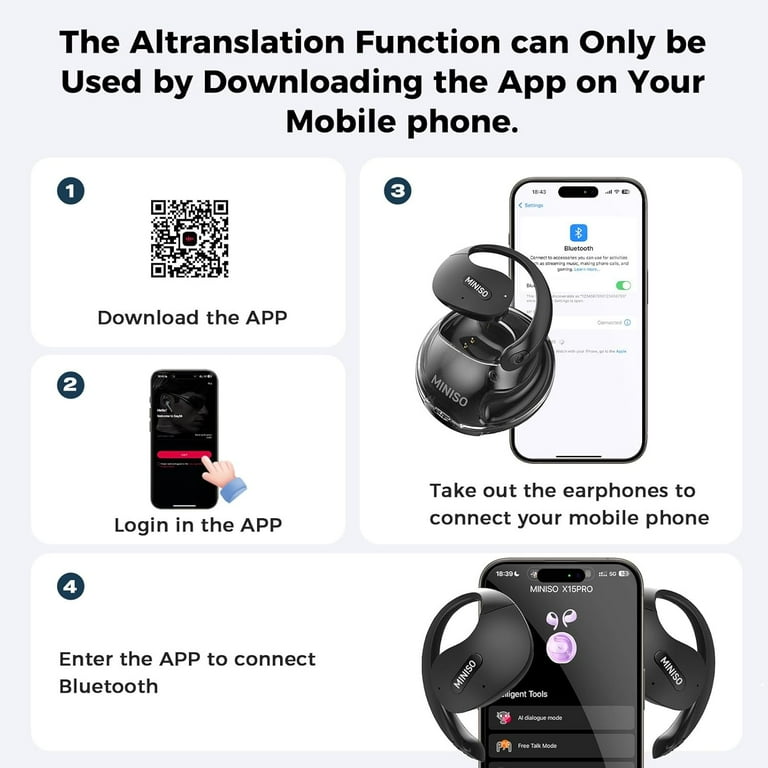
How to Put MINISO Earbuds Into Pairing Mode
Pairing mode allows another device to discover the earbuds. Without it, the earbuds may remain connected to an old phone or stay invisible in the Bluetooth list.
Try these methods:
• Open the case and remove both earbuds.
• Press and hold both touch controls for about three to five seconds.
• Press and hold the case button, if your case has one.
• Place the earbuds in the case, close the lid, reopen it, and remove them again.
Flashing blue, white, or red-and-blue lights usually indicate pairing mode. A steady light may indicate that the earbuds are already connected.
The exact light pattern depends on the MINISO model. For accurate timing, check the manual included with your earbuds. If the manual is missing, use short press-and-hold attempts rather than holding the controls for a long time.

How to Reset MINISO Earbuds
A reset can solve pairing failures, one-earbud problems, and repeated disconnections. It removes saved Bluetooth information from the earbuds, so you will need to pair them again afterward.
Use this general reset method:
- Forget the MINISO earbuds from your phone or computer.
- Turn off Bluetooth on nearby devices.
- Put both earbuds in the charging case.
- Keep the case lid open.
- Press and hold both earbud controls for 10 to 15 seconds.
- Watch for the LED lights to flash or change pattern.
- Close the case for a few seconds.
- Open it and try pairing again.
Some models reset through a button on the charging case. Others require several taps on each earbud. Because MINISO sells many earbud designs, the reset method is not identical for every model.
A reset is useful, but it should not be your first step every time. First check the battery, Bluetooth settings, and saved device list. Resetting too often can make the setup process confusing.

Why MINISO Earbuds Will Not Connect
Several simple issues can prevent a successful connection. The most common cause is that the earbuds are still linked to another device.
Use this troubleshooting checklist:
• Charge the earbuds and case for at least 20 to 30 minutes.
• Turn Bluetooth off and on again.
• Move the earbuds within a few feet of the device.
• Remove old MINISO entries from the Bluetooth list.
• Restart the phone, tablet, or computer.
• Make sure both earbuds are outside the case and powered on.
• Check that the earbuds are not connected to another nearby device.
• Reset the earbuds if normal pairing still fails.
Bluetooth works best without walls, heavy interference, or many active wireless devices nearby. Wi-Fi routers, smartwatches, speakers, and other Bluetooth accessories can sometimes make discovery less reliable.
If only one earbud produces sound, place both earbuds in the case and charge them together. Then reset and pair them again. This often restores the left-and-right earbud connection.
What to Do When Only One MINISO Earbud Works
A single working earbud usually means the two earbuds lost their stereo link. It does not always mean one earbud is broken.
Try this process:
- Forget the MINISO earbuds from your phone.
- Turn off Bluetooth.
- Place both earbuds in the case.
- Confirm that both charging contacts touch the case pins.
- Leave them charging for several minutes.
- Remove both earbuds at the same time.
- Reset them if they do not link together.
- Turn Bluetooth back on and pair again.
Clean the small metal charging contacts with a dry cotton swab. Dust or skin oil can stop one earbud from charging, leaving it powered off while the other remains active.
If one earbud never shows a light, never charges, and does not respond after cleaning, the issue may be battery or hardware related. In that situation, contact MINISO support or the retailer if the product is still under warranty.
How to Improve the MINISO Earbuds Connection
A stable connection depends on both the earbuds and the device. Good habits can reduce dropouts and improve daily use.
Keep these tips in mind:
• Keep your phone within about 30 feet when possible.
• Store the earbuds in the case after use.
• Keep the charging contacts clean and dry.
• Avoid pairing the earbuds with many devices at the same time.
• Update your phone or computer when a normal system update is available.
• Do not use the earbuds while the case or earbuds are wet.
• Avoid covering the phone with thick metal objects during playback.
The usual Bluetooth range is affected by walls, furniture, body position, and interference. A phone in a back pocket may produce more interruptions than a phone on a nearby desk.
For calls, place the phone on the same side as the earbud microphone when possible. This is not required, but it can help in crowded wireless environments.
MINISO Earbud Touch Controls
Many MINISO earbuds use touch controls instead of physical buttons. The controls vary by model, but common commands include:
• One tap to play or pause.
• Two taps to answer or end a call.
• Press and hold to reject a call.
• A longer hold to enter pairing mode.
• Two or three taps to skip tracks or activate a voice assistant.
Touch controls can trigger by mistake when you adjust the earbuds. Tap the center of the touch panel rather than pressing the entire earbud.
If a control does not work, check whether the earbud is charged and connected. Some functions work only when both earbuds are linked, while others work with one earbud alone.
Safety and Care Tips
MINISO earbuds are made for normal everyday use, but they still need careful handling. Keep water away unless your exact model has a stated water-resistance rating.
Do not charge wet earbuds. Dry them fully before placing them in the case. Also avoid using sharp tools to clean the charging pins, as they can damage the contacts.
Keep the volume at a safe level. Long listening sessions at high volume can harm hearing. A simple rule is to lower the volume when you need to raise your voice to speak over the music.
Battery life also changes with volume, call use, temperature, and age. A new pair may last longer than one that has been used daily for many months.
Frequently Asked Questions About How to Connect MINISO Earbuds
How do I connect MINISO earbuds to my phone?
Open the case, remove both earbuds, and turn on Bluetooth on your phone. Select the MINISO device name from the available Bluetooth list and tap Pair or Connect.
Why are my MINISO earbuds not showing in Bluetooth?
They may still be connected to another device or may not be in pairing mode. Turn off Bluetooth on nearby devices, reset the earbuds if needed, and search again.
How do I reset MINISO wireless earbuds?
Forget the earbuds from your phone, place both earbuds in the case, and press and hold their touch controls or the case button. The exact reset steps vary by model, so check the included manual for the correct timing.
Can I connect MINISO earbuds to a laptop?
Yes. Open Bluetooth settings on a Windows laptop or Mac, put the earbuds into pairing mode, and select the MINISO device name. You may need to choose the earbuds separately as the sound and microphone output.
Why does only one MINISO earbud work?
The earbuds may have lost their connection with each other, or one side may not be charging. Clean the charging contacts, charge both earbuds, forget the Bluetooth connection, and pair them again after a reset.
Do MINISO earbuds connect automatically?
They usually reconnect to the last paired device when removed from the case. Automatic connection may fail if Bluetooth is off, the old device is unavailable, or the earbuds are already connected elsewhere.
Conclusion
Learning how to connect MINISO earbuds comes down to three steps: charge them, place them in pairing mode, and select the correct device in Bluetooth settings. If the connection fails, forget the old pairing, check the charging contacts, and reset both earbuds before trying again.
Once you connect MINISO earbuds successfully, store them in the case and keep their contacts clean for more reliable use. Try the steps above with your device, and share your model or pairing experience in the comments for more troubleshooting help.
