

To connect earbuds to a phone, turn on Bluetooth, place the earbuds in pairing mode, then select them in Bluetooth settings.
Learning how to connect earbuds to phone devices is simple once you understand pairing mode, Bluetooth settings, and common connection errors. This guide covers iPhone and Android phones, wireless and wired earbuds, first-time setup, troubleshooting, safety tips, and ways to keep your connection stable.
How to connect wireless earbuds to a phone
Most wireless earbuds use Bluetooth. The steps are similar on nearly every modern phone, whether you use Apple AirPods, Samsung Galaxy Buds, Google Pixel Buds, Sony earbuds, or another brand.
Before you begin, charge both the earbuds and their charging case. A low battery can stop the earbuds from entering pairing mode.
- Open the charging case.
- Keep the earbuds inside the case unless the manual says otherwise.
- Press and hold the pairing button on the case.
- Wait for the status light to flash.
- Open Bluetooth settings on your phone.
- Find your earbuds in the list of available devices.
- Tap the earbuds’ name.
- Select Pair, Connect, or OK if your phone asks for permission.
- Play music to test the connection.
The exact button may differ by model. Some earbuds enter pairing mode when you remove them from the case. Others require you to touch both earbuds for several seconds.
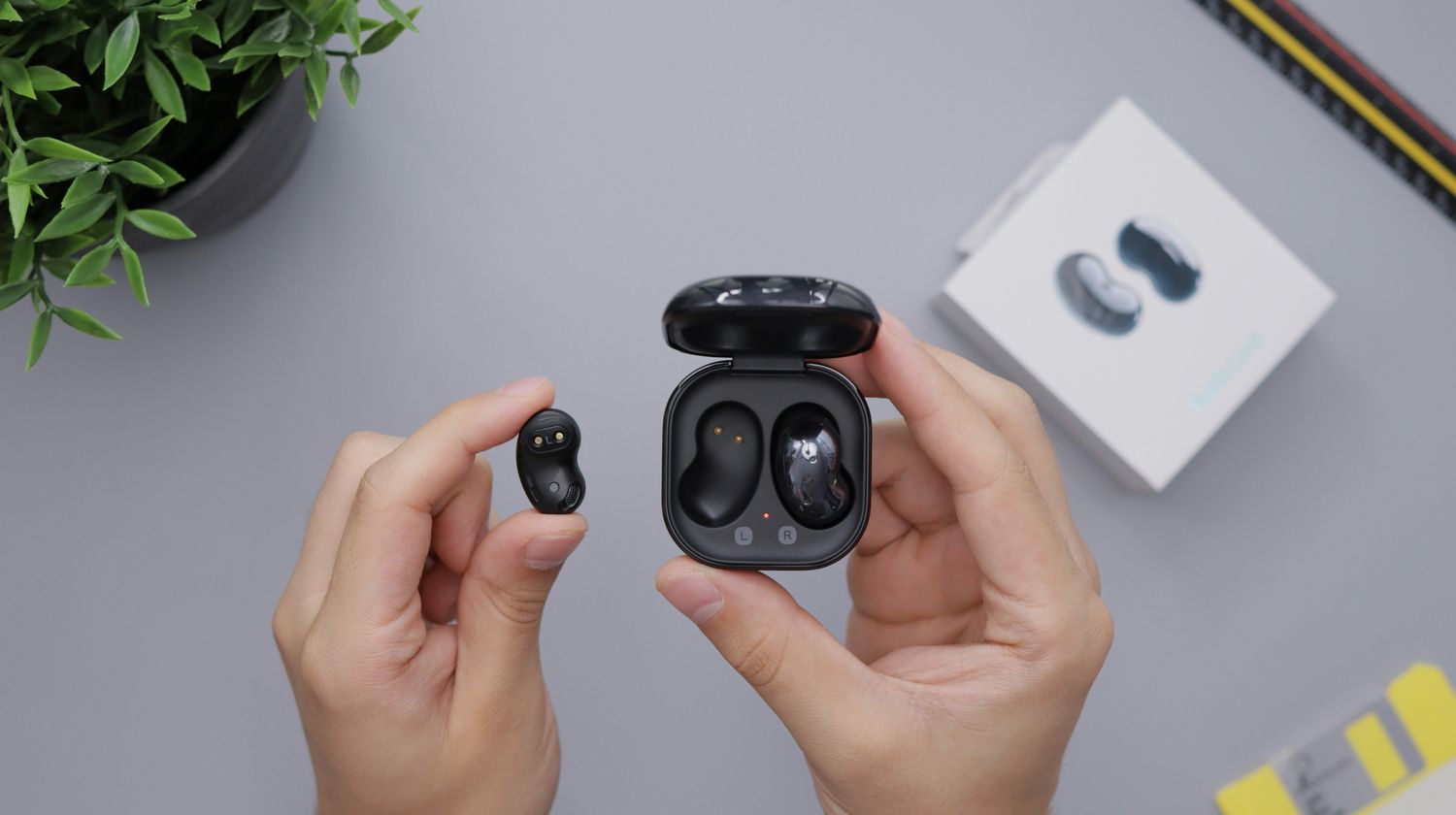
How to put earbuds in pairing mode
Pairing mode makes your earbuds visible to nearby Bluetooth devices. Think of it as opening the door so your phone can find them.
Try one of these common methods:
• Place both earbuds in the case, then open the lid and hold the case button.
• Remove both earbuds and touch their control panels at the same time.
• Hold the power button for about five seconds.
• Turn the earbuds off, then hold the power button until the light flashes blue, white, or another pairing color.
Your earbuds may use a different light pattern. Check the quick-start guide if the light does not flash. A steady light often means the earbuds are already connected to another device.
When helping friends with how to connect earbuds to phone devices, I often find that pairing mode is the missed step. People turn on Bluetooth but forget that earbuds must also be discoverable.
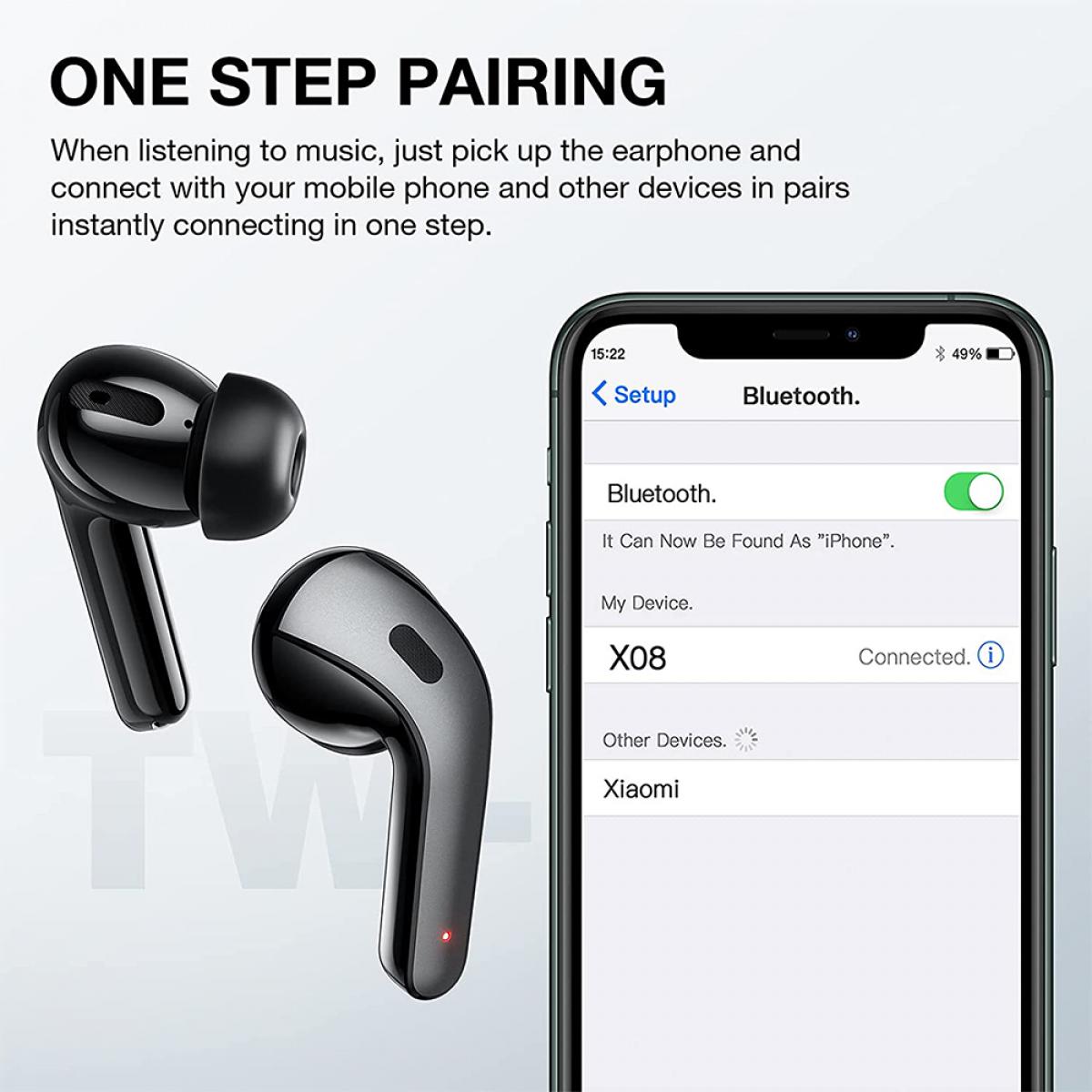
How to connect earbuds to an iPhone
An iPhone can connect to most Bluetooth earbuds, even if they are not made by Apple. AirPods have extra features, but standard Bluetooth earbuds still work for calls, music, podcasts, and video.
Connect AirPods to an iPhone
- Go to the iPhone Home Screen.
- Open the AirPods case.
- Hold the case near the iPhone.
- Wait for the setup animation.
- Tap Connect.
- Follow the instructions on the screen.
- Tap Done.
If the setup animation does not appear, connect AirPods manually through Bluetooth settings.
Connect other earbuds to an iPhone
- Open Settings.
- Tap Bluetooth.
- Turn Bluetooth on.
- Put the earbuds in pairing mode.
- Tap the earbuds when they appear under Other Devices.
- Wait until the status changes to Connected.
Apple recommends keeping the phone and earbuds close during pairing. A distance of a few feet works best during the first connection.

How to connect earbuds to an Android phone
Android phones may use slightly different menu names. The general process remains the same.
- Open Settings.
- Tap Connected devices, Connections, or Bluetooth.
- Turn Bluetooth on.
- Tap Pair new device if needed.
- Put the earbuds in pairing mode.
- Select the earbuds from the list.
- Approve the pairing request.
Some Android phones show a Fast Pair pop-up. If it appears, tap Connect. You may need to install the earbuds’ companion app for updates, equalizer controls, or advanced settings.
For example, Galaxy Buds often work best with the Galaxy Wearable app. Pixel Buds may use the Pixel Buds app or built-in Android controls. The app is helpful, but basic Bluetooth audio usually works without it.

How to connect earbuds to phone after the first pairing
The first pairing takes the most work. After that, most earbuds connect automatically.
Use this routine:
- Turn on Bluetooth on your phone.
- Remove the earbuds from their case.
- Wait a few seconds.
- Check for the Connected message.
- Play audio to confirm the link.
If automatic connection fails, open Bluetooth settings and tap the earbuds’ name. Keep the case near the phone and make sure the earbuds are charged.
Many earbuds remember several devices but connect to only one at a time. If they recently connected to a laptop, tablet, or smart TV, turn Bluetooth off on that device before trying again.
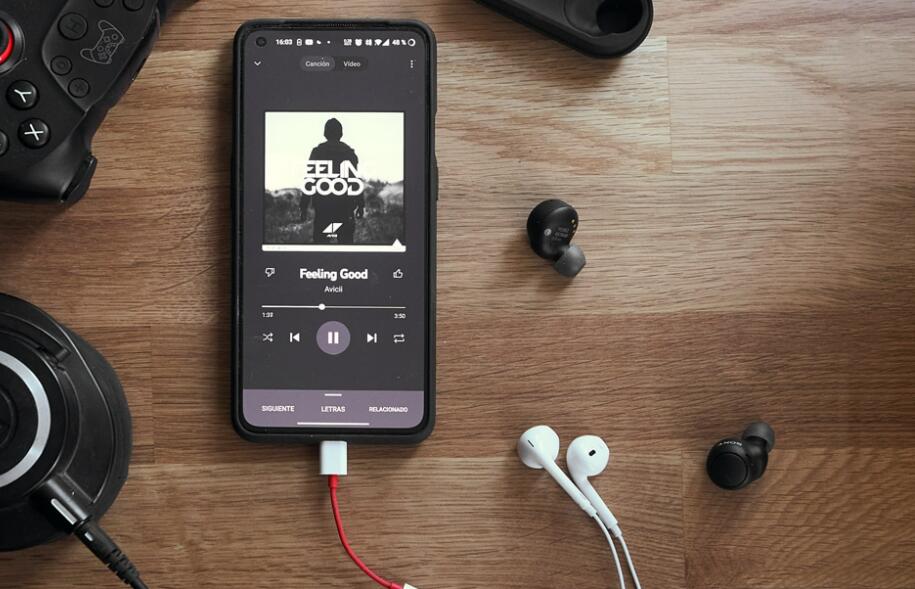
How to connect wired earbuds to a phone
Wired earbuds do not need Bluetooth pairing. The connection depends on the phone’s port.
Phones with a headphone jack
Insert the 3.5-millimeter plug into the headphone port. Audio should switch from the speaker to the earbuds within a moment.
If sound continues through the speaker, raise the volume and check whether the plug is fully inserted. Dust inside the port can also prevent a good connection.
Phones without a headphone jack
Many newer phones need a USB-C or Lightning adapter. Use an adapter that supports audio output. Some low-cost adapters provide charging only and will not send sound to wired earbuds.
After connecting the adapter:
- Plug the adapter into the phone.
- Insert the earbuds into the adapter.
- Start music or a video.
- Adjust the phone’s volume.
A wired connection can offer low delay and does not need charging. It is useful for gaming, travel, or long listening sessions.

How to connect earbuds to phone when they will not pair
Connection problems are common, but most have a quick fix. Work through the steps below in order.
Check the battery
Place the earbuds in the case and charge them for at least 10 minutes. Also charge the case if its indicator shows a low battery.
Move closer
Keep the phone within a few feet of the earbuds. Walls, metal objects, and crowded wireless areas can weaken the first connection.
Turn Bluetooth off and on
Open your phone’s quick settings or Bluetooth menu. Turn Bluetooth off, wait a few seconds, and turn it on again.
Restart both devices
Put the earbuds back in the case. Restart the phone. Then try pairing again.
Forget the old connection
If your phone lists the earbuds but will not connect:
- Open Bluetooth settings.
- Tap the settings icon beside the earbuds.
- Choose Forget, Unpair, or Remove.
- Put the earbuds in pairing mode.
- Pair them again.
Reset the earbuds
A reset removes saved connections. The reset method varies by brand, but it often involves holding the case button for 10 to 15 seconds.
Reset the earbuds only after charging, restarting, and forgetting the old connection. You may need to check the manufacturer’s instructions for the correct method.
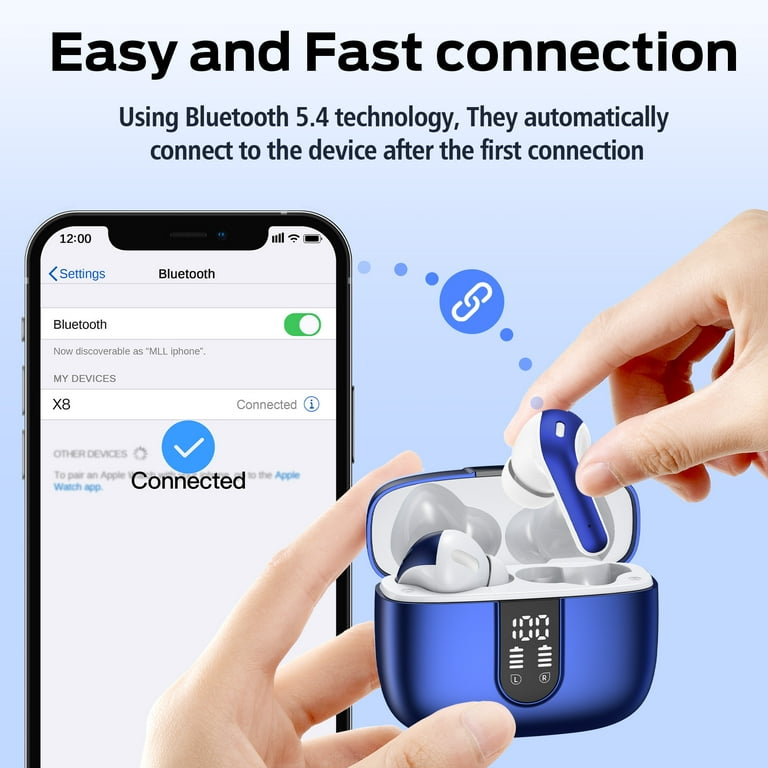
What to do when only one earbud works
One-earbud problems usually happen when the earbuds lose sync with each other. They can also result from dirt, uneven charging, or a damaged contact.
Try these steps:
• Place both earbuds in the case.
• Clean the charging contacts with a dry, soft cloth.
• Charge the case and earbuds.
• Forget the earbuds in your phone’s Bluetooth settings.
• Reset the earbuds.
• Pair them again as a single set.
Also check the phone’s audio balance. On an iPhone, open Settings, choose Accessibility, then Audio & Visual. On Android, look for Hearing enhancements, Accessibility, or Audio balance.
If one earbud still does not work after a reset, test it with another phone. This helps show whether the problem is with the earbuds or the original phone.
How to improve Bluetooth earbud connection quality
Bluetooth works best with a clear path and limited interference. You do not need to hold the phone next to your face, but keeping it nearby helps.
Use these practical tips:
• Keep the phone in the same pocket or bag section as the earbuds.
• Avoid placing the phone behind thick walls or inside metal containers.
• Turn off Bluetooth on devices you no longer use.
• Keep the earbuds’ firmware updated through the brand’s app.
• Avoid pairing many new devices at the same time.
• Keep the phone’s operating system current.
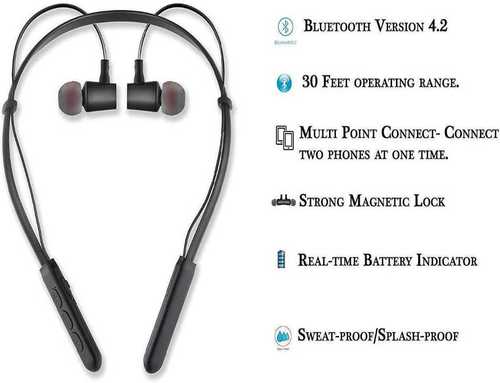
Bluetooth range depends on the phone, earbuds, obstacles, and Bluetooth version. A product may advertise a long range in open space, but real-world range can be shorter in a busy home or office.
During everyday testing, the most reliable setup has been simple: keep the phone nearby, keep the earbuds charged, and remove old devices from the Bluetooth list. These small habits prevent many dropouts.
How to switch earbuds between two devices
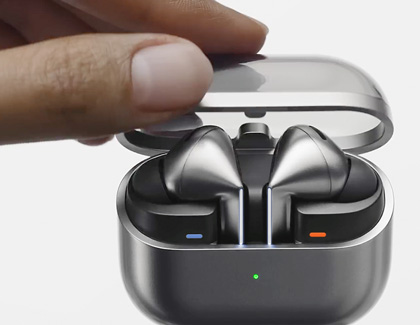
Some earbuds support multipoint Bluetooth. This feature lets the earbuds stay connected to two devices, such as a phone and laptop.
To use multipoint:
- Pair the earbuds with the first device.
- Pair them with the second device.
- Open the earbuds’ companion app.
- Turn on Multipoint or Connect to two devices.
- Test audio from both devices.
Without multipoint, you usually need to disconnect the earbuds from one device before connecting them to another. Do not assume every pair supports this feature. Check the product specifications first.
Multipoint is useful for work. You can listen to music from your phone and answer a call from your computer. However, switching may take a few seconds, and some models may have limits on advanced features.
How to keep earbuds secure and private
Bluetooth pairing is generally safe when you pair devices in a private place. Still, avoid accepting unknown pairing requests in public areas.
Follow these safety habits:
• Pair earbuds at home or in another trusted location.
• Do not approve a device name you do not recognize.
• Remove old earbuds from your Bluetooth list before selling or giving them away.
• Use a screen lock on your phone.
• Update the phone and earbuds when updates are available.
Bluetooth earbuds can also expose sound to people nearby if the earbuds are not sealed well or if the volume is too high. The World Health Organization advises keeping listening volume moderate and taking breaks. If you need to raise the volume often, check the earbud fit or move away from loud background noise.
Common mistakes when pairing earbuds
Small mistakes can make the process seem harder than it is. Avoid these common problems:
Choosing the wrong device
Several earbuds may appear with similar names. Select the name printed in the manual or on the product box.
Pairing one earbud at a time
Many true wireless models must sync with each other before they connect to the phone. Keep both earbuds together during setup.
Leaving the earbuds connected elsewhere
A laptop or tablet may connect first. Turn off Bluetooth on nearby devices while pairing.
Skipping a reset
If the earbuds were used by another person, reset them before trying to connect. Old pairing records can block a new setup.
Ignoring phone audio output
Your phone may connect to the earbuds but send sound to another output. Open the volume panel or media controls and choose the earbuds as the audio source.
These lessons make how to connect earbuds to phone much less frustrating. Start with the simplest fix, then move to a reset only when needed.
Frequently Asked Questions About How to Connect Earbuds to Phone
Why are my earbuds not showing up on my phone?
Put the earbuds in pairing mode and keep them close to the phone. If they still do not appear, charge them, turn Bluetooth off and on, and reset the earbuds if necessary.
Can I connect any Bluetooth earbuds to an iPhone or Android phone?
Most Bluetooth earbuds work with both iPhone and Android phones for basic audio and calls. Some features, such as automatic switching or special controls, may require the same brand’s phone or companion app.
How do I connect earbuds to a new phone?
First, disconnect or forget the earbuds from the old phone. Then place the earbuds in pairing mode, open Bluetooth settings on the new phone, and select the earbuds from the device list.
Why do my earbuds connect but have no sound?
Check the phone’s media output and select the earbuds manually. Also raise the volume, confirm that the earbuds are charged, and make sure another app or device is not using the audio connection.
How do I reset Bluetooth earbuds?
The reset method depends on the brand and model. Many earbuds reset when you hold the case button for 10 to 15 seconds, but you should confirm the exact steps in the product guide.
Can I connect earbuds to two phones at once?
You can do this only if the earbuds support multipoint or a similar dual-device feature. Otherwise, disconnect the earbuds from one phone before pairing them with the other.
Conclusion
Learning how to connect earbuds to phone devices usually takes only a few steps: charge the earbuds, activate pairing mode, open Bluetooth settings, and select the correct device. If the connection fails, restart both devices, forget the old pairing, and reset the earbuds as a final step.
Keep your earbuds charged, update their software, and turn off Bluetooth on devices that may connect first. Try the steps above today, and share this guide with anyone who is still struggling to pair wireless earbuds.
