

To put JBL earbuds in pairing mode, open the case, remove both earbuds, and hold the touch controls until the LED flashes blue.
Learning how to put JBL earbuds in pairing mode is simple once you know which light and button actions to watch for. Most JBL models use automatic pairing, while some require a short press on the earbud or a reset when they do not appear on your phone. This guide explains the steps for popular JBL Tune, Live, Vibe, Reflect, and Club earbuds, plus fixes for common Bluetooth problems.

How to put JBL earbuds in pairing mode
Pairing mode lets your JBL earbuds search for a nearby Bluetooth device. Your phone, tablet, or computer can then find and connect to them.
Follow these steps:
- Place both JBL earbuds inside the charging case.
- Charge the case and earbuds for a few minutes if the battery is low.
- Open the charging case.
- Remove both earbuds.
- Look for a flashing blue or blue-and-white LED.
- Open Bluetooth settings on your device.
- Select your JBL earbuds from the list.
- Tap Pair, Connect, or OK.
The name may appear as “JBL Tune Beam,” “JBL Vibe Buds,” “JBL Live Pro 2,” or a similar model name. The exact name depends on your earbuds.
If the earbuds do not enter pairing mode, place them back in the case. Close the lid for about 10 seconds, open it again, and repeat the process. This often clears a failed connection.

How to put JBL earbuds in pairing mode for the first time
Most new JBL earbuds enter pairing mode automatically during the first setup. This usually happens when you remove the earbuds from the case after opening it.
To connect them for the first time:
- Remove the earbuds from their case.
- Keep them close to your phone.
- Open your phone’s Settings app.
- Choose Bluetooth.
- Turn Bluetooth on.
- Find your JBL earbuds under Available Devices.
- Tap the earbuds’ name.
- Accept the pairing request if one appears.
The LED may blink blue, white, or blue and white. JBL uses different light patterns across product families, so the exact color can vary.
If the earbuds connect to a nearby phone before you can select them, turn Bluetooth off on that other phone. Then try again. JBL earbuds often reconnect to the last device they used.
How to put JBL earbuds in pairing mode after they were paired before
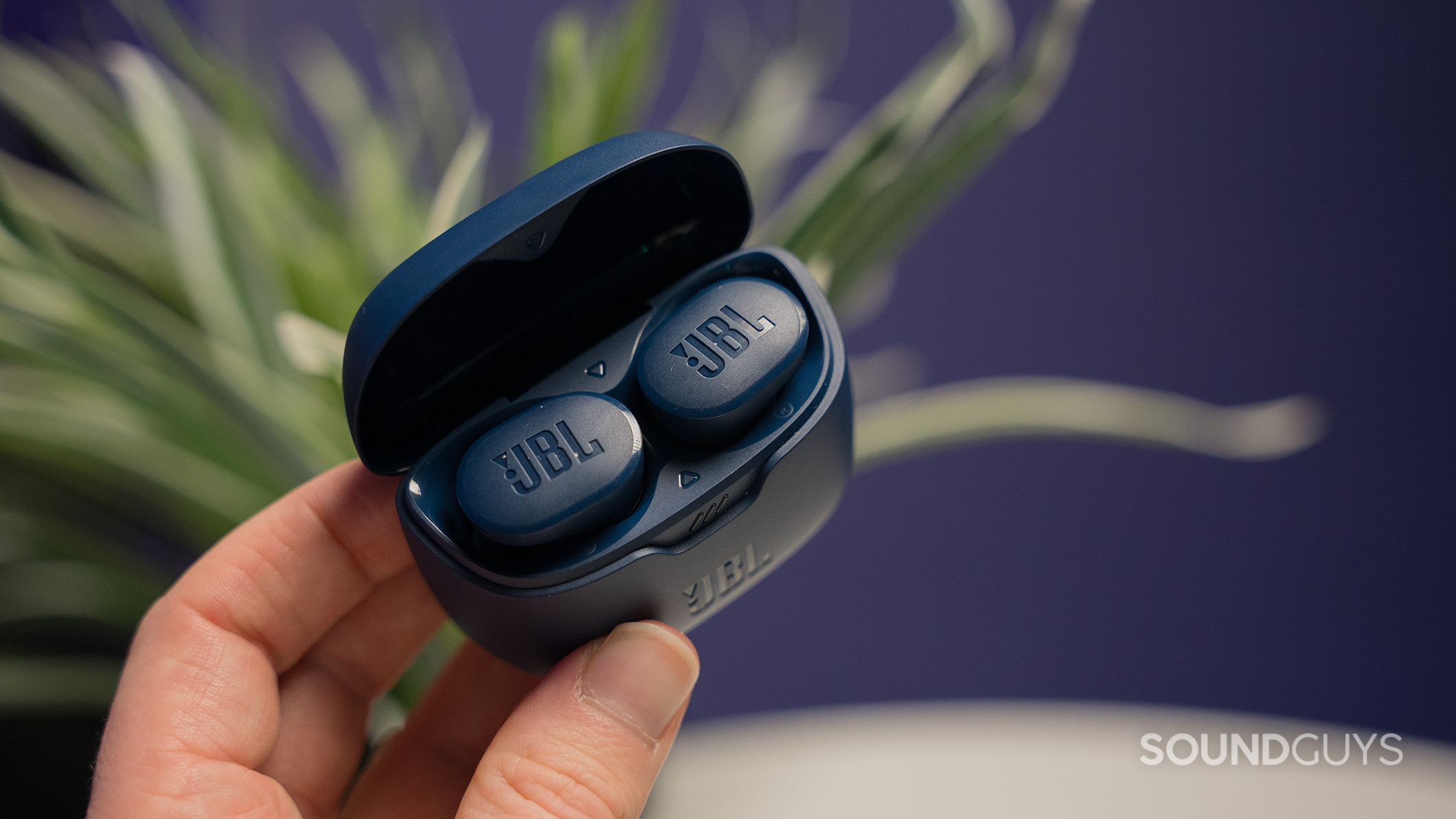
Previously paired earbuds may connect automatically to the last phone, tablet, or computer. If you want to use them with a new device, you may need to force pairing mode.
Try this method first:
- Turn off Bluetooth on the old device.
- Remove both earbuds from the case.
- Touch and hold the control area on either earbud for several seconds.
- Watch for a flashing LED or a voice prompt.
- Search for the earbuds on the new device.
- Select the JBL model name.
Some JBL models use a double tap or a longer touch instead of one fixed action. If holding the control does not work, check the model guide in the JBL Headphones app or the product manual.
A useful rule is to keep the earbuds within about three feet of the device during setup. Walls, crowded wireless areas, and other connected devices can make pairing less reliable.

How to put JBL earbuds in pairing mode with an iPhone
Pairing JBL earbuds with an iPhone takes only a few steps. First, make sure the earbuds are not still connected to another Apple device nearby.
- Open the charging case.
- Remove the JBL earbuds.
- Wait for the pairing light or voice prompt.
- On your iPhone, open Settings.
- Tap Bluetooth.
- Make sure Bluetooth is on.
- Tap the JBL earbuds under Other Devices.
- Wait for the status to change to Connected.
After the first connection, your iPhone should remember the earbuds. They may connect automatically when you open the case near the phone.
If the JBL earbuds do not appear, tap the Bluetooth screen again to refresh it. You can also restart the iPhone, close the case, and repeat the setup.

How to put JBL earbuds in pairing mode with Android
Android phones use a similar process, but menu names can differ by brand. Samsung, Google Pixel, Motorola, and OnePlus phones may place Bluetooth controls in slightly different areas.
- Open the JBL charging case.
- Remove both earbuds.
- Open Settings on your Android phone.
- Tap Connected devices, Connections, or Bluetooth.
- Choose Pair new device if needed.
- Select your JBL earbuds.
- Tap Pair.
On some Android phones, you can swipe down twice and press the Bluetooth icon. Then choose Pair new device or Bluetooth settings.
The JBL Headphones app can also help with setup on compatible models. It may provide firmware updates, battery readings, equalizer controls, and connection settings. Download it only from the official app store, and confirm that your model supports the app.

How to put JBL earbuds in pairing mode on a Windows PC or Mac
JBL earbuds work with many laptops and desktop computers. They can play music, handle calls, and work with video meeting apps.
Windows
- Remove the earbuds from the case.
- Open Settings.
- Select Bluetooth & devices.
- Turn Bluetooth on.
- Choose Add device.
- Select Bluetooth.
- Click the JBL earbuds’ name.
- Select Done.
Mac
- Open the JBL charging case.
- Remove the earbuds.
- Open the Apple menu.
- Select System Settings.
- Choose Bluetooth.
- Find the JBL earbuds under Nearby Devices.
- Click Connect.
If the earbuds connect but no sound plays, open the computer’s sound settings. Select the JBL earbuds as the output device. For calls, also select them as the microphone and speaker in the meeting app.

How to put JBL earbuds in pairing mode when they are not showing up
Several issues can prevent JBL earbuds from appearing in a Bluetooth list. The most common causes are a low battery, an existing connection, or a pairing record that needs to be removed.
Try these fixes in order:
• Charge the earbuds and case for at least 15 minutes.
• Turn Bluetooth off and on again on your phone.
• Move away from other phones, tablets, and laptops.
• Turn Bluetooth off on devices that used the earbuds before.
• Restart your phone or computer.
• Place the earbuds in the case, close the lid, and wait 10 seconds.
• Open the lid and remove the earbuds again.
• Delete the old JBL entry from your device’s Bluetooth menu.
• Search for the earbuds again.
When you delete an old entry, choose Forget This Device, Unpair, or Remove Device. Then repeat the pairing process from the beginning.
In my troubleshooting experience, the old Bluetooth record is often the hidden cause. The phone may show the earbuds as saved but fail to connect. Removing that record gives the phone a clean start.
How to reset JBL earbuds before pairing
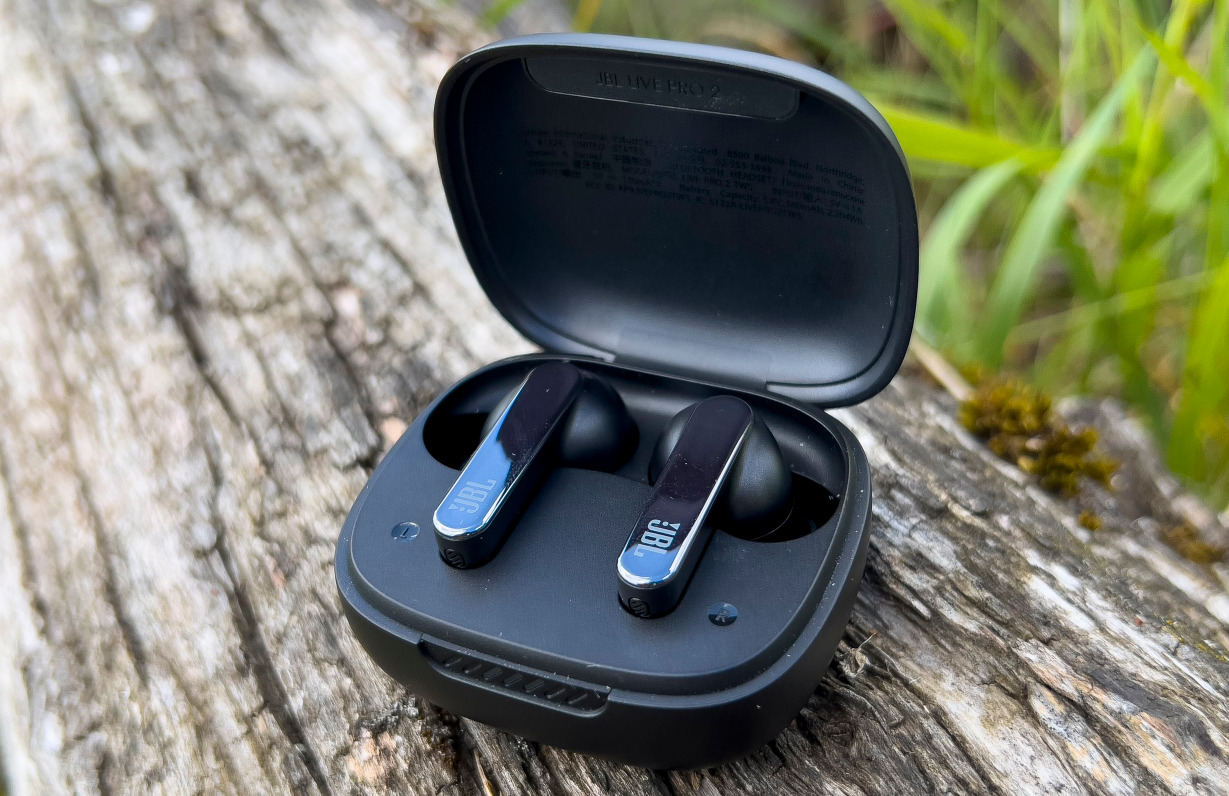
A reset can help when your earbuds connect to the wrong device, refuse to appear, or behave differently on each side. However, reset steps vary by model.
Before resetting, try a normal reconnection. If that fails, check the instructions for your exact JBL model. Many JBL true wireless earbuds use one of these methods:
• Place both earbuds in the case and leave the lid open.
• Tap or hold one earbud for a set number of seconds.
• Use the JBL Headphones app to select Forget or Reset.
• Hold the touch controls on both earbuds at the same time.
A reset may erase saved Bluetooth connections and return other settings to their defaults. It does not usually repair physical damage or a worn-out battery.
After the reset, keep the earbuds in the case for a few seconds. Then remove them and follow the normal steps for how to put JBL earbuds in pairing mode. Do not guess the reset gesture if your model uses a different control pattern. The model manual is the safest guide.

JBL earbud LED lights and what they mean
LED signals help you understand what the earbuds are doing. Still, light colors can vary between JBL models.
Common signals include:
• Flashing blue: The earbuds may be ready to pair or connect.
• Solid blue: The earbuds may be connected or active.
• White or blue-and-white flashing: The earbuds may be searching for a device.
• Red: The battery may be low, or the earbuds may be charging.
• No light: The earbuds may be out of power, not seated correctly, or already connected.
The charging case may show a separate light from the earbuds. Check both locations before deciding that the earbuds are not working.
If one earbud has no light, clean the metal charging contacts with a dry cotton swab. Dirt or moisture can prevent the earbud from charging. Never pour liquid into the case or scrape the contacts with a sharp object.
Common mistakes to avoid when pairing JBL earbuds
Small setup mistakes can make a simple Bluetooth connection feel difficult. Avoid these common problems:
• Searching before removing the earbuds from the case.
• Leaving Bluetooth active on the old phone.
• Selecting a different JBL device nearby.
• Trying to pair with a dead or nearly empty battery.
• Holding the touch control too briefly.
• Resetting the earbuds without checking the model instructions.
• Pairing in a crowded area with many wireless devices.
Bluetooth pairing works best when the earbuds and device are close together. Keep the case open during the first setup, and do not place the earbuds in a pocket or bag.
Another common mistake is tapping the control area repeatedly. Touch controls can start music, activate a voice assistant, or answer a call instead of entering pairing mode. Use the exact gesture for your model.
How to improve JBL Bluetooth connection quality
Once you know how to put JBL earbuds in pairing mode, a few habits can make future connections easier.
Keep the JBL Headphones app and your phone’s operating system updated. Firmware updates can improve stability and add features, though they cannot fix every hardware problem.
Keep the earbuds clean and dry. Sweat, dust, and earwax can affect charging contacts and microphone performance. Store them in the charging case when you are not using them.
Also, avoid pairing with too many devices at once. Some JBL models support multipoint connections, but others work best with one active device. If switching becomes confusing, disconnect the earbuds from unused devices before starting playback.
The Bluetooth standard supports short-range wireless connections, but real-world range depends on walls, radio interference, device design, and software. A strong connection at home may be weaker in a busy gym or airport.
Frequently Asked Questions
How do I put JBL earbuds in pairing mode?
Open the charging case and remove both earbuds. They often enter pairing mode automatically, but you may need to touch and hold an earbud if they were already connected to another device.
Why are my JBL earbuds not showing in Bluetooth?
They may still be connected to another phone, or their battery may be too low. Turn off Bluetooth on nearby devices, charge the earbuds, place them in the case briefly, and try again.
How do I put JBL earbuds in pairing mode without the case?
Some JBL models allow you to hold the touch control or power button on an earbud to start pairing. However, many true wireless models need the case for charging, activation, or resetting, so the exact method depends on the model.
How do I connect JBL earbuds to a new phone?
Turn off Bluetooth on the old phone, then remove the earbuds from the case. Open Bluetooth settings on the new phone and select the JBL earbuds from the available device list.
Can I pair JBL earbuds with a laptop?
Yes. Put the earbuds in pairing mode, open Bluetooth settings on your Windows PC or Mac, and select the JBL model name. You may need to choose the earbuds as the sound output after connecting.
How do I reset JBL earbuds?
Reset instructions differ by JBL model. Check the model’s user guide or JBL Headphones app, because the reset gesture may involve the case, one earbud, or both touch controls.
Conclusion
Learning how to put JBL earbuds in pairing mode usually takes less than a minute: charge them, open the case, remove both earbuds, and select the JBL name in your device’s Bluetooth menu. If they do not appear, disconnect the old device, restart Bluetooth, and use the correct reset method for your model.
Keep the earbuds close during setup, watch the LED signals, and avoid guessing touch gestures. Try these steps with your earbuds today, and share your JBL model or pairing issue in the comments for more targeted help.
