

Plug wired headphones into the laptop jack, or pair bluetooth headphones through the device’s sound settings.
Learning how to connect headphones to laptop devices is simple once you know which connection type you have. This guide covers wired, Bluetooth, Windows, Mac, and Chromebook steps, plus fixes for common sound problems. I have tested these methods across laptops, earbuds, gaming headsets, and older headphone jacks, so you can follow the steps with confidence.
Check your headphone type and laptop ports
Before learning how to connect headphones to laptop computers, check the headphone connector. Most headphones use one of three connection methods:
• 3.5 mm audio plug: This is the small, round plug found on many wired headphones.
• USB connector: USB headphones may use a USB-A or USB-C port.
• Bluetooth: Wireless headphones connect without a cable through Bluetooth settings.
Look at the sides of your laptop for matching ports. A headphone port often has a small headphone icon. Some laptops combine the headphone and microphone connections into one 3.5 mm port, while older computers may have separate ports.
Newer laptops may not include a headphone jack at all. In that case, you can use Bluetooth headphones, USB headphones, or a USB-C-to-headphone adapter. Check that the adapter supports audio output, because some basic USB-C adapters are designed only for charging.
It also helps to charge wireless headphones before pairing them. Low battery power can cause failed connections, dropped audio, or sound that cuts in and out.

How to connect wired headphones to a laptop
Wired headphones are usually the fastest option. They do not need pairing, software, or a charged battery. This makes them useful when you need reliable sound for a video call, movie, game, or online class.
Follow these steps to connect wired headphones:
Find the 3.5 mm headphone port on your laptop.
Insert the headphone plug fully into the port.
Start playing music or a video.
Adjust the volume with the laptop’s volume keys or sound control.
Select the headphones as the output device if the laptop does not switch automatically.
If your headphones have a microphone, use a headset with a four-pole TRRS plug. Most modern laptops support this combined audio and microphone design. A headset with separate green and pink plugs may need a splitter or an adapter.
USB headphones work in a similar way. Plug them into an available USB port, wait a few seconds for the system to detect them, and then choose them as the sound output. Some USB headsets install their own control software, but basic audio should work without extra software.
One mistake I often see is pushing the plug into a nearby USB-C port or an adapter that does not support audio. If the plug fits but there is no sound, confirm that the port and adapter carry an audio signal.
How to connect Bluetooth headphones to a laptop
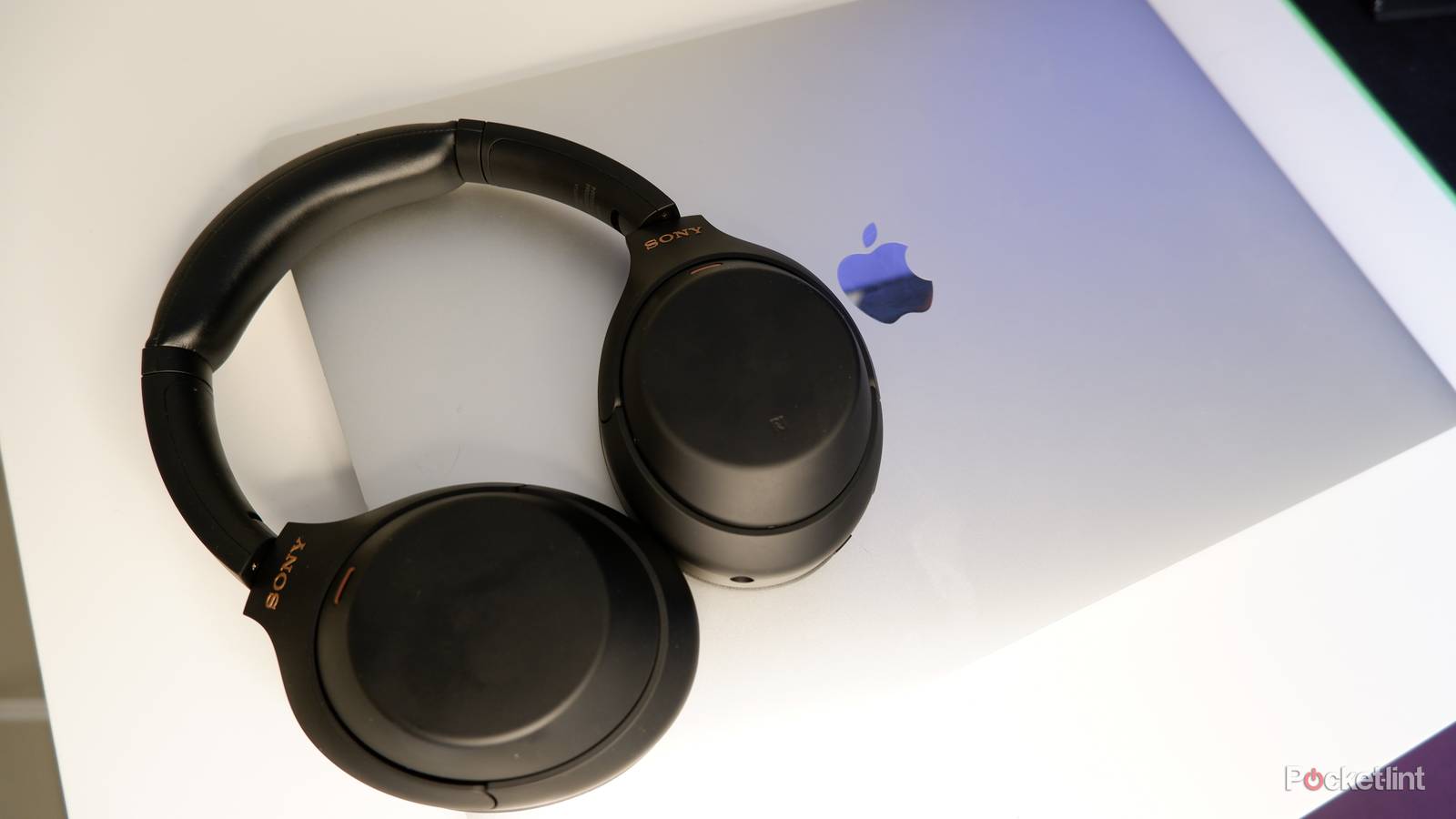
Bluetooth headphones are convenient because they remove the cable from your desk. The first connection is called pairing. After pairing, the headphones usually reconnect automatically when Bluetooth is on.
Before you start, place the headphones near the laptop. Turn them on and hold the power or Bluetooth button until the indicator light flashes. This puts the headphones into pairing mode.
Connect Bluetooth headphones to a Windows laptop
Use these steps to connect Bluetooth headphones to a Windows 11 or Windows 10 laptop:
Open the Start menu and select Settings.
Choose Bluetooth & devices in Windows 11. In Windows 10, choose Devices, then Bluetooth & other devices.
Turn Bluetooth on.
Select Add device.
Choose Bluetooth.
Select your headphones from the list.
Confirm the connection if Windows asks for approval.
Once connected, click the speaker icon in the taskbar. Select the arrow or output menu beside the volume control, then choose your Bluetooth headphones.
Windows may show two audio options for some headsets. One option may be labeled Stereo, while another may say Hands-Free or Headset. Stereo mode usually gives better music quality. Hands-Free mode activates the microphone but may reduce sound quality during calls.
Connect Bluetooth headphones to a Mac laptop
The steps are slightly different on a MacBook:
Open the Apple menu.
Select System Settings.
Choose Bluetooth.
Turn Bluetooth on.
Put the headphones into pairing mode.
Find the headphones in the device list.
Select Connect.
To choose the headphones for sound, open System Settings, select Sound, and choose the headphones under Output. You can also hold the Option key and select the sound icon in the menu bar for faster access.
Connect Bluetooth headphones to a Chromebook
To connect headphones to a Chromebook:
Select the time in the lower-right corner.
Turn Bluetooth on.
Select the Bluetooth menu.
Put the headphones into pairing mode.
Choose the headphones from the available devices.
Wait for the status to show Connected.
If the Chromebook connects but plays sound through its speakers, open the quick settings panel and select the headphones as the audio output.
Choose the correct sound output
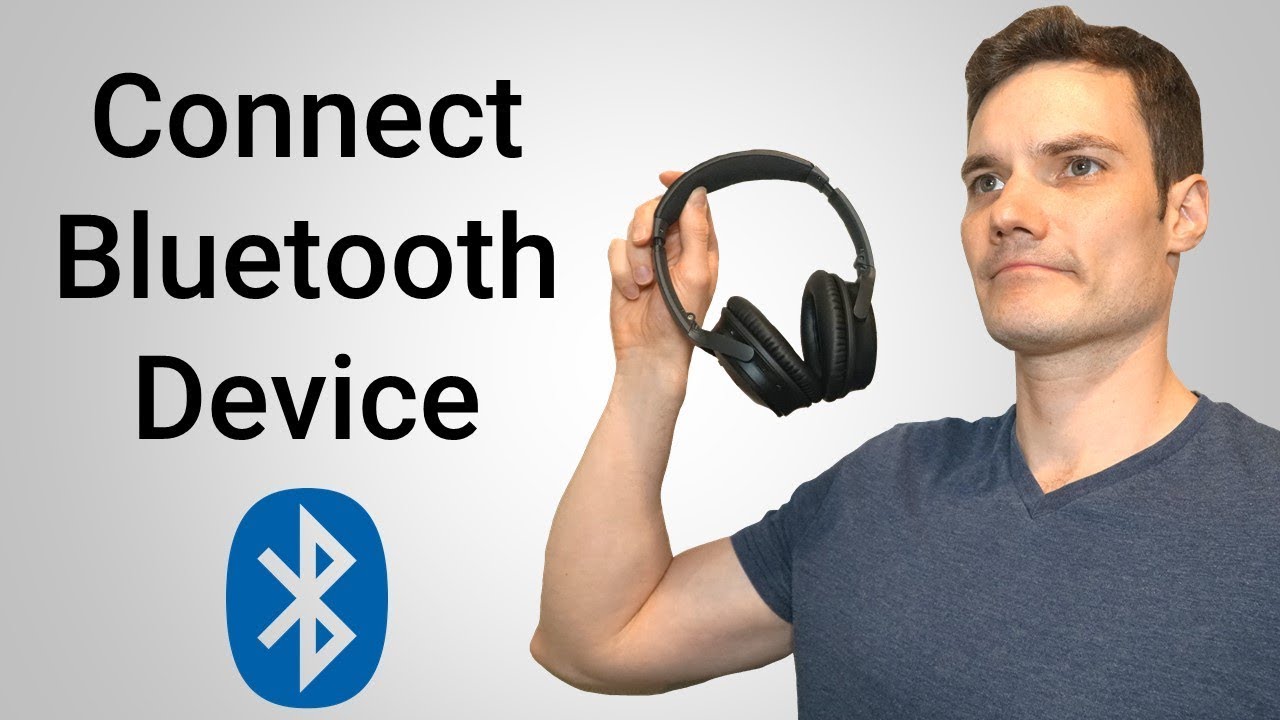
Connecting headphones to laptop hardware does not always mean the computer will use them. The operating system may keep the built-in speakers selected, especially after a system update or when several audio devices are connected.
On Windows, select the speaker icon on the taskbar. Open the output device list and choose the connected headphones. For more control, go to Settings, System, Sound, and Output.
On a Mac, open System Settings, select Sound, and choose the headphones under Output. On a Chromebook, open the quick settings panel and select the connected headphones.
Check the volume in three places:
• The laptop’s main volume control
• The headphone’s own volume buttons
• The volume inside the app or website
A muted app can make the headphones seem broken. For example, a browser tab, video call app, or media player may have its own mute setting. Increase the volume slowly to protect your hearing, especially when using in-ear headphones.
If you use a monitor, docking station, or external display, the laptop may select that device instead. This is common when the display supports HDMI audio. Choose the headphones manually from the output list.

Troubleshoot headphone connection problems
Most headphone problems come from a wrong output choice, low battery, pairing mode errors, or a poor physical connection. Try the following solutions in order.
No sound from wired headphones
• Remove and reinsert the plug firmly.
• Test the headphones with a phone or another computer.
• Check whether the laptop uses a combined headset jack.
• Confirm that the audio output is set to the headphones.
• Turn off mute and raise the volume.
• Restart the laptop with the headphones connected.
If the headphones work on another device but not the laptop, the issue may be the laptop port or sound settings. If several wired headphones fail, inspect the port for dust or damage. Do not push sharp objects into the jack, as this can damage the contacts.
Bluetooth headphones will not pair
• Charge the headphones.
• Keep them close to the laptop.
• Turn Bluetooth off and on again.
• Remove the headphones from the laptop’s saved device list.
• Put the headphones back into pairing mode.
• Disconnect them from your phone or tablet.
Many Bluetooth headphones automatically connect to the last phone they used. Turn Bluetooth off on nearby devices during setup. This small step solves many pairing problems.
If the headphones appear twice in the Bluetooth list, choose the entry that matches the model name. Remove old or duplicate entries if the first connection fails.
Headphones connect but keep disconnecting
Wireless interference can affect Bluetooth audio. Move away from crowded Wi-Fi equipment, USB 3.0 hubs, and other wireless devices. Keep the headphones within a reasonable range of the laptop, especially through walls or furniture.
Battery-saving settings can also interrupt Bluetooth. Make sure the laptop and headphones have enough power. Updating the laptop’s operating system and Bluetooth drivers may help, but download drivers only from the laptop maker or the operating system’s trusted update tools.
The microphone does not work
Open the sound settings and check the input device. Select the headset microphone instead of the laptop’s built-in microphone.
Allow microphone access for the app you are using. On Windows, review microphone permissions under Privacy settings. On a Mac, check microphone access under Privacy & Security. Also make sure the headset plug or USB connection supports microphone input.
Bluetooth headsets may switch into a lower-quality hands-free mode during calls. This is a normal Bluetooth limitation on many computers, not always a hardware fault. A wired USB headset or a headset with a separate microphone may provide better call quality.
Sound is delayed
Bluetooth audio can have a small delay during video playback or gaming. Close unused apps, move closer to the laptop, and reconnect the headphones. Gaming headsets with a dedicated USB receiver often have less delay than standard Bluetooth headphones.

Improve audio quality and comfort
Once you know how to connect headphones to laptop devices, a few small changes can improve daily use. Keep the headphone volume at a comfortable level and take regular listening breaks. Long exposure to loud sound can harm hearing, even when the headphones feel comfortable.
For clearer sound:
• Use Stereo mode for music and videos when available.
• Keep the headphones charged.
• Avoid loose adapters and damaged cables.
• Update the audio app and laptop software.
• Turn off sound enhancements if they create distortion.
• Clean ear tips and headphone cushions as directed by the manufacturer.
Wired headphones often offer stable sound with almost no delay. Bluetooth headphones provide freedom and comfort but need charging and may experience occasional interference. USB headsets can offer strong microphone performance, though they occupy a port.
The best choice depends on your use. A wired headset may suit online classes. Bluetooth earbuds may be better for travel. A USB gaming headset can be useful for voice chat and precise game audio.
In my experience, the most common setup mistake is buying an adapter before checking the laptop’s ports. Look at the port first, then choose the connector. This saves money and prevents the frustrating cycle of trying several adapters that cannot carry audio.

Keep your headphones connected safely
A stable connection should also be safe for your equipment. Insert wired plugs gently and avoid bending the cable near the connector. When removing a plug, hold the plug itself rather than pulling the cable.
For Bluetooth headphones, use the official pairing process. Avoid unknown software that promises to “boost” Bluetooth or repair audio. Laptop operating systems already include the tools needed for normal pairing.
When traveling, store earbuds in their case and keep over-ear headphones away from heavy pressure. Moisture, extreme heat, and repeated cable stress can shorten the life of headphones.
If a laptop port feels loose, smells hot, or shows physical damage, stop using it. A damaged port can affect the laptop or connected accessory. In that situation, Bluetooth or a certified USB audio adapter may be a safer temporary option.

Frequently Asked Questions About How to Connect Headphones to Laptop
How do I connect headphones to a laptop without a headphone jack?
Use Bluetooth headphones or connect wired headphones through a USB-A or USB-C audio adapter. Make sure the adapter supports audio output, then select the headphones in the laptop’s sound settings.
Why are my headphones connected but there is no sound?
The laptop may still be using its built-in speakers or another output device. Open the sound settings and manually select the connected headphones, then check the laptop, app, and headphone volume controls.
How do I connect wireless headphones to a Windows laptop?
Turn on Bluetooth, place the headphones in pairing mode, and open Settings > Bluetooth & devices. Select Add device, choose Bluetooth, and select your headphones from the list.
How do I connect Bluetooth headphones to a MacBook?
Open Apple menu > System Settings > Bluetooth, turn Bluetooth on, and select the headphones. Then open Sound settings and choose them as the output device if the MacBook does not switch automatically.
Can I connect two headphones to one laptop?
Some laptops and operating systems support two Bluetooth audio devices, but support varies. A wired audio splitter or a dedicated Bluetooth transmitter may work better when you need synchronized sound for two listeners.
Why does Bluetooth sound quality drop during a call?
Many Bluetooth headsets use a hands-free mode when the microphone is active. This mode supports two-way communication but may reduce audio quality, so a USB or wired headset can provide better results.

Conclusion
Learning how to connect headphones to laptop computers usually takes only a few steps. Plug in wired headphones, pair Bluetooth headphones through the device settings, and confirm that the correct output is selected. If sound fails, check the connection, battery, volume, permissions, and output device before replacing the headphones.
Start with the connection type you already own and follow the matching steps above. Test the headphones with music and a microphone call, then adjust the settings for comfort and clear sound. If this guide helped, share it with someone setting up a new laptop or explore more practical computer tips.
