

To connect Skullcandy earbuds to iPhone, turn on bluetooth, open the case, and select your earbuds.
Learning how to connect Skullcandy earbuds to iPhone is simple once you know where pairing mode lives. The steps work for most Skullcandy wireless models, including Dime, Sesh, Indy, Push, Grind, and Mod. This guide also covers pairing problems, sound issues, resets, and helpful tips for a steady connection.
How to connect Skullcandy earbuds to iPhone
Most Skullcandy earbuds use Bluetooth to connect with an iPhone. Bluetooth is a short-range wireless system that sends sound from your phone to your earbuds without a cable.
Before you start, check these basics:
• Charge the earbuds and charging case.
• Keep the earbuds within a few feet of your iPhone.
• Turn off Bluetooth on nearby phones, tablets, or laptops that may connect first.
• Remove the earbuds from the case if they do not turn on by opening the lid.
Follow these steps to connect Skullcandy earbuds to iPhone:
Open the Settings app on your iPhone.
Tap Bluetooth.
Turn on the Bluetooth switch. It should appear green.
Place both Skullcandy earbuds in the charging case, then open the lid.
Remove the earbuds from the case. Many models enter pairing mode automatically.
Look under Other Devices on your iPhone.
Tap the name of your Skullcandy earbuds.
Wait until the earbuds move to My Devices and show Connected.
Play music or a video to test the sound.
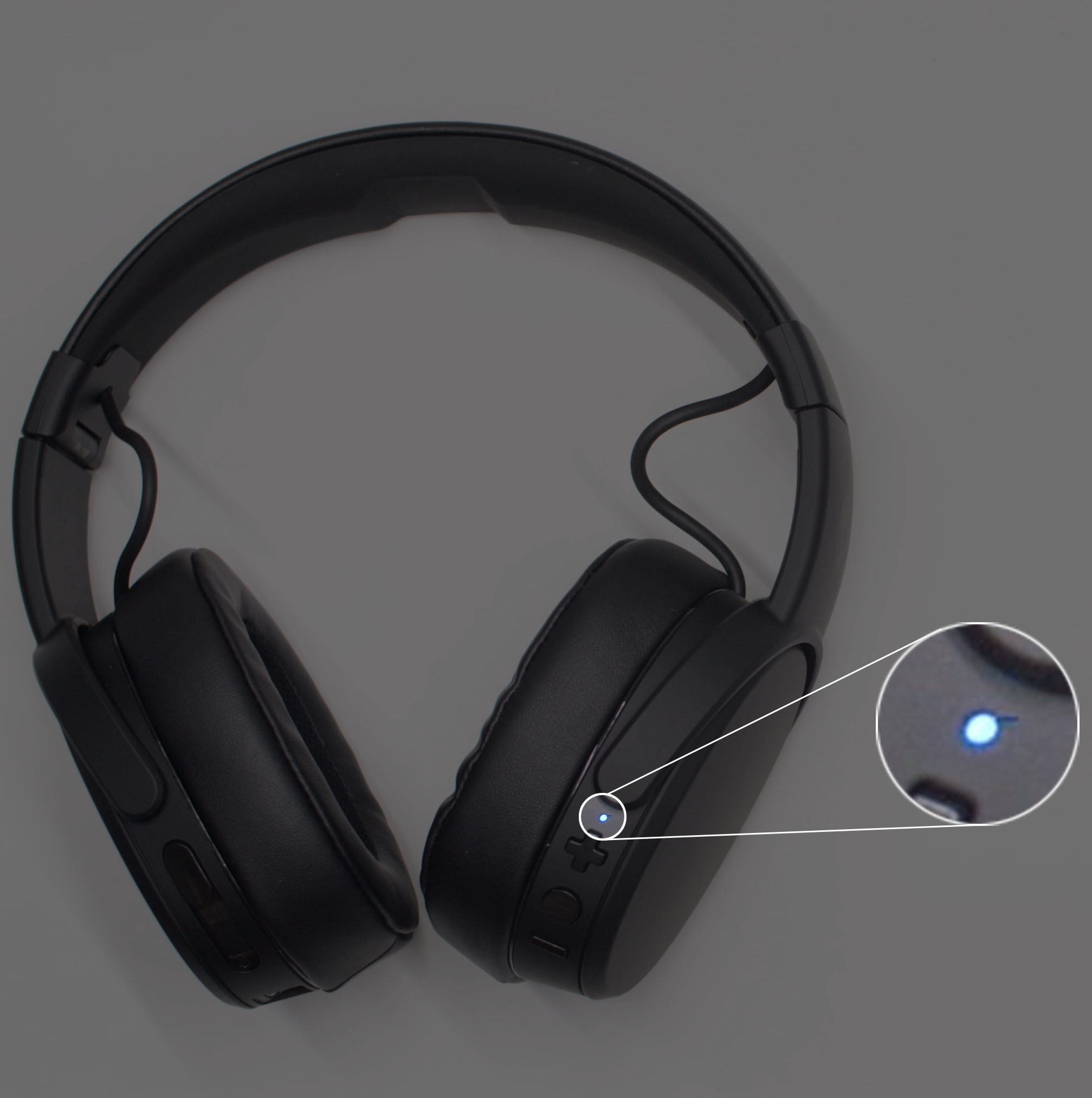
If your earbuds do not appear, press and hold the button on one or both earbuds. The exact button action can vary by model. A flashing LED usually means the earbuds are ready to pair.

How to put Skullcandy earbuds in pairing mode
Pairing mode allows your iPhone to find the earbuds. Think of it as the earbuds raising their hand and saying, “I am ready to connect.”
For many Skullcandy models, you can enter pairing mode by following these steps:
Turn off Bluetooth on devices that have used the earbuds before.
Place both earbuds inside the case.
Close the case for a few seconds.
Open the case.
Remove both earbuds at the same time.
Watch for flashing lights or a voice prompt.
Some models may need a manual process. Press and hold the earbud button for several seconds until the LED flashes. If the earbuds are already connected to another device, disconnect them there first.
The name shown on the iPhone may include the product family, such as “Sesh,” “Dime,” “Indy,” or “Grind.” If you see two similar names, choose the one that matches your model.
A common mistake is tapping the wrong Bluetooth item. Avoid selecting a device marked Not Connected if it belongs to a speaker, car, or another pair of headphones.

How to connect Skullcandy earbuds to iPhone for the first time
The first pairing can take a little longer than later connections. Your iPhone must discover the earbuds, save their Bluetooth information, and create a trusted connection.
For a first-time setup, use this simple routine:
• Charge the case for at least a few minutes.
• Keep the iPhone and earbuds close together.
• Open Bluetooth settings before removing the earbuds from the case.
• Wait up to 30 seconds for the earbuds to appear.
• Tap the correct Skullcandy device name once.
• Do not repeatedly tap the name while the connection is processing.
Once paired, the iPhone should remember the earbuds. The next time you open the case near the phone, the earbuds may connect automatically.
In my testing experience with Bluetooth earbuds, the most common first-pairing error is removing only one earbud. Some models treat one earbud as the main connection and may not sync the second earbud correctly. Removing both earbuds together usually gives the cleanest setup.

How to connect Skullcandy earbuds to iPhone after pairing
After the first setup, reconnecting should be quick. Make sure Bluetooth is on, then open the charging case near your iPhone.
If the earbuds do not reconnect automatically:
Open Settings.
Tap Bluetooth.
Find the Skullcandy earbuds under My Devices.
Tap the device name.
Wait for the Connected label.
You can also choose the earbuds from the audio output menu. Start playing audio, then open Control Center by swiping down from the top right of the screen. Tap the audio output icon and select your Skullcandy earbuds.
This method helps when the iPhone connects to another speaker, car system, or pair of headphones. It also lets you switch between multiple Bluetooth audio devices without returning to the full Settings menu.
If only one earbud works, place both earbuds back in the case. Close the lid, wait about 10 seconds, and remove them together. This often allows the two earbuds to reconnect with each other before they reconnect with the iPhone.

How to connect Skullcandy earbuds to iPhone when they will not show up
If your Skullcandy earbuds do not appear in the Bluetooth list, do not worry. The problem is often caused by pairing mode, a low battery, or a previous connection.
Try these fixes in order:
• Confirm Bluetooth is on.
• Move the earbuds within three feet of the iPhone.
• Charge the earbuds and case.
• Turn Bluetooth off, wait 10 seconds, and turn it on again.
• Close and reopen the charging case.
• Restart the iPhone.
• Turn off Bluetooth on nearby devices.
• Reset the earbuds if they still do not appear.
The iPhone can store many Bluetooth devices, but a saved connection can become confused after updates or repeated pairing attempts. Removing the old connection often solves the issue.
To remove a saved Skullcandy connection, open Settings, tap Bluetooth, tap the information button next to the earbuds, and choose Forget This Device. Then place the earbuds in pairing mode and connect again.
Apple recommends keeping Bluetooth accessories close during setup. Distance, walls, and wireless interference can weaken discovery. Wi-Fi routers, crowded public spaces, and other Bluetooth devices may also cause short delays.

How to reset Skullcandy earbuds before connecting to iPhone
A reset clears the old pairing information. It is useful when the earbuds connect to another phone, appear but fail to connect, or play sound through only one side.
Reset steps differ by Skullcandy model, so check the guide for your exact earbuds. Many models use a process similar to this:
Forget the earbuds in iPhone Bluetooth settings.
Place both earbuds in the case.
Remove the earbuds.
Press and hold the buttons for several seconds, or follow the model-specific reset command.
Return the earbuds to the case.
Remove both earbuds and wait for pairing mode.
Open iPhone Bluetooth settings and select the earbuds.
Some touch-control models reset when you tap an earbud several times, while others require a long press. Do not guess if your model uses a special pattern. The wrong button sequence may turn the earbuds off instead of resetting them.
A reset also removes links to other phones. You will need to pair the earbuds again with every device you want to use.
How to fix Skullcandy earbuds connected but no sound on iPhone
Sometimes the iPhone says Connected, but audio still comes from the phone speaker. This usually means the audio output is set to the wrong device.
Try these steps:
Play music or a video.
Open Control Center.
Tap the audio output icon.
Select your Skullcandy earbuds.
Raise the volume on the iPhone.
Check the volume controls on the earbuds.
Also check whether the earbuds are connected for calls but not media. Open Settings, tap Bluetooth, and tap the information button next to the Skullcandy device. If your model shows separate options, make sure audio features are enabled.
If only one side produces sound, clean the charging contacts and speaker mesh with a dry, soft brush. Earwax, dust, or a poor charging connection can stop one earbud from working. Do not push liquid or sharp objects into the speaker opening.
When I troubleshoot wireless earbuds, I test music, a phone call, and a video separately. One may work while another has a routing problem. Testing all three quickly shows whether the issue is Bluetooth, the app, or the phone’s audio output.

How to improve the Skullcandy and iPhone Bluetooth connection
A stable connection depends on more than the initial pairing. Good daily habits can prevent dropouts and delays.
Use these practical tips:
• Keep the iPhone in the same room as the earbuds.
• Avoid covering the earbud touch controls with thick gloves or wet hands.
• Keep the case and earbuds charged.
• Install available iOS updates.
• Use the latest firmware supported by your Skullcandy model.
• Keep the earbuds away from strong sources of wireless interference.
• Do not store the earbuds in a hot car or in direct sunlight.
Bluetooth range is affected by walls, metal objects, and the position of your phone. Your body can also block the signal when the phone is in a back pocket. If audio cuts out during a workout, place the iPhone in a front pocket or armband.
Battery condition matters too. An earbud with very low power may connect and then disconnect. If one side repeatedly fails, charge both earbuds inside the case and check whether the case itself has power.
The Skullcandy app may support extra settings for some models. It can offer firmware updates, control changes, equalizer tools, or device information. App features vary, so they are not required for basic iPhone Bluetooth pairing.

Common mistakes when pairing Skullcandy earbuds with iPhone
Small mistakes can make a simple setup feel difficult. Avoid these common problems:
Pairing while the earbuds are still connected elsewhere
Earbuds often reconnect to the last phone they used. Turn off Bluetooth on that phone or move it out of range before starting.
Selecting the wrong device
Your iPhone may show several Bluetooth products. Choose the name that matches your Skullcandy model, not an unrelated speaker or car system.
Pairing one earbud at a time
Some models can work in single-earbud mode. For normal stereo sound, remove both earbuds together and allow them to sync.
Ignoring the charging case
The case does more than store the earbuds. It may also reset, charge, and wake them. Clean charging pins and a charged case can prevent many connection failures.
Repeating the same failed attempt
Tapping the device name again and again rarely helps. Forget the device, restart Bluetooth, and begin a fresh pairing process instead.
Learning how to connect Skullcandy earbuds to iPhone becomes much easier when you treat pairing as a clean process: charge, reset if needed, enter pairing mode, and connect once.
Frequently asked questions about how to connect Skullcandy earbuds to iPhone
Why are my Skullcandy earbuds not showing up on my iPhone?
Make sure the earbuds are charged and in pairing mode. Turn off Bluetooth on nearby devices, restart Bluetooth on the iPhone, and try again. If they still do not appear, forget any old Skullcandy connection and reset the earbuds.
Can I connect Skullcandy earbuds to an iPhone without the Skullcandy app?
Yes. The app is not required for basic Bluetooth pairing. Open iPhone Settings, select Bluetooth, and tap the Skullcandy earbuds when they appear.
How do I disconnect Skullcandy earbuds from my iPhone?
Open Settings, tap Bluetooth, and tap the information button next to the earbuds. Choose Disconnect or turn off Bluetooth. You can also place the earbuds in their charging case and close the lid.
Why is only one Skullcandy earbud connected?
The earbuds may not have synced with each other, or one side may not be charged. Put both earbuds in the case, close it, wait several seconds, and remove both at the same time. A reset may be needed if the problem continues.
Do Skullcandy earbuds work with every iPhone?
Most modern Skullcandy Bluetooth earbuds work with iPhones that support their Bluetooth features. Older earbuds may have limited functions, and some advanced app controls may require a newer iOS version.
How do I make Skullcandy earbuds connect automatically to my iPhone?
Pair them once through Settings, then keep Bluetooth enabled on the iPhone. In normal conditions, opening the charged case near the iPhone lets the earbuds reconnect automatically.
Conclusion
Connecting Skullcandy earbuds to iPhone usually takes less than a minute. Turn on Bluetooth, place the earbuds in pairing mode, select the correct Skullcandy name, and test the audio. If the connection fails, charge the earbuds, forget the old device, restart Bluetooth, or reset the earbuds.
Now that you know how to connect Skullcandy earbuds to iPhone, you can enjoy music, calls, podcasts, and videos without cables. Try the steps above, and share your model or troubleshooting experience in the comments.
