

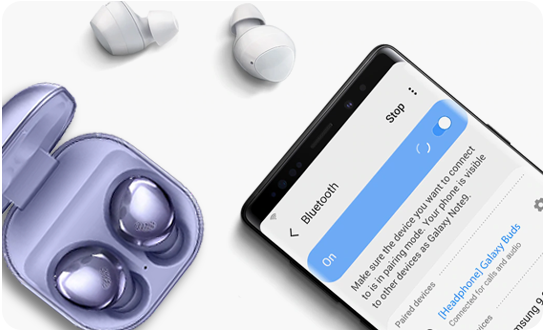
Open Bluetooth, place your Samsung earbuds in pairing mode, then select them from your phone’s Bluetooth list.
Learning how to connect Samsung earbuds to phone is simple once you know which pairing method fits your device. Whether you use a Galaxy phone, another Android phone, or an iPhone, this guide explains the steps, common problems, and practical fixes in clear language.
What you need before connecting Samsung earbuds
Before you connect Samsung earbuds to phone, check a few basics. These small steps prevent most pairing problems and save time.
• Charge the earbuds and charging case. A low battery can stop pairing or cause the connection to drop.
• Turn on Bluetooth on your phone. On most phones, you can find it under Settings > Connections or Settings > Connected devices.
• Keep the earbuds near your phone. Stay within about 30 feet, with no thick walls or other wireless devices between them.
• Remove the earbuds from another connected device. Samsung earbuds often reconnect to the last phone, tablet, or laptop they used.
• Install the Galaxy Wearable app if you use an Android phone. The app helps with setup, updates, touch controls, equalizer settings, and battery checks.
Samsung Galaxy Buds models work best with recent Android phones, especially Samsung Galaxy devices. They can also connect to iPhones through Bluetooth, although some advanced features may not be available on iOS.
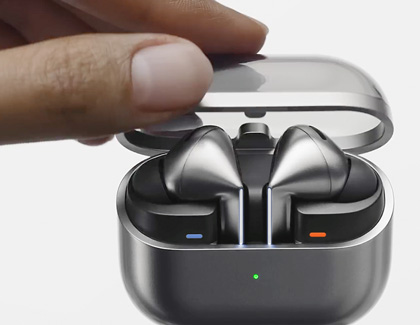
How to connect Samsung earbuds to a Galaxy phone
The fastest way to connect Samsung earbuds to phone is through the Galaxy Wearable app. This method gives you access to more features than basic Bluetooth pairing.
Use the Galaxy Wearable app
- Open the Google Play Store on your Galaxy phone.
- Search for Galaxy Wearable.
- Install or update the app.
- Open the charging case with both earbuds inside.
- Tap Start or Add new device in the app.
- Choose your Galaxy Buds model.
- Follow the instructions on the screen.
- Approve any permission requests.
- Tap Pair when your phone asks for confirmation.
Some Samsung earbuds pair as soon as you open the case near a compatible Galaxy phone. If a pop-up appears, tap Connect. This is usually the easiest way to connect Samsung earbuds to phone.
The Galaxy Wearable app may ask for access to nearby devices, notifications, or location. These permissions support features such as automatic detection, Find My Earbuds, and notification controls. You can review app permissions later in your phone’s settings.
Connect through the Bluetooth menu
You can also connect Samsung earbuds to phone without the app.
- Put both earbuds in the charging case.
- Close the lid for a few seconds.
- Open the lid.
- On your phone, open Settings.
- Tap Connections, then Bluetooth.
- Turn Bluetooth on.
- Look under Available devices.
- Tap the name of your Galaxy Buds.
- Confirm the pairing request.
The exact menu names may differ by One UI version. On some Galaxy phones, the path is Settings > Connections > Bluetooth. On other Android phones, it may be Settings > Connected devices > Pair new device.
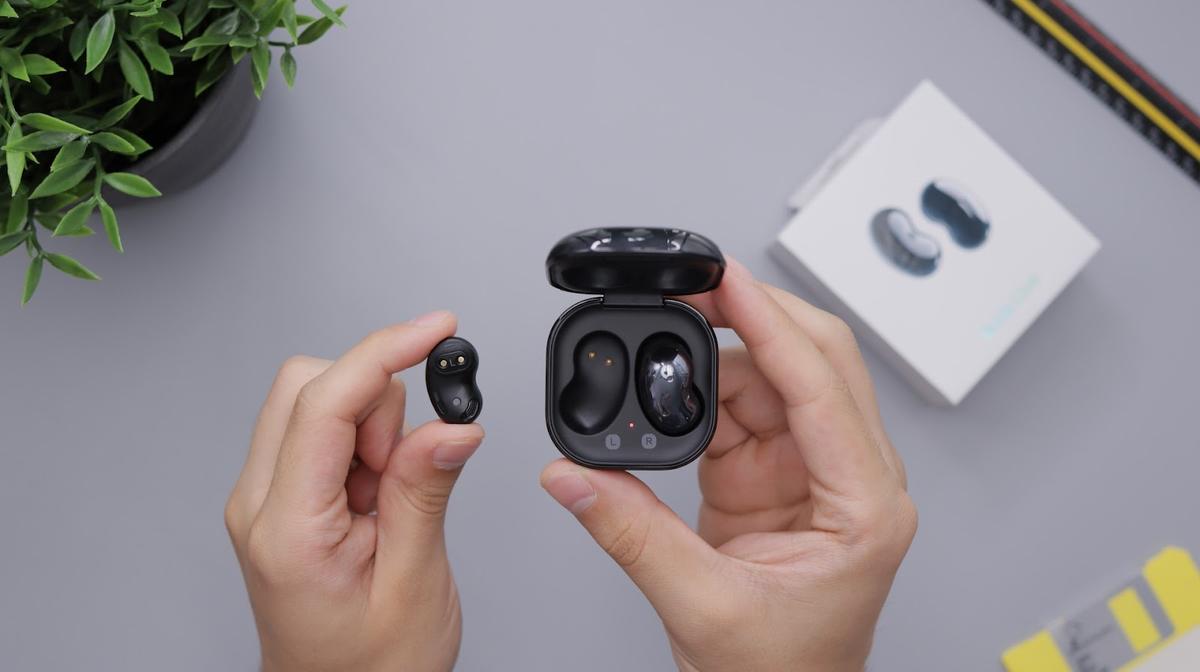
How to put Samsung earbuds in pairing mode
Most Samsung earbuds enter pairing mode automatically when they have no active connection. If your phone does not find them, you may need to start pairing mode manually.
For earbuds that are not connected to another device
Place both earbuds in your ears. Touch and hold both touchpads at the same time for several seconds. You should hear a sound or voice prompt that indicates pairing mode is active.
Now open Bluetooth settings on your phone and look for the earbuds. Tap the model name to connect Samsung earbuds to phone.
For newer Galaxy Buds models
The method can vary by model. If the earbuds do not respond to touch controls, place them in the case, close the lid, and open it again. Then press and hold the touch areas on both earbuds while they remain in the case until the case light or sound signals pairing mode.
Samsung has changed pairing steps across Galaxy Buds generations. Galaxy Buds, Buds+, Buds2, Buds2 Pro, Buds Live, and Buds Pro may not use exactly the same method. When in doubt, check the model-specific instructions in the Galaxy Wearable app.
If the earbuds are connected to another phone
Turn off Bluetooth on the old phone for a moment. You can also open the Galaxy Wearable app on that phone and disconnect the earbuds.
After that, place the earbuds in pairing mode and search again on the new phone. This is a common step people miss when trying to connect Samsung earbuds to phone.

How to connect Samsung earbuds to an Android phone
Samsung earbuds can connect to most modern Android phones through Bluetooth. The Galaxy Wearable app is available for many Android devices, but some features may work only on Samsung Galaxy phones.
- Download Galaxy Wearable from the Google Play Store.
- Open the app and tap Start.
- Put the earbuds in the open charging case.
- Select the earbuds when they appear.
- Accept the pairing request.
- Install any available firmware update.
- Test music playback and the microphones.
If the app does not detect your earbuds, use the phone’s Bluetooth settings instead. Open Settings > Connected devices > Pair new device, then choose your Samsung earbuds from the list.
You may need to allow nearby-device access. Android uses this permission to find Bluetooth accessories without requiring broad access to your phone’s data.
A useful real-world tip is to pair the earbuds before opening music or video apps. If an app is already playing sound, your phone may keep sending audio to its speaker or another Bluetooth device. Stop playback, pair the earbuds, and then start your media again.
How to connect Samsung earbuds to an iPhone
You can connect Samsung earbuds to phone when the phone is an iPhone, but the process is different. Basic Bluetooth features usually work, while some Samsung-specific tools may not.
- Open the charging case with the earbuds inside.
- Put the earbuds into pairing mode if they do not appear.
- Open Settings on your iPhone.
- Tap Bluetooth.
- Turn Bluetooth on.
- Wait for the Samsung earbuds to appear under Other Devices.
- Tap the earbuds’ name.
- Wait until the status changes to Connected.
Once paired, the earbuds can play music, videos, calls, and other audio. Touch controls may work, but advanced features such as firmware updates, detailed battery information, or custom sound settings can be limited.
If your iPhone previously used the earbuds, tap the information icon next to the earbuds’ name. Choose Forget This Device, then put the earbuds in pairing mode and connect them again.
The iPhone does not need the Galaxy Wearable app for basic Bluetooth pairing. This makes it easy to connect Samsung earbuds to phone, but Android usually provides a fuller feature set.
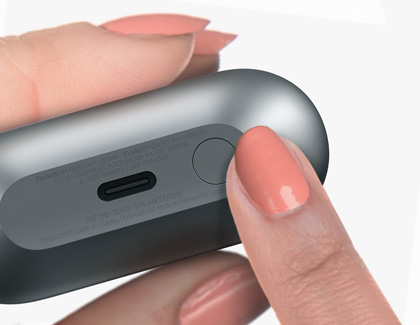
How to reconnect Samsung earbuds automatically
After the first successful pairing, Samsung earbuds should reconnect when you open the case near the same phone. Bluetooth must be on, and the earbuds must have enough battery.
If automatic reconnection fails, open Bluetooth settings and tap the earbuds’ name. You can also open Galaxy Wearable and select Connect.
Keep the following settings in mind:
• Make sure Airplane Mode is off.
• Check that the phone is not connected to another pair of earbuds or a car stereo.
• Keep the earbuds inside the Bluetooth range.
• Update the phone and Galaxy Wearable app.
• Avoid turning off Bluetooth through a battery-saving routine.
In daily use, automatic reconnection is convenient, but it is not always instant. The phone may take a few seconds to switch audio from its speaker to the earbuds.
How to fix Samsung earbuds that will not connect
Connection problems are usually caused by an old Bluetooth record, low battery, distance, or an active connection to another device. Try the fixes below in order.
Restart Bluetooth
Turn Bluetooth off on your phone. Wait about 10 seconds, then turn it back on. Try to connect Samsung earbuds to phone again.
Restart the phone and earbuds
Restart your phone. For the earbuds, place them in the case, close the lid, wait at least 10 seconds, and open it again.
Forget and pair again
On your phone, open Bluetooth settings. Tap the gear or information icon beside the earbuds, choose Forget, Unpair, or Remove, and then pair them again.
This removes the old connection record. It often fixes failed connections after a phone update or when the earbuds were used with several devices.
Charge everything
Charge the case and both earbuds for at least 15 minutes. Clean the metal charging contacts with a dry, soft cloth if one earbud does not seem to charge.
Do not use water or sharp tools inside the case. Moisture and debris can prevent charging and may damage the contacts.
Reset the network settings
If other Bluetooth devices also fail to connect, reset your phone’s network settings. This action removes saved Wi-Fi networks, Bluetooth pairings, and some network preferences, so use it only after simpler fixes.
Reset the earbuds
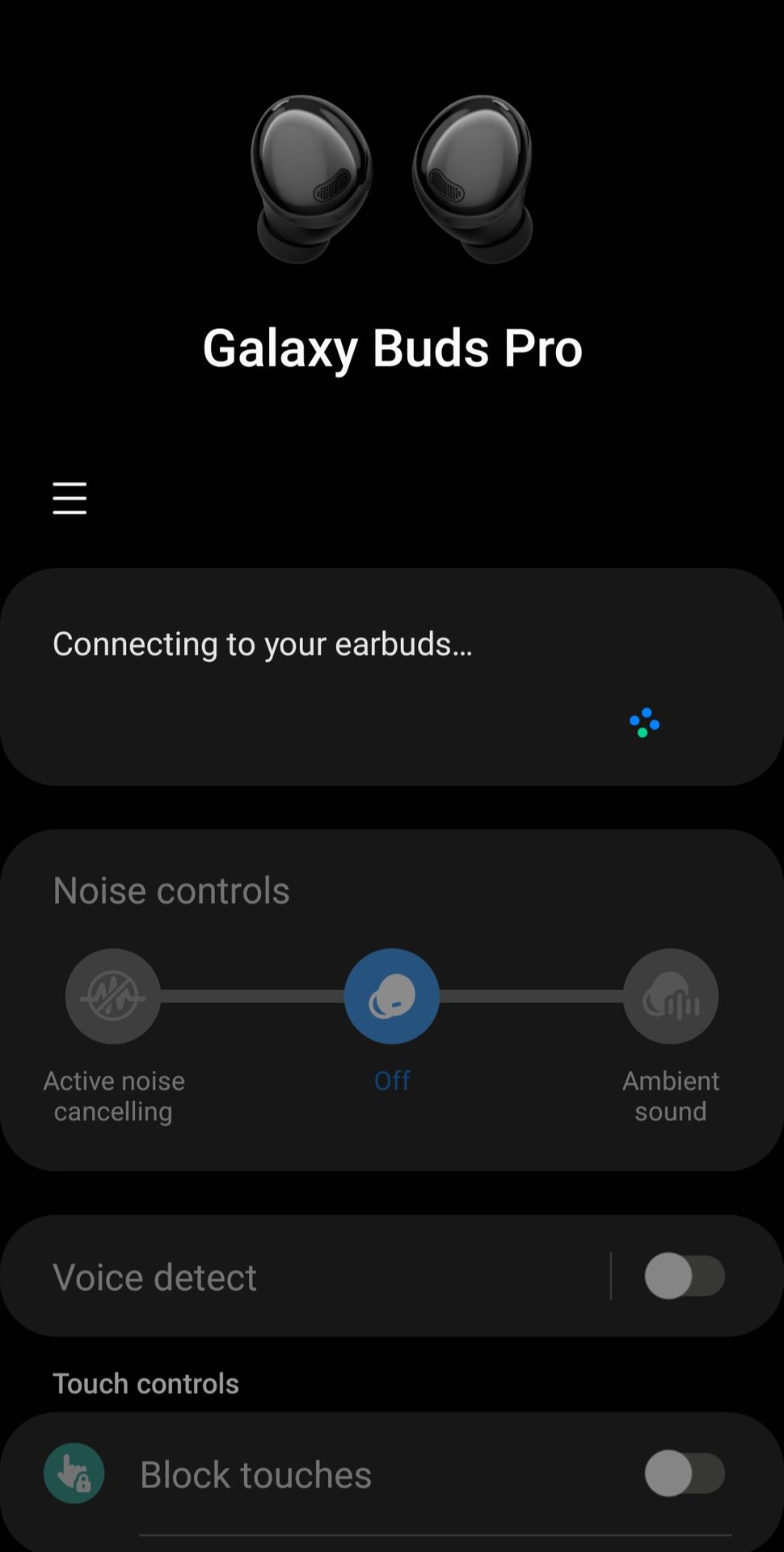
Open Galaxy Wearable, select Earbuds settings, and look for Reset. The exact menu can vary by model. A reset removes the earbuds’ saved settings and requires you to pair them again.
From experience helping people with wireless accessories, the most common mistake is resetting too soon. First forget the earbuds on the phone, restart Bluetooth, and charge the case. Those steps solve many pairing issues without erasing settings.
How to improve the connection and sound
A successful pairing is only the first step. A few habits can make Samsung earbuds more reliable during calls, workouts, and travel.
• Keep the phone on the same side of your body as the active earbud when possible.
• Avoid crowded wireless areas, such as busy airports or packed offices.
• Keep phone software and earbud firmware updated.
• Use the correct ear tip size for a stable fit and stronger bass.
• Clean the speaker grille and charging contacts gently.
• Turn off unused Bluetooth devices that connect automatically.
• Keep the earbuds dry, even if your model has water resistance.
Water resistance ratings do not mean the earbuds are safe in every situation. Sweat, rain, and splashes may be acceptable for some models, but swimming and strong water pressure can cause damage.
For calls, make sure both microphones are clear. Wind, hair, dust, and a loose fit can make your voice sound distant. If only one earbud produces sound, check the phone’s left and right audio balance and inspect the quiet earbud for dirt.
Samsung earbuds connection limits to know
Samsung earbuds are designed for convenience, but they have limits. Understanding them helps you set realistic expectations.
Some models support seamless switching between Samsung devices signed in to the same account. This feature is not the same as connecting to every device at once. Compatibility depends on the earbud model, phone software, and account settings.
Multipoint behavior can also vary. Many users expect the earbuds to stay fully connected to two phones, but some Galaxy Buds models handle this through Samsung’s ecosystem rather than standard multipoint Bluetooth.
Feature support is usually broader on Samsung Galaxy phones. An iPhone or non-Samsung Android phone can handle basic audio and calls, but advanced controls may be reduced.
Bluetooth range also depends on walls, interference, and the phone itself. A stated range is a laboratory estimate, not a guarantee for every home, gym, or office.
Best practices for pairing Samsung earbuds
Use these habits whenever you connect Samsung earbuds to phone for the first time or switch to a new device.
- Charge the case and earbuds before setup.
- Turn off Bluetooth on nearby devices that used the earbuds before.
- Open the Galaxy Wearable app on Android when available.
- Put the earbuds in pairing mode before searching.
- Accept the correct pairing request.
- Update the earbuds after they connect.
- Test both music and phone calls.
- Save the earbuds under a clear device name if your phone allows it.
Do not repeatedly tap random Bluetooth entries. You may accidentally pair with another nearby accessory. Check the model name and confirm that the earbuds are yours.
It also helps to keep the charging case nearby during setup. If the earbuds disconnect, you can place them inside the case and restart the process quickly.
Frequently Asked Questions About How to Connect Samsung Earbuds to Phone
How do I connect Samsung earbuds to phone for the first time?
Open the charging case, turn on Bluetooth, and select the earbuds from the available-device list. On Android, the Galaxy Wearable app can guide you through setup and provide extra controls.
Why are my Samsung earbuds not showing up on my phone?
They may still be connected to another device, have a low battery, or not be in pairing mode. Turn off Bluetooth on the old device, charge the earbuds, and hold both touch areas to activate pairing mode.
Can I connect Samsung earbuds to an iPhone?
Yes. Open iPhone Settings, tap Bluetooth, and select the Samsung earbuds when they appear. Basic audio and call features should work, but some advanced Samsung controls may not be available.
Do I need the Galaxy Wearable app to connect Samsung earbuds to phone?
No. You can use the phone’s regular Bluetooth menu for basic pairing. The Galaxy Wearable app is recommended for Android users who want updates, battery details, sound controls, and device settings.
How do I reset Samsung earbuds before pairing them again?
Open the Galaxy Wearable app, choose your earbuds, open Earbuds settings, and select Reset. If you cannot use the app, forget the earbuds in your phone’s Bluetooth menu, place them in the case, and follow the model-specific pairing instructions.
Can Samsung earbuds connect to two phones at once?
It depends on the model and software. Some Galaxy Buds support automatic switching within Samsung’s ecosystem, but standard two-phone multipoint support is not available in the same way on every model.
Why is only one Samsung earbud working?
Place both earbuds in the case and charge them. Then check the phone’s audio balance, clean the charging contacts, and reconnect the earbuds after forgetting the old Bluetooth pairing.
Conclusion
Connecting Samsung earbuds to phone usually takes only a few minutes. Turn on Bluetooth, place the earbuds in pairing mode, select them from the device list, and use Galaxy Wearable on Android for the best experience.
If pairing fails, charge the earbuds, disconnect them from other devices, forget the old Bluetooth record, and try again. Start with these simple fixes before resetting anything.
Now connect your earbuds, test music and calls, and explore the available sound and control settings. If this guide helped, share it with someone setting up Galaxy Buds or explore more practical phone and Bluetooth tips.
