

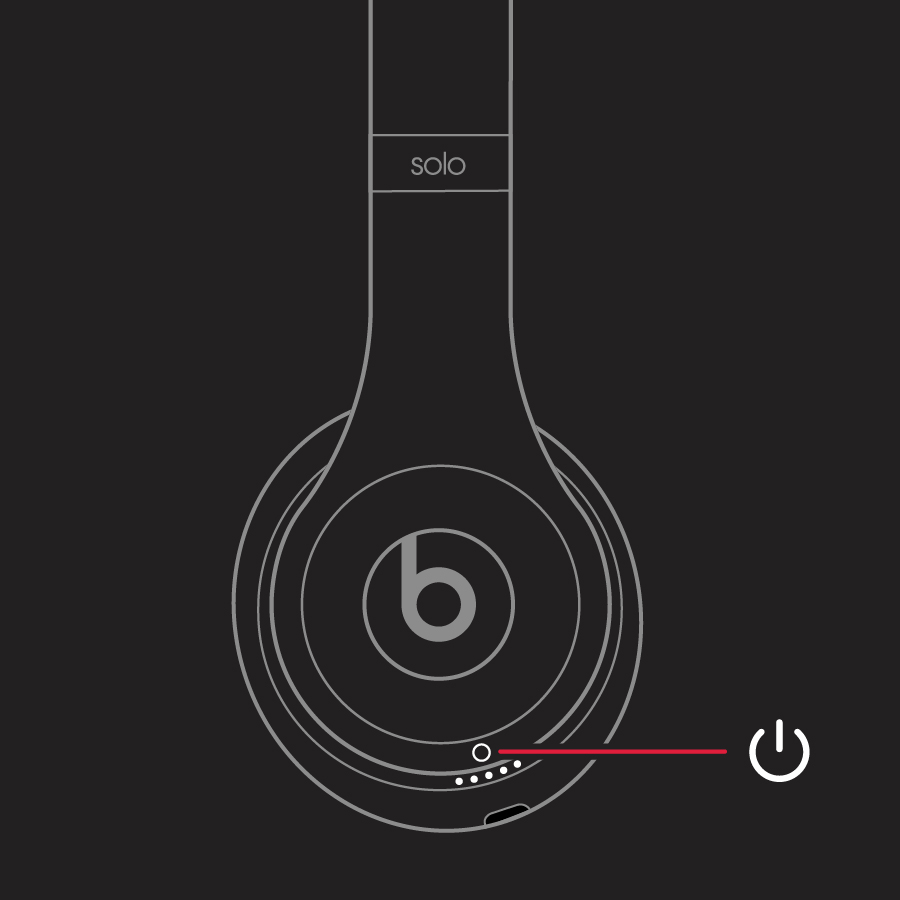
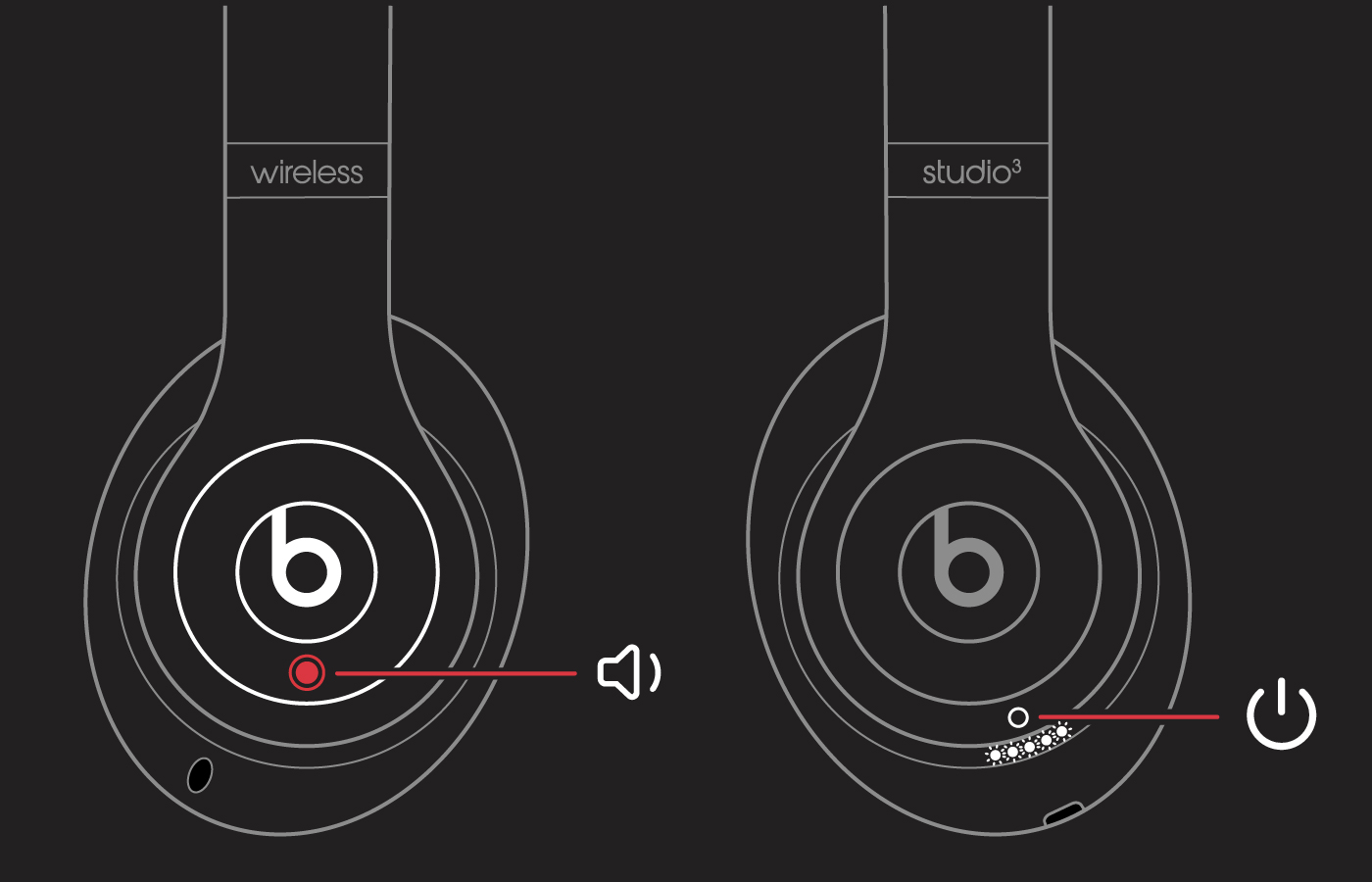
Press and hold the power button for one second until the status light turns on.
Learning how to turn on Beats headphones is simple once you know where the power control sits. Most Beats wireless headphones start with a short press and hold, but the exact button location and light pattern can vary by model. This guide explains the steps for popular Beats headphones, what the indicator lights mean, and what to do when your headphones will not turn on.
How to Turn On Beats Headphones
Most Beats headphones turn on with the same basic action: press and hold the power button for about one second. Look for a small button on the earcup or control module.
Follow these steps:
- Remove your Beats headphones from the case or storage area.
- Find the power button.
- Press and hold it for one second.
- Release the button when the status light turns on.
- Listen for a sound or voice prompt that confirms the headphones are active.
- Open your device’s bluetooth menu and select your Beats headphones if they do not connect at once.
The status light may flash white when the headphones are ready to pair. A steady light may show that they are already connected. The light color can differ between models, so your user guide may show a slightly different pattern.
When I test wireless headphones, I find that many people tap the power button too quickly. That often activates no function at all. Treat the button like a doorbell that needs a short hold, not like a phone screen that responds to a quick tap.
Where Is the Power Button on Beats Headphones?
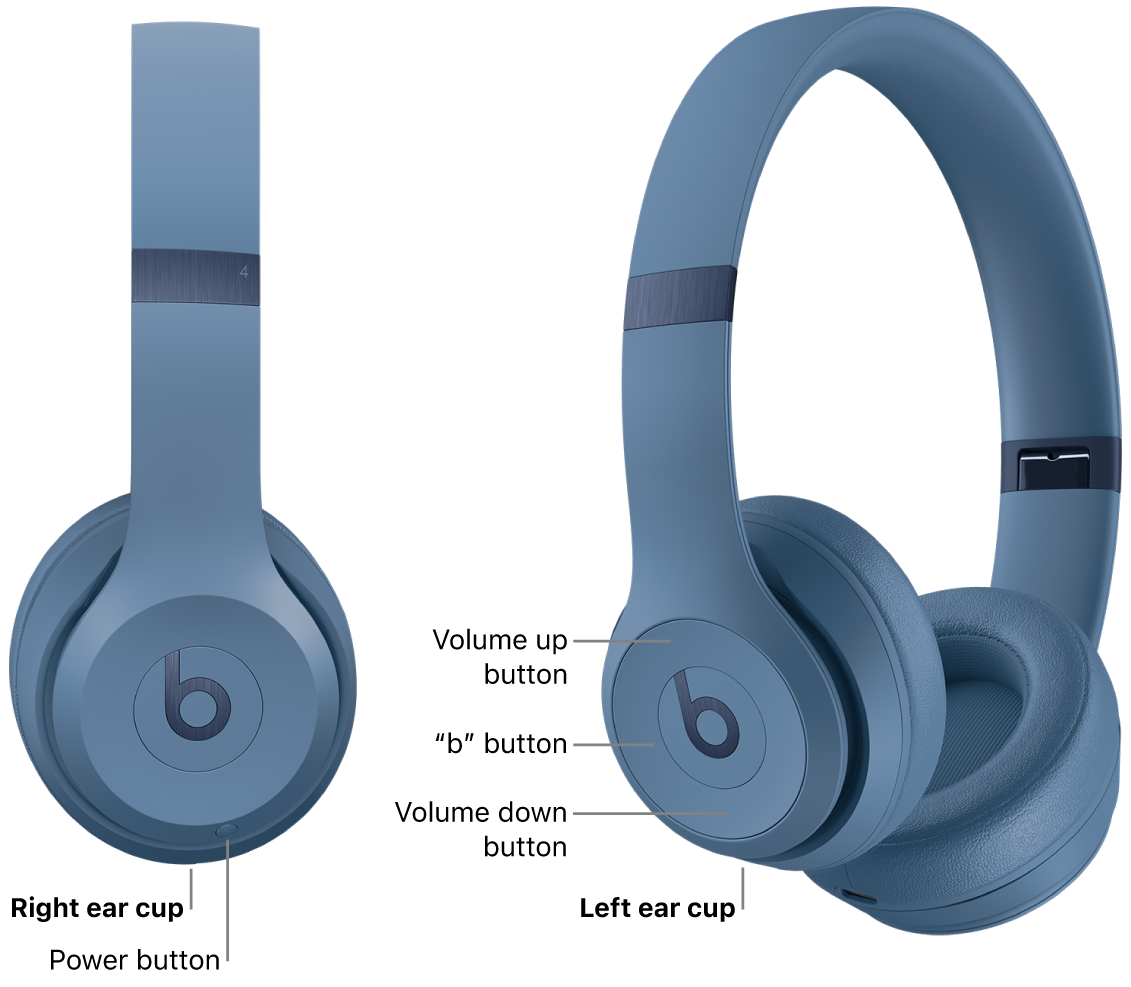
The power button location depends on the Beats model. It is usually easy to find once you know which earcup or control piece to check.
Beats Studio Pro
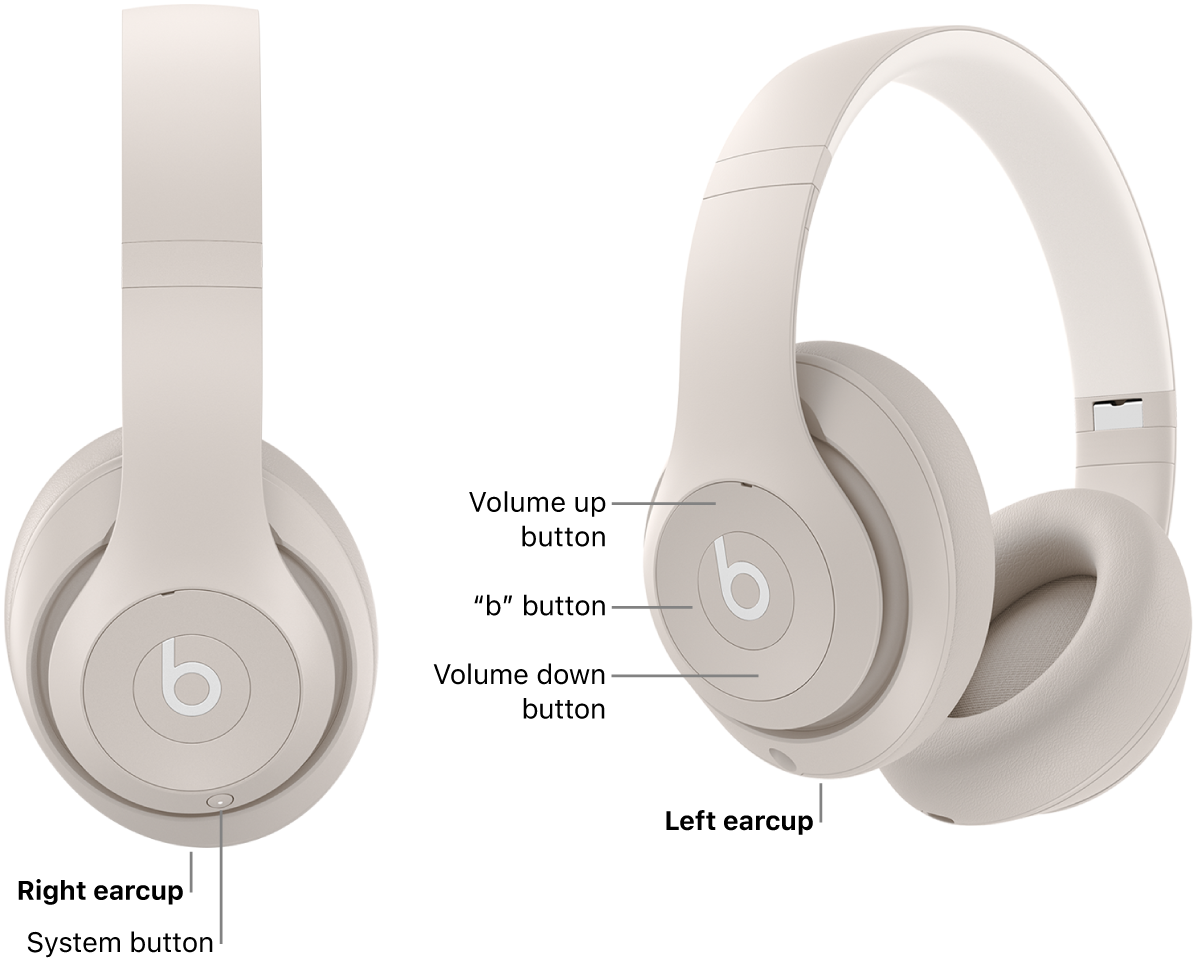
The Beats Studio Pro power button is on the right earcup. Press and hold it for about one second to turn the headphones on or off.
The Studio Pro also has separate controls for volume and playback. Avoid holding the multifunction button when you only want to change the volume, as this may trigger a different command.
Beats Studio3 Wireless
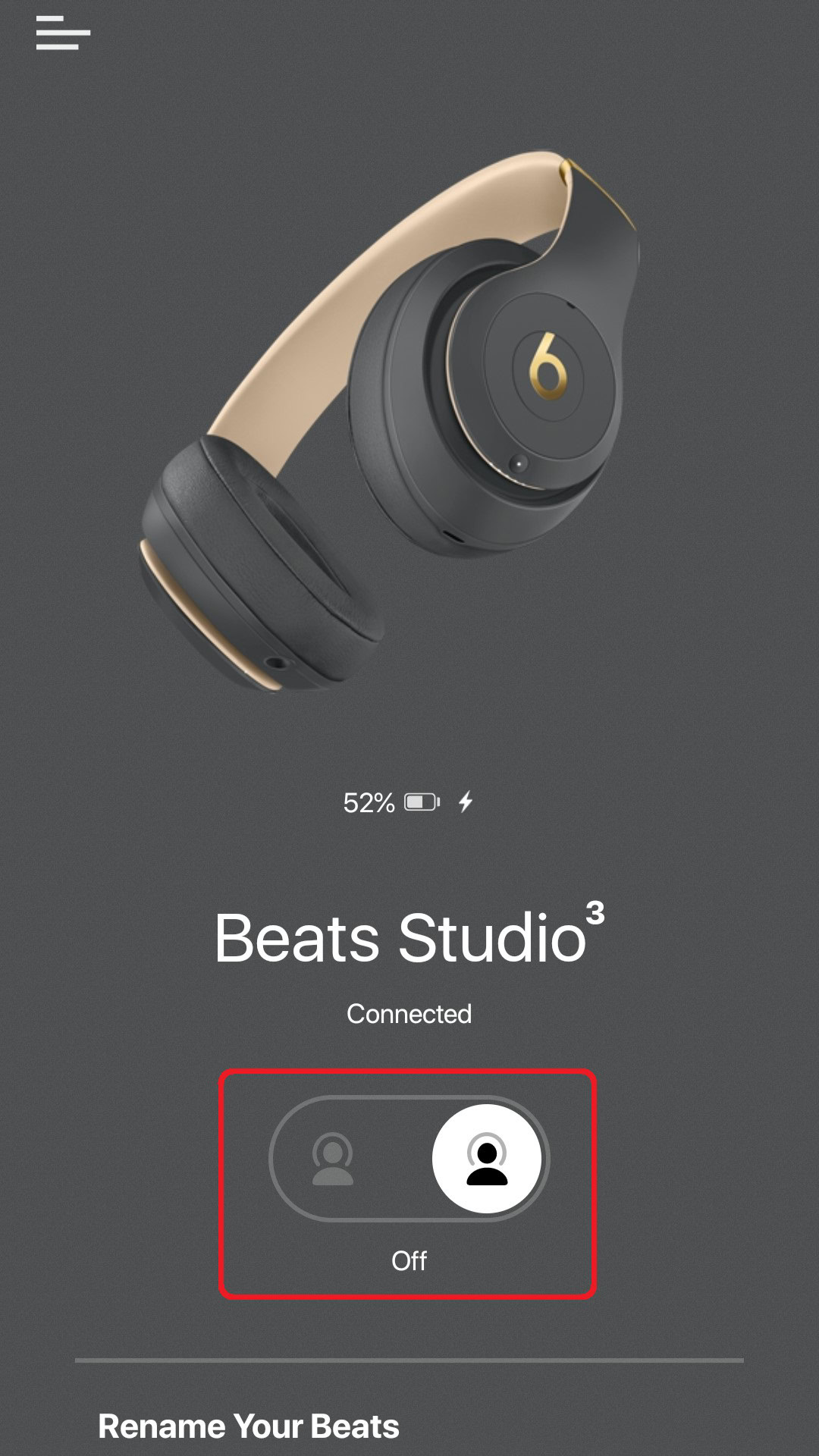
The Studio3 Wireless headphones use a power button on the earcup. Press and hold the button until the indicator light appears.
If the light does not turn on, connect the headphones to power for a few minutes. A fully drained battery can make the headphones seem unresponsive.
Beats Solo4
The Solo4 power button is located on the right earcup. Hold it briefly to turn the headphones on. The status light should respond if the battery has enough charge.
Solo4 headphones can also work with a wired connection, but a wired cable does not always mean the headphones are powered on. Turn them on when you want features such as wireless playback or active noise control, where supported.
Beats Solo3 Wireless
To turn on Beats Solo3 headphones, press and hold the power button on the earcup. Release it when the indicator light comes on.
The Solo3 may connect to a device that it has already paired with. If it does not connect, open Bluetooth settings and select “Beats Solo3.”
Beats Flex
Beats Flex headphones use a power button on the control module attached to the cable. Press and hold that button until the light turns on.
Because Beats Flex has a neckband design, the button is not on an earcup. Check the small control section near the right side of the neckband.
How to Turn On Beats Headphones and Pair Them
Turning on Beats headphones and pairing them are two separate steps. Powering on starts the headphones, while pairing creates a wireless link with your phone, tablet, or computer.
Pair Beats headphones with an iPhone or iPad
- Turn on the Beats headphones.
- Unlock your iPhone or iPad.
- Open Settings.
- Tap Bluetooth.
- Make sure Bluetooth is on.
- Select your Beats headphones from the device list.
- Wait for the status to change to “Connected.”
If your Beats headphones use Apple’s quick pairing feature, hold them near the unlocked iPhone. A setup message may appear on the screen. Follow the instructions to finish the connection.
Pair Beats headphones with an Android phone
- Turn on your Beats headphones.
- Open Settings on your Android phone.
- Tap Connected devices or Bluetooth.
- Turn Bluetooth on.
- Select your Beats headphones.
- Approve the pairing request if one appears.
The menu names can vary between Android brands. Samsung, Google Pixel, and Motorola phones may use slightly different labels, but the Bluetooth process is much the same.
Pair Beats headphones with a Windows PC
- Turn on the headphones.
- Open Settings on your Windows PC.
- Select Bluetooth & devices.
- Turn Bluetooth on.
- Choose Add device.
- Select Bluetooth.
- Click your Beats headphones when they appear.
Keep the headphones close to the computer during setup. Bluetooth pairing works best when there are few walls, devices, or sources of wireless interference nearby.

How to Turn On Beats Headphones When They Will Not Respond
If your Beats headphones do not turn on, the battery is the first thing to check. A low battery is the most common reason for a missing light or sound.
Try these steps in order:
- Connect the headphones to their charging cable.
- Use a working wall adapter or USB port.
- Let them charge for at least 10 minutes.
- Press and hold the power button again.
- Try another cable if the charging light does not appear.
- Check the charging port for lint or dust.
- Move the headphones away from water and extreme heat.
- Attempt a reset if charging does not help.
Avoid forcing a cable into the charging port. A damaged port can stop the battery from charging and may require professional repair.
A common mistake is testing the headphones with a weak laptop USB port. Some ports provide power slowly, especially when the computer is asleep. A reliable wall charger is often a better test.
How to Tell Whether Beats Headphones Are On
Beats headphones usually provide one or more signs when they turn on:
• The status light turns on or flashes.
• A startup sound plays.
• A voice prompt announces the battery level or connection.
• Your phone shows the headphones as connected.
• Music begins playing through the headphones.
The light may turn off after a short time to save battery. This does not always mean the headphones have powered down. Check your phone’s Bluetooth menu or press the power button briefly to confirm their status.
Some models use different light colors for charging, pairing, and low battery. Since light patterns vary, do not rely on color alone. The device connection and sound prompt are also useful clues.

How to Turn Off Beats Headphones
Turning off Beats headphones is almost the same as turning them on. Press and hold the power button for about one second.
Wait for the status light to turn off. You may also hear a shutdown sound. If the headphones remain connected, check your phone or computer to confirm that the Bluetooth connection has ended.
Turning off your headphones when you are finished helps save battery. It also prevents accidental playback when the headphones are inside a bag. Some newer models may enter a low-power state on their own, but manual shutoff is still a good habit.
How to Reset Beats Headphones
A reset can help when Beats headphones will not connect, freeze, or refuse to respond. The reset method depends on the model, so use the steps that match your headphones.
Reset Beats Studio Pro
Press and hold the system button for about 10 seconds. Release it when the lights flash. The headphones may then return to their factory pairing state.
You will likely need to remove the headphones from your phone’s Bluetooth list and pair them again.
Reset Beats Solo3 or Studio3 Wireless
Press and hold the power button and the volume down button together for about 10 seconds. Release both buttons when the indicator lights flash.
This process can clear a connection error. It does not repair physical damage or a battery that can no longer hold a charge.
Reset Beats Flex
Press and hold the power button and volume down button together for several seconds. Release them when the indicator light changes or flashes.
If the reset does not work, charge the neckband and try again. A nearly empty battery can prevent the reset from completing.
Resetting should be a later step, not the first one. It removes saved connection information, so try charging, restarting Bluetooth, and moving closer to your device first.

Beats Headphones Power Button Not Working
A power button may seem broken when the real problem is power, software, or physical blockage.
Check the following:
• Charge the headphones with a different cable and adapter.
• Look for dirt around the power button.
• Make sure the button is not stuck under a case or cover.
• Hold the button for a full second instead of tapping it.
• Turn Bluetooth off and on again on your phone.
• Remove old Beats entries from the Bluetooth menu.
• Try pairing with another phone or computer.
• Reset the headphones using the correct model steps.
If the headphones work only while connected to a charger, the battery may be worn out. Rechargeable lithium-ion batteries lose capacity over time. Heat, age, and repeated deep discharge can speed up that process.
Do not open the earcup yourself unless you have the right tools and repair experience. The battery and internal parts can be damaged easily. Manufacturer support or a qualified repair center is safer for serious hardware faults.
How to Turn On Beats Headphones Without Bluetooth
You can use some Beats headphones with a wired audio cable, but the experience depends on the model. Insert the compatible cable into the audio port and connect the other end to your phone, computer, or music player.
A wired connection may play sound even when wireless Bluetooth is off. However, features such as active noise cancellation, transparency mode, microphone controls, or onboard buttons may require power.
If your phone has no headphone jack, you may need a suitable adapter. Not every adapter supports microphone input or every headphone control, so check compatibility before buying one.
This option is useful during a flight, when Bluetooth is restricted, or when the battery is low. It is also a simple way to check whether the issue affects wireless pairing or the headphones themselves.

Tips for Better Beats Headphone Battery Life
Good charging habits can help your Beats headphones remain useful for years. You do not need to follow complicated battery rules.
Use these practical tips:
• Charge the headphones before the battery reaches zero when possible.
• Keep them away from very hot cars and direct sunlight.
• Store them in a dry place.
• Use the correct charging cable.
• Turn them off after listening.
• Update connected devices when software updates are offered.
• Avoid leaving the headphones plugged in for many days in extreme heat.
Modern devices manage charging automatically, so occasional overnight charging is not usually a reason to panic. Still, cool storage and regular use are sensible habits.
In my experience, the biggest battery mistake is leaving headphones in a hot backpack or car. Heat can affect both battery life and comfort. A small case kept indoors is often the simplest protection.
Common Mistakes When Turning On Beats Headphones
Small errors can make the process feel harder than it is. These are the mistakes I see most often:
• Pressing the button for too little time.
• Holding the wrong button.
• Forgetting to charge the battery.
• Searching for the headphones while Bluetooth is off.
• Trying to pair with a device that already has an old connection saved.
• Expecting the headphones to turn on when only the cable is connected.
• Resetting the headphones before checking the battery.
Think of the process as three steps: power, pairing, and playback. First, turn on the headphones. Next, connect them to your device. Finally, play audio and check the volume.
This simple order helps you find the problem faster. If the light never appears, focus on charging. If the light appears but there is no connection, focus on Bluetooth. If the connection works but there is no sound, check the output and volume settings.
Frequently Asked Questions About How to Turn On Beats Headphones
How do I turn on Beats headphones?
Press and hold the power button for about one second. Release it when the status light turns on or you hear a startup sound.
Where is the power button on Beats headphones?
The power button is usually on an earcup, often the right earcup. Beats Flex places its power button on the neckband control module.
Why will my Beats headphones not turn on?
The battery may be empty, or the charging cable, adapter, or port may have a problem. Charge the headphones for at least 10 minutes, then hold the power button again.
How long should I hold the Beats power button?
Hold the button for about one second for normal startup. For a reset, the required time is longer and depends on the Beats model.
How do I connect Beats headphones after turning them on?
Open Bluetooth settings on your phone, tablet, or computer. Select your Beats headphones from the list and wait for the device to show a connected status.
Can I use Beats headphones while they are charging?
Some Beats models may work while charging, while others may pause wireless use during charging. If playback stops, wait until the headphones have enough charge and then disconnect the cable.
Conclusion
Turning on Beats headphones usually takes one simple action: press and hold the power button for about one second. If nothing happens, charge the headphones, check the cable, confirm the button location, and reset the correct model only when needed.
Once the headphones power on, pair them through Bluetooth and test the sound. Save this guide for the next time your Beats seem unresponsive, and explore the correct support instructions for your specific model when you need advanced help.
