

To connect wireless earbuds to your phone, turn on Bluetooth, open the case, and select the earbuds from the device list.
Learning how to connect wireless earbuds to phone is simple once you understand pairing mode, Bluetooth settings, and a few common fixes. This guide explains the process for iPhone and Android, covers popular earbud brands, and shares practical tips that help prevent connection drops, pairing errors, and one earbud not working.

What to Do Before Pairing Wireless Earbuds
Before you connect wireless earbuds to phone, prepare both devices. Most connection problems happen because the earbuds are not charged, remain connected to another device, or are not in pairing mode.
Check these items first:
• Charge the earbuds and charging case. Even a low battery can stop pairing.
• Keep the earbuds within a few feet of your phone.
• Turn off Bluetooth on nearby phones, tablets, laptops, or smart TVs that may connect first.
• Remove any protective film from new earbuds. Some models have a small film over the charging contacts.
• Update your phone if it has pending system updates.
• Make sure both earbuds sit correctly in the charging case before removing them.
Bluetooth works like a short range digital handshake. Your phone must find the earbuds, confirm their identity, and save the connection. If another device answers the handshake first, your phone may not see the earbuds at all.
In my experience, the most common mistake is taking the earbuds out of the case before holding the pairing button. The earbuds may turn on, but they may not enter pairing mode. If the phone cannot find them, place them back in the case and start again.
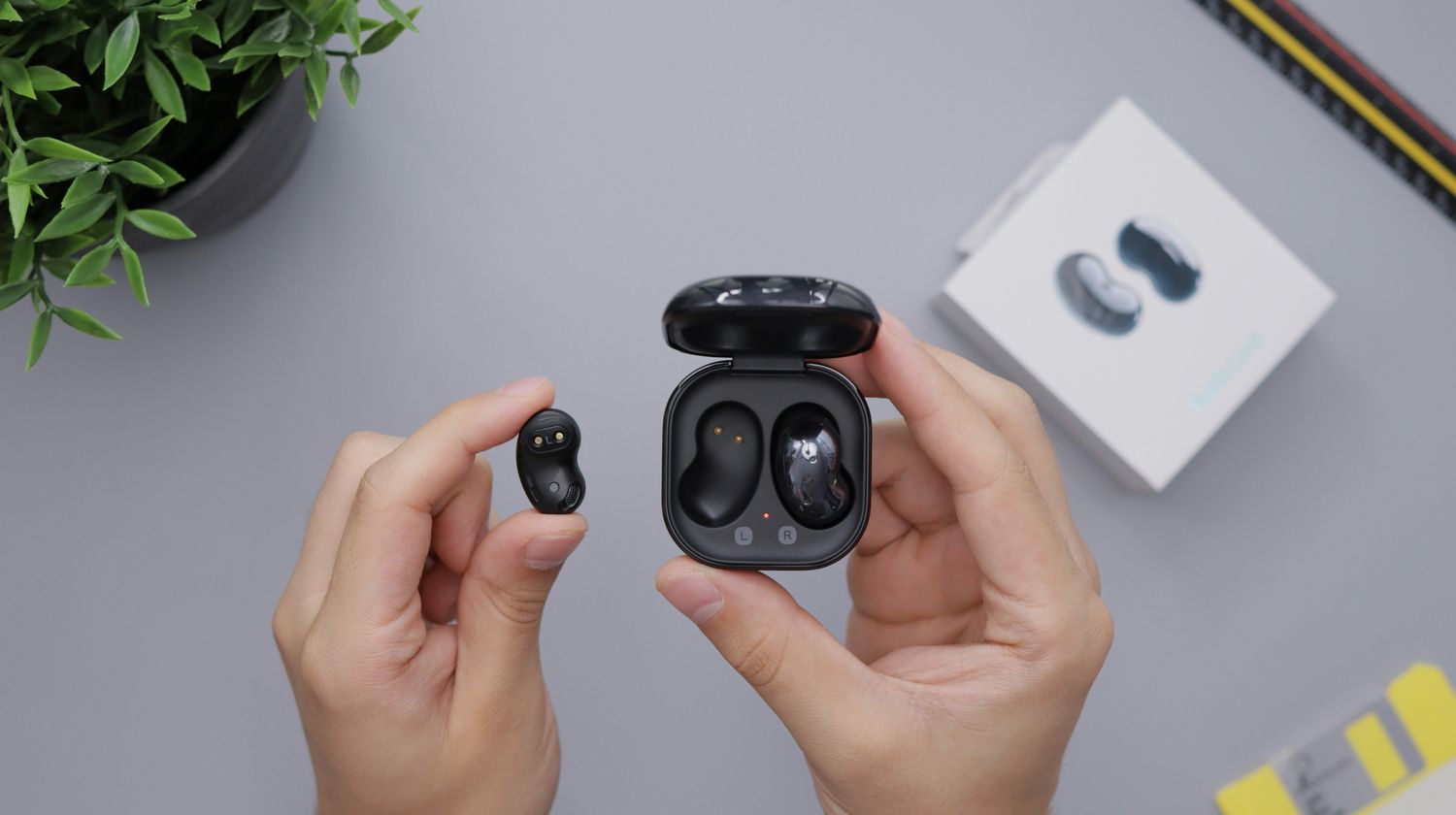
How to Connect Wireless Earbuds to Phone
The basic process is nearly the same for most Bluetooth earbuds. The names of buttons and menus may vary, but the main steps remain consistent.
1. Open Bluetooth settings
On an iPhone:
- Open Settings.
- Tap Bluetooth.
- Turn on the Bluetooth switch.
- Stay on this screen while searching for your earbuds.
On an Android phone:
- Open Settings.
- Tap Connected devices, Connections, or Bluetooth.
- Select Pair new device if needed.
- Turn on Bluetooth.
Some Android phones let you open Bluetooth by swiping down from the top of the screen. Press and hold the Bluetooth icon to open the full Bluetooth menu.
2. Put the earbuds into pairing mode
Place both earbuds in the charging case. Open the lid, then use the method made for your model:
• Press and hold the button on the case for several seconds.
• Touch and hold both earbuds at the same time.
• Remove the earbuds and hold their touch controls.
• Follow the voice prompt that says “pairing” or “ready to connect.”
A flashing blue, white, or red and blue light often means the earbuds are ready to pair. Check the user guide if the light pattern is unclear. LED colors are not the same on every brand.
3. Select the earbuds on your phone
Look under Available Devices, Other Devices, or a similar menu. Tap the name of your earbuds when it appears.
Your phone may show a request to pair. Tap Pair, Connect, or OK. If a PIN is requested, try 0000 or 1234, although most modern earbuds do not require one.
4. Confirm the connection
The earbuds should move to a Connected or Paired list. Play music or a short video to test sound.
If your phone connects but audio still comes from the speaker, open the phone’s volume panel and select the earbuds as the audio output. On an iPhone, tap the AirPlay icon. On Android, tap the media output button in the notification panel.
These steps explain how to connect wireless earbuds to phone in most cases. Once paired, the earbuds usually reconnect automatically when Bluetooth is on and the case is opened.
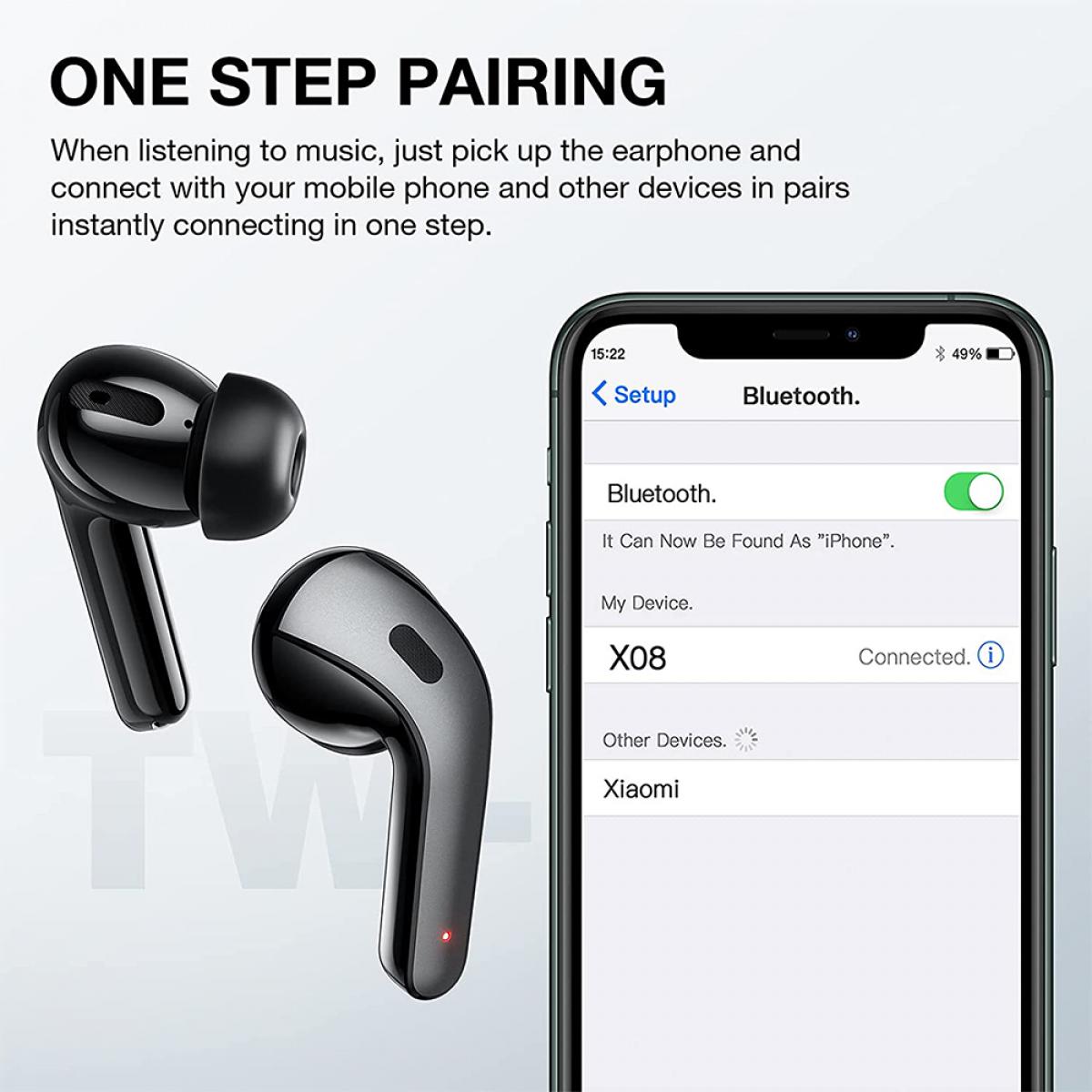
How to Connect Wireless Earbuds to an iPhone
Apple devices work best with AirPods, but an iPhone can connect to almost any Bluetooth earbuds. The earbuds do not need to be made by Apple.
To connect wireless earbuds to phone when using an iPhone, follow these steps:
- Open the charging case near your iPhone.
- Put the earbuds into pairing mode.
- Open Settings and tap Bluetooth.
- Wait for the earbuds to appear under Other Devices.
- Tap the earbud name.
- Confirm the pairing request if one appears.
AirPods often show an on-screen setup card. Tap Connect and follow the instructions. Some AirPods also link to your Apple Account, which helps them switch between compatible Apple devices.
For third party earbuds, use the regular Bluetooth menu. Features such as touch controls, battery levels, equalizer settings, and firmware updates may require the maker’s app.
If the earbuds appear under My Devices but show Not Connected, tap their name. If they still refuse to connect, tap the information icon beside them, choose Forget This Device, and pair them again.
For better results, keep the iPhone unlocked during the first pairing. This makes it easier to approve prompts and identify the correct device.

How to Connect Wireless Earbuds to an Android Phone
Android phones use the standard Bluetooth pairing process, but menu names can differ between Samsung, Google Pixel, Motorola, OnePlus, and other brands.
To connect wireless earbuds to phone with Android:
- Open Settings.
- Tap Connected devices or Connections.
- Select Bluetooth.
- Tap Pair new device if that option appears.
- Put the earbuds into pairing mode.
- Select the earbuds from the list.
- Tap Pair or Connect.
Some Android phones display a Fast Pair notification when compatible earbuds are nearby. If you see the notification, tap Connect and follow the on-screen steps.
Android may also ask for permission to show nearby devices. Allow this permission if you want the phone to scan for Bluetooth accessories. The exact permission name may vary by Android version.
After pairing, tap the gear icon beside the earbuds. You may see controls for phone calls, media audio, contact sharing, or high-quality audio. Keep media audio enabled if you want to listen to music or videos.
If the earbuds connect but calls use the phone speaker, open the earbud settings and enable Phone calls. Also check the microphone permission for the app you are using.
How to Connect Popular Wireless Earbud Brands
Most earbuds follow the same process, but the pairing button location can change. These examples cover common products.
AirPods
Open the case near the iPhone. If the setup card does not appear, press and hold the button on the back of the case until the status light flashes white. Then select the AirPods in Bluetooth settings.
Samsung Galaxy Buds
Put the earbuds in the case, close the lid briefly, and open it again. On many models, touching and holding both earbuds while they are in your ears activates pairing mode. You can also use the Galaxy Wearable app.
Google Pixel Buds
Open the case and press the pairing button on the back. Wait for the light to pulse, then select the Pixel Buds from your phone’s Bluetooth menu or Fast Pair notification.
Sony, JBL, Bose, and Beats earbuds
Press and hold the Bluetooth or power button until the indicator flashes. Some models use a touch panel instead of a physical button. Select the earbuds from the phone’s list when they appear.
Always use the instructions for your exact model. A brand may use different controls on different generations.

What to Do When Your Phone Cannot Find the Earbuds
If your phone does not show the earbuds, do not assume the earbuds are broken. Most discovery problems have a simple cause.
Try these fixes in order:
- Return both earbuds to the case.
- Close the lid for about 10 seconds.
- Open the lid and activate pairing mode again.
- Turn Bluetooth off and back on.
- Restart the phone.
- Move away from other active Bluetooth devices.
- Charge the case and earbuds.
- Search for the earbuds again.
Check whether the earbuds are already connected to another device. Bluetooth earbuds often reconnect to the last phone, tablet, or computer they used. Turn off Bluetooth on that device or disconnect the earbuds from its Bluetooth menu.
If the earbuds still do not appear, reset them. The reset method differs by model, but it often involves placing both earbuds in the case and holding the case button for 10 to 15 seconds. A reset removes stored connections, so you will need to pair them again.
Do not reset the earbuds as your first step if you have saved custom settings. Try reconnecting and forgetting the device first.

How to Fix Pairing, Sound, and Connection Problems
Knowing how to connect wireless earbuds to phone is only part of the process. You also need a stable connection after pairing.
The earbuds connect but have no sound
Check the phone’s audio output. Your phone may still send sound to its built-in speaker, a car stereo, or another Bluetooth device.
Then check:
• Media volume on the phone
• Earbud volume, if the model has separate controls
• The media audio setting in Bluetooth options
• Whether the video or music app is muted
Only one earbud works
Place both earbuds in the case and make sure each one is charging. Clean the metal charging contacts with a dry cotton swab.
If one earbud still fails, forget the Bluetooth connection and reset the pair. Many true wireless earbuds rely on one earbud to communicate with the phone and the other earbud. A failed sync can make one side appear silent.
The connection keeps dropping
Keep the phone close to the earbuds. Walls, crowded public spaces, Wi-Fi equipment, and other Bluetooth devices can create interference.
You can also try these steps:
• Fully charge the earbuds.
• Update the earbud firmware through the manufacturer’s app.
• Forget the earbuds and pair them again.
• Turn off battery saving for the earbud app on Android.
• Avoid placing the phone in a bag or pocket that blocks the signal.
Modern Bluetooth connections are reliable, but they are not unlimited. Range depends on the phone, earbuds, walls, radio interference, and the Bluetooth version used by each device.
Calls sound unclear
Clean the microphone openings. Make sure the phone uses the earbuds for call audio, not just music.
On Android, open the earbuds’ Bluetooth settings and enable phone calls. On an iPhone, tap the audio button during a call and select the earbuds.
Wind can also affect call quality. Even strong noise reduction cannot remove every sound from a busy street or open car window.

How to Forget, Reconnect, and Reset Wireless Earbuds
Sometimes the fastest way to connect wireless earbuds to phone is to remove the old pairing record.
On an iPhone:
- Open Settings.
- Tap Bluetooth.
- Tap the information icon beside the earbuds.
- Select Forget This Device.
- Confirm the choice.
- Put the earbuds in pairing mode.
- Select them again.
On Android:
- Open Settings.
- Tap Connected devices or Bluetooth.
- Tap the gear icon beside the earbuds.
- Choose Forget, Unpair, or Remove.
- Activate pairing mode.
- Pair the earbuds again.
If forgetting the device does not help, reset the earbuds. A reset clears old phones and stored connection data. It is useful when the earbuds were previously used with several devices.
Before resetting, check the product guide for the correct button sequence. Holding the wrong button may power the earbuds off rather than reset them.
I have found that a clean re-pair often fixes “connected but no sound” problems. It works like clearing a confused address book and giving the phone a fresh contact.

Security and Privacy Tips for Bluetooth Earbuds
Bluetooth pairing is designed to be secure, but good habits still matter.
Follow these tips:
• Pair earbuds in a private place when possible.
• Do not accept an unexpected pairing request.
• Rename the earbuds if several people use the same model.
• Remove old Bluetooth devices from your phone.
• Install firmware updates from the official maker’s app.
• Turn Bluetooth off when you do not need it if you want to reduce unwanted connection attempts.
Most earbuds do not store much personal data, but a connected accessory may receive call audio, microphone access, or contact information if you approve those permissions. Review the permissions shown by your phone.
Bluetooth security improves with newer standards and updated software. Still, no wireless system is risk free. Avoid pairing with unfamiliar devices in crowded places.
How to Improve Battery Life and Connection Quality
After you connect wireless earbuds to phone, a few habits can extend battery life and improve daily use.
Keep the charging case clean and dry. Dirt on the contacts can prevent the earbuds from charging fully. Store the case away from extreme heat, such as a hot car or sunny windowsill.
Use the manufacturer’s app when it offers battery controls, firmware updates, or an option to limit charging. Some newer earbuds include battery protection features that reduce long-term wear.
Keep the phone and earbuds reasonably close. A short distance gives the Bluetooth signal less work to do. For the best call quality, keep the phone on the same side of your body as the earbud that handles the main connection, if your model uses that design.
Also remember that active noise cancellation, high volume, spatial audio, and constant calls can use more battery. These features are helpful, but turning them off when not needed can extend listening time.
Common Mistakes to Avoid
Small mistakes can make a simple Bluetooth connection feel difficult. Avoid these common errors:
• Searching for the earbuds before activating pairing mode
• Leaving Bluetooth on for a nearby laptop that reconnects first
• Choosing a similarly named device by accident
• Ignoring a low battery warning
• Resetting the earbuds without checking the model instructions
• Keeping an old pairing record that conflicts with a new connection
• Assuming connected status means audio is routed correctly
• Using a wet cloth or sharp tool to clean charging contacts
The safest approach is simple: charge the earbuds, activate pairing mode, select the correct device, and test both music and calls. If the first attempt fails, repeat the process calmly instead of tapping random settings.
Frequently Asked Questions About How to Connect Wireless Earbuds to Phone
Why will my wireless earbuds not connect to my phone?
The earbuds may not be in pairing mode, may have a low battery, or may already be connected to another device. Turn off Bluetooth on nearby devices, restart both products, and pair the earbuds again.
Can I connect wireless earbuds to both an iPhone and an Android phone?
Yes, most Bluetooth earbuds work with both iPhone and Android phones. Some advanced features, such as automatic switching or custom controls, may only work inside the maker’s app or within one device ecosystem.
How do I put wireless earbuds in pairing mode?
Most models enter pairing mode when you hold the case button until the light flashes. Others require touching both earbuds or holding a power button, so check the instructions for your exact model.
Why are my earbuds connected but playing sound from the phone?
Your phone may be using the wrong audio output. Open the media output menu and choose the earbuds, then confirm that media audio is enabled in the earbuds’ Bluetooth settings.
How do I connect wireless earbuds to phone after changing phones?
Forget the earbuds from the old phone or turn off its Bluetooth. Then activate pairing mode, open Bluetooth settings on the new phone, and select the earbuds from the available device list.
Do wireless earbuds work without Wi-Fi?
Yes, earbuds use Bluetooth for the connection, so Wi-Fi is not required for music stored on the phone or for many downloaded apps. Internet access is still needed for online streaming, updates, and some voice assistant features.
How far can wireless earbuds be from a phone?
Many earbuds work within about 30 feet in open space, but walls, furniture, body position, and interference can reduce that distance. For the most stable connection, keep the phone nearby.
Conclusion
To connect wireless earbuds to phone, charge the earbuds, activate pairing mode, open Bluetooth settings, and select the correct device name. If the connection fails, check for another connected device, restart Bluetooth, forget the old pairing, or reset the earbuds.
The process becomes easy after the first successful pairing. Use these steps with your iPhone or Android phone, keep the earbuds updated and clean, and test both music and calls before heading out. If this guide helped, explore more device setup tips or share your experience in the comments.
