Are SSD More Reliable Than HDD: SSD Vs HDD Reliability
Yes, SSDs are usually more reliable than HDDs, but backups still matter for every drive.
The answer to “are SSD more reliable than HDD” depends on how you use the drive, how often you write data, and whether the drive stays cool. SSDs have no moving parts, so they handle drops, vibration, and daily travel better. HDDs can still offer strong long-term value, especially for large backups and desktop storage. This guide explains failure risks, lifespan, data retention, cost, and the best choice for your needs.
SSD vs. HDD reliability: The basic difference
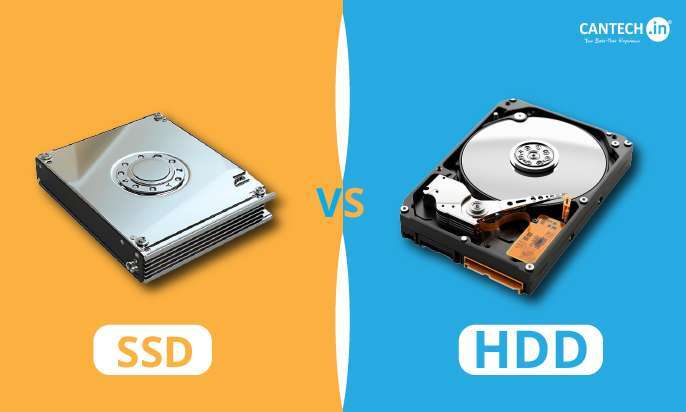
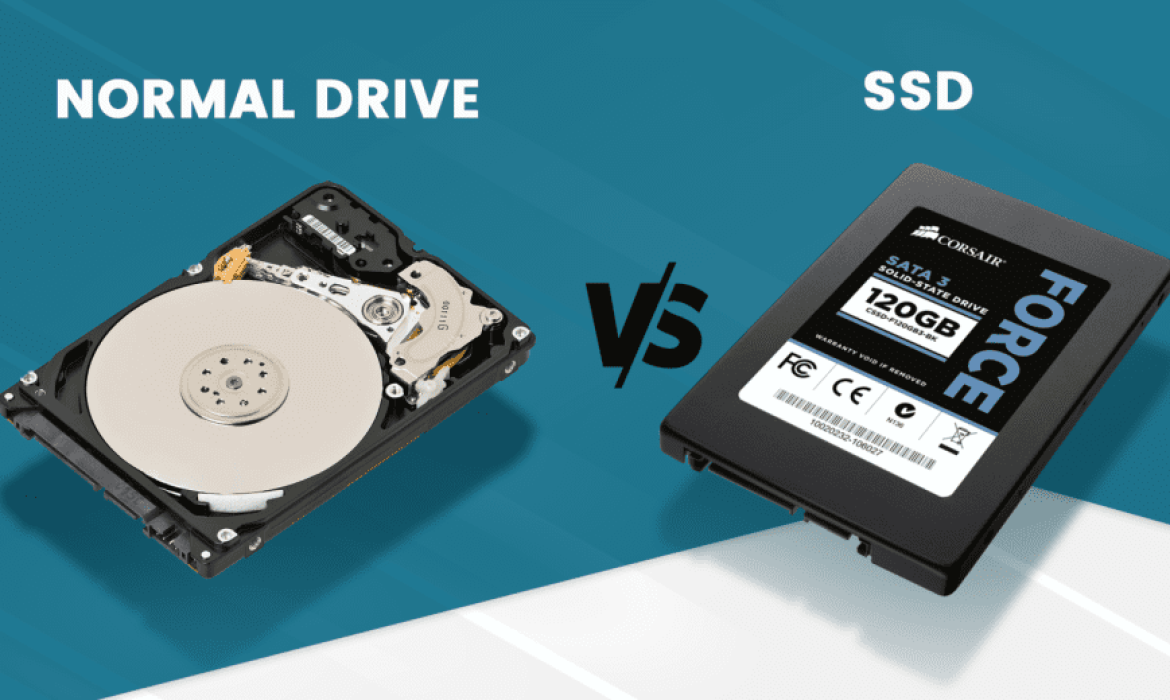
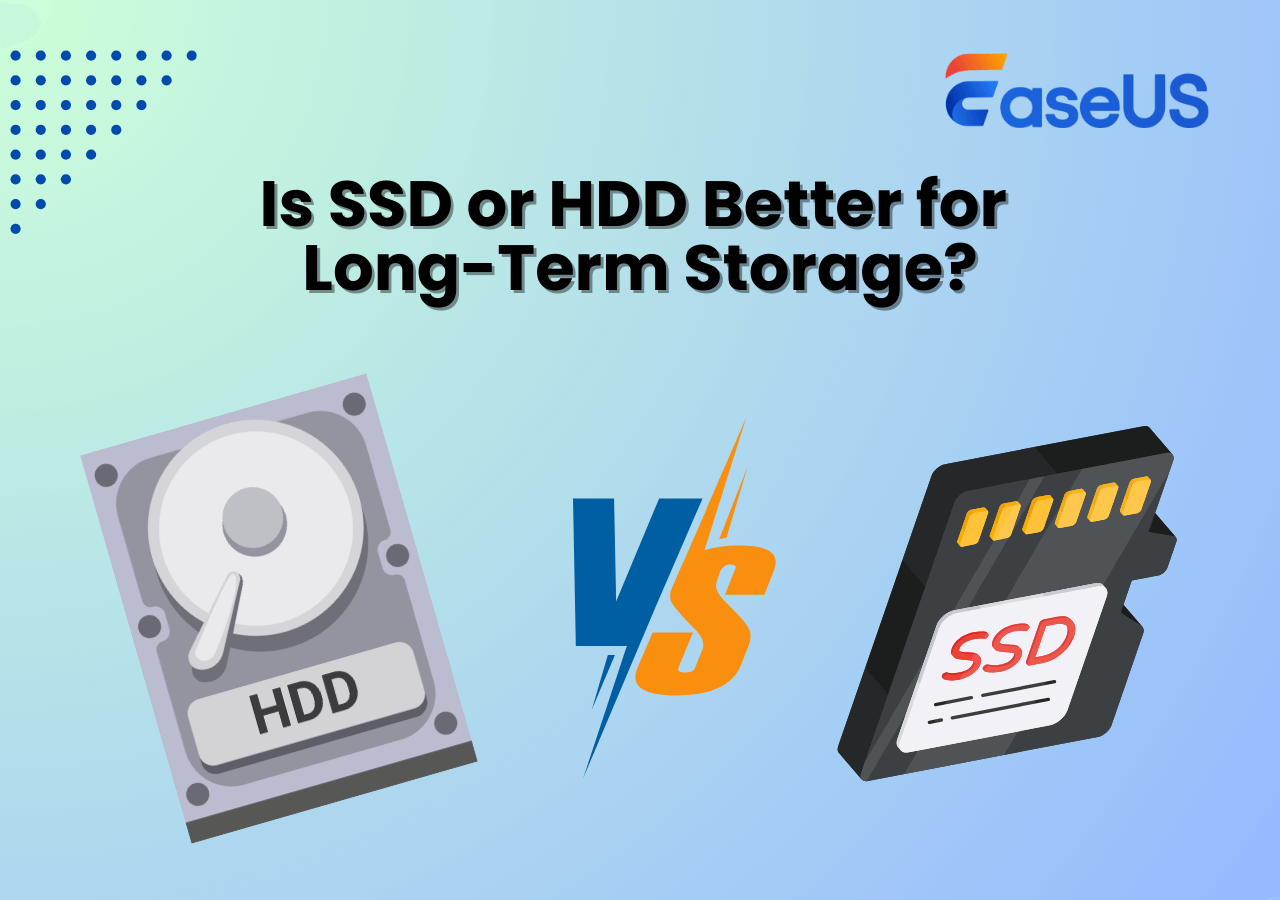
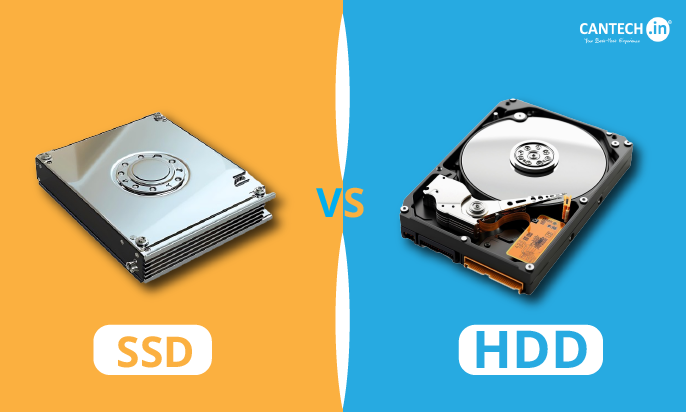
An SSD, or solid-state drive, stores data on flash memory chips. It has no spinning platters, motors, or moving read and write heads.


An HDD, or hard disk drive, stores data on magnetic platters. A small mechanical arm moves across each platter to read and write files.
That design difference explains much of the reliability gap. An SSD is like a quiet electronic filing cabinet. An HDD is more like a tiny record player with moving parts.
When people ask, “are SSD more reliable than HDD,” they often mean one of three things:
- Which drive is less likely to fail?
- Which drive protects data better during daily use?
- Which drive will last longer?
The answer changes slightly for each question. SSDs usually win against physical damage. HDDs can be easier to recover after some types of failure. Neither type should be treated as a permanent backup.

Are SSD more reliable than HDD in daily use?
For normal daily use, SSDs are generally more reliable than HDDs. This is especially true in laptops, gaming systems, and portable external drives.
An SSD has no moving parts to wear out from motion. You can carry a laptop with an SSD in a backpack with far less concern than carrying a working HDD. A sudden bump may damage an HDD while its platters are spinning.
SSDs also produce less heat, use less power, and operate silently. Lower heat and lower power use can reduce stress on the computer as a whole. However, the quality of the drive still matters.
A low-cost SSD with poor firmware may fail sooner than a high-quality HDD. Reliability depends on more than the storage type. It also depends on:
- The brand and model
- Flash memory quality
- Controller design
- Firmware stability
- Drive temperature
- Workload
- Power protection
- Available free space
In hands-on storage testing, one lesson appears again and again: physical shock is a major risk for HDDs, while sustained heavy writes are a bigger concern for SSDs.


Why SSDs are often more reliable
SSDs have several design advantages that reduce common failure risks.
No moving parts
The biggest advantage is simple. SSDs do not use motors or spinning disks. This removes several mechanical failure points.
An HDD may develop problems with its motor, spindle, actuator arm, or read and write heads. A fall can cause the head to touch the platter. This event is often called a head crash, and it can make data recovery difficult.
An SSD can still fail after a fall, but the flash chips are less likely to suffer physical damage from normal bumps.
Better resistance to shock and vibration
This makes SSDs a strong choice for:
- Laptops
- Cameras
- Portable game systems
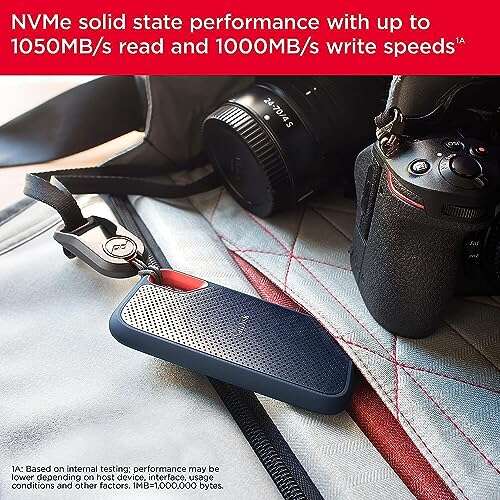
- External travel drives
- Vehicles
- Field computers
If you move your computer often, an SSD offers peace of mind. It is not indestructible, but it handles motion much better than an active HDD.
Lower heat and power use
SSDs usually draw less power than HDDs. They also create less heat during many common tasks.
Heat is not the only cause of drive failure. Still, high temperatures can speed up wear in electronic parts and reduce system stability. Good airflow remains important for both drive types.
Faster response and fewer mechanical delays
Speed does not directly equal reliability. Yet, faster file access can reduce the time a drive stays busy.
An SSD can also make a computer feel more responsive. Programs open faster, system updates finish sooner, and file searches take less time. This reduces frustration, even though it does not remove the need for backups.
Why HDDs can still be reliable
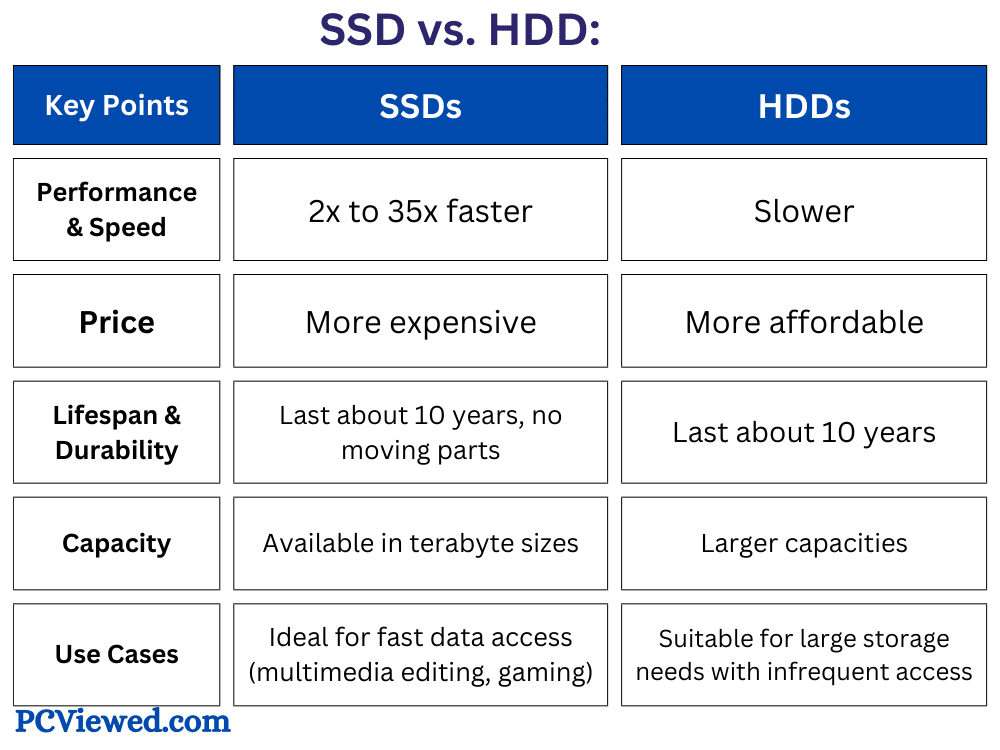
HDDs are not automatically unreliable. Many hard drives run for years in desktops, servers, network storage systems, and security cameras.
Modern HDDs use mature technology. They can provide dependable service when they stay in one place, remain cool, and receive stable power.
HDDs also have two important advantages.
Lower cost per terabyte
HDDs usually cost less for large amounts of storage. This makes them useful for:


- Photo libraries
- Video collections
- Local backups
- Media servers
- Business archives
- Network-attached storage
For example, a household may need several terabytes for family videos. Buying that capacity on SSDs can cost much more than using HDDs.
Easier recovery in some cases
When an HDD fails mechanically, a professional recovery lab may sometimes repair or replace parts. Recovery is never guaranteed, and it can be expensive.
An SSD may fail because of its controller, firmware, or flash memory. In some cases, that failure can make recovery very difficult. Encryption and the TRIM command may also reduce the chance of recovering deleted data.
This does not mean HDDs are safer for important files. It only means that some failed HDDs offer recovery paths that may not exist for failed SSDs.
SSD lifespan and write endurance
One common concern is that SSDs wear out after a limited number of writes. This concern is real, but it is often overstated for home users.
Flash memory cells can only handle a certain number of program and erase cycles. Manufacturers rate this limit using terabytes written, or TBW. A drive with a 600 TBW rating, for example, is designed to handle a large amount of total writing before reaching its rated endurance.
Most people do not write hundreds of terabytes during normal office, school, or gaming use. A typical consumer SSD may last many years under a light or moderate workload.
Heavy workloads can create more wear. Examples include:
- 4K video editing
- Virtual machines
- Database work
- Large scientific datasets
- Constant security camera recording
- Frequent drive cloning
SSD endurance also depends on the type of flash memory:
- SLC is fast and durable but costly.
- MLC offers strong endurance but is less common in consumer products.
- TLC provides a good balance for most users.
- QLC stores more data at a lower price but often has lower write endurance.
A higher TBW rating is useful, but it is not a promise that the drive will last that long. It is a product rating, not a warranty against every failure.
HDD lifespan and failure risks
HDDs can also last for many years, but their mechanical parts create different risks.
The most common risks include motor failure, head damage, bad sectors, vibration, and age-related wear. A drive may also fail because of a damaged circuit board or unstable power.


HDD reliability can vary based on workload. A drive built for desktop use may not be the best choice for constant recording or enterprise work. Drive makers design different models for different environments.
A useful rule is to match the drive to the job:
- Desktop HDDs suit light or moderate personal use.
- NAS HDDs suit multi-drive storage systems.
- Surveillance HDDs suit continuous video recording.
- Enterprise HDDs suit demanding workloads and data centers.
Drive statistics from large data-center operators show that failure rates vary by model, age, workload, and environment. Those studies are useful, but they do not predict the life of every drive in a home computer.
An HDD that stays cool and still may provide years of service. An HDD that moves often or runs hot faces more risk.
Which drive lasts longer?
There is no single lifespan that applies to every SSD or HDD.
A consumer SSD may last five years, ten years, or longer. An HDD may also last five years, ten years, or longer. Some fail within months, while others continue running for more than a decade.
The key point is that failure can happen without warning. A drive may work perfectly one day and stop being recognized the next.
For SSDs, check these health details:
- Percentage of life used
- Total data written
- Spare blocks
- Media errors
- Temperature
- Firmware alerts
For HDDs, check these details:
- Reallocated sectors
- Current pending sectors
- Uncorrectable errors
- Start and stop counts
- Power-on hours
- Temperature
- Unusual sounds
Use a trusted tool that reads S.M.A.R.T. data. S.M.A.R.T. stands for Self-Monitoring, Analysis and Reporting Technology. It can warn you about some problems, but it cannot detect every sudden failure.
Do not wait for a warning before making a backup. Health data is an early signal, not a guarantee.

Are SSD more reliable than HDD for gaming?
For gaming, SSDs are usually more reliable in a laptop or portable system. They also load games faster and reduce long loading screens.
An SSD can improve system response, texture loading, and game updates. It will not always increase frame rates because graphics performance depends mainly on the GPU and CPU.


HDDs remain useful for large game libraries. They cost less and can store many titles. If you use an HDD for gaming, keep it in a stable desktop system and avoid moving it while it is active.
For most players, a good setup is:
- Use an SSD for the operating system and favorite games.
- Use an HDD for older games and large media files.
- Keep a separate backup of saved games and important files.
Cloud saves help, but they are not a complete backup. Some games store settings, screenshots, mods, or local files outside the cloud system.
Are SSD more reliable than HDD for laptops?
Yes, SSDs are usually the better choice for laptops. Laptops move, vibrate, and face more bumps than desktop computers.
An SSD also improves boot time and battery life in many systems. It runs quietly and usually creates less heat. These benefits make it a practical upgrade for an older laptop.
Before replacing a laptop drive, check:
- The drive size and interface.
- Whether the laptop uses SATA or NVMe.
- The maximum supported capacity.
- Whether the operating system needs to be cloned.
- Whether the old drive contains encrypted data.
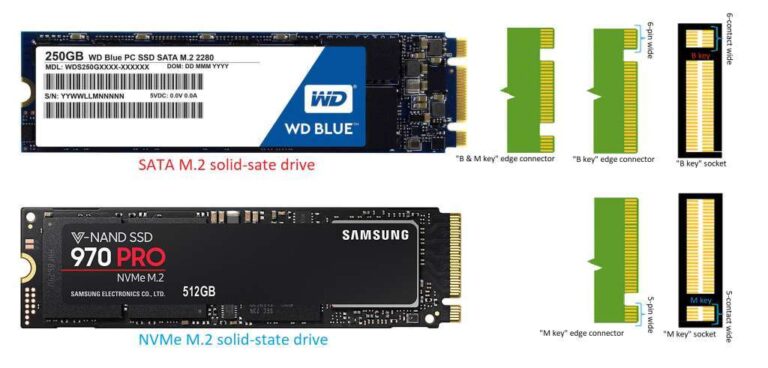
Avoid assuming that every M.2 drive is an NVMe drive. Some M.2 drives use SATA, and the two types may not work in the same slot.
Are SSD more reliable than HDD for backups?
The best backup plan often uses both SSDs and HDDs.
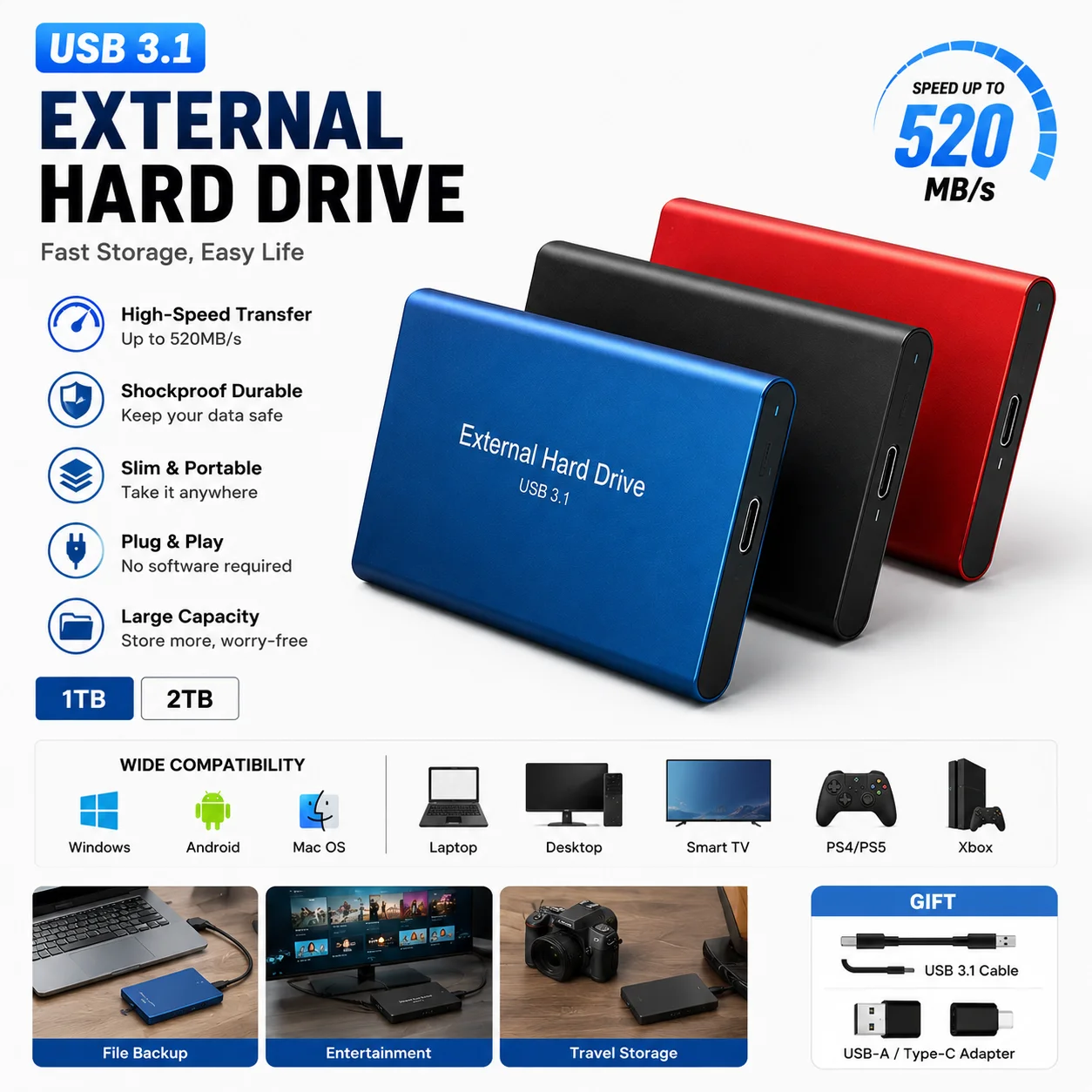
An SSD is convenient for a fast local backup. It is small, quiet, and easy to carry. An HDD is often better for large backup collections because it costs less per terabyte.
For important files, follow the 3-2-1 backup rule:
- Keep three copies of your data.
- Store the copies on two different types of media.
- Keep one copy in another location.
That other location may be cloud storage, a secure office, or a drive kept with a trusted family member. A backup connected to the same computer can be damaged by theft, fire, malware, or ransomware.
Do not leave a single external drive plugged in all the time if it contains your only backup. Disconnect it after the backup finishes, or use a backup system with version history and access controls.
How to make an SSD or HDD last longer
Good habits can extend the useful life of either drive.


Tips for SSDs
- Keep at least 10% to 20% free space when possible.
- Install firmware updates from the manufacturer.
- Avoid unnecessary defragmentation.
- Keep temperatures within the maker’s recommended range.
- Use a surge protector or battery backup.
- Monitor drive health.
- Back up before the drive shows serious warnings.
SSDs do not need traditional defragmentation. Modern operating systems use TRIM to help manage unused blocks. Manual defragmentation adds writes without providing the same benefit it gives some HDDs.
Tips for HDDs
- Keep the drive cool and well ventilated.
- Do not move it while it is spinning.
- Use stable power.
- Avoid placing it near strong vibration.
- Listen for clicking, grinding, or repeated spin-up sounds.
- Replace it when health warnings appear.
- Keep more than one backup copy.
A clicking HDD should not be tested repeatedly. Every extra spin-up may make a damaged drive worse. If the files are valuable, turn it off and contact a professional recovery service.
Common mistakes that reduce storage reliability
Many drive failures become painful because of simple mistakes.
The first mistake is treating a drive as a backup just because it is external. An external SSD or HDD is still one device. It can be lost, stolen, damaged, or infected by malware.
The second mistake is buying only by capacity. A cheap drive may have weak firmware, a short warranty, or poor endurance. Read the technical sheet and check independent reviews before buying.
The third mistake is ignoring heat. A drive in a cramped laptop or poorly ventilated enclosure may run hotter than expected. Heat can shorten the life of electronics and may cause slowdowns.
The fourth mistake is waiting for strange behavior to improve. Slow file transfers, disappearing folders, corrupted files, and repeated errors deserve attention. Copy important data while the drive still works.
The fifth mistake is assuming RAID is a backup. RAID can improve availability, but it does not protect against deletion, ransomware, fire, or user error. You still need a separate backup.
How to choose between an SSD and HDD
Choose an SSD when you need:
- Fast system performance
- A quiet computer
- Better shock resistance
- Low power use
- A laptop or portable drive
- Quick access to apps and games
Choose an HDD when you need:
- Several terabytes at a lower price
- A large media library
- Cold or offline backups
- Long-term local storage
- A desktop or NAS system
Choose both when you need speed and capacity. This is often the most practical plan. Put active files and applications on an SSD, then store backups and large archives on one or more HDDs.
The most reliable storage system is not based on one perfect drive. It uses good hardware, safe handling, health checks, and multiple copies of important data.
Frequently Asked Questions: Are SSD More Reliable Than HDD?
Are SSD more reliable than HDD?
SSDs are usually more reliable for mobile devices because they have no moving parts and resist shock better. HDDs can still be dependable in stable desktop or backup systems, but they have mechanical parts that may wear out.
Do SSDs last longer than HDDs?
Either drive type can last for many years, and neither has a guaranteed lifespan. SSD life depends heavily on write volume and flash quality, while HDD life depends on mechanical wear, heat, vibration, and workload.
Can an SSD fail suddenly?
Yes, an SSD can fail suddenly because of controller, firmware, power, or flash memory problems. Keep current backups even when the drive health report looks normal.
Is an HDD better for long-term storage?
An HDD is often a cost-effective choice for large local archives and offline backups. For very long storage, refresh the data from time to time and keep more than one copy because magnetic media can still degrade.
Are external SSDs safer than external HDDs?
External SSDs are usually safer from drops and travel damage. However, both can fail, so an external SSD should never be the only copy of valuable photos, documents, or business files.
Should I buy an SSD or HDD for backup?
An SSD works well for fast, portable backups, while an HDD usually offers more capacity for less money. The best choice depends on your budget, size needs, and whether the drive will travel often.
Conclusion
So, are SSD more reliable than HDD? In most everyday situations, SSDs have the advantage because they resist shock, run quietly, use less power, and contain no moving parts. HDDs still make sense for affordable high-capacity storage, desktop systems, and offline backups.
The safest approach is to choose the drive that fits the workload and keep multiple copies of important data. Check drive health, control heat, use stable power, and follow the 3-2-1 backup rule. Compare current SSD and HDD models carefully, then share your storage setup or questions in the comments.