

You can extend SSD storage without replacing it by freeing space, adding another drive, or using external storage.
When your SSD fills up, you do not always need to buy a larger replacement. The best method depends on your computer, available ports, partition layout, and storage habits. This guide explains how to extend SSD storage without replacing it, with safe steps for Windows, macOS, and Linux users. It also covers partition expansion, external SSDs, cloud storage, storage pools, performance, and mistakes that can cause data loss.
What “extending SSD storage” really means
An SSD has a fixed amount of physical flash memory. Software cannot turn a 500 GB SSD into a true 1 TB SSD. However, you can increase usable space by removing clutter, moving files, adding another drive, or expanding a partition into unallocated space.
That distinction matters. Some methods extend the capacity available to your operating system. Others simply move data elsewhere so your main SSD has more free space.
The most common ways to extend SSD storage without replacing it include:
• Deleting temporary and unwanted files
• Moving photos, videos, and games to another drive
• Adding a second internal SSD
• Connecting an external SSD
• Expanding a partition into unallocated space
• Using network-attached storage or cloud storage
• Creating a storage pool with multiple drives
The right choice depends on whether you need more space for documents, games, applications, system files, or backups.

Check what is using your SSD space first
Before changing partitions or buying hardware, find out what is consuming your storage. A full drive often contains old downloads, duplicate media, game files, restore points, or large application caches.
On Windows, open Settings, select System, and choose Storage. You can review categories such as installed apps, temporary files, documents, pictures, and system files.
On macOS, select System Settings, choose General, and open Storage. macOS shows recommendations and groups files by type.
On Linux, tools such as du, ncdu, and the file manager can show which folders are largest. The following command gives a basic view of large folders:
sudo du -h / --max-depth=1 2>/dev/null | sort -h
Check these areas carefully:
• Downloads folders
• Desktop files
• Video and photo libraries
• Game installations
• Virtual machine images
• Phone backups
• Application caches
• Old operating system files
• Recycle Bin or Trash
• Duplicate files
My first storage upgrade mistake was assuming that the operating system was the main problem. In reality, a single video project and several old virtual machines used more space than the system itself. A quick storage scan solved the issue without any hardware change.
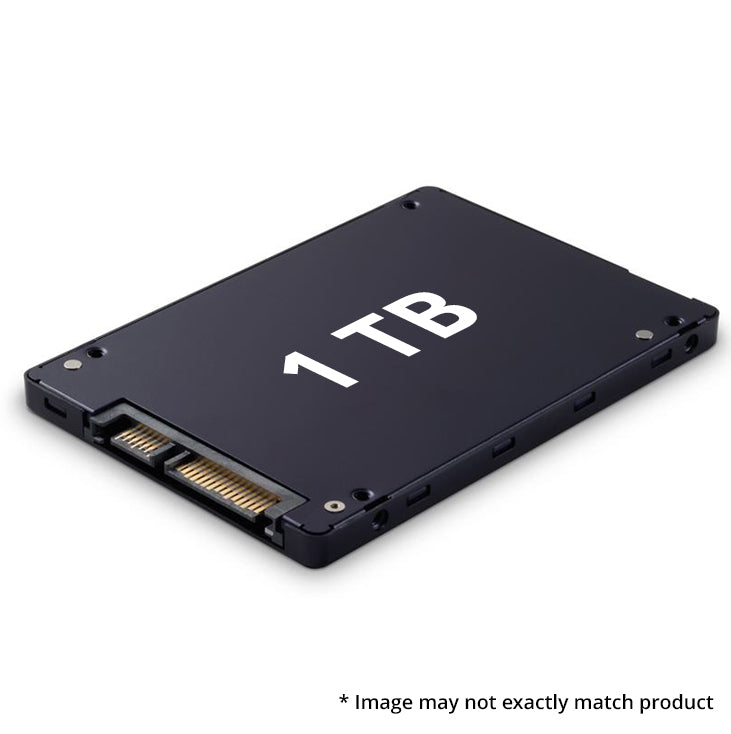
Free up SSD space safely
Freeing space is the simplest way to extend SSD storage without replacing it. It does not increase the drive’s physical capacity, but it gives you more usable room immediately.
Start with files you can identify and restore. Do not delete unfamiliar system folders just because they are large.
Use built-in cleanup tools
Windows includes Storage Sense, which can remove temporary files automatically. You can also use Disk Cleanup to remove items such as old update files and system cache data.
macOS provides storage recommendations that can help you:
• Store files in iCloud
• Remove watched Apple TV content
• Empty the Trash automatically
• Review large files
Linux users can clear package caches with tools that match their distribution. For example, Debian and Ubuntu systems commonly use:
sudo apt clean
Always confirm the command for your specific Linux distribution before running it.
Remove large files manually
Look for files that are no longer useful. Common examples include:
• Old installers
• Unused disk images
• Exported videos
• Duplicate photos
• Archived project files
• Previous game recordings
• Large email attachments
Move important files to a backup drive before deleting them. A file is not truly disposable if losing it would cause stress or financial harm.
Uninstall unused applications and games
Applications can leave behind settings and cache files, but uninstalling them still releases meaningful space. Games are often the largest targets. Modern PC and console games may require 50 GB, 100 GB, or more.
If a game platform supports a library location on another drive, move the game rather than uninstalling it. This is often faster and safer than downloading it again.
Avoid aggressive cleaning tools
Third-party cleaners can remove useful files or browser data. Some also promise large performance gains that do not appear in normal use.
A good rule is simple: use the operating system’s cleanup tools first. Review every category before deleting anything permanently.
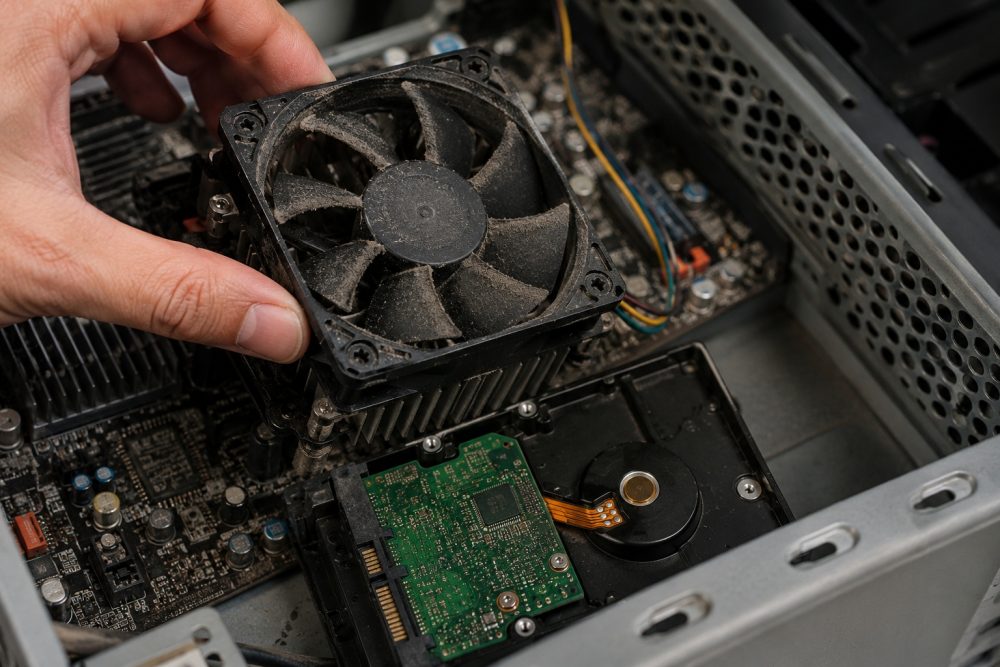
Expand an SSD partition into unallocated space
If your SSD contains unallocated space, you may be able to extend an existing partition. This is one of the most direct ways to extend SSD storage without replacing it.
Unallocated space is storage that is not assigned to a partition. It may appear after shrinking another partition, deleting a recovery partition, or setting up a drive incorrectly.
Extend a partition in Windows
Before changing partitions, create a current backup. Partition operations are usually safe, but a power failure, hardware fault, or user mistake can damage data.
Then follow these steps:
Press Windows + X and open Disk Management.
Locate the partition you want to enlarge.
Check whether unallocated space is directly next to it.
Right-click the partition and select Extend Volume.
Follow the wizard and choose how much space to add.
Windows Disk Management can extend a partition only when the unallocated space is suitable and positioned correctly. For example, if the free space is separated from the partition by another partition, the built-in tool may not work.
Do not delete a recovery or system partition simply to make the layout look cleaner. That partition may be needed for repair tools or factory recovery.
Extend a partition on macOS
Open Disk Utility, select View, and choose Show All Devices. Select the correct volume or container, then use the partition management controls to resize it.
Modern Macs often use APFS containers. APFS can manage multiple volumes within one container, and those volumes share available space. This means you may not need to resize each volume in the same way as a traditional partition.
Be especially careful with the startup disk. Keep a backup before resizing it, and do not interrupt the process.
Extend a partition in Linux
Linux users can use tools such as GNOME Disks or GParted. GParted can move and resize partitions, but moving a partition may take time and carries risk.
A typical safe process is:
Back up important data.
Boot from a live USB if the partition is currently in use.
Open GParted.
Confirm the correct disk and partition.
Resize or move the partition.
Apply the changes only after reviewing the operation.
Restart and verify the file system.
The key lesson is that partition space is like room in a house. Empty land next to the house is easy to use. Empty land across a wall may require moving the wall first.

Add a second internal SSD
Adding another internal drive is often the best long-term way to extend SSD storage without replacing it. It gives you more capacity while allowing the original SSD to continue running the operating system.
Desktop computers commonly support extra 2.5-inch SATA SSDs or M.2 NVMe SSDs. Many laptops have only one storage slot, but some business and gaming models include a second M.2 slot.
Before buying a drive, check:
• Whether your computer supports SATA, NVMe, or both
• The physical size, such as M.2 2280
• Whether the M.2 slot supports PCIe or SATA
• The maximum supported capacity
• Available mounting screws or brackets
• Whether installing the drive affects your warranty
• Whether your power supply has the required connector
A SATA SSD uses a data cable and power cable. An M.2 SSD connects directly to the motherboard. NVMe drives usually offer higher transfer speeds, but speed depends on the computer, workload, and drive model.
Set up the new internal SSD
After installation, initialize and format the drive through the operating system.
In Windows:
Open Disk Management.
Initialize the new disk if prompted.
Choose GPT for modern UEFI systems.
Create a new simple volume.
Format it with NTFS or another suitable file system.
Assign a drive letter.
On macOS, use Disk Utility to erase and format the drive. APFS is usually suitable for a Mac-only drive, while exFAT is useful when sharing files between Windows and macOS.
On Linux, format and mount the drive using a file system suited to your needs. Ext4 is common for Linux-only use, while exFAT supports broad compatibility.
A second internal SSD is ideal for:
• Game libraries
• Video editing projects
• Virtual machines
• Photo archives
• Development environments
• Large software packages
Keep the operating system on the faster or more reliable drive when possible. Store large personal files on the second drive.
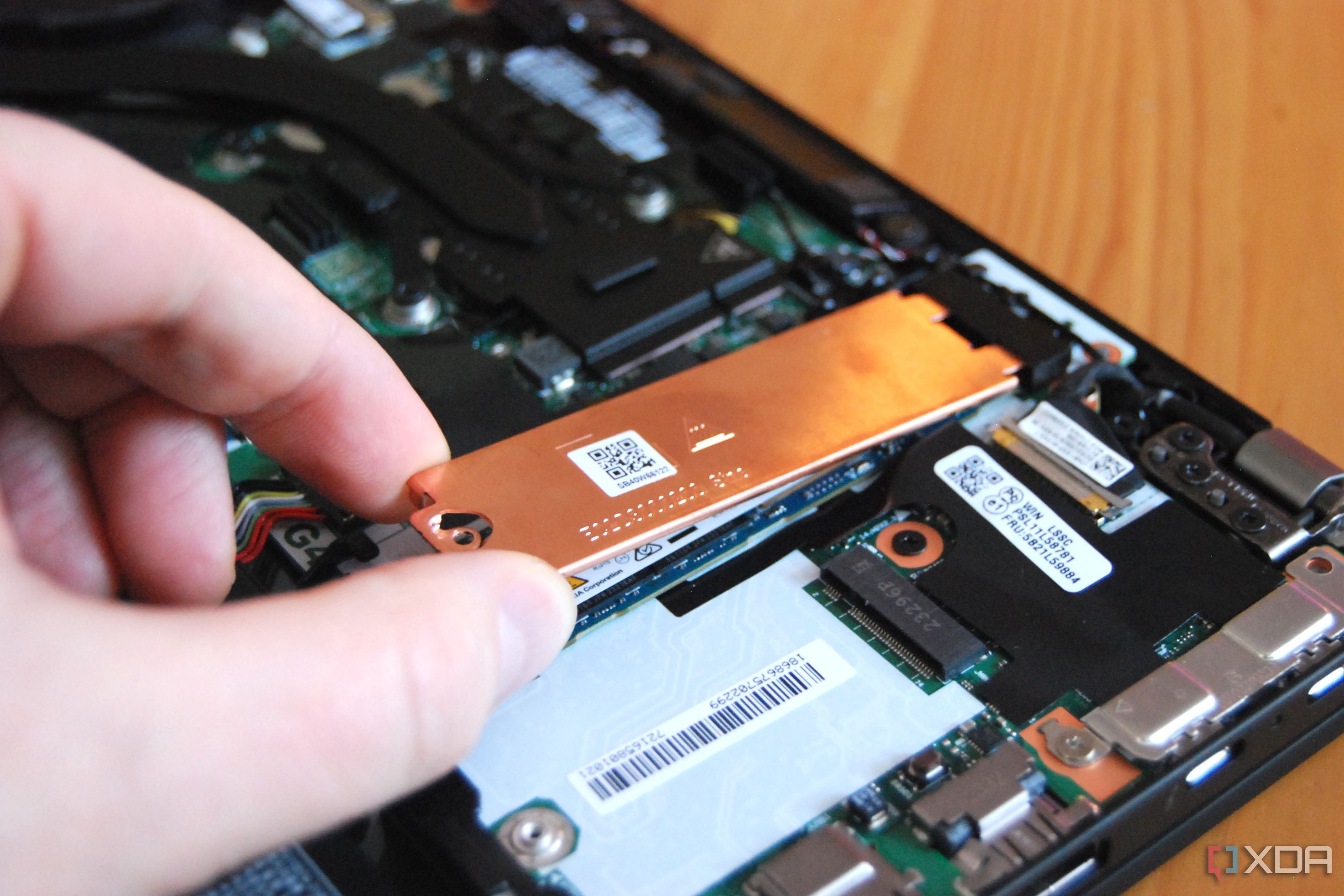
Use an external SSD for quick extra capacity
An external SSD is the easiest hardware solution for how to extend SSD storage without replacing it. You can connect it through USB, Thunderbolt, or another supported interface.
External SSDs work well for:
• Photos and videos
• Game libraries
• Music collections
• Work documents
• Backups
• Portable applications
• Project folders
USB 3.2, USB4, and Thunderbolt can offer strong performance, but the actual speed depends on the computer port, cable, enclosure, and SSD. A fast NVMe drive in a slow enclosure cannot reach its full potential.
Use the drive safely:
• Eject it before unplugging it
• Avoid placing it in hot or damp areas
• Use a short, certified cable when possible
• Do not treat one external drive as your only backup
• Keep sensitive files encrypted
For travel, an external SSD is often better than a hard disk drive because it has no moving parts and handles bumps more easily. It can still fail, though. SSDs are not immune to data loss.
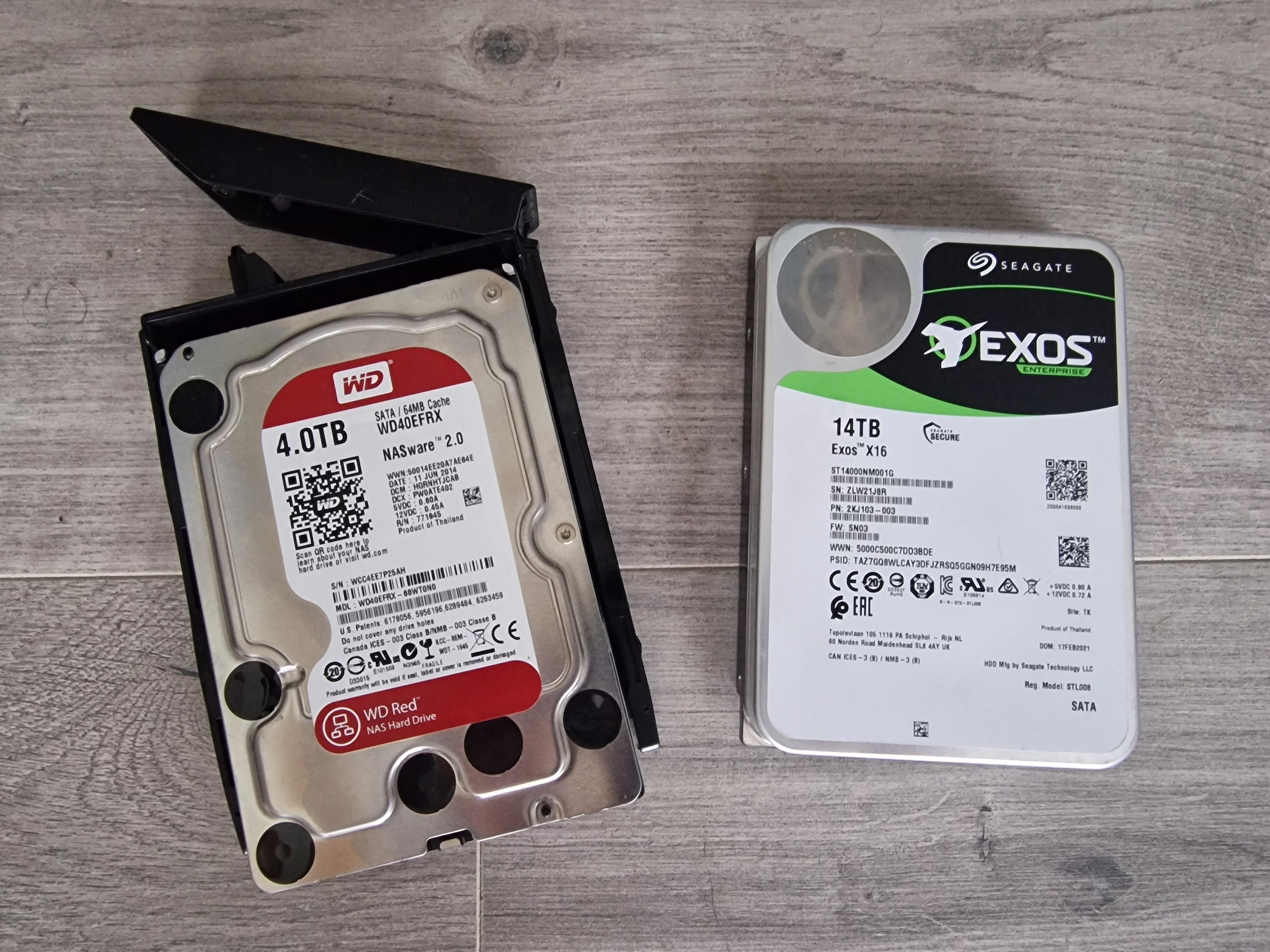
Move files, applications, and games to another drive
Moving data is a practical way to extend SSD storage without replacing it. The goal is to keep the system drive from becoming crowded.
Move these items first:
• Videos
• Photos
• Music
• Downloads
• Game libraries
• Design project folders
• Virtual machine files
• Local cloud synchronization folders
On Windows, you can move personal folders by right-clicking a folder such as Documents or Pictures, opening Properties, selecting Location, and choosing Move. Confirm the new destination carefully.
Some applications must stay on the system drive. Others let you select an installation location. Game launchers often include a built-in move feature.
Do not drag an installed program folder to another drive unless the application specifically supports it. The operating system may still look for files in the original location.
One approach I have used successfully is keeping the system drive for Windows, applications, and active work, while placing completed projects and large media libraries on a second SSD. This simple split makes storage easier to manage and backups easier to plan.
Use cloud storage and network storage
Cloud storage can extend available local space by storing files online and downloading them when needed. Services with “online-only” files can save local SSD capacity.
Cloud storage is useful for:
• Office documents
• Photos that are not needed every day
• Shared work files
• Archived projects
• Files needed on several devices
However, cloud storage is not the same as a backup. If a file is deleted or corrupted and synchronization copies that change, the cloud copy may not protect you.
Network-attached storage, or NAS, provides another option. A NAS sits on your home or office network and can store media, backups, and shared files. It may be slower than an internal SSD, but it can provide much more capacity.
Consider these limitations:
• Internet access may be required for cloud files
• Cloud plans may have monthly fees
• NAS devices need maintenance
• Network speed affects file access
• Privacy depends on the provider and your settings
Use encryption and strong account security for important data. Enable multifactor authentication when available.

Create a storage pool or span multiple drives
Advanced users can combine drives into a storage pool. Windows Storage Spaces, Linux Logical Volume Manager, and some NAS systems support this approach.
A storage pool can make several drives appear as one larger storage area. Depending on the configuration, it may also provide mirroring or parity.
Common layouts include:
• Simple or striped storage for capacity and speed
• Mirrored storage for protection against one drive failure
• Parity storage for capacity with some fault tolerance
Storage pooling has limits. It does not turn several drives into one faster SSD in every workload. A failed drive may affect the entire pool, depending on the layout.
Never assume a mirror is a backup. If you accidentally delete a file, the deletion may appear on every mirrored copy. Keep a separate backup that is not part of the storage pool.
Storage pools are best for users who understand drive health, recovery procedures, and backup design. For a typical home computer, a second SSD plus a separate backup may be simpler.
Improve SSD performance and usable life
When an SSD is nearly full, performance can decline. The controller needs free blocks to write new data and manage flash memory. Keeping some free space also helps background processes such as garbage collection and wear leveling.
A practical target is to keep at least 10% to 20% of the drive free, although the exact amount depends on the SSD, workload, and manufacturer. This is not a strict rule, but it provides useful breathing room.
To protect SSD health:
• Enable the operating system’s TRIM support
• Avoid filling the drive to 100%
• Install firmware updates from the manufacturer when appropriate
• Keep the drive within its rated temperature range
• Monitor health with trusted diagnostic software
• Avoid repeated full-drive benchmarks
Do not manually defragment a modern SSD as you would a traditional hard disk. Windows may perform an optimization task that includes TRIM, but this is different from classic disk defragmentation.
Storage expansion and drive health work together. More free space gives the SSD room to work, while backups protect you when hardware eventually fails.
Back up before changing storage
A backup is essential before resizing partitions, moving system folders, installing hardware, or creating a storage pool.
Use the 3-2-1 backup approach:
Keep three copies of important data.
Store the copies on at least two different types of media.
Keep one copy in another physical location or a protected cloud account.
Test your backups. A backup that cannot be restored is only a hope.
For a small upgrade, you may copy personal files to an external drive. For a system migration, create a full disk image or clone. If you clone a drive, confirm that the destination SSD is large enough and that the cloning software handles partition resizing correctly.
Do not begin a partition change while the laptop battery is low. Connect the charger, close other applications, and allow the process to finish without interruption.
Common mistakes to avoid
Many storage problems come from rushing. A few minutes of planning can prevent hours of recovery work.
Avoid these mistakes:
• Deleting recovery partitions without understanding them
• Formatting the wrong drive
• Using an unreliable USB cable during file transfers
• Moving application folders manually
• Treating cloud synchronization as a complete backup
• Buying an M.2 SSD without checking slot compatibility
• Installing a second drive without checking heat or clearance
• Filling the SSD completely after freeing space
• Using unknown partition software without a backup
• Ignoring signs of SSD failure
If the drive reports read errors, disappears from the system, or shows rapidly declining health, copy important data immediately. Storage expansion should not wait until the drive is already failing.
A practical plan for extending SSD storage
Use this plan to choose the safest option:
Check current storage usage.
Delete temporary files and uninstall unused apps.
Move media and large projects to another location.
Look for unallocated space beside the target partition.
Check whether your computer supports a second internal SSD.
Choose an external SSD if internal installation is not practical.
Use cloud or NAS storage for archives and shared files.
Back up important data before making system changes.
Keep free space on the main SSD.
Review storage use once a month.
If you need only 20 GB, cleanup may solve the problem. If you need hundreds of gigabytes, a second internal SSD or external SSD is usually more sensible. If several people need access to the same files, a NAS or cloud plan may be the better choice.
Frequently Asked Questions About How to Extend SSD Storage Without Replacing It
Can I increase the physical capacity of an SSD without replacing it?
No. An SSD has a fixed amount of flash memory, so software cannot physically add more storage chips. You can still increase usable space by cleaning the drive, adding another SSD, or moving files to external or cloud storage.
Can I extend an SSD partition without losing data?
Often, yes, if suitable unallocated space is available and the partition tool supports the operation. Back up your files first because power loss, software errors, or selecting the wrong partition can cause data loss.
Is an external SSD as good as an internal SSD?
An external SSD is convenient and usually fast enough for files, media, and backups. An internal SSD normally provides lower latency and more consistent performance, especially for operating systems, demanding games, and professional workloads.
Can I add a second SSD to any laptop?
No. Some laptops have one storage slot, while others support a second M.2 or 2.5-inch drive. Check the laptop’s service manual, motherboard layout, drive interface, and physical clearance before buying hardware.
Does keeping free space improve SSD performance?
Keeping free space can help an SSD manage writes, garbage collection, and wear leveling. A practical target is to leave about 10% to 20% free, although the ideal amount varies by drive model and workload.
Is cloud storage a replacement for a backup?
No. Cloud synchronization can copy deletions, corruption, or unwanted changes across devices. Use version history, a dedicated backup system, or another offline copy for important files.
Should I use NTFS, APFS, exFAT, or ext4?
Choose the file system based on the operating systems that must use the drive. NTFS is common for Windows, APFS suits modern Macs, ext4 is common on Linux, and exFAT offers broad Windows and macOS compatibility.
Conclusion
You can extend SSD storage without replacing it by cleaning unnecessary files, expanding a suitable partition, moving data, adding a second internal SSD, or using an external drive. Cloud storage, NAS systems, and storage pools can help with larger or shared collections, but each option has limits.
Start by checking what occupies your drive, then choose the smallest safe solution that meets your needs. Back up important data before changing partitions or installing hardware, and keep free space available for reliable SSD performance. Use these steps today, then explore more storage and backup guides to build a setup that stays fast, safe, and easy to manage.
