

An SSD drive not initialized error often comes from connection, partition, firmware, or disk structure problems.
When Windows shows an SSD as “Not Initialized,” the drive may be new, disconnected, corrupted, or failing. The safest fix depends on whether the SSD contains important files. This guide explains how to fix SSD drive not initialized error without rushing into a format that could erase your data.
What “Not Initialized” Means
Initialization is the process Windows uses to prepare a disk for partitions and a file system. It usually happens through Disk Management, where you choose a partition style such as GPT or MBR.
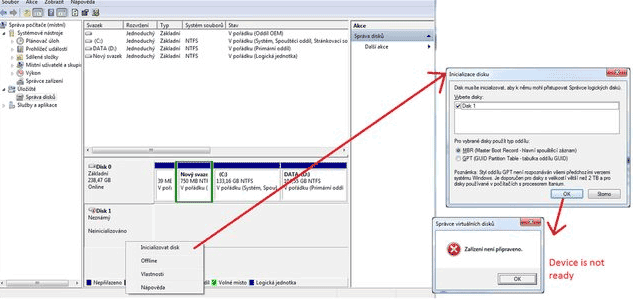
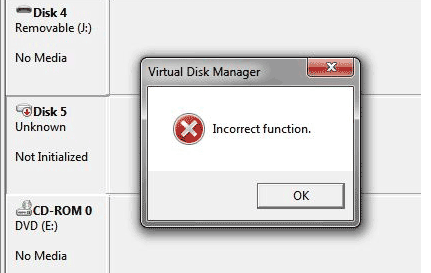
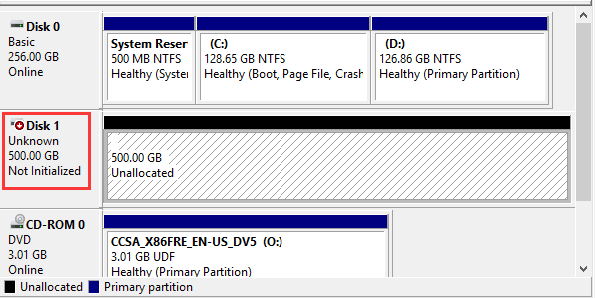
An uninitialized SSD may appear in Disk Management but fail to open in File Explorer. You may see messages such as:
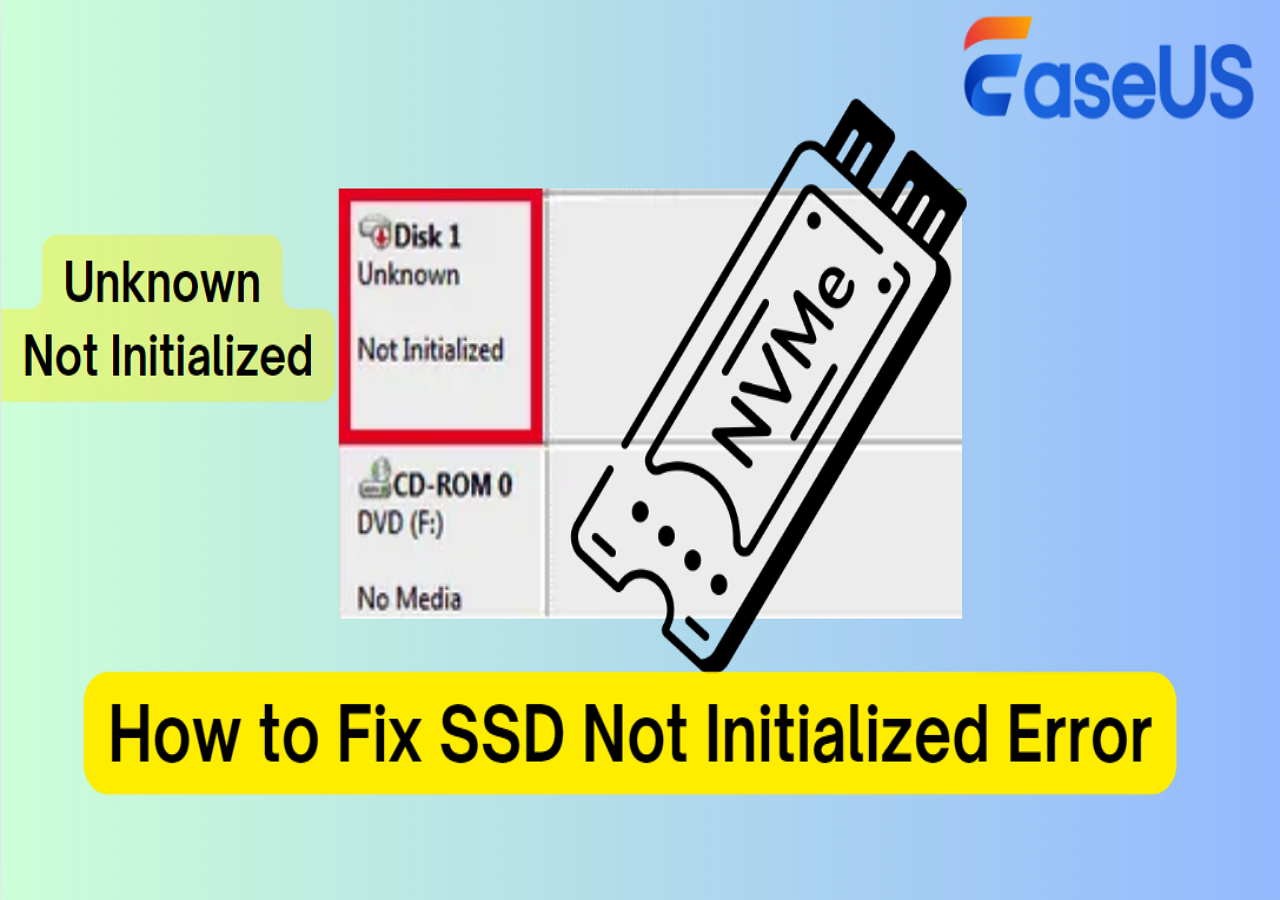
- “Disk Unknown, Not Initialized”
- “No Media”
- “The request could not be performed because of an I/O device error”
- “You must initialize a disk before Logical Disk Manager can access it”
This does not always mean the SSD is dead. A loose cable, missing driver, wrong BIOS setting, or damaged partition table can create the same message.
The most important rule is simple: do not initialize or format the drive if it contains files you need. Initialization can overwrite information that recovery software may need.

Why an SSD Drive Is Not Initialized
Several problems can trigger an SSD drive not initialized error. Finding the likely cause first helps you choose the right repair.
Loose or faulty connections
A SATA data cable, power cable, USB adapter, or enclosure may not provide a stable connection. The SSD can appear briefly and then vanish, much like a phone with a damaged charging cable.
For an internal SATA SSD, check both the data and power connections. For an M.2 SSD, make sure the drive sits fully in the slot and is secured with the correct screw.
A new SSD has no partition table
A brand-new SSD often has no partition table or volume. Windows may report it as not initialized because it has not yet been prepared for use.
This is normal for a new drive with no data. In that case, initialization is usually safe.
Damaged partition table
The partition table tells the operating system where partitions begin and end. If it becomes corrupted, Windows may see the physical SSD but not understand its layout.
Power loss, interrupted updates, malware, and failed disk tools can damage this structure. Do not initialize the drive before trying data recovery if the SSD held important files.
Unsupported or incorrect partition style
Modern computers normally use GPT. Older systems may use MBR. A system configured for legacy BIOS may have trouble booting from a GPT disk, while newer UEFI systems work best with GPT.
Choosing the wrong style does not usually damage the SSD, but it may prevent Windows from using or booting from it correctly.
SSD failure or wear
Flash memory has a limited write life, although modern SSDs often last for many years under normal use. A failing controller, damaged NAND cells, or firmware fault can make an SSD unreadable.
Warning signs include repeated disconnects, very slow performance, incorrect capacity, read-only behavior, and unusual SMART warnings.
Driver, firmware, or BIOS problems
A storage controller driver may be outdated or corrupted. Some SSDs also need firmware updates to resolve known stability issues.
A disabled SATA port, incorrect storage mode, or outdated motherboard firmware can also cause detection problems.

Protect Your Data Before Trying a Fix
Before learning how to fix SSD drive not initialized error, decide whether the drive contains valuable files. This choice changes the safest repair path.
If the SSD contains photos, work documents, financial records, or other irreplaceable data, stop using it as soon as possible. Do not format it, create a new volume, run repeated repair commands, or install recovery tools on the same drive.
Use these safer steps first:
- Disconnect the SSD if it repeatedly disappears.
- Test a different cable, port, computer, or enclosure.
- Check whether the drive appears with the correct capacity.
- Create a sector-by-sector image with a reputable recovery tool if the drive remains stable.
- Contact a professional recovery service if the SSD clicks, overheats, disappears, or reports zero capacity.
SSDs can be harder to recover than traditional hard drives. Their controllers and TRIM functions may remove deleted data quickly. Recovery is never guaranteed, so prevention and backups remain the best protection.
In my own troubleshooting work, the most costly mistake has been treating a data recovery case like a setup case. A new SSD can be initialized in minutes. A damaged drive with valuable files needs a slower and more careful approach.
Check Whether Windows Detects the SSD
Start with basic checks before changing disk settings. These steps are safe and often reveal whether the issue is hardware or software.
Check Disk Management
- Press Windows + X.
- Select Disk Management.
- Find the SSD in the lower disk list.
- Compare its size with the advertised capacity.
- Note whether it says Unknown, Not Initialized, Offline, Unallocated, or No Media.
If the drive shows the correct size and contains no important data, initialization may solve the problem. If it shows 0 bytes or No Media, initialization will probably not help.
Check Device Manager
- Press Windows + X.
- Open Device Manager.
- Expand Disk drives.
- Look for the SSD.
- Expand Storage controllers and check for warning icons.
Right-click the SSD and choose Properties to view its status. You can also select Uninstall device, restart Windows, and allow the operating system to reinstall the storage driver.
Check BIOS or UEFI
Restart the computer and enter BIOS or UEFI setup. The key is often Delete, F2, F10, or Esc, depending on the manufacturer.
If BIOS does not detect the SSD, Windows tools cannot repair the issue. Focus on the cable, slot, power, adapter, firmware, or the SSD itself.

How to Fix SSD Drive Not Initialized Error on a New SSD
If the SSD is new, appears with the correct capacity, and contains no files, use Disk Management.
- Open Disk Management.
- Right-click the disk label, such as Disk 1.
- Select Initialize Disk.
- Choose GPT for most modern Windows computers.
- Choose MBR only for older systems that require it.
- Right-click the unallocated area.
- Select New Simple Volume.
- Follow the wizard.
- Assign a drive letter.
- Format the volume with NTFS for normal Windows use.
Quick formatting creates the file system but does not scan every sector. For a new SSD from a trusted seller, this is usually fine. If the drive is used, unstable, or from an unknown source, test it before storing important data.
GPT is generally the better choice because it supports large drives, more partitions, and modern UEFI boot systems. MBR is limited and is mainly useful for older hardware compatibility.

How to Fix SSD Drive Not Initialized Error Without Losing Data
If the SSD contains important data, do not click Initialize, Format, or New Simple Volume. Those actions can replace the damaged partition information.
Try these lower-risk checks:
- Shut down the computer fully.
- Disconnect and reconnect the SSD.
- Replace the SATA or USB cable.
- Try another motherboard port.
- Test the SSD in another computer.
- Remove the USB enclosure and use a direct connection if possible.
- Check whether the correct capacity appears in BIOS and Disk Management.
- Create a full disk image before attempting repairs.
If the drive is detected with the correct size, professional recovery software may be able to scan for lost partitions or files. Install the software on another disk and save recovered files to a different disk.
Do not run clean in DiskPart on a drive with needed data. The command removes partition information and can make recovery more difficult. Also avoid repeated power cycles when the SSD is unstable.
If the SSD reports 0 bytes, shows No Media, becomes extremely hot, or disappears during scans, software repair is unlikely to help. A specialist may be the safest option.
Use DiskPart Carefully
DiskPart can fix an SSD drive not initialized error when the drive is healthy but Windows cannot create a usable partition. It can also erase the wrong disk in seconds, so confirm the disk number and capacity several times.
Use DiskPart only when the SSD is new or fully backed up.
- Open the Start menu.
- Search for Command Prompt.
- Select Run as administrator.
- Type
diskpartand press Enter. - Type
list diskand press Enter. - Identify the SSD by its size.
- Type
select disk X, replacing X with the correct number. - Type
attributes diskto check for read-only status. - Type
online diskif Windows lists it as offline. - Type
cleanonly if you are certain the disk has no needed data. - Type
convert gpt. - Type
create partition primary. - Type
format fs=ntfs quick. - Type
assign. - Type
exit.
The clean command removes the partition table. It does not repair failing hardware, bad cables, or a damaged SSD controller.
If DiskPart returns an I/O error, access denied message, or device reset error, stop repeating the command. The problem may be physical or firmware-related.
Check for Read-Only Status
An SSD can appear uninitialized when it has entered a read-only state. This may happen because of a firmware fault, exhausted spare blocks, file system damage, or a physical problem.
You can check the status in DiskPart:
- Open Command Prompt as administrator.
- Run
diskpart. - Run
list disk. - Run
select disk X. - Run
attributes disk.
If the disk is marked read-only, you can try:
attributes disk clear readonly
This command is safe to test, but it will not fix a hardware failure. If the status returns after a restart, copy your data immediately if the drive is still readable and replace the SSD.
Some SSDs lock themselves to protect existing data when their internal health declines. That behavior is a warning, not a normal operating condition.
Update Drivers, SSD Firmware, and BIOS
Outdated software can contribute to an SSD drive not initialized error, especially after a motherboard upgrade or Windows installation.
Use Windows Update first. Then check your computer or motherboard manufacturer’s support page for:
- Chipset drivers
- SATA or storage controller drivers
- NVMe drivers
- BIOS or UEFI updates
- SSD firmware updates
Use the SSD manufacturer’s own utility for firmware updates when possible. Keep the computer connected to reliable power, and back up the drive before updating firmware.
Do not install random storage drivers from unofficial websites. A wrong driver can cause boot failures or make the drive disappear.
Firmware updates can improve compatibility, but they are not a cure for every failure. If the SSD is unstable, image or recover the data before attempting an update.
Fix External SSD and USB Adapter Problems
External SSDs add another possible failure point: the enclosure or USB-to-SATA bridge.
Try the following:
- Connect the SSD directly to a rear motherboard USB port.
- Avoid unpowered USB hubs.
- Use a shorter or different USB cable.
- Test a USB 3 port and a USB 2 port.
- Try another enclosure.
- Check whether the enclosure supports the SSD type.
- Test the SSD internally if your computer supports it.
Some adapters cannot properly pass SMART data or support certain NVMe drives. An SSD may work in one enclosure and appear uninitialized in another.
If the drive works when connected directly, replace the enclosure or adapter rather than reformatting the SSD.
Repair File System Problems After the SSD Is Accessible
If the SSD has a valid partition but Windows cannot open it, the issue may be the file system rather than initialization.
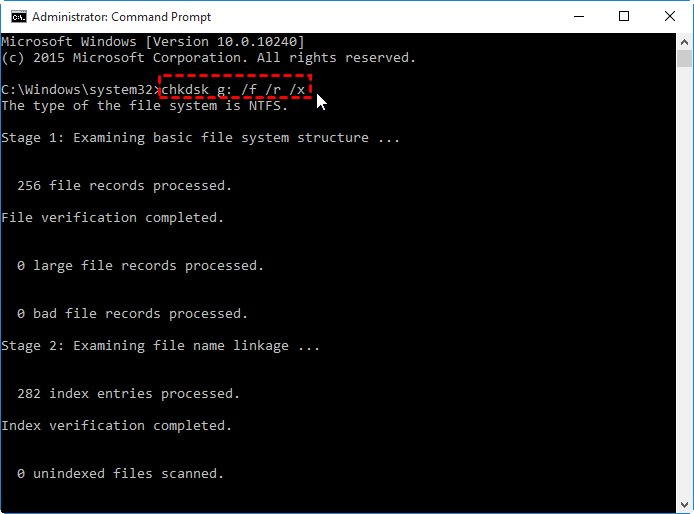
First, assign a drive letter in Disk Management. If the volume appears as RAW, do not format it when files matter. RAW means Windows cannot identify the file system, but the files may still be recoverable.
For a healthy, backed-up volume, you can run:
chkdsk X: /f
Replace X with the correct drive letter. The /f option repairs logical file system errors.
Do not use CHKDSK as a first step on a failing SSD. It can change file system structures and may reduce recovery options. If the drive is making errors or disconnecting, create an image or seek professional help first.
Signs the SSD May Need Replacement
Some symptoms strongly suggest that the SSD itself is failing:
- The SSD reports 0 bytes or No Media.
- BIOS cannot detect it.
- The drive repeatedly disconnects.
- The capacity changes between tests.
- Windows reports constant I/O errors.
- The SSD becomes unusually hot.
- SMART health tools show critical warnings.
- The drive becomes permanently read-only.
- The SSD fails on several known-good computers and cables.
If two computers and multiple cables show the same behavior, the SSD is likely the problem. Replace it after recovering what you can.
Use a new SSD from a reliable retailer. After installation, update its firmware, enable regular backups, and monitor its health occasionally.
How to Prevent the Error in the Future
Prevention is easier than learning how to fix SSD drive not initialized error after a failure.
Follow these habits:
- Keep at least two copies of important files.
- Use cloud storage or an external backup drive.
- Shut down the computer normally.
- Avoid unplugging external SSDs while they are active.
- Keep firmware and chipset drivers current.
- Leave some free space on the SSD.
- Monitor drive health with a trusted tool.
- Replace cables that feel loose or damaged.
- Use a surge protector for desktop systems.
- Test backups instead of assuming they work.
A backup should be separate from the computer. If ransomware, theft, power damage, or hardware failure affects the computer, a second copy protects your files.
Frequently Asked Questions About How to Fix SSD Drive Not Initialized Error
Can I initialize an SSD without losing data?
Initializing an SSD can overwrite partition information and make data recovery harder. If the drive contains important files, try recovery or professional data services before initializing it.
Should I choose GPT or MBR for my SSD?
Choose GPT for most modern Windows computers using UEFI. Choose MBR only when older hardware or an older operating system requires it.
Why does my SSD show 0 bytes?
A 0-byte or No Media result often points to an enclosure, controller, firmware, or hardware failure. Try another connection, but do not format the drive or repeatedly run repair commands.
Will formatting fix an uninitialized SSD?
Formatting can prepare a healthy, empty SSD, but it will not repair a failed controller, bad cable, or damaged hardware. Formatting also erases access to existing files.
Can DiskPart fix an SSD drive not initialized error?
DiskPart can prepare a healthy SSD by creating a partition table and volume. It can also erase the wrong disk, so never use clean unless the drive is backed up or completely empty.
Why is my SSD detected in BIOS but not Windows?
Windows may have a driver, partition, storage mode, or Disk Management issue. Check Device Manager, install current chipset drivers, and verify whether the SSD appears with its correct capacity.
How do I know if my SSD is dead?
An SSD that is missing from BIOS, reports 0 bytes, fails on several systems, or produces repeated I/O errors may have a hardware failure. Professional testing can confirm the diagnosis and may offer the best chance of data recovery.
Conclusion
An SSD drive not initialized error can come from a simple cable problem, an empty new disk, a damaged partition table, or serious hardware failure. Check the connection and BIOS first, then inspect Disk Management and Device Manager. If the SSD contains important files, avoid initialization, formatting, and destructive DiskPart commands until recovery options are considered.
For a new and empty SSD, GPT initialization followed by a new NTFS volume is usually the correct fix. For an unstable or valuable drive, slow down, protect the data, and get expert help when needed. Use reliable backups so the next storage problem is an inconvenience rather than a crisis, and share your experience or questions in the comments.
