How To Connect JVC Bluetooth Earbuds: Easy Pairing Guide
To connect JVC Bluetooth earbuds, turn on Bluetooth, place the earbuds in pairing mode, and select them on your device.
Learning how to connect JVC Bluetooth earbuds is usually quick, but small model differences can cause confusion. This guide explains the full process for phones, tablets, computers, and TVs, plus simple fixes for pairing errors, one earbud working, connection drops, and repeated failures.
Before You Connect JVC Bluetooth Earbuds
Before you connect JVC Bluetooth earbuds, prepare both the earbuds and the device. A few seconds of setup can prevent most pairing problems.
Check these points first:
• Charge the earbuds and charging case. Low power can stop pairing.


• Keep the earbuds within 3 feet of your phone or other device.
• Turn off Bluetooth on devices that have used the earbuds before. Your earbuds may try to reconnect to an old device.
• Remove any protective film from new charging contacts.
• Confirm that your JVC earbuds are not already connected to another phone, tablet, or computer.
Bluetooth pairing works like introducing two people in a crowded room. The earbuds need to announce themselves, while your device needs to search for that announcement. If either side is busy or out of range, the connection may not appear.
Most JVC wireless earbuds use Bluetooth Classic for setup and audio. Some newer models may also work with a JVC companion app, but the basic Bluetooth process remains similar.

How to Connect JVC Bluetooth Earbuds to an iPhone or Android Phone
The steps for iPhone and Android are nearly the same. The main difference is the location of the Bluetooth menu.
Step 1: Remove the earbuds from the case
Place both earbuds in the charging case first. Then open the lid and remove them together.
Many JVC earbuds enter pairing mode automatically the first time you use them. Their indicator lights may flash blue, white, or blue and red, depending on the model.
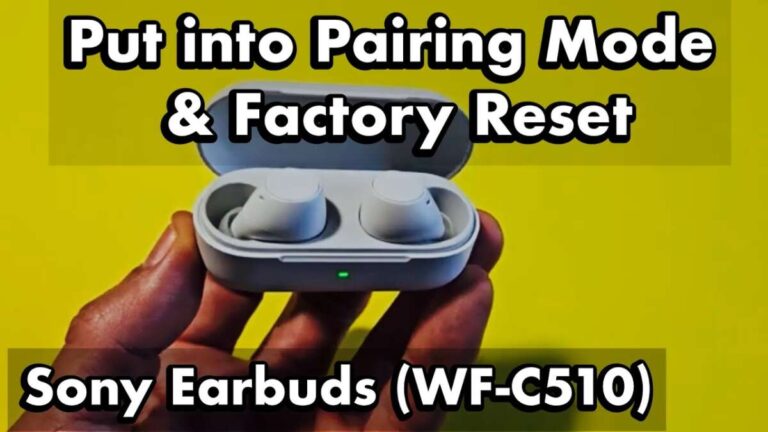
If the earbuds do not enter pairing mode, place them back in the case. Leave the lid open, then press and hold the button or touch panel on each earbud. Hold it for about 3 to 5 seconds.
Your JVC user manual will show the exact light pattern for your model. Some models use a case button instead of controls on the earbuds.


Step 2: Open Bluetooth settings
On an iPhone:
- Open Settings.
- Tap Bluetooth.
- Turn Bluetooth on.
- Stay on this screen while your phone searches.
On an Android phone:
- Open Settings.
- Tap Connected devices, Connections, or Bluetooth.
- Turn Bluetooth on.
- Tap Pair new device if your phone does not search automatically.
Android menu names can vary by brand. Samsung, Google Pixel, Motorola, and OnePlus phones may use slightly different labels.
Step 3: Select your JVC earbuds
Look under Available Devices or Other Devices. Find the name of your JVC earbuds, such as JVC HA-A series, JVC Gumy, or another model number.
Tap the name once. Wait for the status to change to Connected or Paired.
If your phone asks for a PIN, try 0000 or 1234. Most modern JVC earbuds do not require a PIN, so this step is uncommon.
Step 4: Test the connection
Play a song or short video. Check that sound comes through both earbuds.
You can also test the microphone with a short voice recording or phone call. If music works but calls do not, check the Bluetooth settings for call audio and microphone access.
A common mistake is tapping the wrong device name. Nearby headphones, cars, smart TVs, and speakers may also appear in the list. Match the name with the label on the JVC case or packaging.
How to Put JVC Bluetooth Earbuds in Pairing Mode
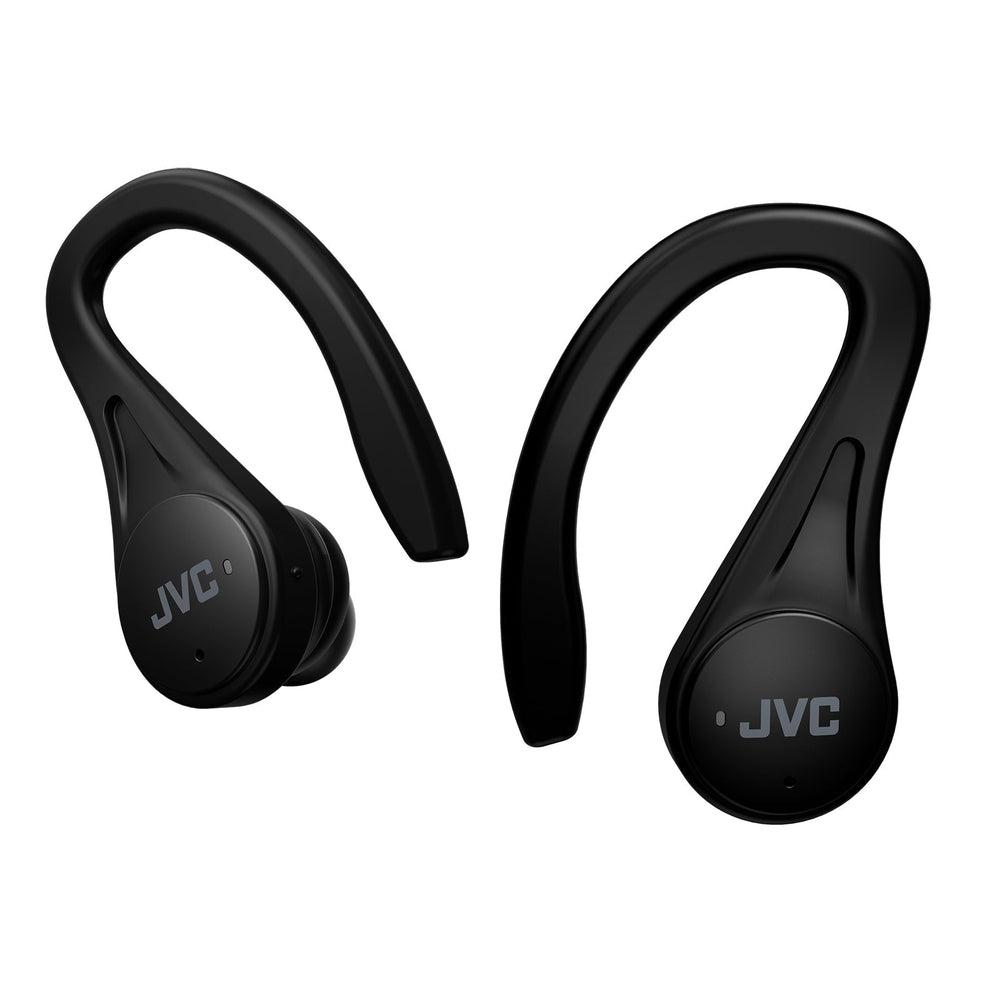
Pairing mode allows a phone or computer to find the earbuds. Without it, the earbuds may turn on but remain invisible.
Try these methods in order:
- Place both earbuds in the charging case.
- Open the lid.
- Remove both earbuds at the same time.
- Wait for the indicator lights to flash.
- If they do not flash, press and hold the earbud buttons or touch controls.
- Search for the earbuds in your device’s Bluetooth menu.
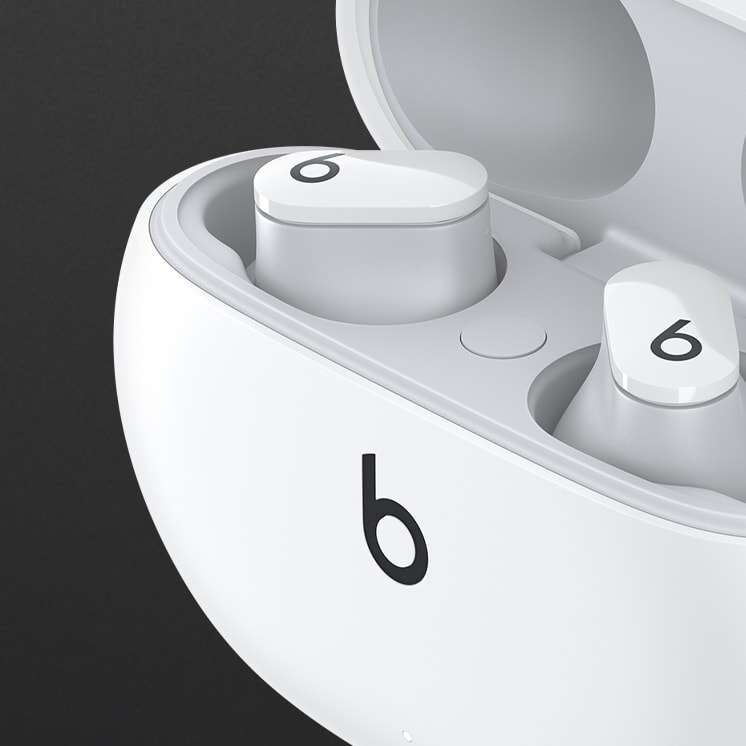
On some JVC models, you must press and hold the case button. On others, you must touch both earbuds for several seconds. The exact method depends on the model.
Look for a flashing light. A steady light often means the earbuds are already connected. A flashing light usually means they are ready to pair, although light patterns vary.
If only one earbud flashes, the earbuds may have lost their link to each other. Resetting them usually restores the left and right connection.


Avoid pressing the touch controls too briefly. A quick tap may pause music, while a longer press may activate pairing mode or power the earbud off.

How to Connect JVC Bluetooth Earbuds to a Windows PC
You can connect JVC Bluetooth earbuds to a Windows 10 or Windows 11 computer for music, video, calls, and meetings.
Windows 11 steps
- Put the JVC earbuds into pairing mode.
- Open Settings.
- Select Bluetooth & devices.
- Turn Bluetooth on.
- Click Add device.
- Choose Bluetooth.
- Select your JVC earbuds.
- Click Done after Windows confirms the connection.
Windows 10 steps
- Put the earbuds into pairing mode.
- Open Settings.
- Select Devices.
- Choose Bluetooth & other devices.
- Turn Bluetooth on.
- Click Add Bluetooth or other device.
- Select Bluetooth.
- Choose your JVC earbuds.
After pairing, click the speaker icon in the Windows taskbar. Select the JVC earbuds as the sound output device.
For meetings, also open the audio settings in Zoom, Microsoft Teams, Google Meet, or another app. Select the JVC earbuds as both the speaker and microphone when needed.
Windows may show two audio options. One may say Stereo, while another may say Hands-Free. Stereo usually gives better music quality. Hands-Free mode may be needed for calls because it activates the microphone.

How to Connect JVC Bluetooth Earbuds to a Mac
Connecting JVC Bluetooth earbuds to a Mac takes only a few steps.
- Put the earbuds in pairing mode.
- Click the Apple menu.
- Open System Settings.
- Select Bluetooth.
- Find the JVC earbuds under Nearby Devices.
- Click Connect.
On older macOS versions, open System Preferences and select Bluetooth instead.
Once connected, click Control Center in the menu bar. Select Sound, then choose the JVC earbuds for audio output.
If you need the earbuds for a video call, open the call app’s audio settings. Select the JVC earbuds as the microphone and speaker.
Mac computers sometimes reconnect to a previously used headset. If the sound comes from the built-in speakers, manually choose the JVC earbuds from the Sound menu.

How to Connect JVC Bluetooth Earbuds to a Smart TV
Many smart TVs support Bluetooth audio, but some older models do not. Check your TV settings or user manual before starting.
A typical setup looks like this:
- Put the JVC earbuds into pairing mode.
- Open the TV’s Settings menu.
- Select Sound or Audio.
- Choose Sound Output.
- Select Bluetooth Speaker, Bluetooth Audio, or Wireless Speaker List.
- Choose the JVC earbuds.
- Confirm the connection.


On some TVs, Bluetooth pairing is under Remotes & Accessories or Connected Devices.
Keep the earbuds close to the TV during setup. A television cabinet, wall, or other wireless devices may weaken the first connection.
Bluetooth TV audio can have a small delay. This delay may be noticeable when people speak on screen. Some TVs include an audio delay setting that can help, but results depend on both the TV and earbuds.
If your TV cannot send Bluetooth audio, use a Bluetooth transmitter connected to the TV’s optical, headphone, or audio output. Make sure the transmitter supports the same audio connection needed by your television.
How to Reconnect JVC Bluetooth Earbuds After the First Setup
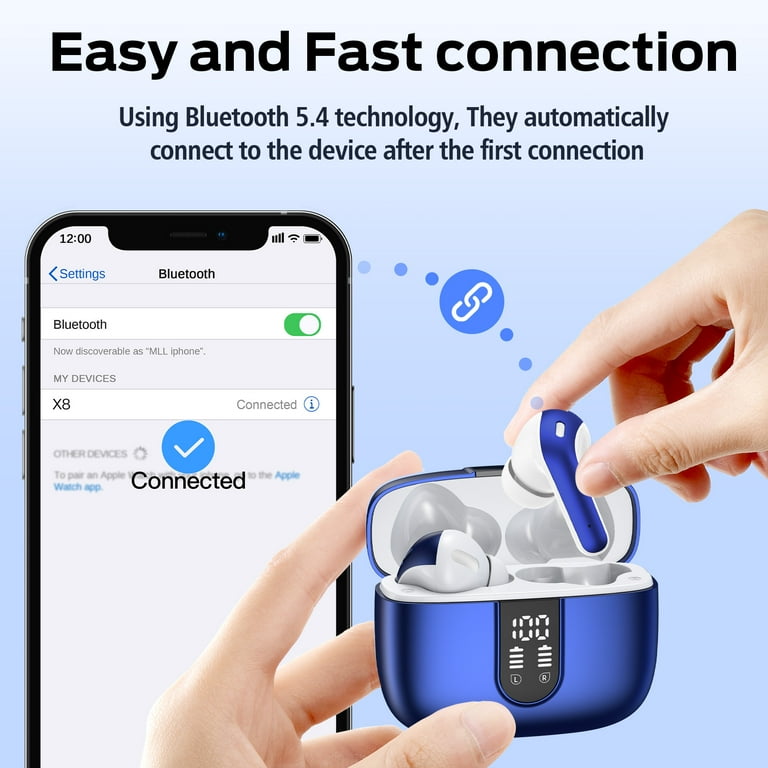
After the first successful pairing, JVC Bluetooth earbuds should reconnect automatically when you remove them from the case.
For automatic reconnection to work:
• Bluetooth must be turned on.
• The phone or computer must be nearby.
• The earbuds must have enough battery power.
• The same device should not be connected to another audio product.
• The earbuds should not be connected to a different device.
If they do not reconnect, open the Bluetooth menu and tap the JVC earbuds manually.
Many earbuds remember several devices but connect to only one device at a time. For example, they may remember your phone and laptop but connect to the laptop first if it is nearby.
Turn off Bluetooth on the device you do not want to use. Then open Bluetooth on the device you want and select the earbuds.
A useful habit is to return both earbuds to the case after use. This powers them down, charges them, and helps prevent unwanted connections.

How to Fix JVC Bluetooth Earbuds That Will Not Connect
When JVC Bluetooth earbuds will not connect, use the simplest fixes first. Most problems come from pairing mode, battery level, or an old saved connection.


Check the battery
Put both earbuds into the case. Confirm that the case shows a charging light or battery indicator.
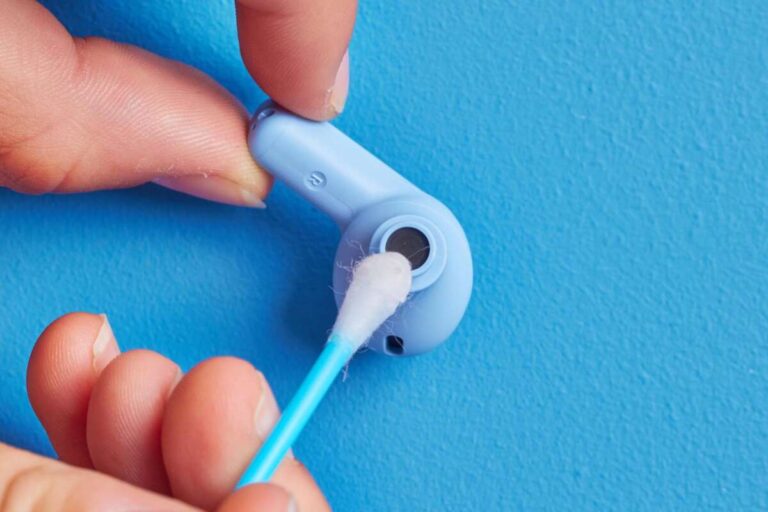
Clean the metal charging contacts with a dry cotton swab. Do not add water or cleaning spray. Dirt on the contacts can prevent one earbud from charging or turning on.
Move away from other Bluetooth devices
Turn off Bluetooth on nearby phones, tablets, laptops, cars, and speakers. Another device may capture the earbuds before your main device finds them.
Also move away from crowded wireless areas when possible. Wi-Fi routers, game systems, and many active Bluetooth devices can create interference.
Forget the old connection
On your phone or computer, open Bluetooth settings. Tap or click the JVC earbuds, then choose Forget This Device, Remove Device, or Unpair.
Restart Bluetooth and search again. This creates a fresh connection instead of relying on a damaged pairing record.
Restart both devices
Turn the phone or computer off and on. Then place the earbuds in the case for at least 10 seconds before trying again.
This simple step clears temporary software errors. It is easy to overlook, but it solves many everyday Bluetooth problems.
Reset the earbuds
A factory reset removes stored pairing information. The reset method varies by model, but it often involves placing both earbuds in the case and holding the case button or both earbud controls for several seconds.
Check the JVC manual for the correct reset sequence. Do not guess if your model has a different button layout.
How to Reset JVC Bluetooth Earbuds
Resetting JVC Bluetooth earbuds is useful when they refuse to pair, connect to only one device, or play sound through only one side.
Before resetting, forget the earbuds from every phone, tablet, and computer that has used them. This prevents an old device from reconnecting during the reset.
A general reset process may look like this:
- Place both earbuds in the charging case.
- Keep the case lid open.
- Press and hold the case button or earbud touch controls.
- Wait for the indicator lights to flash in a new pattern.
- Close the case.
- Open it again.
- Remove both earbuds.
- Pair them with your device as if they were new.
Some JVC models require separate steps for the left and right earbuds. Others reset when you hold both touch panels at the same time.


Because reset instructions are model-specific, use the guide for your exact model number. The model number is usually printed on the charging case, box, or manual.
Resetting erases the saved Bluetooth list. It does not normally repair physical damage, blocked speakers, or a worn-out battery.
How to Fix One JVC Earbud Not Working
If only one JVC earbud works, the earbuds may have lost their internal left-right connection. The phone may also be connected to only one side.
Try these steps:
• Place both earbuds in the charging case.
• Make sure both earbuds are charging.
• Forget the JVC earbuds from your phone.
• Reset the earbuds using the model’s official instructions.
• Remove both earbuds together.
• Pair them again as one device.
Do not pair the left and right earbuds separately unless the manual tells you to. In normal use, your phone should see one JVC earbud name, not two separate names.
Check the balance control on your device as well. On an iPhone, open Accessibility and Audio & Visual, then make sure the balance slider is centered. Android and computer sound settings may include a similar left-right balance option.
Also inspect the speaker mesh. Earwax and dust can reduce sound from one side. Clean the mesh gently with a dry, soft brush. Never push debris deeper into the earbud.
How to Improve JVC Bluetooth Earbud Connection Quality
A stable Bluetooth connection depends on distance, obstacles, software, and battery power.
Use these practical tips:
• Keep your phone on the same side of your body as the main earbud connection.
• Avoid placing your phone inside a bag surrounded by metal objects.
• Keep the earbuds and phone within about 30 feet in open space, although walls reduce this range.
• Keep the earbud firmware and phone software updated when updates are available.
• Avoid using damaged or poorly fitting ear tips that cause frequent movement.
• Keep the charging contacts clean.
Bluetooth uses radio signals. Your body can block some of those signals because the human body contains a large amount of water. This is why a phone in your back pocket may cause more dropouts than a phone in your hand.
Microwave ovens, busy Wi-Fi areas, and crowded public spaces can also affect wireless performance. These issues are often temporary and do not mean the earbuds are defective.
If music cuts out only in one location, test the earbuds somewhere else. This quick test helps separate an earbud fault from local wireless interference.
Common Mistakes to Avoid When Pairing JVC Earbuds
A few habits make how to connect JVC Bluetooth earbuds harder than it needs to be.
Pairing before entering pairing mode
Turning on Bluetooth is not enough. The earbuds must also be discoverable.
Searching for the wrong name
The earbuds may appear under a model number rather than the word “JVC.” Check the case or product label for the correct name.
Leaving an old device connected
Your earbuds may connect to a laptop in another room before your phone sees them. Turn off Bluetooth on unused devices during setup.
Pairing one earbud at a time
This can create separate left and right connections. Reset the earbuds and pair them as one unit.
Ignoring the charging case
The case is more than storage. It often controls power, reset functions, and pairing mode.
Using a wet cleaning method
Water, alcohol, and sprays can damage charging contacts or speaker parts. Use a dry, soft tool unless the manual gives different cleaning instructions.
Skipping the user manual
JVC has many earbud families, and button commands are not identical. The exact model guide is the most reliable source for unusual controls.
What the JVC Earbud Indicator Lights Mean
Indicator lights help show what the earbuds are doing, but colors differ by model.
Common patterns include:
• Flashing light: The earbuds may be searching for a device or waiting to pair.
• Steady light: The earbuds may be charging or already connected.
• No light: The earbuds may be powered off or have an empty battery.
• Alternating colors: The earbuds may be entering pairing or reset mode.
Do not rely on color alone. Count how the light flashes and check whether the earbuds appear in your Bluetooth menu.
Some JVC models use voice prompts instead of visible lights. A prompt such as “pairing” or “connected” gives a clearer status.
If the manual lists a different light pattern, follow the manual. The same color can mean different things on different JVC product lines.
Frequently Asked Questions About How to Connect JVC Bluetooth Earbuds
Why are my JVC Bluetooth earbuds not showing up?
Make sure the earbuds are in pairing mode and close to your phone. If they still do not appear, turn off Bluetooth on nearby devices, charge the earbuds, and reset them before searching again.
How do I connect JVC Bluetooth earbuds to a new phone?
Forget the earbuds from the old phone or turn off its Bluetooth. Then place the JVC earbuds in pairing mode, open Bluetooth on the new phone, and select the JVC model name.
Can I connect JVC Bluetooth earbuds to two devices at once?
Some JVC models support multipoint connections, but many connect to only one device at a time. Check your exact model specifications to confirm whether multipoint Bluetooth is available.
Why does only one JVC earbud connect?
The earbuds may have lost their left-right link, or one side may not be charging. Charge both earbuds, forget the old Bluetooth connection, reset the pair, and connect them again as one device.
How do I reset JVC Bluetooth earbuds?
The reset process depends on the model. It commonly involves placing both earbuds in the case and holding the case button or both earbud controls, but you should follow the instructions for your exact JVC model.
Do JVC earbuds work with iPhones and Android phones?
Yes, most JVC Bluetooth earbuds work with both iPhone and Android devices. Basic audio pairing uses the phone’s Bluetooth settings, although some features may vary by model and operating system.
Why do my JVC earbuds connect but have no sound?
Check the selected audio output on your phone, computer, or TV. Also raise the volume, confirm that media audio is enabled, and disconnect other Bluetooth speakers or headphones.
Conclusion
Connecting JVC Bluetooth earbuds usually takes three steps: charge the earbuds, place them in pairing mode, and select them from your device’s Bluetooth menu. If the connection fails, forget the old pairing, restart both devices, and reset the earbuds when needed.
The most important lesson is to use the instructions for your exact JVC model. Button controls, indicator lights, multipoint support, and reset steps can vary. Try the setup now, and share your model number or troubleshooting result in the comments for more help.